Category: Artificial Intelligence

  • Ten Suggestions on Teaching With/About Generative Artificial Intelligence (AI) in the Writing Classroom

    Anthropomorphic cat wearing suit and tie, and standing in front of a chalkboard. Image created with Stable Diffusion.
    Anthropomorphic cat wearing suit and tie, and standing in front of a chalkboard. Image created with Stable Diffusion.

    I’ve been spending a lot of time studying and using generative AI technologies and thinking about their pedagogical implications, and over the summer, I invested more energy into taking intensive online classes relating to generative AI on LinkedIn Learning, which I wrote about here and here. The suggestions below are a distillation of some of the important ideas that I have learned and plan to implement after my sabbatical this year concludes. Readings associated with these points can be found on my extensive generative AI pedagogy bibliography. Maybe you will find some of these helpful to your thinking for your own classes as we make our way into the science fictional future together!

    1. Build ethical and legal issues of generative AI into every discussion and assignment. Of course, a separate module or a whole course can be focused on these topics, but students need to see how ethical and legal issues are tightly woven into how these technologies are developed, the challenges that they present, and how to be prepared to avoid, mitigate, or resolve those challenges. By weaving ethical and legal issues into the quotidian, it helps students think critically about these issues throughout the learning process and it avoids the conclusion that ethics and legal concerns are just an afterthought.
    2. Show students how bias in generative AI is real. Since generative AI is trained on datasets of work created by people, the AI systems will reflect the biases inherent in the content of the dataset and the ways different people might be represented in the dataset (e.g., more books by white male authors and fewer by writers of color or women writers). Bias is unfortunately baked in. Help students explore how these biases reveal themselves insidiously, might be discovered through prompting, and how to mitigate them (if possible) in the way they use generative AI as a part of their workflow.
    3. Help students become responsible generative AI users. Students need to be taught how to document, cite, and acknowledge the use of AI in their work at school and later in the workplace. This can refute earlier use of ChatGPT and similar sites that fueled what some might consider plagiarism or cheating. Helping students see how it’s okay to use these tools when allowed and properly documented helps them see how they are a tool to support their work rather than a way to avoid working.
    4. Reveal how generative AI technologies are designed, developed, and operated. By learning how generative AI is built and deployed, students get to see how the sausage is made. They will learn that generative AI isn’t magical or all knowing or perfect. Instead, they will realize that years of research and development in mathematics and computer science led to the current state of the art with these technologies, which is still lacking. They will discover the limitations of what these technologies offer (e.g., text generating AI primarily performs sentence completion and has no understanding of what it is doing, or its training data has gaps, deficiencies, biases, etc. that directly affect the text generated). This can be paired with lessons on how large language models are trained, how they are a black box in terms of how they work, and initiatives to build explainable artificial intelligence (XAI).
    5. Approach generative AI as another layer for students’ digital literacy development. Considering AI’s biases, falsehoods, so-called hallucinations, and off-topic responses, pairing generative AI with instruction on vetting information, using research tools (online and off), and applying one’s own skepticism will combat the notion of AI’s trustworthiness, expertise, and authoritativeness. Also, it gives students another source for comparing, contrasting, and verifying when checking facts and establishing reliability of various sources of information.
    6. Introduce generative AI as a new tool for students to add to writing and creative workflows. Some students might like to think that generative AI is a one-stop shop, but we can reveal to them how it can support different elements within a larger creative framework that depends on their cognition, imagination, and effort to produce deliverables. It can aid with ideation, brainstorming, planning, and outlining, as well as handling less important writing tasks, such as replying to an email or DM. An important corollary to this is the fact that prompt engineering is a skill unto itself that students have to learn and develop. In some cases, figuring out the best prompt might require more time, energy, and collaboration with others to accomplish than had the students done the writing output themselves.
    7. Refocus on editing, revision, and the writing process to incorporate generative AI text into student work. One way to accomplish this is teaching students higher level editing and revision tasks using AI generated text as the material for editing. Another way is to teach students how to use editing tools, such as those built into Microsoft Word, Google Docs, and LibreOffice, to work with the text generated by AI.
    8. Harness generative AI as a learning tool to support student experimentation and discovery by example. Students can ask the generative AI to summarize their writing, rewrite their writing for different audiences, turn outlines into paragraphs, etc. However, for students to gain some benefit from this, there needs to be a reflective writing exercise that gives the student an opportunity to dissect what the AI did to the student’s original composition and then based on what the student learns in reflection, they attempt their own new composition with the same goal as that given to the generative AI. The AI’s output can be combined with the student’s reflection and composition for evaluation by peers or the instructor, depending on how you are providing feedback to students on their work.
    9. Recognize writing students as technical communicators, because they use generative AI technology in their writing processes. I am thinking of part of the Society for Technical Communication’s definition of tech comm: “Communicating by using technology, such as web pages, help files, or social media sites.” Using AI to create outputs or as a part of the writing process means that students are using technology to communicate in a deeper way than how we might have thought of this before. Acknowledging this with students might make more of them aware of this as a career path or how they might leverage their communication skills as they transition into the workplace.
    10. Warn students about the possible jeopardy they face by providing their writing, prompts, questions, and personal identifying information to online-based generative AI tools like ChatGPT. Anything you type into the system is saved and associated with you. This means that your inputs might be used to train and fine tune future versions of the generative AI system, and the data collected about you based on what you type and how you use the system might be utilized by the system provider or sold to third parties (e.g., for advertising, adjusting insurance rates, making loan decisions, etc.). This can be connected to a larger discussion of how to protect one’s self online, practice privacy best practices, employ obfuscation techniques, etc. Teaching students how to use their own locally hosted LLMs, such as Meta’s LLaMA and its derivatives. This gives them more control over how their data, and it gives them the option to fine tune their local model to better fit their needs.
  • Reflections on a Month of LinkedIn Learning

    Photo of a business cat taking notes in his office. Image created with Stable Diffusion.
    Photo of a business cat taking notes in his office. Image created with Stable Diffusion.

    As I wrote at the beginning of July here, I planned to take advantage of LinkedIn Learning’s free one-month trial. I wanted to report back on my experience of taking LinkedIn Learning courses and provide more details about some of my tips that might help you be more successful with LinkedIn Learning.

    Breakdown of the Courses and Learning Paths

    LibreOffice Calc spreadsheet showing Jason's LinkedIn courses and time totals.

    I created the spreadsheet above in LibreOffice Calc as a list of all of the courses I had completed between June 29 and August 3 (I’m including the end of June courses in the free Career Essentials in Generative AI by Microsoft and LinkedIn that gave me the idea to continue with the free one month trial period). I included the instruction time for each course. This allowed me to calculate that I had completed 43 hours 11 minutes of course instruction across 39 courses during my LinkedIn Learning trial period.

    I regret not keeping track of how long I spent on each course, which was far longer due to pausing the video to write notes, studying notes, taking quizzes, writing assignments, and taking exams. I believe the 50% extra time per course that I wrote about in July holds true.

    I focused on two main areas: Generative AI, which I am building into my workflows and maintaining a pedagogical bibliography for here; and Diversity, Equity, and Inclusion (DEI) Communication Best Practices, which I wanted to use to improve my teaching practices by structuring my classroom as supportive and welcoming to all students.

    In the Generative AI courses, I learned about machine learning, different forms of generative AI, how generative AI is integrated (or being integrated) into local and server software, and frameworks for critique of AI systems in terms of ethics, bias, and legality. Also, I took some courses on Python to get an inkling of the code underpinning many AI initiatives today.

    In the DEI Communication Best Practices cluster of courses, I learned helpful terminology, techniques for engagement, what to do to support and include others, and how to be an ally (mostly with an emphasis on the workplace, but thinking about how to leverage these lessons in the classroom). These courses covered combating discrimination, planning accessibility from the beginning and benefit of all, and supporting neurodivergence.

    Overall, each learning experience was beneficial to my understanding of the topic. However, some instructors delivered better courses–for my way of learning–by employing repetition, anchoring key topics with words and definitions on the video (which you can pause and write down), giving more quizzes over shorter amounts of material (instead of fewer quizzes over longer time spans of material), and giving students mini projects or assignments to reinforce the lesson (e..g, pause and write about this, or pause the video, solve this problem, and “report back”–the course isn’t interactive but the “report back” idea is to compare your solution to the instructor’s after the video is played again).

    All of the courses provide a lot of information in a very short amount of time. In some cases, the information compression is Latvian repack level. Even taking notes in shorthand, I could not keep up in some instances. To capture all of the information, I had to pause videos repeatedly, repeat (using the 10 second reply often) and read the transcript.

    While I enjoyed the standalone courses, the Learning Paths provided a sequence and overlap in material that helped reinforce what was being taught. Also, Learning Paths helped me see connections between the broader implications of the topic (e.g., DEI, accessibility, neurodiversity, etc.) as well as explore certain aspects of the topic in more depth (e.g., how to approach conversations on uncomfortable topics or how to ask for permission to be an ally in a given situation).

    Each instructor has a unique way of speaking and engaging the learner. I really enjoyed the diversity of the instructors across all topics.

    The accessibility features built into LinkedIn Learning helped me follow along and make accurate notes. In particular, I always turned on closed captioning and clicked the “Transcript” tab beneath the video so that I could easily follow along and pause the video when there was a keyword or definition or illustration that I wanted to capture in my notes.

    LibreOffice Calc chart showing how many hours of courses were completed on the days between 6/29 and 8/3/2023.

    I added the course instruction time for those courses completed on the same day to generate the chart above that illustrates the ebb and flow of my course completion across the month. In some cases, I spread out the instruction across days to give myself enough time to learn and practice the topics being discussed (e.g., Python programming or Stable Diffusion image generation). There were other days that I paused my learning to work on my research or simply to take a break from learning.

    On LinkedIn Learning, some of the courses are grouped together into what are called Learning Paths, which yield a separate certificate of completion from the certificates that you earn for each individual course. In some cases, as in the Career Essentials in Generative AI by Microsoft and LinkedIn also includes an exam with a time limit (1.5 hours) that must be passed before the Learning Path certificate is given. About 50% or 21 hours 45 minutes of the 43 hour 11 minute course instruction time applied to five earned Learning Paths for me:

    • Career Essentials in Generative AI by Microsoft and LinkedIn, 3h 49m
    • Accessibility and Inclusion Advocates, 3h 18m
    • Diversity, Inclusion, and Belonging for All, 6h 16m
    • Responsible AI Foundations, 4h 15m
    • LinkedIn’s AI Academy, 3h 54m

    LinkedIn Learning Success Tips

    Overall, I want to reiterate the tips that I wrote about here for being successful at LinkedIn Learning–both in terms of how you learn and how you demonstrate what you have learned. Below are some reiterated tips with details based on my experience this past month.

    Be an Active Learner: Take Notes, Do the Exercises, and Complete the Quizzes

    Fanned out loose-leaf notes that Jason took during his LinkedIn Courses.

    The one thing that I would like to stress above all others is how important it is to treat a LinkedIn Learning course like a classroom learning experience. What I mean by that is that you need to set aside quality time for learning, free from distraction, where you can take notes and complete the exercises, and study what you’ve learned before taking quizzes or exams. Employing your undivided attention, writing your notes by hand in a notebook, and completing quizzes, exams, and assignments all contribute to your learning, integrating what you’ve learned with your other knowledge, and preparing yourself to recall and apply what you’ve learned in other contexts, such as in a class or the workplace.

    Unless you have eidetic memory, the fact is that you won’t learn a lot by passively watching or listening to courses. And even if you have photographic memory, all you will gain are facts and not the integration, connections, and recall that comes from using and reflecting on what you have learned.

    Remember to Add Certifications to Your LinkedIn Profile

    Jason Ellis's Licenses & Certifications section on his LinkedIn Profile.

    Remember to add each completed LinkedIn Course and Learning Path certification to your profile. They will appear in their own section as they do on mine shown above.

    Completed Courses and Learning Paths do not automatically appear on your profile (consider: someone might not want all of their training to appear on their LinkedIn Profile for a variety of reasons).

    To add a Course or Learning Path to your LinkedIn Profile, go to LinkedIn Learning > click “My Learning” in the upper right corner > click “Learning History” under “My Library” on the left > click the “. . .” to the right of the Course or Learning Path > click “Add to Profile” and follow the prompts.

    LinkedIn also gives you the option to create post on your Profile about your accomplishment, which you should opt to do. When you do this, it auto suggests skills that it will add to your Skills section of your Profile. You can have up to 50 skills on your profile, so keep track of what’s there and prune/edit the list as needed to highlight your capabilities for the kinds of jobs that you are looking for. More on Skills further down the page.

    Add Certifications to Your Resume or CV

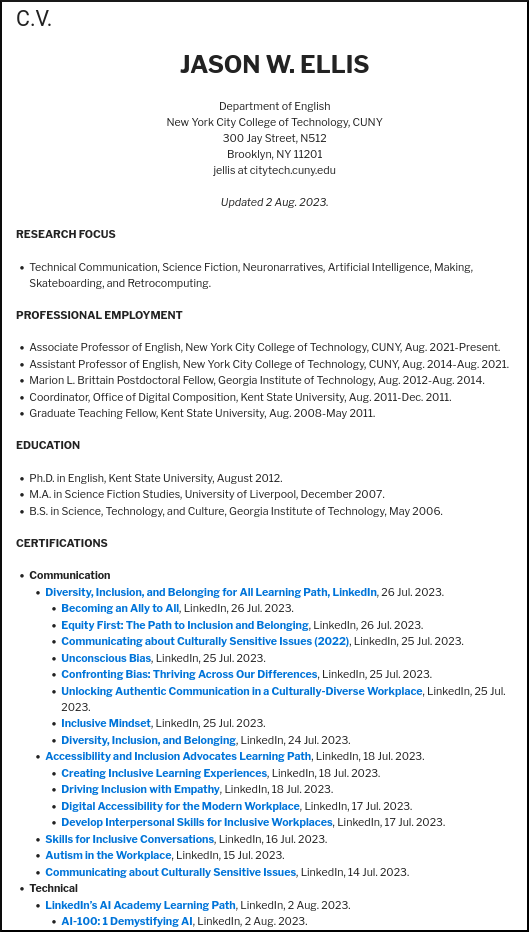
    Excerpt image of Jason Ellis' CV. Link to CV below.

    As shown above and viewable on my CV here, I added links to my LinkedIn Course and Learning Path certifications in a dedicated section of my CV. In addition to the unique link to my certifications, I included the organization that issued it (i.e., LinkedIn), and the date of completion. You can do the same on your CV or resume.

    To get the link to a Course or Learning Path completion certificate, go to LinkedIn Learning > click “My Learning” in the upper right corner > click “Learning History” under “My Library” on the left > click the “. . .” to the right of the Course or Learning Path > click “Download certificate” > click “LinkedIn Learning Certificate” > toggle “On” under the top section titled “Create certificate link” > Click “Copy” on the far right.

    While you are here, you can download a PDF of your certificate for safe keeping at the bottom left of this last screen. You can add these PDFs to a professional portfolio or alongside a deliverable that you create based on the skills that you gained from that course to demonstrate your learning and mastery.

    Demonstrate Your Skills

    Jason Ellis' Skills section on his LinkedIn Profile.

    As I mentioned above, when you post about completing a course, LinkedIn Learning can autogenerate relevant skill terms to add to the Skills section on your Profile (as shown above on my Profile). When you have the spare time and focus, you should occasionally click on “Demonstrate skills” (you can do this without a LinkedIn Learning subscription). This gives you options for taking exams related to different skills that you’ve added to your Skills section of your Profile. If you pass, it provides some proof that you know something about that particular skill. Beware though: these exams can be tough. When I took the HTML exam, I discovered big gaps in what I knew from learning HTML years before without keeping up with changes to HTML in the intervening years. While I passed the exam, I made notes about those questions that I got wrong so that I knew what to learn more about to fill in those gaps.

    Also, some skills don’t have exams associated with them. In those cases, you may submit a video or essay to demonstrate your experience to potential recruiters or hiring managers. If you do this, you should plan it out, shoot and edit your video to give the best visual and auditory impression, or write and revise your essay so that it is of the highest professional quality.

    Is It Worth It?

    Looking back on what I learned, how I learned it, and who I learned it from, I’m glad that I invested the time and energy into a month of LinkedIn Learning. I’ve already started putting some of the lessons into practice (e.g., the generative AI and ethical AI courses), and I’m planning out how I will roll out the DEI approaches in my courses when I return to teaching in Fall 2024 (I am on sabbatical this academic year). In the future, I plan to pay for LinkedIn Learning when additional classes are available and I have the time to immerse myself in learning.

    If you’re looking to skill up, I think that LinkedIn Learning can be beneficial if you go into it with a learning and reflective mindset. This means that you are willing to invest your attention, time, energy, and thought to learning the course material, want to reflect on how what you learn connects to other things you’ve already learned through school and work experience, apply what you’ve learned to deliverables that demonstrate you have integrated what you have learned (e.g., a detailed post on your LinkedIn Profile, a blog post, a poster, a video, an addition to your professional portfolio, etc.), and reflect, preferably in writing, on what you’ve learned, how you applied it, what you would like to see yourself accomplish next, and how to take those next steps.

    As I said above, you likely won’t gain much by passively listening to LinkedIn Learning Courses while doing other things or being distracted by your environment. Invest in this form of learning and you will add to what you know and can do. In that spirit, it’s like my Grandpa Ellis used to tell me, “Jake, no one can take away your education!”

  • Mirrored Moment of Computing Creation: KPT Bryce for Macintosh

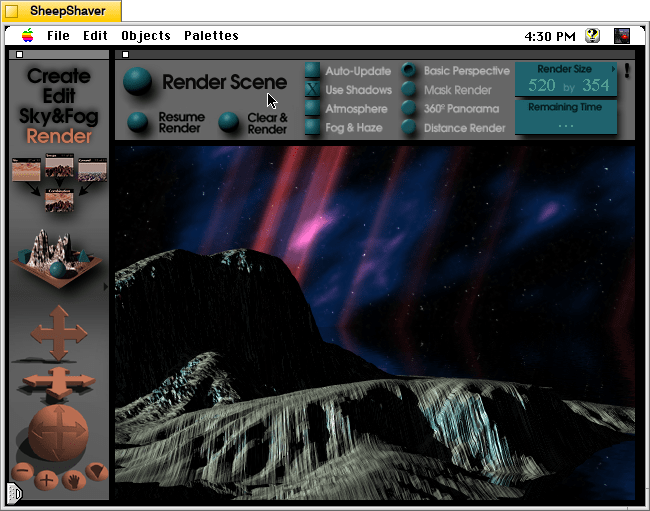
    Outer space scene rendered in KPT Bryce on Mac OS 7.5.5.
    Outer space scene rendered in KPT Bryce 1.0.1 on Mac OS 7.5.5.

    A conversation on LinkedIn yesterday with a former Professional and Technical Writing student about user experience (UX) and generative artificial intelligence (AI) technologies reminded me of the UX innovations around an earlier exciting period of potential for computers creating art: KPT Bryce, a three-dimensional fractal landscape ray trace rendering program for Mac OS released in 1994. It was one of the first programs that I purchased for my PowerMacintosh 8500/120 (I wrote about donating a similar machine to the Georgia Tech Library’s RetroTech Lab in 2014 here). Much like today when I think about generative AI, my younger self thought that the future had arrived, because my computer could create art with only a modicum of input from me thanks to this new software that brought together 3D modeling, ray tracing, fractal mathematics, and a killer user interface (UI).

    Besides KPT Bryce’s functionality to render scenes like the one that I made for this post (above), what was great about it was its user interface, which made editing and configuring your scene before rendering in an intuitive and easy-to-conceptualize manner. As you might imagine, 3D rendering software in the mid-1990s was far less intuitive than today (e.g., I remember a college classmate spending hours tweaking a text-based description of a scene that would then take hours to render in POVRay in 1995), so KPT Bryce’s easy of use broke down barriers to using 3D rendering software and it opened new possibilities for average computer users to leverage their computers for visual content creation. It was a functionality and UX revolution.

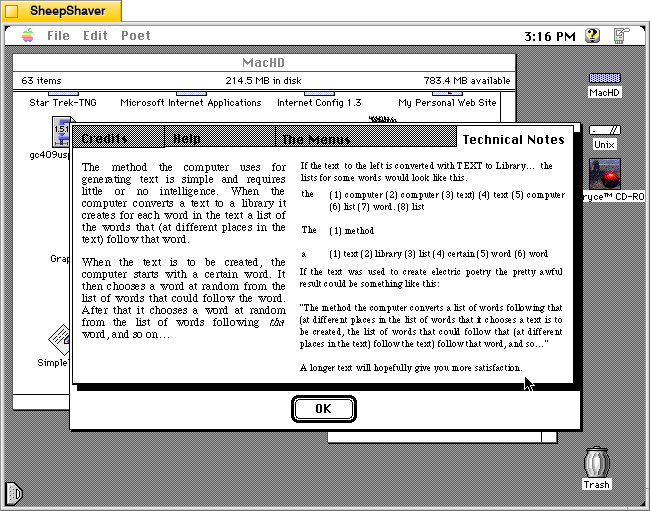
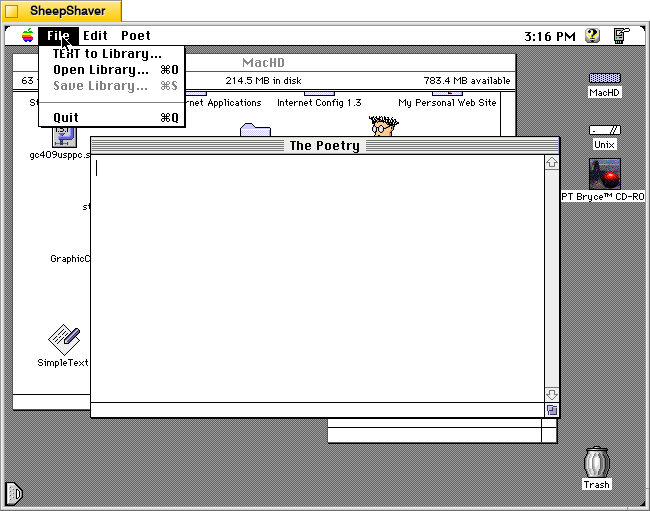
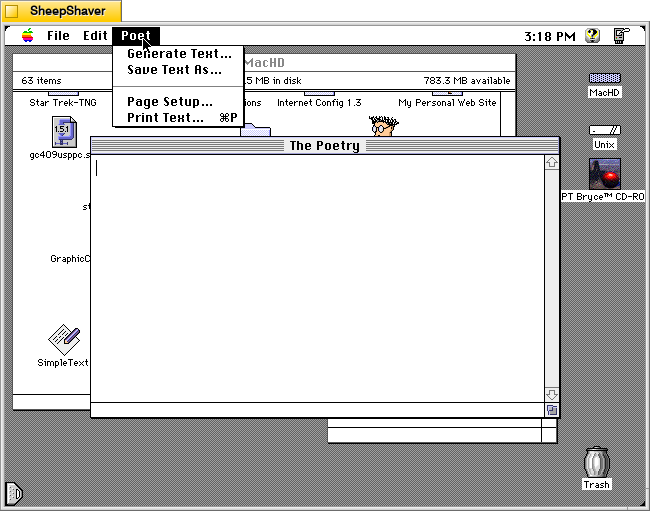
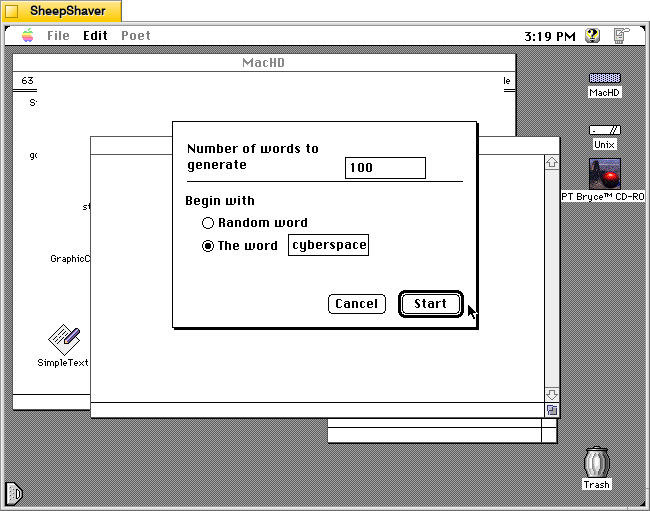
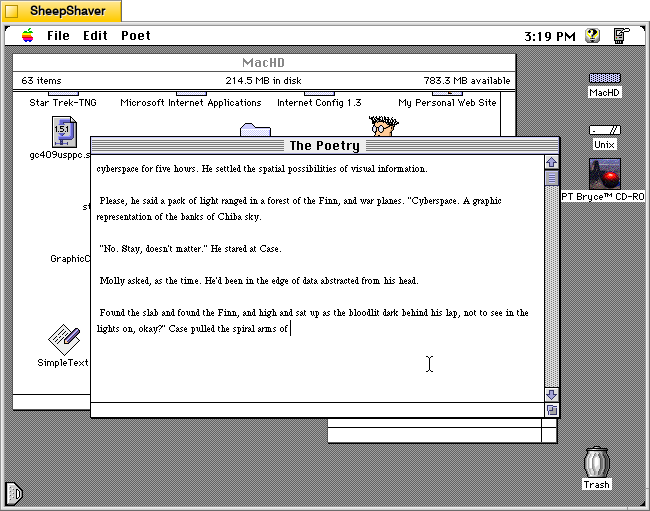
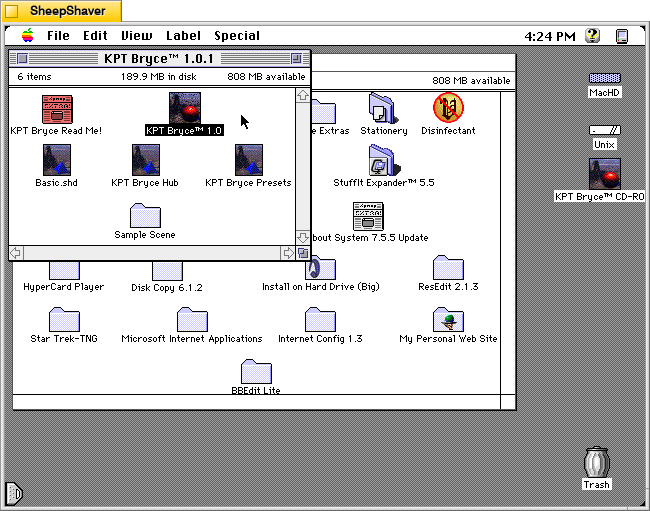
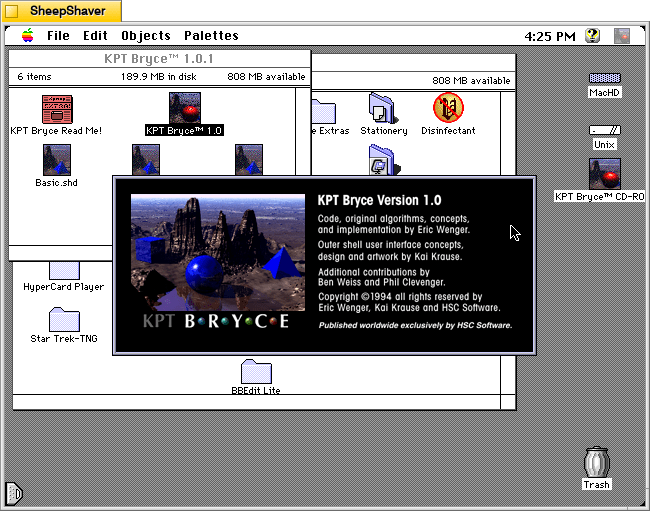
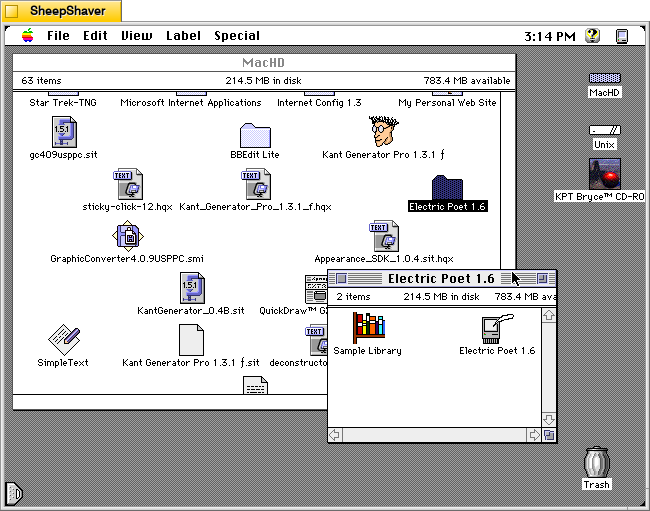
    Below, I am including some screenshots of KPT Bryce 1.0.1 emulated on an installation of Mac OS 7.5.5 on SheepShaver (N.B. I am not running SheepShaver on BeOS–I’ve modified my Debian 12 Bookworm xfce installation to have the look-and-feel of BeOS/Haiku as I documented here).

    KPT Bryce 1.0 program folder copied to the computer's hard drive from the KPT Bryce CD-ROM.
    KPT Bryce 1.0 program folder copied to the computer’s hard drive from the KPT Bryce CD-ROM.
    KPT Bryce 1.0 launch screen.
    KPT Bryce 1.0 launch screen.
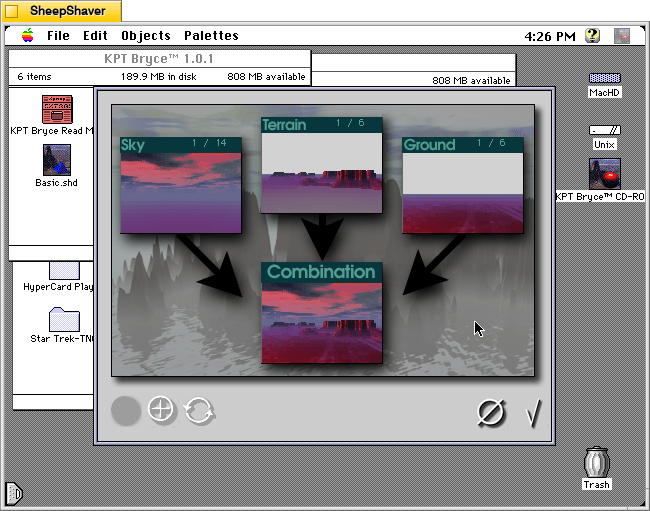
    Basic scene randomizer/chooser. Note the UI elements on the lower window border.
    KPT Bryce initial scene randomizer/chooser. Note the UI elements on the lower window border.
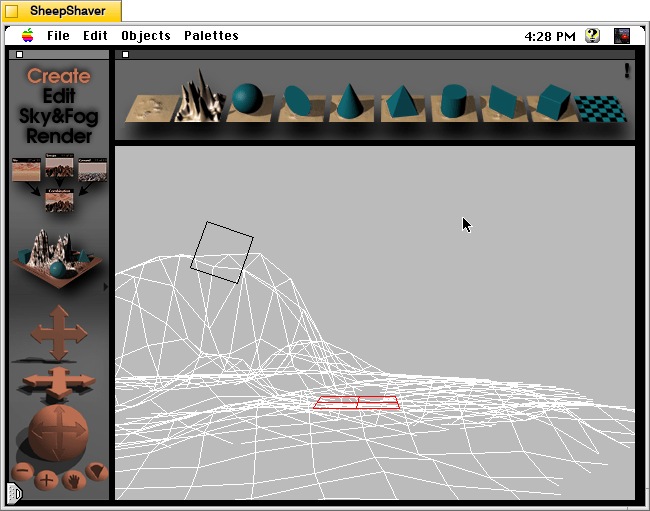
    KPT Bryce's scene editor opens after making initial selections.
    KPT Bryce’s scene editor opens after making initial selections.
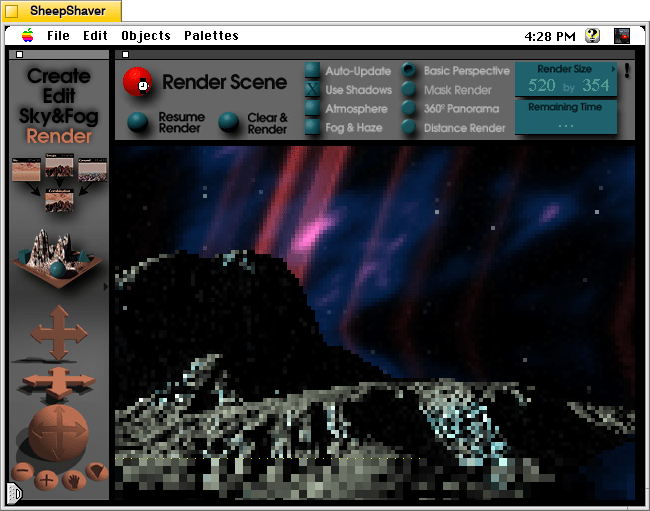
    KPT Bryce's rendering screen--note the horizontal dotted yellow line indicating the progression of that iterative ray tracing pass on the scene.
    KPT Bryce’s rendering screen–note the horizontal dotted yellow line indicating the progression of that iterative ray tracing pass on the scene.
    KPT Bryce rendering completed. It can be saved as an image by clicking on File > Save As Pict.
    KPT Bryce rendering completed. It can be saved as an image by clicking on File > Save As Pict.

  • All In on Artificial Intelligence

    An anthropomorphic cat wearing coveralls, working with advanced computers. Image generated with Stable Diffusion.

    As I wrote about recently about my summertime studying and documented on my generative artificial intelligence (AI) bibliography, I am learning all that I can about AI–how it’s made, how we should critique it, how we can use it, and how we can teach with it. As with any new technology, the more that we know about it, the better equipped we are to master it and debate it in the public sphere. I don’t think that fear and ignorance about a new technology are good positions to take.

    I see, like many others do, that AI as an inevitable step forward with how we use and what we can do with computers. However, I don’t think that these technologies should only be under the purview of big companies and their (predominantly) man-child leaders. Having more money and market control does not mean one is a more ethical practitioner with AI. In fact, it seems that some industry leaders are calling for more governmental oversight and regulation not because they have real worries about AI’s future development but instead because they are in a leadership position in the field and likely can shape how the industry is regulated through industry connections with would-be regulators (i.e., the revolving door of industry-government regulation in other regulatory agencies).

    Of course, having no money or market control in AI does not mean one is potentially more ethical with AI either. But, ensuring that there are open, transparent, and democratic AI technologies creates the potential for a less skewed playing field. While there’s the potential for abuse of these technologies, having these available to all creates the possibility for many others to use AI for good. Additionally, if we were to keep AI behind locked doors, only those with access (legally or not) will control the technology, and there’s nothing to stop other countries and good/bad actors in those countries from using AI however they see fit–for good or ill.

    To play my own small role in studying AI, using generative AI, and teaching about AI, I wanted to build my own machine learning-capable workstation. Before I made any upgrades, I maxed out what I could do with a Asus Dual RTX 3070 8GB graphics card and 64GB of RAM for the past few months. I experimented primarily with Stable Diffusion image generation models using Automatic1111’s stable-diffusion-webui and LLaMA text generation models using Georgi Gerganov’s llama.cpp. An 8GB graphics card like the NVIDIA RTX 3070 provides a lot of horsepower with its 5,888 CUDA cores and memory bandwidth across its on-board memory. Unfortunately, the on-board memory is too small for larger models or adjusting models with multiple LORA and the like. For text generation, you can layer some of the model on the graphic’s card memory and your system’s RAM, but this is inefficient and slow in comparison to having the entire model loaded in the graphics card’s memory. Therefore, a video card with a significant amount of VRAM is a better solution.

    Previous interior of my desktop computer with air cooling, 128GB RAM, and Asus Dual Geforce RTX 3070 8GB graphics card.

    For my machine learning focused upgrade, I first swapped out my system RAM for 128GB DDR4-3200 (4 x 32GB Corsair shown above). This allowed me to load 65B parameters into system RAM with my Ryzen 7 5800X 8 core/16 thread CPU to perform the operations. The CPU usage while it is processing tokens on llama.cpp looks like an EEG:

    CPU and memory graphs show high activity during AI inference.

    While running inference on the CPU was certainly useful for my initial experimentation and the CPU usage graph looks cool, it was exceedingly slow. Even an 8 core/16 thread CPU is ill-suited for AI inference in part due to how it lacks the massive parallelization of graphics processing units (GPUs) but perhaps more importantly due to the system memory bottleneck, which is only 25.6 GB/s for DDR4-3200 RAM according to Transcend.

    Video cards, especially those designed by NVIDIA, provide specialized parallel computing capabilities and enormous memory bandwidth between the GPU and video RAM (VRAM). NVIDIA’s CUDA is a very mature system for parallel processing that has been widely accepted as the gold standard for machine learning (ML) and AI development. CUDA is unfortunately, closed source, but many open source projects have adopted it due to its dominance within the industry.

    My primary objective when choosing a new video card was that it had enough VRAM to load a 65B LLaMA model (roughly 48GB). One option for doing this is to install two NVIDIA RTX 3090 or 4090 video cards with each having 24GB of VRAM for a total of 48GB. This would solve my needs for running text generation models, but it would limit how I could use image generation models, which can’t be split between multiple video cards without a significant performance hit (if at all). So, a single card with 48GB of VRAM would be ideal for my use case. Three options that I considered were the Quadro 8000, A40, and RTX A6000 Ampere. The Quadro 8000 used three-generation-old Turing architecture, while the A40 and RTX A6000 used two-generation-old Ampere architecture (the latest Ada architecture was outside of my price range). The Quadro 8000 has memory bandwidth of 672 GB/s while the A40 has 696 GB/s and the A6000 has 768 GB/s. Also, the Quadro 8000 has far fewer CUDA cores than the other two cards: 4,608 vs. 10,572 (A40) and 10,752 (A6000). Considering the specs, the A6000 was the better graphics card, but the A40 was a close second. However, the A40, even found for a discount, would require a DIY forced-blower system, because it is designed to be used in rack mounted servers with their own forced air cooling systems. 3D printed solutions that mate fans to the end of an A40 are available on eBay, or one could rig something DIY. But, for my purposes, I wanted a good card with its own cooling solution and a warranty, so I went with the A6000 shown below.

    nvidia A6000 video card

    Another benefit to the A6000 over the gaming performance-oriented 3090 and 4090 graphics cards is that it requires much less power–only 300 watts at load (vs ~360 watts for the 3090 and 450 watts for the 4090). Despite this lower power draw, I only had a generic 700 watt power supply. I wanted to protect my investment in the A6000 and ensure it had all of the power that it needed, so I opted to go with a recognized name brand PSU–a Corsair RM1000x. It’s a modular PSU that can provide up to 1,000 watts to the system (it only provides what it is needed–it isn’t using 1000 watts constantly). You can see the A6000 and Corsair PSU installed in my system below.

    new computer setup with 128GB RAM and A6000 graphics card

    Now, instead of waiting for 15-30 minutes for a response to a long prompt ran on my CPU and system RAM, it takes mere seconds to load the model on the A6000’s VRAM and generate a response as shown in the screenshot below of oobabooga’s text-generation-webui using the Guanaco-65B model quantized by TheBloke to provide definitions of science fiction for three different audiences. The tool running in the terminal in the lower right corner is NVIDIA’s System Management Interface, which can be opened by running “nvidia-smi -l 1”.

    text generation webui running on the a6000 video card

    I’m learning the programming language Python now so that I can better understand the underlying code for how many of these tools and AI algorithms work. If you are interested in getting involved in generative AI technology, I recently wrote about LinkedIn Learning as a good place to get started, but you can also check out the resources in my generative AI bibliography.

  • Summer Studying with LinkedIn Learning

    An anthropomorphic cat taking notes in a lecture hall. Image created with Stable Diffusion.

    I tell my students that I don’t ask them to do anything that I haven’t done or will do myself. A case in point is using the summer months for a learning boost. LinkedIn Learning offers new users a free trial month, which I’m taking advantage of right now.

    While I’ve recommended students to use LinkedIn Learning for free via the NYPL, completion certificates for courses don’t include your name and they can only be downloaded as PDFs, meaning you can’t easily link course completion to your LinkedIn Profile. Due to the constraints with how library patron access to LinkedIn Learning works, I opted to try out the paid subscription so that it links to my LinkedIn Profile. However, I wouldn’t let these limitations hold you back from using LinkedIn Learning via the NYPL if that is the best option for you–just be aware that you need to download your certificates and plan how to record your efforts on your LinkedIn Profile, your resume, and professional portfolio.

    After a week of studying, I’ve earned certificates for completing Introduction to Responsible AI Algorithm Design, Introduction to Prompt Engineering for Generative AI, AI Accountability Essential Training. And, I passed the exam for the Career Essentials in Generative AI by Microsoft and LinkedIn Learning Path. I am currently working on the Responsible AI Foundations Learning Path. These courses support the experimentation that I am conducting with generative AI (I will write more about this soon), the research that I am doing into using AI pedagogically and documenting on my generative AI bibliography, and thinking how to use AI as a pedagogical tool in a responsible manner.

    For those new to online learning, I would make the following recommendations for learning success:

    1. Simulate a classroom environment for your learning. This means find a quiet space to watch the lectures while you are watching them. Don’t listen to music. Turn off your phone’s notifications. LinkedIn courses are densely packed with tons of information. Getting distracted for a second can mean you miss out on something vital to the overall lesson.
    2. Have a notebook and pen to take notes. While watching the course, pause it to write down keywords, sketch charts, and commit other important information to your notes. The act of writing notes by hand has been shown to improve your memory and recall of learned information. Don’t keep notes by typing as this is less information rich learning than writing your notes by hand.
    3. Even though a course lists X hours and minutes to completion, you should budget at least 50% more time in addition to that time for note taking, studying, quizzes, and exams (for those courses that have them).
    4. While not all courses require you to complete quizzes and exams for a completion certificate, you should still take all of the included quizzes and exams. Research shows that challenging ourselves to recall and apply what we’ve learned via a test helps us remember that information better.
    5. After completing a course, you should add the course certificate to your LinkedIn Profile, post about completing the course (others will give you encouragement and your success might encourage others to learn from the same course that you just completed), add the course certificate to your resume, and think about how you can apply what you’ve learned to further integrate your learning into your professional identity. On this last point, you want to apply what you’ve learned in order to demonstrate your mastery over the material as well as to fully integrate what you’ve learned into your mind and professional practices. This also serves to show others–managers, colleagues, and hiring personnel–that you know the material and can use it to solve problems. For example, you might write a blog post that connects what you’ve learned to other things that you know, or you might revise a project in your portfolio based on what you’ve learned.
    6. Bring what you’ve learned into your classes (if you’re still working toward your degree) and your professional work (part-time job, internship, full-time job, etc.). Learning matters most when you can use what you’ve learned to make things, solve problems, fulfill professional responsibilities, and help others.