My friend sent me a link to a video by someone who turned an older Core2Duo-based Dell Optiplex into a Hackintosh. The video convinced me to do something that I had been meaning to do for a long time but had never got around to actually doing: removing Windows 7 on my ASUS P8Z77-V/Intel i7-based PC that I built late last year and installing Mac OS X 10.8.
A Hackintosh, or what some folks call a CustoMac, is a standard PC that runs one of the Intel-based version of Mac OS (this includes 10.4 Tiger, 10.5 Leopard, 10.6 Snow Leopard, 10.7 Lion, and 10.8 Mountain Lion).
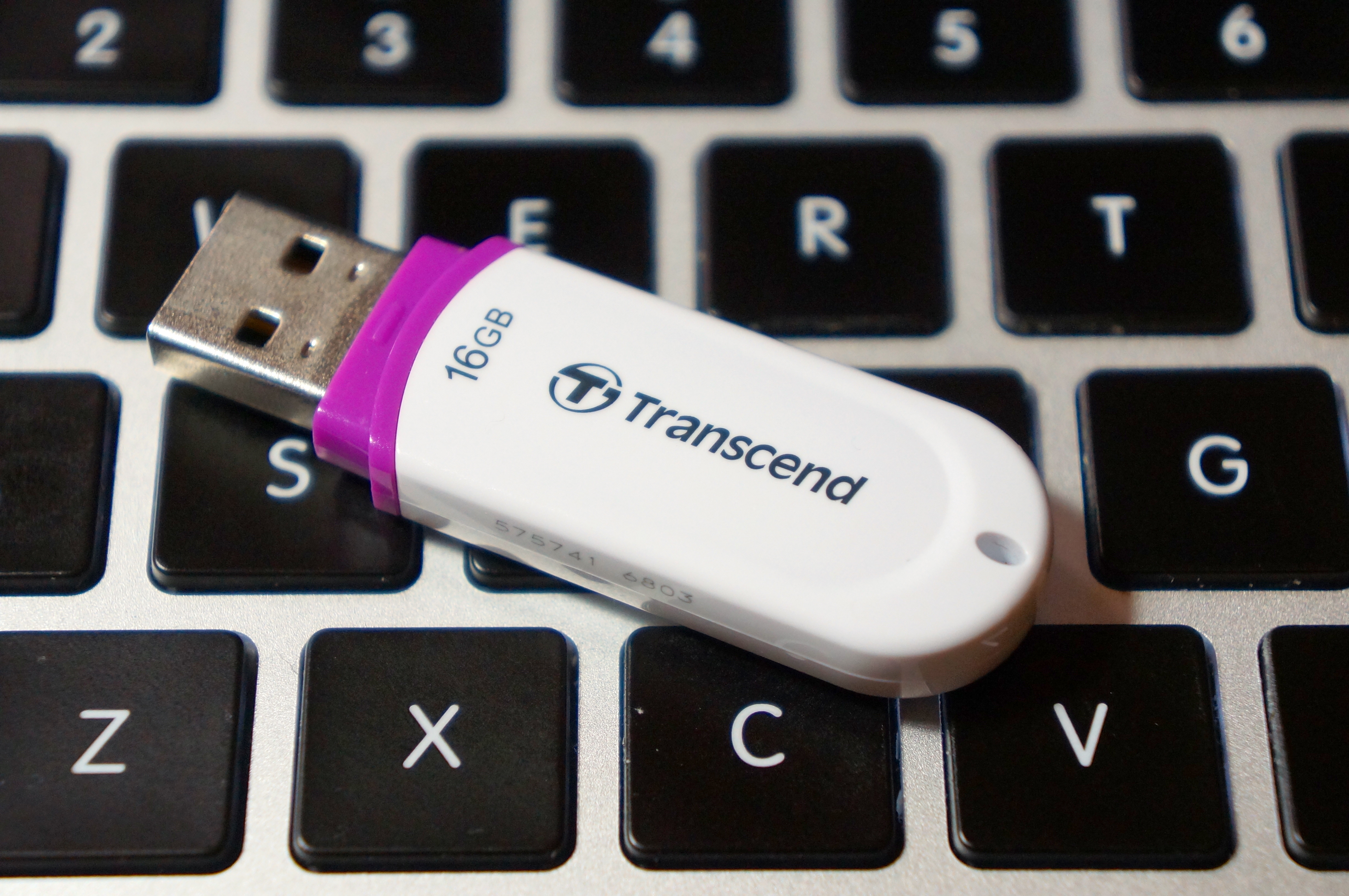
Prior to this project, I had purchased Mountain Lion from the MacApp Store for my old MacBook 5,1 (Aluminum Unibody, Late-2008). When my parents gifted me a rMPB, it already had Mountain Lion installed. This gave me the needed components that I needed to setup my flash drive to install Mac OS on my PC: a Mac and a purchased copy of Mountain Lion.
According to the definitive source for creating CustoMacs, TonyMacx86, my hardware isn’t ideally suited for a pain-free installation (If you are beginning from scratch, you should check out TonyMacx86’s excellent buyer’s guide here). Nevertheless, I worked my way through six re-installations before discovering the combination of settings that yielded a reliable and stable Mountain Lion installation.
This is my PC’s hardware configuration:
- ASUS P8Z77-V LGA 1155 Z77 ATX Intel Motherboard
- Intel Core i7 2700K LGA 1155 Boxed Processor
- Corsair XMS3 Series 16GB DDR3-1333MHz (PC3-10666) CL 9 Dual Channel Desktop Memory Kit (Four 4GB Memory Modules)
- evga 01G-P3-1561-KR GeForce GTX 560 Ti 1024MB GDDR5 PCIe 2.0 x16 Video Card
- Antec High Current Gamer 750W Gamer Power Supply HCG-750
- Corsair Vengeance C70 Gaming Mid Tower Case Military Green
- Cooler Master Hyper 212 Plus Universal CPU Cooler
- Samsung 22X DVD±RW Burner with Dual Layer Support – OEM
- Intel 128 GB SATA SSD
- Western Digital Caviar Green WD10EARX 1TB IntelliPower 64MB Cache SATA 6.0Gb/s 3.5″ Internal Hard Drive – Bare Drive
These are the steps that led to my successful Mountain Lion installation:
- Follow TonyMacx86’s UniBeast (the software that prepares your installation media) and Mountain Lion installation guide here. I have modified the instructions below to reflect what I did after creating my bootable flash drive containing the Mountain Lion installer and a folder that I made containing MultiBeast (the software that configures your Mountain Lion installation for your computer’s hardware). (Depending on your needs, you might need other software, including MaciASL, which can create a DSDT file–another kind of configuration file for MultiBeast that gives Mac OS the information that it needs to run well on your hardware. You will need to configure it with sources from PJALM’s DSDT Patch Repositories. Ultimately, I decided to proceed with a DSDT-free installation.)
- Turn on the PC with the flash drive inserted on one of the front mounted USB 3.0 slots.
- Press F8 to select bootup device and select the flash drive.
- Chimera, the bootloader software, provides you with an option to select the flash drive’s Mac OS installation to boot. If you press the down arrow key on the keyboard, you will be presented with other options including help. If you begin typing, you can enter commands to assist with booting the installer.
- On the Chimera boot selection screen, type “PCIRootUID=0”. Press Enter. This ensures that the installer’s Mac OS installation will display video correctly. Without this option, the screen goes dark after the Apple logo over gray screen.
- From the Mac OS installer menu bar, select Utilities > Disk Utility > Format your boot drive for Mac OS Extended, Journaled. Close the Disk Utility window to return to the installer. Proceed with installation. Reboot when completed.
- Press F8. Select the flash drive. At the Chimera screen, select your internal hard drive’s new Mac OS Mountain Lion installation, type in “PCIRootUID=0”, and press Enter.
- Mountain Lion will boot from your hard drive and begin the setup procedure (choosing location, creating your Admin account, etc.).
- If you have already downloaded MultiBeast and placed it in a new folder on your flash drive, open your flash drive from the Desktop, navigate to MultiBeast, and launch it.
- Proceed to the selection screen and check these things:
- UserDSDT or DSDT-Free Installation
- Drivers & Bootloaders > Drivers > Audio > Realtek ALC8xx > Without DSDT > ALC892
- Drivers & Bootloaders > Drivers > Network > hnak’s AppleIntelE1000e Ethernet
- Drivers & Bootloaders > Drivers > Miscellaneous > USB 3.0 – Universal
- Drivers & Bootloaders > Drivers > System > Patched AppleIntelCPUPowerManagement > OS X 10.8.x
- Complete installation and close MultiBeast.
- Navigate to Applications > Utilities > Disk Utility. Select your hard drive and click Repair Permissions. When completed, close Disk Utility, eject your flash drive and remove from the USB port, and reboot.
- When back at the Desktop, go to System Preferences > Energy Saver > Disable Computer Sleep by sliding the widget to the far right.
- Plug your computer into your router with an ethernet cable if you have not already done so. You can easily get online with the wired connection.
- Your installation is complete!
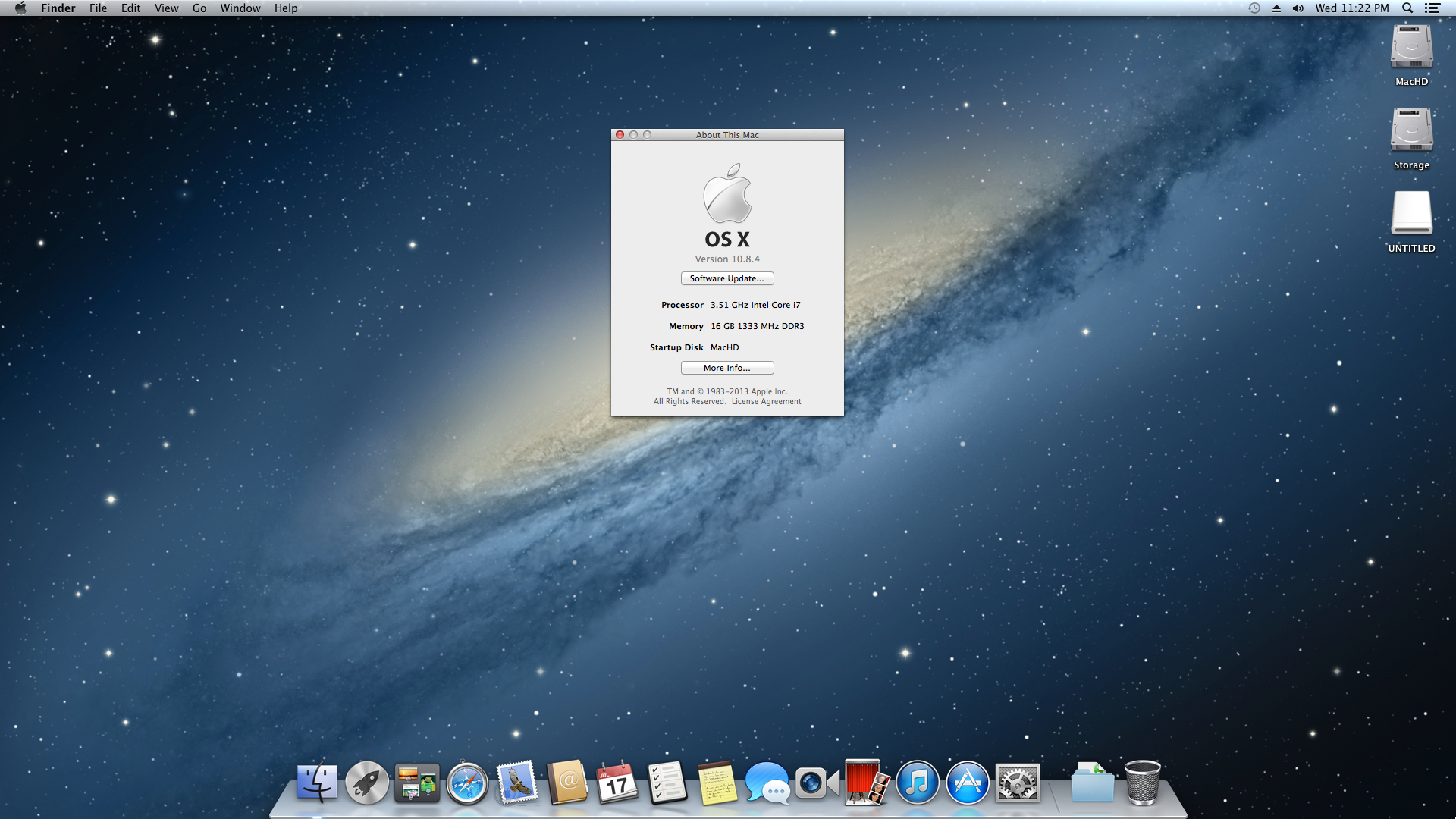
I chose to go this route, because I could not get Mac OS to boot with the DSDTs that I created with MaciASL (using the configuration for the P8Z77-V motherboard and graphics source per PJALM’s instructions). My problems could have been related to the DSDT or due to incompatibilities between its settings and my P8Z77-V’s BIOS ROM version (I was unable to use the motherboard’s BIOS Flashback feature to successfully load one of these hacked BIOS ROMs on this site). Apparently, if you can get the DSDT to install correctly and have the hacked BIOS, you will be able to enjoy power management settings and control. Since I have my computer only on when I am using it, I do not have any problem with this lack of functionality. Since installation, my Hackintosh has been running great. It is snappy, video and sound work great, network connectivity is fine, and Doom 3 plays fantastically at 1080p!
After the installation, I discovered one tremendous problem: FileVault cannot be activated for your boot drive. Apparently, this is due to FileVault needing a real Mac’s EFI environment (or the error message that it generates indicates that it has to do with its inability to re-partition the bootdrive–likely due to the Chimera bootloader). As far as I can tell from reading posts on the TonyMacx86 forums, there is no way around this problem. One option would be to save your files in a TrueCrypt container or fully encrypted drive that is separate from your bootdrive. Another way is to use TrueCrypt full disk encryption as detailed on this helpful blog post from Frugal Computing (FC also has some great articles about building Hackintoshes).
Others in the TonyMacx86 forums have had varying levels of success with the Asus P8Z77-V and Mountain Lion, so I do not want to dissuade you from attempting to get more functionality on your installation. The above is simply a report of what worked for me. It might work for you, and it might give you a beginning for your own Hackintosh project.


