Category: Research

  • HAIKU 0.2 Hypercard Stack

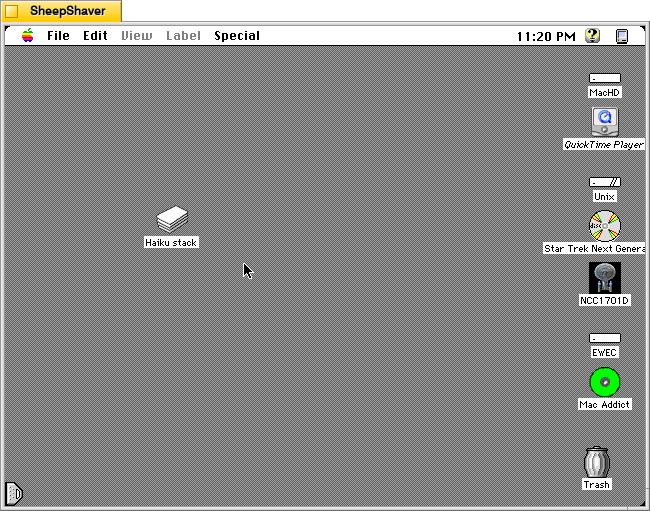
    HAIKU 0.2 Hypercard stack icon on Macintosh System 7.5.5 system emulated in SheepShaver.

    Created by Fuzzy Gerdes, HAIKU 0.2 is a Hypercard stack that assembles haikus from pre-written 5-syllable and 7-syllable phrases. Unlike some of the more advanced haiku generators like Haiku Master 2.2 or McPoet 5.1, which work on a micro, word-level for constructing haikus, HAIKU 0.2 operates on a macro, phrase-level and puts more work on the part of its human user to think of and type up phrases that contain five and seven syllables, which it randomly selects from to create new 5-7-5 haikus.
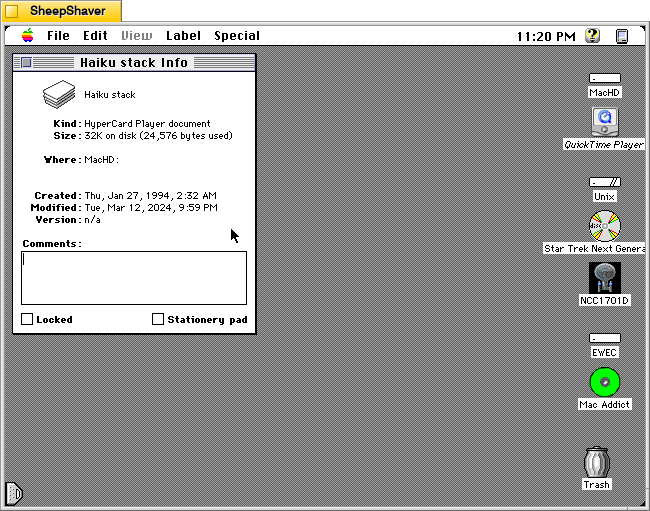
    HAIKU 0.2 Hypercard stack Get Info window on Macintosh System 7.5.5 system emulated in SheepShaver.

    HAIKU 0.2’s file name is “Haiku stack” and it weighs in at 32K on disk (24,576 bytes used).
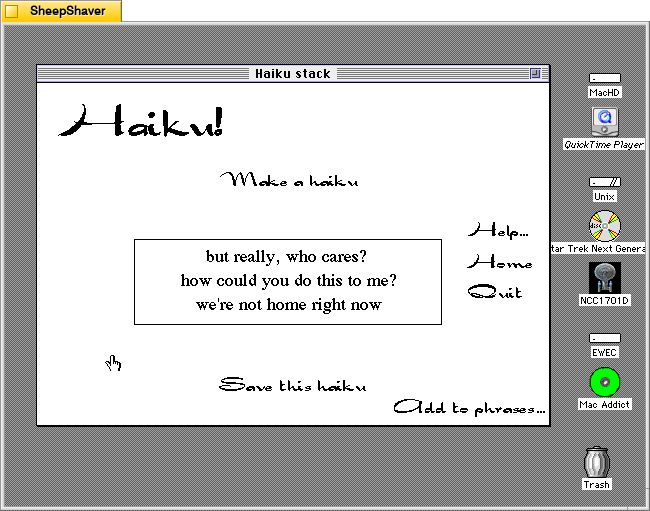
    HAIKU 0.2 Hypercard stack main window on Macintosh System 7.5.5 system emulated in SheepShaver.

    When the user double clicks on Haiku stack, it launches Hypercard Player, which runs the stack and displays HAIKU 0.2’s main composition window. The main options that can be clicked with the mouse are “Make a haiku,” “Help…”, “Home,” “Quit,” “Add to phrases…”, and “Save this haiku.”
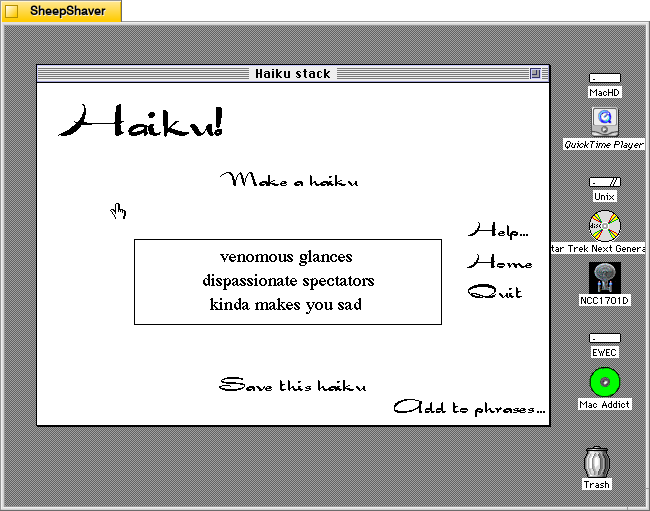
    HAIKU 0.2 Hypercard stack main window on Macintosh System 7.5.5 system emulated in SheepShaver.

    Clicking on “Make a haiku” in the upper, middle portion of the main window creates a new haiku out of randomly selected five and seven syllable phrases stored in the Hypercard stack.
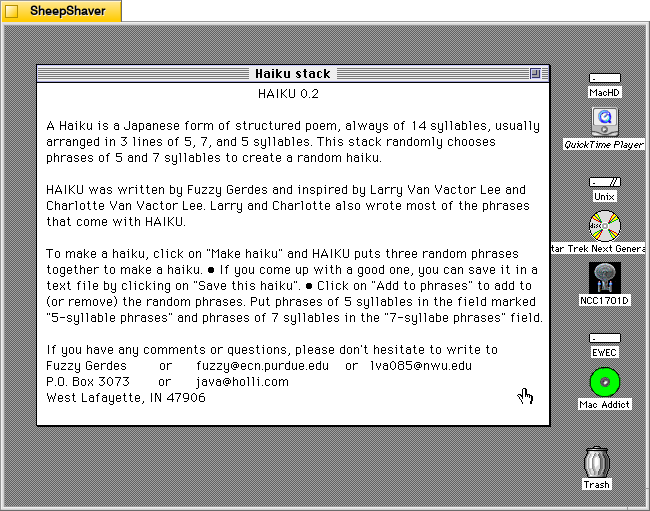
    HAIKU 0.2 Hypercard stack's Help window on Macintosh System 7.5.5 system emulated in SheepShaver.

    Clicking on Help loads this page, which explains how it works, how to use it, and credits–written by Gerdes and inspired by Larry Van Vactor Lee and Charlotte Van Vactor Lee, who wrote most of the built-in phrases.
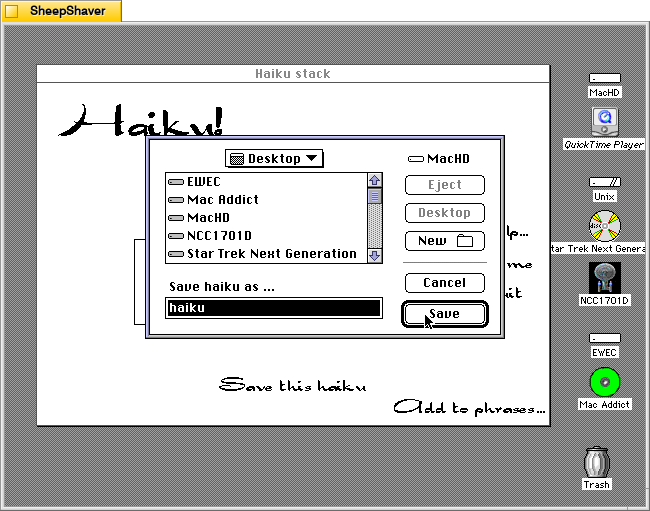
    HAIKU 0.2 Hypercard stack''s save dialog on Macintosh System 7.5.5 system emulated in SheepShaver.

    Clicking on “Save this haiku” opens a standard save dialog box for navigating the system’s files and saving a TeachText file of the haiku currently displayed on the main window.
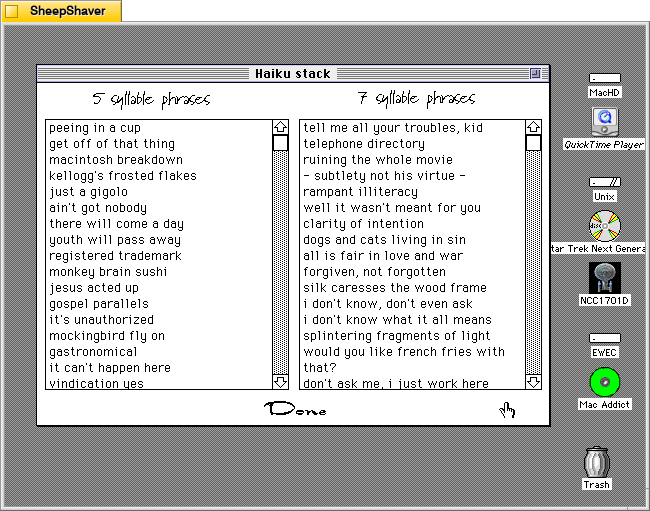
    HAIKU 0.2 Hypercard stack's Add to phrases page on Macintosh System 7.5.5 system emulated in SheepShaver.

    Clicking on “Add to phrases…”, loads this two-column page labeled “5 syllabus phrases” and 7 syllable phrases.”
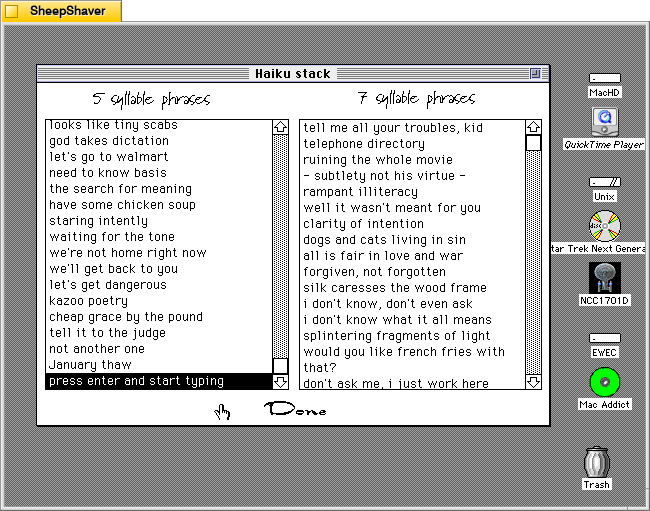
    Both columns are editable by clicking on a text line and typing, or the user can scroll to the bottom of the list, press return, and begin entering a new line of text. It doesn’t enforce syllable count–that’s up to the user to count correctly. Clicking “Done” at the bottom of the page returns the user to the main composition page.

    Even though this is a simple haiku generator in terms of how it assembles a haiku by randomly pulling from the 5 syllable phrase list, then the 7 syllable phrase list, and again from the 5 syllable phrase list. However, it and the other Hypercard-based text generators demonstrate the extremely easy to build power of Hypercard. A Macintosh computer with Hypercard gave non-programmers and programmers alike a relatively easy-to-use platform for creating interactive hypertext with graphics and programming. So, even though this and other poem generators like it are pulling text from lists based on simple rules and random numbers, it gestures toward equipping human computer users with feature-rich tools to make computers seemingly intelligent to a degree.
  • Nordles Hypercard Stack for Creating Word Combinations on Macintosh

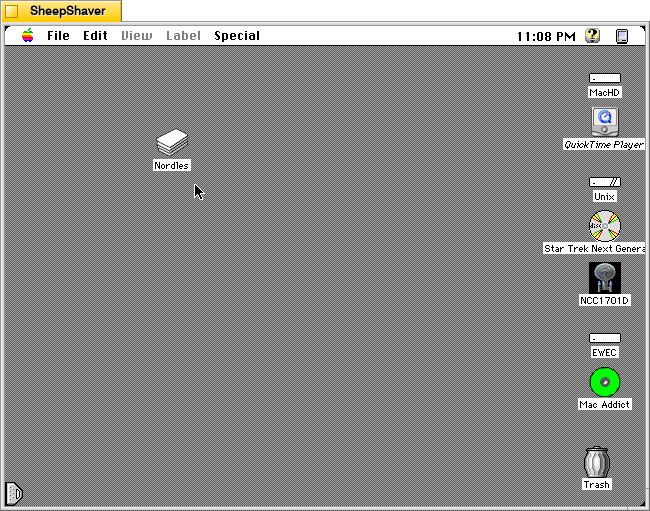
    Nordles Hypercard stack on the Desktop of a Macintosh System 7.5.5 system emulated in SheepShaver.

    Nordles is a Hypercard stack that combines words from three different lists randomly together into combinations made by John Stiles.

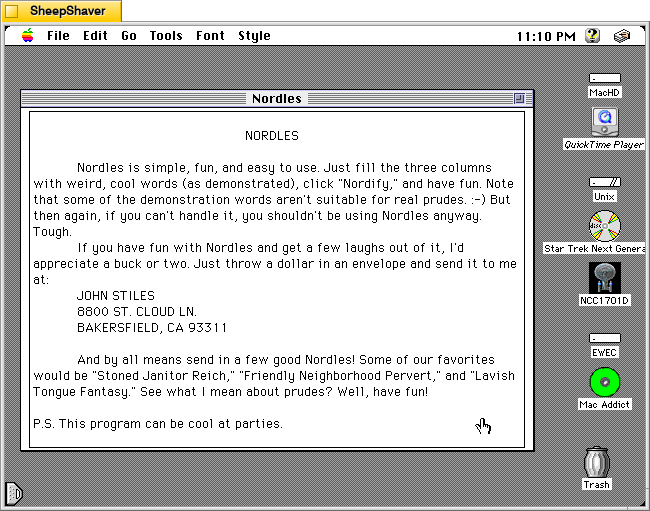
    In the stack’s about screen, Stiles writes, “Nordles is simple, fun, and easy to use. Just fill the three columns with weird, cool words (as demonstrated), click “Nordify,” and have fun. Note that some of the demonstration words aren’t suitable for real prudes :-) But then again, if you can’t handle it, you shouldn’t be using Nordles anyway. . . . P.S. This program can be cool at parties.”

    As mentioned in yesterday’s post about ChaosPoetry Generator, Nordles inspired Mathew P. Schmeer to create his word combination generator, which supports seven columns of words and phrases to Nordle’s three.
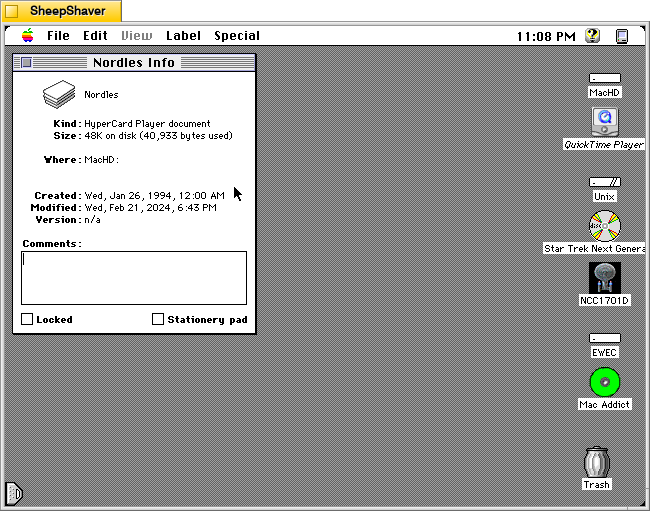
    Get Info window for Nordles Hypercard stack on the Desktop of a Macintosh System 7.5.5 system emulated in SheepShaver.

    Nordles is only 48K on disk (40,933 bytes used). As a Hypercard stack, it requires Hypercard Player to be installed. When a Hypercard stack is double clicked, it automatically launches the stack in Hypercard Player.

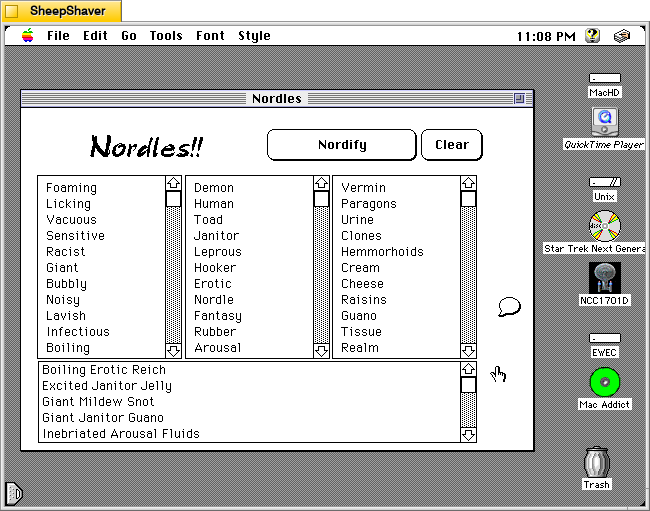
    Nordles Hypercard stack main window on a Macintosh System 7.5.5 system emulated in SheepShaver.

    After launching Nordles, the main window opens. It has three columns of words, which can be edited and added to. Many of the default words are NSFW, and their combinations are even more NSFW.

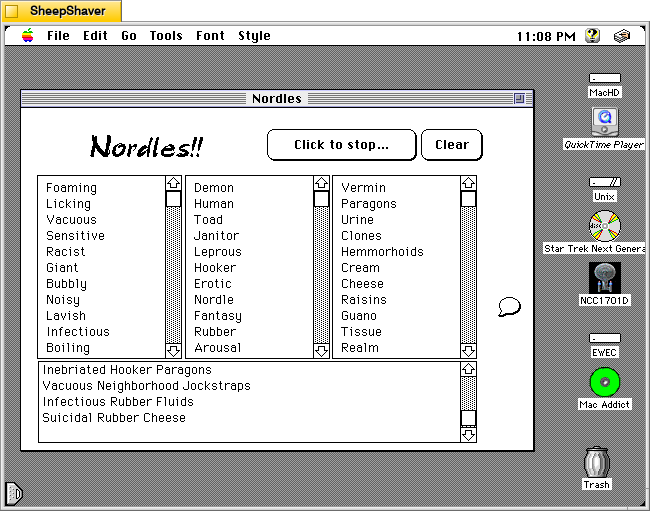
    Nordles Hypercard stack main window on a Macintosh System 7.5.5 system emulated in SheepShaver.

    When the “Nordify” button is clicked it changes to “Click to stop…” and the stack randomly assembles three-word combinations using a word from each list. These generated combinations continue appearing in the box at the bottom of the main window until “Click to stop…” is clicked.

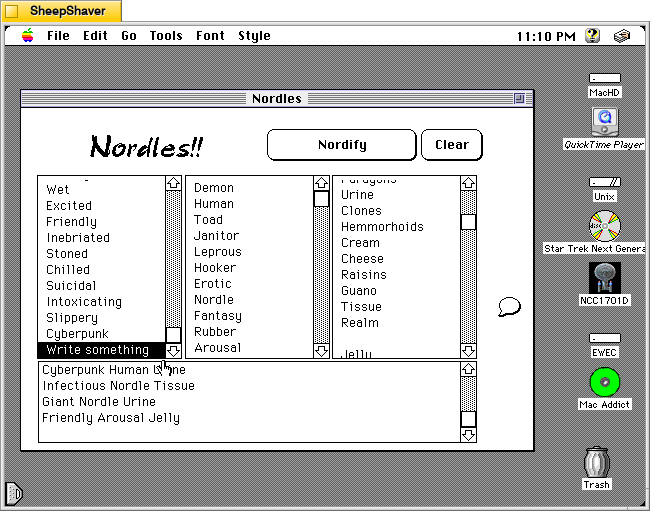
    Nordles Hypercard stack main window on a Macintosh System 7.5.5 system emulated in SheepShaver.

    To edit words in a list, the user clicks on a word already there to begin typing. Existing words can be edited or swapped out for a new word. Also, the user can scroll to the bottom of the list, click the last word in the list and press return on the keyboard to add a new line for a new, additional word. In the image above, I added a line in the first column and typed, “Write something,” and I deleted a word from the third column list on the right.

    Nordles Hypercard stack about window on a Macintosh System 7.5.5 system emulated in SheepShaver.

    To learn more about the Hypercard stack and its programmer, click on the message bubble icon on the right side of the main window. It includes the text that I included at the beginning of the post along with Stiles’ address and his favorite word combination creations.

    While Nordles can be puerile, it can be reconfigured with the way the user enters words into the three columns/lists. Borrowing Schmeer’s suggestion for ChaosPoetry Generator, using one column for nouns, one for adjectives, and one for verbs, might yield some interesting creations that might be useful for writers–whether they be professionals or students in a classroom. The generated combinations could inform how a poem gets written (e.g., your poem must include all three words) or the topic of a flash fiction story (e.g., your story must use all three words in a phrase somewhere in your story).

    I found a copy of Nordles in this large archive of Hypercard stacks.

  • ChaosPoetry Generator 1.2 Hypercard Stack for Macintosh

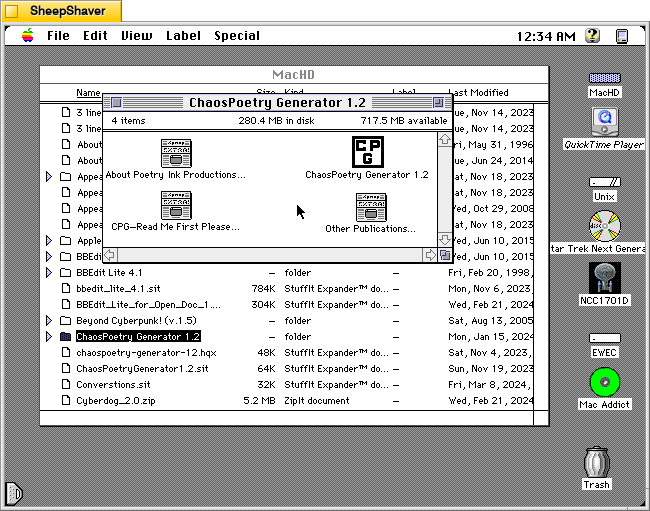
    ChaosPoetry Generator 1.2 folder containing the CPG hypercard stack and three text files on Macintosh System 7.5.5 system emulated in SheepShaver.

    ChaosPoetry Generator 1.2 (downloadable from the TextWorx Toolshed) is a Hypercard stack for Macintosh that strings together words, phrases, and sentences from seven lists that its built-in script randomly pulls from to create combinations that might be interesting, nonsensical, disturbing, or offensive.
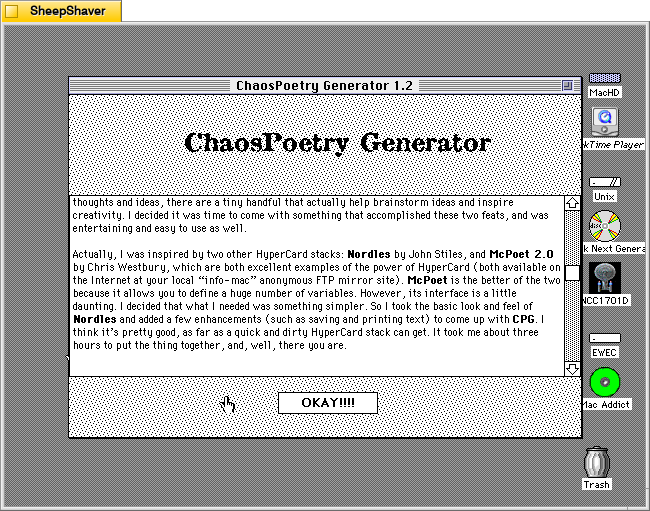
    It was made by Professor of English Matthew P. Schmeer when he was an undergraduate studying contemporary poetry at the University of Missouri-St. Louis. He notes that it was inspired by Nordles (I will post about this soon) and McPoet 2.0 (post about version 5.1 is here).
    The abstract that accompanied the file in the Info-Mac Archive provides some more details about its use and purpose:

    #### BINHEX     chaospoetry-generator-12.hqx   ****

    From: poetink@inlink.com
    Subject: ChaosPoetry Generator 1.2.sit


    ChaosPoetry Generator is a HyperCard based writing tool to help writers break through writers block. Full documentation is included within the stack, but a simple explanation is that ChaosPoetry Generator is a random string generator wherein you control the strings.

    This version corrects a major bug which would not allow you to save your generated text. This has been fixed, and now CPG allows full text export.

    We give our permission for this file to be included on the Info-Mac CD-ROM, with our usual stipulations.

    Thank you.

    Matthew W. Schmeer
    <poetink@inlink.com>

    Inside the Hypercard stack’s about page (screenshots further below), Schmeer writes, “In the most basic terms, CPG is a chaos poetry generator. It generates random lines of text based upon the words entered in its lists. It also allows you to save the generated text to a text file capable of being opened by TeachText or any other word processor for easy editing. In addition to saving as text, CPG will also allow you to print the generated text from within Hypercard.”

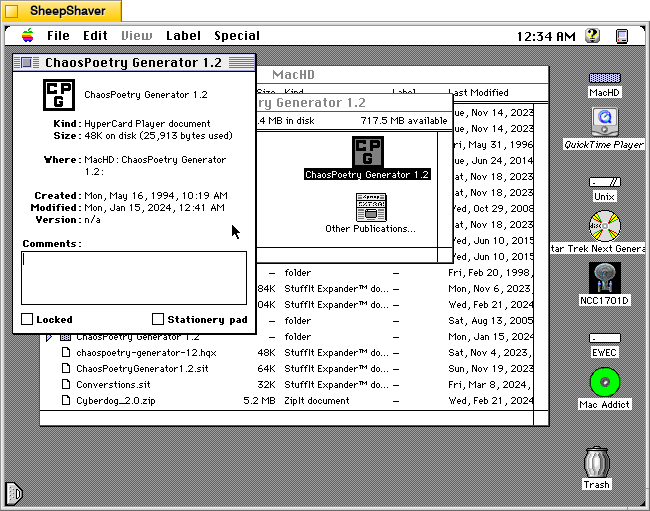
    ChaosPoetry Generator 1.2 hypercard stack Get Info window on Macintosh System 7.5.5 system emulated in SheepShaver.

    The Get Info window on the Hypercard stack reveals that it is very lean at 48K on disk (25,913 bytes).

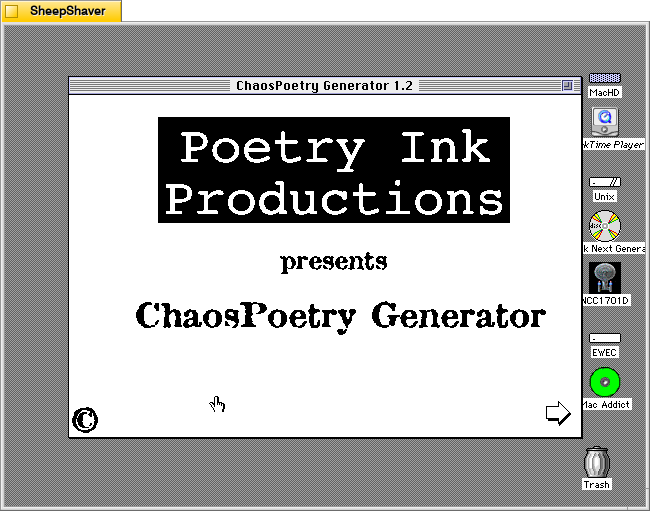
    ChaosPoetry Generator 1.2 launch window on Macintosh System 7.5.5 system emulated in SheepShaver.

    Double clicking on ChaosPoetry Generator 1.2 launches the Hypercard stack in Hypercard Player, which needs to be installed on the host system.

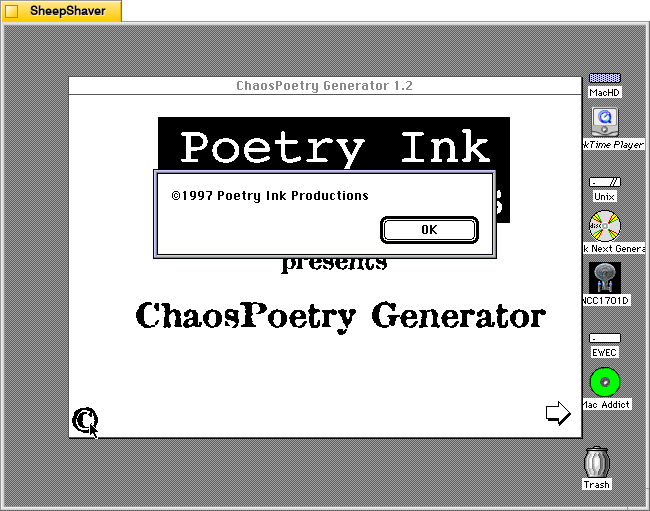
    ChaosPoetry Generator 1.2 copyright window on Macintosh System 7.5.5 system emulated in SheepShaver.

    Clicking on the copyright symbol in the lower left corner brings up this “©1997 Poetry Ink Productions” window.

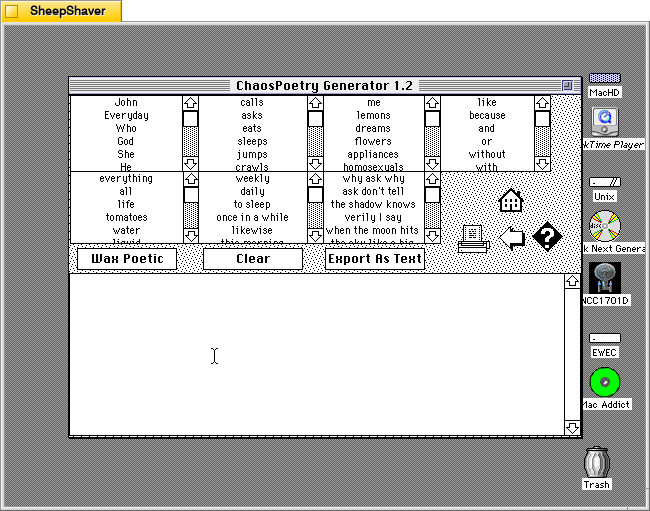
    ChaosPoetry Generator 1.2 generating text window on Macintosh System 7.5.5 system emulated in SheepShaver.

    Clicking the arrow in the bottom right of the launch window brings the user to the text generator. Each of the seven lists can be edited by clicking into them, editing a line, or scrolling to the bottom and adding new text to the list there.

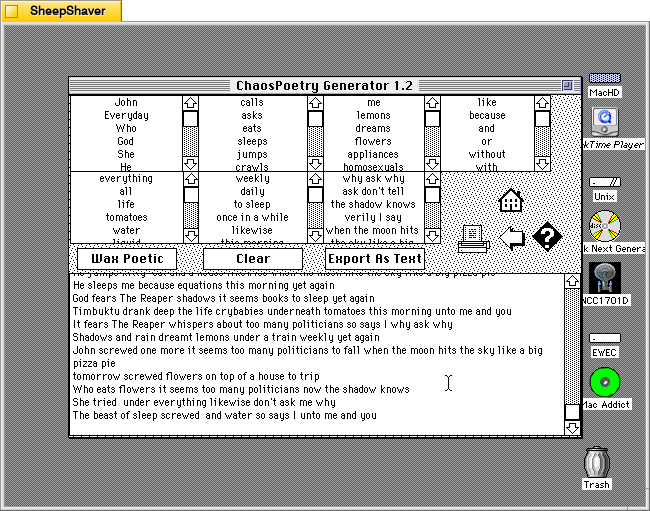
    ChaosPoetry Generator 1.2 text generator window with generated lines of text on Macintosh System 7.5.5 system emulated in SheepShaver.

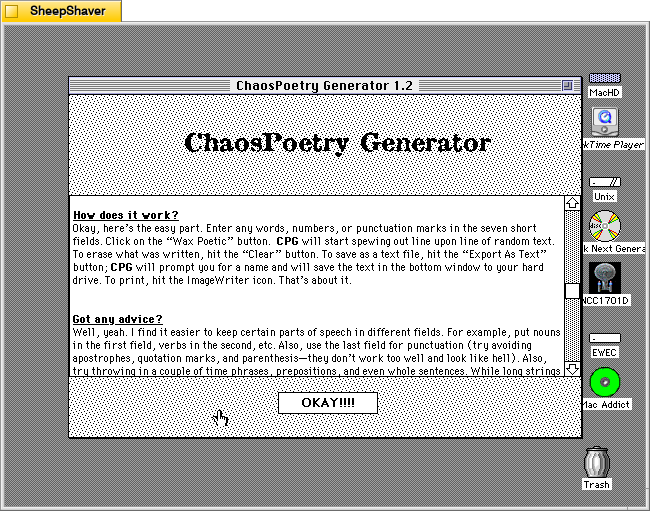
    Clicking once on the “Wax Poetic” button causes ChaosPoetry Generator to begin generating copious and unending lines of text randomly drawn from the seven lists at the top of the window. The “Wax Poetic” button changes to “Click to Stop,” which when pressed, ceases the text generation. The user can scroll back up the output box at the bottom of the window to read through the generated lines of text. Clicking on the “Clear” button erases the generated text box, and clicking on “Export as Text” gives the user an option to save the generated text as a TeachText document. The printer icon on the right of the window gives an option to print the output in the generated text box.

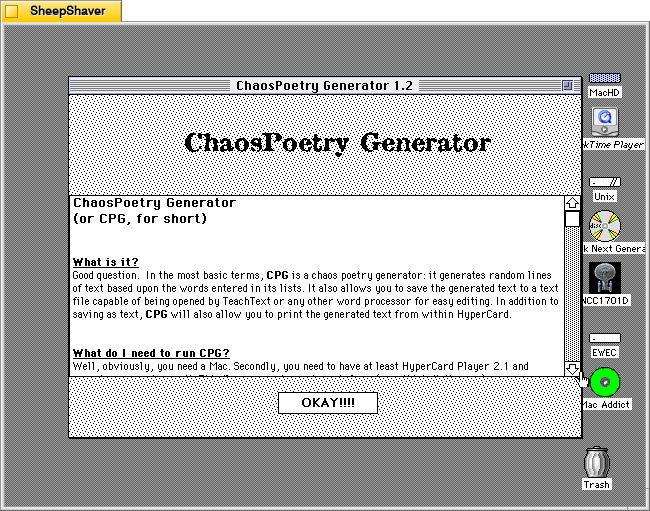
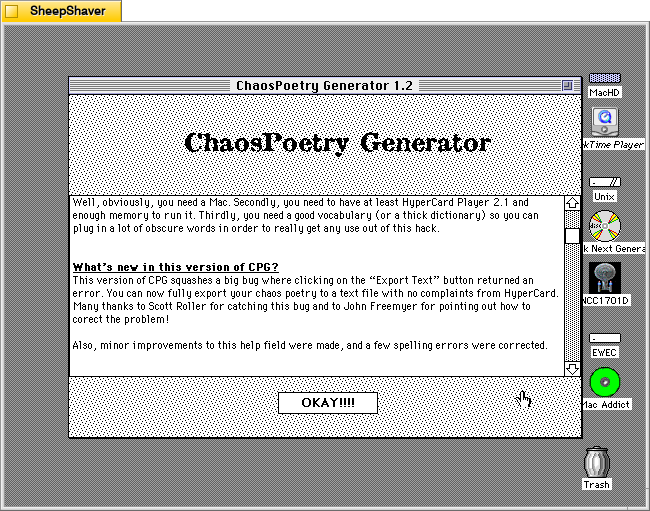
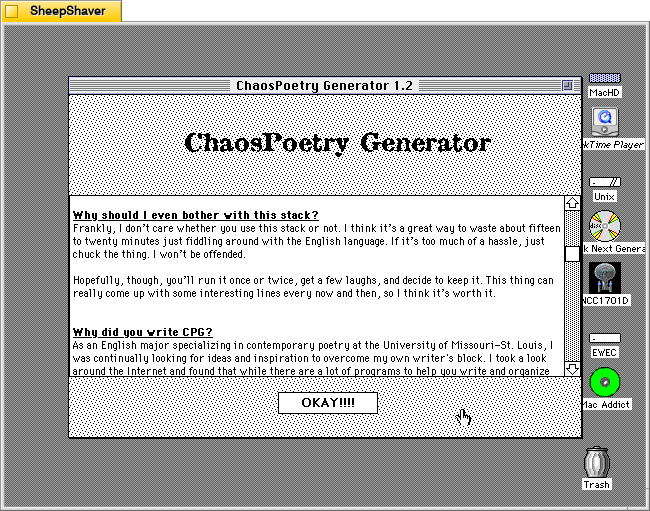
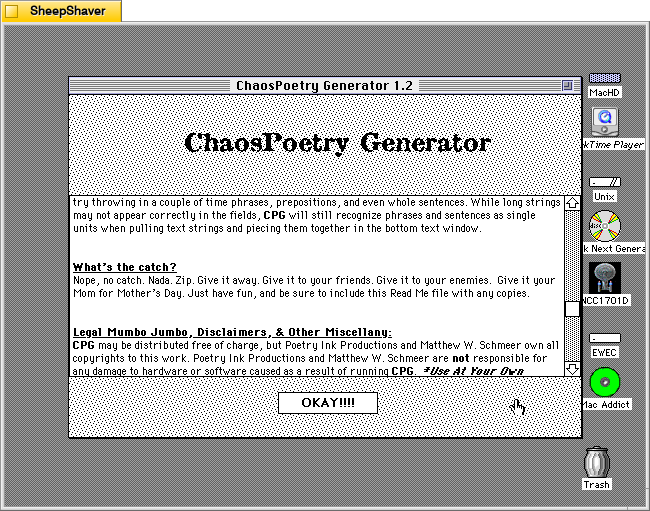
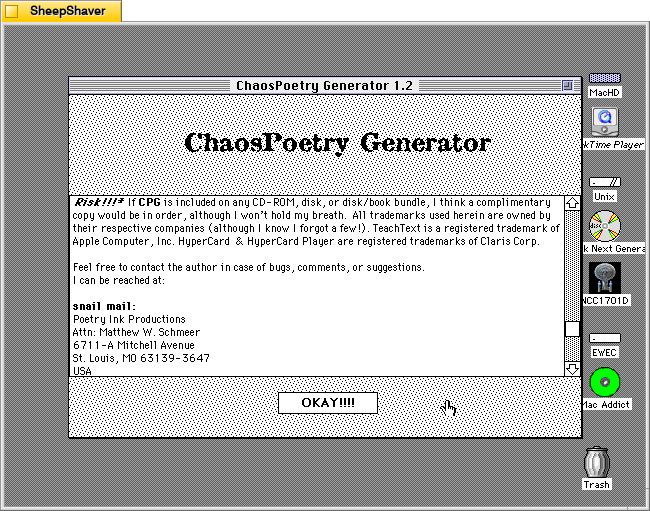
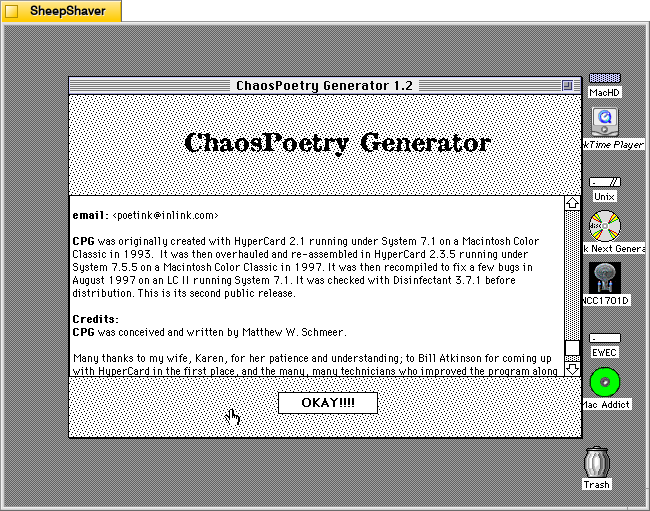
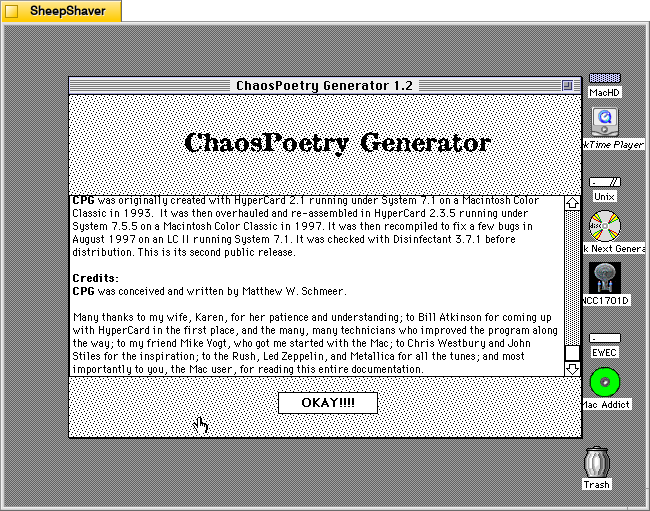
    Clicking on the question mark icon on the right side brings up ChaosPoetry Generator’s info page that includes information about what it is, what’s needed to run the stack, what’s new to this version, why it was written and its inspirations, how it works, and advice on using it. Screenshots of these pages are included above, but the key takeaway from the advice section is that the user should use each column for a different parts of speech: a list of nouns, a list of verbs, a list of adjectives, a list of phrases, etc. Schmeer also notes that punctuation marks should be avoided as “they don’t work too well and look like hell.”

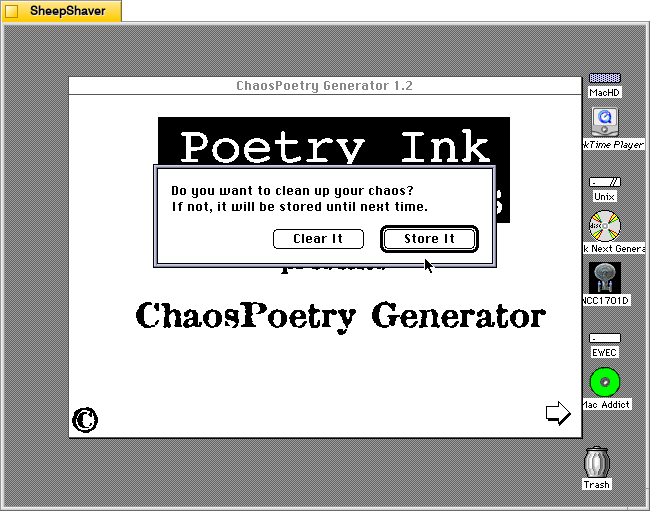
    ChaosPoetry Generator 1.2 prompt to clear or store output after clicking the Home icon on Macintosh System 7.5.5 system emulated in SheepShaver.

    Clicking the Home icon on the text generator window first prompts the user if they would like to clear the generated text or store it.

    Hypercard Player home screen on Macintosh System 7.5.5 system emulated in SheepShaver.

    After making a selection on clearing or storing the generated text, the user is taken back to the Hypercard home screen and have essentially quit ChaosPoetry Generator.

    The more that I explore these early examples of text generators, the more I come to realize that the meaning making isn’t so much in the way that they work (with exceptions) but instead in the meaning that we give to their outputs. ChaosPoetry Generator, like some of the other text generating applications and Hypercard stacks for Macintosh of that era, are like a warehouse of monkeys, each typing away frantically on their own typewriter. Given enough time and enough monkeys, eventually they will produce the works of Shakespeare (I first heard about the warehouse of monkeys from Douglas Adams, but the theory is much older). But before we get to that point, there’s going to be a lot of not-Shakespeare output. It’s that stuff that we humans read and think about and give meaning to. The computer, of course, has assembled the words in a certain order, but how those words are understood depends on us interpreting the words and choosing to use them or not, if you’re a writer using ChaosPoetry Generator as a tool, for example.

  • Lexikon-Sonate 3.0, an Algorithmic Music Generator for Macintosh

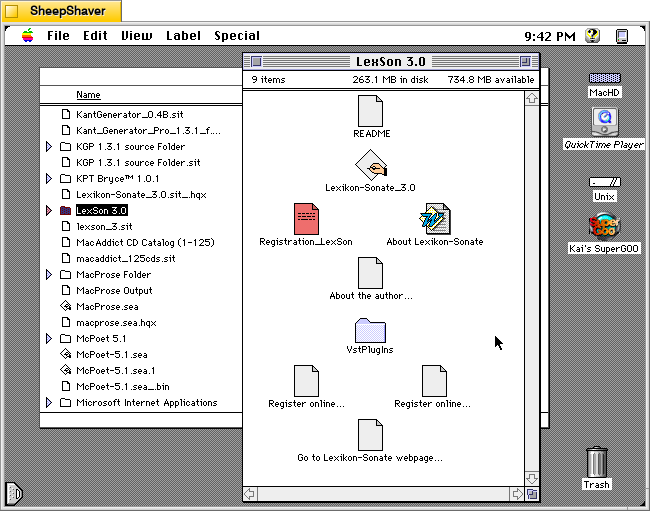
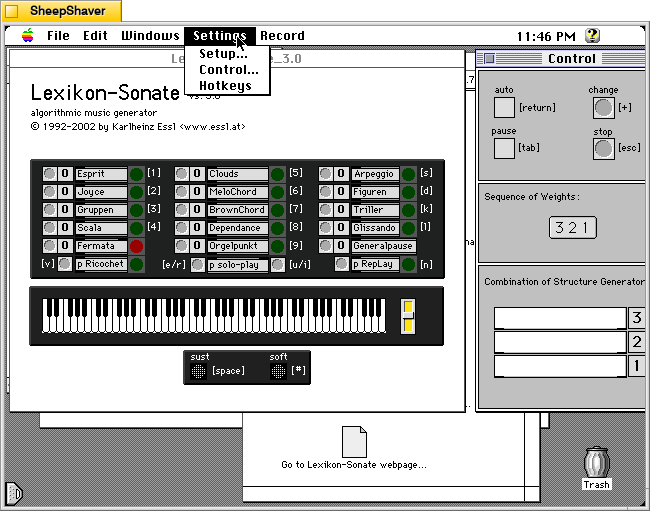
    Lexikon-Sonate 3.0 application folder on Macintosh System 7.5.5 system emulated in SheepShaver.

    Lexikon-Sonate 3.0 is a program that generates music algorithmically. Karlheinz Essl, the Austrian composer and performer, began developing this software in 1992 and released it as Shareware. Essl continued developing the software until 2020 and released the latest versions for Windows and MacOS as freeware with a Creative Commons Attribution-NonCommercial-NoDerivs 3.0 License.

    In the included Word doc named “About Lexikon-Sonate,” Essel writes that the software is “An Interactive Realtime Composition for Computer-Controlled Piano.” He expands on this in the abstract for the software, “Lexikon-Sonate is a work in progress which was started in 1992. Instead of being a composition in which the structure is fixed by notation, it manifests itself as a computer program that composes the piece – or, more precisely: an excerpt of a virtually endless piano piece – in real time. Lexikon-Sonate lacks two characteristics of a traditional piano piece: 1) there is no pre-composed text to be interpreted, and 2) there is no need for an interpreter. Instead, the instructions for playing the piano – the indication “which key should be pressed how quickly and held down for how long” – are directly generated by a computer program and transmitted immediately to a player piano which executes them. In this paper I will describe from where I started and how I arrived at the concept of an infinite interactive realtime composition.” The rest of the Word doc file is a detailed guide that explains its origins, how it works, and how to use it.

    For this post, I tried out Lexikon-Sonate 3.0 on Macintosh System 7.5.5 with Quicktime 4.1.2 installed so that it had access to Quicktime Instruments instead of MIDI output playback.

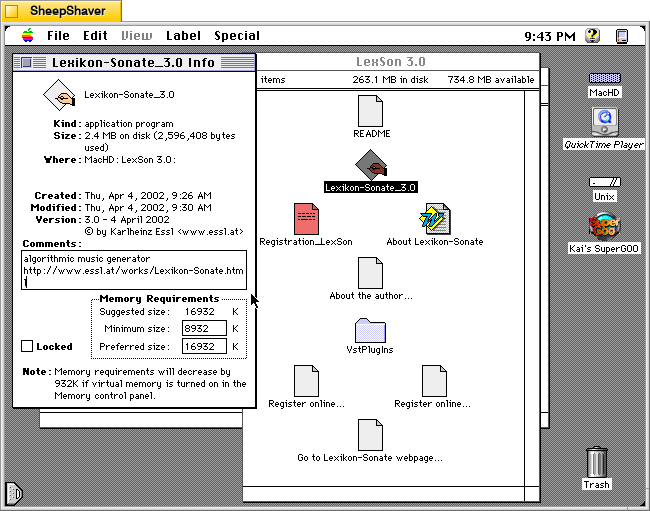
    Lexikon-Sonate 3.0 application info window on Macintosh System 7.5.5 system emulated in SheepShaver.

    The Lexikon-Sonate_3.0 application Get Info window reports that it is version 3.0 dated 4 April 2002. It is 2.4MB in size, and its minimum memory requirement is 8,932K and its preferred size is 16,932K. The Comments box includes a brief description of “algorithmic music generator” and a link to Essl’s website for Lexikon-Sonate.

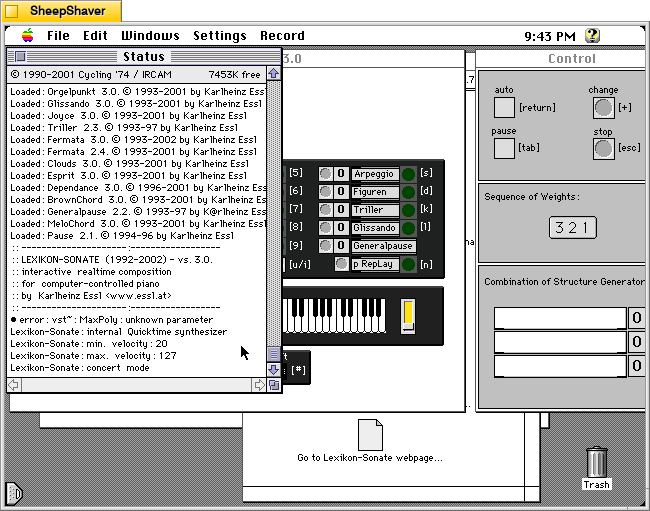
    Lexikon-Sonate 3.0 application Status window on Macintosh System 7.5.5 system emulated in SheepShaver.

    When you first open Lexikon-Sonate, the Status window on the right serves as a console reporting information like settings, loading modules, and the amount of free memory. It falls into the background when the primary interactive windows load below.

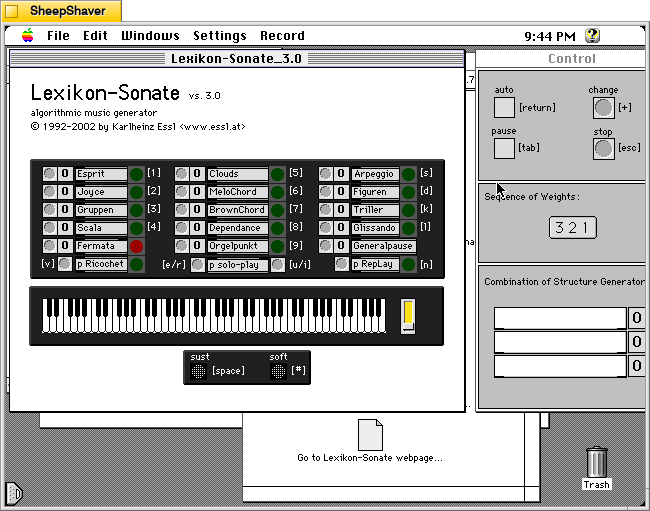
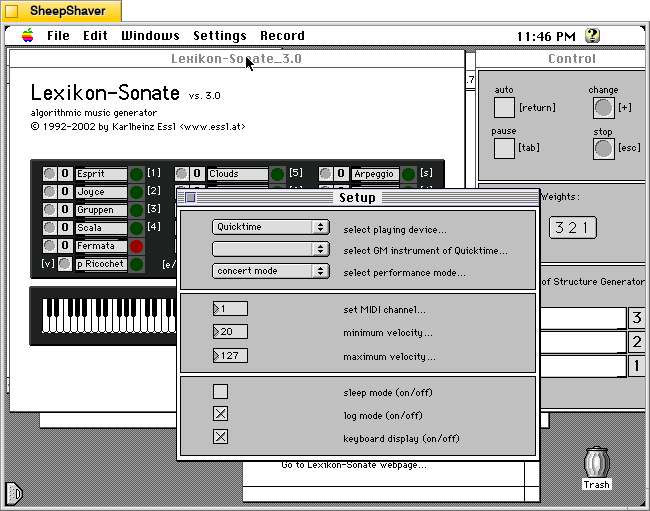
    Lexikon-Sonate 3.0 application main window and Control window on Macintosh System 7.5.5 system emulated in SheepShaver.

    The main Lexikon-Sonate_3.0 window is on the left and the Control window is on the right. The main window shows the available algorithm music generating modules at the top, which can be selected in a sequence of up to 3 by clicking the grey circle to the left of each module. The selected modules will appear in the “Combination of Structure Generator” box at the bottom of the Control window on the right.

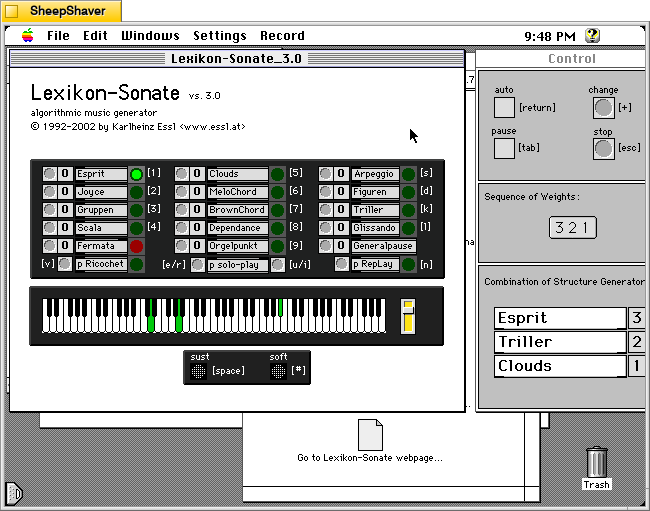
    Lexikon-Sonate 3.0 three modules selected are playing notes on the keyboard on Macintosh System 7.5.5 system emulated in SheepShaver.

    As the program begins to play music created by these algorithms, the keys illuminate to show what keys and chords are being played along with the dynamic slider. The sustain and soft pedals can be activated by the user by pressing the Space Bar or # respectively. Pressing the Escape key halts the current music generation.

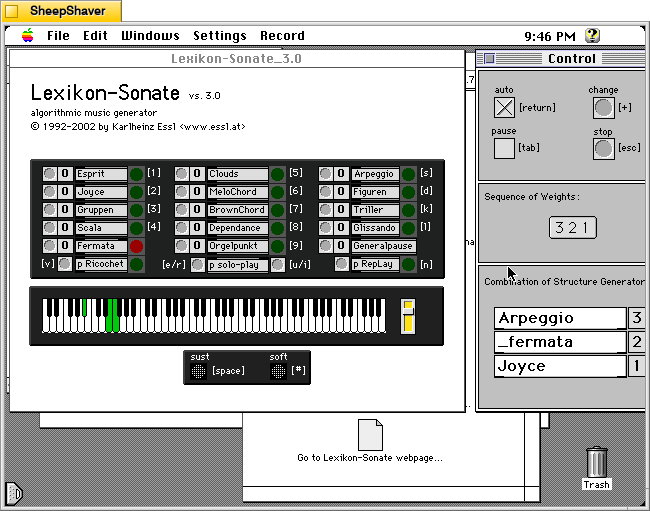
    Lexikon-Sonate 3.0 is in auto mode selecting modules and playing notes on the keyboard Macintosh System 7.5.5 system emulated in SheepShaver.

    If the user clicks on “auto” in the Control window or presses the Return key, the software will cycle through modules on its own giving the software total control of the music generation process.

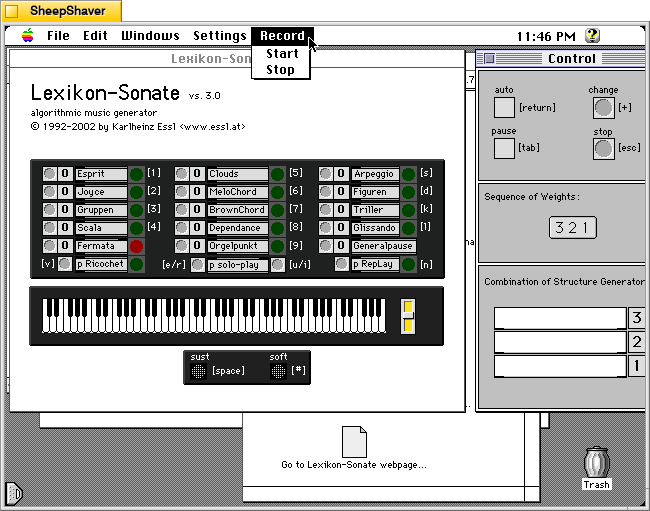
    Lexikon-Sonate 3.0 > Record Menu > Start or Stop on Macintosh System 7.5.5 system emulated in SheepShaver.

    If this version of the software were registered, you have access to the Record > Start or Stop feature.

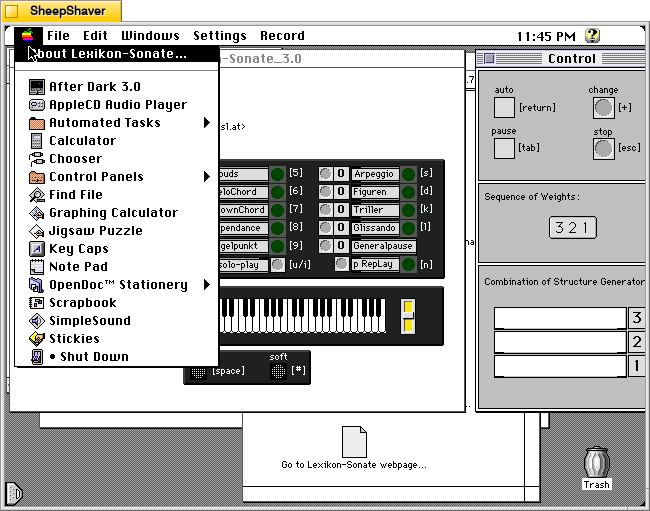
    Lexikon-Sonate 3.0 > Apple Menu > About Lexikon-Sonate on Macintosh System 7.5.5 system emulated in SheepShaver.

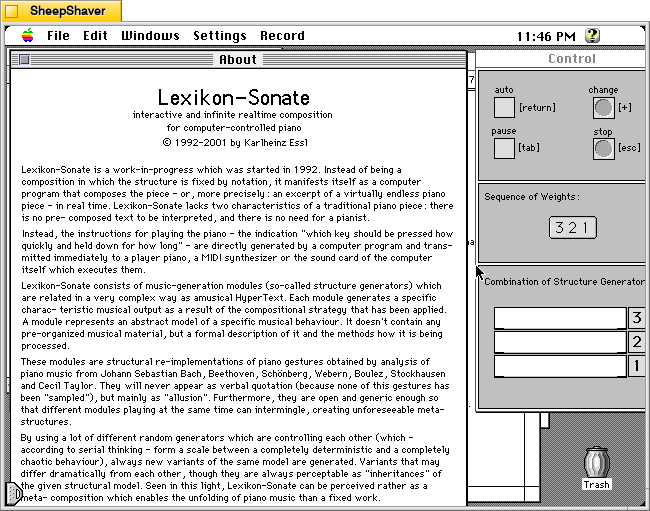
    The Apple menu > About Lexikon-Sonate has a detailed window summarizing how the software works.

    Lexikon-Sonate 3.0's About window on Macintosh System 7.5.5 system emulated in SheepShaver.

    The descriptive About window in Lexikon-Sonate 3.0.

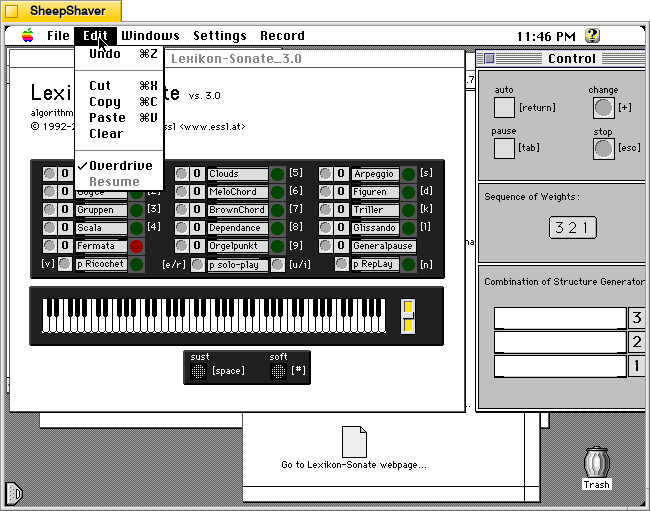
    Lexikon-Sonate 3.0 > Edit menu on Macintosh System 7.5.5 system emulated in SheepShaver.

    The Edit menu with an option for “Overdrive” pre-selected.

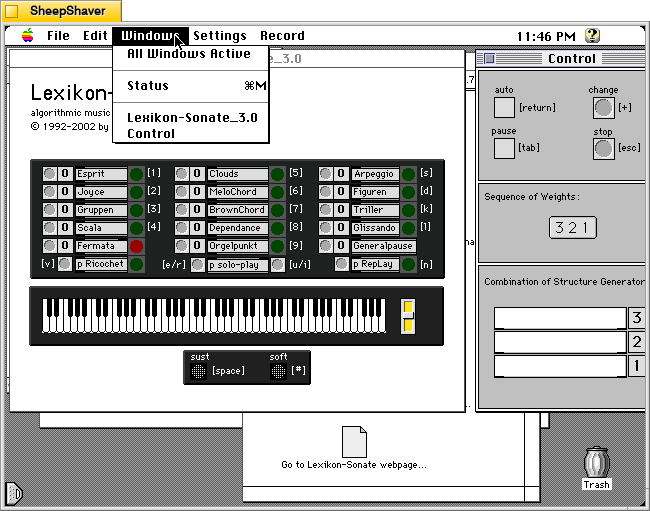
    Lexikon-Sonate 3.0 > Windows menu on Macintosh System 7.5.5 system emulated in SheepShaver.

    The Windows menu listing its three windows: Status (the console in the background), Lexikon-Sonate_3.0 (main window on the left), and Control (the main control window for starting and stopping play on the right).

    Lexikon-Sonate 3.0 > Settings menu on Macintosh System 7.5.5 system emulated in SheepShaver.

    From the Settings menu, Setup opens a new window with settings for playback and MIDI (see below). The Control option opens the Control window. Hotkeys does not seem to do anything on my installation.

    Lexikon-Sonate 3.0 > Setup window on Macintosh System 7.5.5 system emulated in SheepShaver.

    Since I don’t have a MIDI device (and they can be difficult to configure with Sheepshaver anyways), I opted to play through Quicktime (automatically selected by default). There are other settings for MIDI and logging on this window, too.

    Lexikon-Sonate seems like a remarkable piece of software that I wish that I had known about many years ago. It would have been something I would have enjoyed experimenting with.

    Also, Essl has created remarkable recordings and made interesting performances using his software, some of which are shared in videos on his website here.

  • Haiku Master 2.2, a Haiku Generating Hypercard Stack for Macintosh

    Haiku Master application icon on Macintosh System 7.5.5 system emulated in SheepShaver.

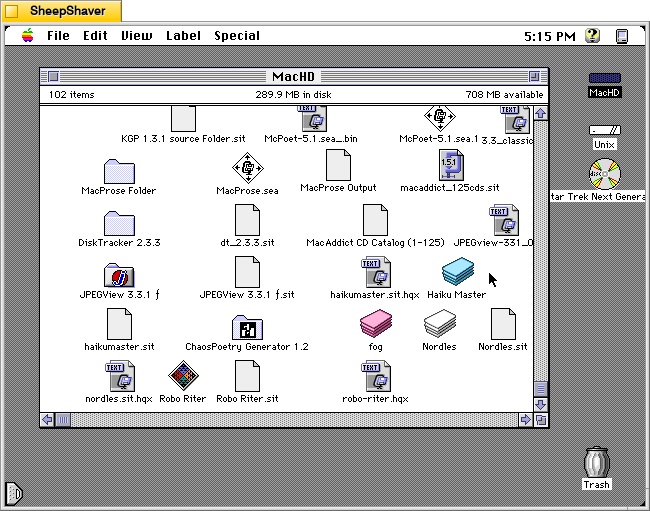
    Continuing my work exploring pre-AI generative technologies, I found a copy of Andrew Stone’s Haiku Master, a HyperCard stack for Macintosh that generates haikus, on the archived version of TextWorx Toolshed page, which links to other text generating and manipulating programs for Macintosh and MS-DOS. Haiku Master requires the user to have a copy of Apple’s HyperCard Player installed on the system. I have HyperCard Player 2.4.1 installed on the emulated System 7.5.5 installation on SheepShaver used for these screenshots.

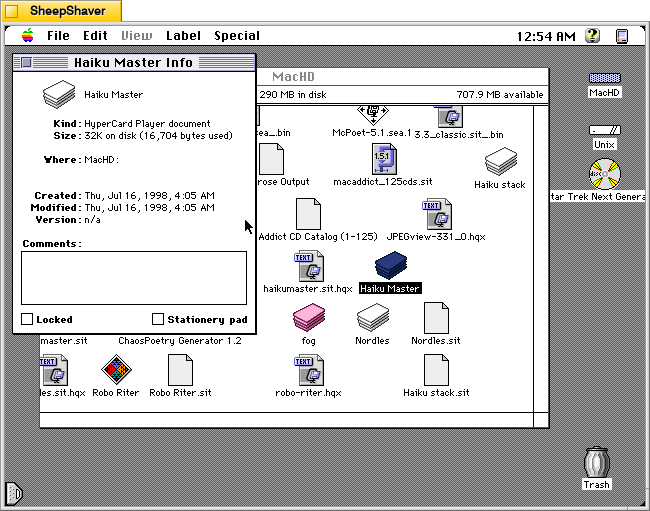
    Haiku Master Hypercard stack Get Info window Macintosh System 7.5.5 system emulated in SheepShaver.

    Haiku Master is a lean HyperCard stack at only 32K on disk and 16,704 bytes actually used. It was created on 16 July 1998.

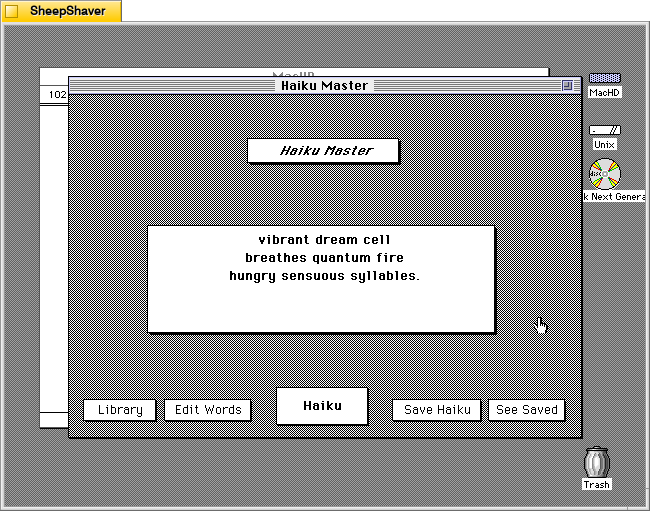
    Haiku Master main window on Macintosh System 7.5.5 system emulated in SheepShaver.

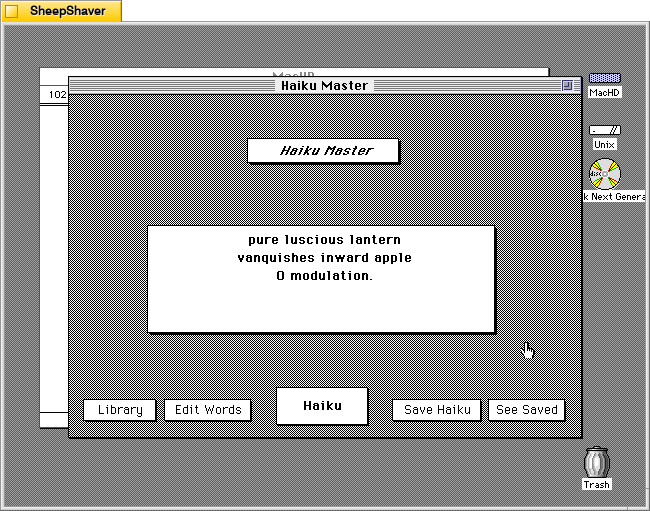
    After double clicking on Haiku Master, the stack automatically launches HyperCard Player and the user is presented with this main window. In the center, a haiku is already generated.

    vibrant dream cell
    breathes quantum fire
    hungry sensuous syllables.

    Instead of a 5-7-5 syllable line arrangement, it seems to generate haiku that are a total of 17 syllables.

    Unlike some of the other text generators that I’ve looked at here, Haiku Master has a singular focus to just create haikus of a certain variety. Other text generators from this era seem to do several different types of text generation, perhaps because once one kind of assembly algorithm is made, it might not be too challenging to alter it for a different kind of text generation, or it might be over time those other programs acquired new features with subsequent new versions.

    By clicking on the Haiku button in the bottom center, another haiku is generated.

    Haiku Master prompting to open library on Macintosh System 7.5.5 system emulated in SheepShaver.

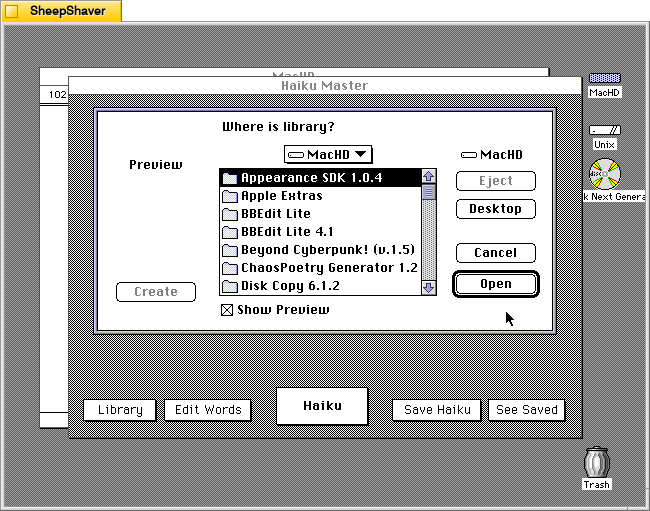
    Clicking on Library prompts the user to open a file, perhaps a corpus of words? The documentation built into the stack doesn’t explain what a library is or how it is used, and there is no additional documentation or files included in the downloaded archive.

    Haiku Master Edit Words screen on Macintosh System 7.5.5 system emulated in SheepShaver.

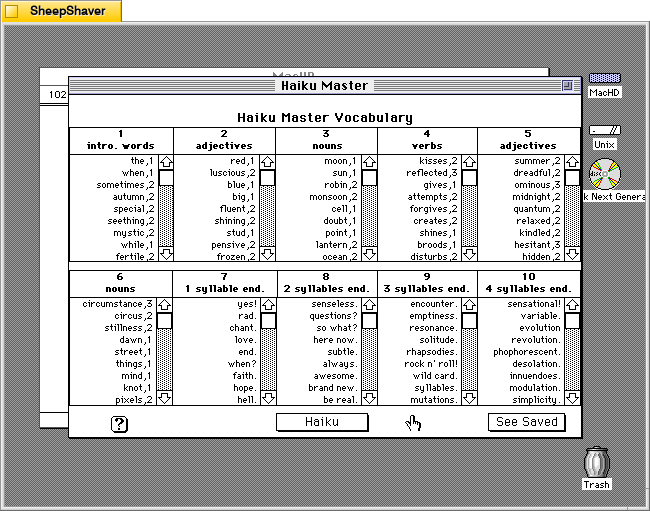
    Clicking on Edit Words opens this screen titled Haiku Master Vocabulary with lists of word lists broken down into 10 sections: 1) intro. words, 2) adjectives, 3) nouns, 4) verbs, 5) adjectives, 6) nouns, 7) 1 syllable end, 8) 2 syllables end, 9) 3 syllables end, and 10) 4 syllables end.

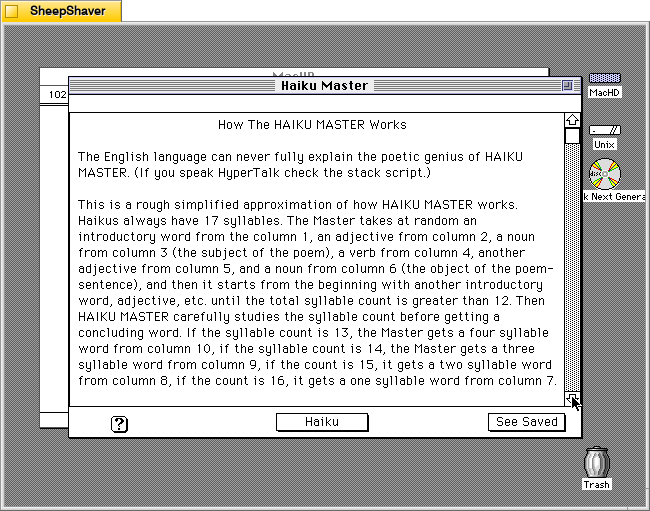
    Haiku Master's "How the HAIKU MASTER Works" screen on Macintosh System 7.5.5 system emulated in SheepShaver.

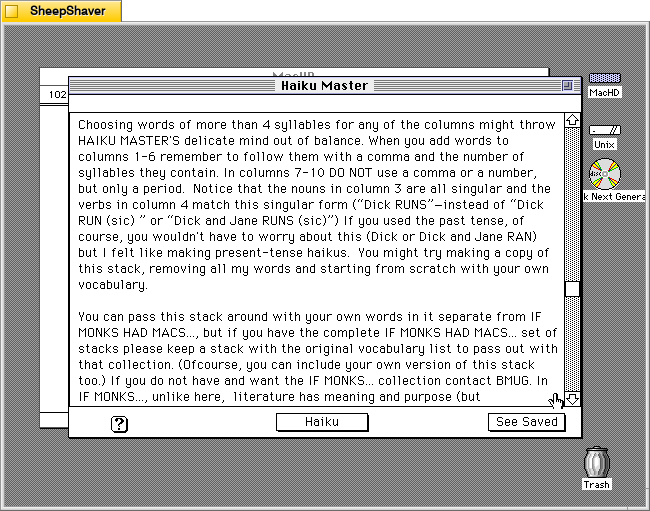
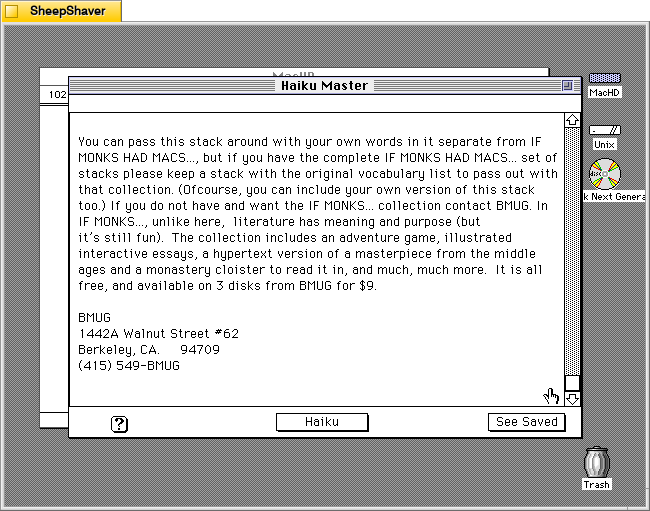
    Clicking on the Help/? question mark icon in the lower left opens this screen of text titled “How the HAIKU MASTER Works.” It explains how it pieces together a haiku of 17 syllables using the words from the 10 categories of word lists as needed. The following two images continue the explanation.

    Haiku Master's "How the HAIKU MASTER Works" screen on Macintosh System 7.5.5 system emulated in SheepShaver.
    Haiku Master's "How the HAIKU MASTER Works" screen on Macintosh System 7.5.5 system emulated in SheepShaver.

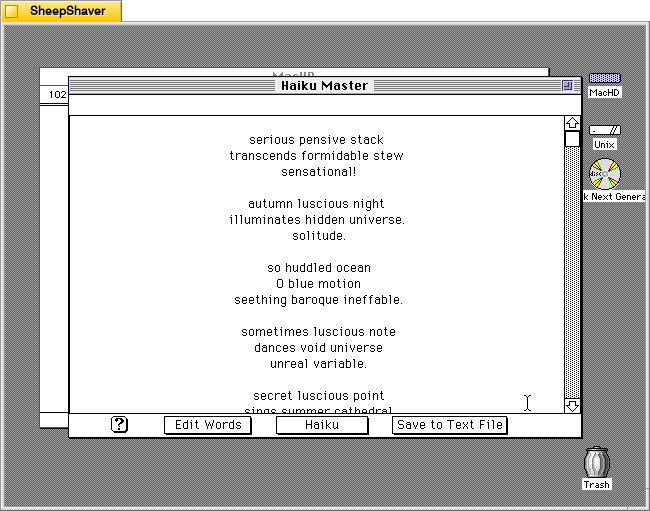
    Clicking on “See Saved” on the screen above or from the main haiku composition window leads you to a running list of previously generated and saved haikus shown below.

    Haiku Master saved haikus screen on Macintosh System 7.5.5 system emulated in SheepShaver.

    From this screen, you can click on “Save to Text File” to save the haikus in an editable text file, or you can click on “Haiku” on the bottom of this screen to take you back to the main composition window shown below.

    Haiku Master main screen on Macintosh System 7.5.5 system emulated in SheepShaver.

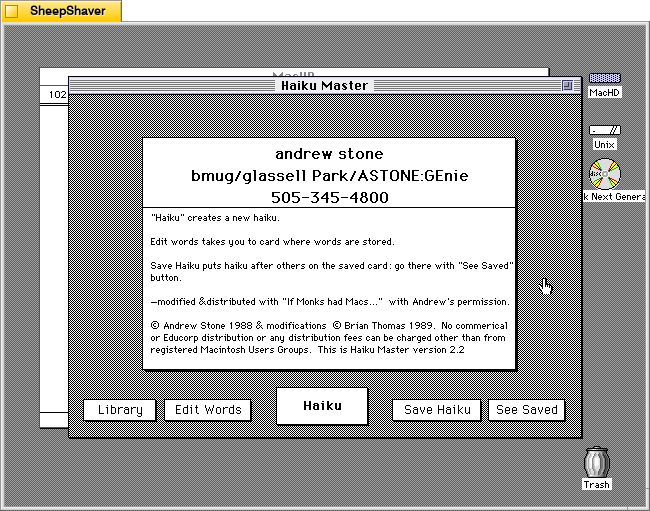
    Clicking on “Haiku Master” above the haiku composition area leads you to the about screen shown below.

    Haiku Master about screen on Macintosh System 7.5.5 system emulated in SheepShaver.

    The about screen provides Andrew Stone’s contact information, including his GEnie username. It noes that this copy was “modified & distributed with ‘If Monks had Macs…’ with Andrew’s permission.” The modifications were made by Brian Thomas in 1989. It notes this is Haiku Master version 2.2.

    Brian Thomas is the developer who put together If Monks Had Macs . . .. It was distributed by The Voyager Company, a company that innovated early ebooks for Macintosh called Expanded Books and multimedia CD-ROM titles, which I’ve written about previously here, here, here, here, and here.

    This reminds me that during my first year in Brooklyn, Bob Stein, co-founder of Voyager Company, co-founder of The Criterion Collection, and co-director of The Institute for the Future of the Book, reached out to me (I think on Twitter–I hadn’t left the platform yet at that time–as I had shared some things about William Gibson’s Sprawl Trilogy Expanded Book published by Voyager) and graciously spoke with me at his home in Williamsburg one snowy afternoon about Voyager Company, Expanded Books, and personal computer pioneers he was friends with.