Tag: Artificial Intelligence

  • November 2023 Update on the Generative AI and Pedagogy Bibliography Page

    A holographic projection of an AI emerges from the portal. Image generated with Stable Diffusion XL.

    Since my last update in September, I’ve continued adding MLA-formatted book and article entries to the Generative AI and Pedagogy Bibliography page each week as I come across them.

    There are now 434 bibliographic entries–an addition of 52 new entries. The online resource list at the bottom of the page is now up to 56 links–an increase of only one.

    Most of the new bibliographic entries are in the pedagogy, generative text, background, and textbook sections, but there are some interesting titles that I added to the other AI application sections.

    Following the explosion of new titles on artificial intelligence earlier this year, the rate of new publications have slowed. I suspect that some titles were rushed out to take advantage of the hype and now new titles are being released at normal publication rates. But, I also suspect that the pipeline is in the process of rebuilding, perhaps with even more titles than were in the first wave.

    As I’ve written before, the list isn’t exhaustive. I include titles that I find interesting through my research and study of generative AI. Nevertheless, I hope that it might be useful to folks who find it one way or another.

  • Kant Generator Pro 1.3.1, a Modular Text Generator Originally Made to Create Psuedo-Kantian Philosophical Writing

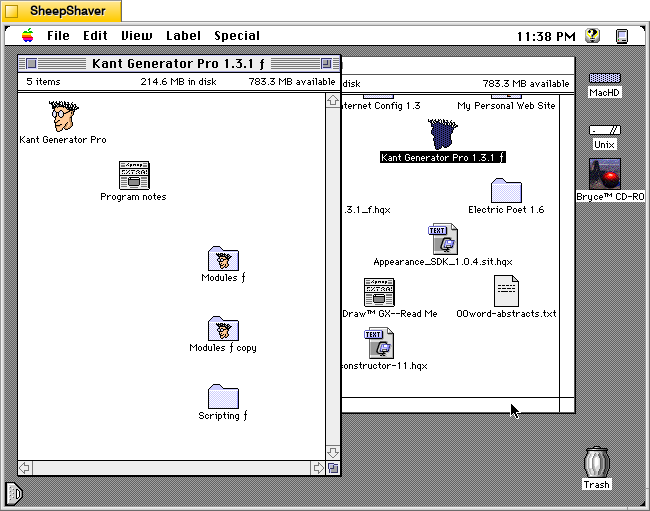
    Kant Generator Pro 1.3.1 folder and icon group on Macintosh System 7.5.5

    Continuing my exploration of non-artificial intelligence (non-AI) programs that can generate images (see KPT Bryce and Evolvotron) and text (see Electric Poet 1.6), I discovered this really innovative piece of text generating software by Mark Pilgrim called Kant Generator Pro 1.3.1 for Macintosh 68k computers.

    The Kant Generator Pro folder, which includes the Kant Generator Pro application, Program Notes file, and folders for its text generating modules and scripting, is only 560K. The Kant Generator Pro application is 176K and it has a suggested RAM size of 1,024K. The copy that I downloaded from Macintosh Garden here had the minimum RAM size set at 512K and the Preferred size set to 11,024K.

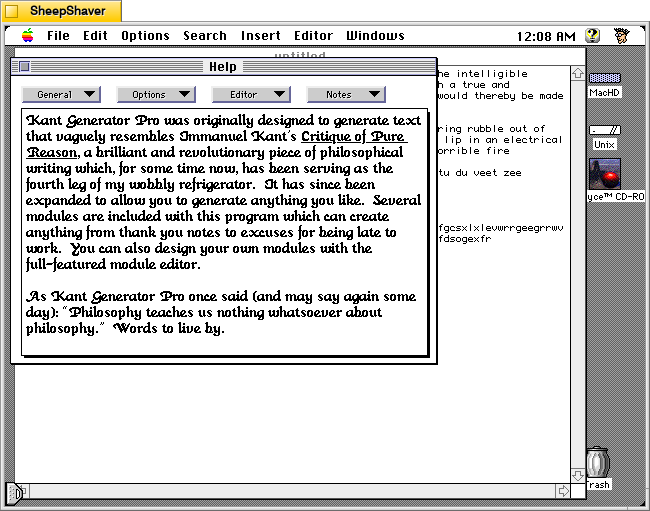
    According to the program’s built-in Help (shown in a screenshot down the page):

    Kant Generator Pro was originally designed to generate text that vaguely resembles Immanuel Kant's Critique of Pure Reason, a brilliant and revolutionary piece of philosophical writing which, for some time now, has been serving as the fourth leg of my wobbly refrigerator. It has since been expanded to allow you to generate anything you like. Several modules are include with this program which can create anything from thank you notes to excuses for being late to work. You can also design your own modules with the full-featured module editor. 

    And on a saved copy of Pilgrim’s personal website from 21 Dec. 1996, he writes the following about Kant Generator Pro:

    Purpose: to generate pseudo-Kantian philosophy based on Kant's vocabulary and sentence structure in the "Critique of Pure Reason". Anyone who has been subjected to Kant (voluntarily or otherwise) will appreciate the humor in the gibberish this program outputs. Also includes a module editor so you can create your own generation modules.
    
    Kant Generator is quickly becoming my most popular program (although it is still in third place behind Startup Screen Picker and Shutdown FX), especially among philosophy students, graduates, and professors. When I showed it (off) to my professor for my Kant course, he immediately started describing something he had written years ago to achieve a similar result, though by a completely different method. Other professors from across the country have praised it, saying they will use it in their introductory philosophy courses to 'stimulate interest in philosophy'. I guess every little bit helps.
    
    I am slowly but steadily adding more modules to Kant Generator Pro. Version 1.1 added a Husserl module, as well as "thank you" note module (which occurred to me while procrastinating writing my Christmas thank you notes). Version 1.2 added an "excuses" module, written by Mike W. Miller. Version 1.3 added a Swedish Kant module, which is just the original Kant module with all the references and instantiations converted into Swedish Chef talk. (Yes, I used the code from Chef, and yes, I automated the process to cycle through all the instantiations and convert them, and no, you can't have the code. Just what we need is people running around converting all their KGP modules to Swedish Chef, or WAREZ, or Fudd...) Version 1.3 also added scripting support; anyone who wants to set up a WWW page and call Kant Generator Pro with a CGI interface through AppleScript has my permission as long as you send me your CGI interfacing code.
    
    It's very exciting to have other people writing modules for Kant Generator Pro, if nothing else because it means I don't have to do anything for the program to keep improving. Suggestions for future philosopher modules (or anything else) are always appreciated, although I am reluctant to write modules of philosophers I haven't studied myself. Satire is the sincerest form of flattery, but also the most difficult... 

    The source code for Kant Generator Pro is also available bundled with the application in the Info-Mac repository here.

    Below, I’ll annotate screenshots of the application running on an installation of Macintosh System Software 7.5.5 on the PPC emulator SheepShaver hosted by Debian 12 Bookworm with the Xfce Haiku Alpha window theme active.
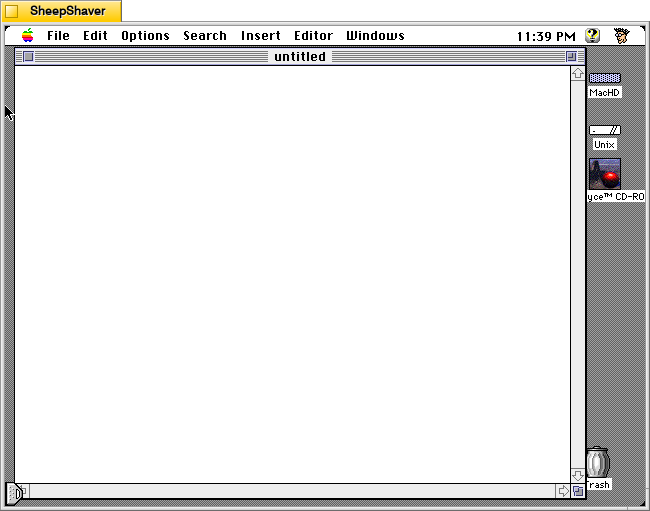
    Kant Generator Pro for Macintosh, Composing Window after launch

    After opening Kant Generator Pro, the user is presented with a text entry window much like in any text or word processing software. One can enter text, but to have the program generate text, one needs to use the menus: first, to select the text generation module from the Options menu, and then, to select from the type of text to generate from the Insert menu.

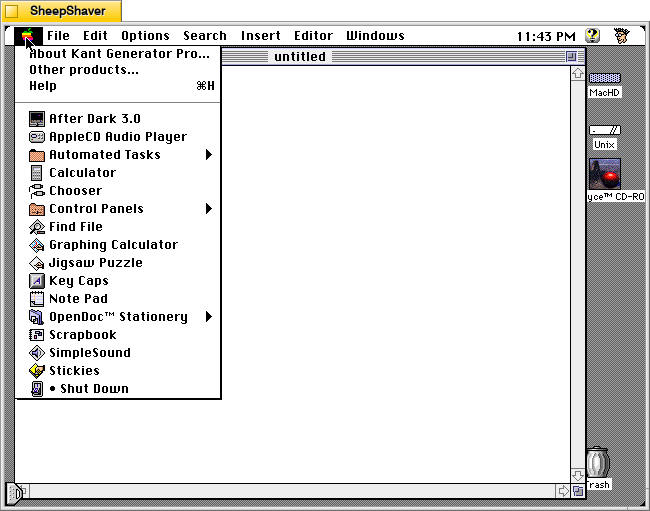
    Kant Generator Pro for Macintosh, Apple menu

    Clicking on the Apple menu gives you options for About Kant Generator Pro, Other products, and Help.

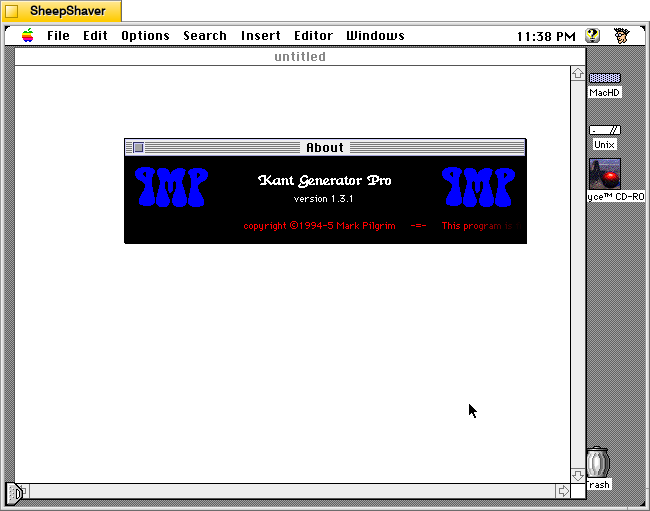
    Kant Generator Pro for Macintosh, About window

    Opening the About window from the Apple menu features a scrolling credits and copyright notice.

    Kant Generator Pro for Macintosh, Apple menu > Help

    Selecting Help from the Apple menu provides lots of useful information about how to use Kant Generator Pro to generate text, how to edit the modules that it uses for text generation, and technical information about the design of the program.

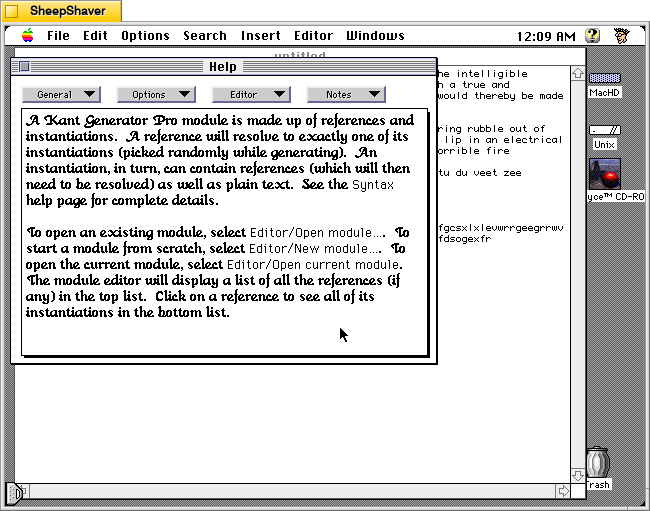
    Kant Generator Pro for Macintosh, Apple menu > Help > Editor > Getting Started

    Choosing Editor > Getting Started on the Help window shows the information displayed above. Like Electric Poet, which I wrote about yesterday here, Kant Generator Pro relies on randomness, but unlike Electric Poet, Kant Generator Pro relies on more structure in building relationships between words and strings of text by editing a given Module (like Electric Poet’s Library). But where Kant Generator Pro gets really interesting is in how the responses can be engineered while editing the Module to reference and nest references within references.

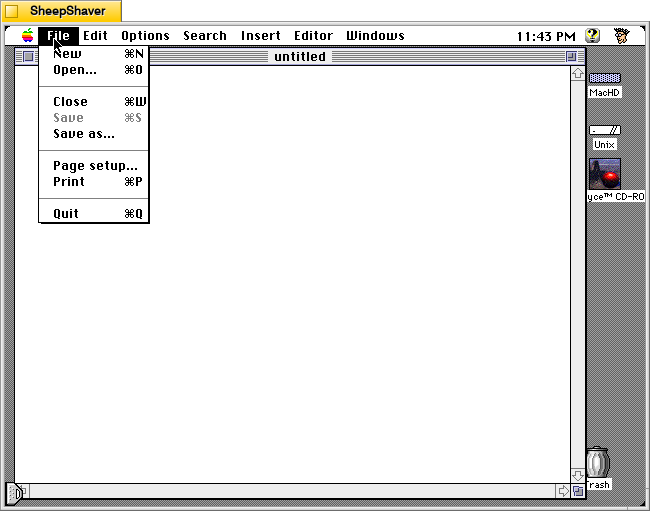
    Kant Generator Pro for Macintosh, File menu

    The File menu gives you access to basic file operations.

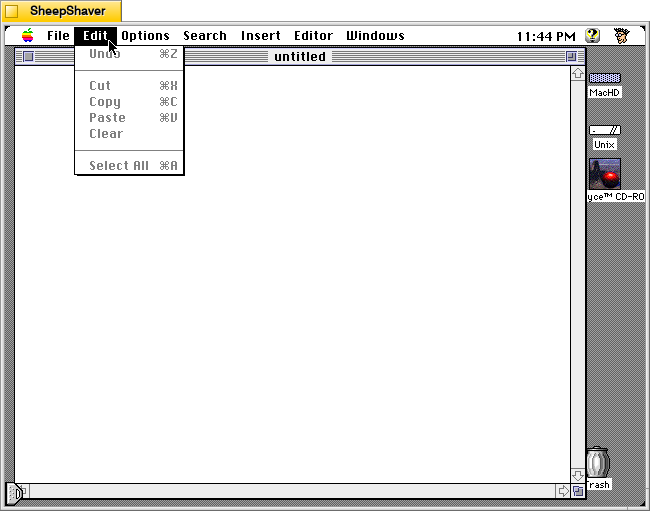
    Kant Generator Pro for Macintosh, Edit menu

    The Edit menu has basic edit operations.

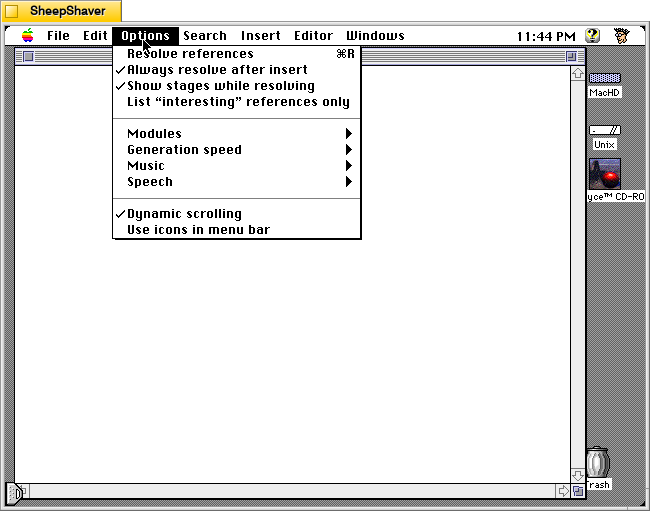
    Kant Generator Pro for Macintosh, Options menu

    The Options menu controls Kant Generator Pro’s primary feature–the Module used for text generation, but it also gives the user options for how fast it generates text, whether music is played or not while generating text, and to speak the generated text a voice with Apple’s Text-to-Speech technology.

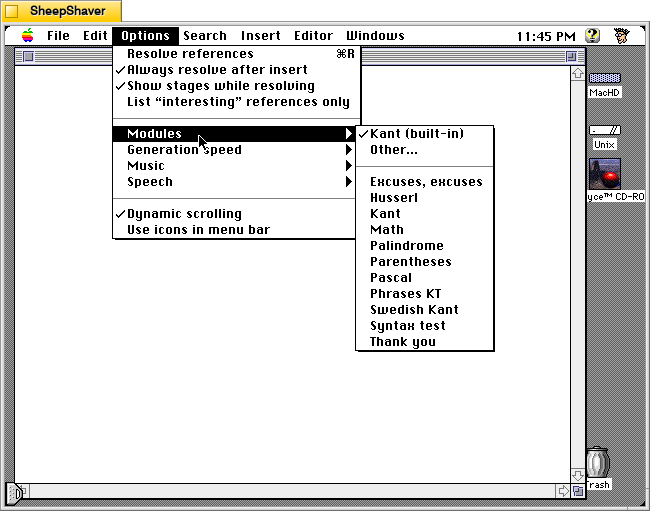
    Kant Generator Pro for Macintosh, Options > Modules

    In the Options menu > Modules, the user chooses the text generator module to use. The Program Notes file (dated 26 Jun. 1995) included with the application describes the included modules:

    Kant Generator Pro has the built-in capability to generate enormous amounts of Kantian gibberish, but if you'd like to play with generating your own text, it also lets you create, edit, and use external modules.  There are several modules included in this release:
    
    Kant: this is exactly the same as the built-in Kant module, except that you can edit it.  The most general reference is &section.
    
    Swedish Kant: this is the same as the Kant module, except that all references names and text have been converted to mock Swedish Chef (as featured in my program Dialectic, which should be available wherever you got this package).  The most general reference is &secshun.
    
    Husserl: a module which emulates Edmund Husserl, a 20th-century phenomenologist.  The most general reference is &section.
    
    Thank You: a module which generates thank-you notes for all occasions.  The most general reference is &thank-you-note.
    
    Excuses, excuses: a module which generates for excuses explaining exactly why you can't come to work.  The most general reference is &Yet-Another-Excuse.  Written by Mike W. Miller.
    
    Math: a module which generates algebraic equations using +, -, *, /, parentheses, and three variables X, Y, and Z.  The most general reference is &term.  Written by David Scheidt (the same friend who discovered that he had 19 copies of the GPL).
    
    Palindrome: a modules which generates palindromes (strings which spell the same backwards and forwards).  The most general (and only) reference is &palindrome.  Written by David Scheidt.
    
    Pascal: a module which generates syntactically correct statements in the Pascal programming language.  The most general reference is &pstate.  Written by David Scheidt.
    
    Parentheses: a module which generates strings of balanced parentheses.  The most general reference is &balanced-parens.  Written by David Scheidt.
    
    Syntax test: this is a sample module which gives examples of the different forms of syntax which Kant Generator Pro can deal with.  All the references are relevant, but you won't get much out of them unless you look at them in the module editor first.
    
    If you'd like to create your own modules, poking around with these should be enough to get you started.  There are several pages of help in the Kant Generator Pro application which talk about building modules, and I also support balloon help for all the menus.  If you're still confused, drop me a line (my e-mail address is in the application's help section) and I'll try to help.
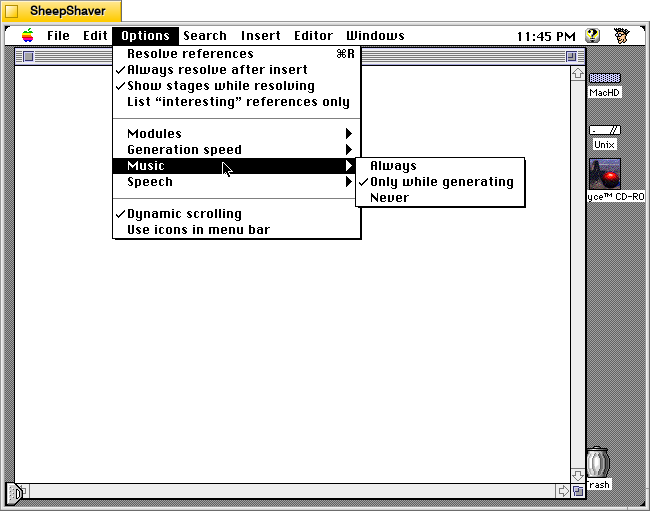
    Kant Generator Pro for Macintosh, Options > Music

    The Options menu > Music has options for Always, Only while generating, and Never.

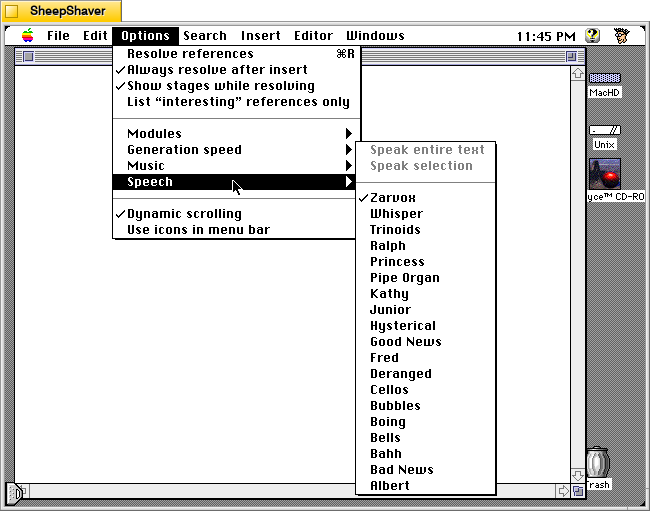
    Kant Generator Pro for Macintosh, Options > Speech menu

    The Options menu > Speech selection pulls available voices from Apple’s Text-to-Speech (if installed on the Macintosh) to give users an opportunity to have the generated text read aloud.

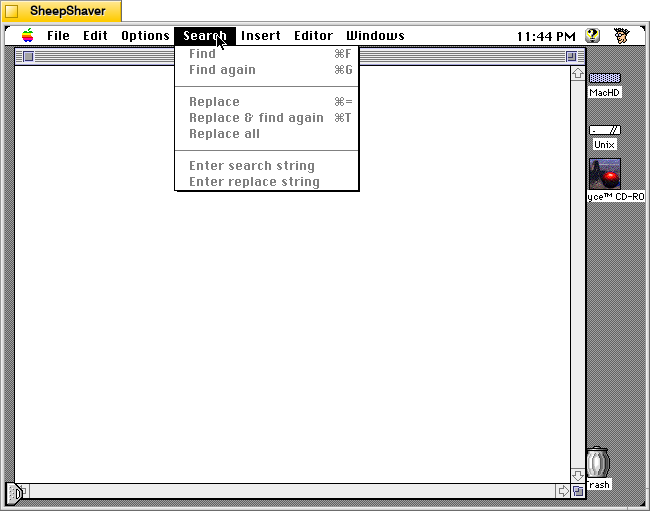
    Kant Generator Pro for Macintosh, Search menu

    The Search menu gives users an easy way to find and replace text in the text generation window (but not the Editor window shown further below).

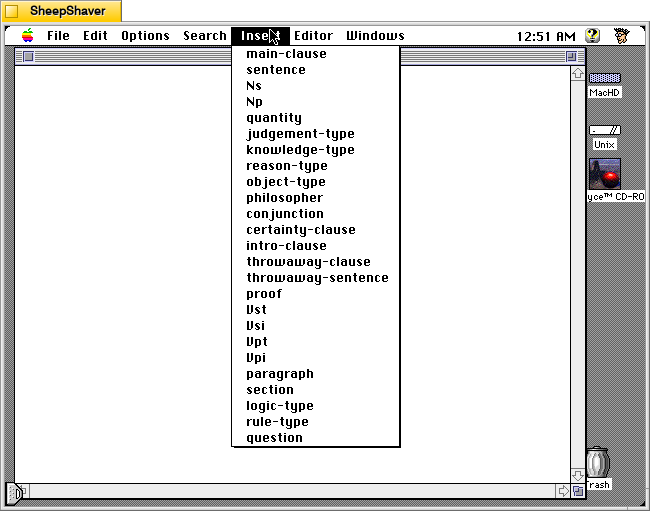
    The Insert menu changes based on which Module the user selects after opening Kant Generator Pro. This menu is what directs Kant Generator Pro to generate text based on the text corpus and engineered relationships in the Module. Kant Generator Pro uses randomness to piece together options within the corpus and those established relationships to string words together into phrases, sentences, paragraphs, and sections. The above options in the Insert menu are for the Kant Module.

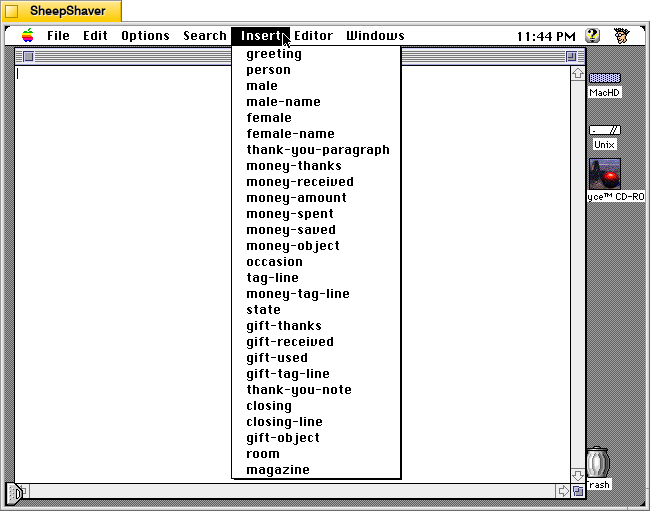
    Kant Generator Pro for Macintosh, Insert menu

    The Insert menu options shown above are for the Thank You Module.

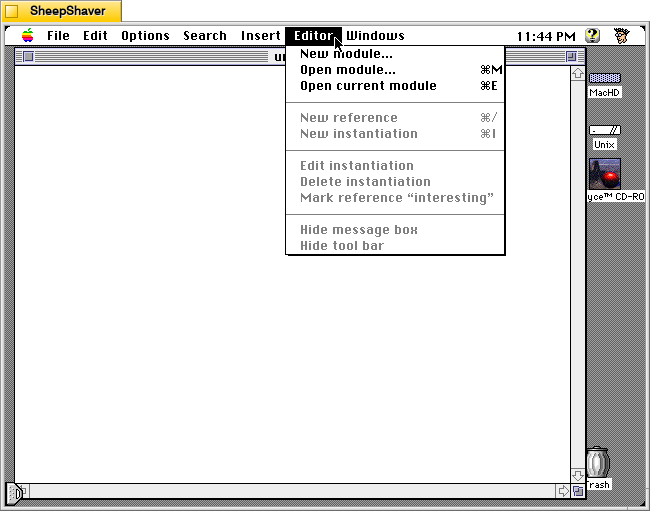
    Kant Generator Pro for Macintosh, Editor menu

    The Editor menu gives options to create a new module or open a module in the Editor window.

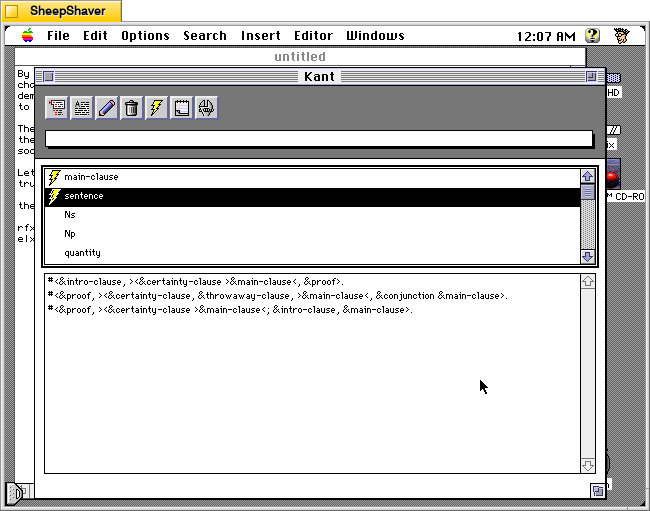
    Kant Generator Pro for Macintosh, Editor window

    The Editor window for a Module is where the end user can construct new References (top pane) and Instantiations (lower pane). You can see in the lower pane how References string together other References and Instantiations within References to give the generated text structure.

    Kant Generator Pro for Macintosh, Windows menu

    The Window menu allows the user to switch between multiple open files in different windows.

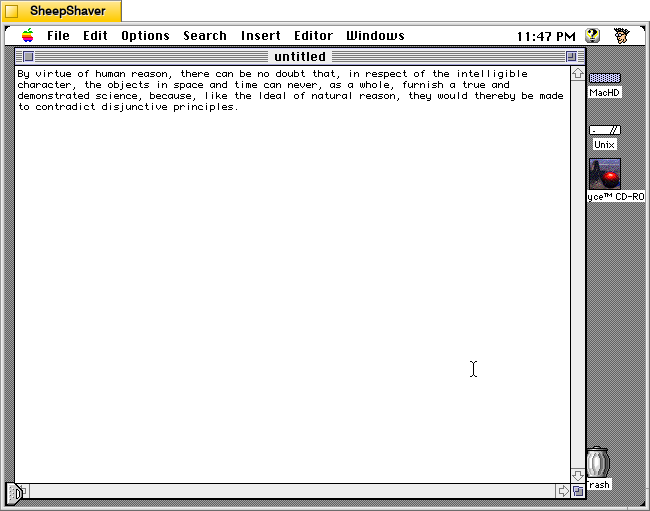
    Kant Generator Pro for Macintosh, Kant module | Insert > sentence

    Using the Kant Module, I used the application to generate the sentence above.

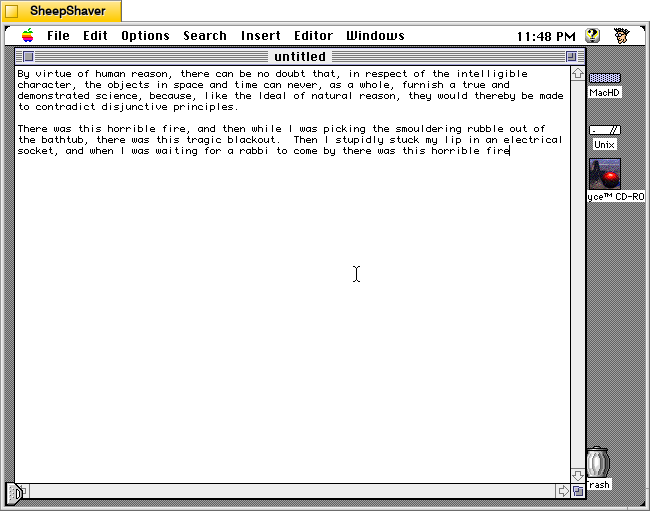
    Kant Generator Pro for Macintosh, Excuses module | Insert > sentence

    Using the Excuses, excuses Module, I used the program to generate the above outlandish excuse.

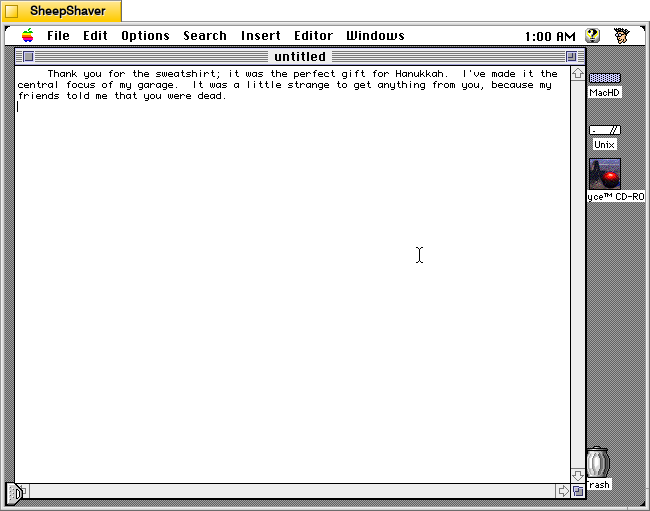
    Kant Generator Pro for Macintosh, Thank You module | Insert > paragraph

    Finally, using the Thank You Module, I generated the rather strange gift thank you.

    Like Electric Poet and large language model (LLM) artificial intelligence today, there is some trial-and-error involved. Electric Poet and Kant Generator Pro rely on a corpus of text, a system of relationships, and randomness to select what word or phrase goes next given a set of rules. In a sense, LLMs aren’t that much different except in scale. Based on a given LLM’s training, the relationships between words (or tokens) are far more complex. The hidden layers of an LLM construct relationships that are not simply 1-to-1. Analogous to neurons in our brains, the connections and weights for each connection between tokens are vast and labyrinthine.

    Nevertheless, I can imagine Electric Poet and Kant Generator Pro being used today–over 25 years after being first developed in the latter’s case–as a tool to help students think about how text generation can work in a very simplified manner. This can be paired with sentence diagramming of some of their own writing, which can be duplicated within Kant Generator Pro as a “Me” Module that can reproduce one’s own writing. Then, students can advance to more complicated topics with how LLMs are trained on big data to create models that are magnitudes more sophisticated than their Library for Electric Poet or Module for Kant Generator Pro. Throughout the process, an important reminded needs to be reinforced–there is no intelligence in these Macintosh programs or LLMs as they currently exist. The old and the new generate text based on rules applied to models–the former being simple and the latter being much more complex, but in both cases not having awareness or self-direction. Though, it seems like we are going in the direction of self-awareness and self-direction far more quickly than seems safe to me.

  • Electric Poet 1.6, a Macintosh Poetry Generator Program

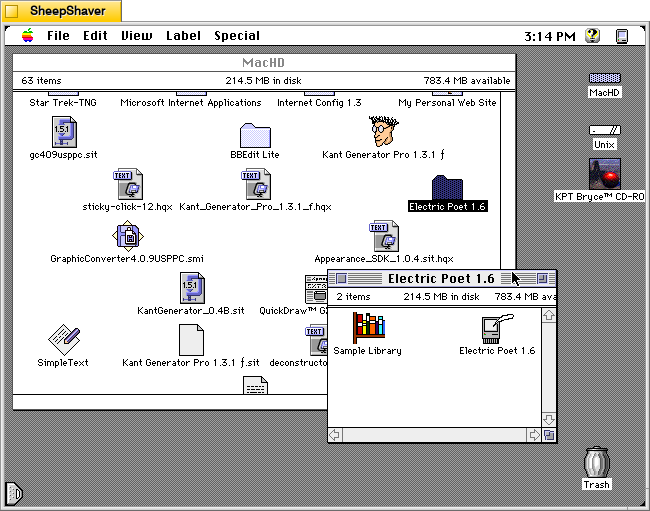
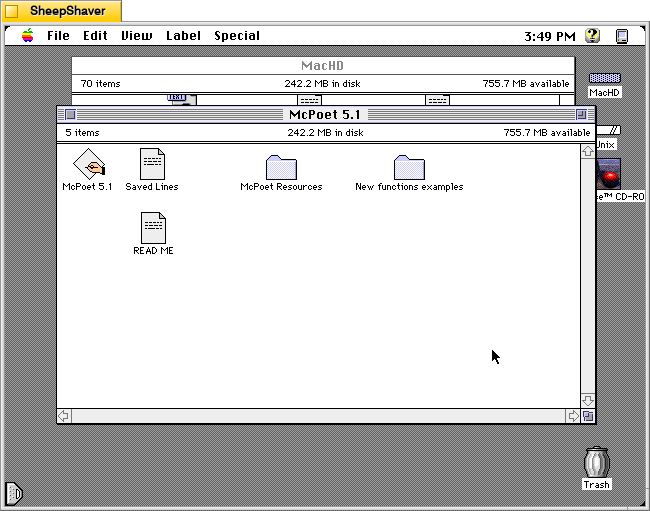
    Electric Poet 1.6 for Macintosh, Icon Group

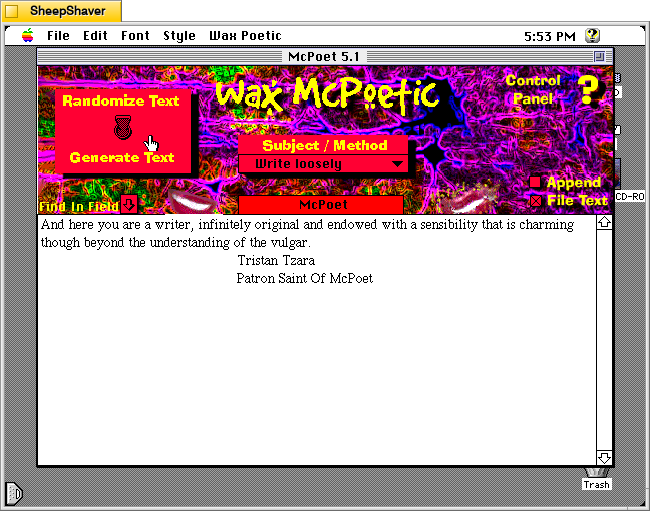
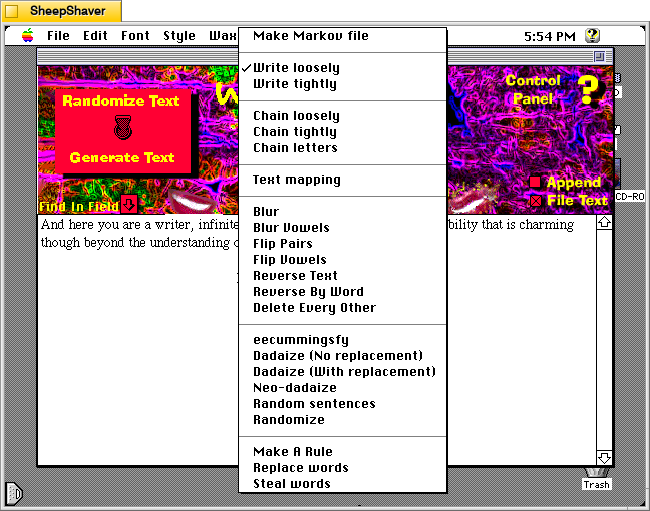
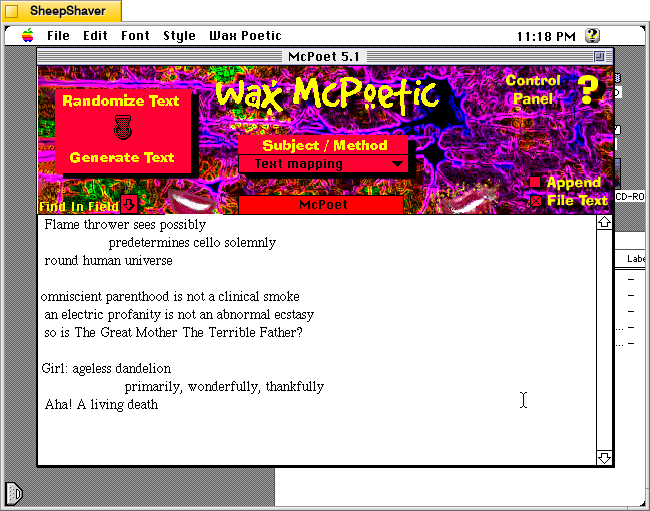
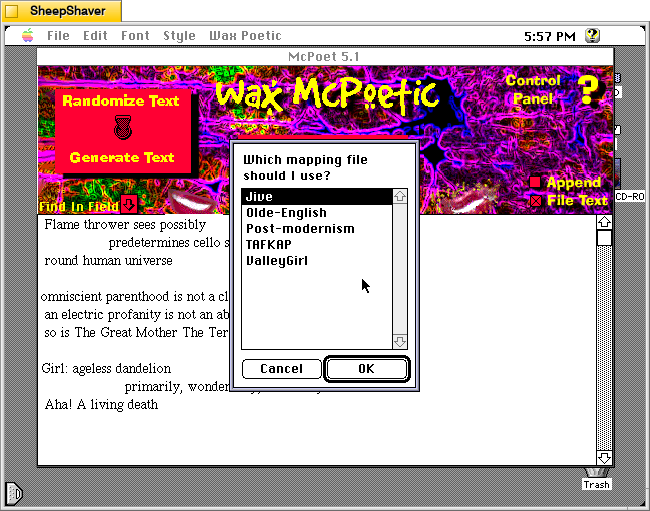
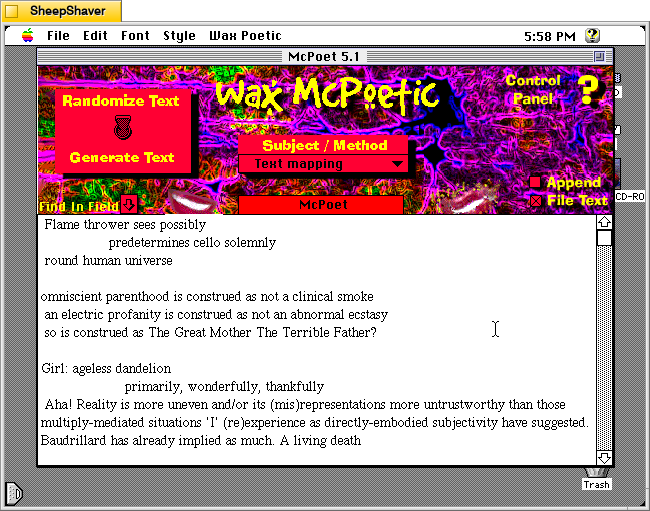
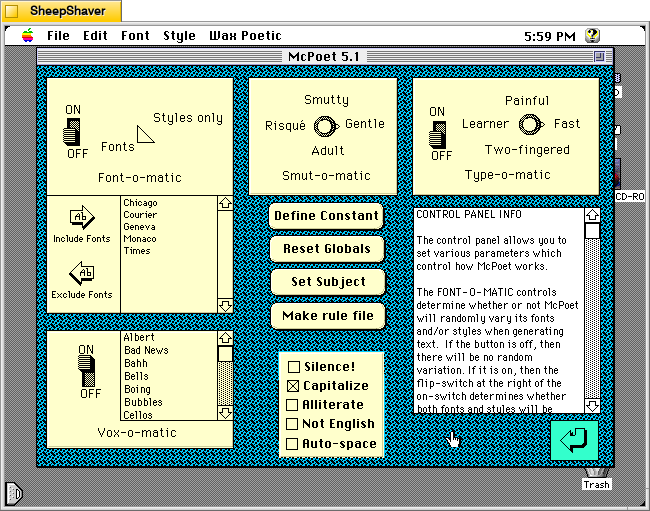
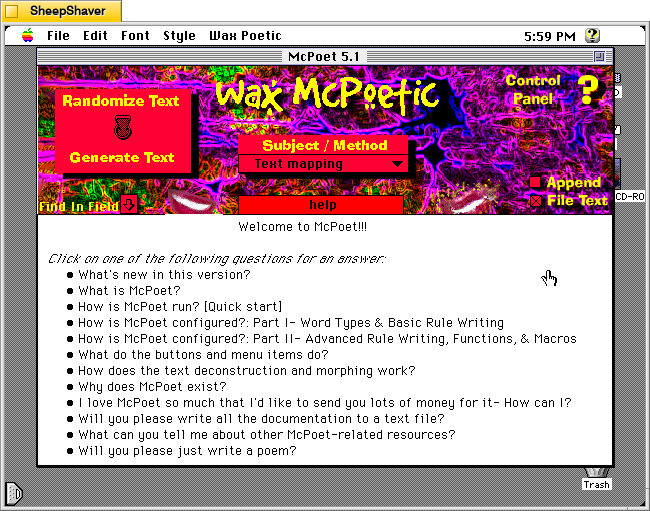
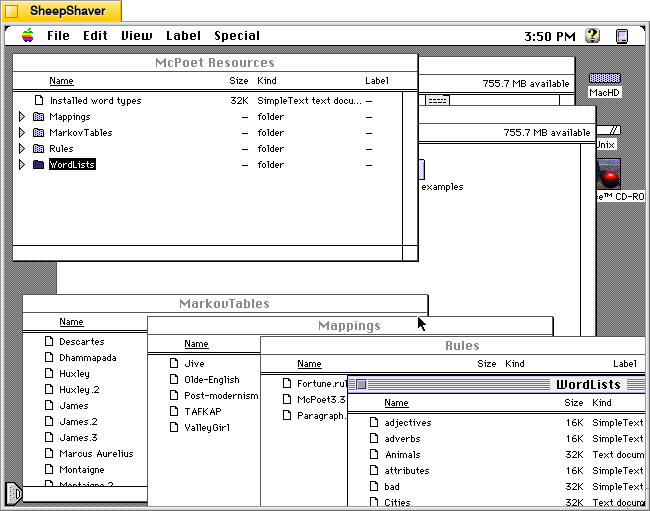
    Like I’ve written before about image generation software such as KPT Bryce and Evolvotron, which employ fractals instead of artificial intelligence (AI) to generate landscapes and abstract images respectively, there are also text generating programs that use a variety of coding tricks to string words together in a far less complex manner than those used by large language model (LLM) AI systems today. Nevertheless, these precursors to generative AI deserve our attention to explore how they work and what they might have been and still used for.

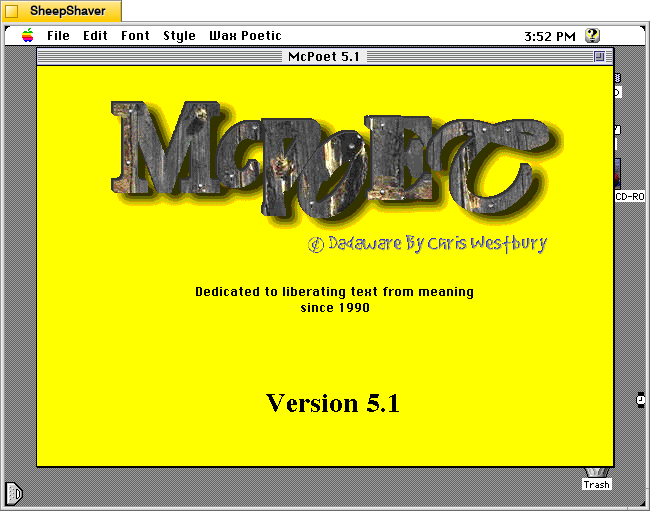
    One such text generating program is Electric Poet 1.6 by Niklas Frykholm. It is a program that is only 48K in size, uses 600K of RAM, and is built to run on 68K-based Macintosh computers. For testing and creating the screenshots below, I used SheepShaver running System Software 7.5.5.

    In his abstract for the Info-Mac Archive (available in a viewable format here or as a part of the entire Info-Mac archive here), Frykholm writes, “Electric Poet can use an ordinary text file as a mould for creating its own litterary [sic] works. This works best with abstract poetry where it’s sometimes hard to tell real from bogus.”

    On 28 Sept. 1996 on his personal website, he writes, “Electric Poet is a fusion between my interest in computers and my interest in poetry. It is an attempt to write a program, capable of creating its own literary works. The Electric Poet takes the works of a biologic poet (as a TEXT-file) and rearranges them in a random but controlled manner. Heres a poem written by the program:

    often
    and closer to the chasm
    until you still have been squeezed by the mysterious event
    it showed clearly for the trouble
    and the progress
    about my desktop”

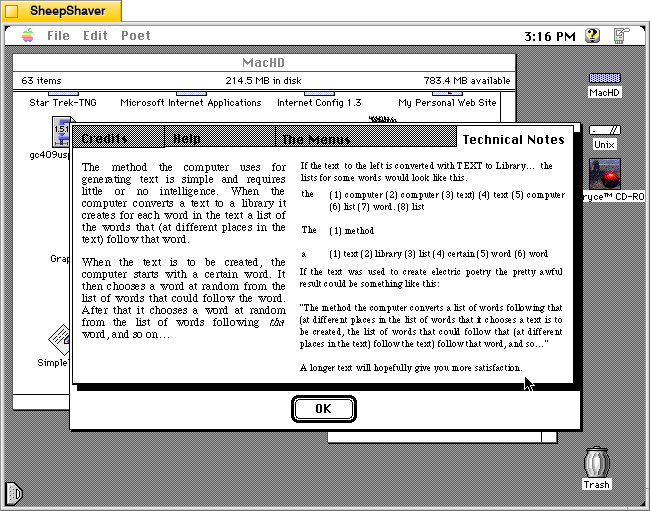
    And according to Frykholm’s “Technical Notes” on the program’s About window, “The method the computer uses for generating text is simple and requires little or no intelligence. When the computer converts a text to a library it creates for each word in the text a list of the words that (at different places in the text) follow that word.”

    “When the text is to be created, the computer starts with a certain word. It then chooses a word at random from the list of words that could follow the world. After that it chooses a word at random from the list of words following that word, and so on . . .”

    Essentially, Electric Poet is a clever piece of software that uses word relationships within a given text to create text based on random selections within that set of relationships.

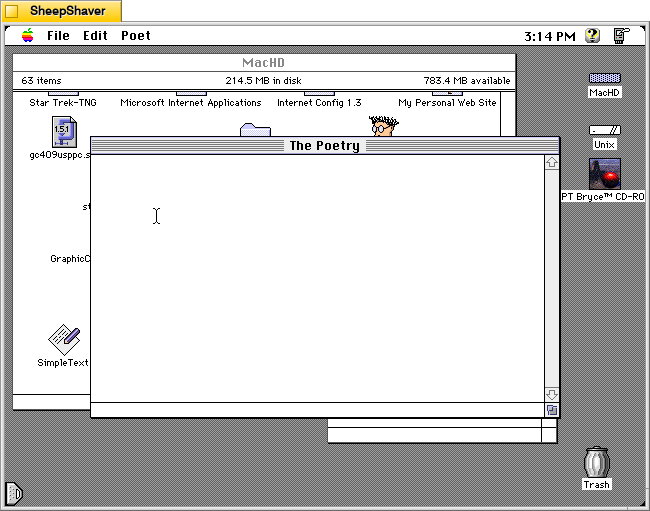
    Electric Poet 1.6 for Macintosh, Program's "The Poetry" window

    After double clicking on Electric Poet 1.6 in the icon group shown at the top of the page, the program presents “The Poetry” window with a blinking cursor. To have the program generate poetry, the user needs to open a Library from the File menu and then choose “Generate Text” from the Poet menu.

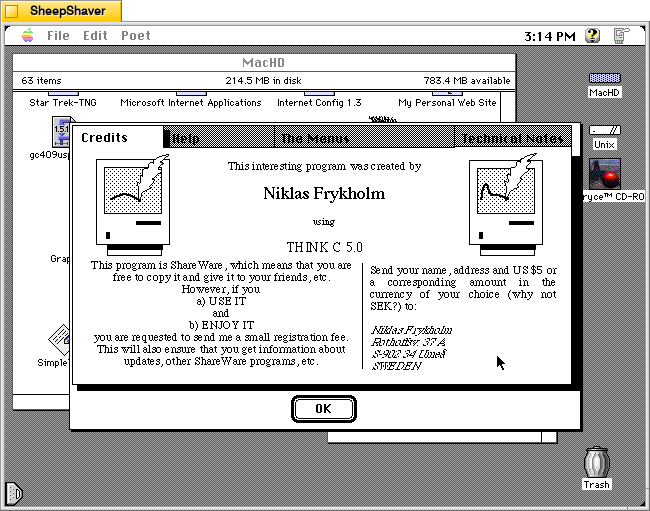
    Electric Poet 1.6 for Macintosh, About Window > Credits

    Opening the “About Electric Poet” from the Apple menu gives the user a super helpful set of tabs that gives you information for registering the shareware program, help using the software, an explanation of the menu items, and technical notes about how the program works to generate text.

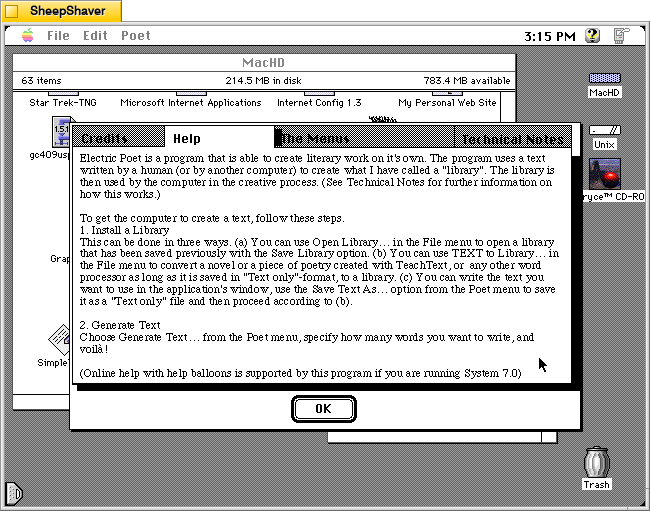
    Electric Poet 1.6 for Macintosh, About Window > Help

    The About Electric Poet’s Help tab breaks down what the user needs to do so that the program generates text. The first step is to “install” or open a Library. While Electric Poet comes with a sample Library based on the script for the film Star Wars, most users would probably want to create their own Library, which is easy enough to do. Once the Library is created and loaded, Electric Poet can then generate text from the Poet menu.

    Electric Poet 1.6 for Macintosh, About Window > The Menus

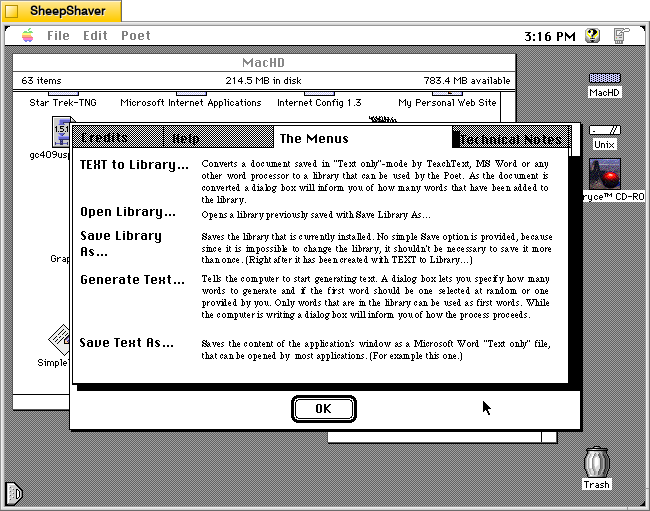
    The About Electric Poet’s The Menu tab gives further explanation about what each menu option does in the program.

    Electric Poet 1.6 for Macintosh, About Window > Technical Notes

    The About Electric Poet’s Technical Notes provides details about how it uses lists of words and the words that follow immediately after those words as a corpus of random selections linked to adjacent words. This is the magic that makes this program generate text. It uses lists of adjacent words and random selection to thread together sentences and phrases.

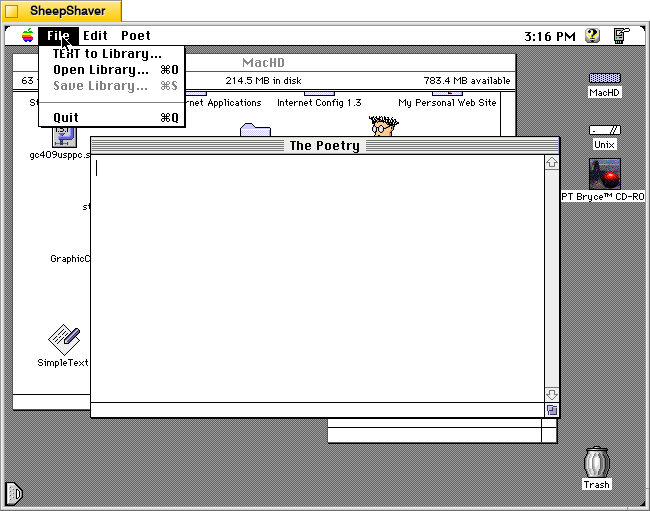
    Electric Poet 1.6 for Macintosh, File menu options

    To get started with Electric Poet, the File menu gives you access to opening a Library or creating a Library from “TEXT to Library.” It’s important to note that you need to have your text file in Teach Text format before attempting to create your own Library. I discovered that when opening a raw text file the program would create a list of words (as it would normally when creating a Library), but then the program would lock up and while I could still move the mouse, I could no longer use the menu, switch programs, or activate the Finder. I would have to kill the SheepShaver process on Debian and relaunch. I observed this same behavior when running Electric Poet on the 68k emulator Basilisk II.

    To avoid this problem, open your raw text file in BBEdit or another full-featured text editor (if it is larger than 32K–the Teach Text limit), copy an excerpt to the Clipboard, and then go into Teach Text, paste the text, and save it as a file. Then, use “TEXT to Library” in Electric Poet to create a Library from that Teach Text-saved file.

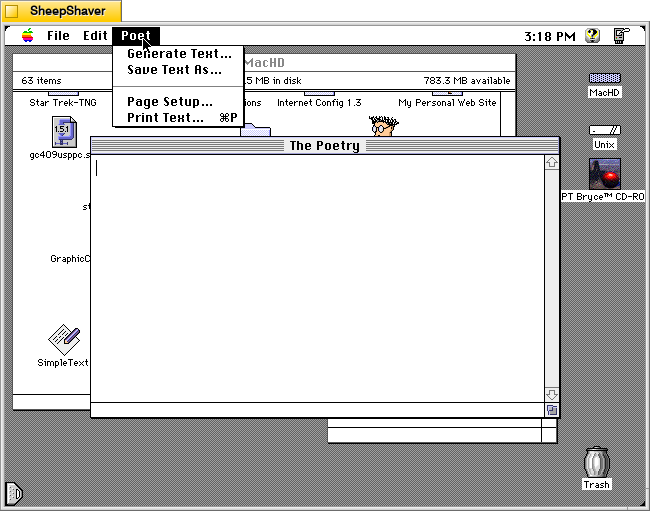
    Electric Poet 1.6 for Macintosh, Poet menu options

    Once you’ve opened your Library file, you can now use the Poet menu to “Generate Text.”

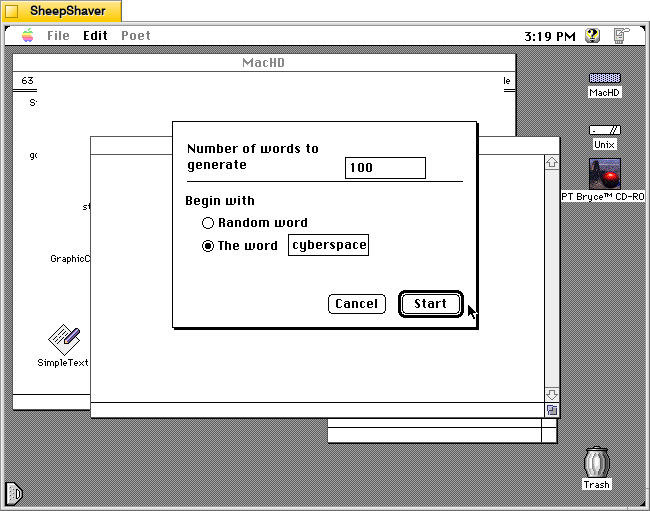
    Electric Poet 1.6 for Macintosh, Poet menu > Generate Text window

    The “Generate Text” menu option presents you with these controls before generating some text in “The Poetry” window. It allows you to choose how many words to generate and the option to begin with a random word or a specific word. If you choose a specific word, bear in mind that it is case sensitive. For example, I tried beginning with “Cyberspace,” but the word was not found in the Library. I tried with “cyberspace” and it generated text as shown below.

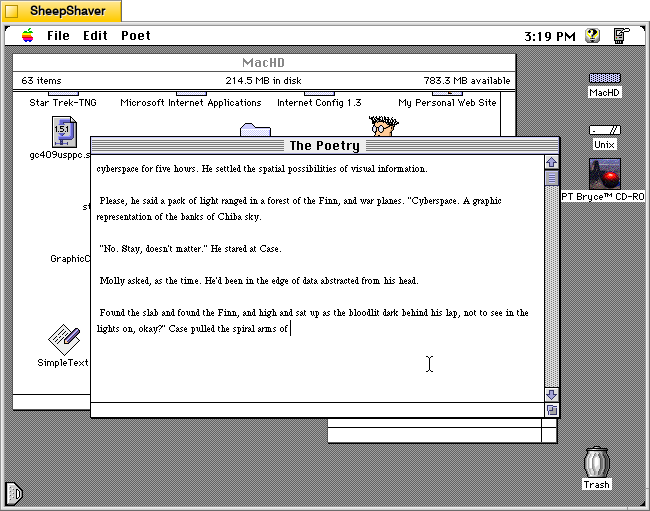
    Electric Poet 1.6 for Macintosh, Output in The Poetry window

    Above, is a sample of text generated from “The Shopping Expedition,” the third chapter of William Gibson’s Neuromancer (1984). This example is just one run. Subsequent runs will yield very different results. In this regard, it is like using Stable Diffusion or LLaMA in that many iterations are often required to generate an output that is desired by the end user.

    Soon, I’ll post about Kant Generator Pro, another Macintosh text generator program that creates pseudo-sense/technobabble text (writing like the philosopher Kant) as well as form generated writing, such as thank you notes. The form generated writing that Kant Generator Pro can do is aligned with one of the kinds of writing large language models are supposed to be able to help us with–emails, follow-ups, etc.

  • September 2023 Updates to the Generative AI and Pedagogy Bibliography Page

    An anthropomorphic cat dressed like a professor in a tweed jacket, sitting at a desk with papers in front of him. Shelves of books behind him. Image created with Stable Diffusion.

    Since posting the original version of my Generative Artificial Intelligence (AI) and Pedagogy Bibliography and Resource List in April 2023, I have continued to add resources that I find through my research and daily online reading. I’ve added 61 articles and books to the bibliography since August 2023 for a total of 382 MLA-formatted references. Also, it has 55 online groups and resources linked at the bottom. Whenever you access the bibliography, you can check the bottom of the page to see if I’ve recently updated it–I always add the date for any updates.

    I hope that the bibliography might be useful to you! If there’s something that my bibliography is missing, send me an email (details in the “Who is Dynamic Subspace” widget to the right) or connect with me on social media (links on my About page).

  • Reflections on a Month of LinkedIn Learning

    Photo of a business cat taking notes in his office. Image created with Stable Diffusion.
    Photo of a business cat taking notes in his office. Image created with Stable Diffusion.

    As I wrote at the beginning of July here, I planned to take advantage of LinkedIn Learning’s free one-month trial. I wanted to report back on my experience of taking LinkedIn Learning courses and provide more details about some of my tips that might help you be more successful with LinkedIn Learning.

    Breakdown of the Courses and Learning Paths

    LibreOffice Calc spreadsheet showing Jason's LinkedIn courses and time totals.

    I created the spreadsheet above in LibreOffice Calc as a list of all of the courses I had completed between June 29 and August 3 (I’m including the end of June courses in the free Career Essentials in Generative AI by Microsoft and LinkedIn that gave me the idea to continue with the free one month trial period). I included the instruction time for each course. This allowed me to calculate that I had completed 43 hours 11 minutes of course instruction across 39 courses during my LinkedIn Learning trial period.

    I regret not keeping track of how long I spent on each course, which was far longer due to pausing the video to write notes, studying notes, taking quizzes, writing assignments, and taking exams. I believe the 50% extra time per course that I wrote about in July holds true.

    I focused on two main areas: Generative AI, which I am building into my workflows and maintaining a pedagogical bibliography for here; and Diversity, Equity, and Inclusion (DEI) Communication Best Practices, which I wanted to use to improve my teaching practices by structuring my classroom as supportive and welcoming to all students.

    In the Generative AI courses, I learned about machine learning, different forms of generative AI, how generative AI is integrated (or being integrated) into local and server software, and frameworks for critique of AI systems in terms of ethics, bias, and legality. Also, I took some courses on Python to get an inkling of the code underpinning many AI initiatives today.

    In the DEI Communication Best Practices cluster of courses, I learned helpful terminology, techniques for engagement, what to do to support and include others, and how to be an ally (mostly with an emphasis on the workplace, but thinking about how to leverage these lessons in the classroom). These courses covered combating discrimination, planning accessibility from the beginning and benefit of all, and supporting neurodivergence.

    Overall, each learning experience was beneficial to my understanding of the topic. However, some instructors delivered better courses–for my way of learning–by employing repetition, anchoring key topics with words and definitions on the video (which you can pause and write down), giving more quizzes over shorter amounts of material (instead of fewer quizzes over longer time spans of material), and giving students mini projects or assignments to reinforce the lesson (e..g, pause and write about this, or pause the video, solve this problem, and “report back”–the course isn’t interactive but the “report back” idea is to compare your solution to the instructor’s after the video is played again).

    All of the courses provide a lot of information in a very short amount of time. In some cases, the information compression is Latvian repack level. Even taking notes in shorthand, I could not keep up in some instances. To capture all of the information, I had to pause videos repeatedly, repeat (using the 10 second reply often) and read the transcript.

    While I enjoyed the standalone courses, the Learning Paths provided a sequence and overlap in material that helped reinforce what was being taught. Also, Learning Paths helped me see connections between the broader implications of the topic (e.g., DEI, accessibility, neurodiversity, etc.) as well as explore certain aspects of the topic in more depth (e.g., how to approach conversations on uncomfortable topics or how to ask for permission to be an ally in a given situation).

    Each instructor has a unique way of speaking and engaging the learner. I really enjoyed the diversity of the instructors across all topics.

    The accessibility features built into LinkedIn Learning helped me follow along and make accurate notes. In particular, I always turned on closed captioning and clicked the “Transcript” tab beneath the video so that I could easily follow along and pause the video when there was a keyword or definition or illustration that I wanted to capture in my notes.

    LibreOffice Calc chart showing how many hours of courses were completed on the days between 6/29 and 8/3/2023.

    I added the course instruction time for those courses completed on the same day to generate the chart above that illustrates the ebb and flow of my course completion across the month. In some cases, I spread out the instruction across days to give myself enough time to learn and practice the topics being discussed (e.g., Python programming or Stable Diffusion image generation). There were other days that I paused my learning to work on my research or simply to take a break from learning.

    On LinkedIn Learning, some of the courses are grouped together into what are called Learning Paths, which yield a separate certificate of completion from the certificates that you earn for each individual course. In some cases, as in the Career Essentials in Generative AI by Microsoft and LinkedIn also includes an exam with a time limit (1.5 hours) that must be passed before the Learning Path certificate is given. About 50% or 21 hours 45 minutes of the 43 hour 11 minute course instruction time applied to five earned Learning Paths for me:

    • Career Essentials in Generative AI by Microsoft and LinkedIn, 3h 49m
    • Accessibility and Inclusion Advocates, 3h 18m
    • Diversity, Inclusion, and Belonging for All, 6h 16m
    • Responsible AI Foundations, 4h 15m
    • LinkedIn’s AI Academy, 3h 54m

    LinkedIn Learning Success Tips

    Overall, I want to reiterate the tips that I wrote about here for being successful at LinkedIn Learning–both in terms of how you learn and how you demonstrate what you have learned. Below are some reiterated tips with details based on my experience this past month.

    Be an Active Learner: Take Notes, Do the Exercises, and Complete the Quizzes

    Fanned out loose-leaf notes that Jason took during his LinkedIn Courses.

    The one thing that I would like to stress above all others is how important it is to treat a LinkedIn Learning course like a classroom learning experience. What I mean by that is that you need to set aside quality time for learning, free from distraction, where you can take notes and complete the exercises, and study what you’ve learned before taking quizzes or exams. Employing your undivided attention, writing your notes by hand in a notebook, and completing quizzes, exams, and assignments all contribute to your learning, integrating what you’ve learned with your other knowledge, and preparing yourself to recall and apply what you’ve learned in other contexts, such as in a class or the workplace.

    Unless you have eidetic memory, the fact is that you won’t learn a lot by passively watching or listening to courses. And even if you have photographic memory, all you will gain are facts and not the integration, connections, and recall that comes from using and reflecting on what you have learned.

    Remember to Add Certifications to Your LinkedIn Profile

    Jason Ellis's Licenses & Certifications section on his LinkedIn Profile.

    Remember to add each completed LinkedIn Course and Learning Path certification to your profile. They will appear in their own section as they do on mine shown above.

    Completed Courses and Learning Paths do not automatically appear on your profile (consider: someone might not want all of their training to appear on their LinkedIn Profile for a variety of reasons).

    To add a Course or Learning Path to your LinkedIn Profile, go to LinkedIn Learning > click “My Learning” in the upper right corner > click “Learning History” under “My Library” on the left > click the “. . .” to the right of the Course or Learning Path > click “Add to Profile” and follow the prompts.

    LinkedIn also gives you the option to create post on your Profile about your accomplishment, which you should opt to do. When you do this, it auto suggests skills that it will add to your Skills section of your Profile. You can have up to 50 skills on your profile, so keep track of what’s there and prune/edit the list as needed to highlight your capabilities for the kinds of jobs that you are looking for. More on Skills further down the page.

    Add Certifications to Your Resume or CV

    Excerpt image of Jason Ellis' CV. Link to CV below.

    As shown above and viewable on my CV here, I added links to my LinkedIn Course and Learning Path certifications in a dedicated section of my CV. In addition to the unique link to my certifications, I included the organization that issued it (i.e., LinkedIn), and the date of completion. You can do the same on your CV or resume.

    To get the link to a Course or Learning Path completion certificate, go to LinkedIn Learning > click “My Learning” in the upper right corner > click “Learning History” under “My Library” on the left > click the “. . .” to the right of the Course or Learning Path > click “Download certificate” > click “LinkedIn Learning Certificate” > toggle “On” under the top section titled “Create certificate link” > Click “Copy” on the far right.

    While you are here, you can download a PDF of your certificate for safe keeping at the bottom left of this last screen. You can add these PDFs to a professional portfolio or alongside a deliverable that you create based on the skills that you gained from that course to demonstrate your learning and mastery.

    Demonstrate Your Skills

    Jason Ellis' Skills section on his LinkedIn Profile.

    As I mentioned above, when you post about completing a course, LinkedIn Learning can autogenerate relevant skill terms to add to the Skills section on your Profile (as shown above on my Profile). When you have the spare time and focus, you should occasionally click on “Demonstrate skills” (you can do this without a LinkedIn Learning subscription). This gives you options for taking exams related to different skills that you’ve added to your Skills section of your Profile. If you pass, it provides some proof that you know something about that particular skill. Beware though: these exams can be tough. When I took the HTML exam, I discovered big gaps in what I knew from learning HTML years before without keeping up with changes to HTML in the intervening years. While I passed the exam, I made notes about those questions that I got wrong so that I knew what to learn more about to fill in those gaps.

    Also, some skills don’t have exams associated with them. In those cases, you may submit a video or essay to demonstrate your experience to potential recruiters or hiring managers. If you do this, you should plan it out, shoot and edit your video to give the best visual and auditory impression, or write and revise your essay so that it is of the highest professional quality.

    Is It Worth It?

    Looking back on what I learned, how I learned it, and who I learned it from, I’m glad that I invested the time and energy into a month of LinkedIn Learning. I’ve already started putting some of the lessons into practice (e.g., the generative AI and ethical AI courses), and I’m planning out how I will roll out the DEI approaches in my courses when I return to teaching in Fall 2024 (I am on sabbatical this academic year). In the future, I plan to pay for LinkedIn Learning when additional classes are available and I have the time to immerse myself in learning.

    If you’re looking to skill up, I think that LinkedIn Learning can be beneficial if you go into it with a learning and reflective mindset. This means that you are willing to invest your attention, time, energy, and thought to learning the course material, want to reflect on how what you learn connects to other things you’ve already learned through school and work experience, apply what you’ve learned to deliverables that demonstrate you have integrated what you have learned (e.g., a detailed post on your LinkedIn Profile, a blog post, a poster, a video, an addition to your professional portfolio, etc.), and reflect, preferably in writing, on what you’ve learned, how you applied it, what you would like to see yourself accomplish next, and how to take those next steps.

    As I said above, you likely won’t gain much by passively listening to LinkedIn Learning Courses while doing other things or being distracted by your environment. Invest in this form of learning and you will add to what you know and can do. In that spirit, it’s like my Grandpa Ellis used to tell me, “Jake, no one can take away your education!”