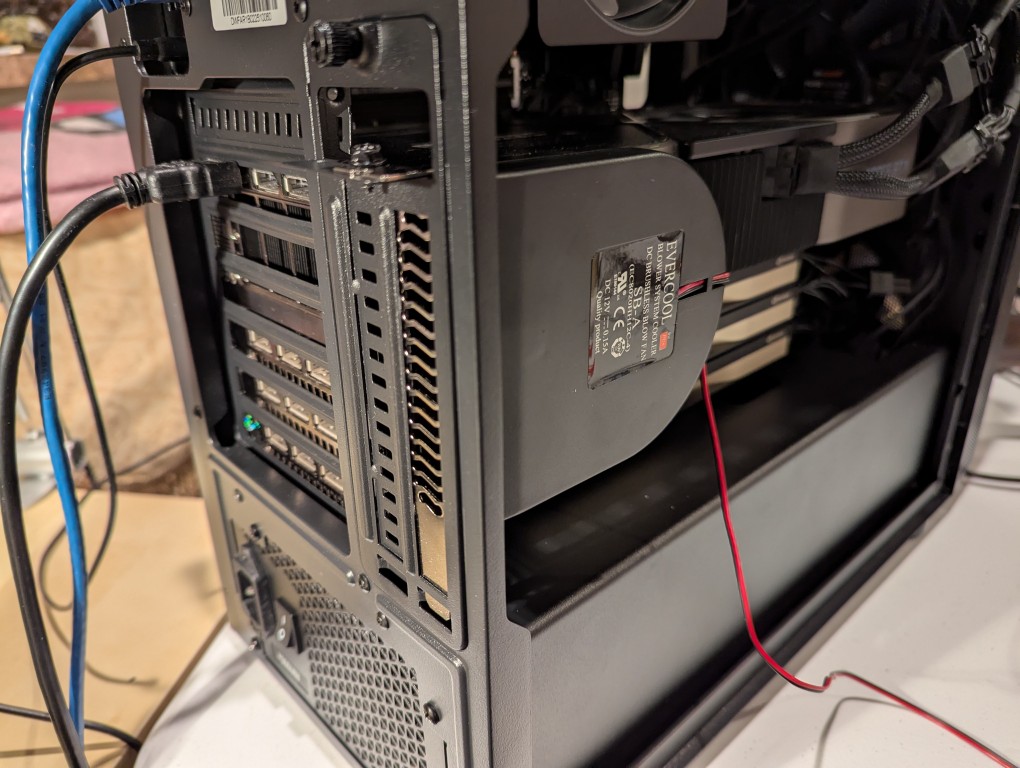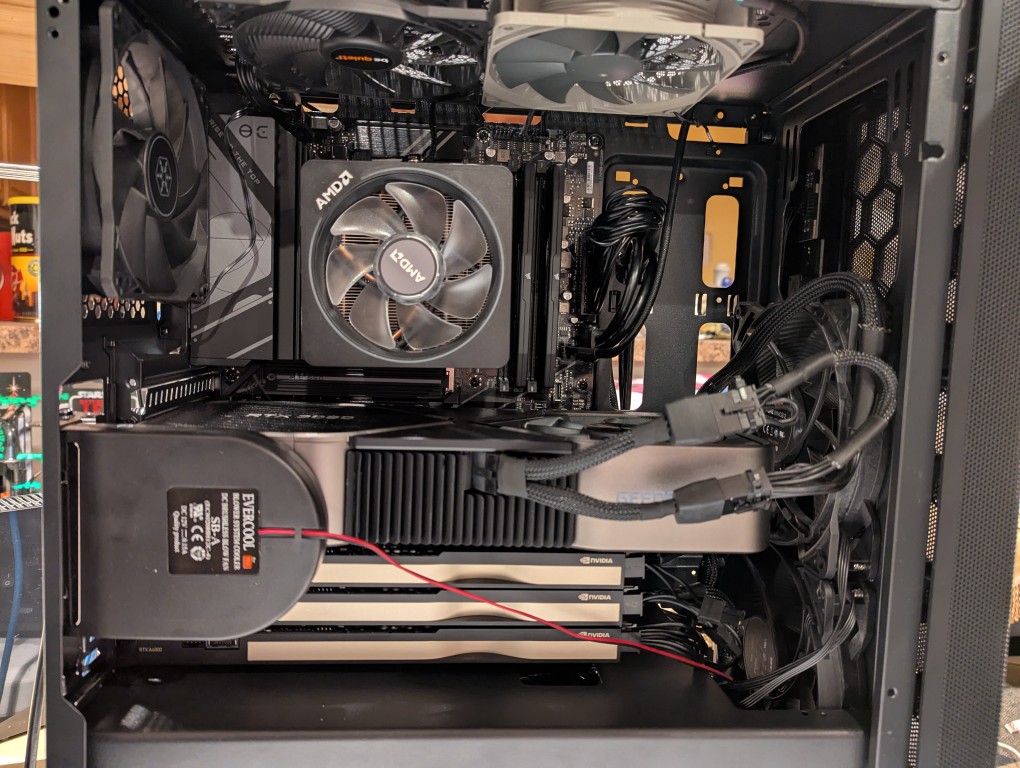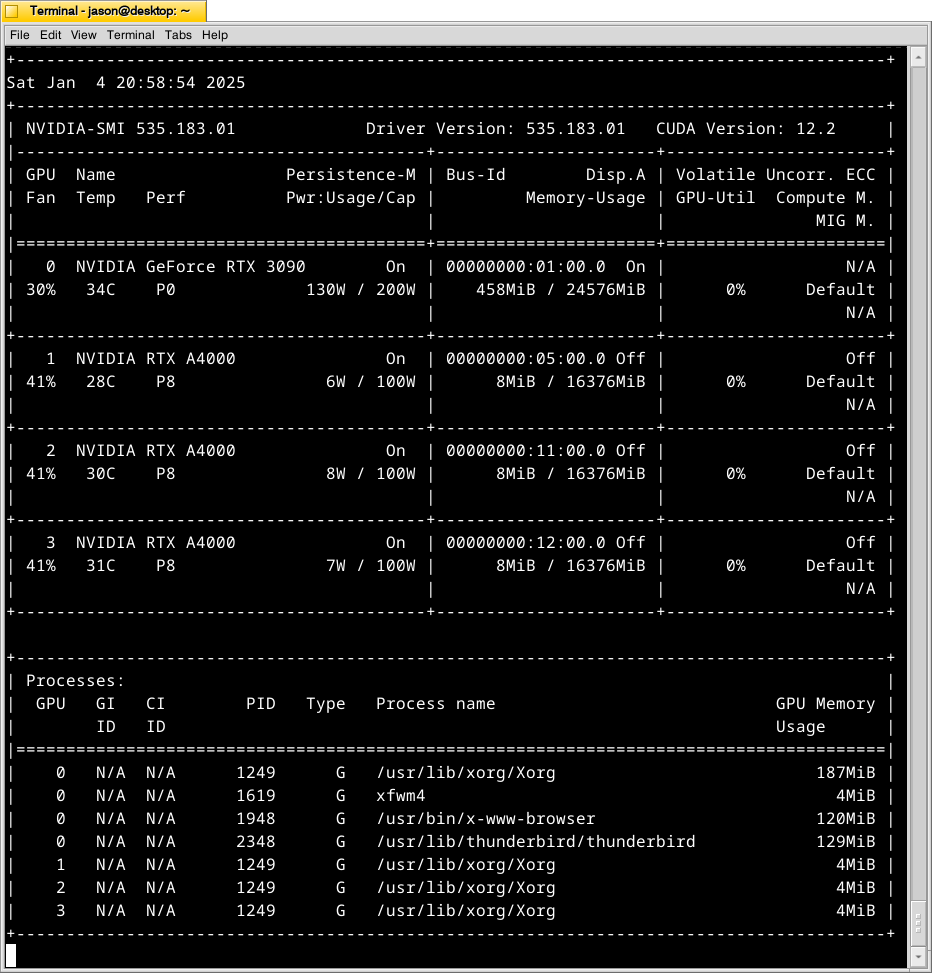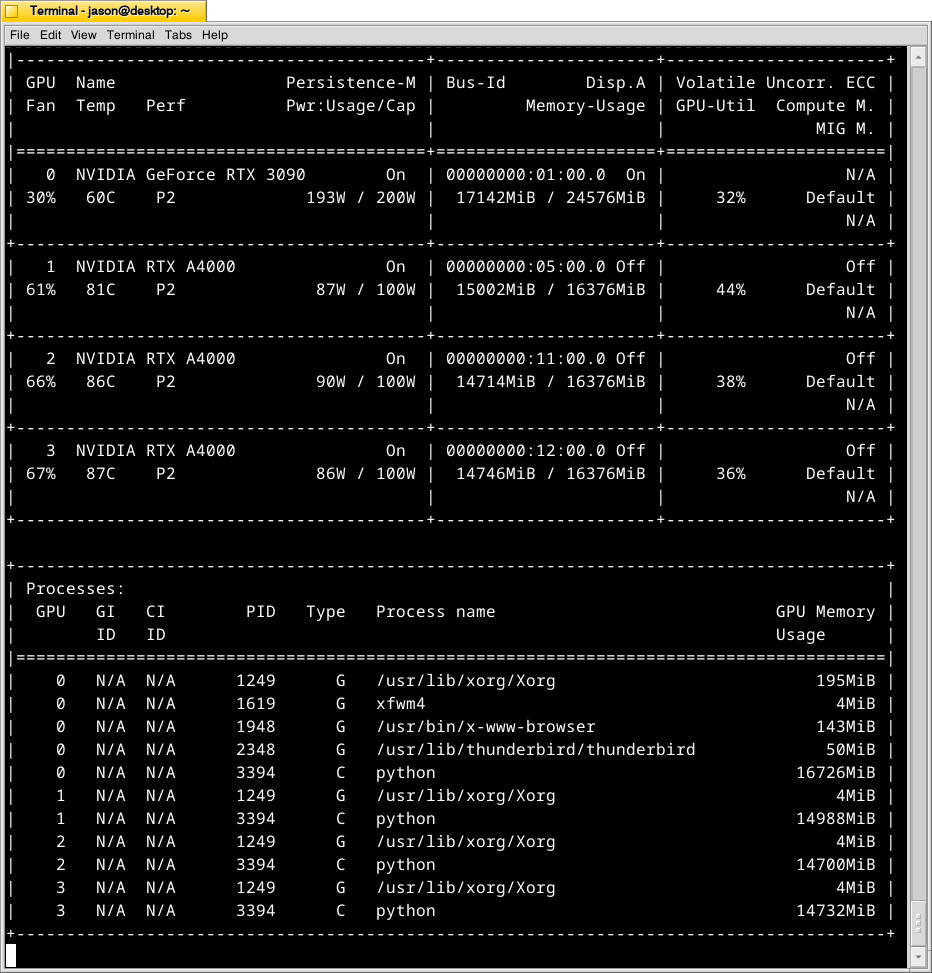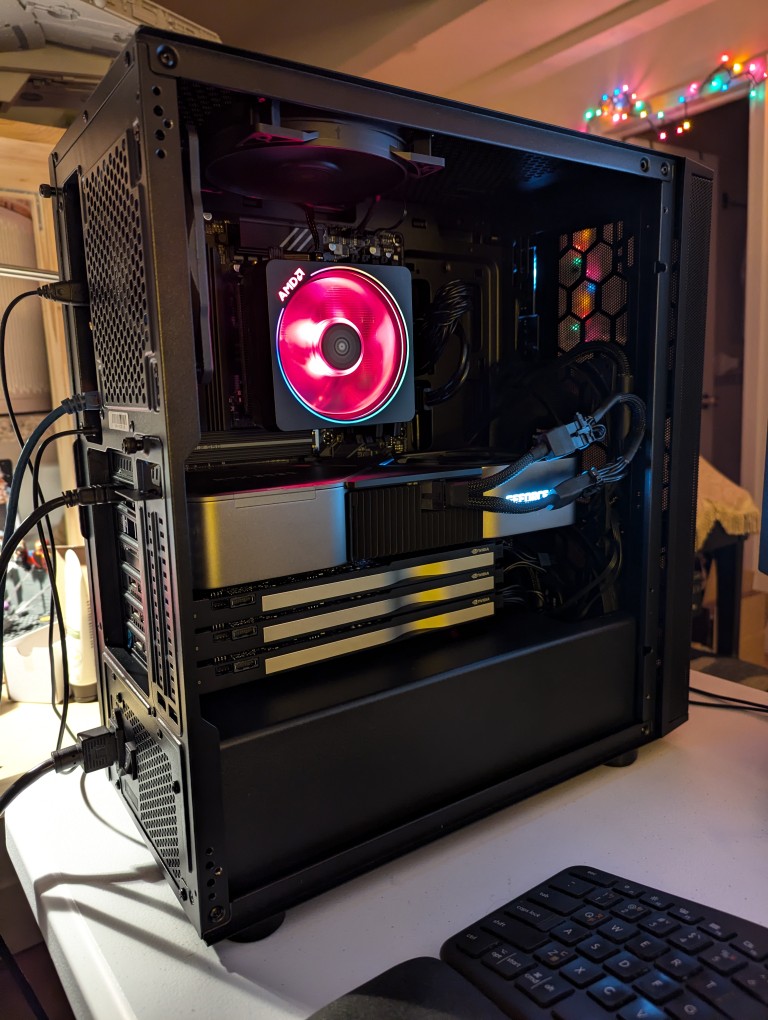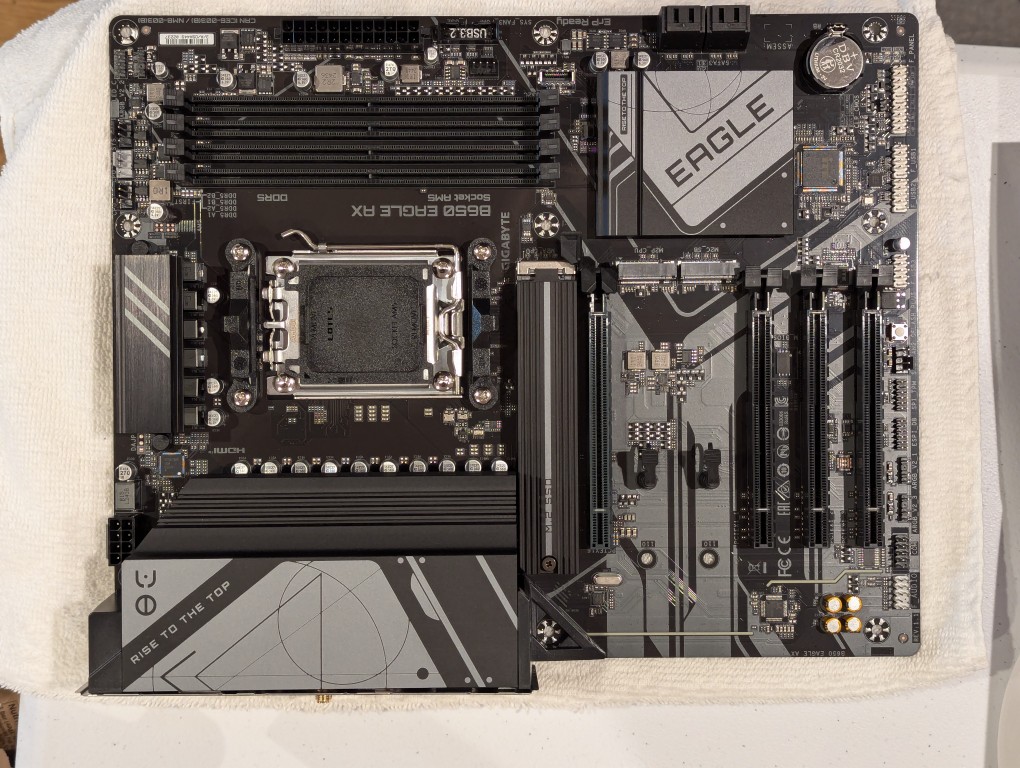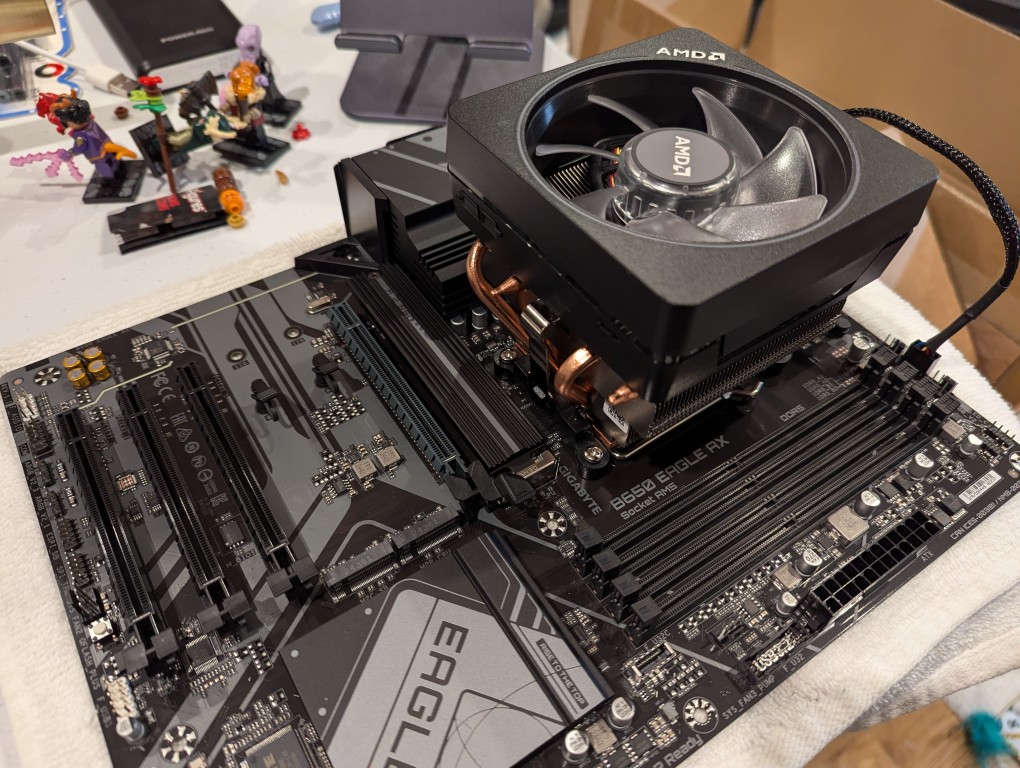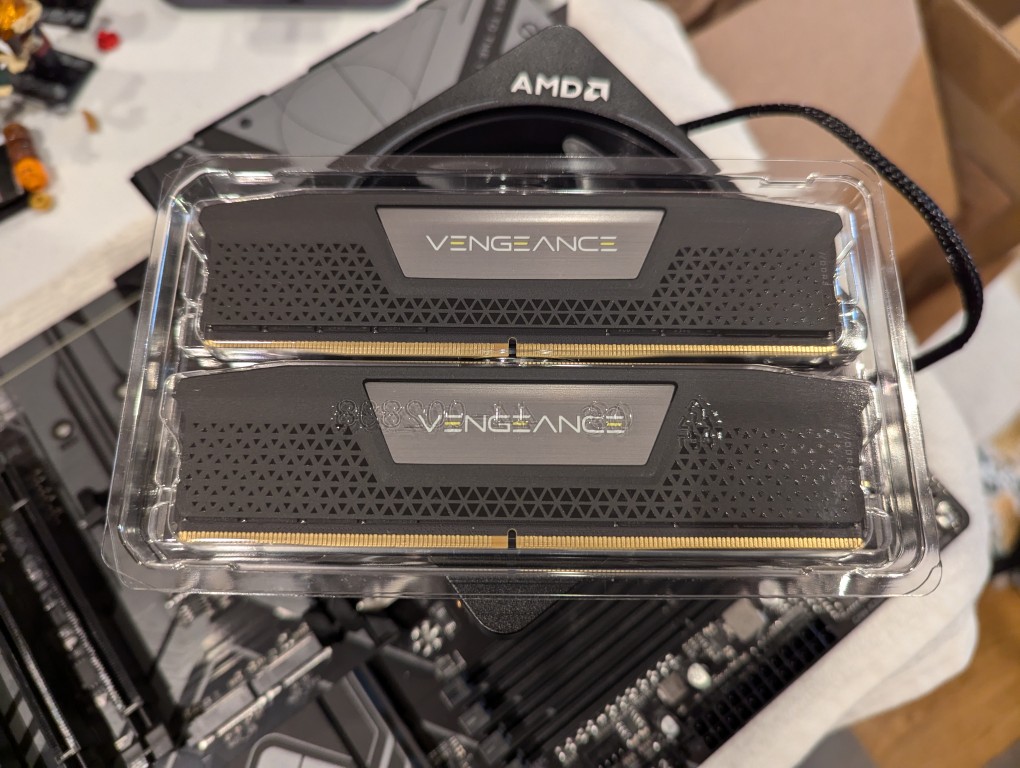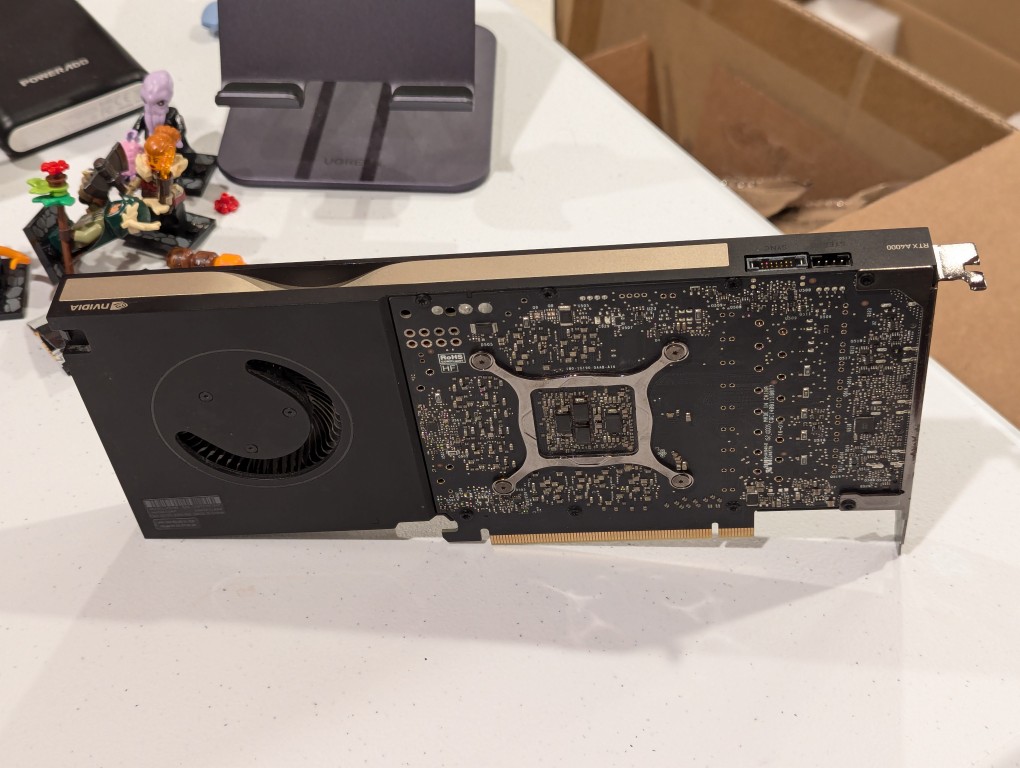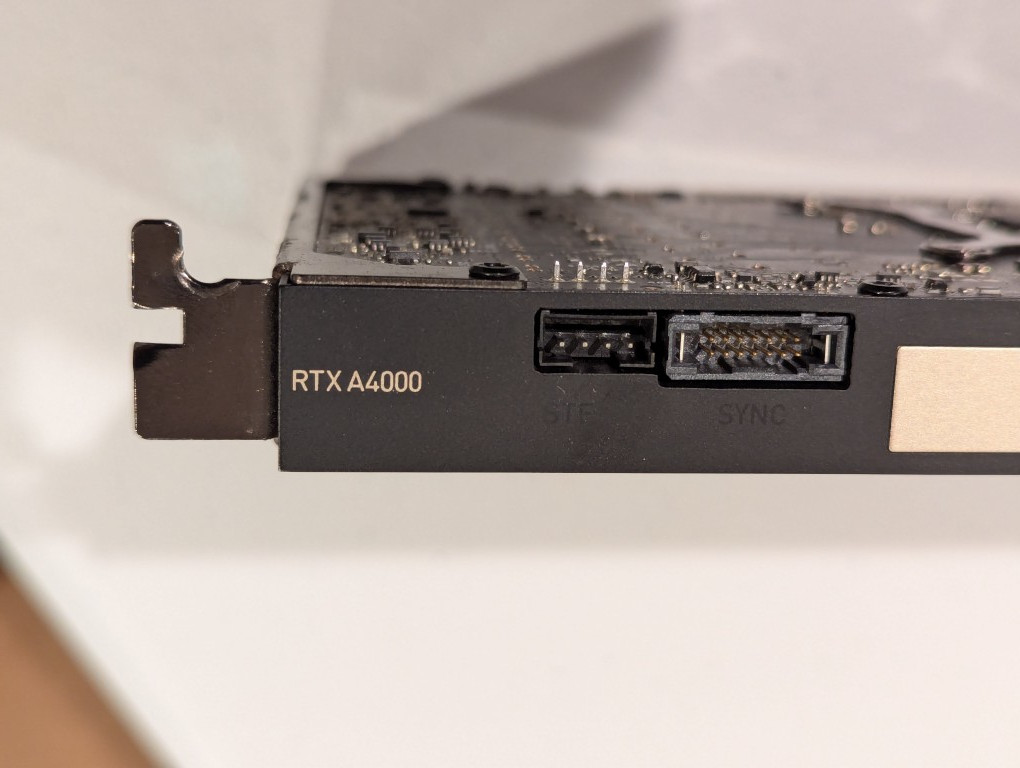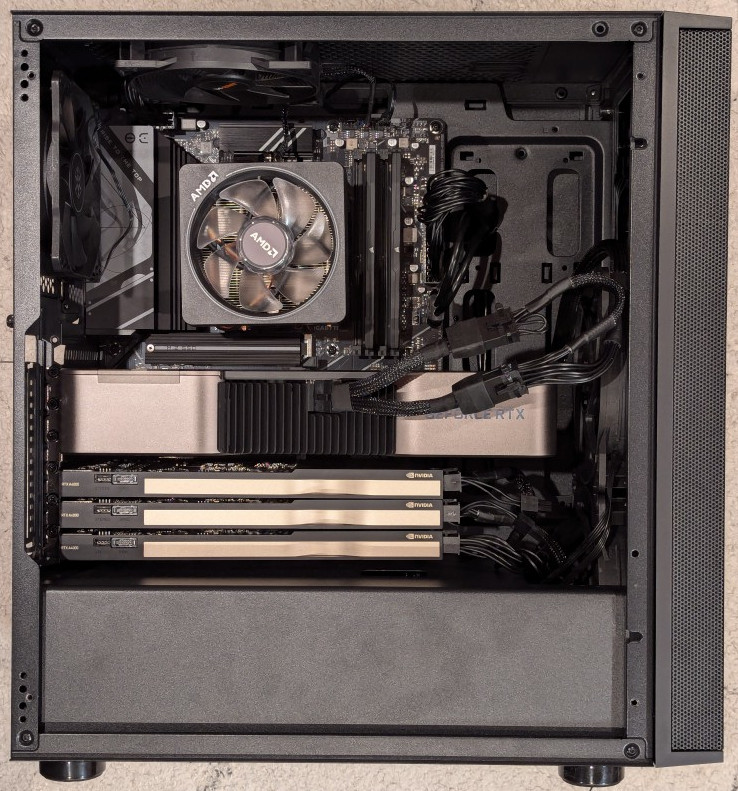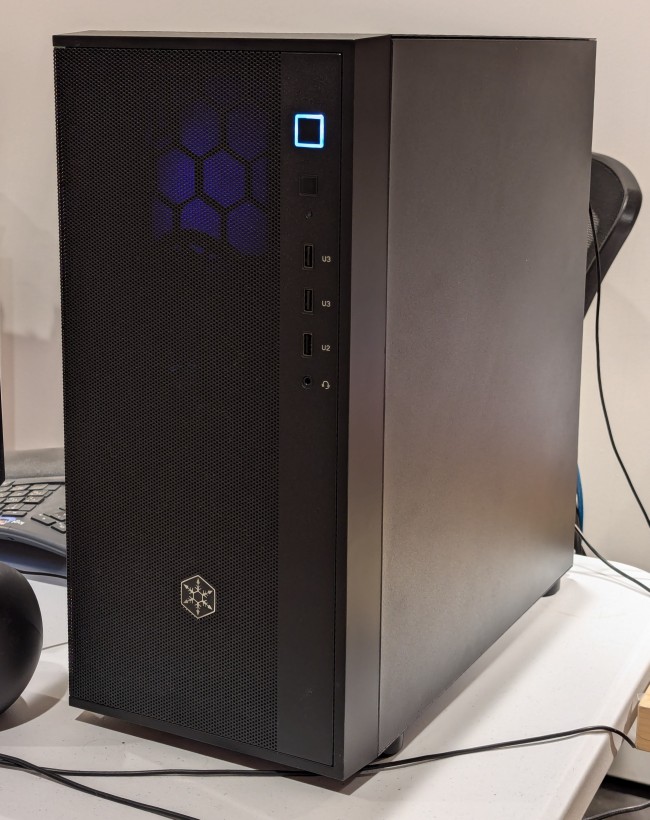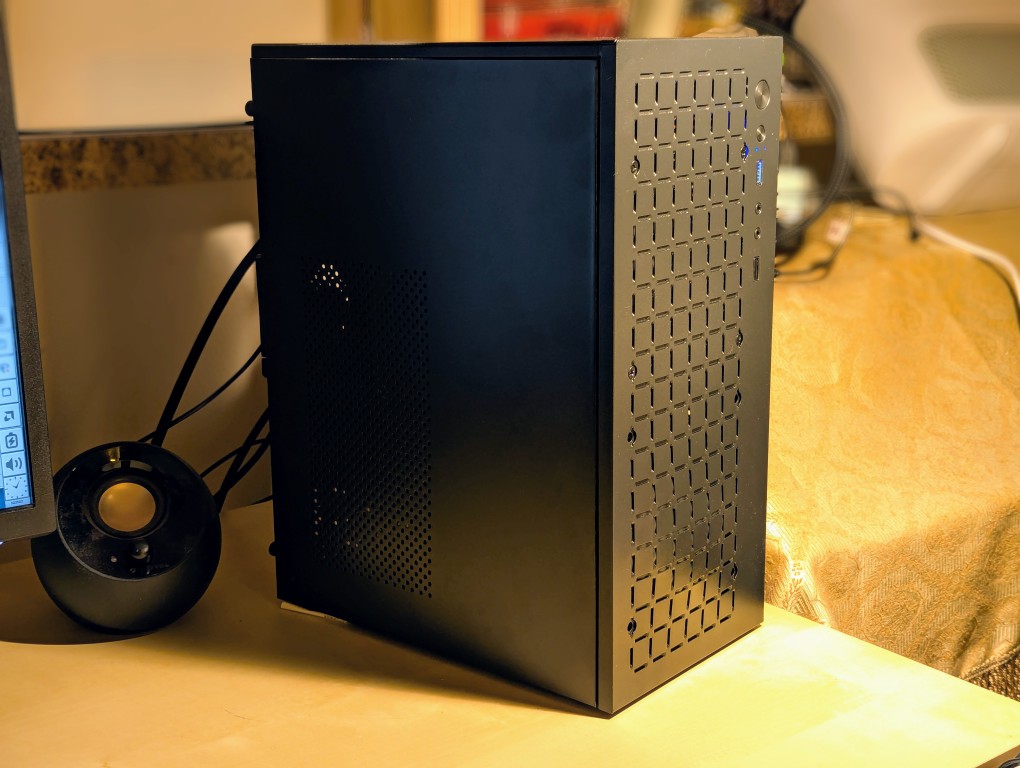
I recently built this new, energy-efficient AI workstation to replace the much more power hungry workstation that I built a year ago. While my old workstation had substantially more VRAM and compute than my new workstation, it was as loud as a jet engine and used a considerable amount of electricity each month. The new one handles my workloads adequately, runs whisper quiet, and sips electricity by comparison.
Below, you can see some pictures of assembling the workstation and advice based on my experience building this system.
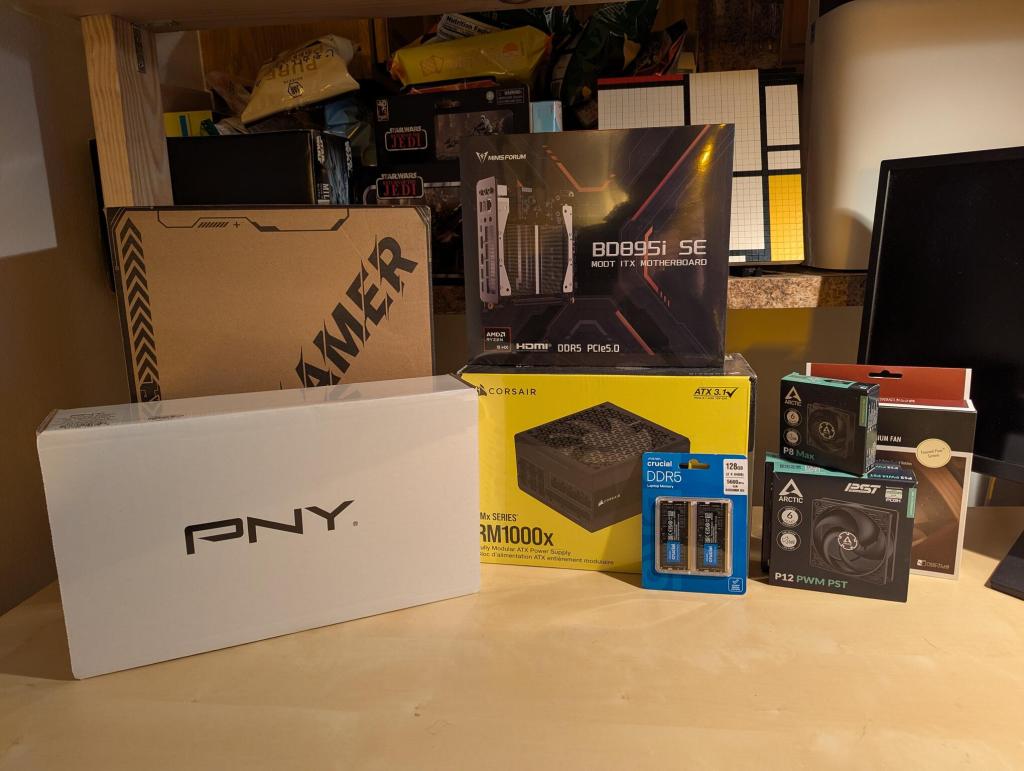
When I began researching this build, the price of RAM and video cards began to rocket into the stratosphere. I considered keeping the old workstation’s motherboard and CPU and swapping out the 64GB of RAM for a matched pair totaling 128GB DDR5 RAM, but the price of desktop DDR5 RAM was incredibly expensive (adding 2 sticks of 32GB RAM would reduce the memory bandwidth, which I didn’t want to do). I also weighed waiting for Minisforum’s upcoming AMD Strix Halo mini-itx motherboard with a x16 PCIe slot for a discrete GPU and its 8-channel RAM, but its release date was uncertain and the rising price of RAM might price me out of purchasing it. These two alternatives led me to another motherboard made by Minisforum–a mini-itx motherboard paired with a laptop processor, laptop SO-DIMM DDR5 RAM slots, and an x16 PCIe slot, which together provided me enough memory bandwidth for my needs and the ability to add a discrete Nvidia video card. So, I decided to part out and sell off the entire old workstation and build the new one from scratch with these components:
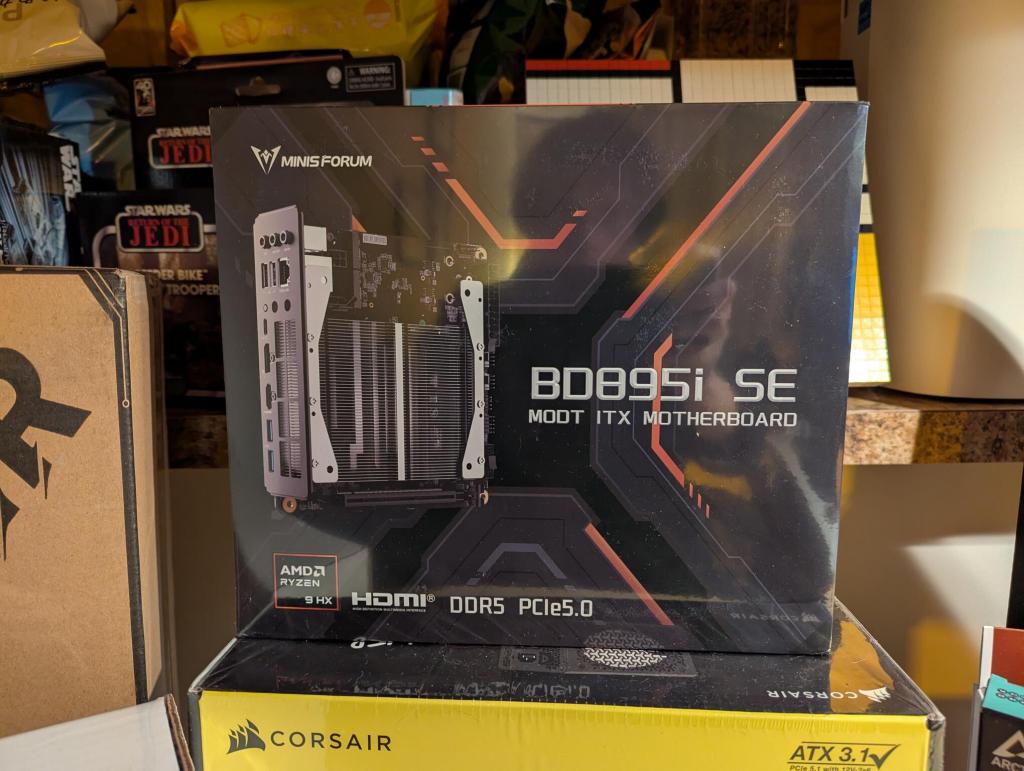
- Minisforum BD895i SE mini-itx motherboard with an integrated AMD Ryzen 9 8945HX (16c,32t) CPU, 2 x SO-DIMM DDR5 slots, 2 x m.2 nvme slots, and a PCIe 5.0 x16 Slot. $429.00, Amazon
- Crucial 128GB Kit (2X64GB) DDR5 RAM 5600MHz Laptop Memory Kit (CT2K64G56C46S5). $1,193.99, Amazon
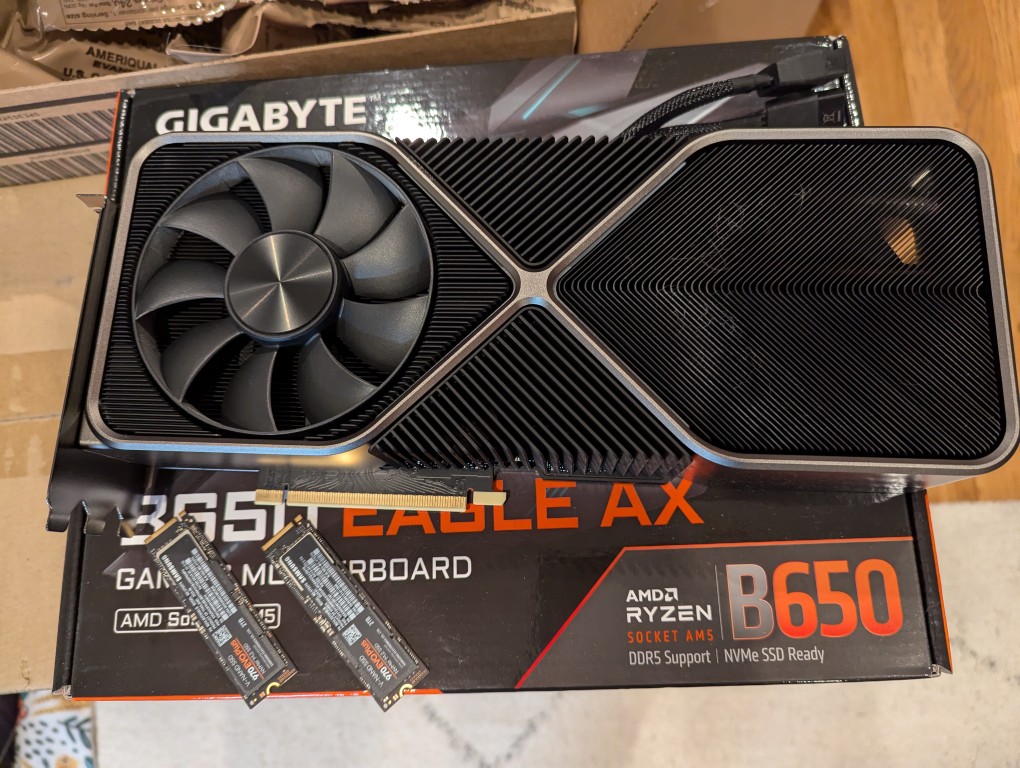
- PNY Nvidia RTX 4000 Pro Blackwell 24GB GPU. $1,451.79, Provantage
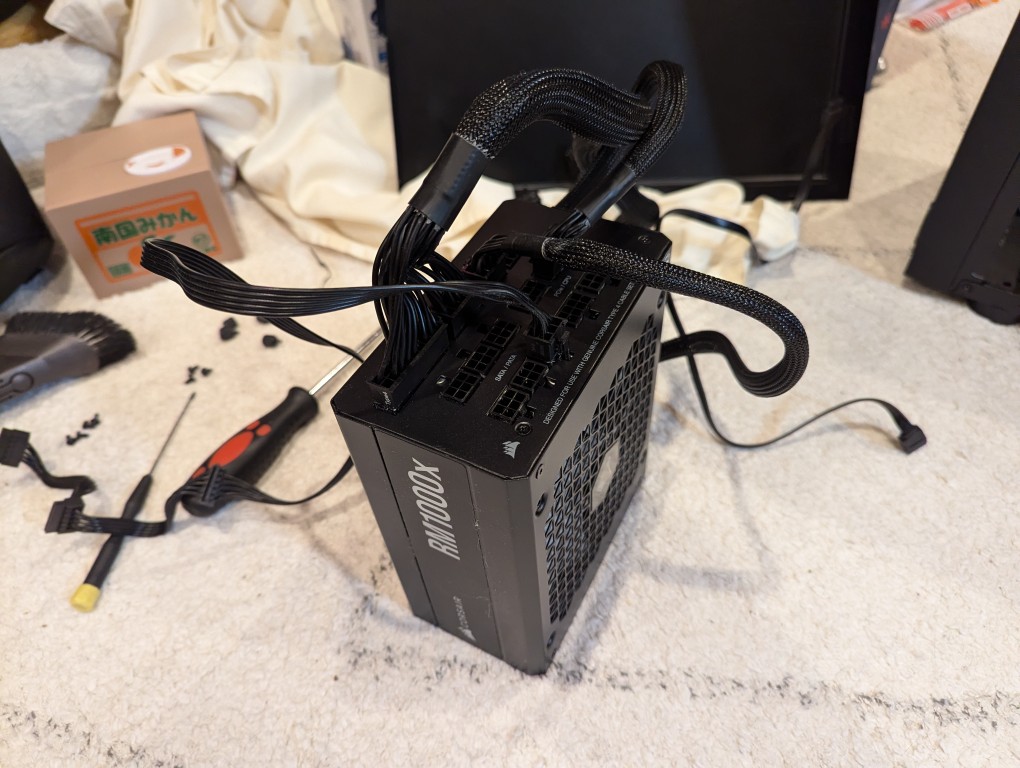
- Corsair RM1000x 1000 watt PSU (updated 2024 version, it has 12V-2×6 Connector, so you don’t need the adapter included with the video card). $209.99, Amazon
- TGDGAMER Micro-ATX Case (15 liters and all metal). $29.99
- 120 mm and 80 mm fans (the Noctua NF-F12 120mm for the CPU heatsink, and an Arctic P12 120 mm fan on the front intake and an Arctic P8 80 mm fan on the rear exhaust). $21.95 + $8.99 + $9.89, Amazon
- 2 x 2 TB nvme drives that I kept from the old workstation
The total for all the parts was $3,355.59.
I began by setting up the Minisforum BD895i SE motherboard.
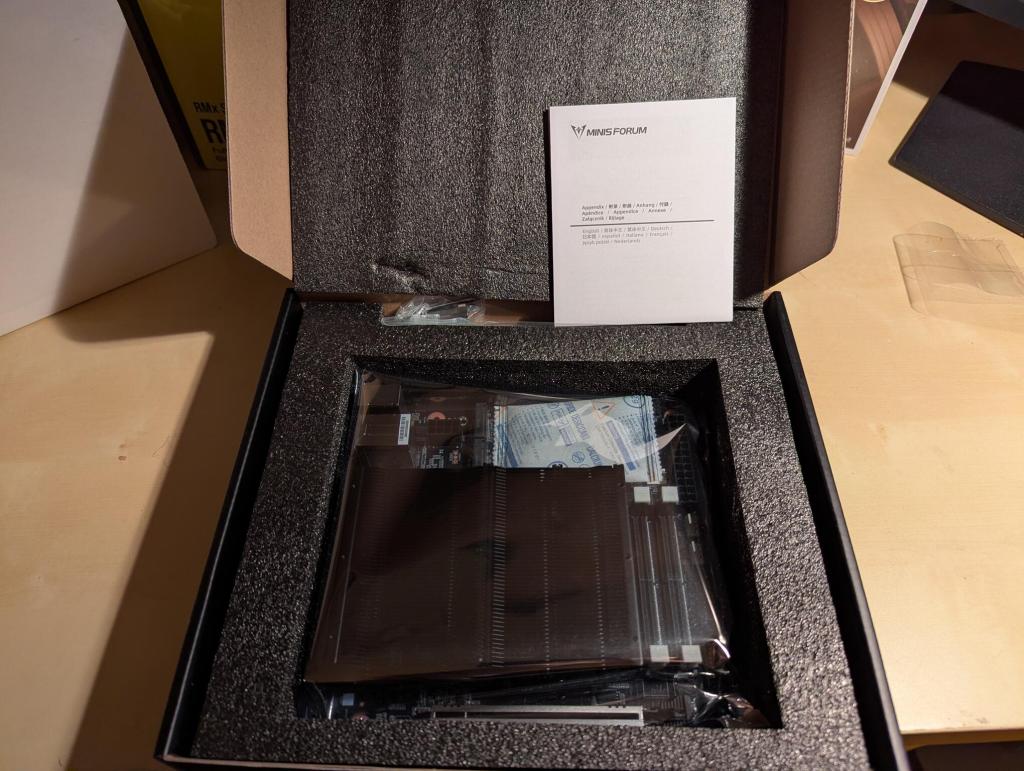
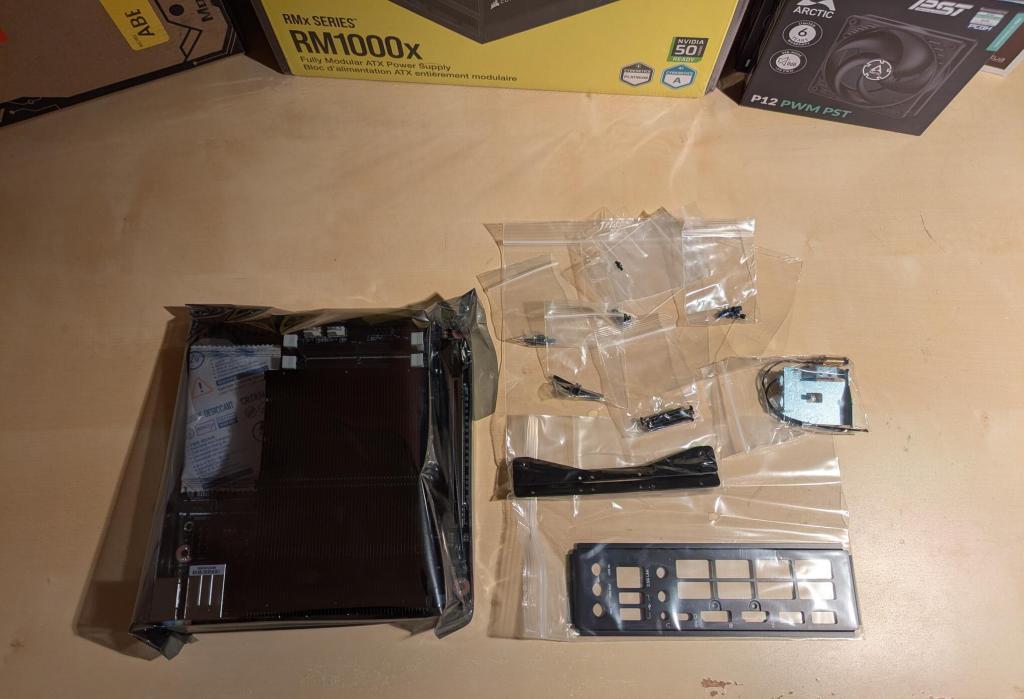
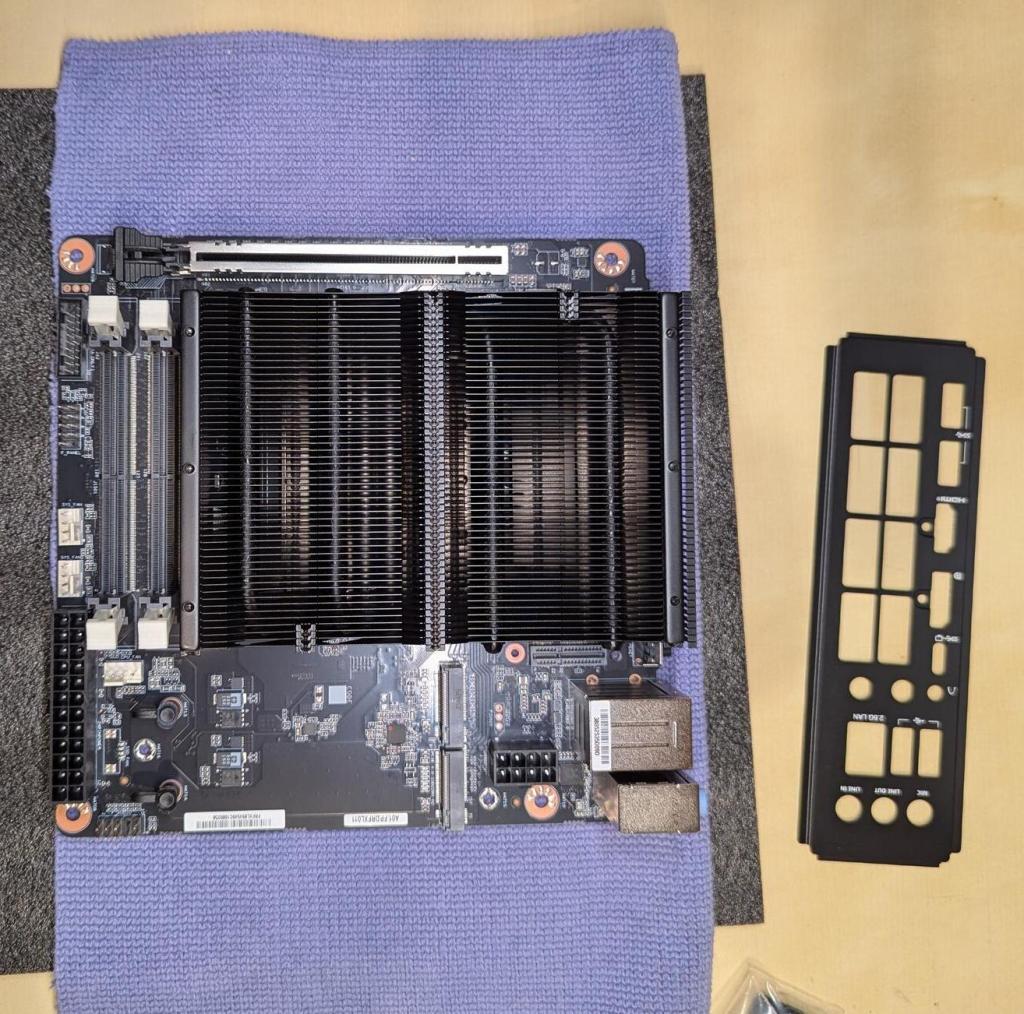
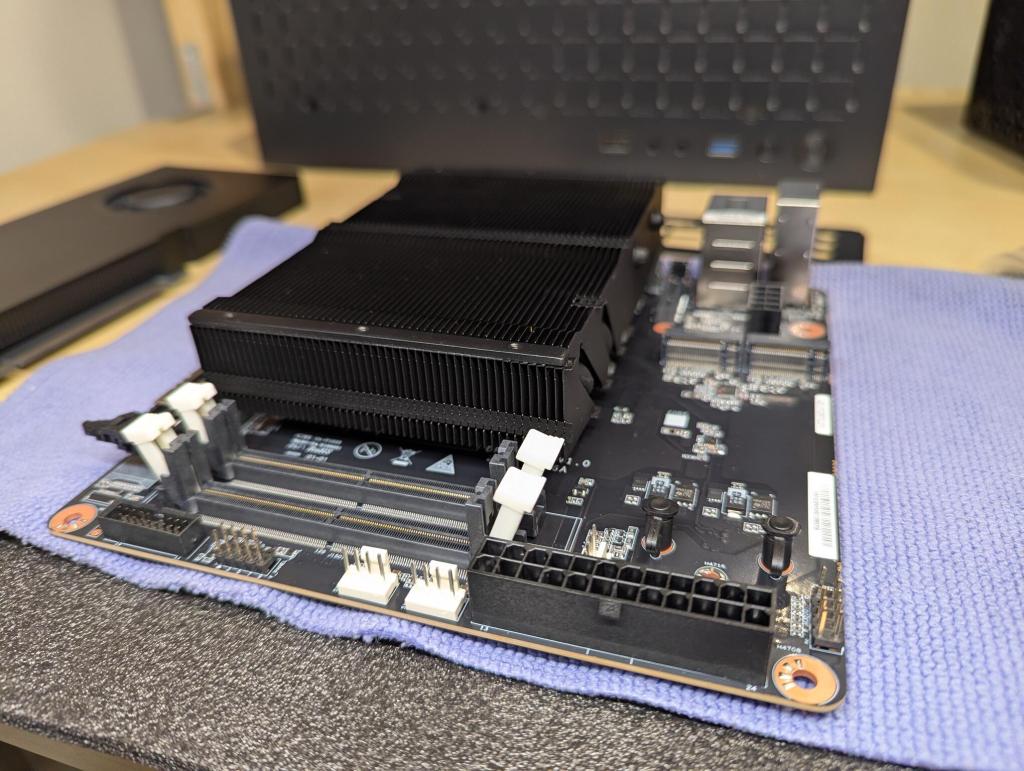
I installed the nvme drives in the two slots at the top edge of the motherboard. The plastic retainer pins are difficult to open with my hands. I used a Gerber multitool’s plyers to grab the wings at the top of the pin and pulled straight up while holding down the board with my other hand. Reinstalling each pin is very easy–just line it up with the hole and press down firmly on the pin until it makes a click sound.
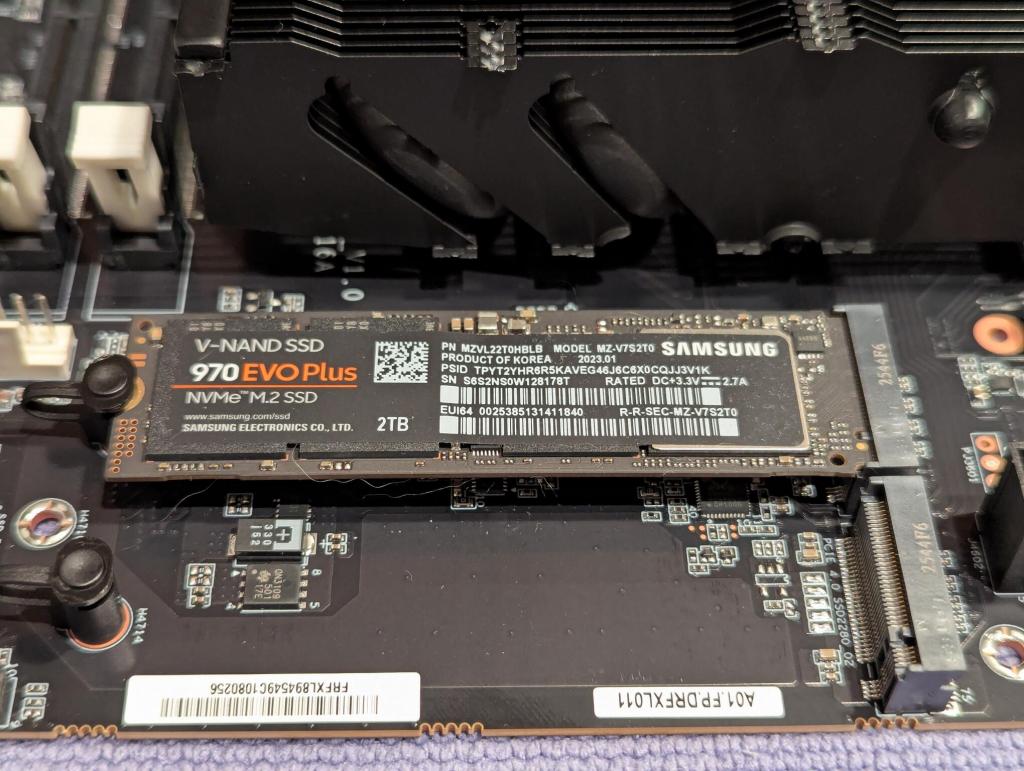
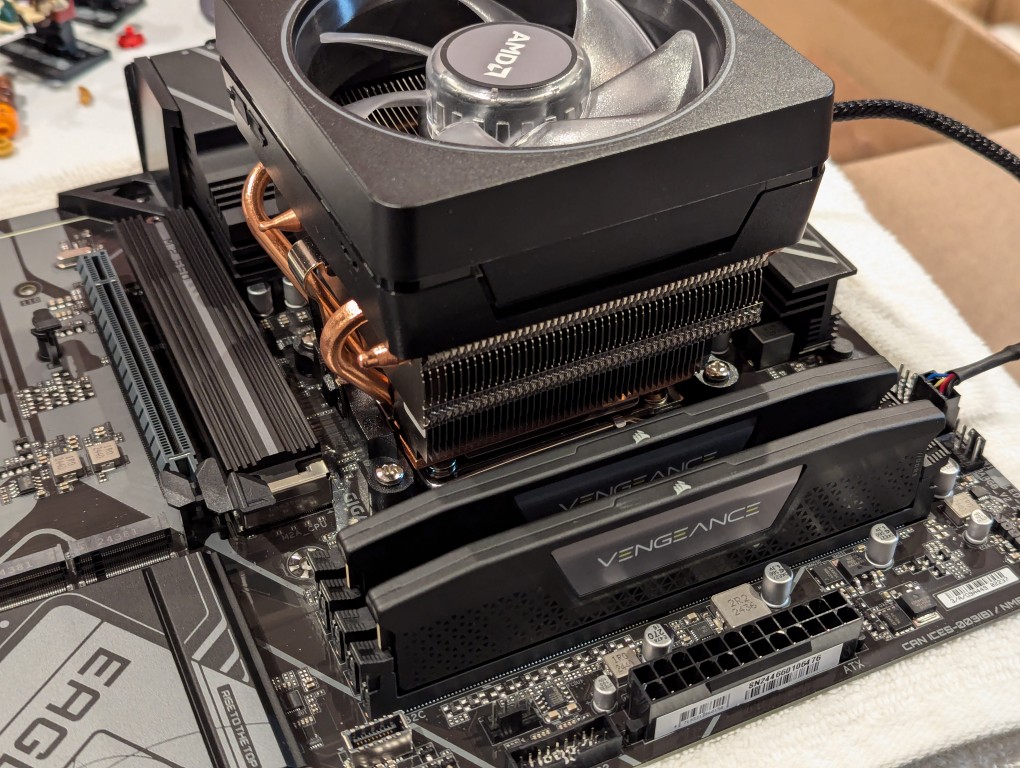
Then, I installed the two sticks of DDR5 memory that I had read others had used with this motherboard. It pays to read the experience of others through Google, Reddit and Amazon reviews to find the optimal parts for your build so that you don’t have to worry about making returns for incompatibility issues.
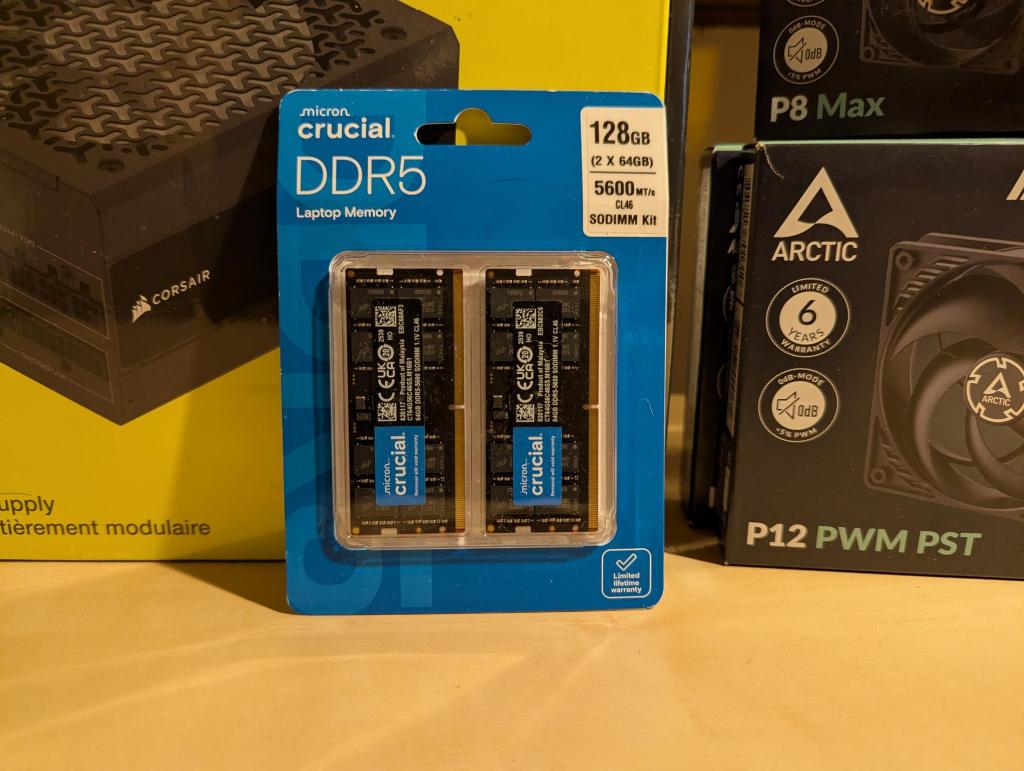
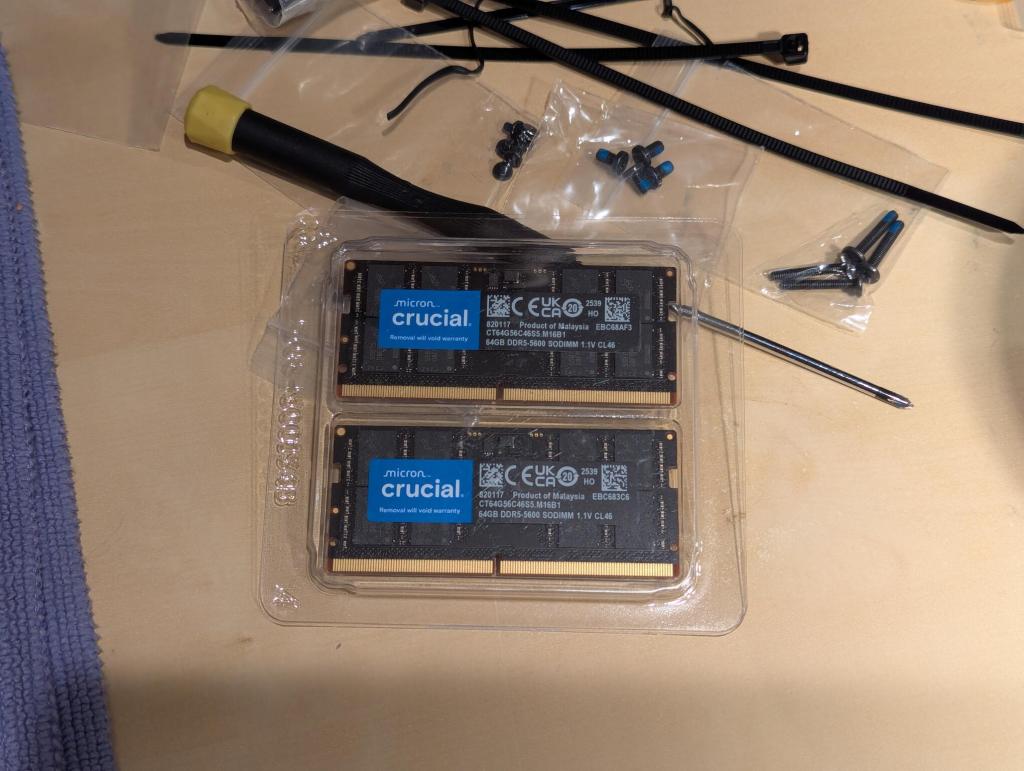
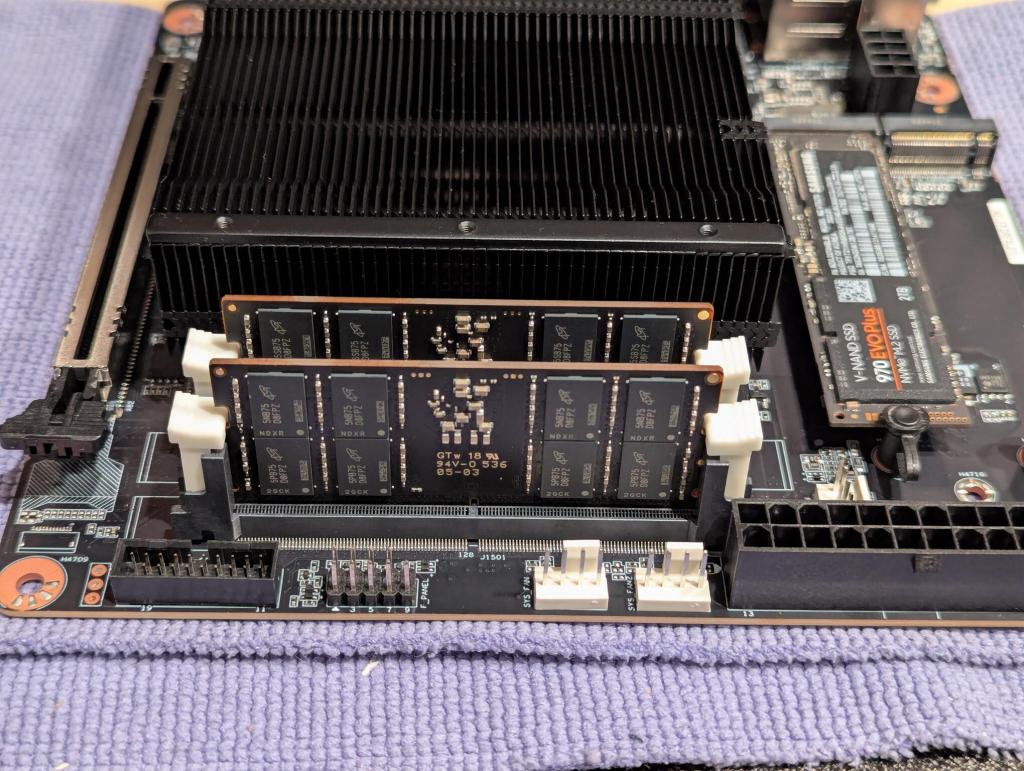
Installing the RAM is easy. The white clips on each slot need to be opened first. Then, check the orientation of each RAM stick’s notch with the slot (the notch is in a different place for DDR4 and DDR5 RAM making them mechanically incompatible to enforce the electrical incompatibility). Finally, line up the RAM stick with the slot and push down firmly until the arms on either side click into place and hold the RAM stick in place.
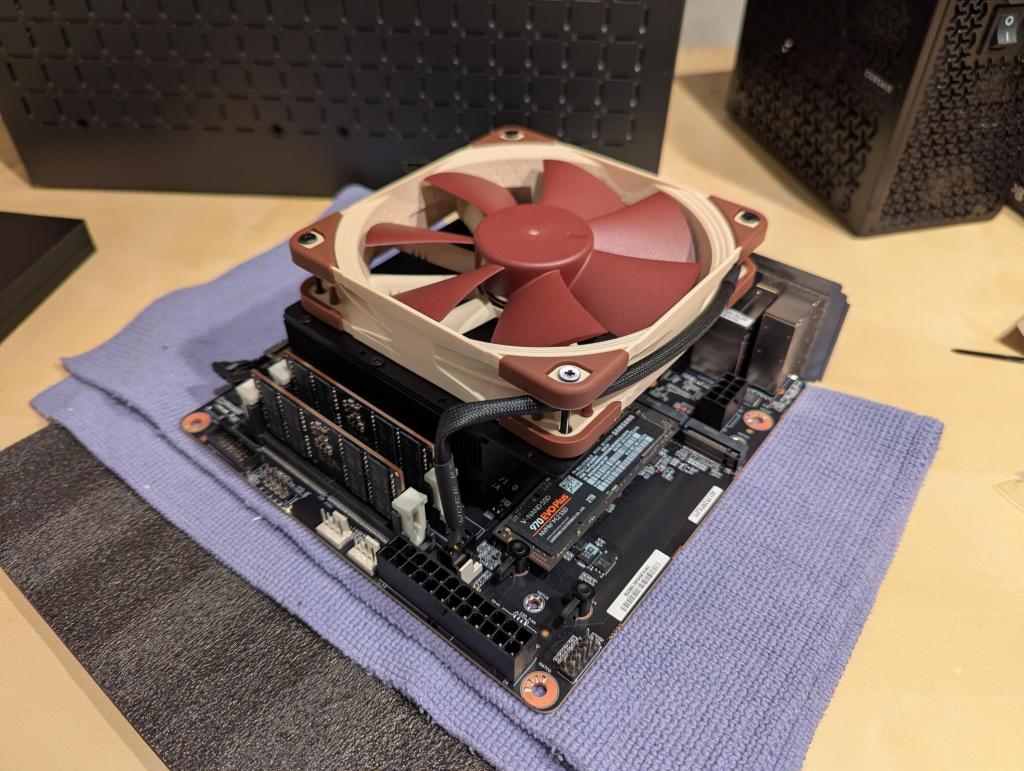
I missed taking a photo of installing the fan brackets on to the CPU’s heatsink. There were no instructions in the box showing how to do this, but it is easy to see how the two metal brackets included align with the six holes–three on each side of the top of the heatsink–and finding which bag has six screws of the appropriate size. Once the brackets are installed, the 120 mm fan’s mounting holes line up with screw holes on the brackets. The motherboard box has a selection of screws of different lengths to accommodate popular heights of fans. Find the one for your fan and install the four screws. The motherboard is ready for mounting.
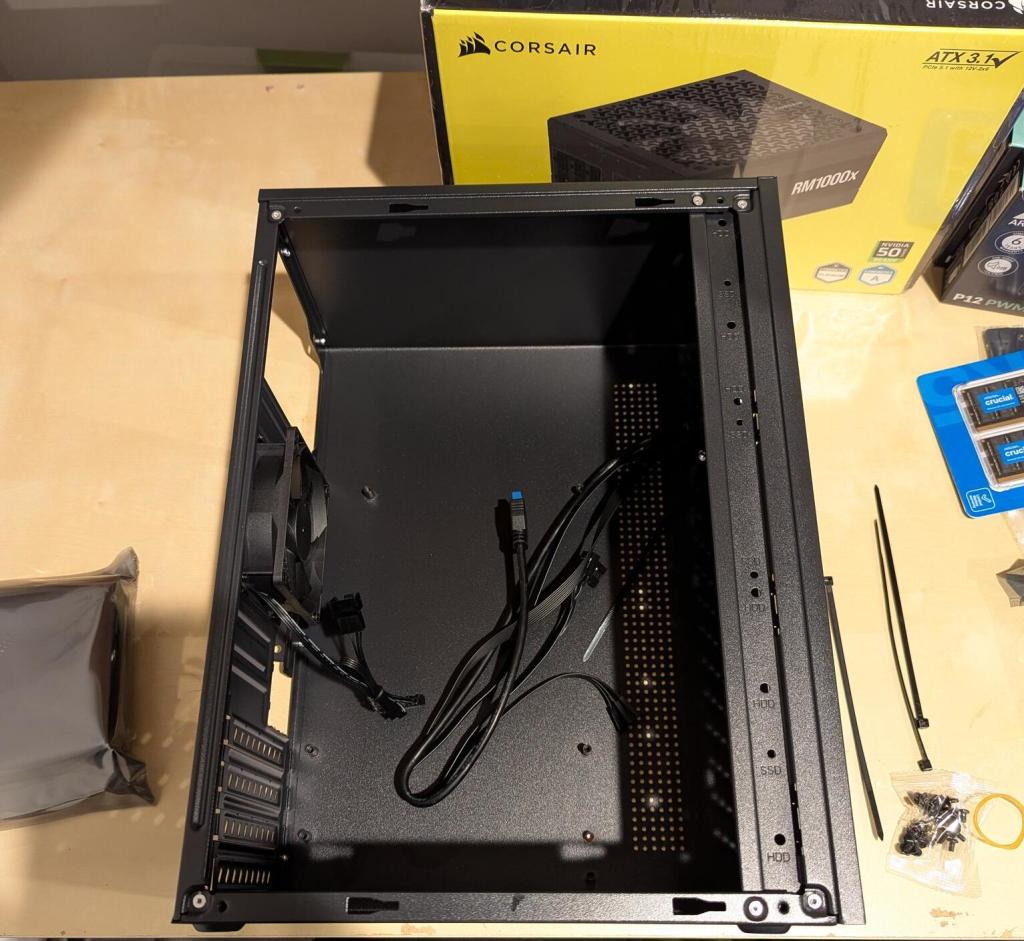
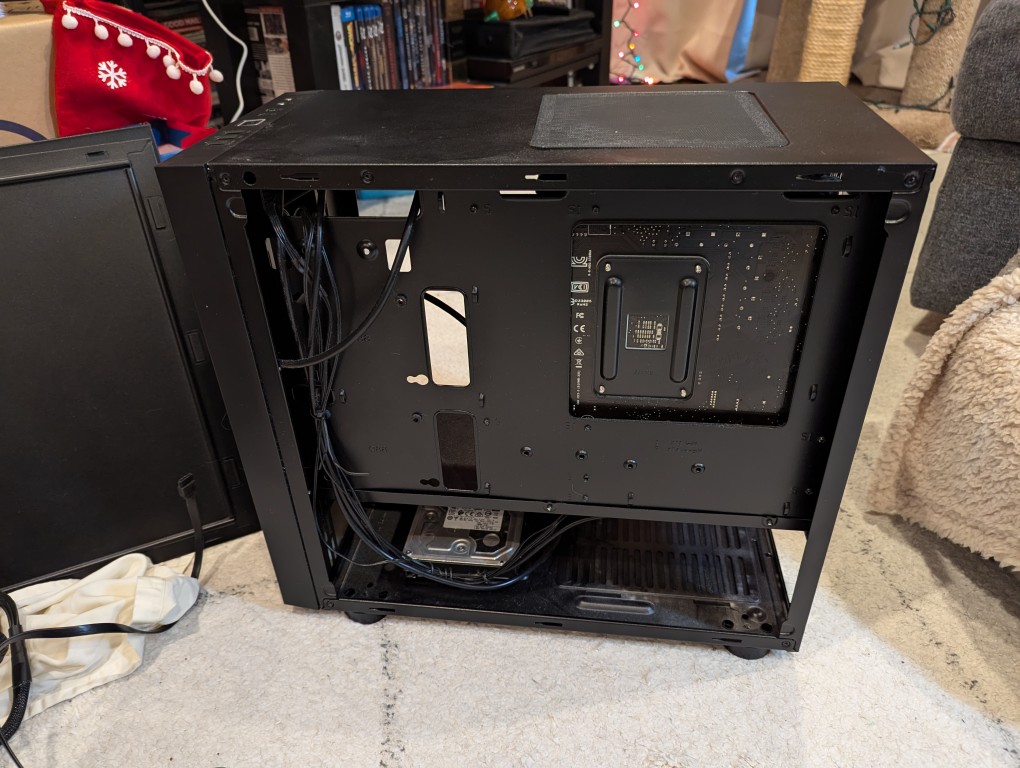
The TGDGAMER 15 liter Micro-ATX case can accommodate mATX and Mini-ITX motherboards. Like old school towers, the PSU is mounted at the top of the case above the motherboard. In this orientation, the PSU draws air from inside the case and pushes it out the back of its housing at the rear of the case.
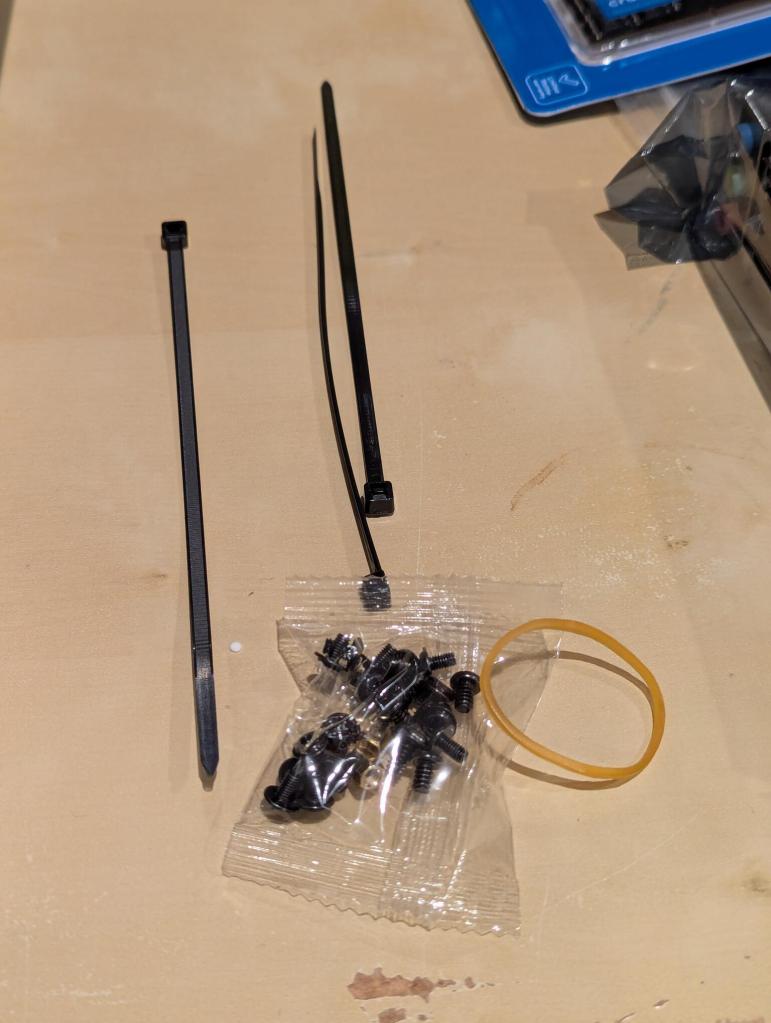
It included all the hardware needed to install the motherboard and tie straps for cable management.
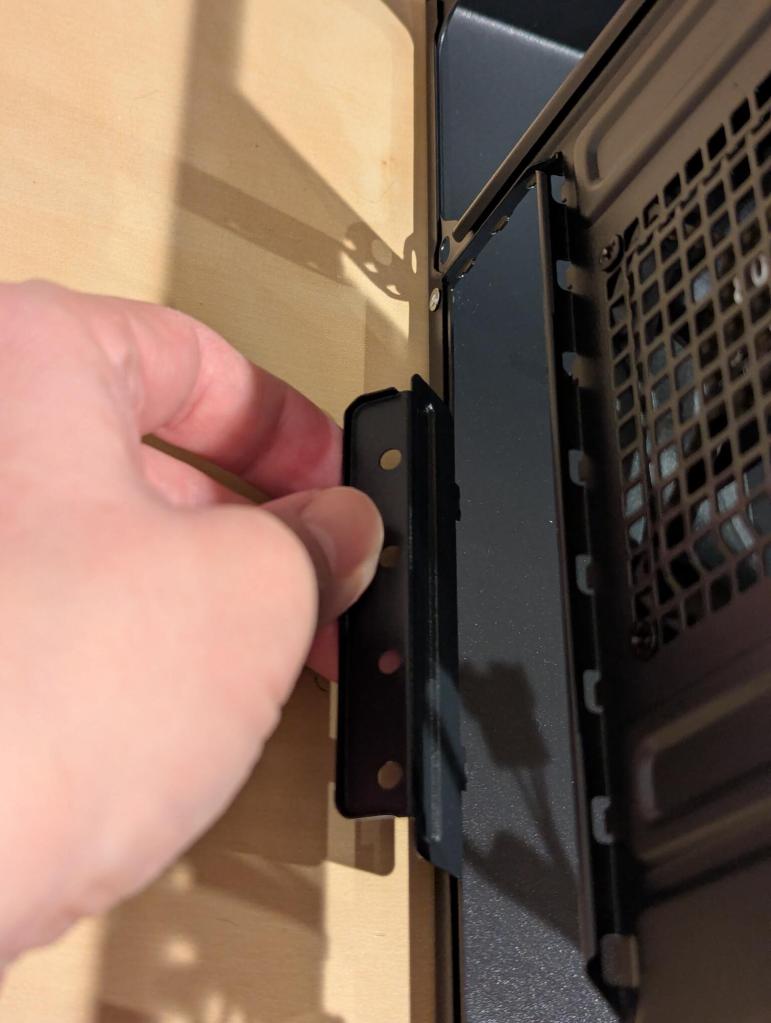
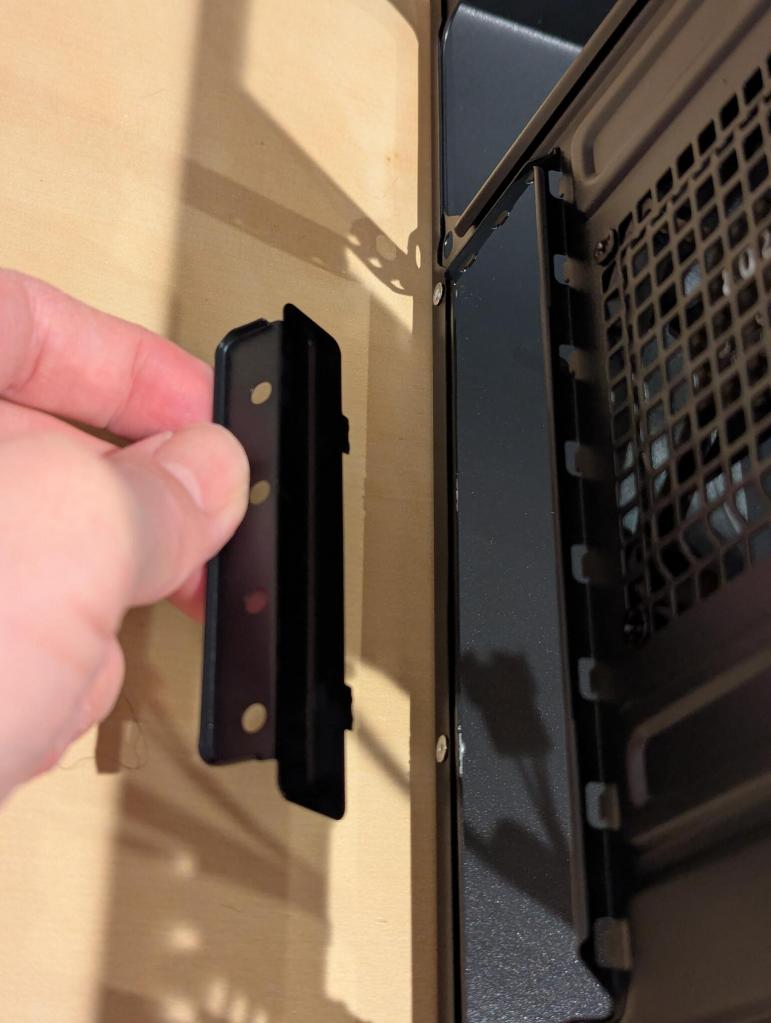
Before installing the motherboard, there is a metal L-shaped plate that needs to be removed from the opening where the motherboard’s ports are exposed at the rear of the case. Bending this piece back and forth a few times makes it snap off. It’s purpose is to secure the expansion cards, but despite bending it and the case, I couldn’t get it to line up correctly without putting too much stress on the installed video card, so I left it off.
The Corsair RM1000x (2024 version) is an updated PSU that adds a 12V-2×6 connector for modern video cards so that you don’t need an adapter–fewer cables and fewer obstructions to air flow.
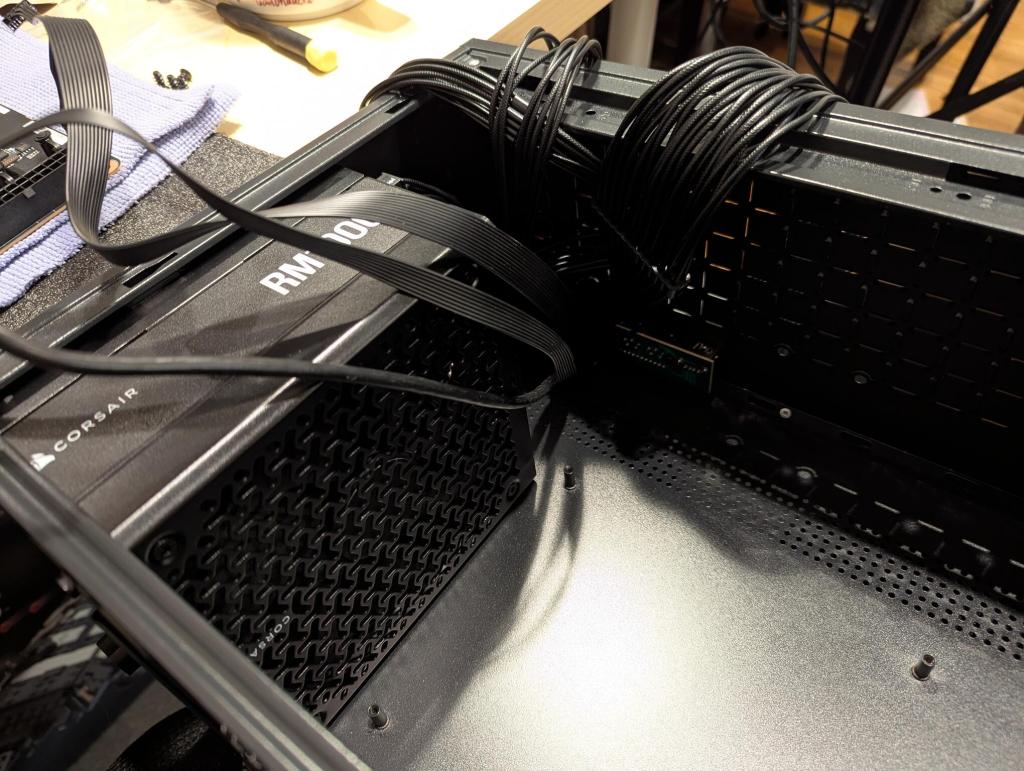
Before installing the PSU, I added one 120 mm Arctic fan to the inside-front of the case in the upper position (there’s room for two 120 mm fans, but my video card is too long to accommodate the second fan).
I connected the power cords to the PSU that I would need–two for the CPU and one for the video card.
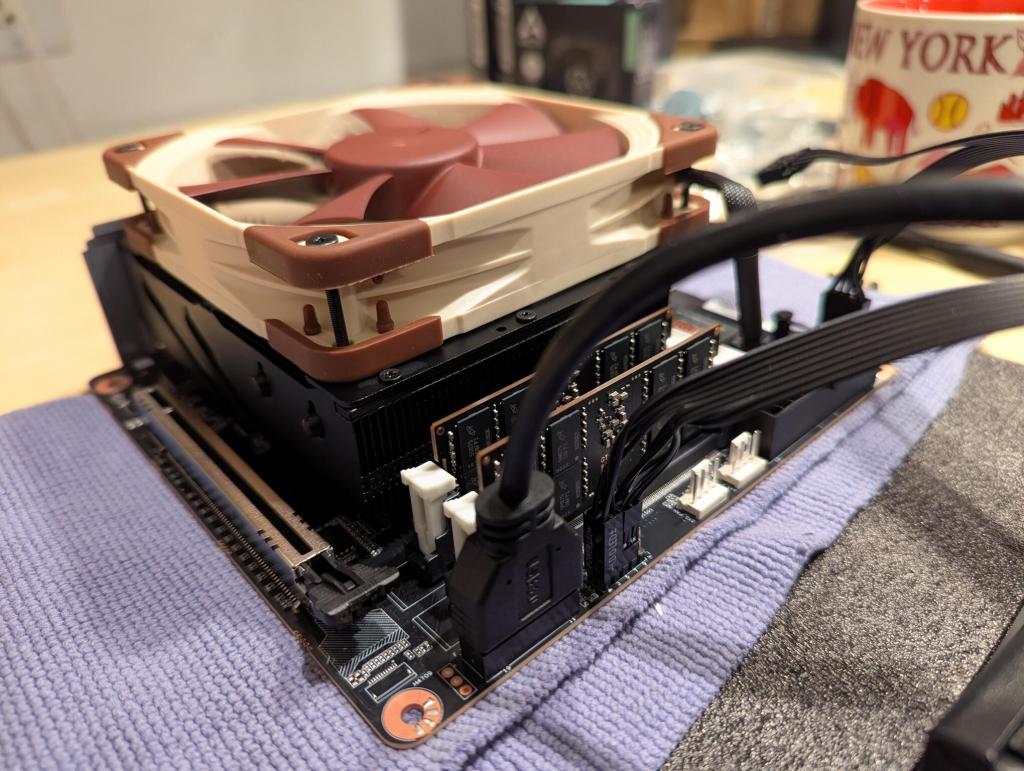
With the motherboard still outside the case, I connected the sound, USB, and front panel power and reset buttons and power and HDD LEDs.
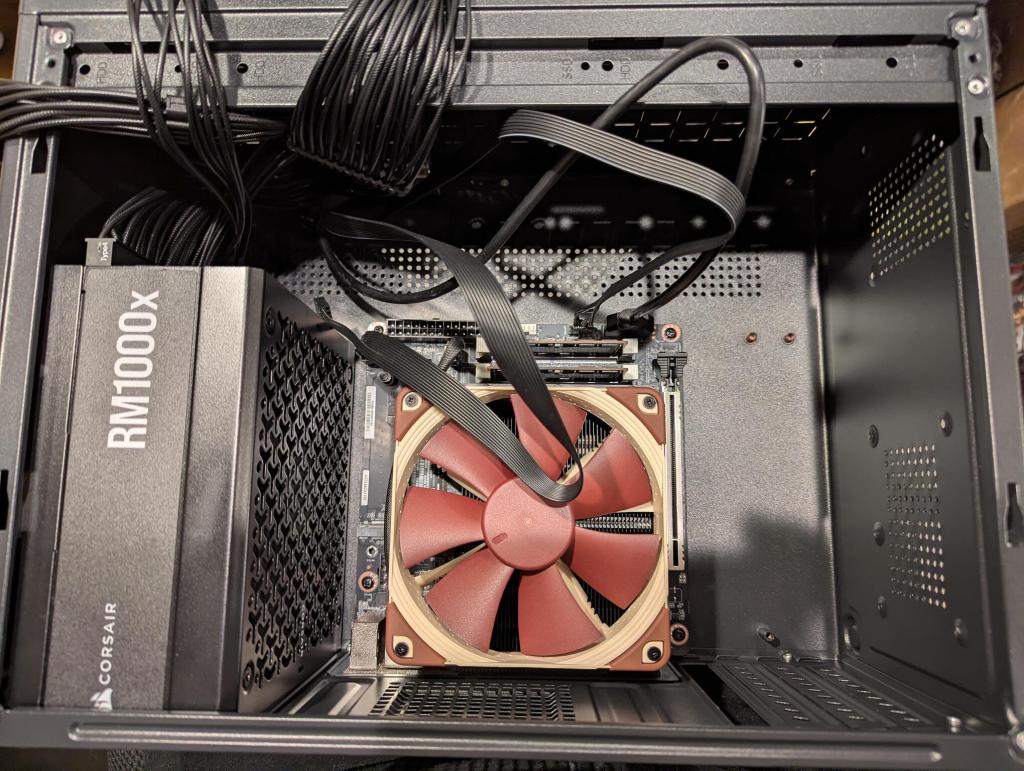
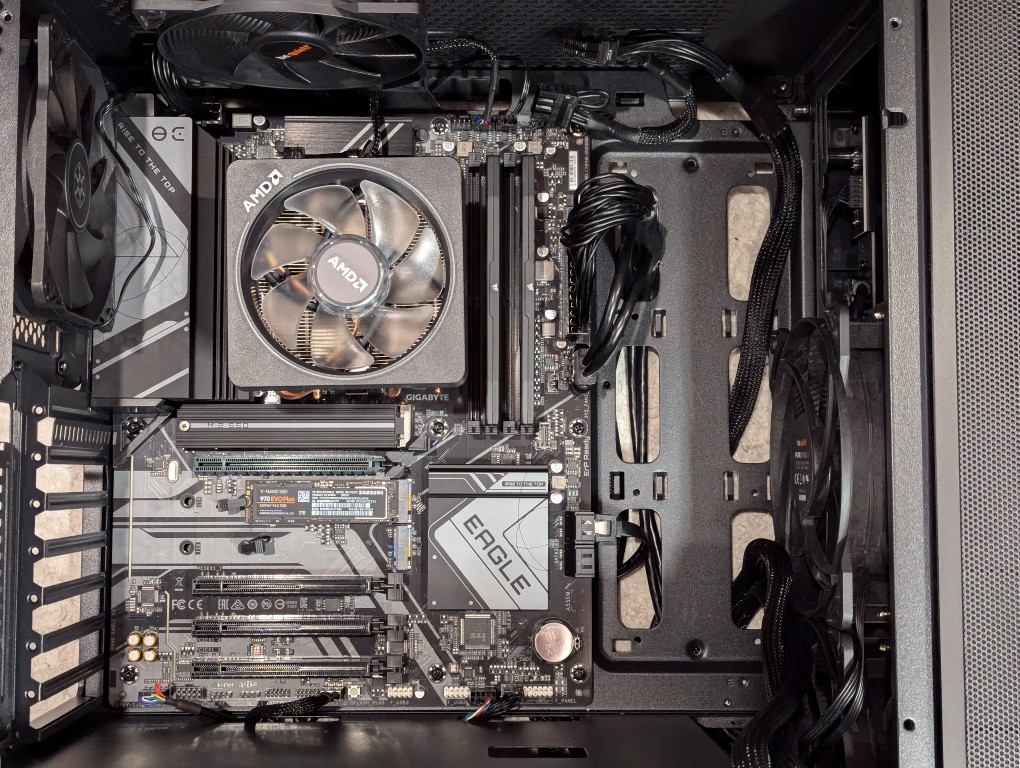
I maneuvered the motherboard into place and installed it with the case’s included mounting screws.Then, I connected the two power cables for the motherboard.
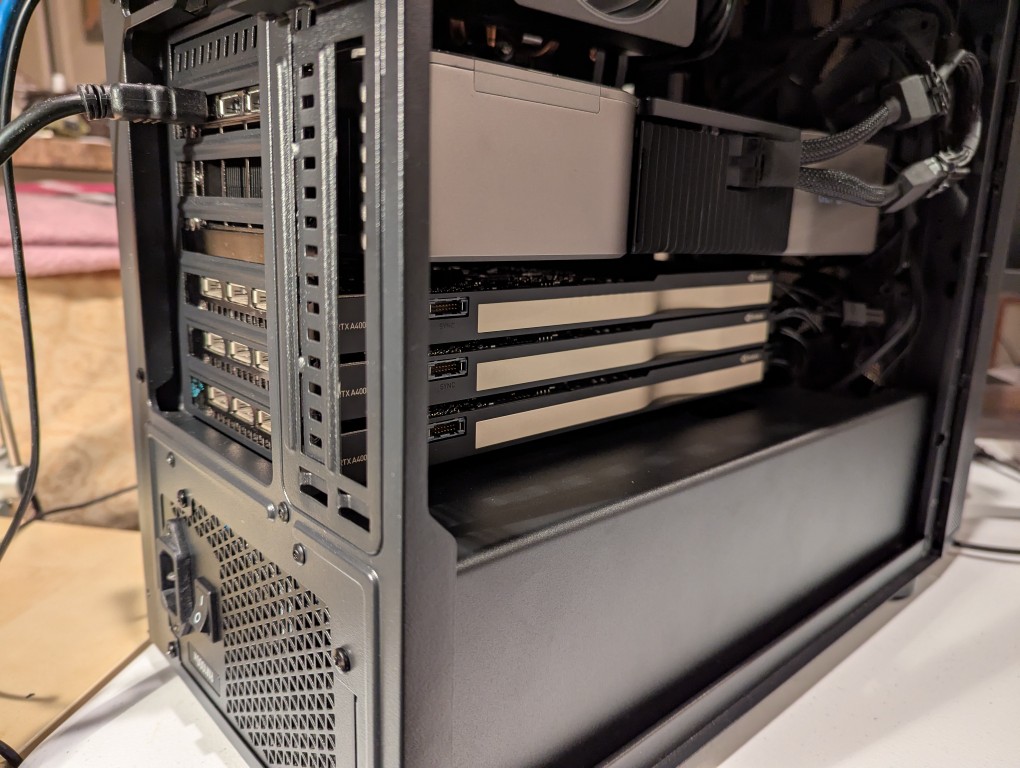
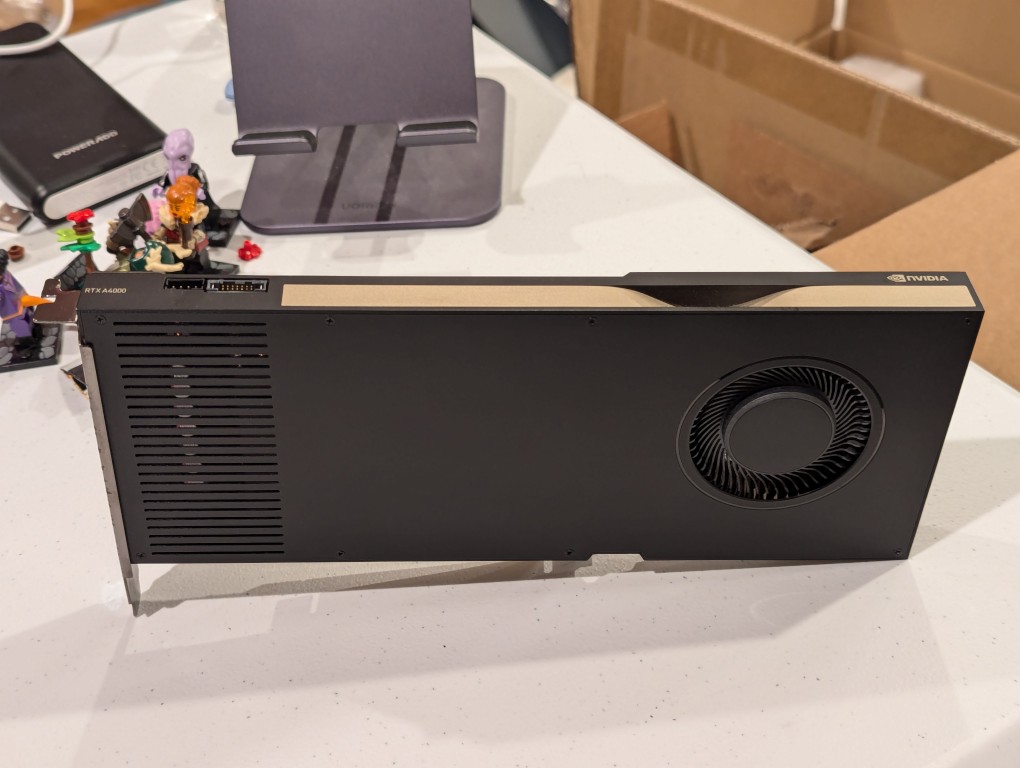
The last part to install was the PNY Nvidia RTX 4000 Pro Blackwell video card.
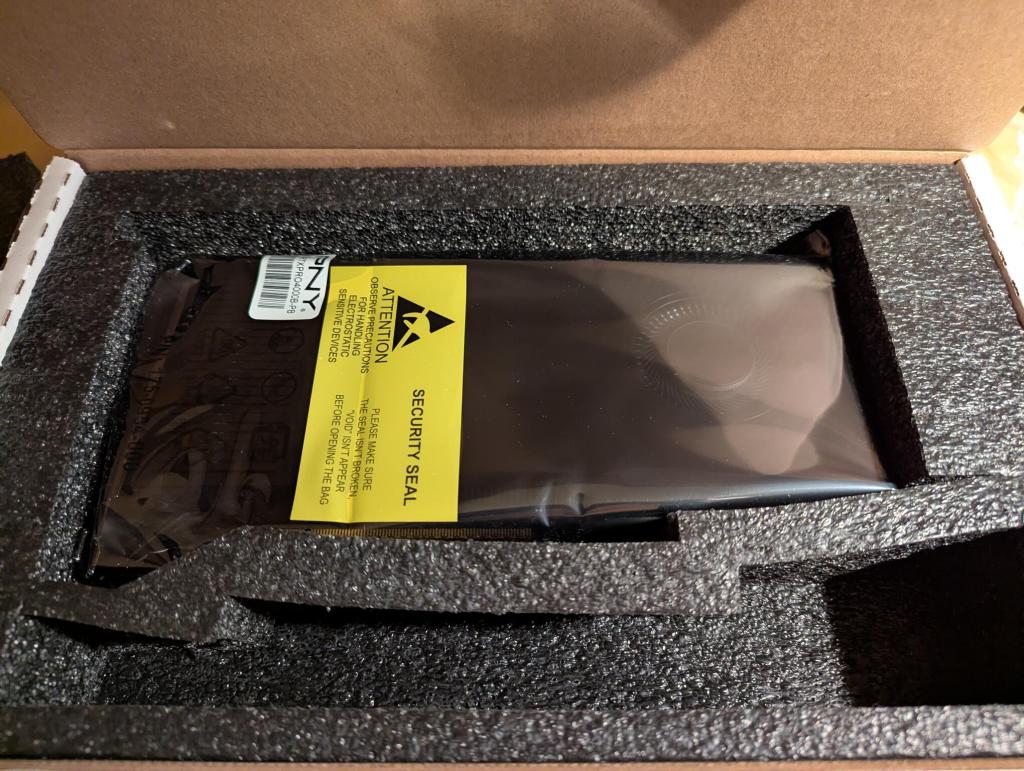
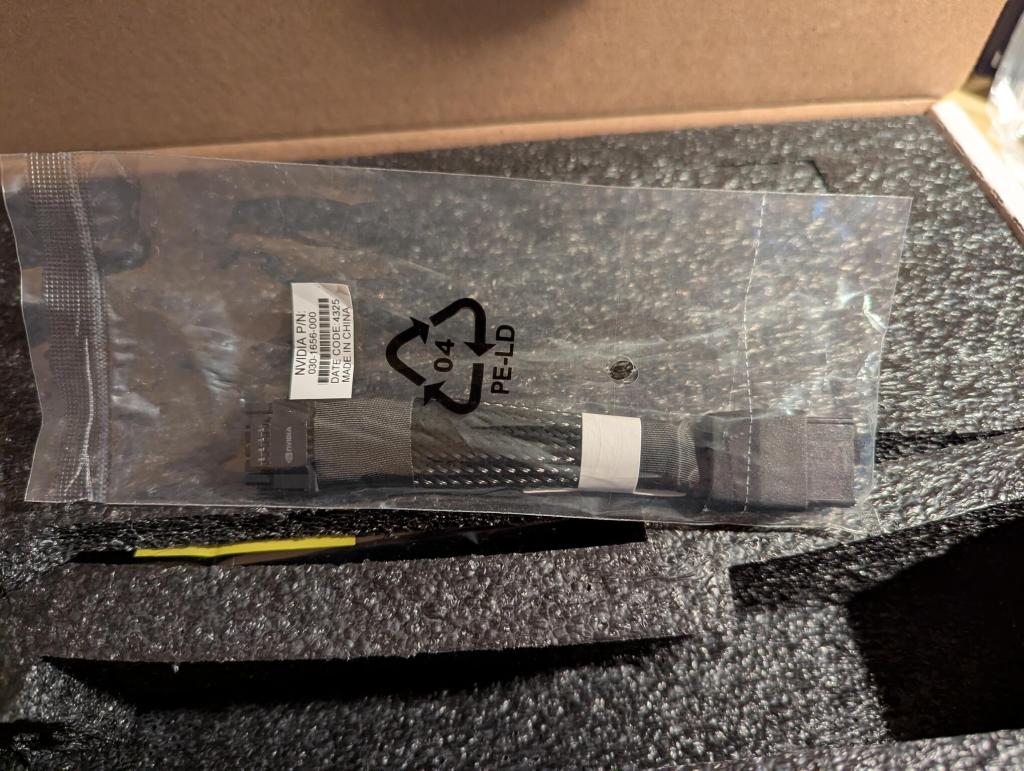
It comes with a 2 x PCIe power to 12v 2 x 6 connector adapter, which I didn’t need to use thanks to the new Corsair PSU.
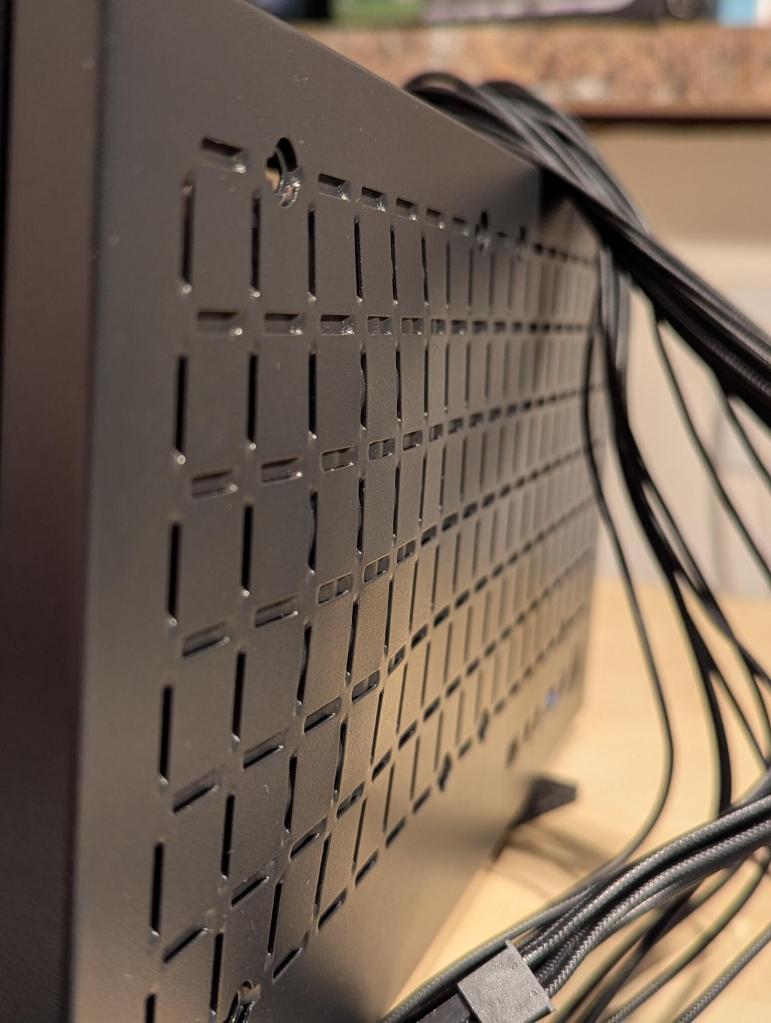
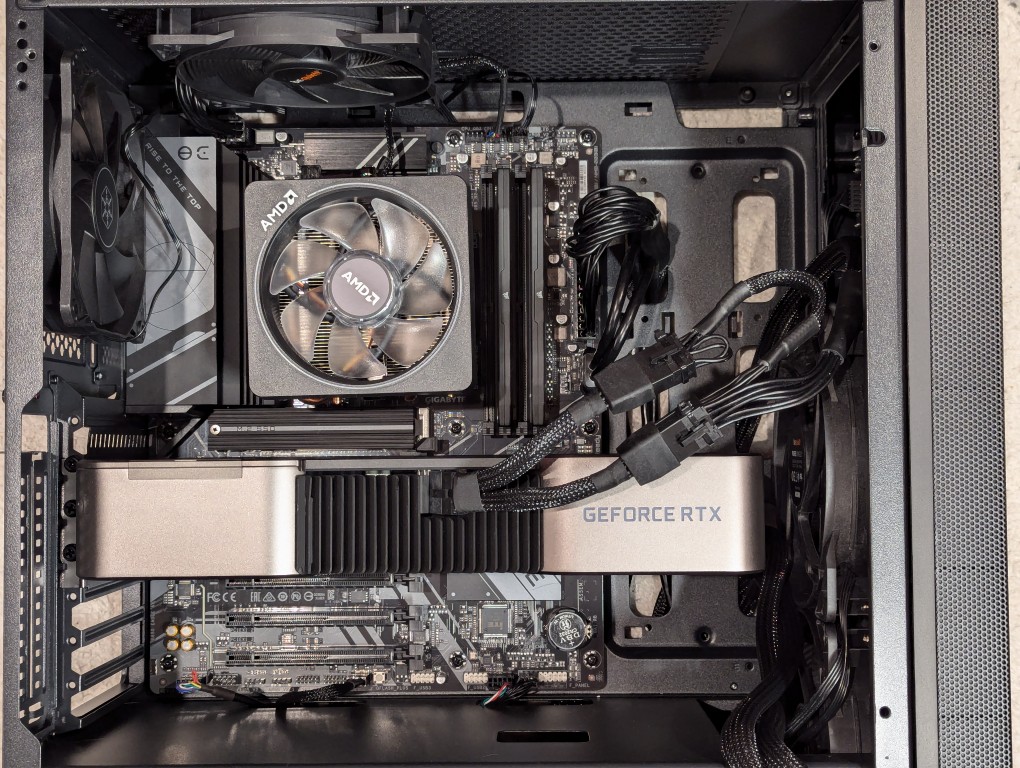
After some experimenting with installing the video card, I wanted a little bit of extra room for the 12v 2×6 cable that plugs into the front of the video card. It fit, but I would sleep easier knowing that those cables weren’t pressed hard up against the metal front of the case. My solution was to take out the video card and using the handle of a large screwdriver, I pressed on the front of the case from inside to create a bump of about 1/4″ in height to give that cable a little extra breathing room in front of the video card.
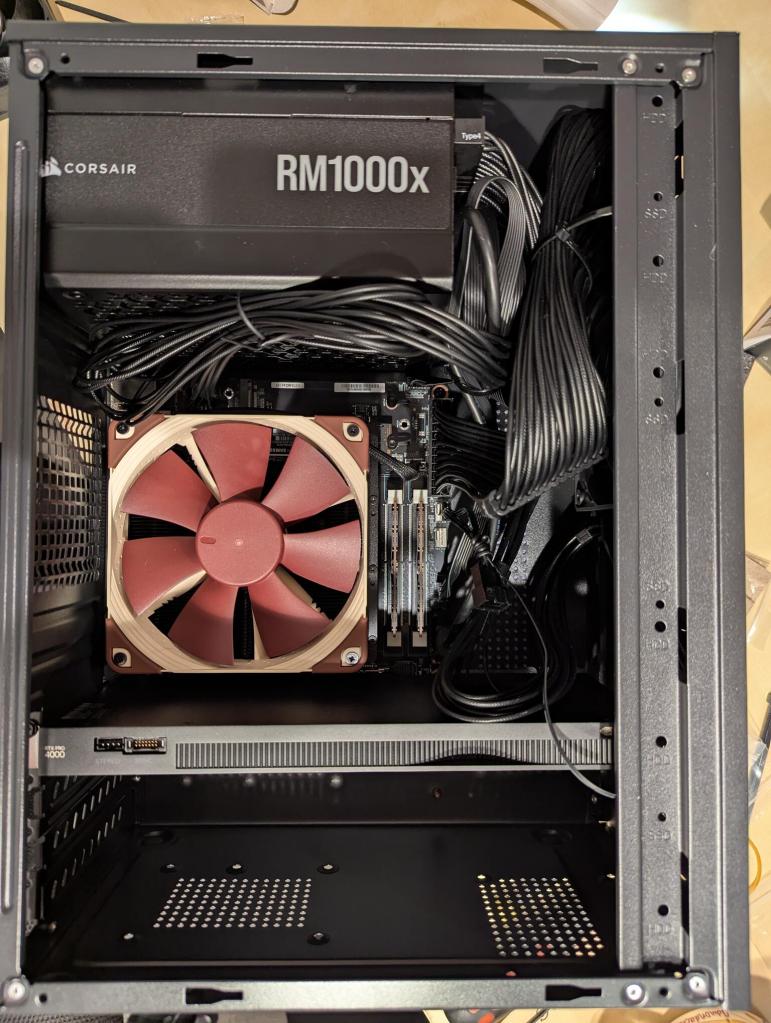
Before positioning the 9.5″ long video card into the 9 27/23″ space, I connected the power cable to the card and went through contortions to line it up with the PCIe slot and pushed it in until it clicked into place and then screwed it into the case.
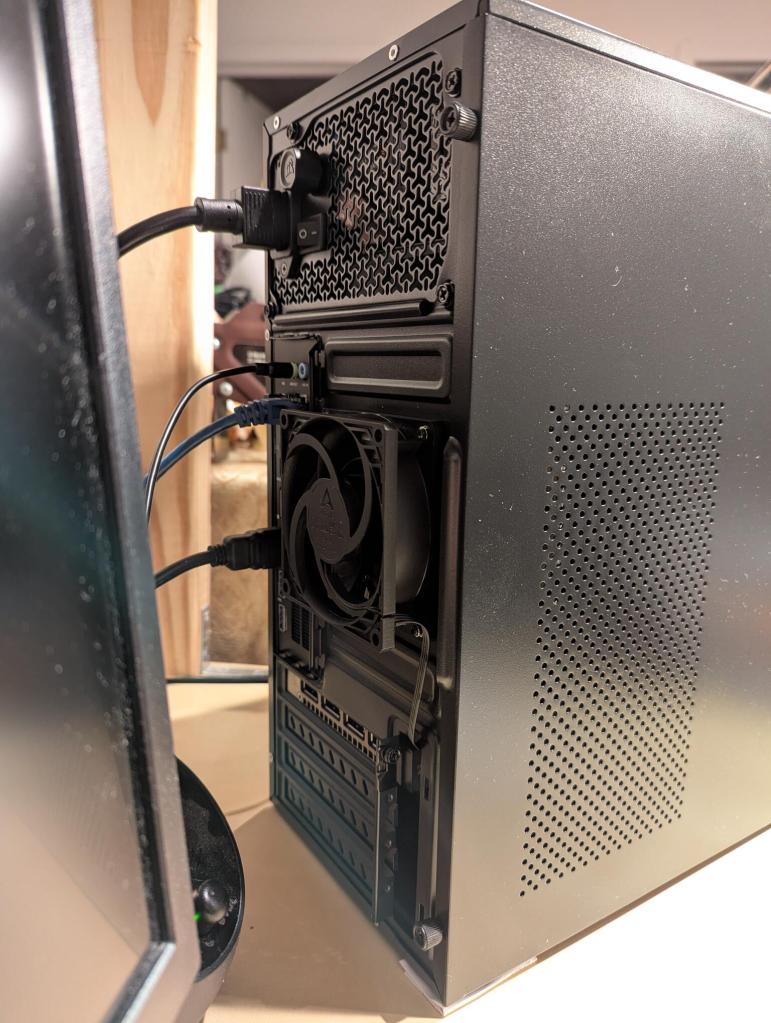
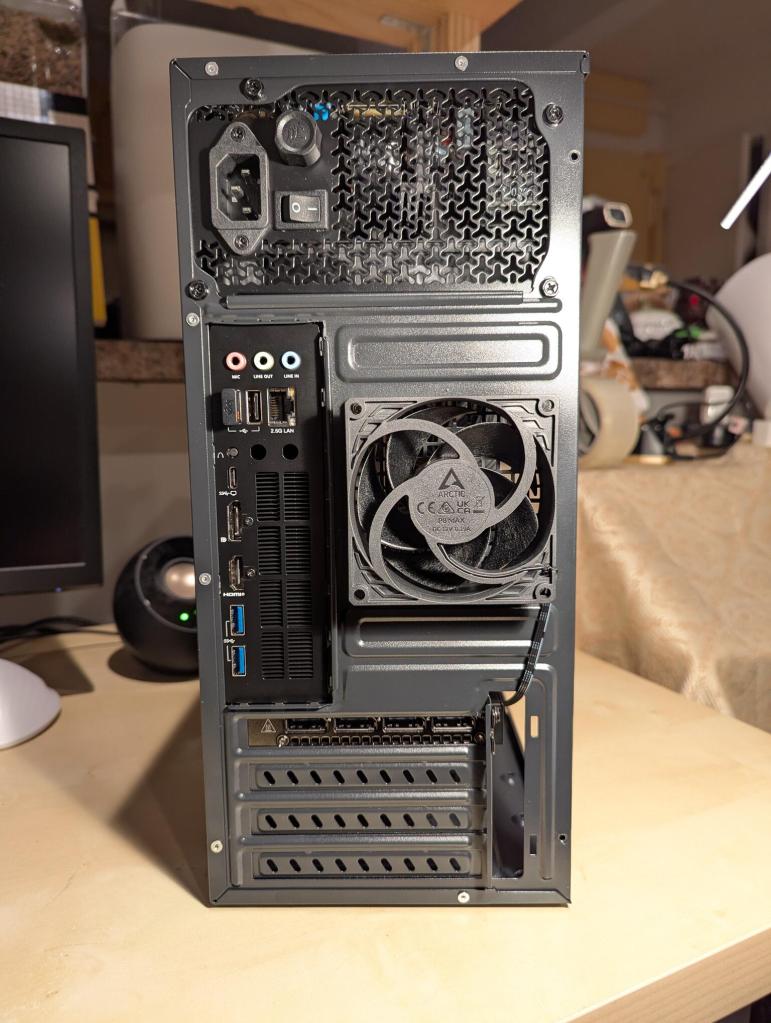
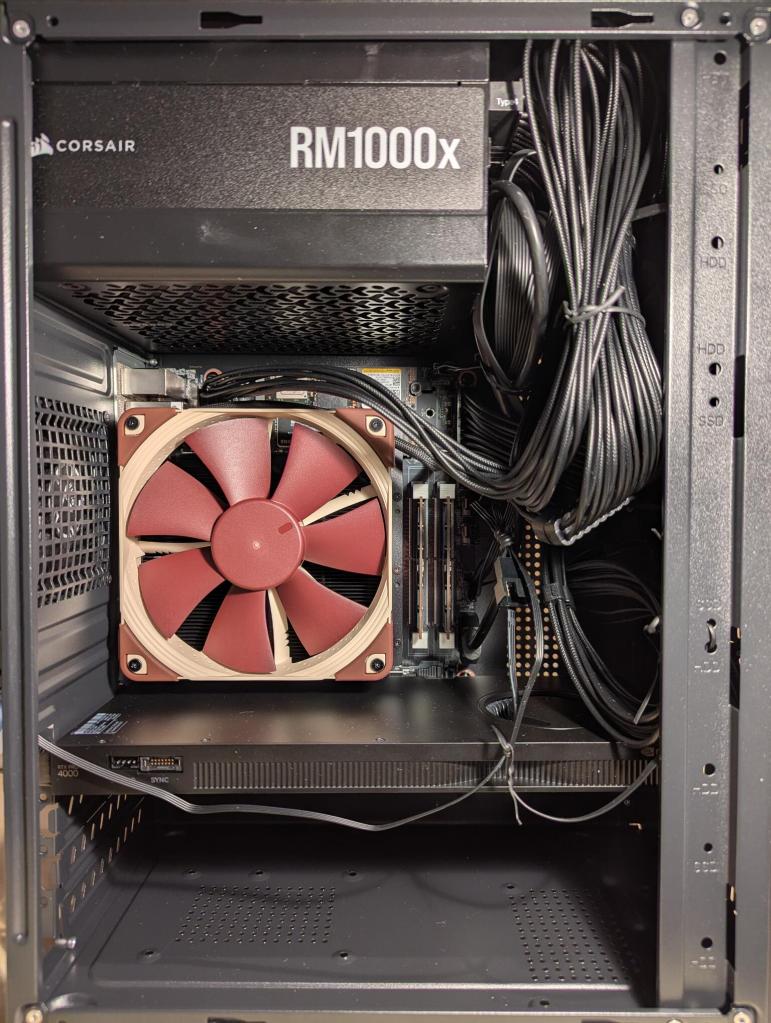
While installing the motherboard, I realized that it wouldn’t fit into place with an 80 mm fan installed inside the case, so I removed the 80 mm exhaust fan that the case came with, bent the exhaust fan cover of the case so that it wouldn’t obstruct installing the 80 mm on the outside of the case pulling air from inside the case and pushing it out. I ran the power cable for the fan through the hole above the expansion card slots.
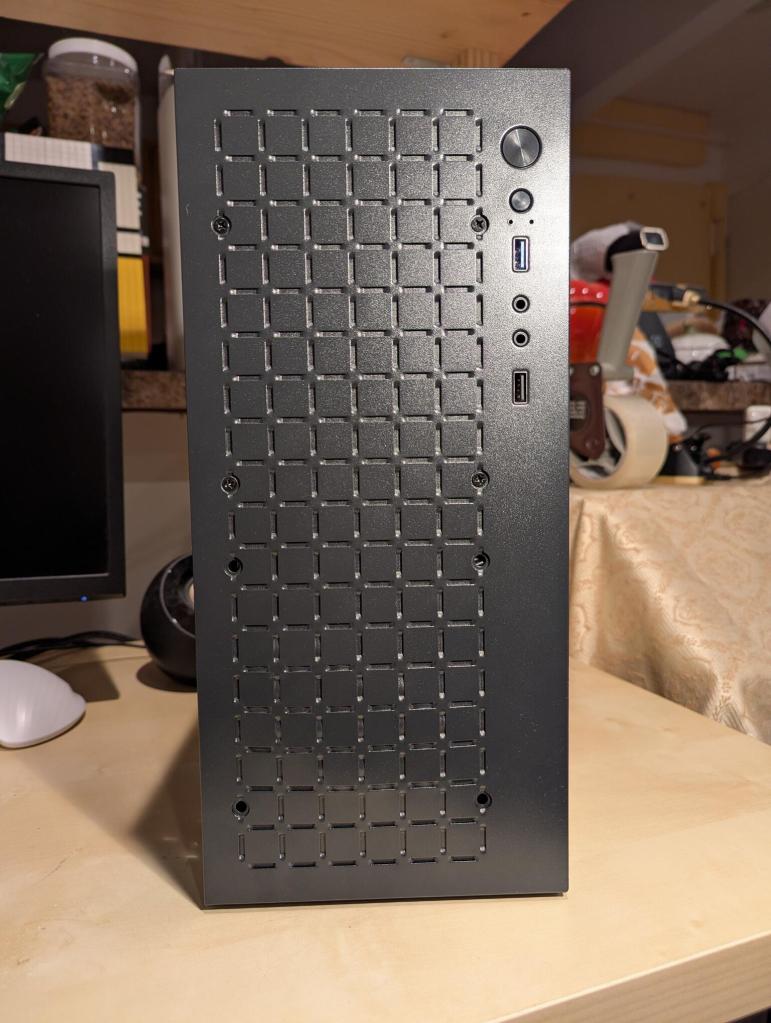
With the workstation assembled, it was time to power it up.
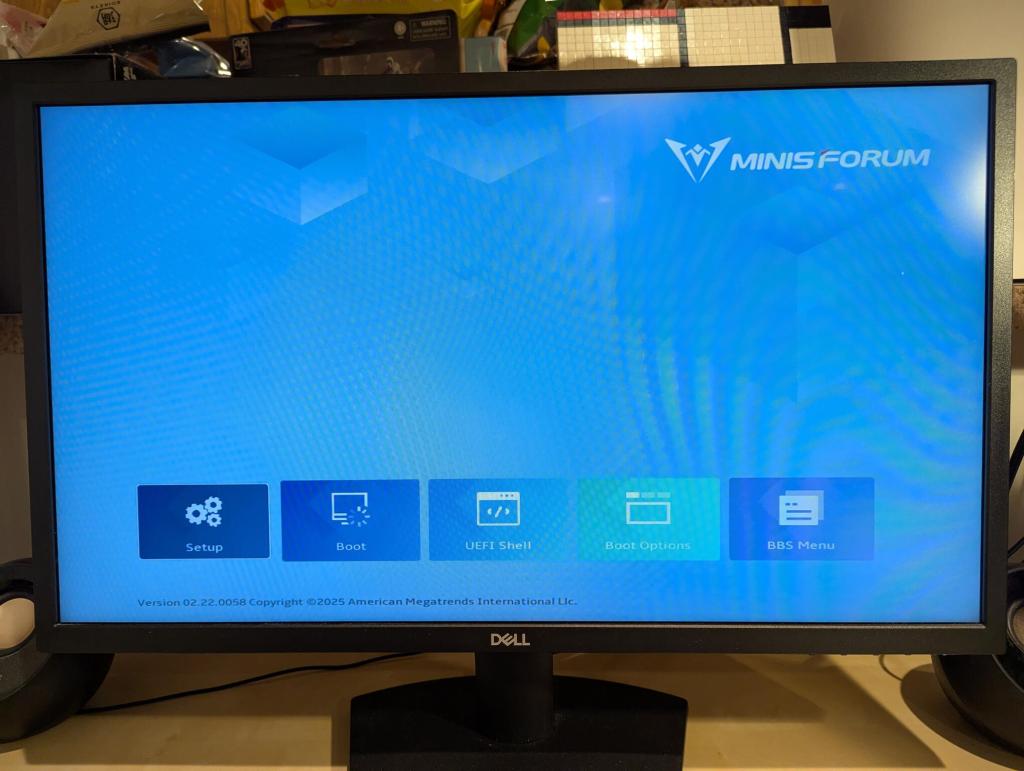
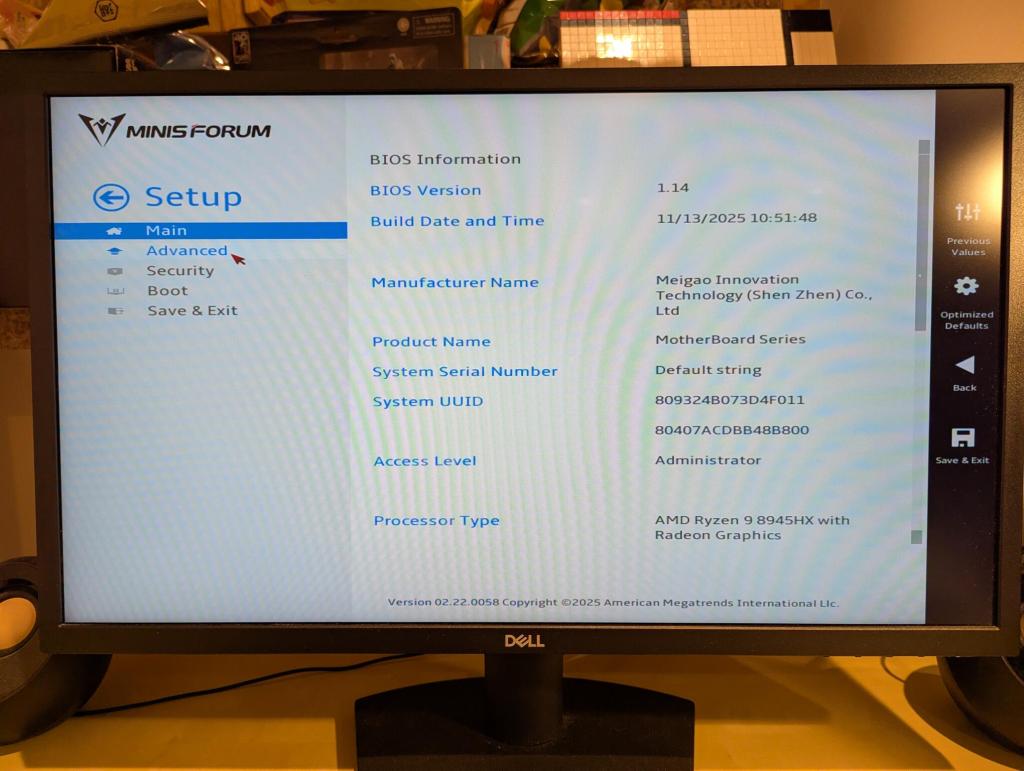
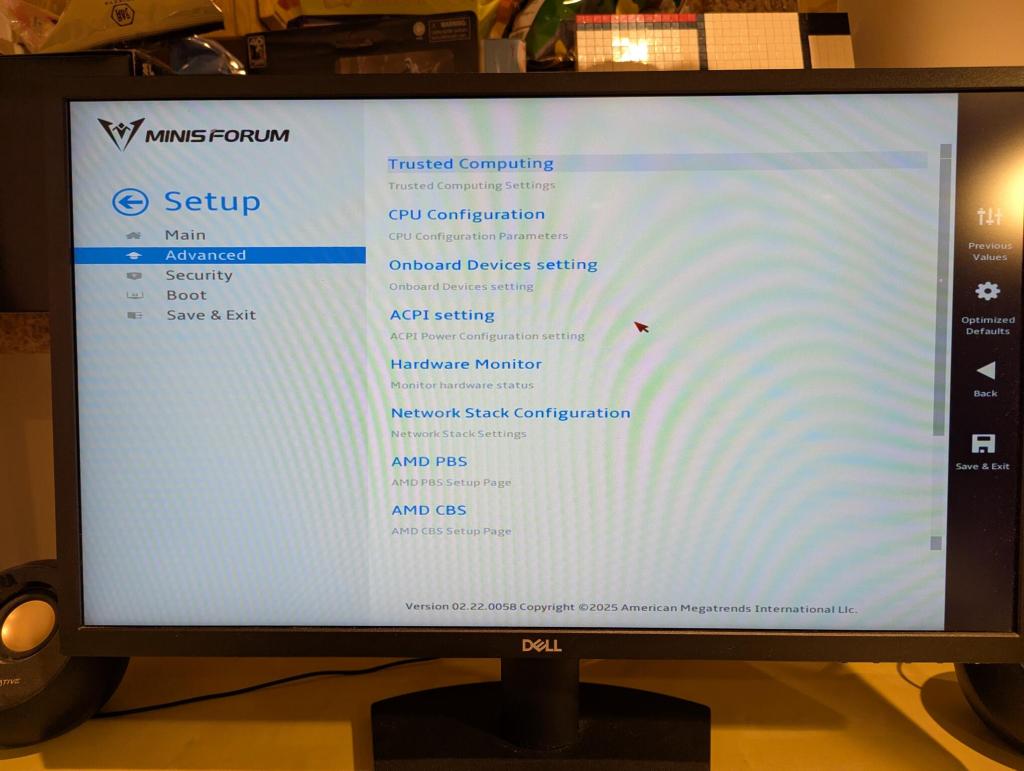
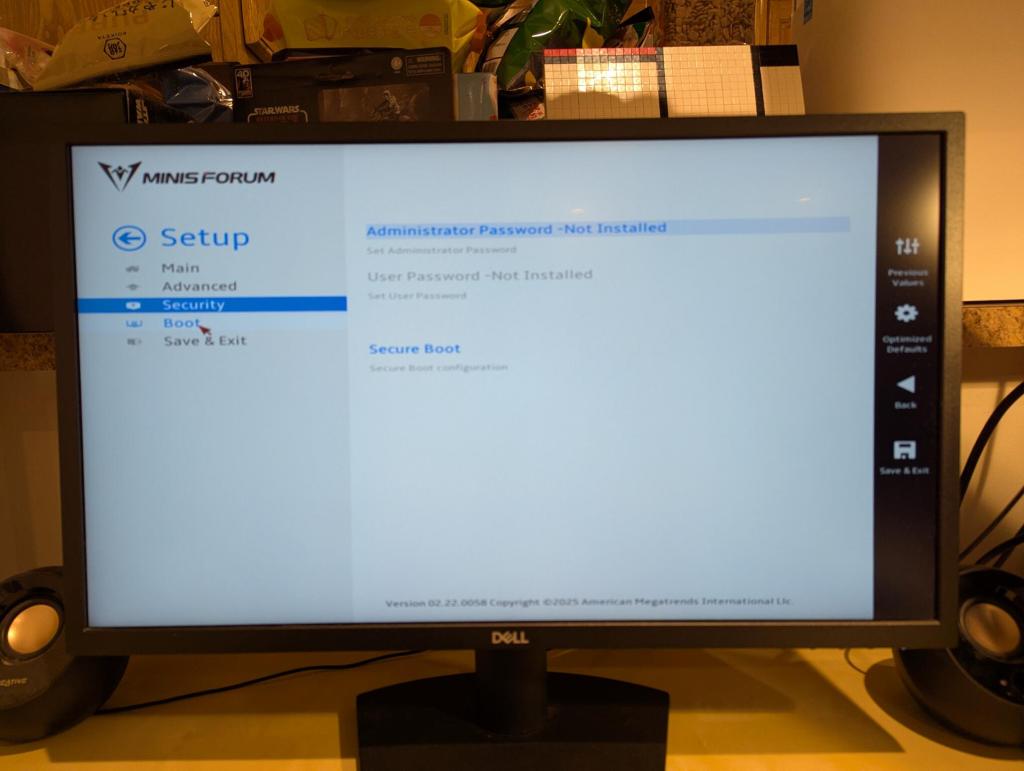
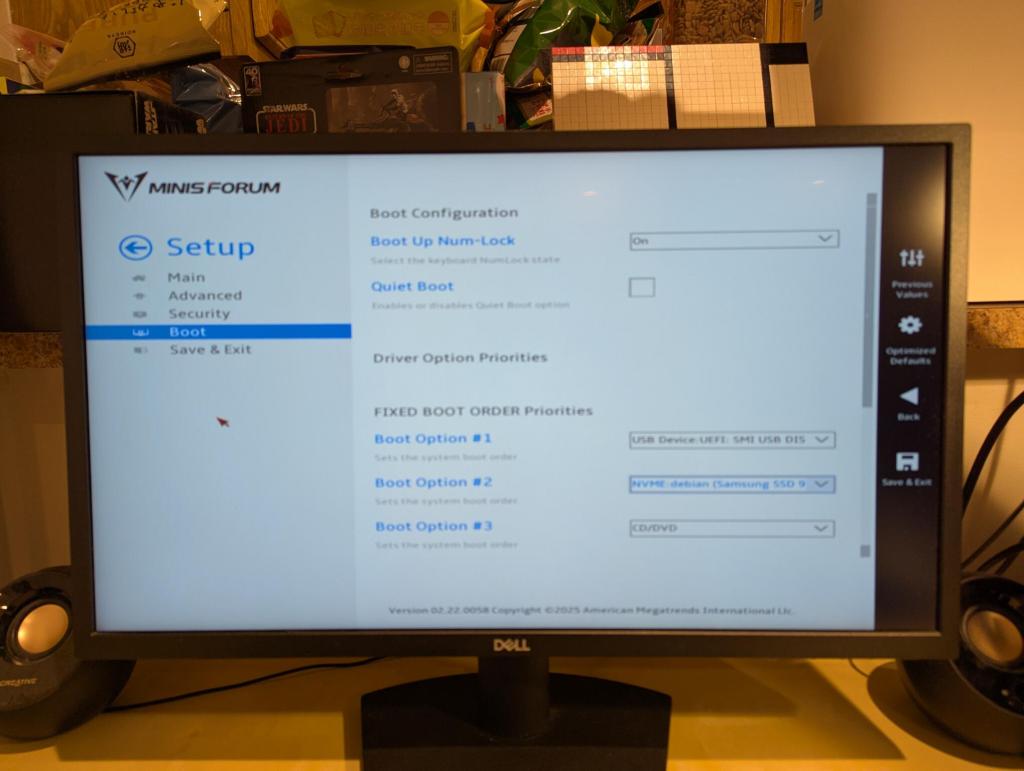
The BIOS isn’t as robust as some other manufacturers’, but I was able to quickly find where to change boot options so that I could boot from a USB drive.
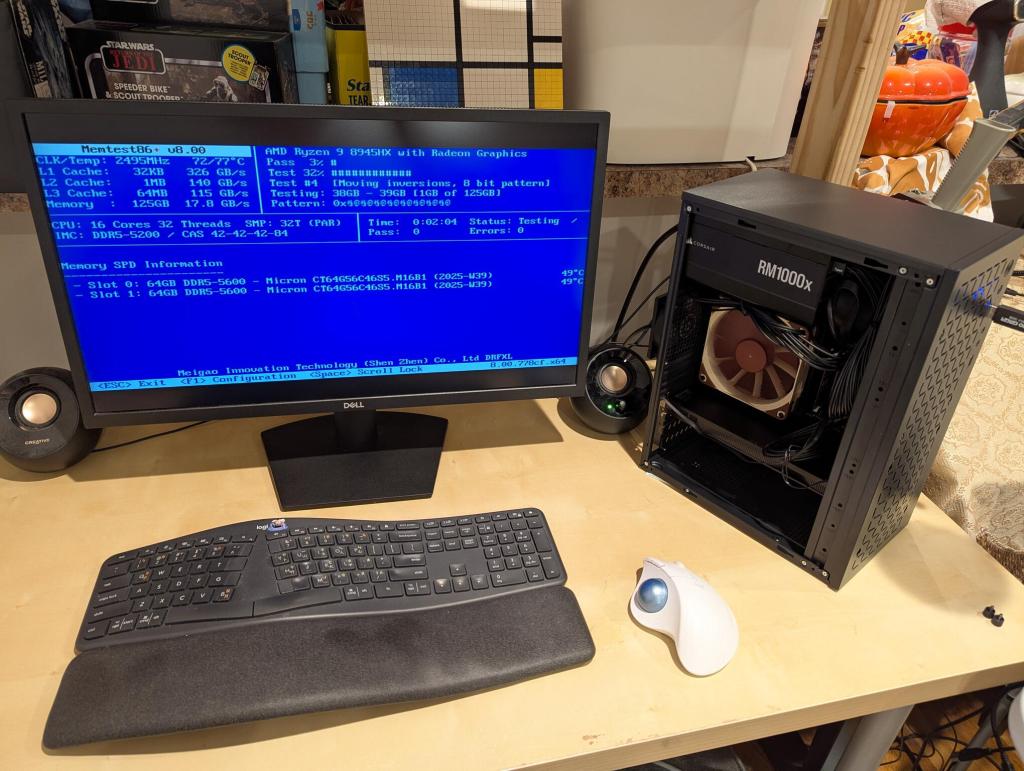
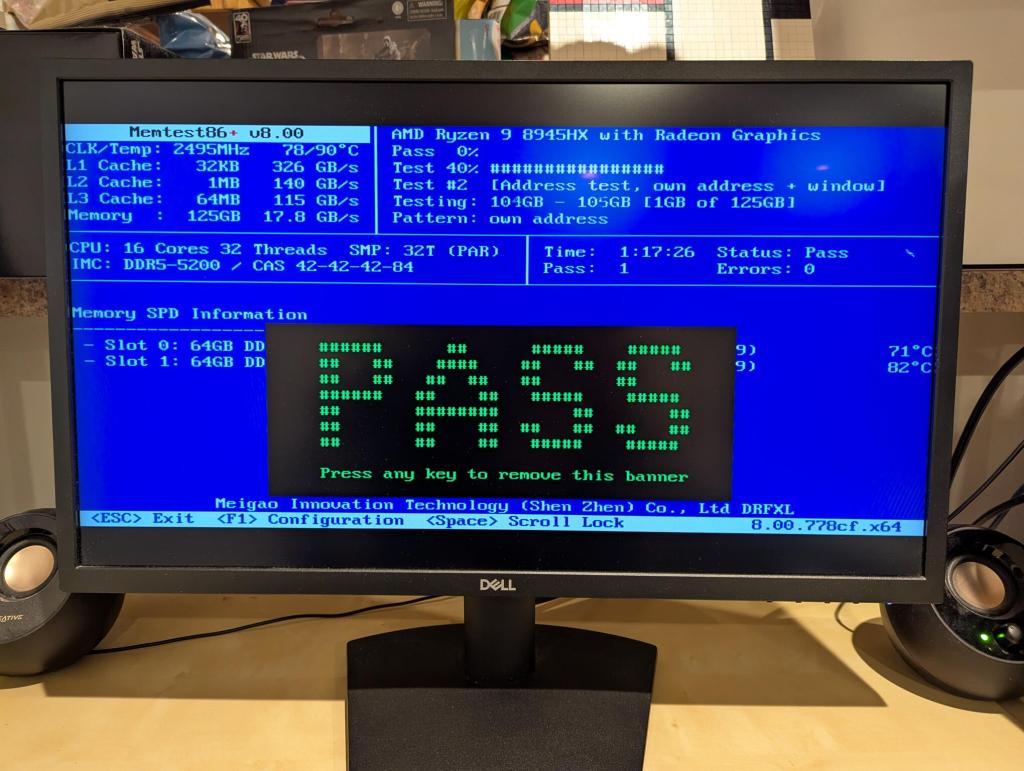
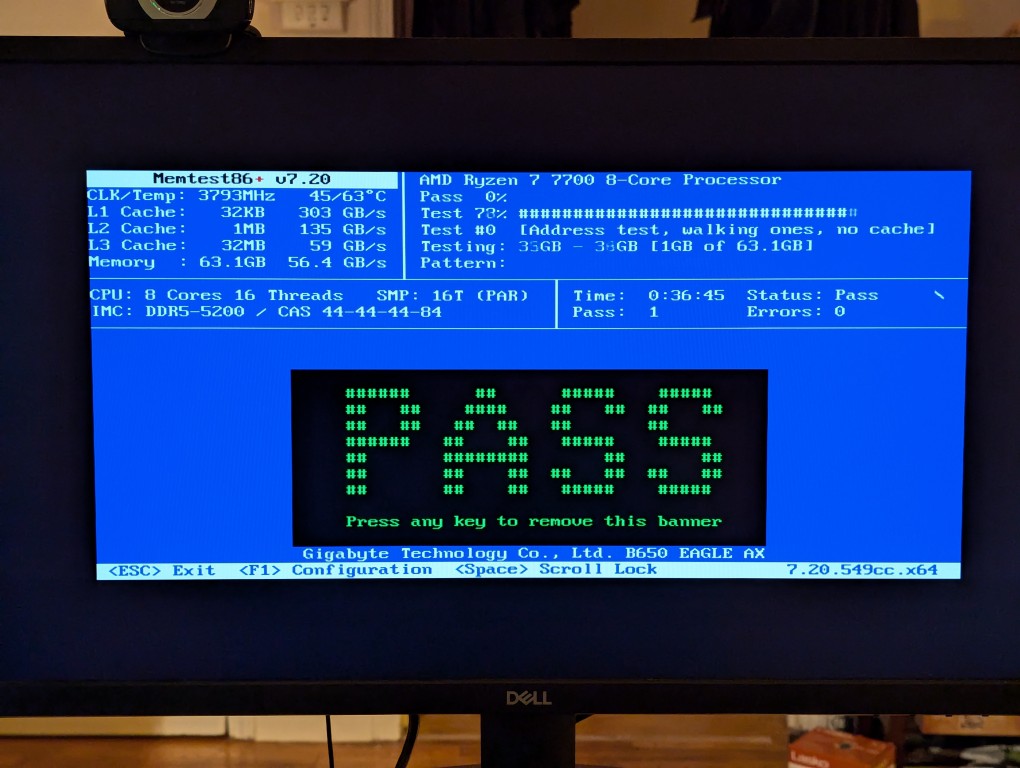
The first order of business was verifying the system’s 128GB DDR5 RAM with memtest86+. Thankfully, it passed!
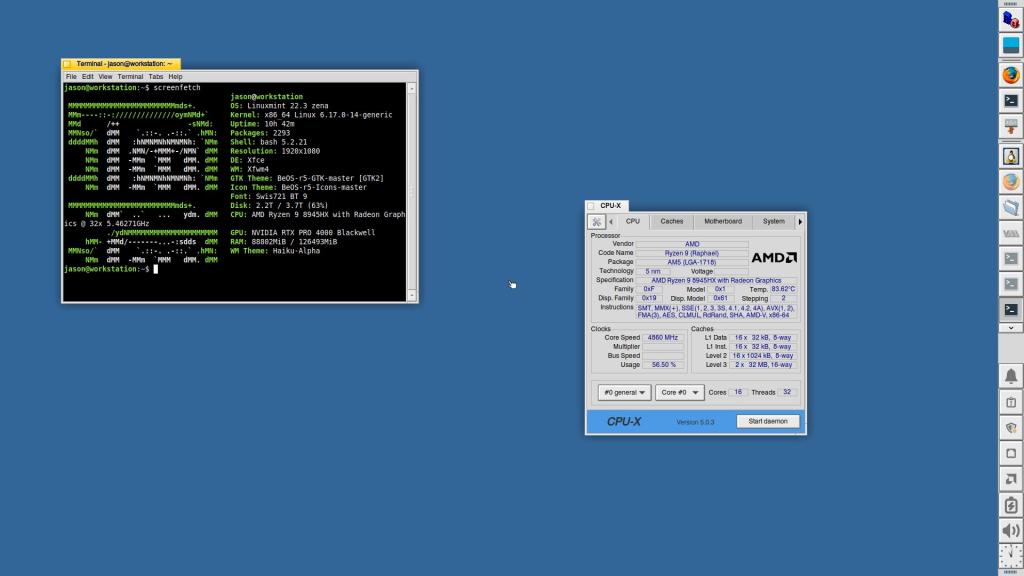
Feeling confident about the system, I began installing Debian 13 Trixie. Unfortunately, after spending about 8 hours, I couldn’t get Debian to play well with using the AMD integrated graphics for video out and using the Nvidia RTX 4000 Pro only for compute.
I figured that I would give my former favorite distribution Linux Mint a try with their latest 22.3 version with Xfce. I wish that I had installed it to begin with. It was a turn key experience! I installed the 590 Nvidia drivers without any trouble and Linux Mint maintained video out with the AMD integrated graphics while using the Nvidia GPU for AI tasks.
I’m sure that a solutions exists for Debian 13, but I don’t know enough and couldn’t find relevant advice for this particular setup. After waiting some time for software updates and more sharing of troubleshooting advice, I might try installing Debian on this machine again. For the time being, I’m happy with Linux Mint with Xfce, which I’ve configured to look like BeOS.
After installing text-generation-webui (for llama.cpp) and ComfyUI, they have worked flawlessly on the new workstation. For text generation, I am able to run models in the 103 to 120B parameter range at 4 bit quantization, or 70B models at 8 bit quantization. For ComfyUI workflows, I purge the GPU’s VRAM to make the most out of its 24 GB GDDR7 memory without having to offload to the CPU/RAM.