While I’m keeping Debian 13 Trixie on my media center computer, I’ve decided to fallback to Debian 12 Bookworm on my laptop and workstation. The more that I used Trixie on those machines, the more I realized some things that I relied on just weren’t working right. Once that software gets updated, I’ll try Trixie again, but for now, especially while I’m frantically getting things ready for classes to begin next Tuesday, I’ll rely on tried-and-true Bookworm.
Tag: Debian
-
Debian 13 Trixie Full Install Notes
Last week, I upgraded the Debian 12 Bookworm installation on my workstation to Debian 13 Trixie. After updating my sources file and running apt update and apt full-upgrade, the installation went painlessly and quickly. However, I noticed some glitches with video playback (audio stutter) and listing directory contents on a hard disk drive (prolonged delays even though the drive was in active use and not waking from sleep). I wasn’t that interested in spending time to track down the source of these particular problems, so I decided to do a nuke-and-pave full reinstall of Debian 13.
That led to three days of frustration and reinstalling Debian 13 five times. I now have a stable installation that does what I want, but it took a lot of bashing my forehead into the desk to get here.
To be fair, some of the problems were created by me trying to configure software that I don’t have a deep understanding of using shared knowledge online that might be years old and applicable to older versions of those programs.
The one problem that caused the most headaches wasn’t my fault as far as I can suss out. The installer seemed to alternate assigning the “zero” nvme drive between my two identical 2TB nvme drives. This strange behavior led to me wiping both drives and installing Debian 13 on both during the multiple installations. When it comes to partitioning, I’m super cautious, because even though my data was backed up, I still didn’t want to wipe a drive unless it was what I wanted to do.
Besides the Debian 13 installer’s partitioning software, I wondered if it could have something to do with my motherboard’s bios. I am a few versions behind the latest release, but none of the bios’ change logs mention anything to do with code for handling the nvme drives.
I didn’t document my experience like I should, because I got to a point where I just wanted a stable system so that I could get some work done. I accomplished that at least. Though, I wanted to put this up as a potential warning in case anyone else experiences something similar.
-
Ditched Roku for a Discounted Origimagic Ryzen 5 Mini PC
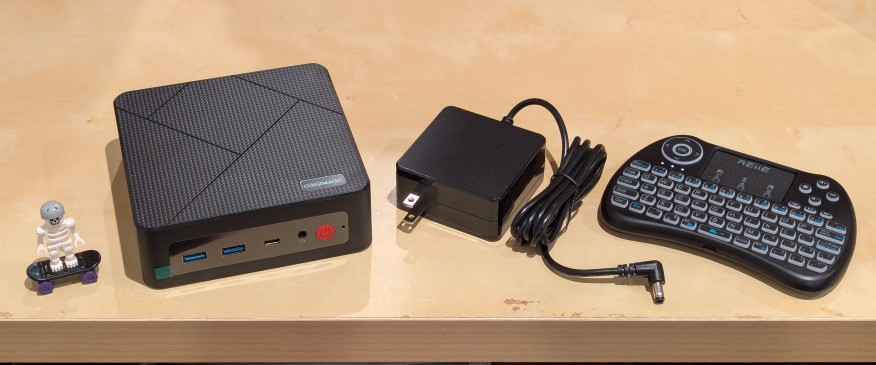
I’ve been unhappy with Roku’s increasing advertising through images and now full-motion video and their lack of support for a variety of codecs in their media player app. So, I’ve been looking for awhile for a good deal on a mini pc that could replace the Roku for playing media and also support some light gaming. Also, considering the impending tariffs (i.e., a tax on Americans), I hoped to find something as soon as possible.
After tracking several mini pcs on Amazon and eBay for a few weeks, I finally pulled the trigger when Amazon offered the Origimagic C4 Mini PC with a Ryzen 5 3550H (4 core, 8 threads) on sale for $153. It’s CPU has a lot more horsepower while using 25 watts of power than Intel’s similarly priced mini pc processors. It came stock with 16GB DDR4 RAM, 512GB PCIe SSD, 1 x Type-C USB, 4 x Type-A USB (3 are USB 3 and 1 is USB 2), headphone jack, HDMI, DisplayPort, and dual ethernet.
To operate it from the sofa, I got a $10 reiie H9+ Mini Keyboard with Touchpad that uses a wireless USB adapter to connect to the mini pc.
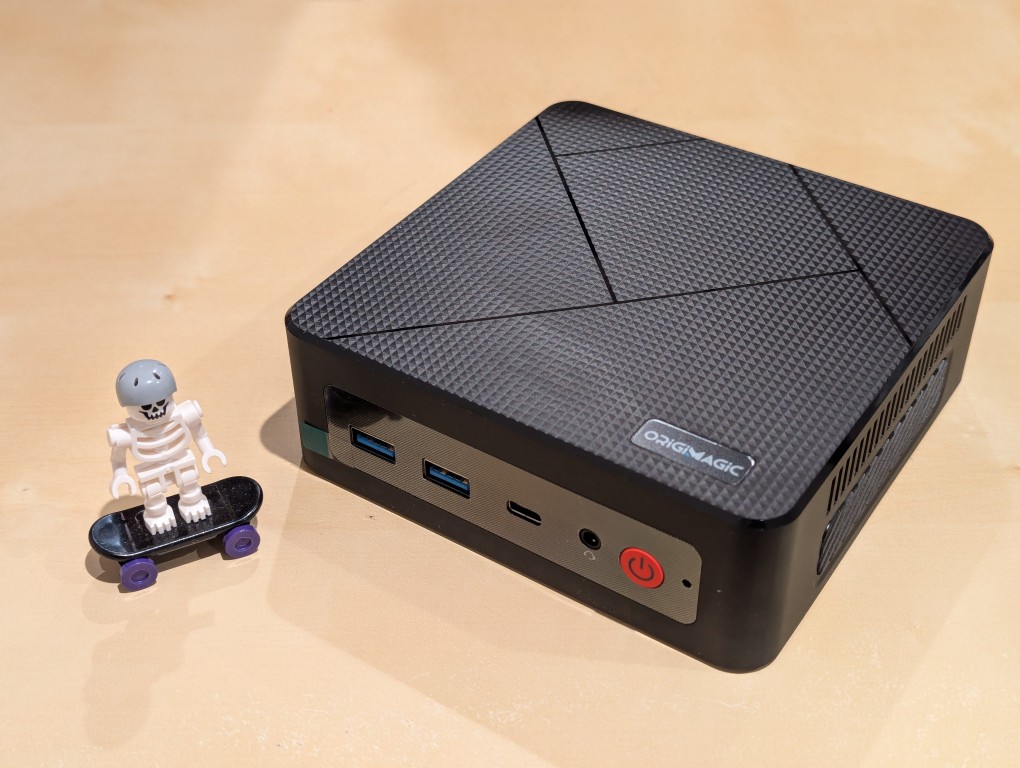
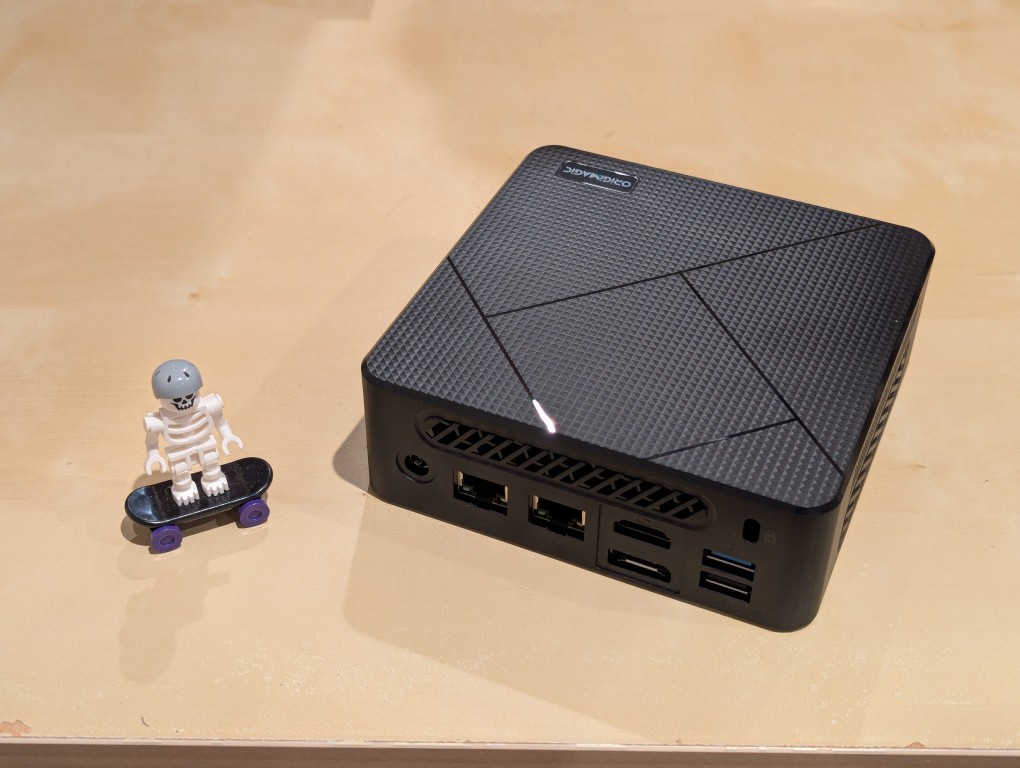
Before setting anything up, I created a flash drive with Debian 13 Trixie, the latest version that was released over the weekend on Saturday.
To do this, I inserted a 16GB flash drive into my workstation, but I didn’t mount the device. I downloaded the network install ISO for Debian 13 from here. Then, I ran
lsblkin a terminal window to see what device address corresponded to the flash drive. It’s important to not make a mistake here, because it’s easy to overwrite another drive using this method.lsblklists the devices, which are all in the “/dev/” folder, so when I saw that my flash drive was assigned the address “sdb”, I knew that its full address was “/dev/sdb”. With that info, I then wrote the downloaded Debian 13 netinstall ISO directly to the flash drive using this command:sudo cp debian-13.0.0-amd64-netinst.iso /dev/sdbAfter the copying to the flash drive had finished, I ejected it from my workstation and took it over to the mini pc. I plugged in the power adapter, ethernet cable (I arbitrarily picked the one furthest from the power plug), HDMI cable to the TV, the keyboard receiver USB, and the Debian 13 installation flash drive.
I did experience some frustration with getting the Debian 13 flash drive to boot the mini pc. As soon as the mini pc booted, I was unable to enter BIOS or open the boot menu. Instead, it kept booting into the Windows 11 setup, which I did not want to use. At first, I thought it might be a problem with the tiny wireless keyboard and trackpad, so I switched to my Logitech keyboard and trackball, which are both tied to one Logitech USB receiver. I tried different USB plugs on the front and rear of the mini pc until I was finally able to enter bios (pushing
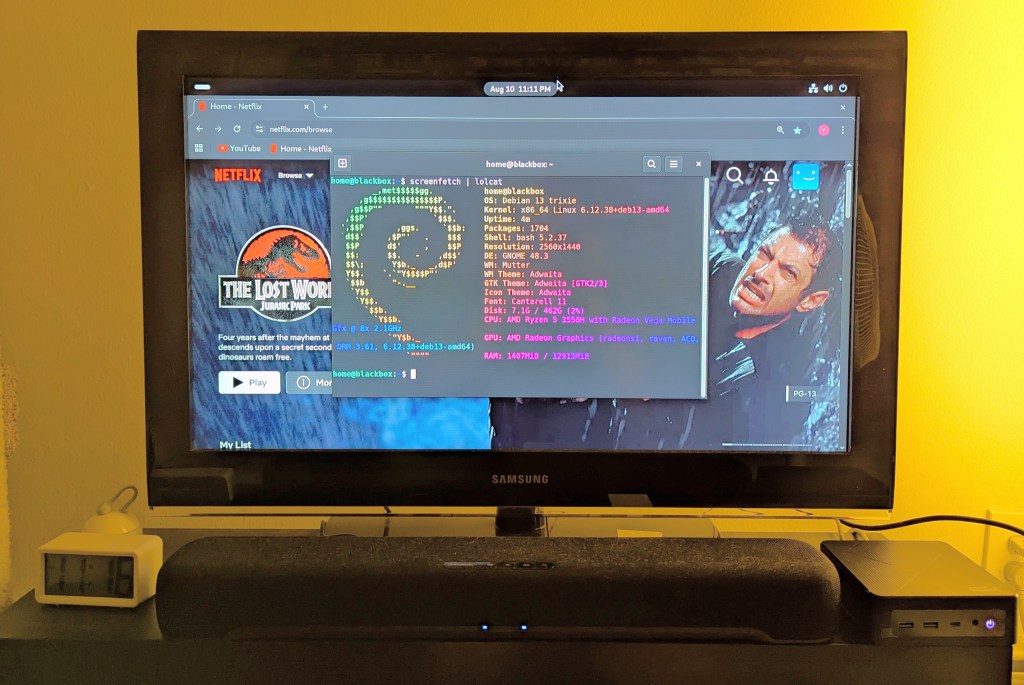
DELat boot) when the keyboard USB receiver is in the top-right USB port on the rear of the mini pc as shown below (it is a USB3 port). It might have been bad luck on my part with the other ports, so I can’t say this is a peculiarity with this hardware for certain. Nevertheless, it’s good to exhaust all possibilities like this.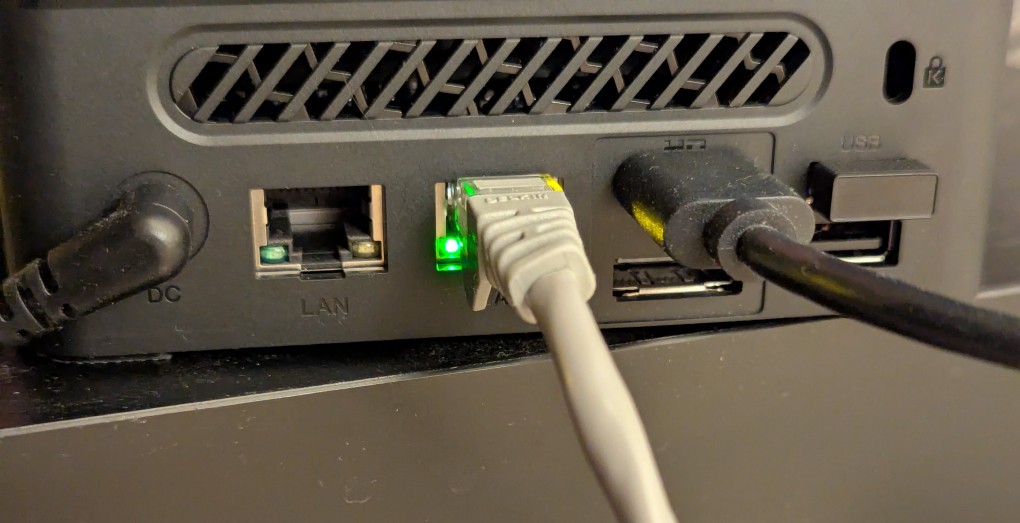
Once in the BIOS, there’s not many options except for disabling hardware (I disabled WiFi), turning off Secure Boot and the Trusted Computing Module, and other odds and ends. I saved the settings, rebooted, and went into the Boot Menu (F7), selected the Debian 13 netinstall flash drive, and began the installation (a full nuke-and-pave: erasing the NVMe drive and setting up Debian 13 as the only operating system).
While I use XFCE on my laptop and workstation, I opted for the GNOME desktop environment on the mini pc, because I thought its screen controls and overall user interface would be easier to see and navigate from across the room. If I don’t like it, I can always install XFCE.
Because two of the main sources of media for us is Netflix and YouTube, I installed Chrome to handle those sites. I have VLC and Kodi for everything else.
-
How to Update Your Linux Kernel on Debian Bookworm 12 to the Latest Available on Backports
![terminal screen with system info: jason@desktop:~$ screenfetch | lolcat
_,met$$$$$gg. jason@desktop
,g$$$$$$$$$$$$$$$P. OS: Debian 12 bookworm
,g$$P"" """Y$$.". Kernel: x86_64 Linux 6.12.32+bpo-amd64
,$$P' `$$$. Uptime: 10h 8m
',$$P ,ggs. `$$b: Packages: 2323
`d$$' ,$P"' . $$$ Shell: bash 5.2.15
$$P d$' , $$P Resolution: 1920x1080
$$: $$. - ,d$$' DE: Xfce
$$\; Y$b._ _,d$P' WM: Xfwm4
Y$$. `.`"Y$$$$P"' WM Theme: Haiku-Alpha
`$$b "-.__ GTK Theme: BeOS-r5-GTK-master [GTK2]
`Y$$ Icon Theme: BeOS-r5-Icons-master
`Y$$. Font: Swis721 BT 9
`$$b. Disk: 7.7T / 11T (75%)
`Y$$b. CPU: AMD Ryzen 7 7700 8-Core @ 16x 5.389GHz
`"Y$b._ GPU: NVIDIA GeForce RTX 3090, NVIDIA RTX A4000, NVIDIA RTX A4000, NVIDIA RTX A4000
`"""" RAM: 9486MiB / 63916MiB](https://dynamicsubspace.net/wp-content/uploads/2025/07/system-info-debian-kernel-612.png?w=832)
If you’re like me, you might have newer computer hardware that isn’t fully supported by Linux kernel 6.1, which is installed with Debian Bookworm 12. Thankfully, Debian offers Backports, or newer software in testing in Trixie, the development name for Debian 13, that will eventually find its way into future Debian releases for use on an otherwise stable release of Bookworm.
Updating to a newer kernel often brings more hardware compatibility. However, it’s important to remember that using a backport kernel can introduce potential compatibility issues with the software officially supported on Bookworm. Even if installing the latest kernel causes some issues, you can choose to boot from one of your older 6.1 kernels on your install as long as you don’t delete them (by using the apt autoremove command).
I wrote this guide based on my experience installing Linux kernel 6.12 from Backports with the non-free firmware that my hardware needs to work. If you are trying to keep your system free from non-free software, you can omit those references in the instructions below.
Before doing any changes to your Debian installation, remember to backup your files first. Saving important files in more than one media and storing it backups in different physical locations is best practice.
After backing up your files, make sure your install is up-to-date with these commands:
sudo apt update
sudo apt upgrade
After those updates complete, it’s a good rule of thumb to do a reboot to begin working with a clean slate.
Next, add Debian Backports to /etc/apt sources.list. I used vi to do this:
sudo vi /etc/apt/sources.listIn vi, arrow down to the bottom line, type a lowercase “o” to add a blank line below the current line, type lowercase “i” to enter input mode, and type the following line into the document:
deb http://deb.debian.org/debian bookworm-backports main contrib non-free non-free-firmwareAfter double checking the added line, press the “Esc” key, and type “:wq” to write the file and quit vi.
Now, you need to update apt again:
sudo apt updateAfter the completes, enter this command to install the latest kernel from backports along with the kernel’s headers and firmware that might be needed for your hardware (such as networking card, video card drivers, etc.).
sudo apt install -t bookworm-backports linux-image-amd64 linux-headers-amd64 firmware-misc-nonfreeIt might take awhile for the installation to complete. If there are no errors, it should return you to your terminal prompt. If it did, reboot your computer to load the new kernel.
After your computer boots up again, you can verify that you are running the latest kernel by entering this command:
uname -rAfter installing the latest kernel, my computer reports this from the uname -r command:
6.12.32+bpo-amd64 -
Improving Cooling in My New AI Workstation
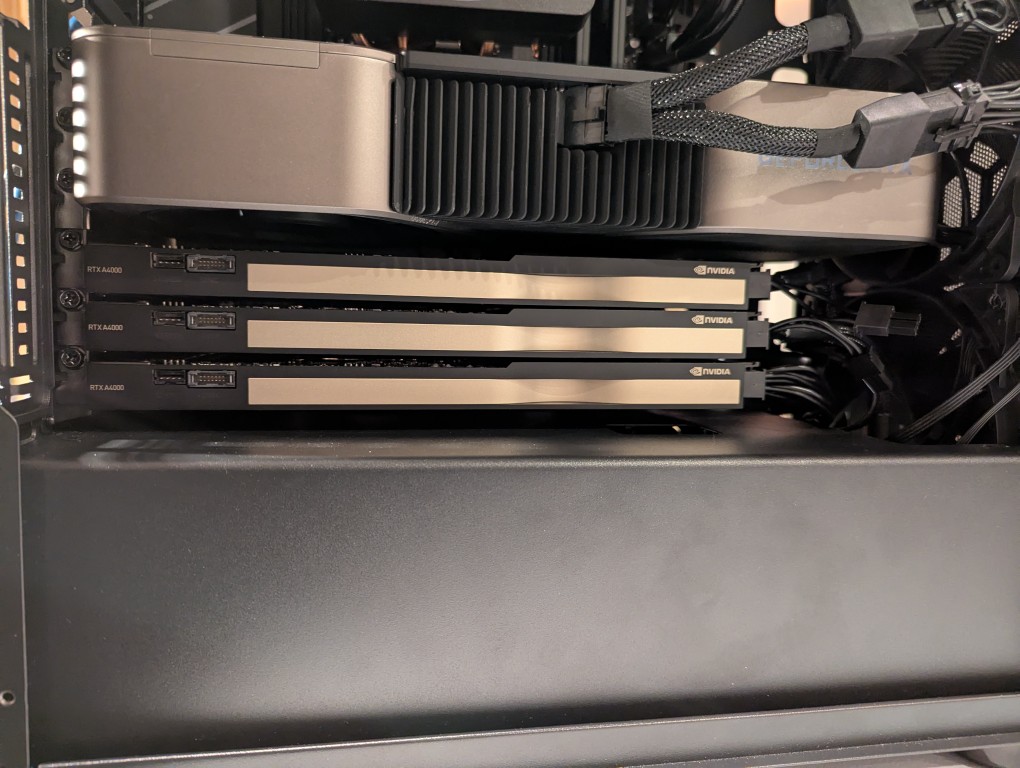
In my original write-up about building my new AI-focused workstation, I mentioned that I was concerned about the temperatures the lower three NVIDIA RTX A4000 video cards would reach when under load. After extensive testing, I found them–especially the middle and bottom cards–to go over 90C after loading a 70B model and running prompts for about 10 minutes.
There are two ways that I’m working to keep the temperatures under control as much as possible giving the constraints of my case and my cramped apartment environment.
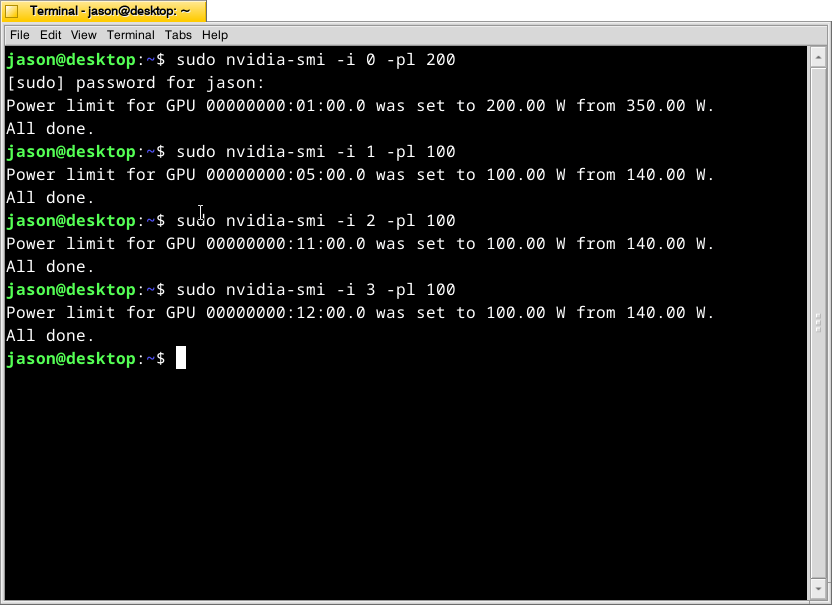
First, I’m using these commands as root:
# nvidia-smi -i 0 -pl 200
# nvidia-smi -i 1 -pl 100
# nvidia-smi -i 2 -pl 100
# nvidia-smi -i 3 -pl 100
What this command, bundled with the NVIDIA driver, does is select a video card (the first video card in the 16x PCIe slot is identified as 0, the second video card is 1, the third is 2, and the fourth is 3) and change its maximum power level in watts (200 watts for card 0, 100 watts each for cards 1-3). If the power level is lower, the heat that the card can generate is lower. I set the 3090 FE (card 0) to 200 watts, because it has better cooling with two fans and it performs well enough at that power level (raising the power level leads to steeper slope of work being done).
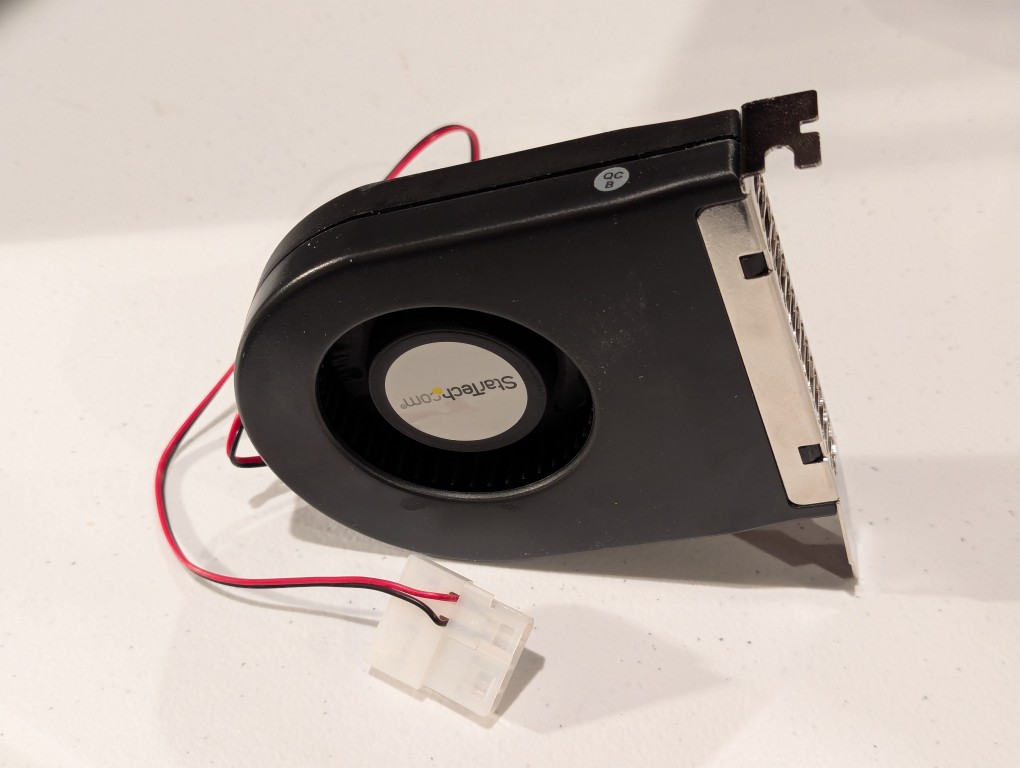
The second solution was to add more fans. The first fan is a PC case slot fan perpendicular to the video cards. This is a constantly on fan powered by a molex connector that has a blower motor that sucks in air from inside the case and ejects it out the back of the card. These use to be very useful back in the day before cases were designed around better cooling with temperature zones and larger intake and exhaust fans. The second fan was a Noctua grey 120mm fan exhausting out of the top of the case. This brings the fan count to two 140mm intake fans in the front of the case, two 120mm exhaust fans in the top of the case, one 120mm exhaust fan in the rear of the case in line with the CPU, and one slot fan pulling hot air off the video cards and exhausting it out of the back.
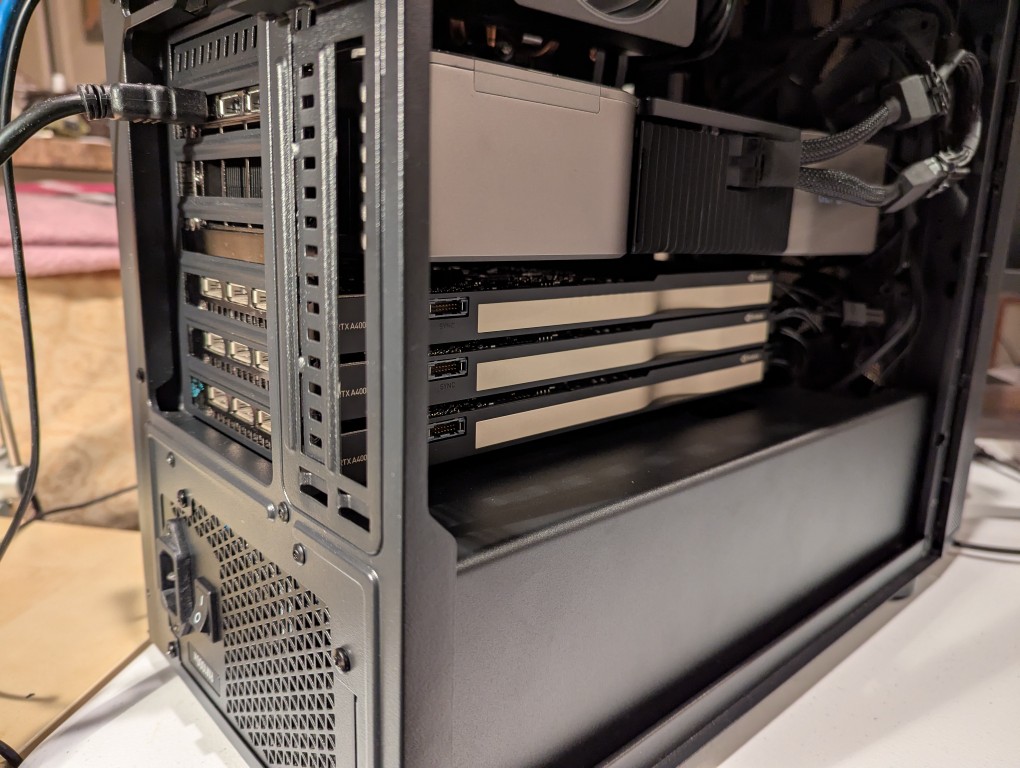
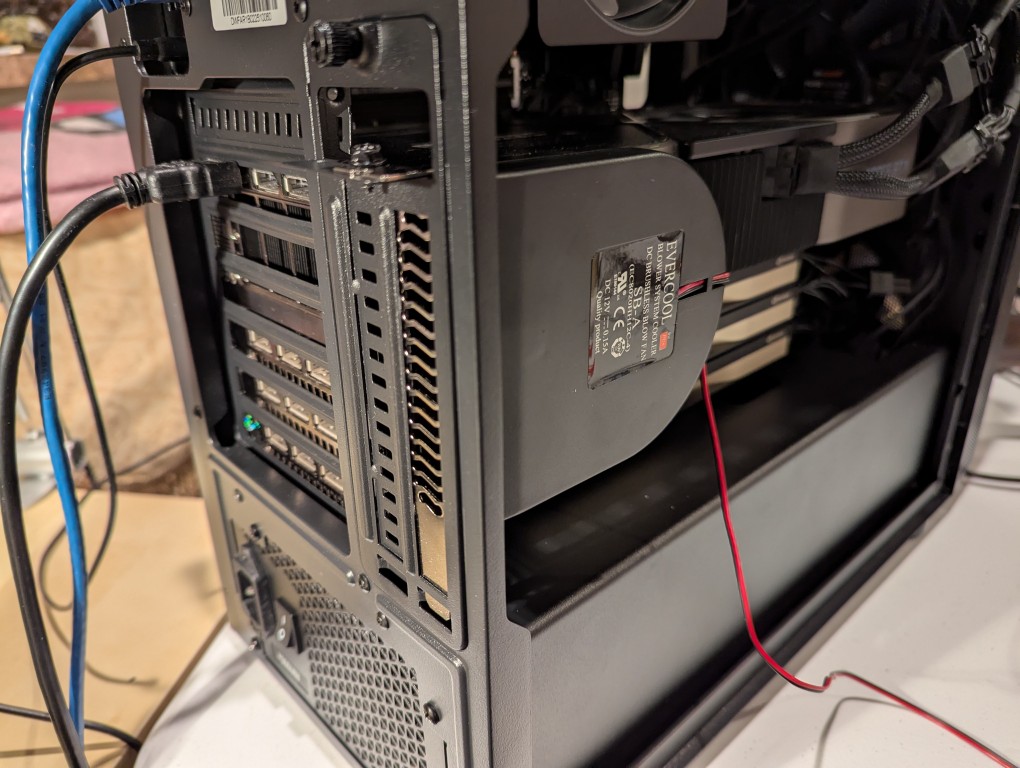
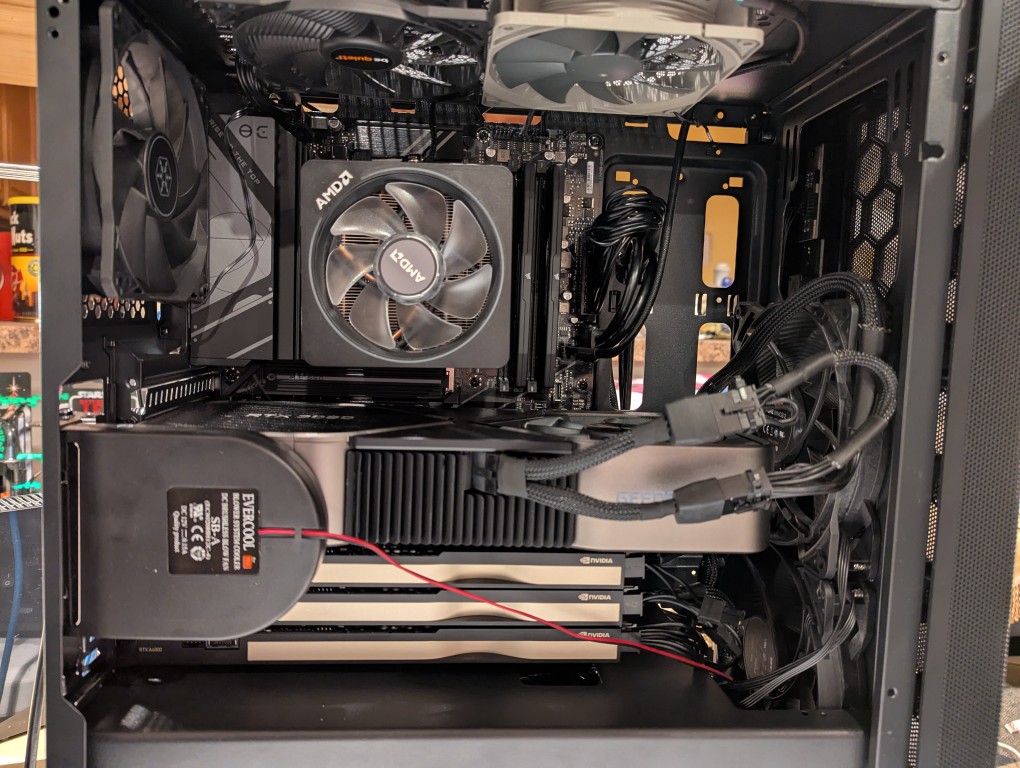
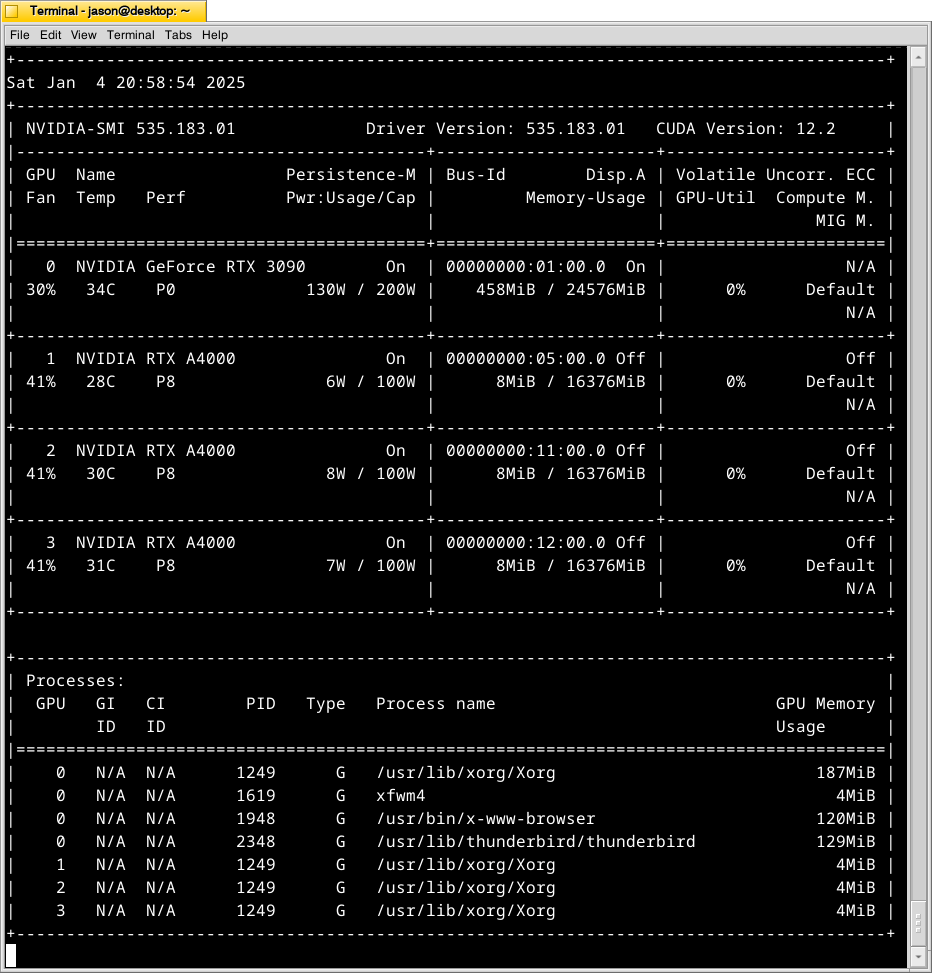
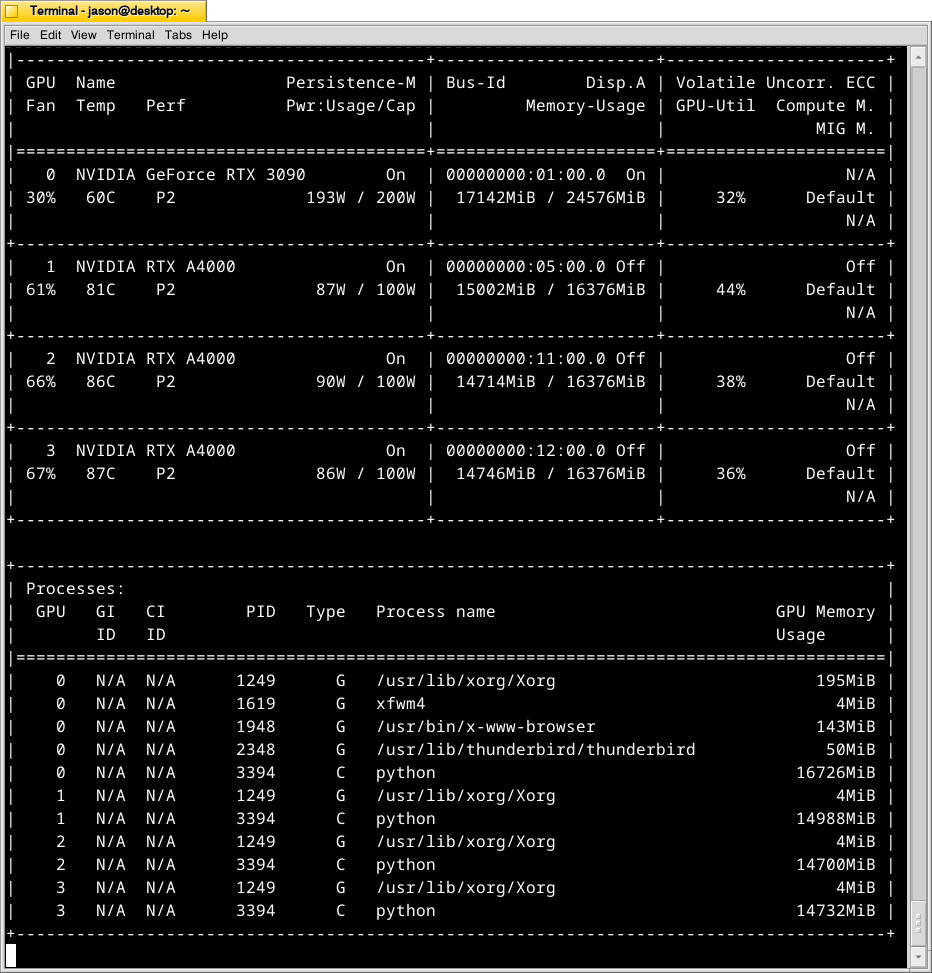
With these cooling-oriented upgrades, I’ve found that the temperatures are slightly better during operation, but perhaps helping in a way that I had not considered before is that the fans help cool the cards down faster after an operation is completed than the cards were cooling down on their own before. Also, the A4000 temps before seemed to be high, higher, and highest going from card 1 to 2 to 3. Now, the middle card or 2 has a slightly higher temp than the bottom card or 3. Below is the output from:
nvidia-smi -l 1which displays information about the detected NVIDIA video cards including card type, fan speed, temperature, power usage, power cap, and memory usage. The first Terminal screenshot below shows the cards at rest before loading a model. The second Terminal screenshot below shows the cards after a model has been loaded and it is producing output from a prompt for some minutes.
Y made a good point that since it’s the winter, the ambient temperature in the apartment is much cooler–we usually keep it about 66F/19C. When summer comes, it will be much hotter in the apartment even with the window air conditioner going (we are on the top floor of a building that does not seem to be insulated based on sounding and spot temperature measurements).
The key to healthy computer components is cooling–forcing ambient air into the case and moving heated air out. Seeing how well the slot fan has worked, I’m thinking that a next step would be to drill one or two 120mm holes through the sheet metal side panel directly above where the A4000 video cards are and install high-CFM (cubic feet per minute) fans exhausting out. That would replace the currently installed slot fan. If I went that route, I can purchase PWM (pulse width modulation) fans so that I can connect them to the fan controllers on the motherboard, which will increase the speed of the fans according to the rising temperature inside the case when the computer is doing more work. This will reduce fan noise during low-load times but not affect cooling capacity.
On a final note, I will report that I initially tried forcing cooler ambient air into the case through those two rear perpendicular slots to the video cards where the slot fan is currently installed. My thinking was that I could force cooler air over the top of the cards and the blower fans on the cards would carry out the hotter air. What I did to test this was build an enclosed channel with LEGO that sealed against the two open slots and had two 70mm PWM fans pulling air from the channel and pushing it down onto the three A4000 video cards. Unfortunately, this actually increased the temperatures on all three A4000s into the mid-90s C! The heat produced by those cards fed back into the LEGO channel and hot air trickled out of the two slots. Lesson learned.
