Tag: instructions

  • How to Update Your Linux Kernel on Debian Bookworm 12 to the Latest Available on Backports

    terminal screen with system info: jason@desktop:~$ screenfetch | lolcat
         _,met$$$$$gg.           jason@desktop
      ,g$$$$$$$$$$$$$$$P.        OS: Debian 12 bookworm
    ,g$$P""       """Y$$.".      Kernel: x86_64 Linux 6.12.32+bpo-amd64
   ,$$P'              `$$$.      Uptime: 10h 8m
  ',$$P       ,ggs.     `$$b:    Packages: 2323
  `d$$'     ,$P"'   .    $$$     Shell: bash 5.2.15
   $$P      d$'     ,    $$P     Resolution: 1920x1080
   $$:      $$.   -    ,d$$'     DE: Xfce
   $$\;      Y$b._   _,d$P'      WM: Xfwm4
   Y$$.    `.`"Y$$$$P"'          WM Theme: Haiku-Alpha
   `$$b      "-.__               GTK Theme: BeOS-r5-GTK-master [GTK2]
    `Y$$                         Icon Theme: BeOS-r5-Icons-master
     `Y$$.                       Font: Swis721 BT 9
       `$$b.                     Disk: 7.7T / 11T (75%)
         `Y$$b.                  CPU: AMD Ryzen 7 7700 8-Core @ 16x 5.389GHz
            `"Y$b._              GPU: NVIDIA GeForce RTX 3090, NVIDIA RTX A4000, NVIDIA RTX A4000, NVIDIA RTX A4000
                `""""            RAM: 9486MiB / 63916MiB

    If you’re like me, you might have newer computer hardware that isn’t fully supported by Linux kernel 6.1, which is installed with Debian Bookworm 12. Thankfully, Debian offers Backports, or newer software in testing in Trixie, the development name for Debian 13, that will eventually find its way into future Debian releases for use on an otherwise stable release of Bookworm.

    Updating to a newer kernel often brings more hardware compatibility. However, it’s important to remember that using a backport kernel can introduce potential compatibility issues with the software officially supported on Bookworm. Even if installing the latest kernel causes some issues, you can choose to boot from one of your older 6.1 kernels on your install as long as you don’t delete them (by using the apt autoremove command).

    I wrote this guide based on my experience installing Linux kernel 6.12 from Backports with the non-free firmware that my hardware needs to work. If you are trying to keep your system free from non-free software, you can omit those references in the instructions below.

    Before doing any changes to your Debian installation, remember to backup your files first. Saving important files in more than one media and storing it backups in different physical locations is best practice.

    After backing up your files, make sure your install is up-to-date with these commands:

    sudo apt update
    sudo apt upgrade

    After those updates complete, it’s a good rule of thumb to do a reboot to begin working with a clean slate.

    Next, add Debian Backports to /etc/apt sources.list. I used vi to do this:

    sudo vi /etc/apt/sources.list

    In vi, arrow down to the bottom line, type a lowercase “o” to add a blank line below the current line, type lowercase “i” to enter input mode, and type the following line into the document:

    deb http://deb.debian.org/debian bookworm-backports main contrib non-free non-free-firmware

    After double checking the added line, press the “Esc” key, and type “:wq” to write the file and quit vi.

    Now, you need to update apt again:

    sudo apt update

    After the completes, enter this command to install the latest kernel from backports along with the kernel’s headers and firmware that might be needed for your hardware (such as networking card, video card drivers, etc.).

    sudo apt install -t bookworm-backports linux-image-amd64 linux-headers-amd64 firmware-misc-nonfree

    It might take awhile for the installation to complete. If there are no errors, it should return you to your terminal prompt. If it did, reboot your computer to load the new kernel.

    After your computer boots up again, you can verify that you are running the latest kernel by entering this command:

    uname -r

    After installing the latest kernel, my computer reports this from the uname -r command:

    6.12.32+bpo-amd64
  • How to Rat Proof a 2013 Toyota Corolla

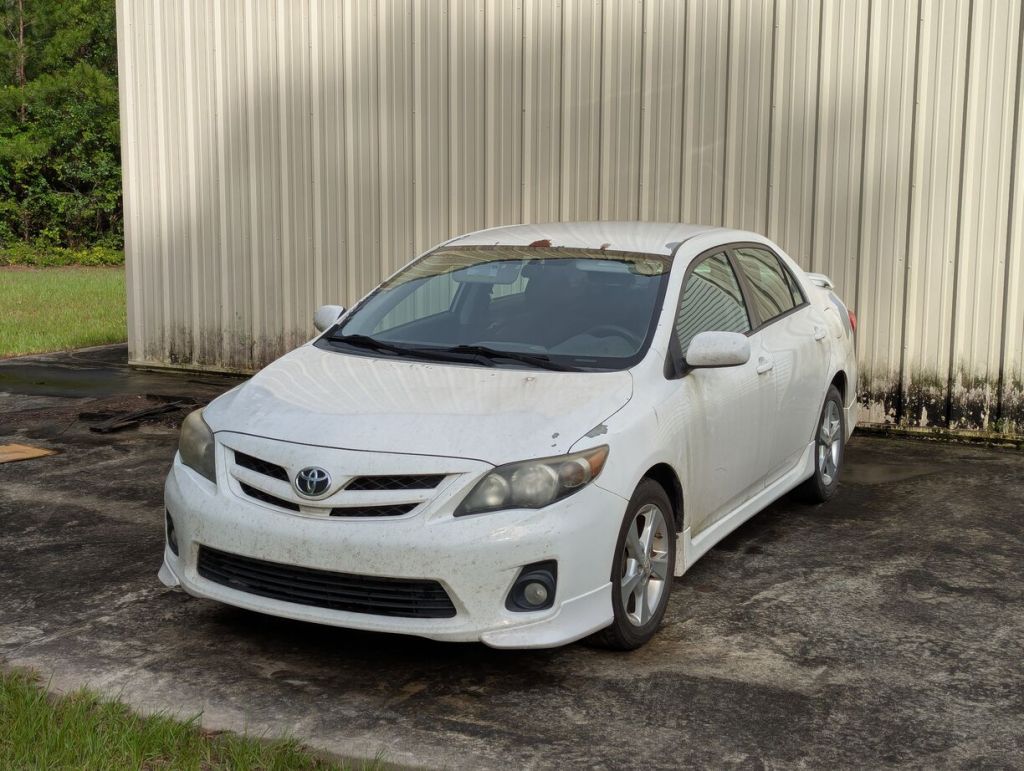
    white 2013 toyota corolla with missing paint in spots, metal building in the background

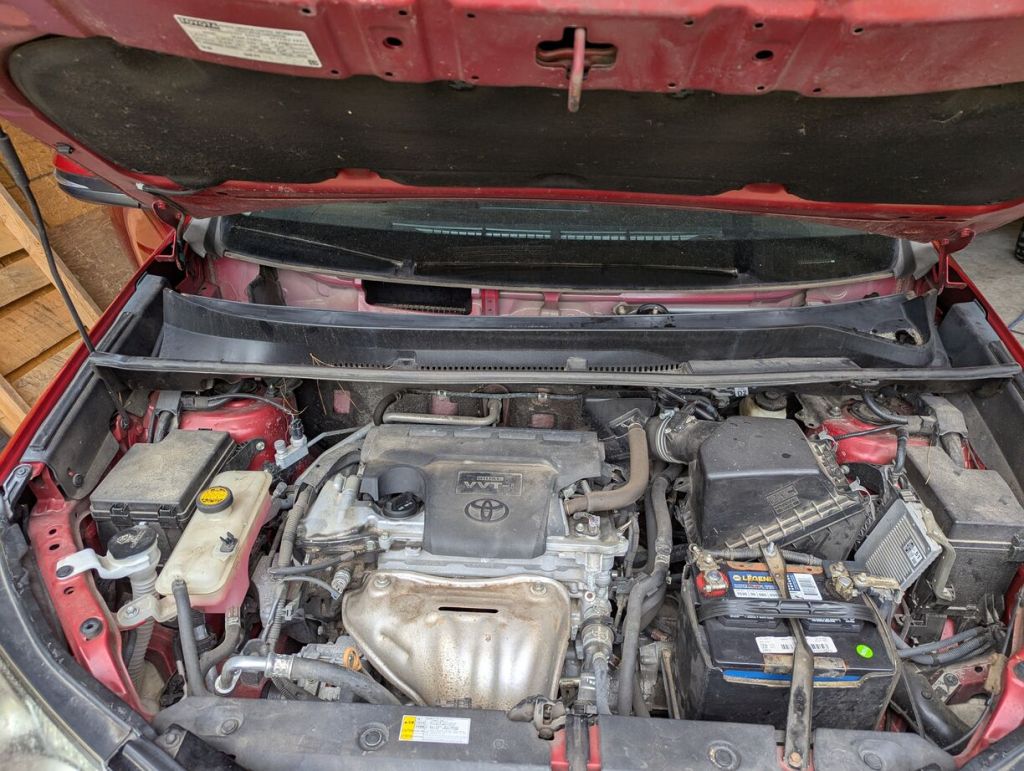
    Last year, I wrote about removing a mouse infestation in my 2013 Toyota Corolla before driving it from Georgia to New York. At that time, I didn’t rat proof the Corolla, but since I recently did that work on my folks’ RAV4 as I wrote about yesterday, I figured that I should do the extra work to mouse proof the Corolla while I was primed to do it.

    Preventing mice from entering the Corolla is slightly more involved than the 2017 RAV4 as I couldn’t find any evidence for mice entering the pressure vents on the RAV4, but I did find that in the Corolla. So, I wanted to prevent mice from entering the cabin air vent under the windshield cowl and the two rear pressure vents on the rear quarter panels inside the trunk of the Corolla.

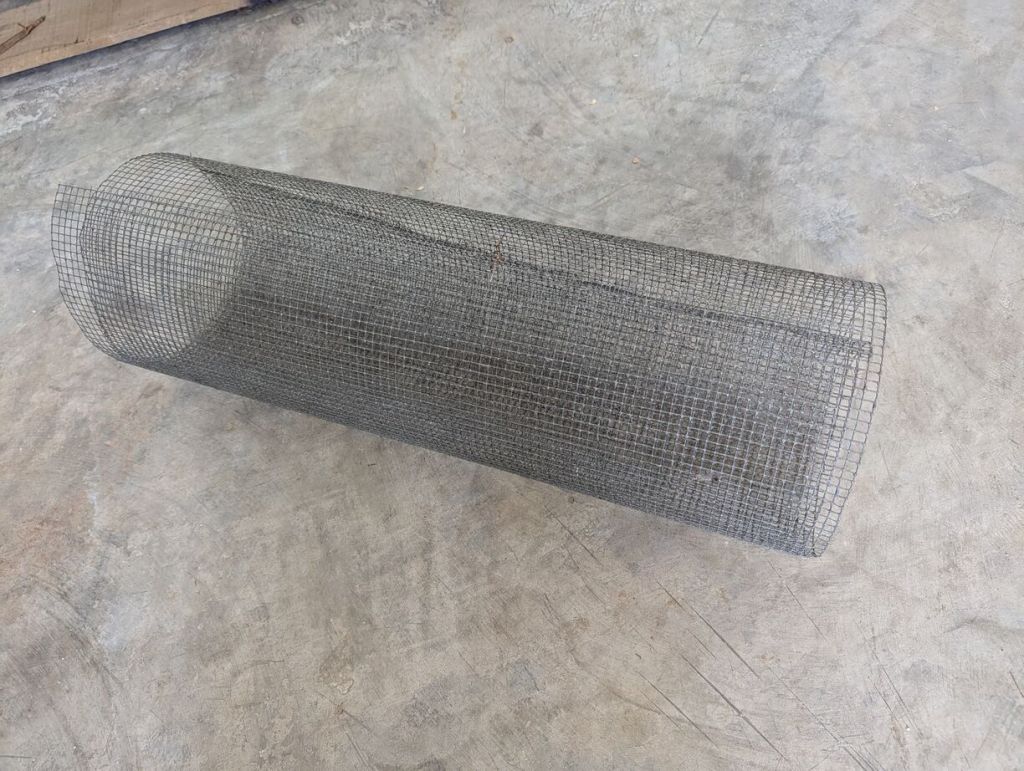
    metal mesh

    I used metal wire with a 1/4″ grid.

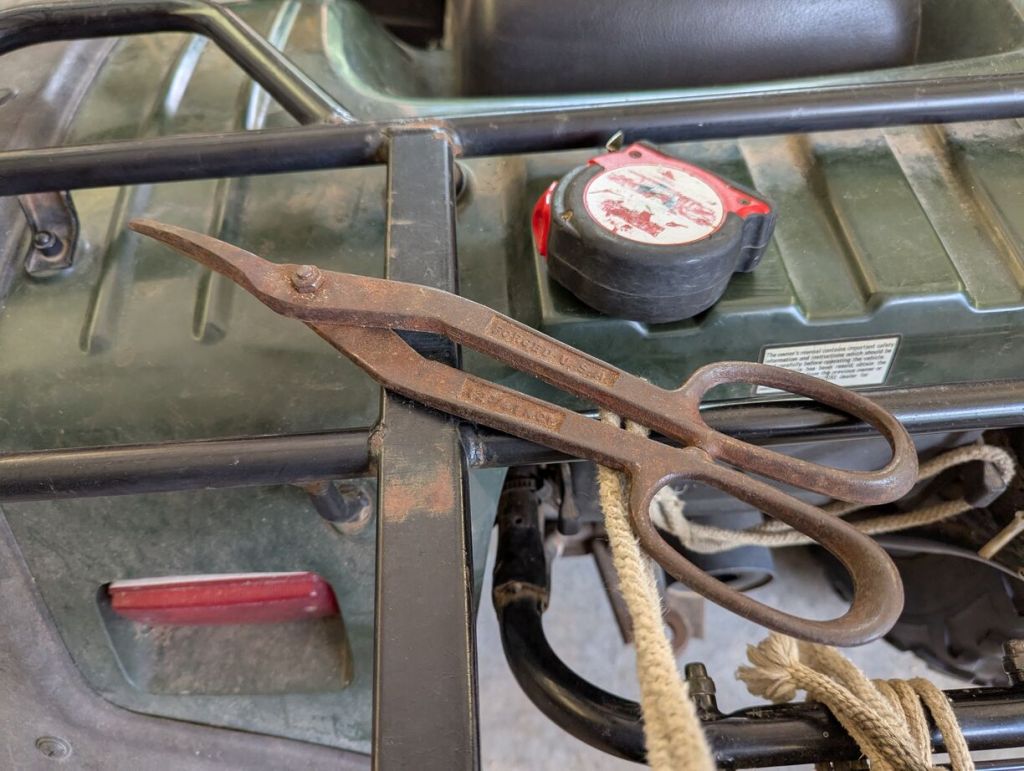
    tin snips and ruler

    I used tin snips to cut the metal wire.

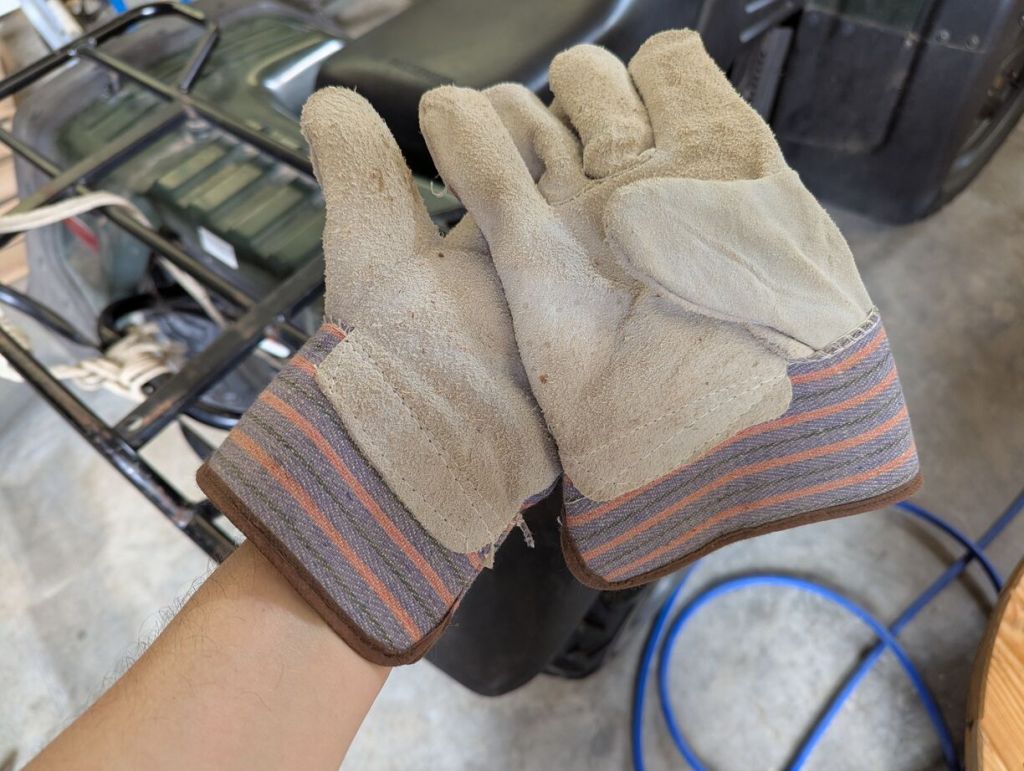
    leather work gloves

    And, I wore leather gloves while working with the metal wire, because the cut end easily cut and poke skin.

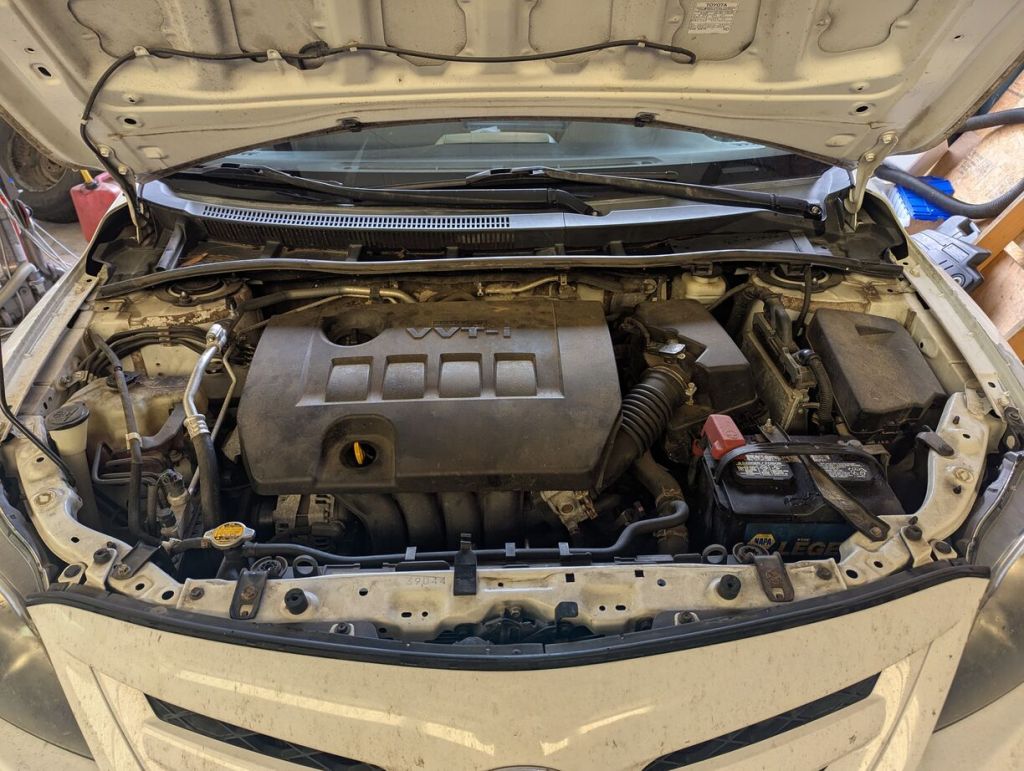
    hood up on the corolla

    The first place to prevent rodents from entering the vehicle’s cabin is the cabin air intake under the windshield cowl. Unlike the 2017 RAV4, you don’t have to take off the windshield wiper arms to access it (I wasn’t paying attention to how the cowl was designed with a break, which would have saved me this trouble). The cowl is held on with plastic push pins and built-in snaps. Due to the plastic being brittle, the pins broke, but the built-in snaps remained usable.

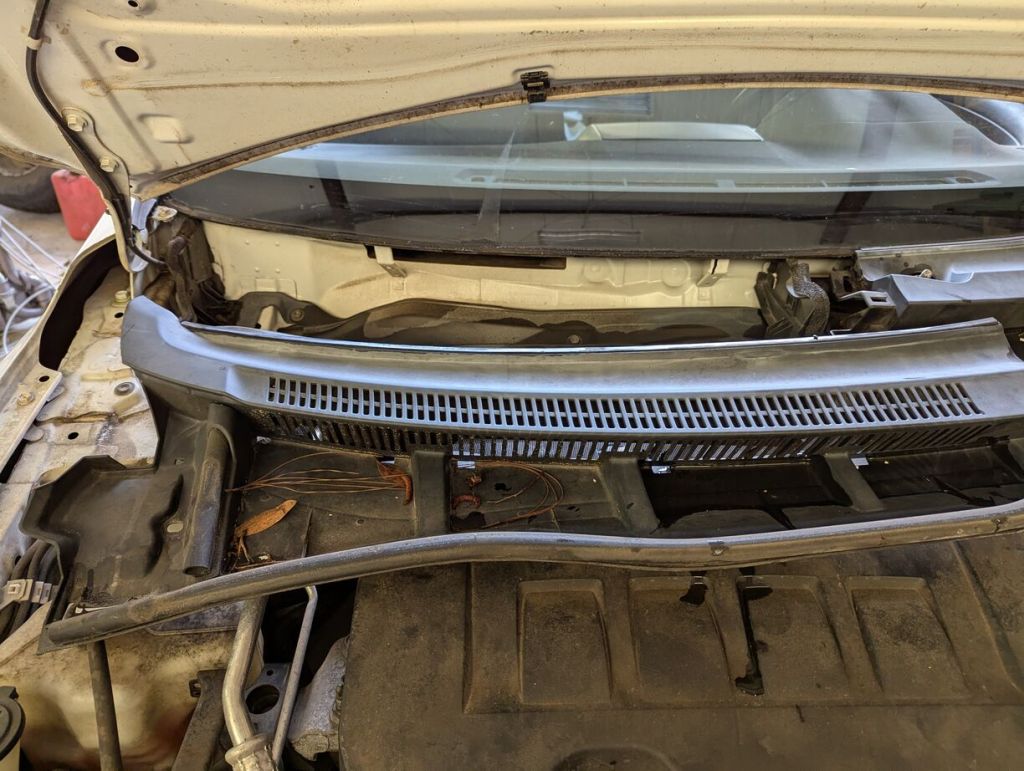
    hood up on the corolla, windshield cowl on passenger side removed and pulled down

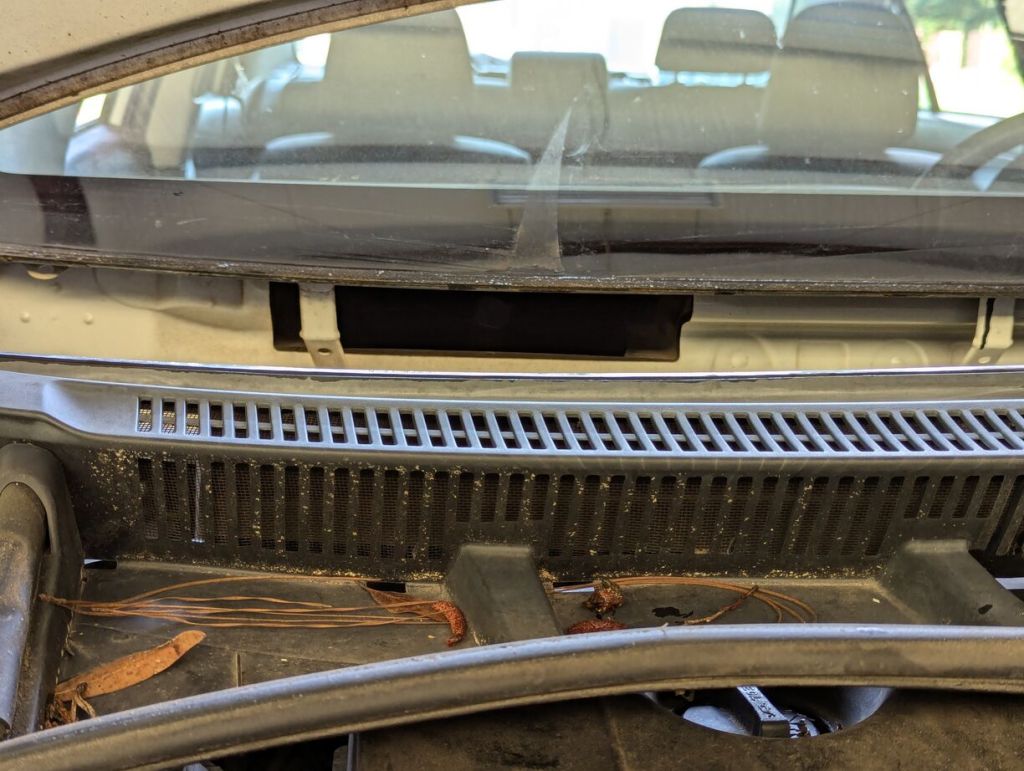
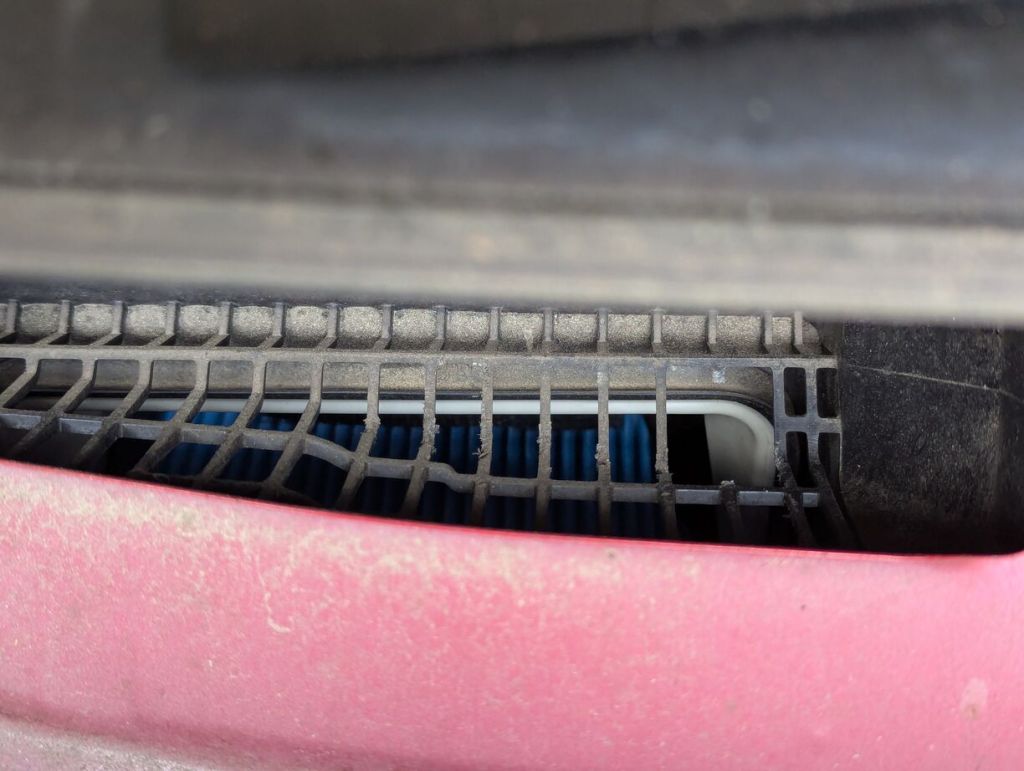
    Pulling the cowl out of the way, you can see the cabin air intake below the windshield on the passenger side of the vehicle.

    cabin air intake under windshield

    With the Corolla, the cowl has a metal mesh built-in mean to stop the entrance of rodents into the vehicle’s cabin. Unfortunately, mice can squeeze through where the cowl contours against the metal body of the vehicle on the edges, which is likely how some of the rodents got into my Corolla.

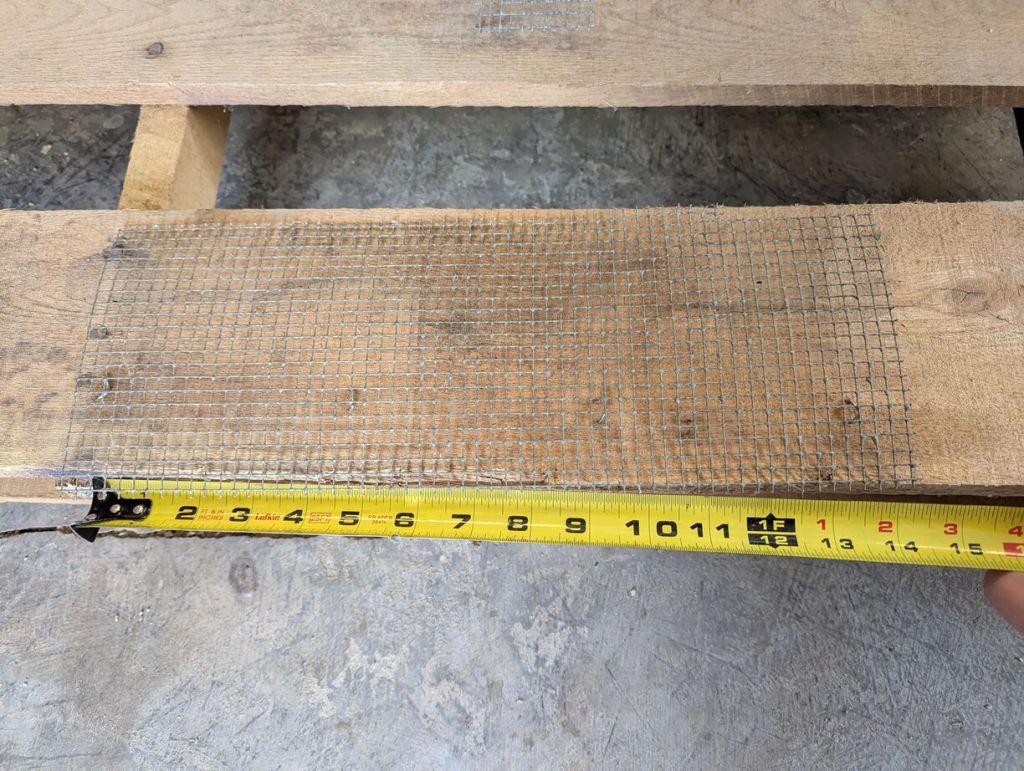
    rectangular piece of wire mesh cut with ruler underneath showing 14"

    I cut a 14″ x 6″ sheet of metal mesh to cover the cabin air intake.

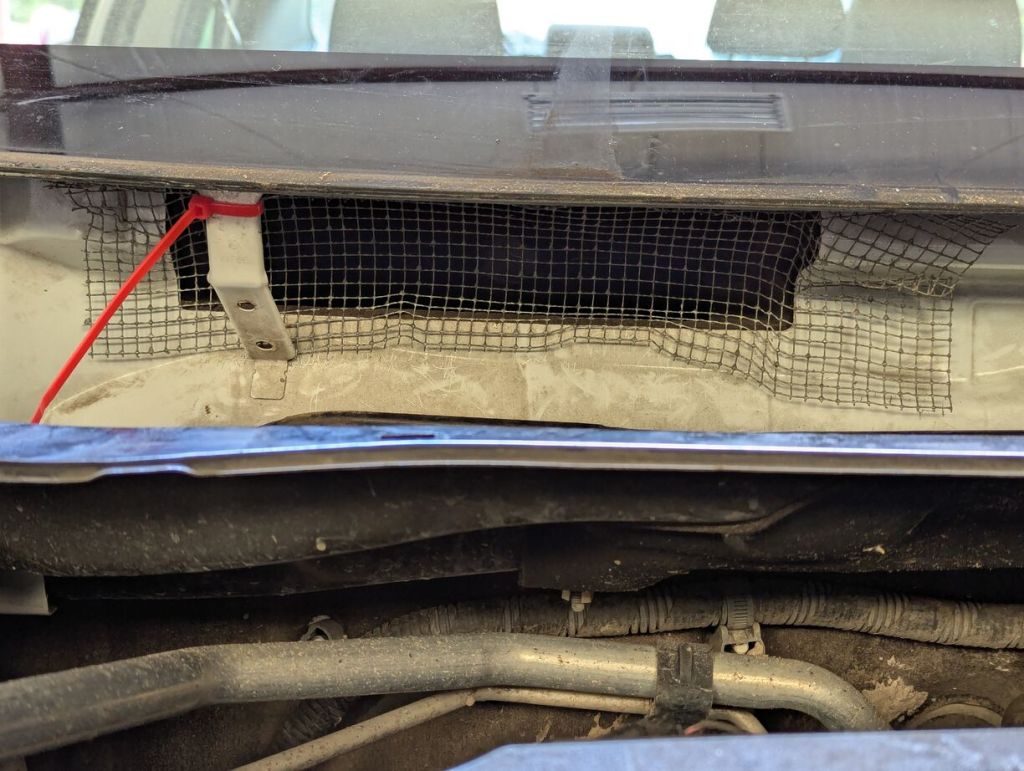
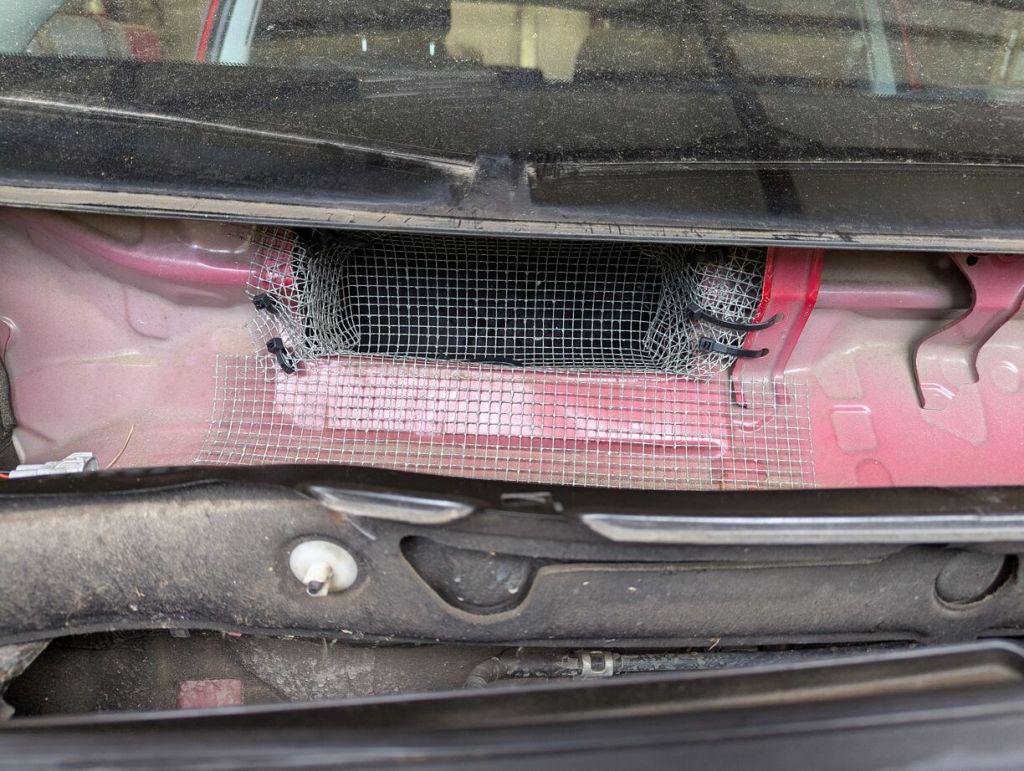
    wire mesh pushed into and over the cabin air intake

    I shaped it with my hands and a hammer to enter the opening and contour around the body, and I used one zip tie to secure this first sheet.

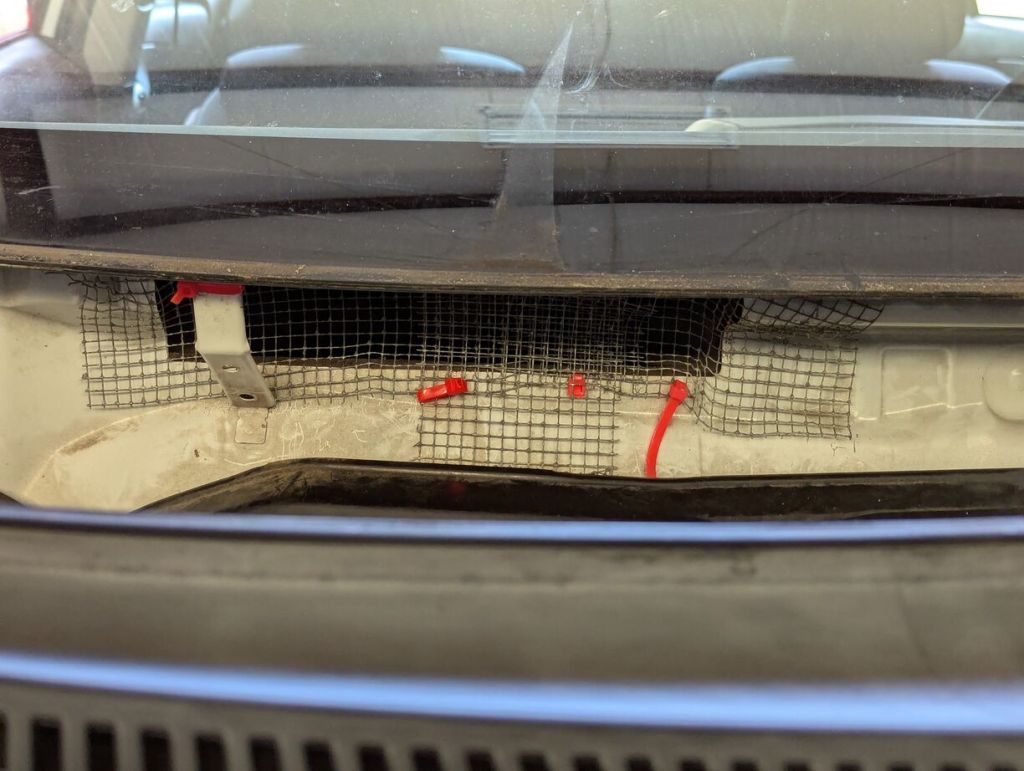
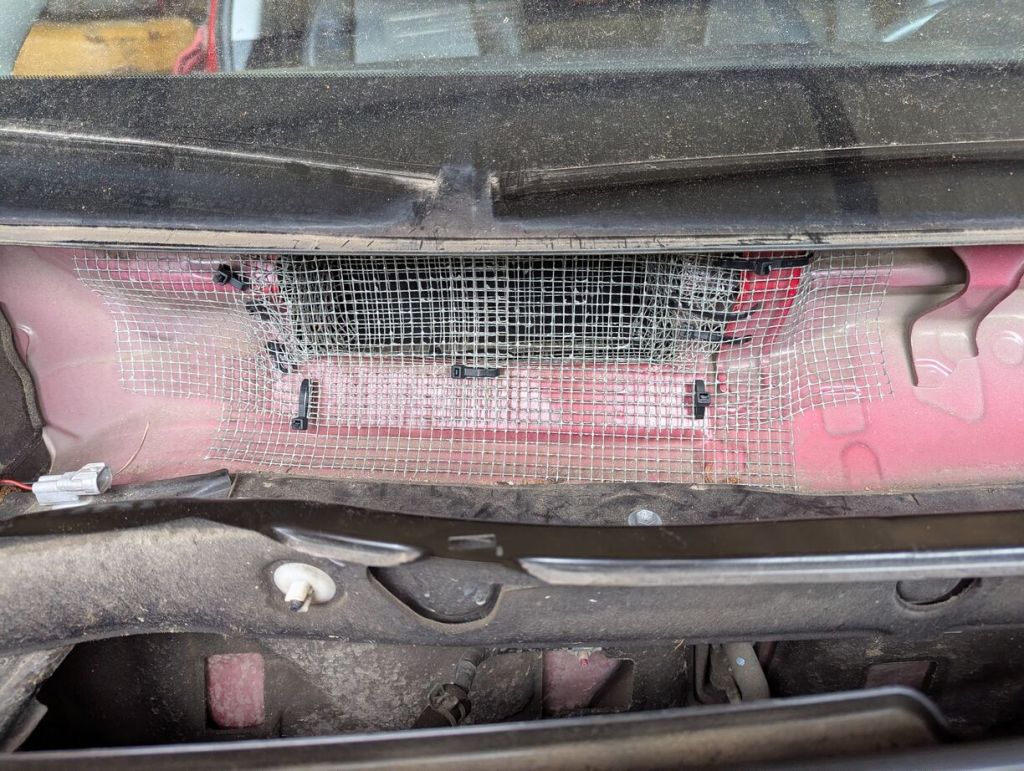
    more wire mesh pushed into and over the cabin air intake and secured with zipties

    To further reinforce it, I cut a narrow and long piece that I wedged under the body lip under the windshield and under the lip where the cowl’s bottom edge sits. This applies pressure to the middle of the mesh covering the cabin air intake to ensure the mesh can’t move.

    I pushed the cowl back into place and secured its left edge with a zip tie through the push pin hole that had broke during removal.

    corolla trunk open with floor liner removed and upholstery on the sides pulled back

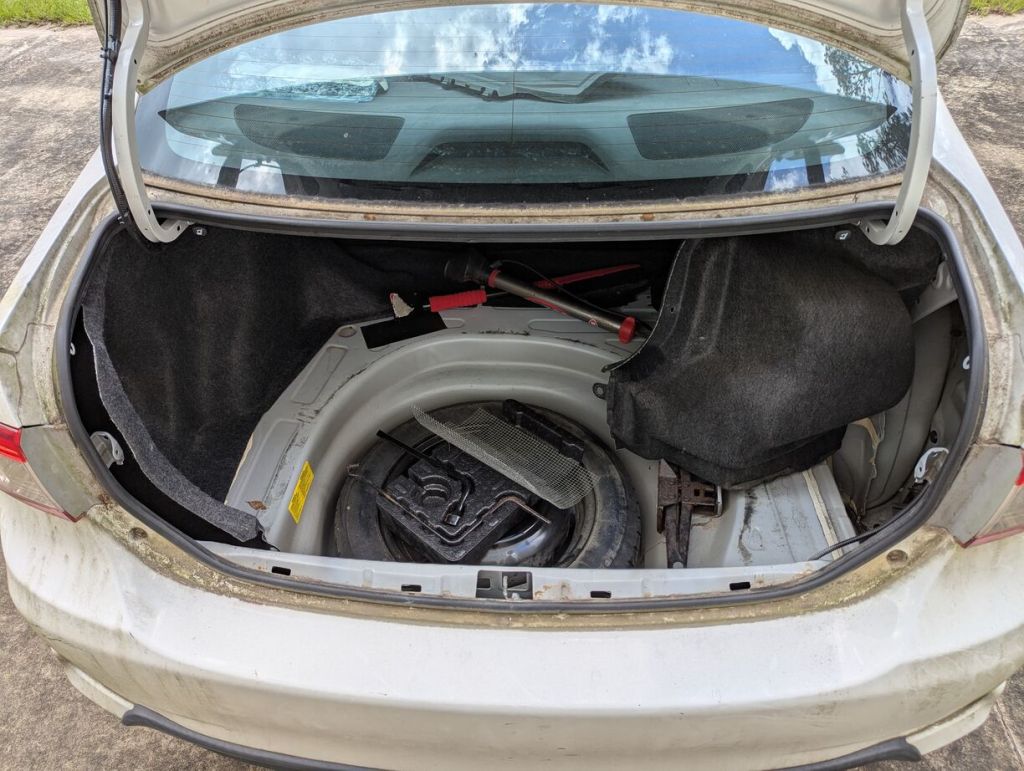
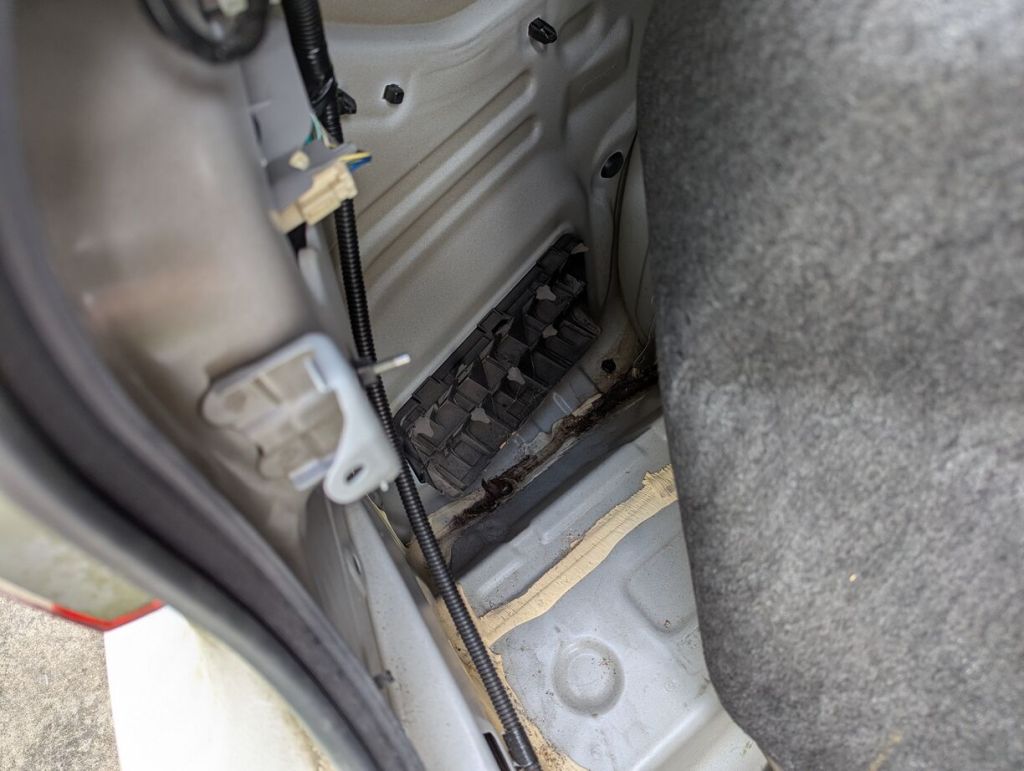
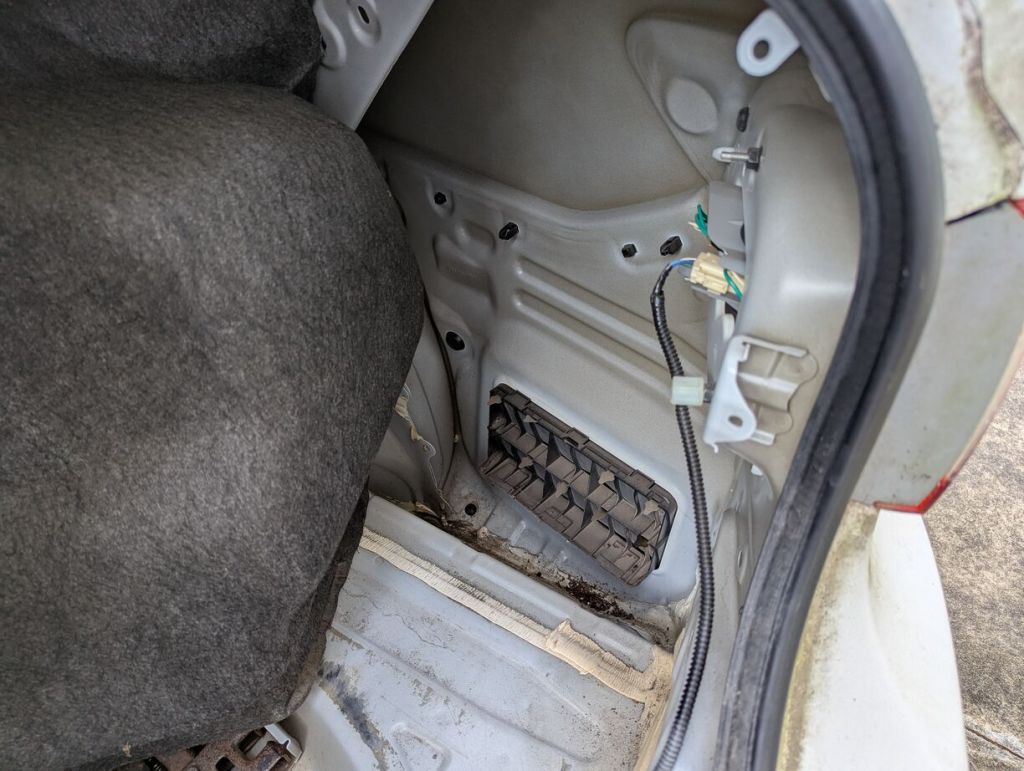
    Next, I worked on the pressure vents in the driver and passenger rear quarter panels, which are accessible via the trunk. To find them, remove the trunk floor covering the spare tire, pull out the plastic latch cover above the bumper, and pull out the pins holding the upholstery over the trunk’s sides. You’ll find one pressure vent on either side behind the upholstery.

    pressure vent on driver side rear quarter panel

    I worked on the driver’s side pressure vent first.

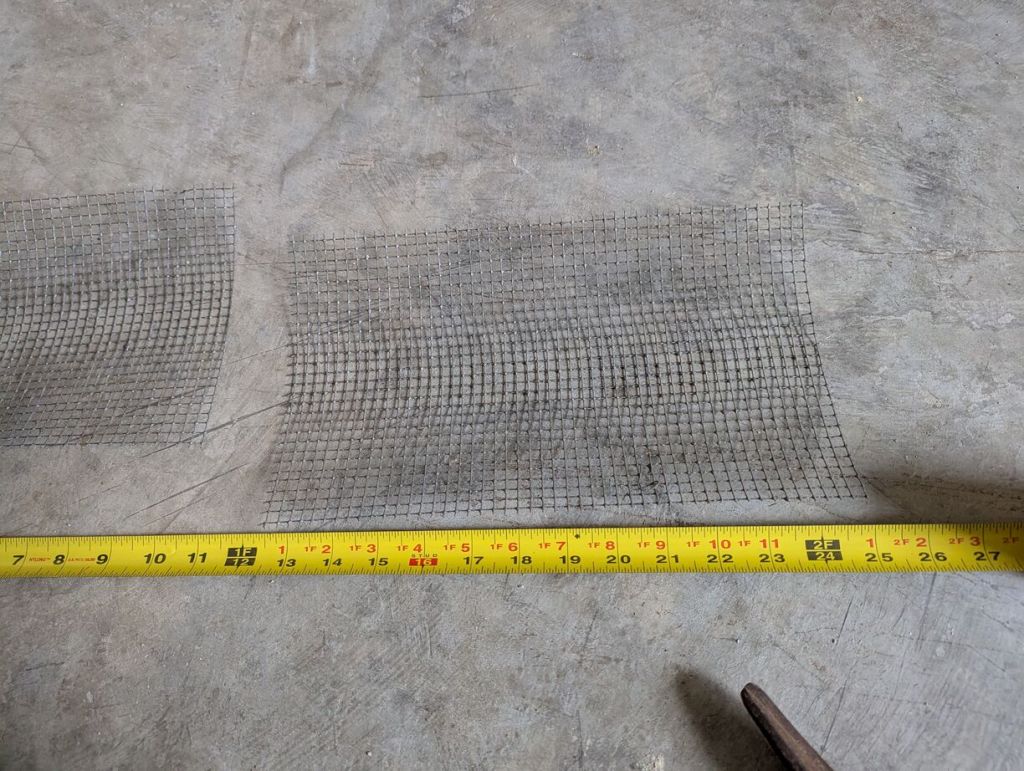
    cut piece of wire mesh about 14" x 7"

    I cut a 14″ x 7″ piece of metal mesh to cover this opening.

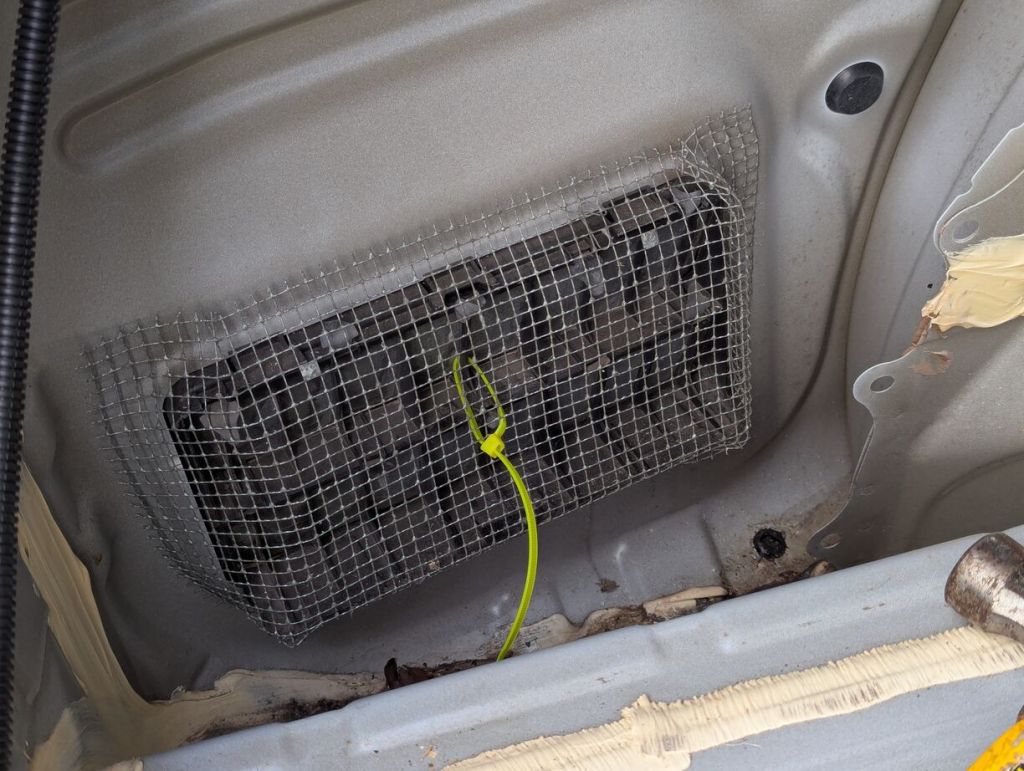
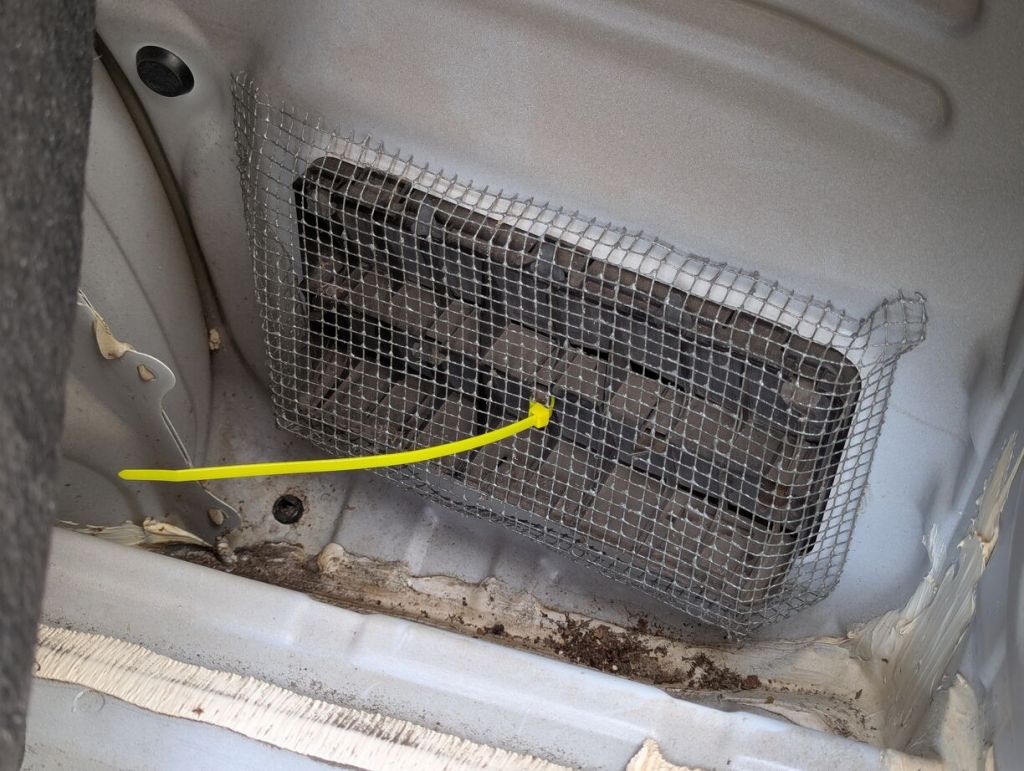
    wire mesh shaped over pressure vent and secured with zip tie

    Using my gloved hands and a hammer, I shaped the metal mesh to contour around all sides of the vent against the metal body, and I used a zip tie to hold it securely in place.

    passenger side pressure vent in rear quarter panel

    I worked on the passenger side pressure vent next.

    wire mesh shaped over pressure vent and secured with zip tie

    I cut the same size piece of metal mesh, shaped it around the vent against the body and fastened it with a zip tie run through the middle of the vent.

    I hope that we don’t have to deal with rodents in the Corolla again. When we purchase a new vehicle, I will secure these openings in that vehicle as the first thing that I do.

  • How to Keep Mice Out of a 2017 Toyota RAV4 SUV

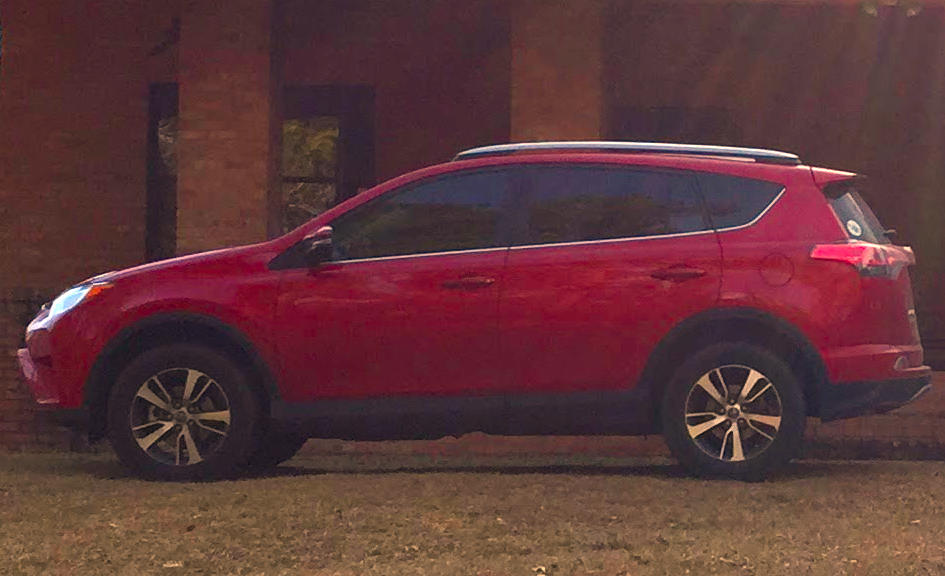
    side view of a red 2017 Toyota RAV4 SUV

    Recently, my folks were unable to drive their 2017 Toyota RAV4 due to an unexpected and unbearable smell inside it. This post details what I did to resolve the situation and prevent it from happening again.

    Resolving the Odor

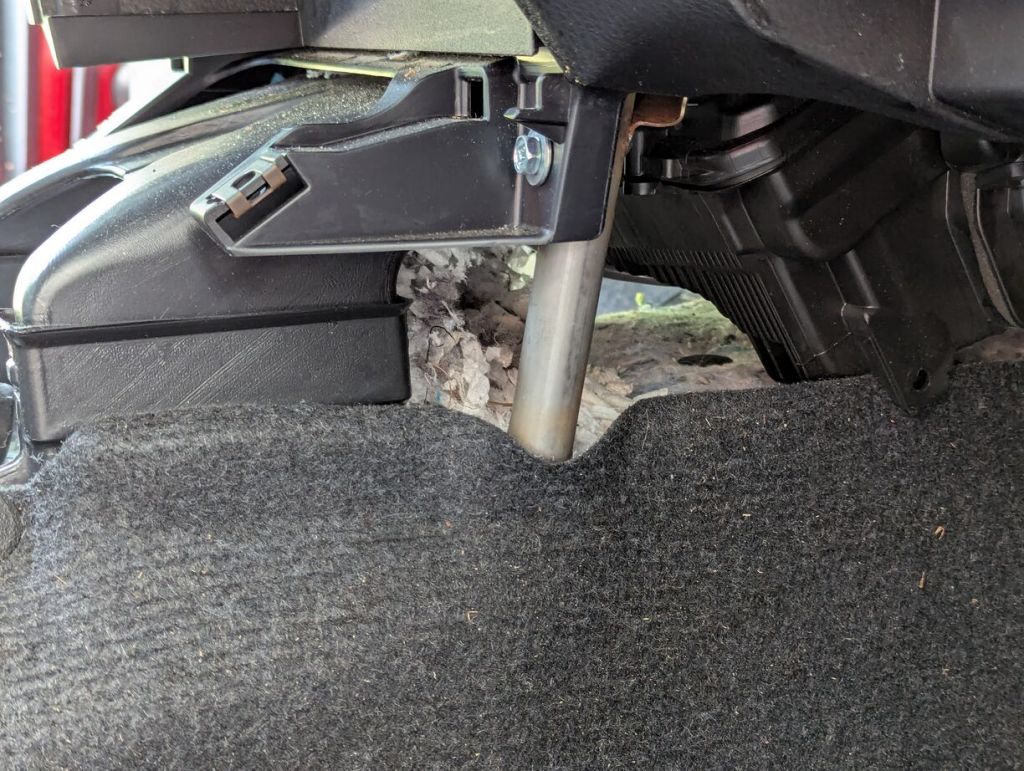
    Suspecting mice, I used a video endoscope that I purchased online for about $25 to find their nest under the center console below the radio and AC controls.

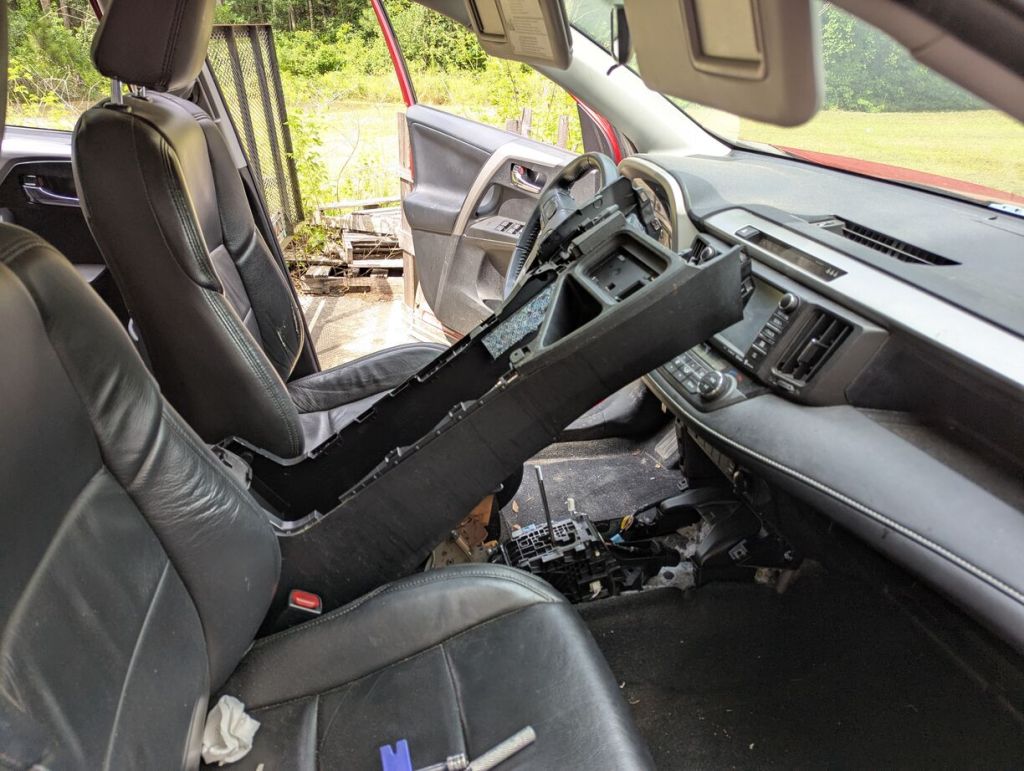
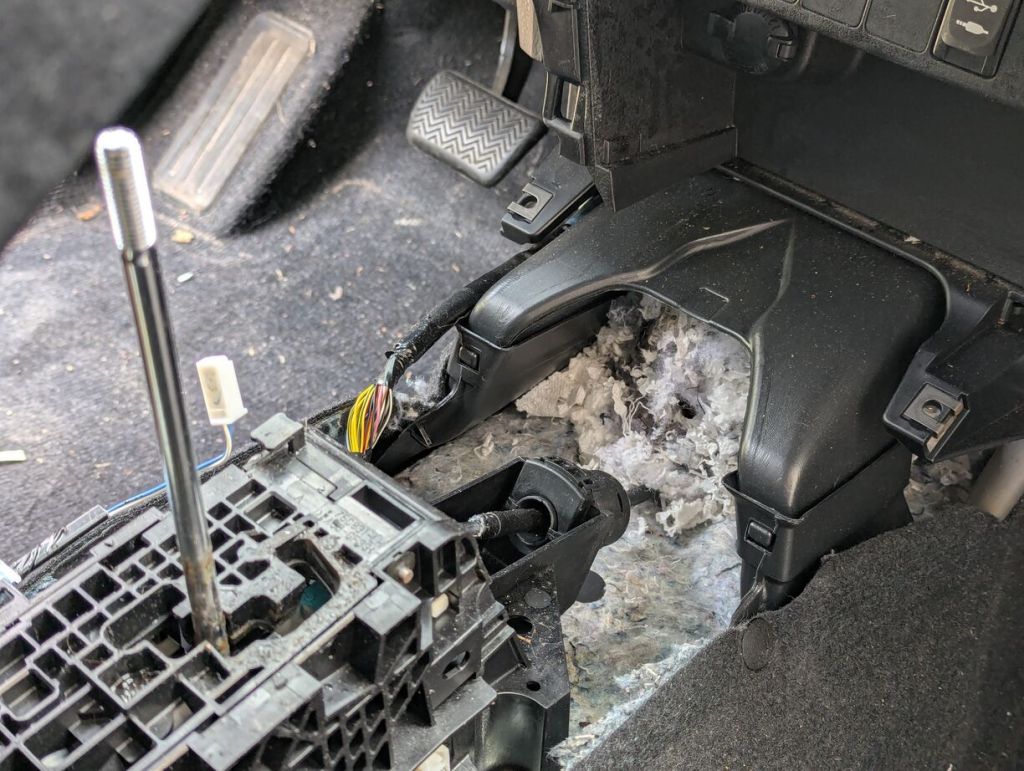
    To remove it and clean that area, it required disassembling the console and removing the panel covers under the dashboard on the driver and passenger sides. The main tools that I used were a plastic wedge tool to pop the plastic clips loose, a Philips head screwdriver to remove a few hidden screws toward the front of the console, and a socket driver with extension to remove four bolts in the armrest compartment. See this guide for more details and pictures of this process.

    center console of 2017 rav4 disassembled

    The mouse nest was positioned under the plastic air ducts that send air from the AC to the rear of the RAV4.

    rat nest under disassembled center console of 2017 rav4

    I removed all of the insulation underneath the nest as it had absorbed the odor from the nest.

    rat nest under disassembled center console of 2017 rav4

    To improve the smell inside the vehicle, I shampooed the carpets with a Bissell Little Green Portable Carpet Cleaner, vacuumed after it had dried, wiped down all the surfaces, and put out activated carbon pouches throughout the car.

    To ensure the AC system was clean, I emptied a bottle of A/C Pro Vent & Duct Cleaner Odor Neutralizer–half in the ducts and half into the blower with the cabin air filter removed. This released a lot of build up, which clogged the AC system drain. After failing to unclog it with a pliable wire, I used compressed air to unclog the drain (admittedly this probably pushed some of the matter back into the AC system, but I immediately ran the AC for about an hour to have ample water flow out the system). I replaced the cabin air filter with a new Fram filter.

    Finally, I opened the sunroof and windows while letting the car sit in the sun over several days.

    When the car is left to sit, it still has a slight smell, but this is quickly dealt with by opening the sunroof and windows, turning the AC on high, and leaving the car to ventilate for a minute or two. I think with time, the odor will decrease.

    Preventing Mice from Reentering the Vehicle

    Having spent days cleaning the mouse infestation from the RAV4, I didn’t want to have to go through this again. I read that the cabin air intake under the windshield cowl is the likely point of entrance.

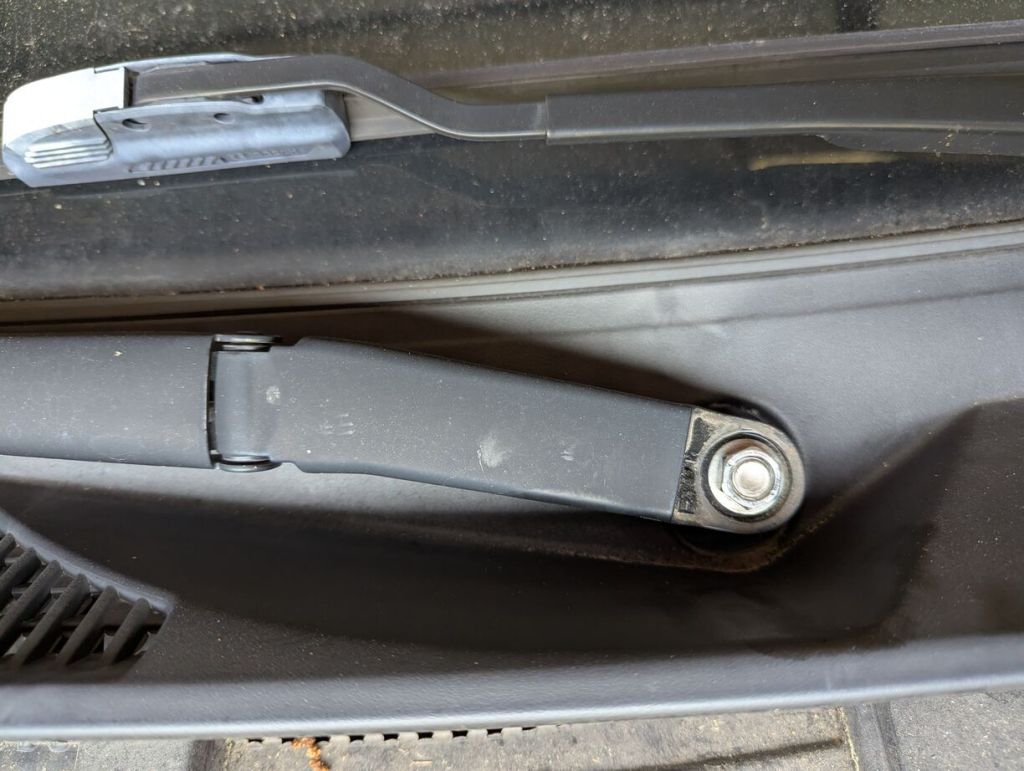
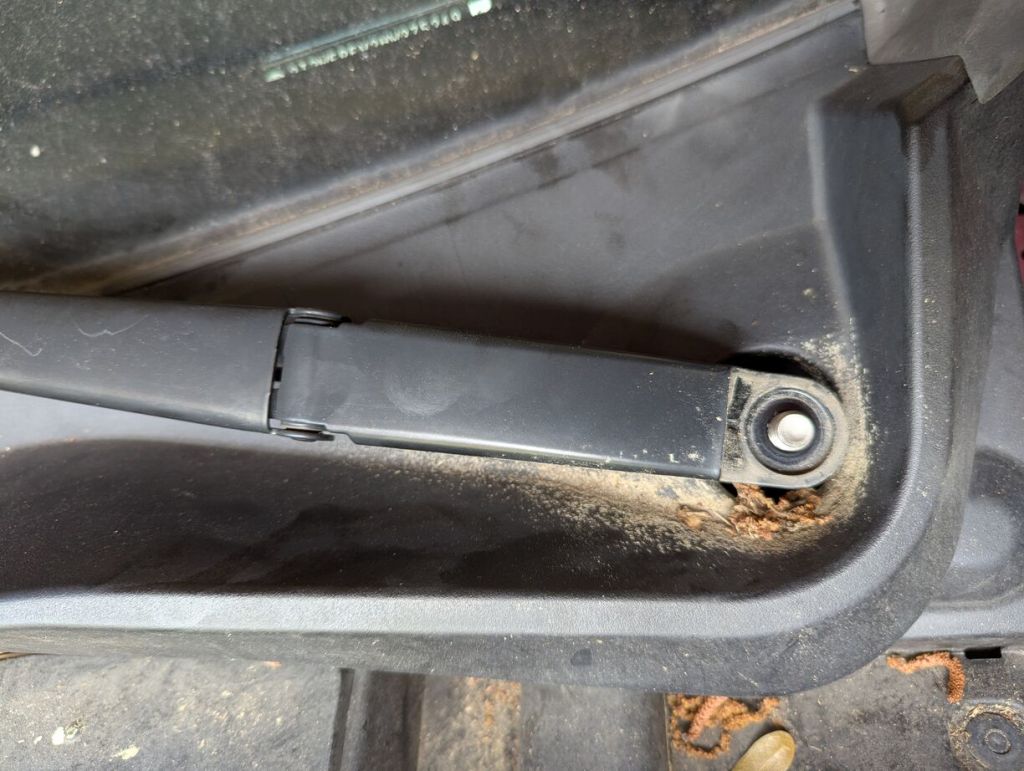
    To access it, you need to remove both windshield wiper arms. There are windshield wiper arm puller tools that you can find for about $20, but I found applying ample WD-40 to the nuts (to remove them) and the bolts (after removing the nuts) permitted the removal of both arms. It’s important though before you remove them to mark the bolt head to align with the direction of the wiper arm (I scratched a line on top of the bolt with a flat head screwdriver).

    closeup of windshield wiper arm bolt assembly
    closeup of windshield wiper arm bolt assembly with nut removed

    With the wiper arms removed, there are a couple of plastic push pins that need to be removed and plastic tabs to pop out. Pull the cowl forward enough to see the cabin air intake on the passenger side. See this guide for more pictures and details for removing the cowl.

    under hood of 2017 rav4 with windshield cowl removed to reveal cabin air intake on left side

    After releasing the cowl, pull it down and out of the way.

    cabin air intake plastic grill with section missing likely chewed through by mice

    It’s easy to see all of the teeth marks on the plastic grill covering the cabin air intake. Obviously, plastic is insufficient for keeping rodents out of a vehicle.

    Wearing leather gloves and using large metal tin snips, I cut pieces of wire mesh to fashion into a cover over the air intake. I used a hammer to tap and push on the wire to mold it to the contours of the vehicle body, and I secured it with zip ties. I added extra wire mesh below the opening to push against the lower lip of this area to push and hold the wire mesh cover in place.

    metal mesh covering cabin air intake

    Just for peace of mind, I added a larger flat piece of wire mesh over the intake to ensure nothing could get inside through this opening.

    metal mesh covering cabin air intake

    The plastic pins securing the cowl broke during removal, so I used longer zip ties to hold the cowl in place through the pin holes.

    I used the video endoscope to explore the AC system ducts and areas under panels in the front and rear of the vehicle, but I couldn’t find any other evidence of rodent infestation. I hope that this guide might be useful to others dealing with this design issue with Toyota vehicles.

    Stay tuned, because I will post how to do this for a 2013 Toyota Corolla tomorrow.

  • Creating a Digital Signature With Your Phone’s Camera

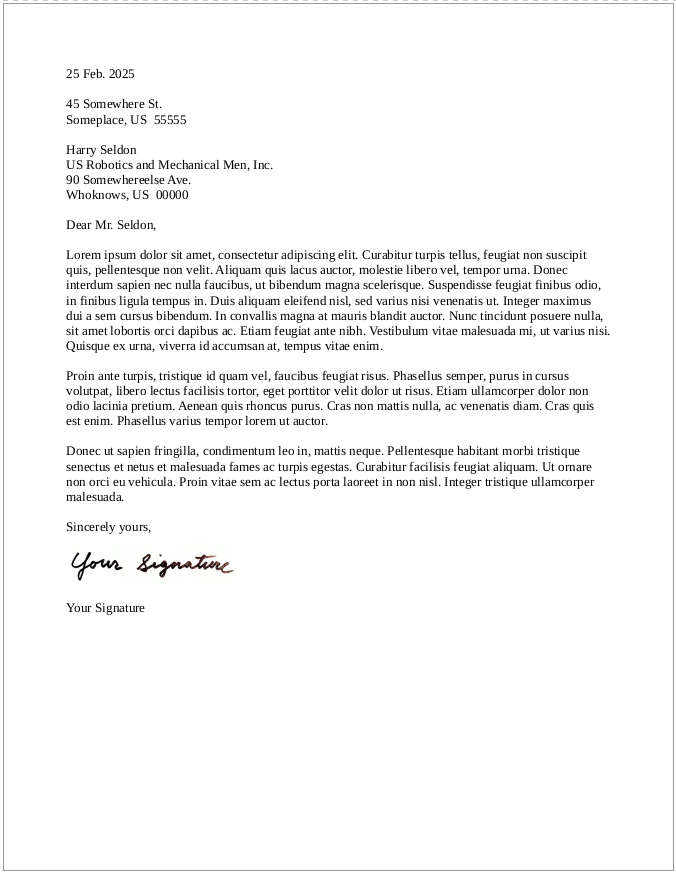
    cursive text: making your digital signature

    Last week, I showed my students how to create a digital signature that they can insert into letters that they write in their word processor of choice. It’s very easy to do and simplifies things if you need to send a PDF of a letter without having to print, sign, and scan it.

    Follow these steps:

    1. Take a clean, white sheet of paper and sign your name using a black pen or marker.
    2. Lean your paper on a completely flat, inclined surface and avoid a light behind you so that you don’t cast a shadow over your signature.
    3. Take out your phone and enter the camera app. Carefully align your camera so that it takes a photo of your signature straight on (meaning, your camera’s photo sensor should be parallel to the piece of paper with your signature). It can be helpful to zoom in slightly with your camera app so that you don’t have to be very close to the paper with your signature. If there’s any question about focusing, take the time to tap your signature on the screen so that the camera app focuses on your signature.
    4. Open your signature photo in your phone’s image editing app. First, crop the image to just your signature. Then, maximize the brightness and maximize the contrast, which will make the paper appear pure white and your black signature pops. Save this edited version of your photo.
    5. Email your edited version of your signature photo to yourself so that you can download it on your computer.
    6. Drag the saved image into your word processor document where you left space between your closing and typed name, or use your word processor’s image insert option. If the image appears very large, click on a corner of the signature image and drag to resize the signature.
    7. Depending on your word processing software, you might need to change the image alignment settings for the signature image (so that it is placed where you want and the typed text of your letter doesn’t fall behind or around it in a strange or unexpected way.
    8. Save your document and export it as a PDF to email to wherever it needs to go.
    9. As a bonus, save your signature image someplace safe so that you can reuse it as needed.
    screenshot of a business letter featuring what appears to be a real signature but is in fact an image of a handwritten signature
  • Beware Banging on Sun Drenched Brittle Plastic in a 2013 Toyota Corolla: Replacing Center Console AC Vents

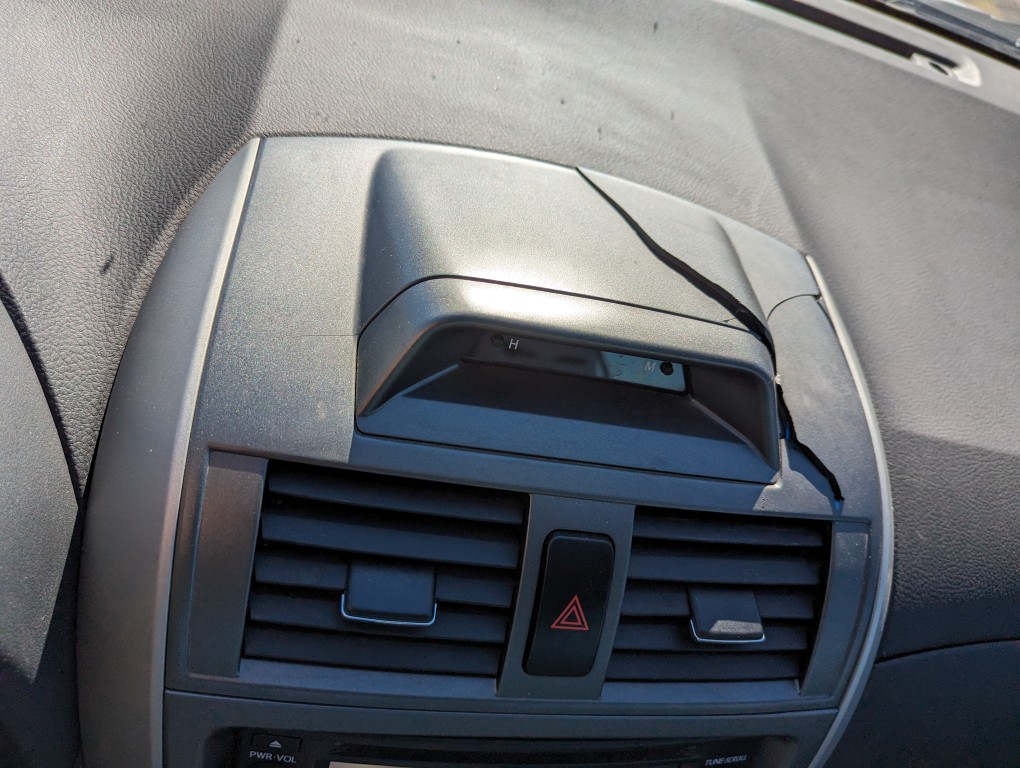
    Broken 2013 Toyota Corolla center console air vent component.

    Before driving back to Brooklyn, my 2013 Toyota Corolla’s center console began rattling something fierce! It began as an occasional annoyance, but it quickly became insistent and unavoidable.

    The rattle, of course, manifested while I was driving. So, I began holding and pressing around the center console that I had recently disassembled a few days earlier to try to identify the culprit of the noise. I figured out that the sound came from the air vent assembly at the top of the center console. Impatient, I rapped and then banged on it with my fist. One ill-placed strike busted the air vent assembly’s top in a spray of plastic puzzle pieces. The picture above shows them carefully reassembled. Of course, the rattle was amplified by this destruction, so I ripped out the top of the assembly and made the long drive with the top off. When I got to Brooklyn, I ordered a replacement (sans clock assembly as it was significantly cheaper) on eBay. When it arrived, I installed it and restored the interior look of the car.

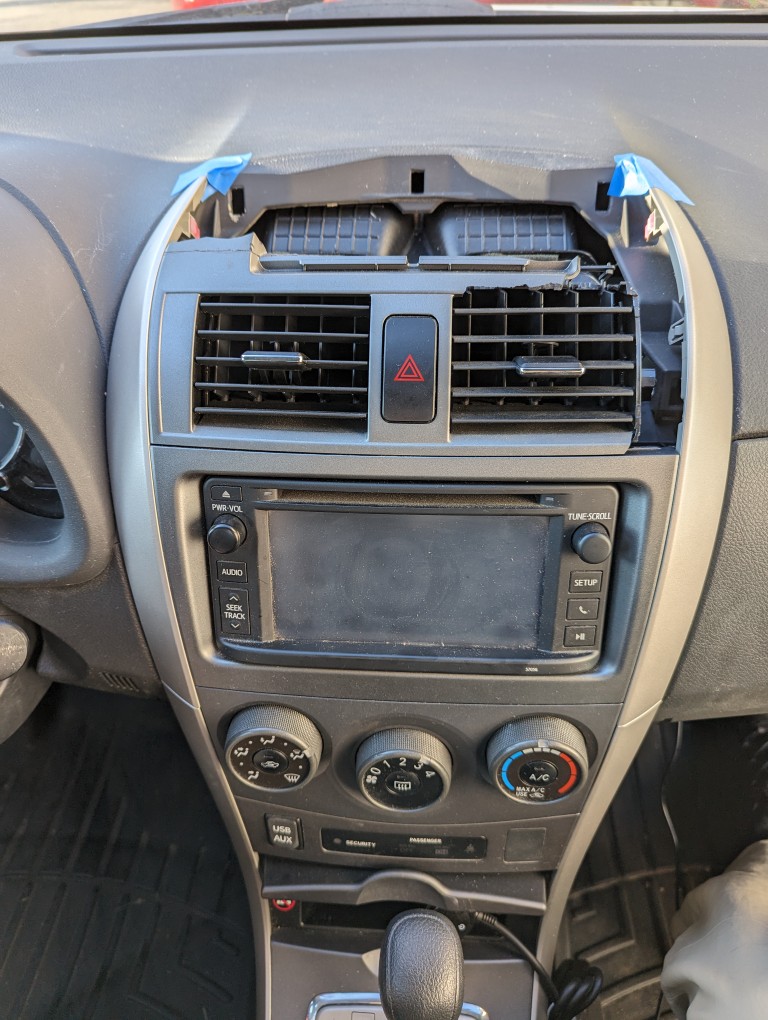
    Broken 2013 Toyota Corolla center console air vent component.

    Above, you can see what the air vent assembly looked like when I drove back to Brooklyn. I completely removed the top so that it wouldn’t make any rattling during the long drive.

    Broken 2013 Toyota Corolla center console air vent component. Center console covers removed on both sides.

    To begin the replacement, I pulled the silver plastic covers from the top of the center console. These pull off directly toward you and are held in by plastic clips. Using a thin plastic shim helps you get a hold on these. On the right side, you can open the top glove box to make their removal easier.

    Broken 2013 Toyota Corolla center console air vent component.

    This is a close-up of the broken air vent assembly before removing it.

    2013 Toyota Corolla center console caution lights switch in the air vent assembly.

    As I pulled the air vent assembly out directly towards me, I unplugged the cable from the back of the caution lights switch, because this would need to be re-installed in the new air vent assembly.

    2013 Toyota Corolla center console caution lights switch.

    The caution switch is held in by two plastic clips–one on the top and one on the bottom. If these hold tight, you can use a plastic shim to depress the clip from the back and free the top and then bottom of the switch so that it pulls out easily.

    2013 Toyota Corolla center console caution lights switch and clock cables.

    Since I had a clock in the old air vent assembly, there was a corresponding plug on the same run as the caution lights switch cable. I used a twist tie to secure it. I pushed this cable between the two air vents so that there would be minimal possible movement by them once I put everything back together.

    This is the replacement air vent assembly that I purchased on eBay for $21. Unlike my old console kit, it doesn’t have a place for a clock, which is fine for me. This saved about $20. Also, it doesn’t include the caution lights switch, which is also okay as I will be reusing my old one.

    The first step for reassembly is installing the caution lights switch in the air vent console assembly. I ran the cable through the hole of the air vent where the caution switch goes, plugged the cable into the old switch, and pushed the switch into the hole. Unfortunately, the hole for the switch was slightly too large and the switch’s plastic prongs wouldn’t catch and hold it properly. I solved this problem by cutting small pieces of masking tape and putting two layers on top of each prong–top and bottom. Then, I pushed the switch in and it held securely in place.

    Replacement 2013 Toyota Corolla center console assembly lined up.

    The penultimate reassembly step was to line up the air vent assembly with the air ducts and clip receptacles. Perhaps because this was a new replacement, it was very tight to push back in. I took my time and checked and double checked the alignment as I worked it into place.

    Replacement 2013 Toyota Corolla center console assembly secured.

    Eventually, it clicked on both sides and was flush with the radio below and dashboard above.

    Replacement 2013 Toyota Corolla center console assembly completed.

    Finally, I pushed the center console’s side covers in place and double checked the caution light switch to make sure it was working.

    I think it looks better than new now–at least that one part!