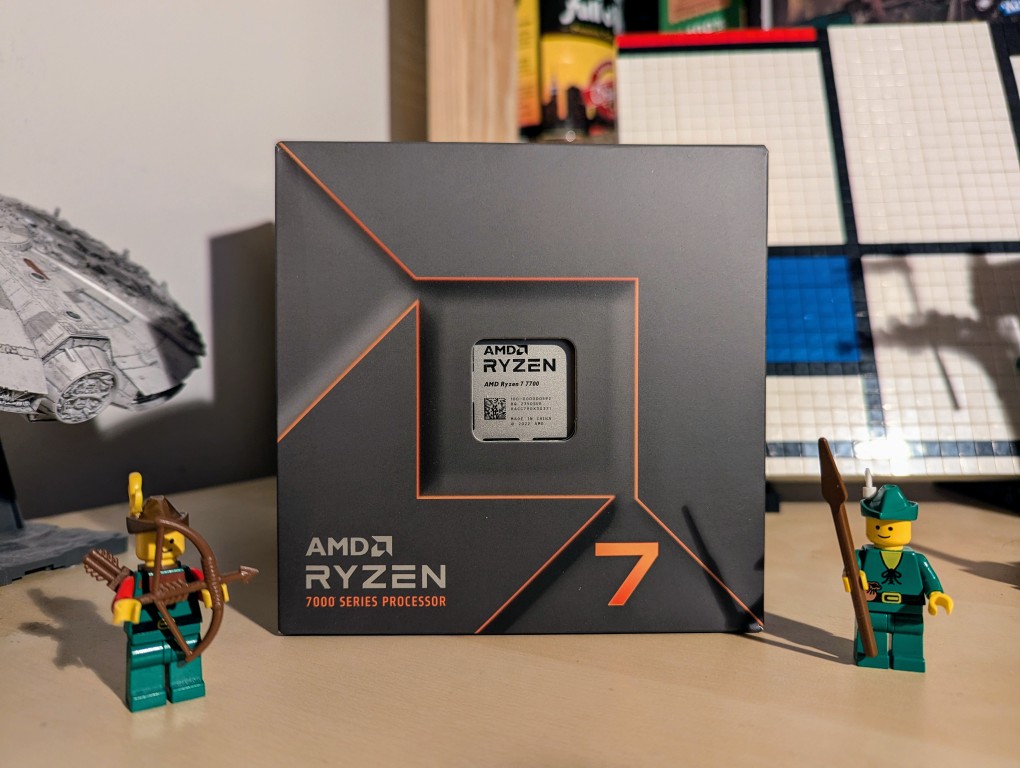
Knowing that tariffs, or a tax ultimately paid by those who buy those imported goods, are coming, I planned out a new workstation for doing LLM and Generative AI work. The first part arrived today: an AMD Ryzen 7 7700 CPU. While I would have certainly loved to build a system around an AMD Threadripper Pro with its 8-channel memory and numerous PCIe slots and plenty of lanes to support maximum throughput, I am just an English professor of simple means, so I opted to build around the least expensive options available to me and using a combination of new and used parts. Therefore, I am upgrading from my current AM4 socket system to an AM5 socket motherboard that supports DDR5 memory and this lower-wattage, non-overclocking CPU. I’m currently waiting on the arrival of a motherboard with 4 PCI slots (spaced to allow the four video cards that I plan to run), three NVIDIA RTX A4000 video cards with 16GB VRAM (used via eBay), 64GB (2 x 32GB) Corsair DDR5 RAM, and an ATX mid-tower case. I’ll use my current drives, 1000 watt power supply, and NVIDIA RTX 3090 Founders Edition video card in the new system. Most of my work focuses on inference, so the slower PCI slots in this build won’t hurt too bad–it should far exceed CPU inference even with faster RAM.
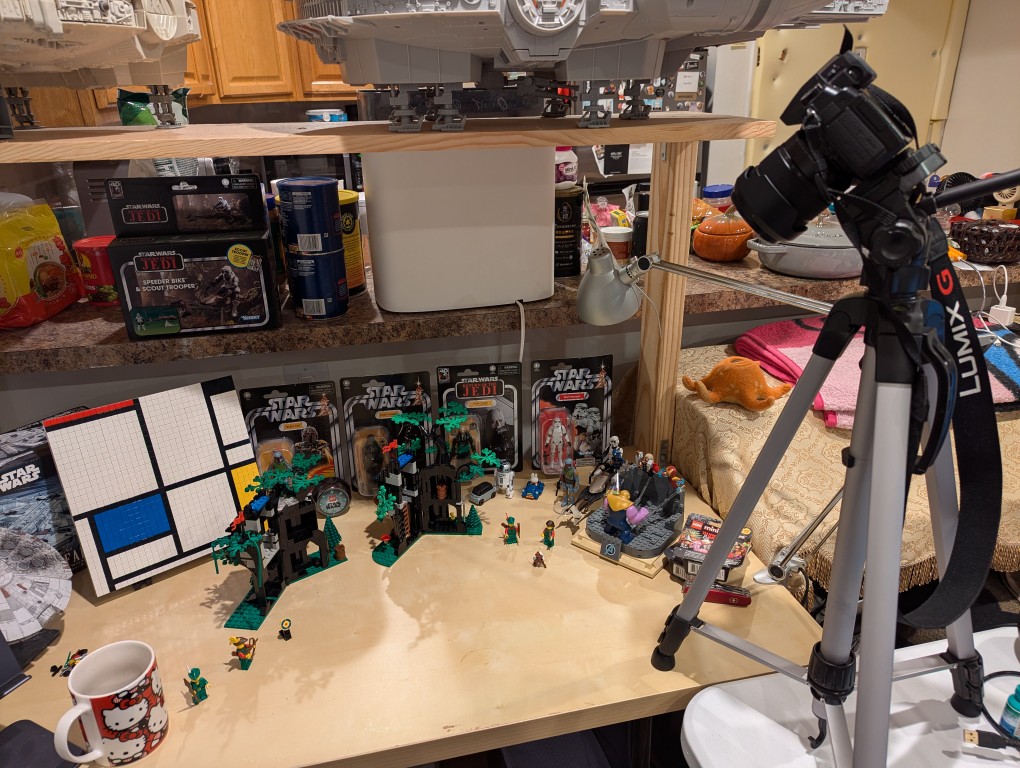
I’ve had this Panasonic Lumix DMC-G85 camera for awhile, but I’ve never had a reason to setup its Wi-Fi remote control feature until I began thinking about taking photos for the post that I published yesterday comparing the builds of LEGO’s Forestmen’s Hidenout (6054) and Forest Hideout (40567). I didn’t want to have to get up to active the shutter each time I took a picture, and I wanted to be in the photos as the builder. Using my smartphone as a remote control of the camera configured with timed shutter release allowed me to take the photos that I had in mind.
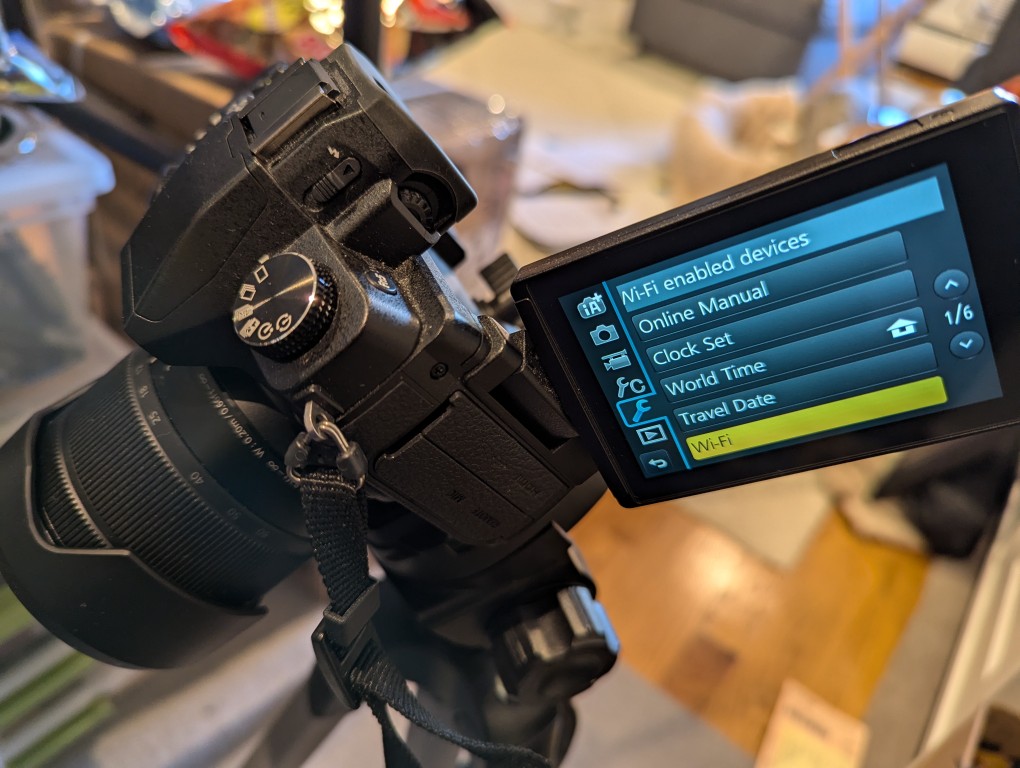
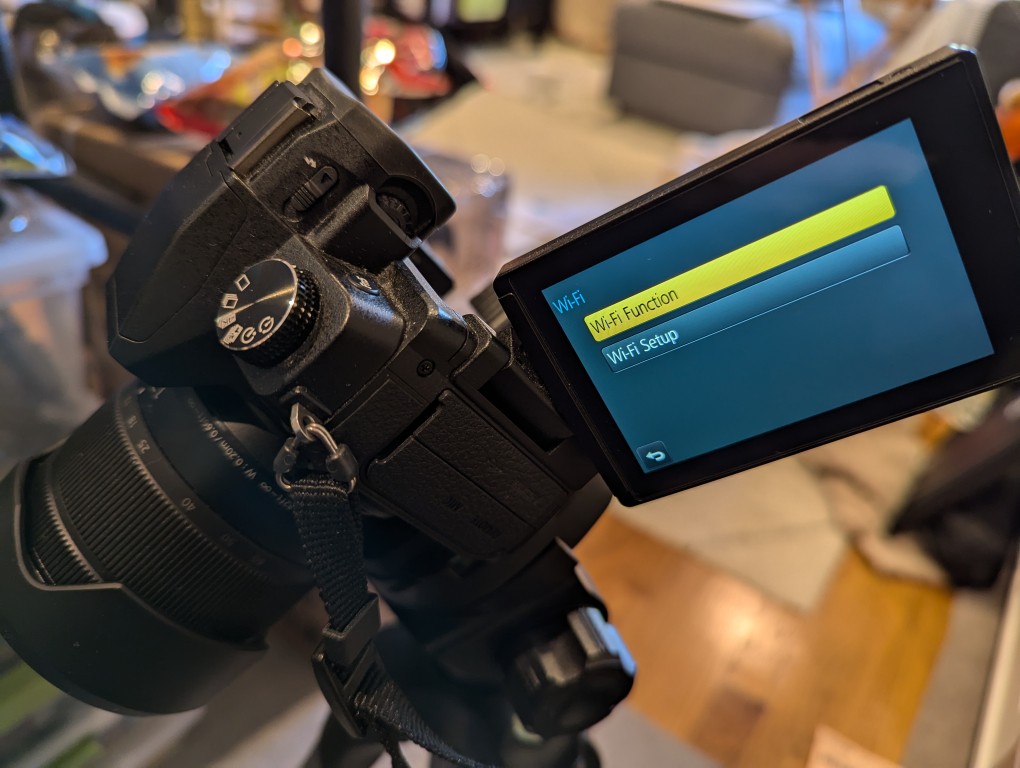
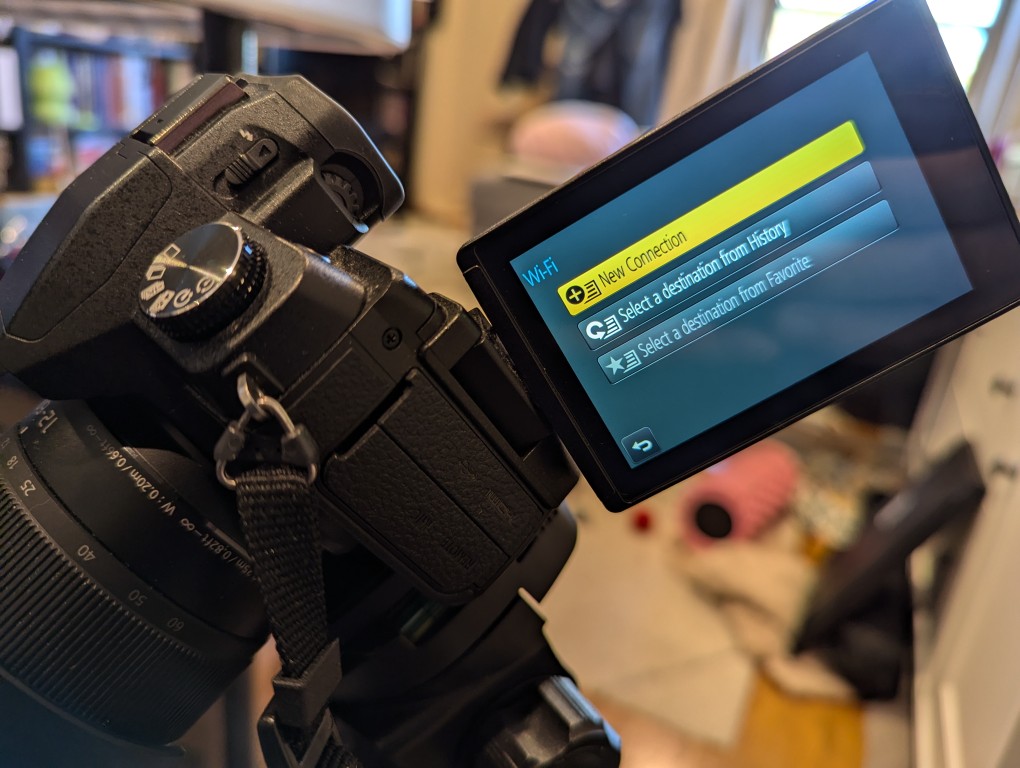
The basic version of setting up remote control for the camera is shown in the photos below. First, on the camera, open the menu > setup/wrench > Wi-Fi > Function > New Connection > Remote Shooting.
After connecting your smartphone to the displayed Wi-Fi network, install and open the Panasonic Image App.
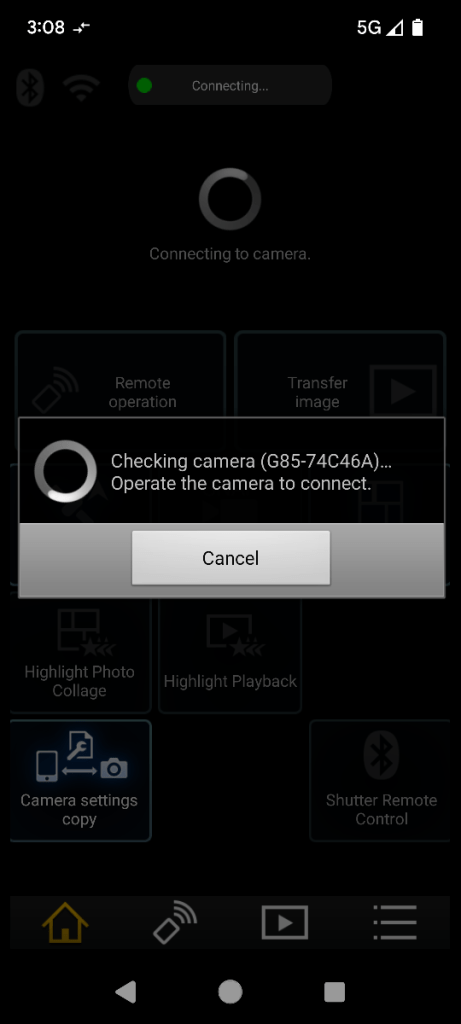
After agreeing to the terms of service, click on the area on the left for “Remote Operation.” When it attempts to connect, it will prompt you to “Operate the camera to connect.” Back on the camera, click the button on the display to accept the connection.
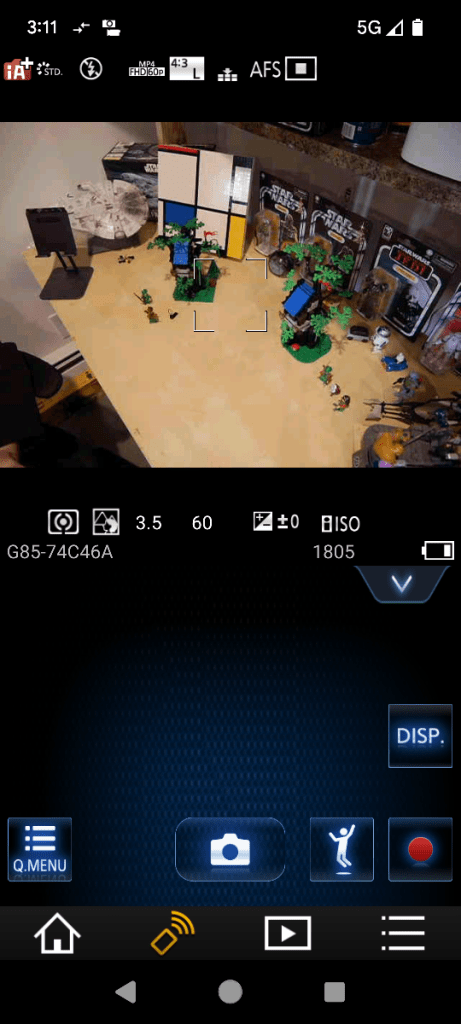
Then, you will see what your camera sees on your smartphone’s screen. There are controls for adjusting the camera and activating the shutter.
So that I could capture my hands working with LEGO, I set my camera’s shutter timer to 2 seconds. This means when I would click the camera icon/shutter release in Panasonic Image App, there would be a 2 second countdown during which I could put my hands back into the scene before the shutter was released.
When I take night sky photos again, I will definitely use Panasonic Image App to control the camera so that I can avoid vibration induced by my pressing the shutter release button.
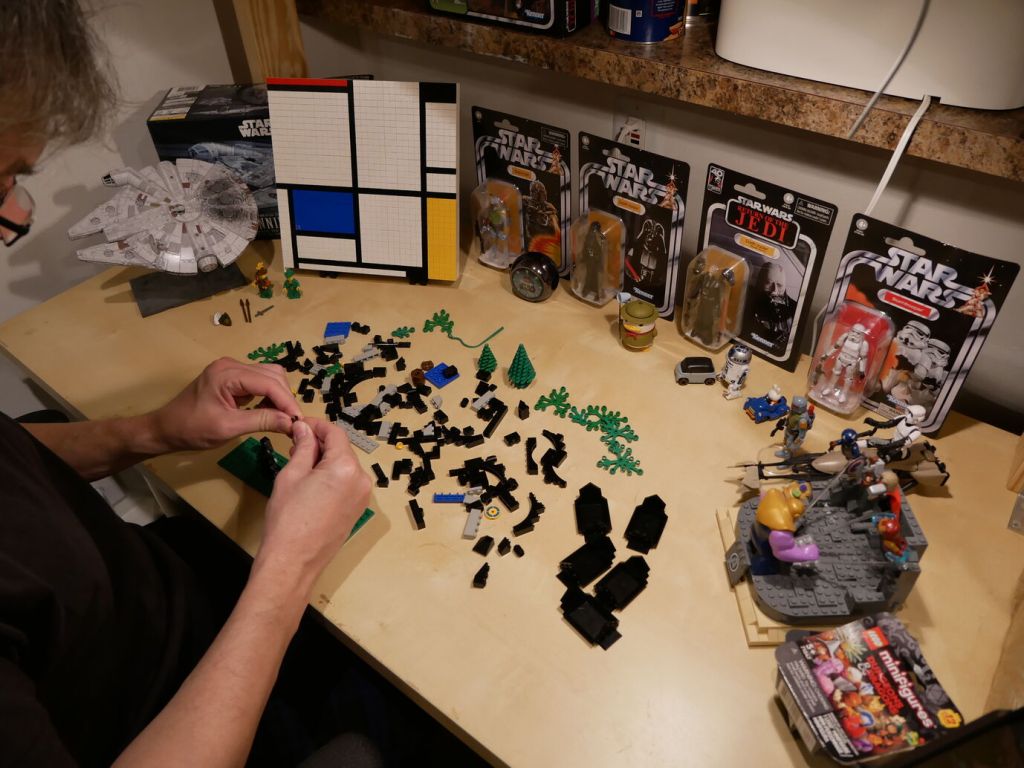
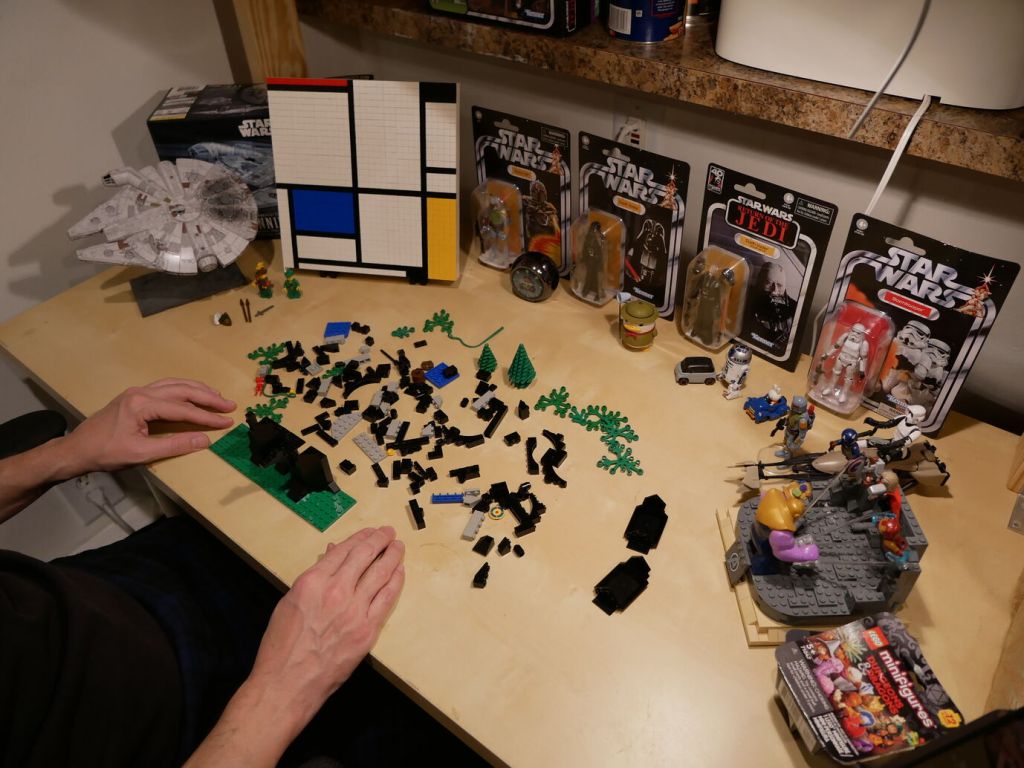
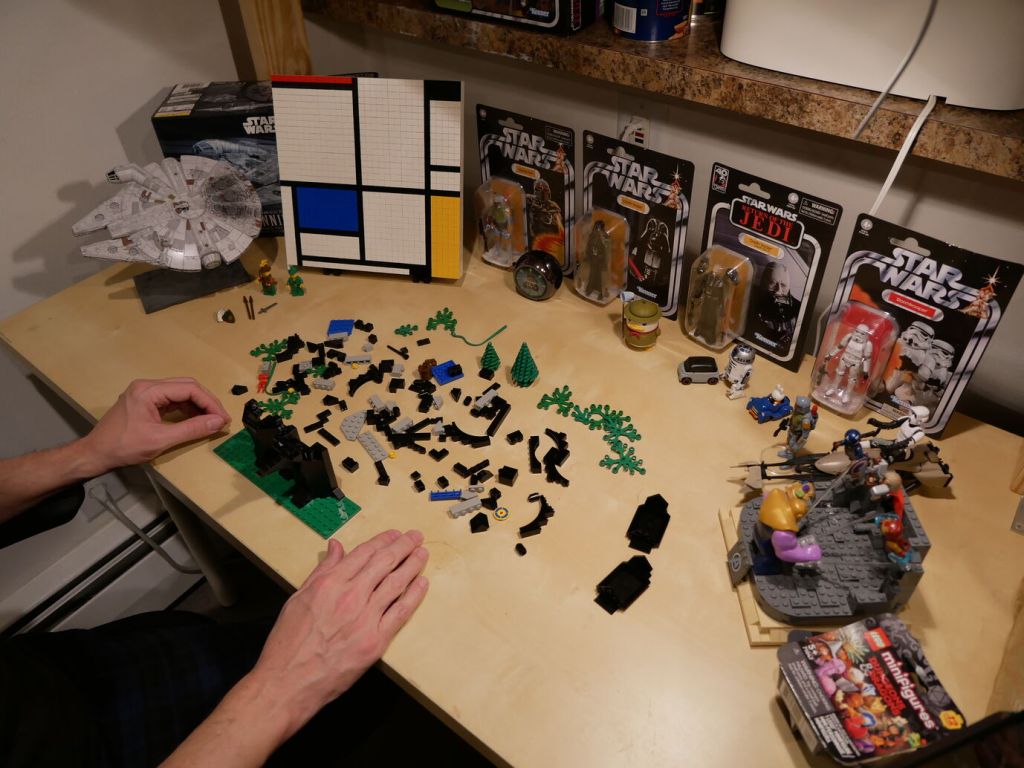
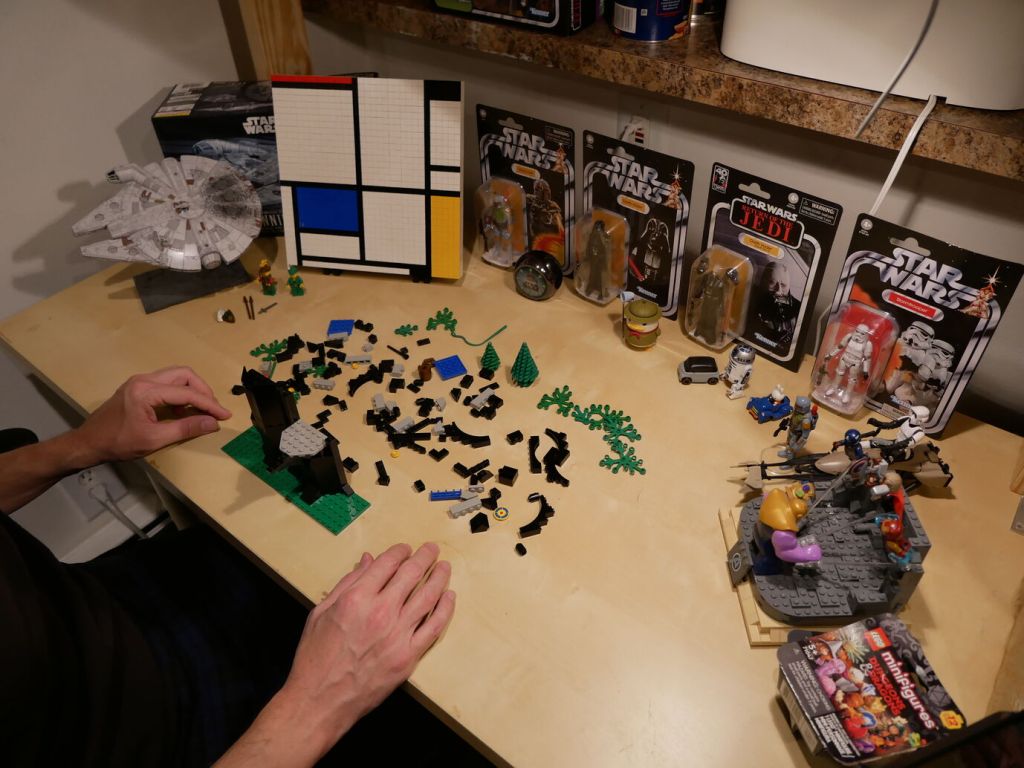
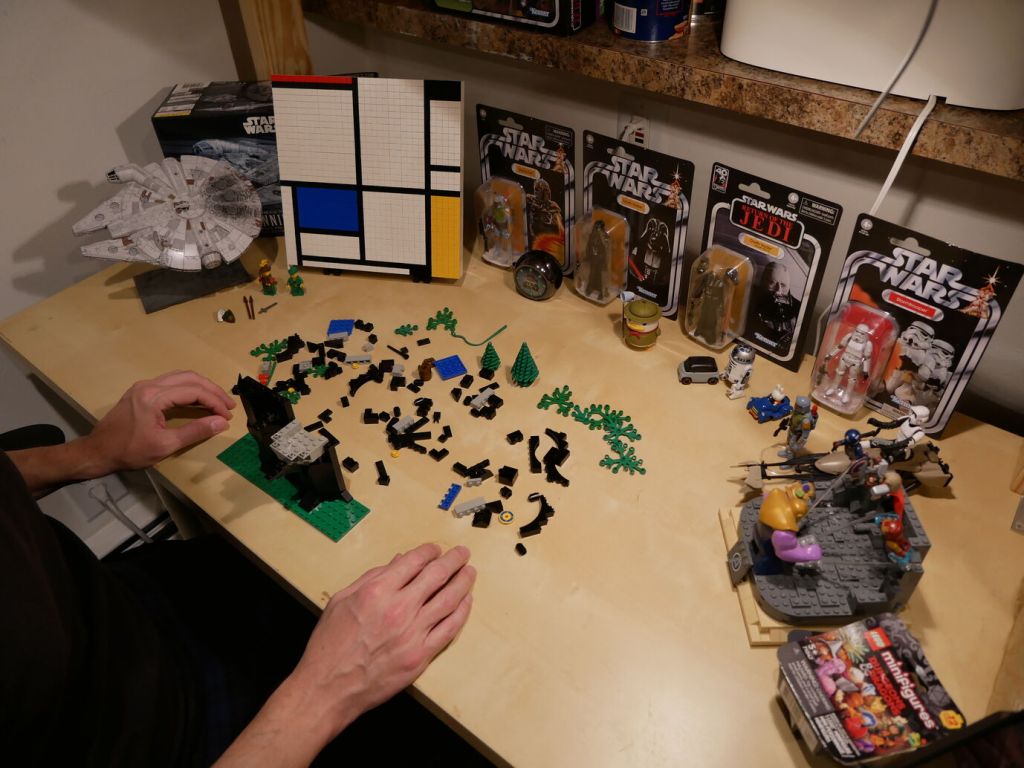
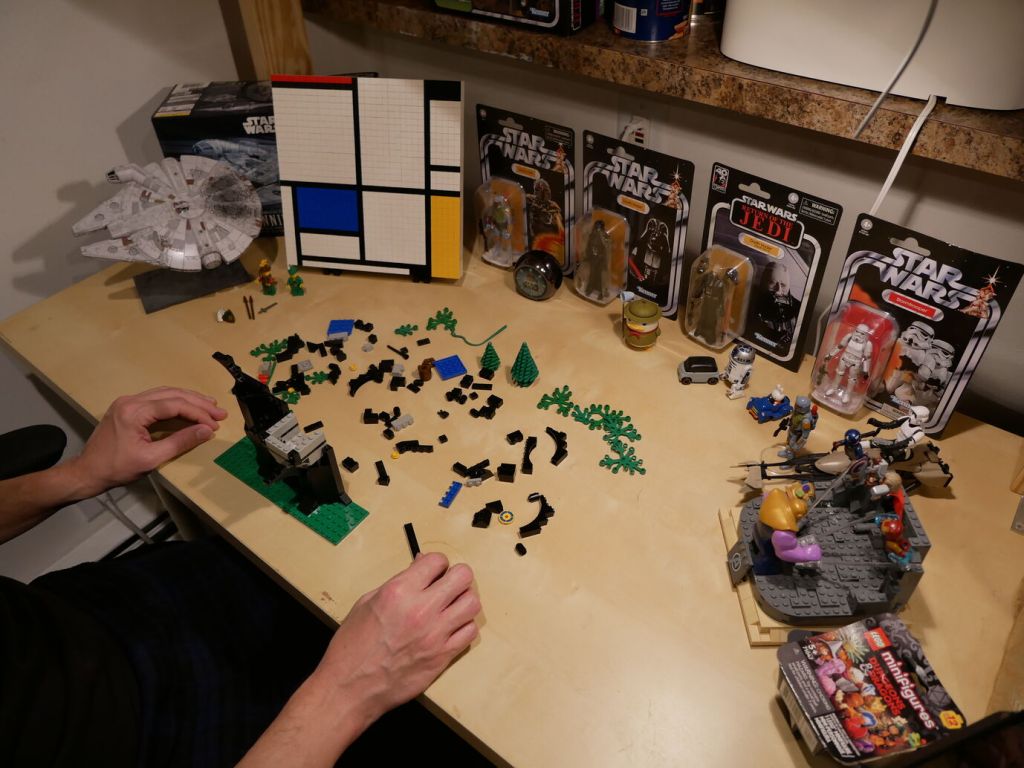
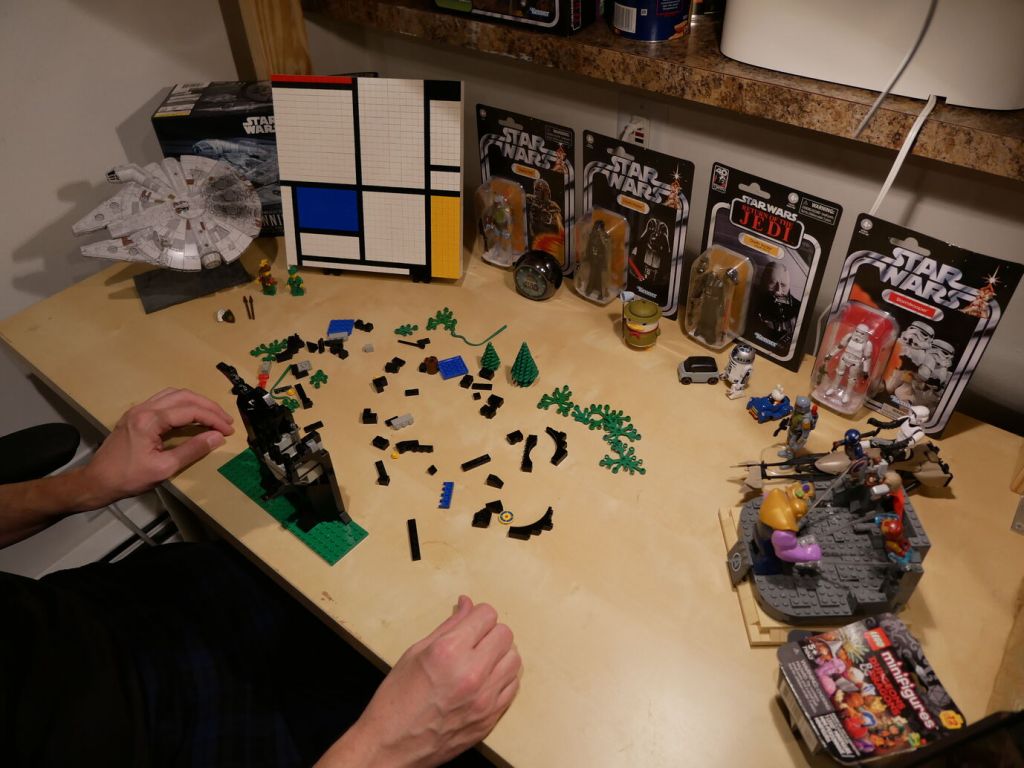
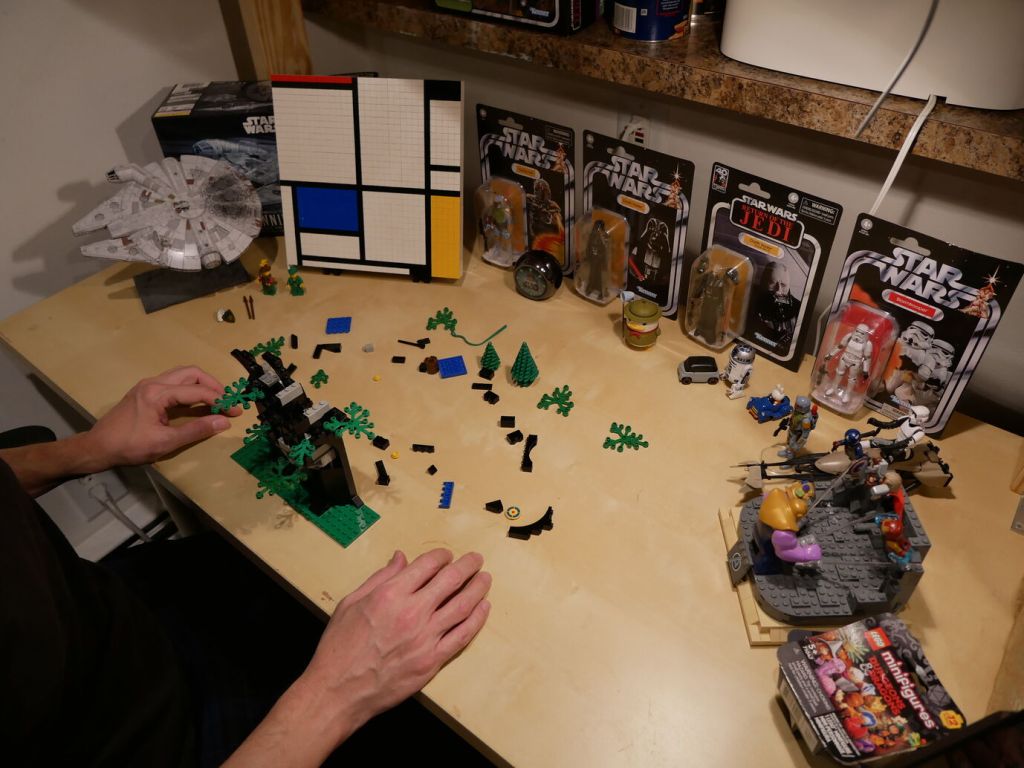
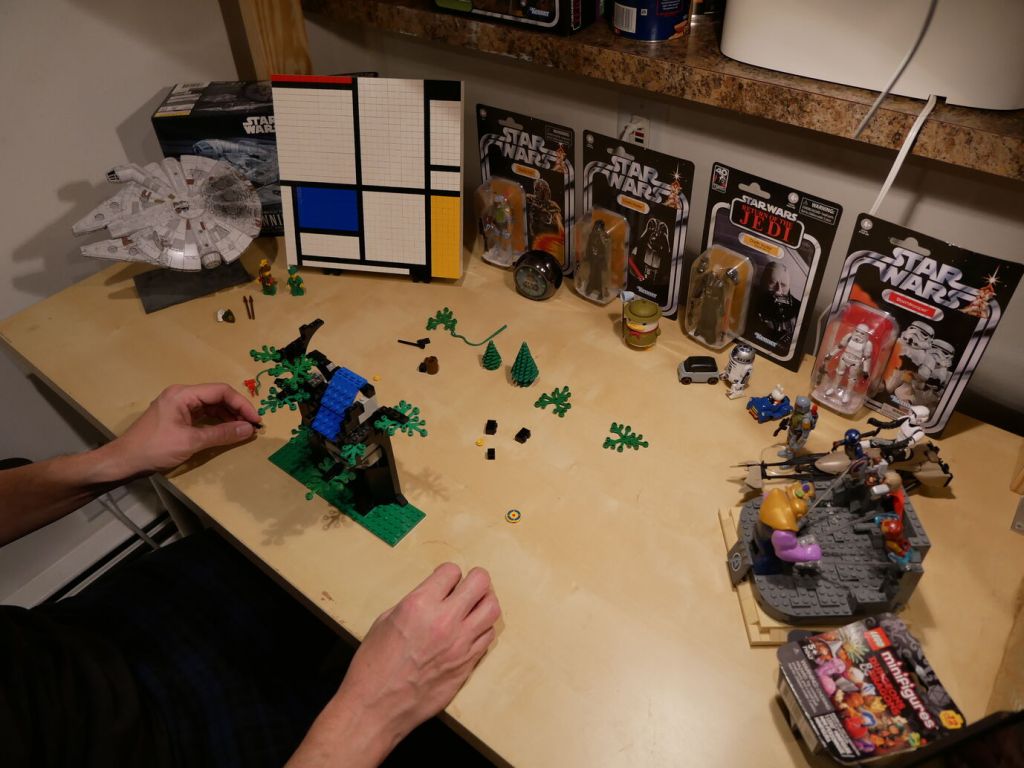
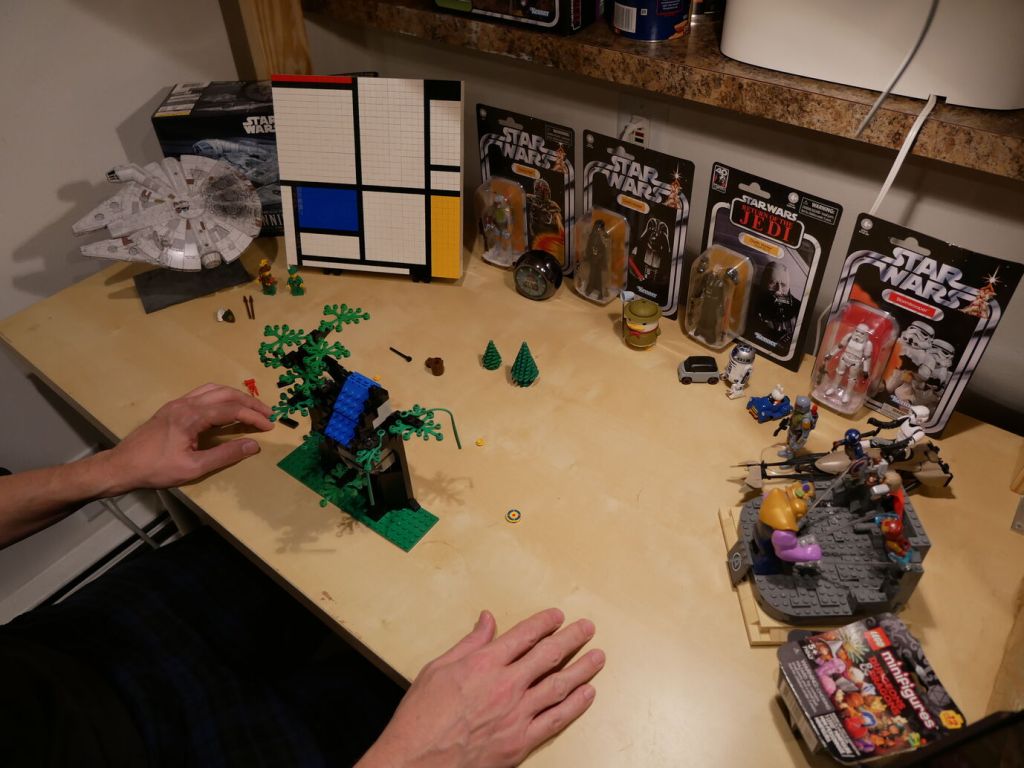
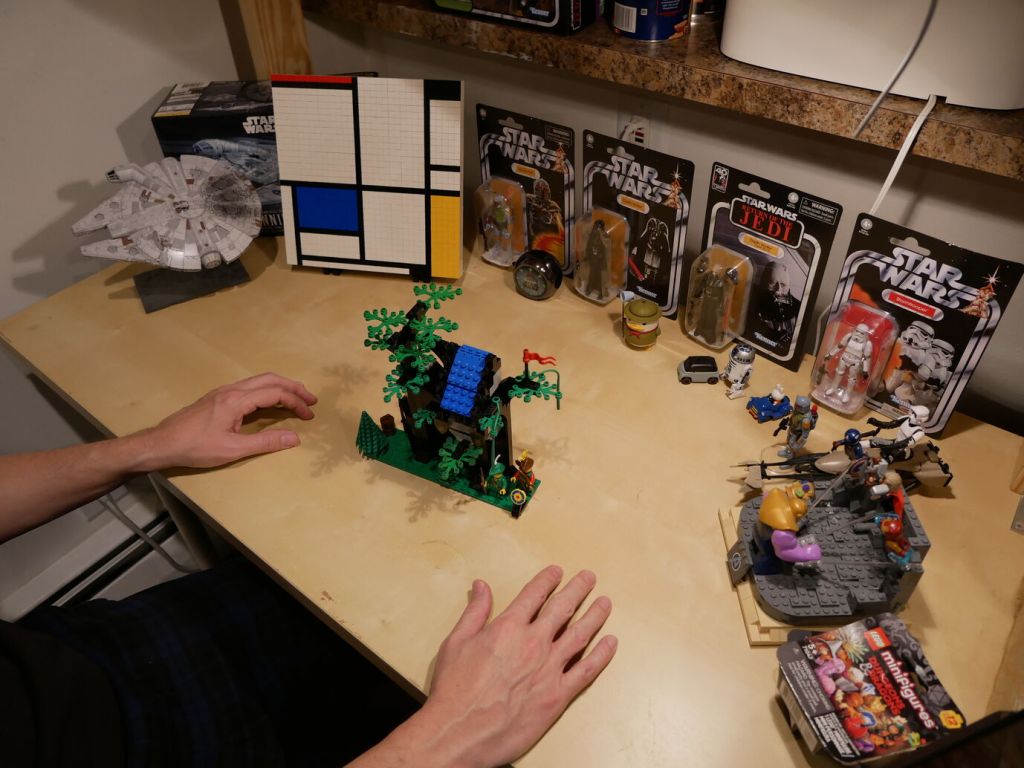
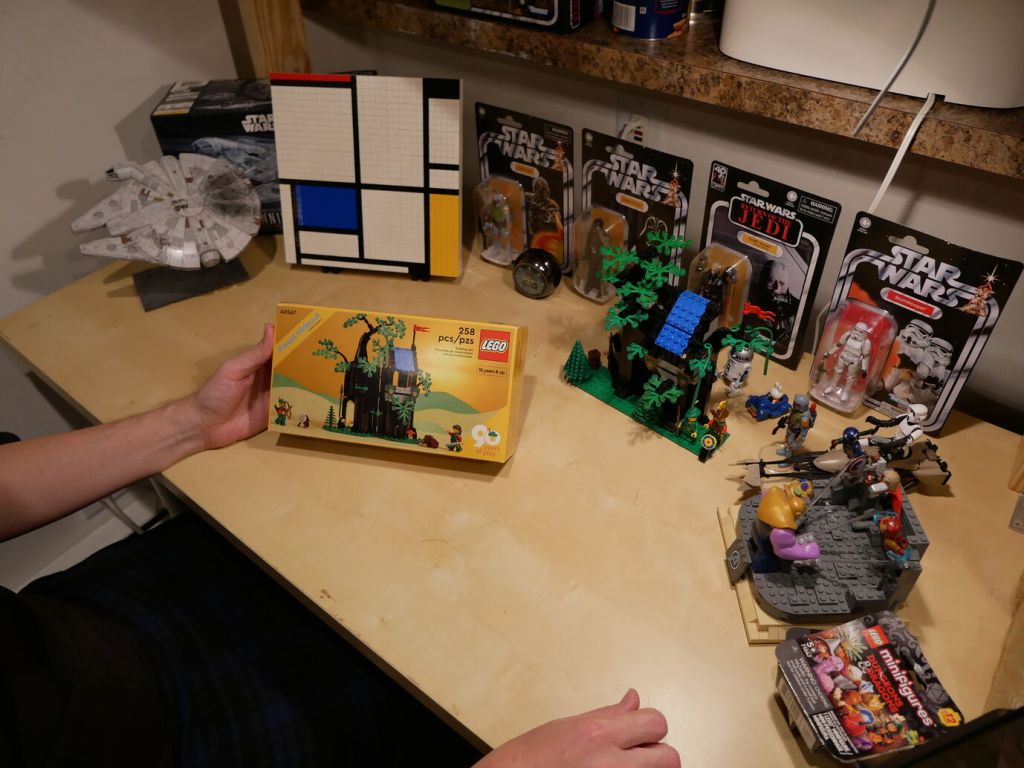
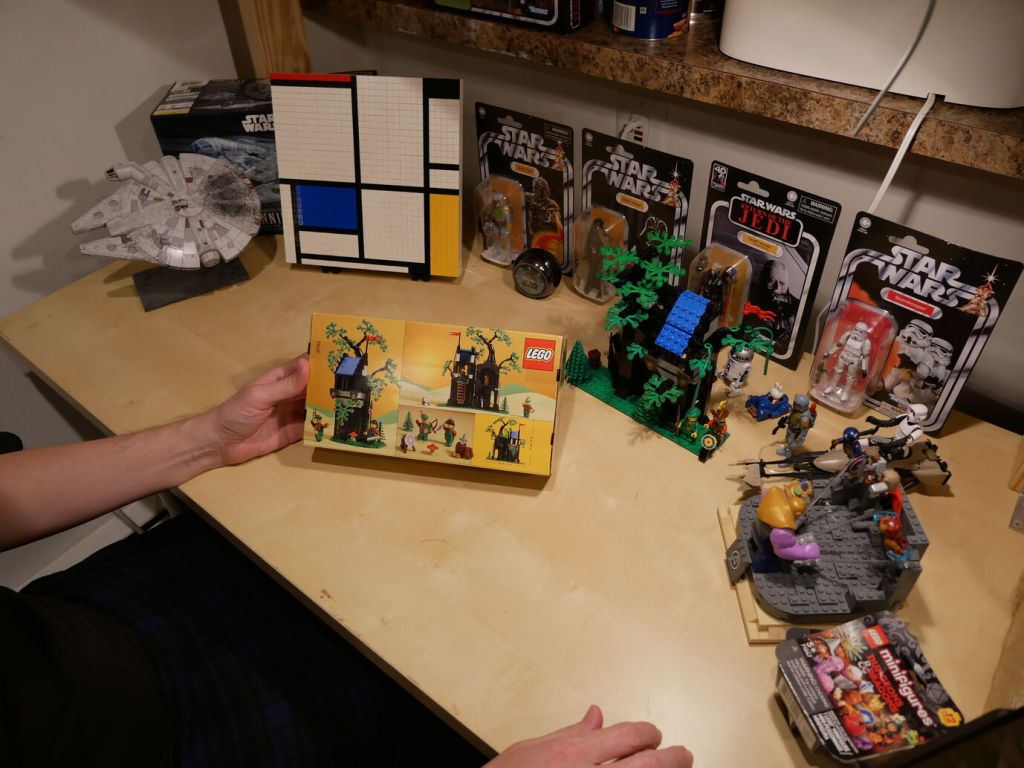
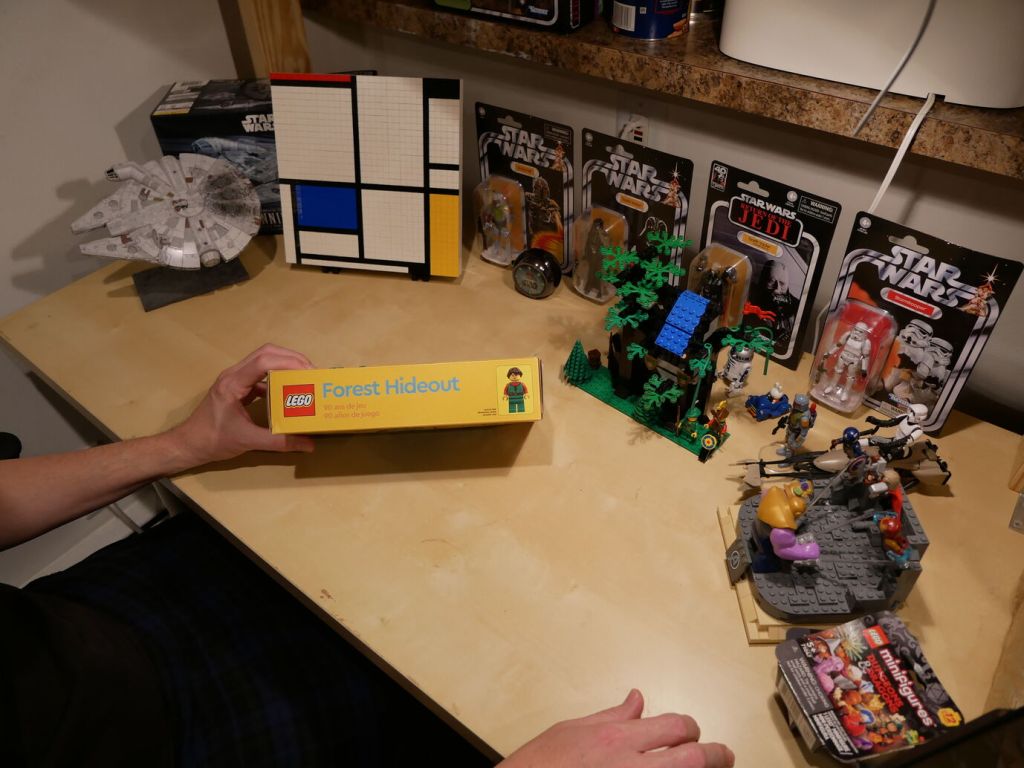
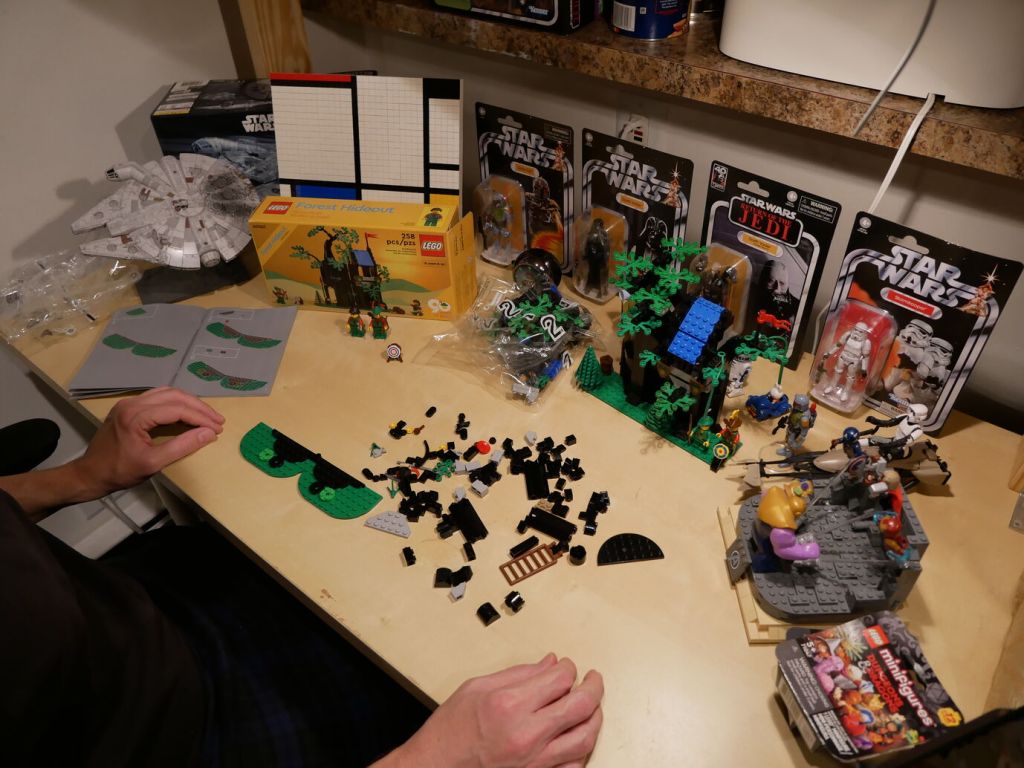
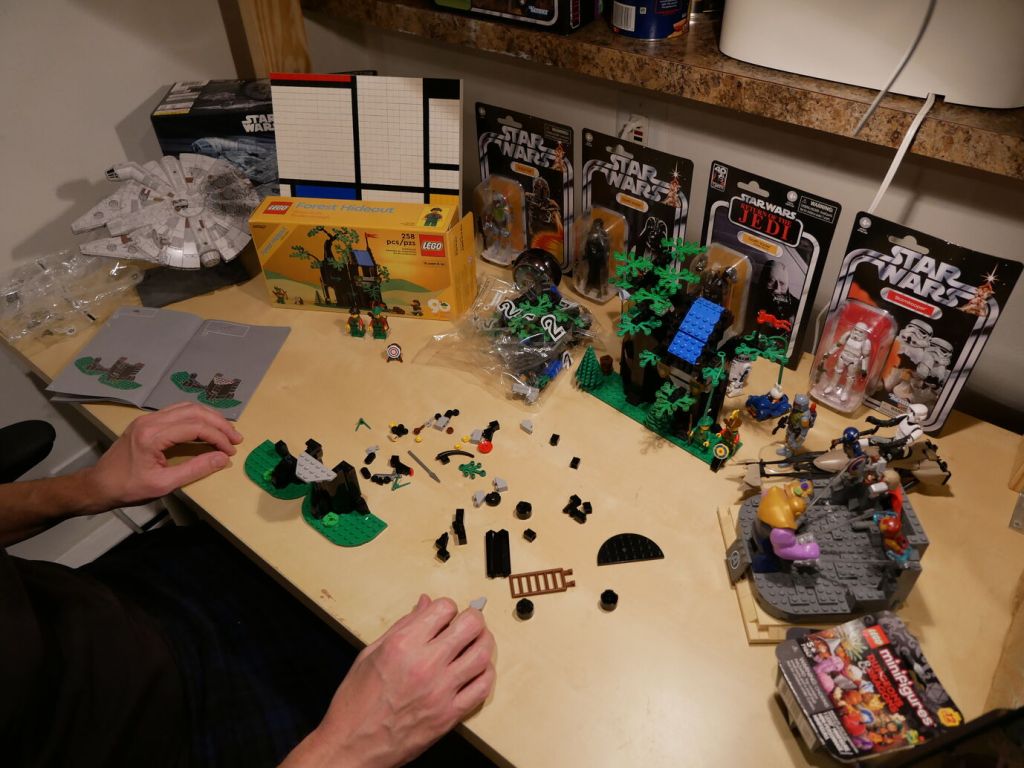
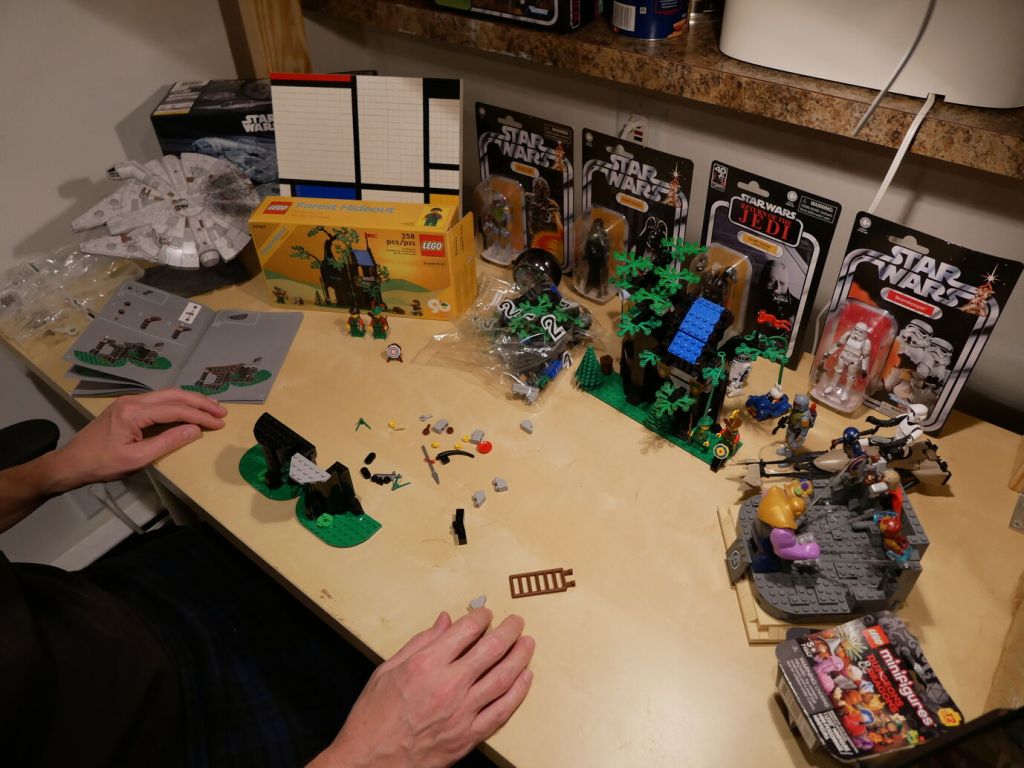
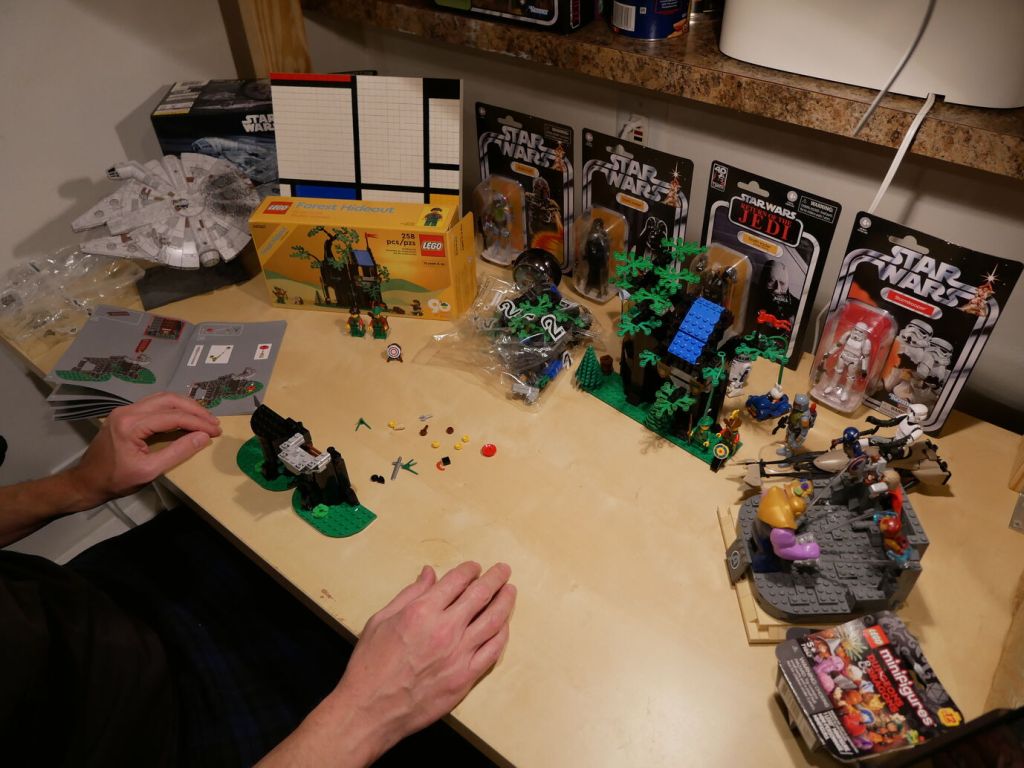
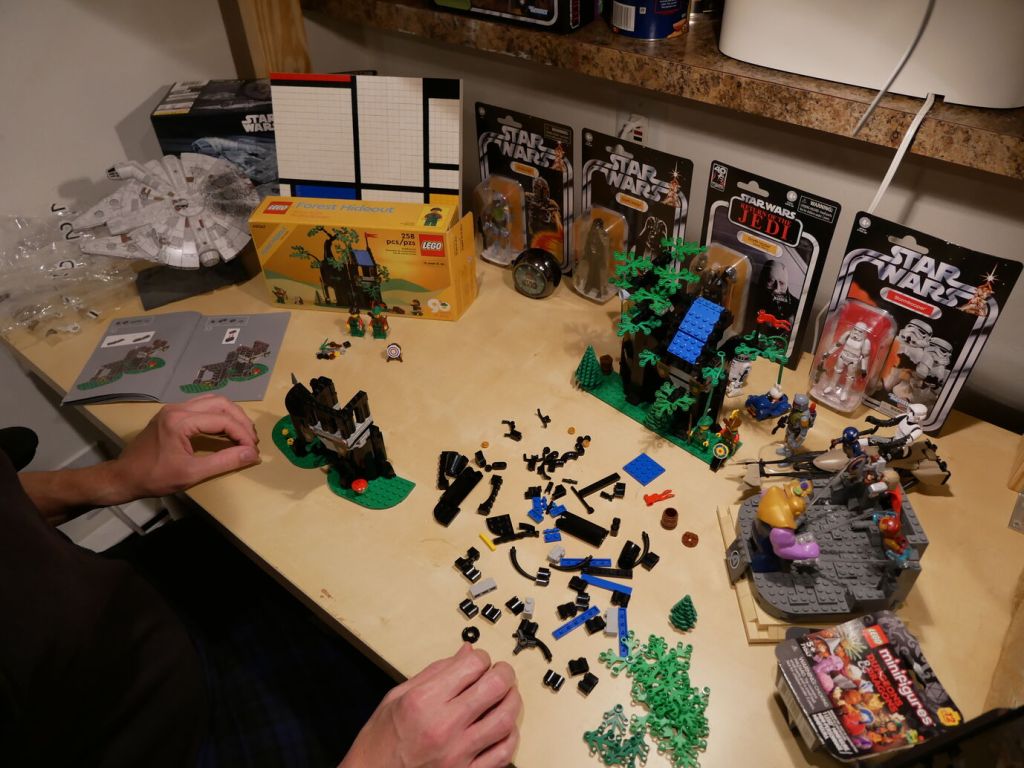
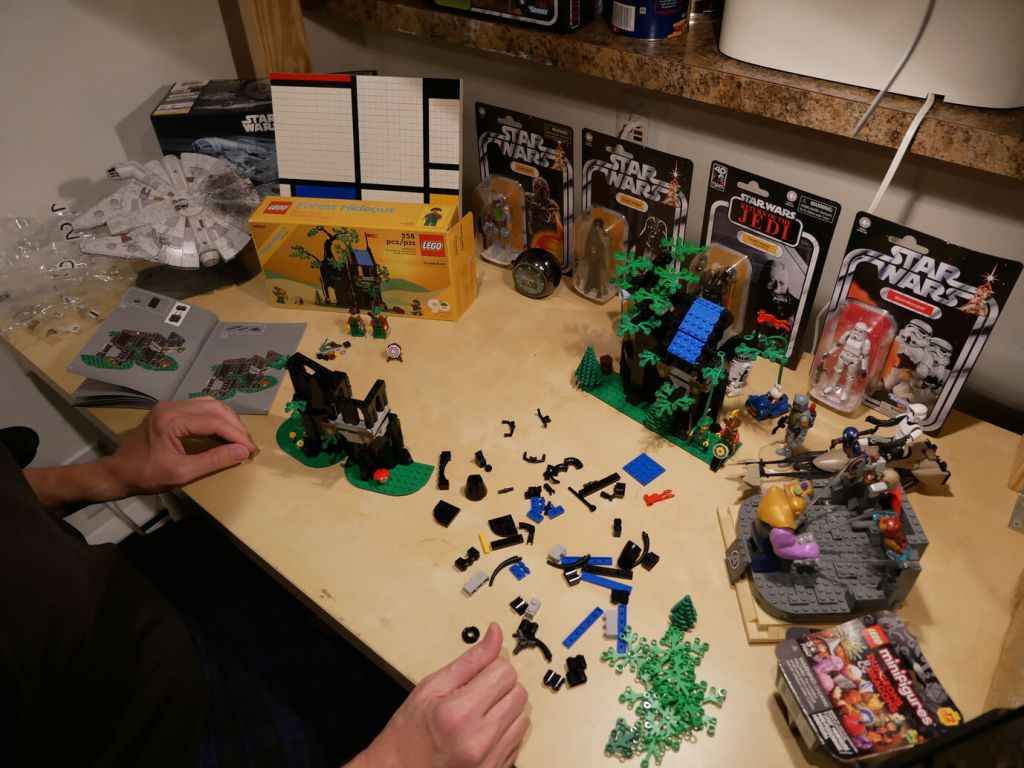
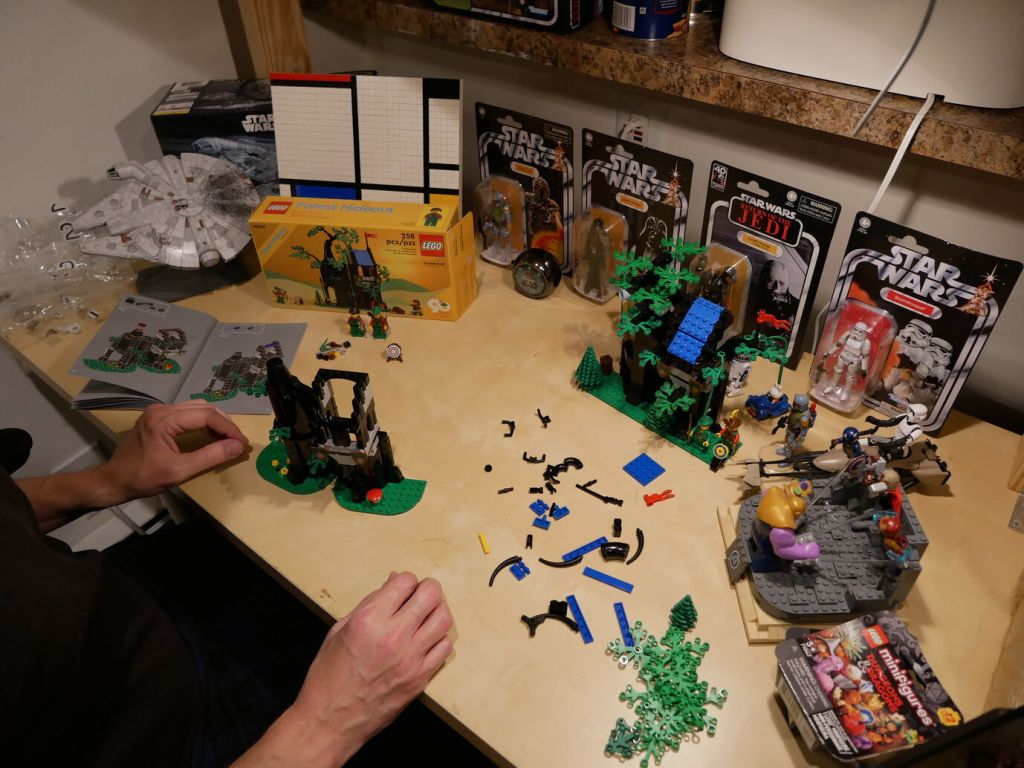
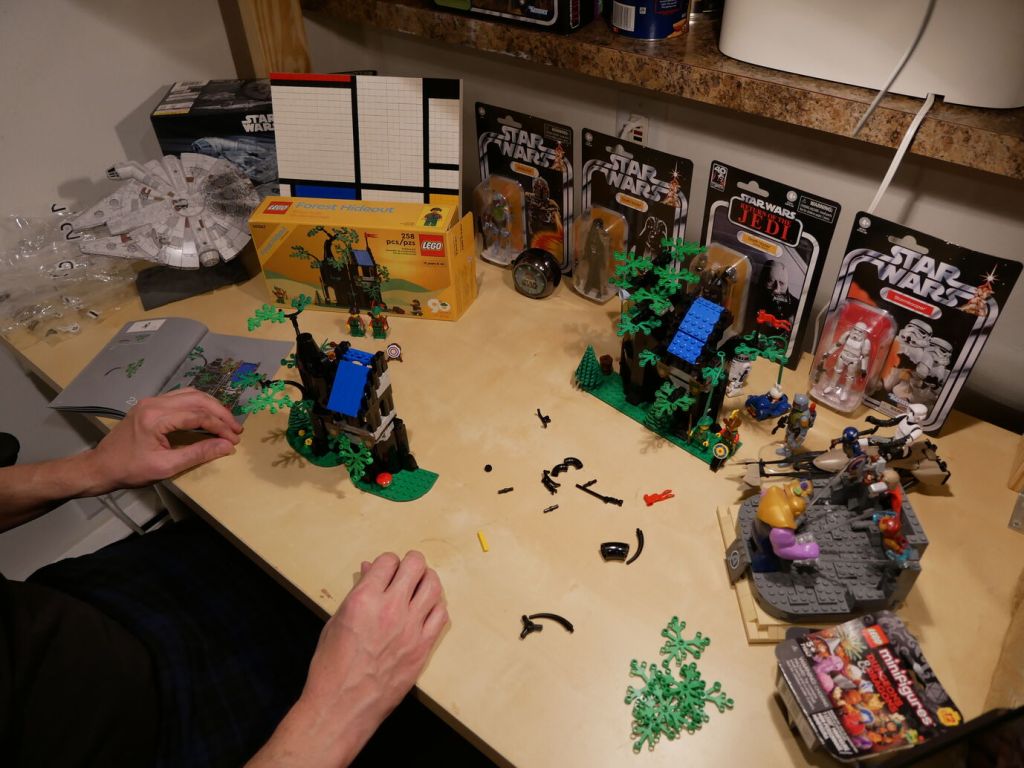
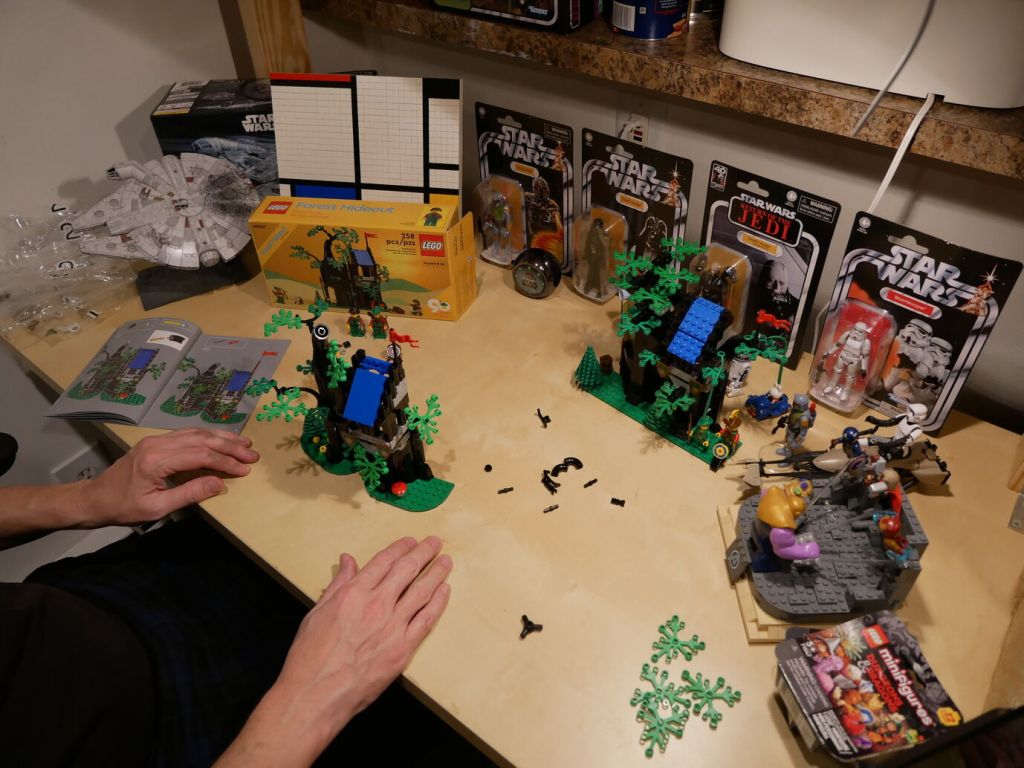
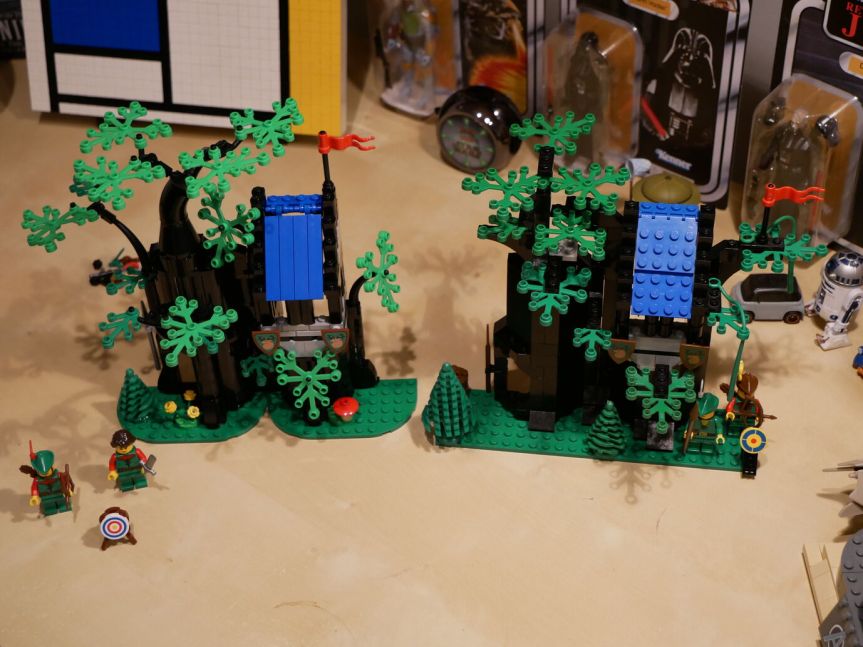
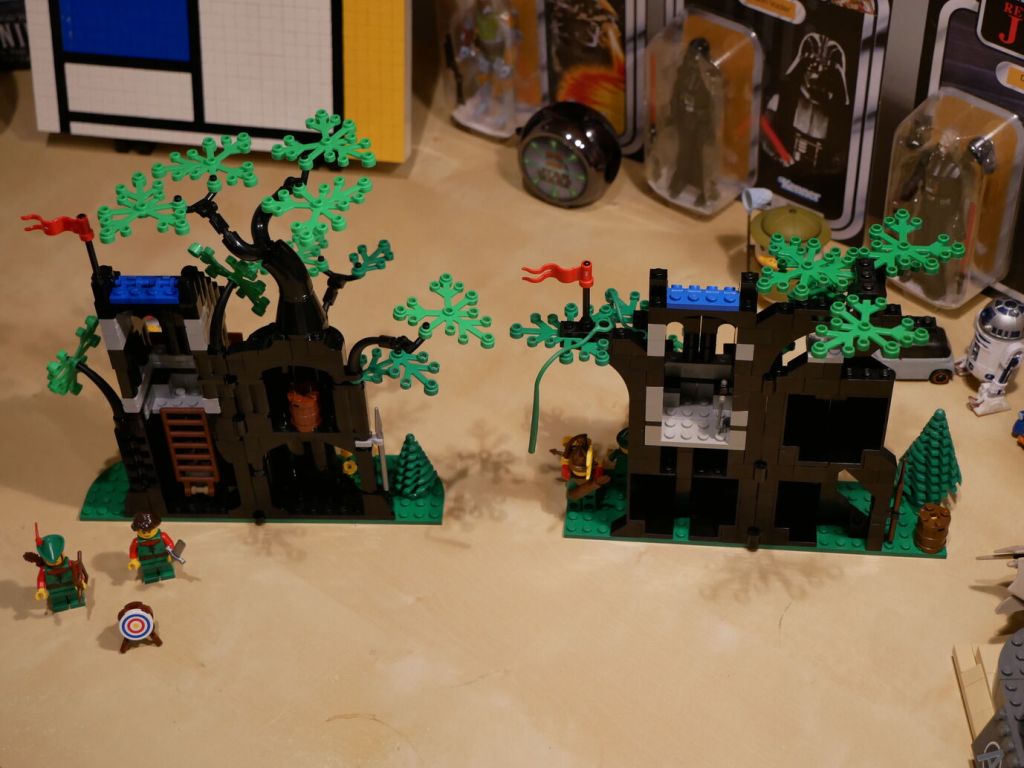
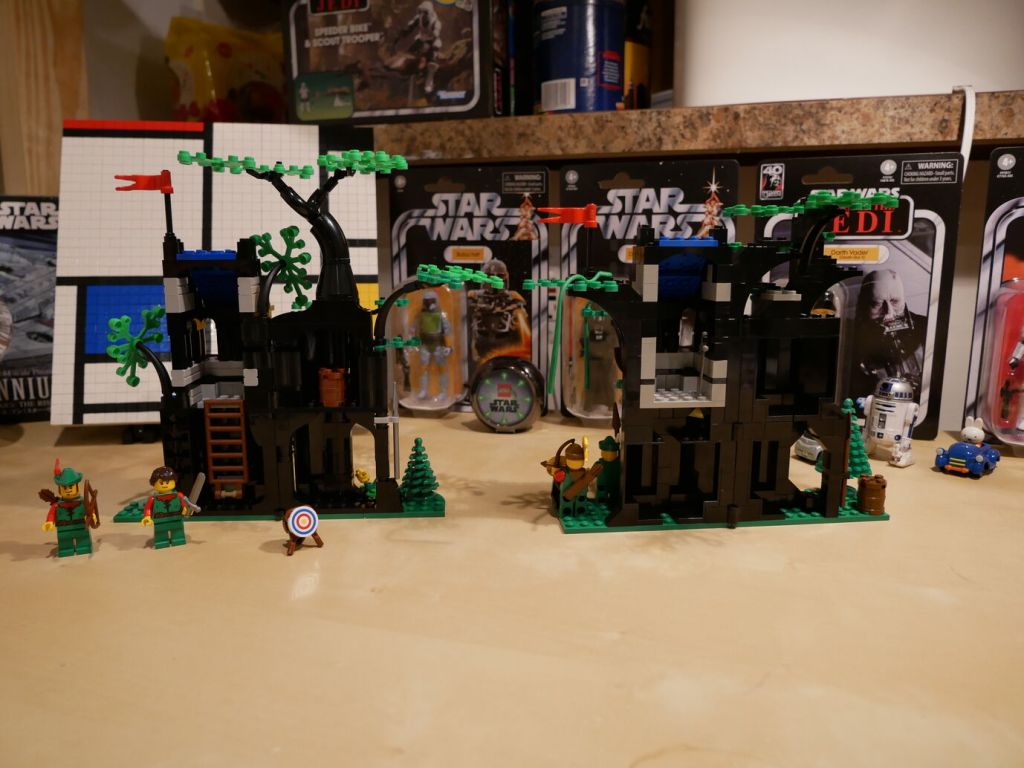
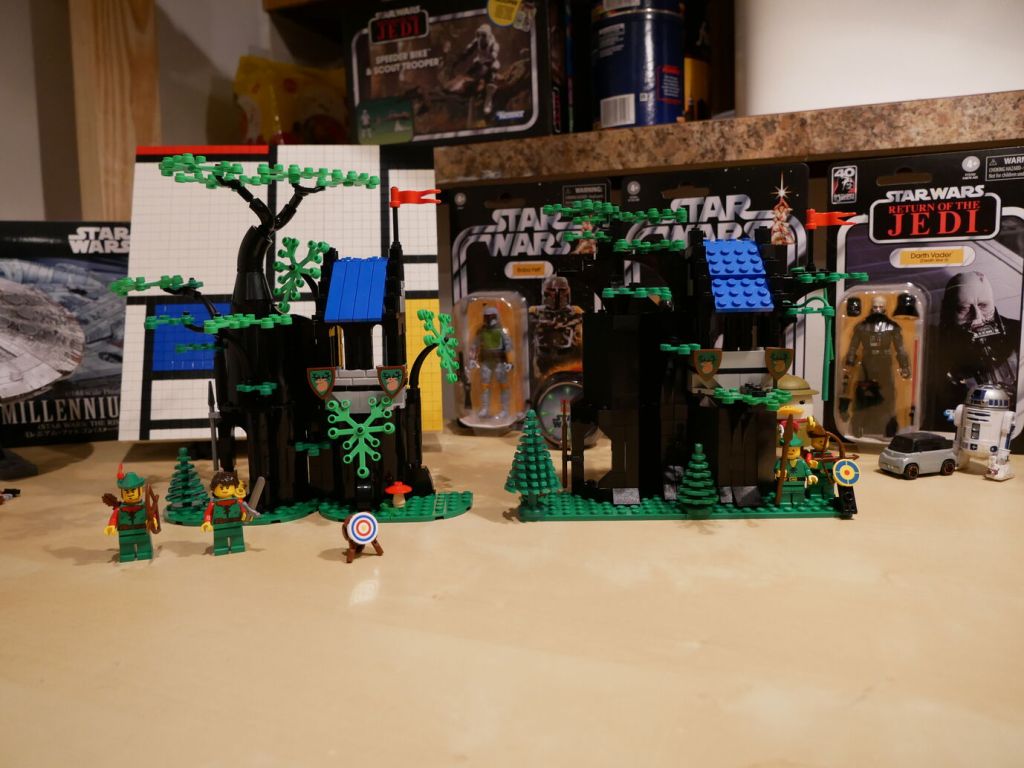
One of my favorite LEGO sets when I was younger was LEGO’s Forestmen’s Hideout (6054) from 1988. In 2022, LEGO released a Gift with Purchase (GWP) set that updates the 6054 set with modern bricks and design called Forest Hideout (40567). I’ve had Forest Hideout sitting on a shelf for the past two years. When Y asked me recently if I was ever going to put it together, it got me thinking about the original 6054 set. I began watching auctions on eBay for a good deal on a complete set (a boxed original was out of the question due to its much higher cost). Eventually, I found a complete set of 6054 for a reasonable price. After receiving it in the mail, I sat down to build both sets back-to-back and record it with my Panasonic Lumix DMC-G85 camera set to 2 second timer and controlled by the Panasonic Image App on my Pixel 6 phone (I’ll show how to set that up in a future post).
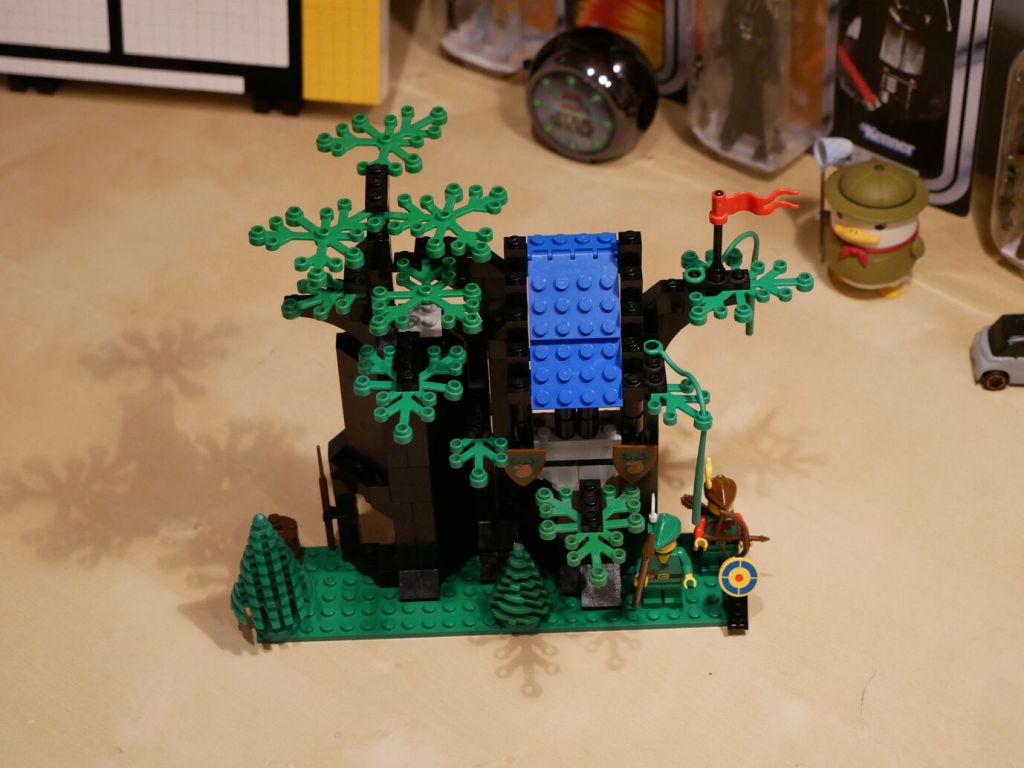
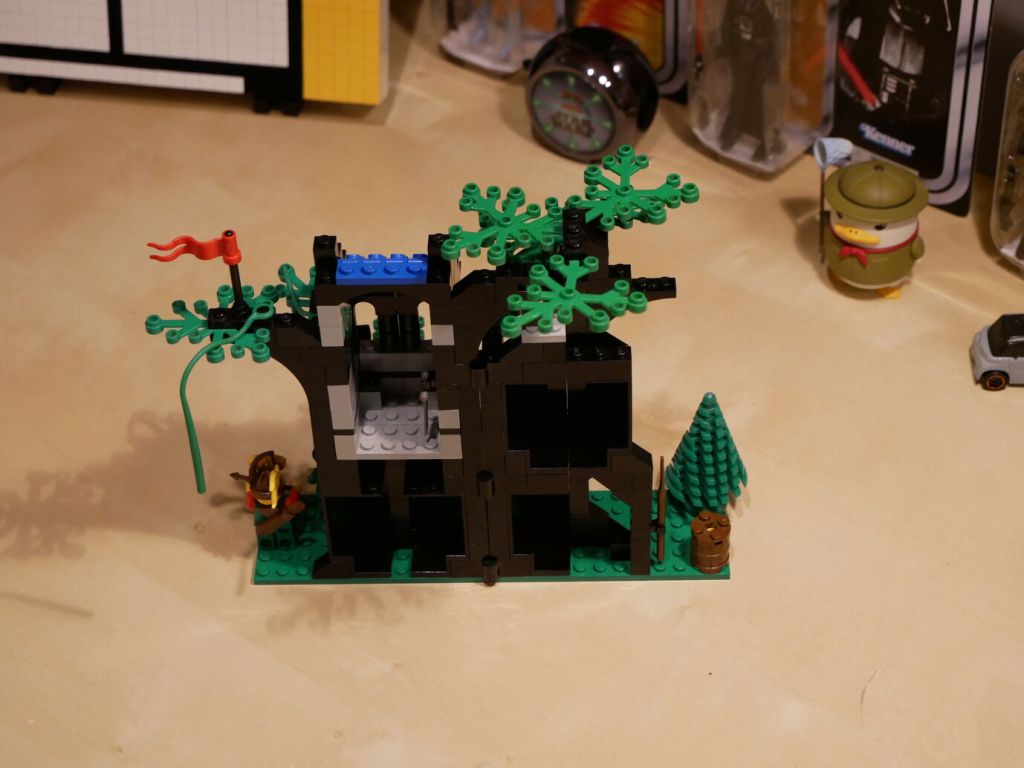
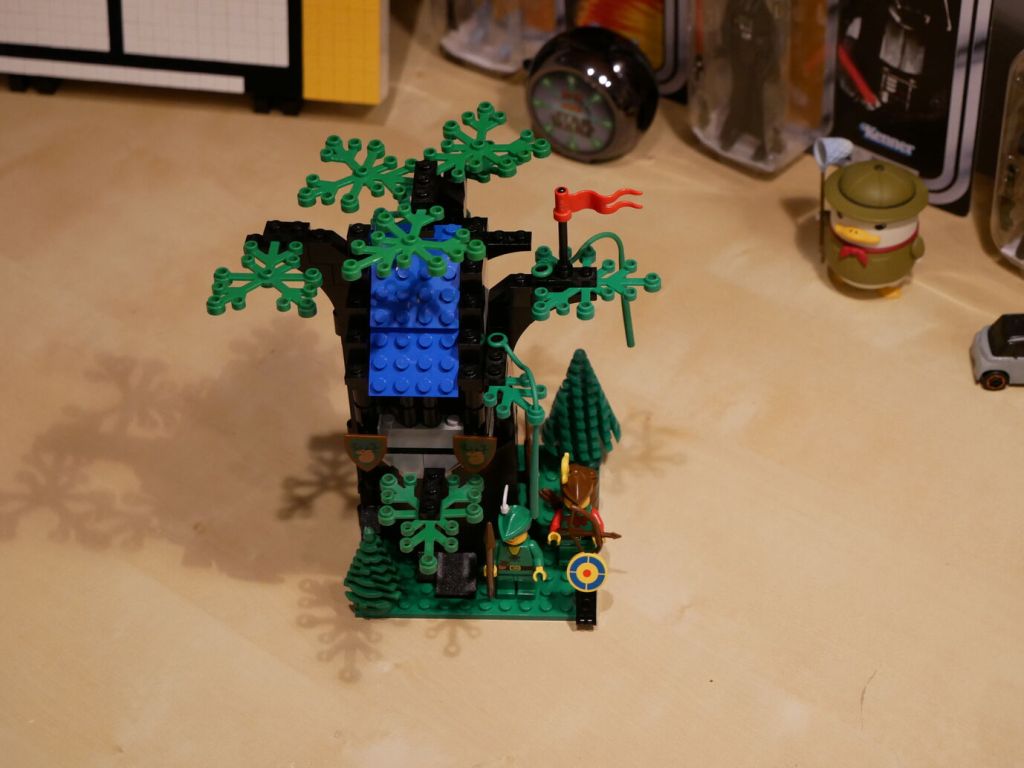
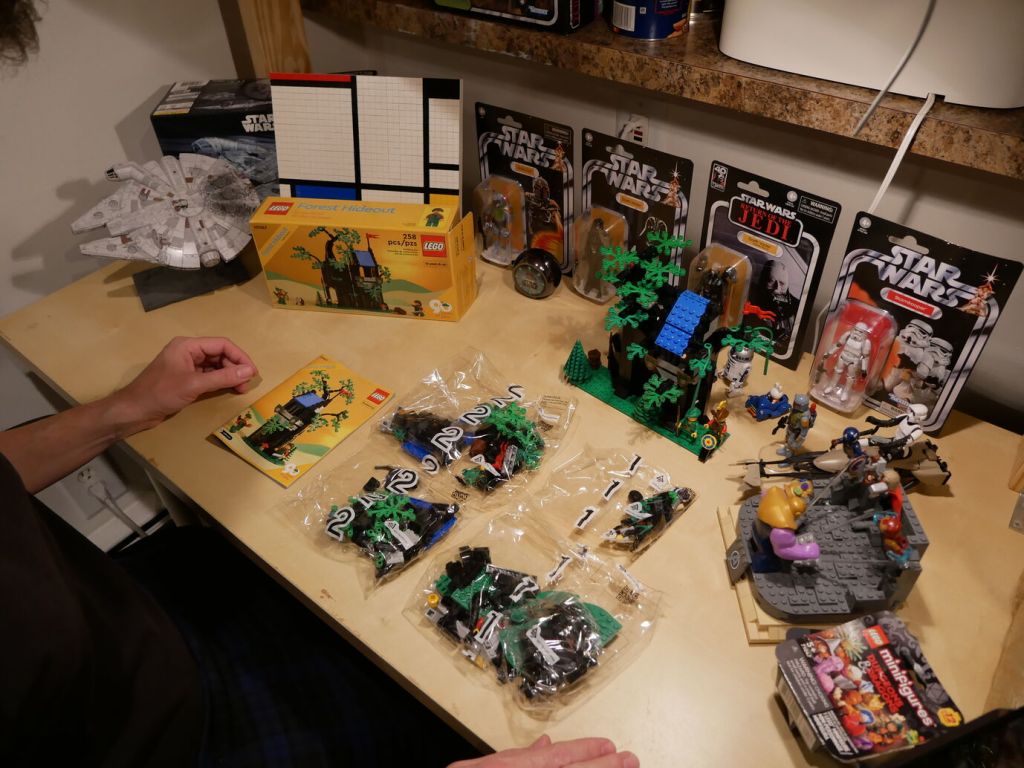
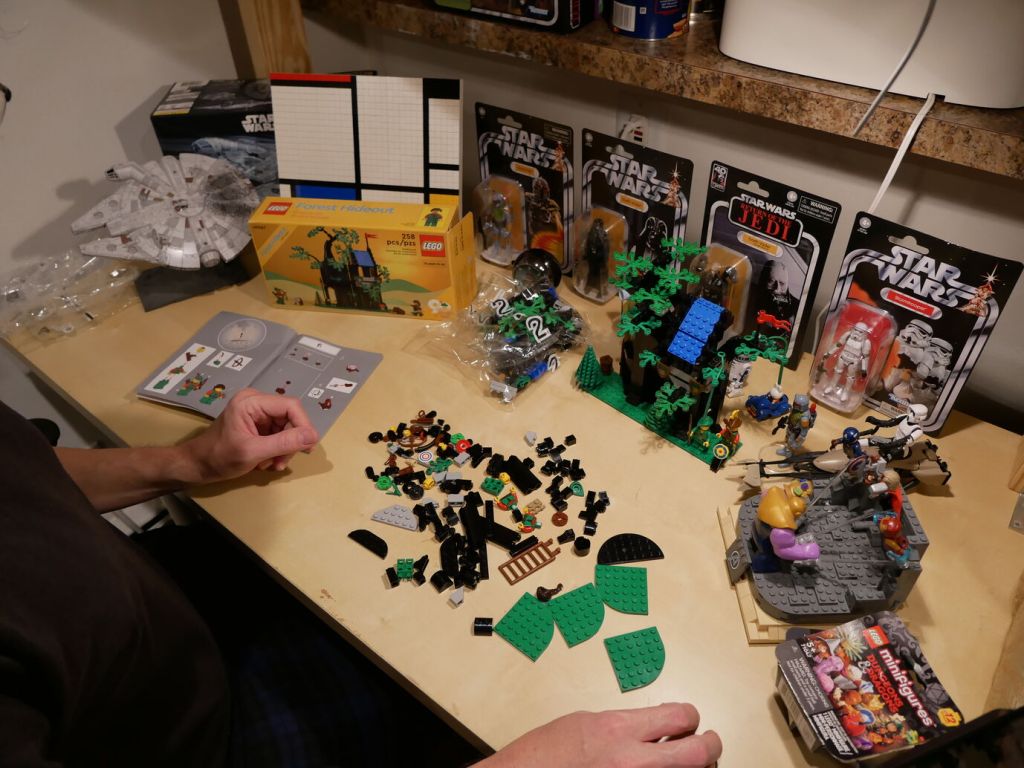
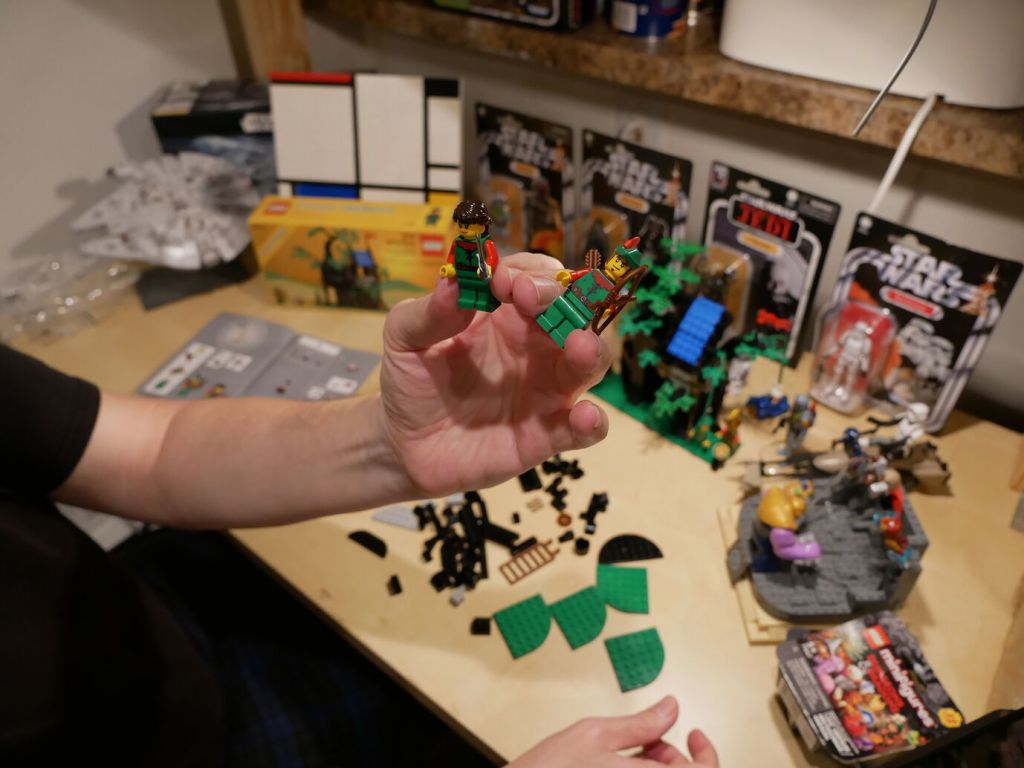
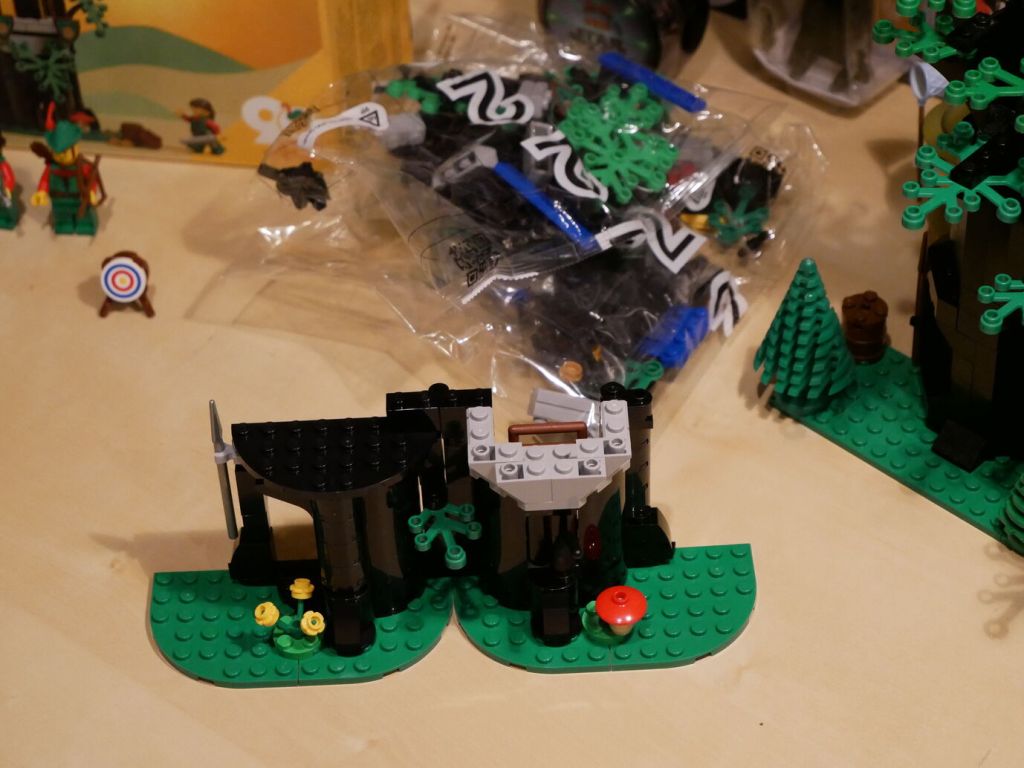
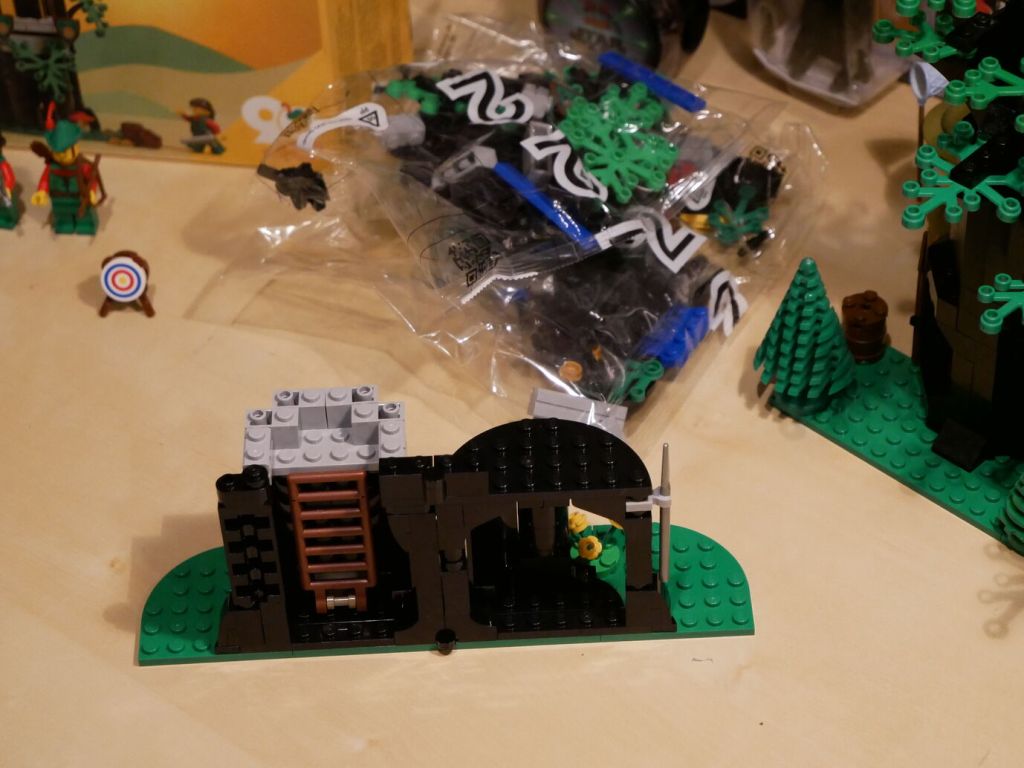
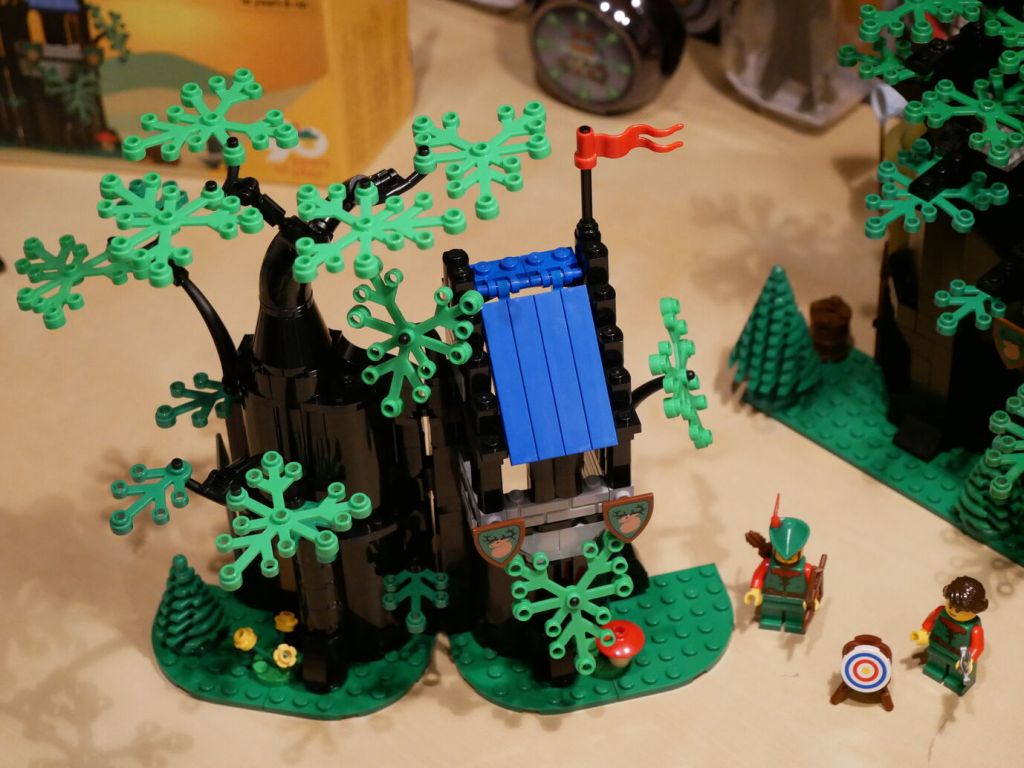
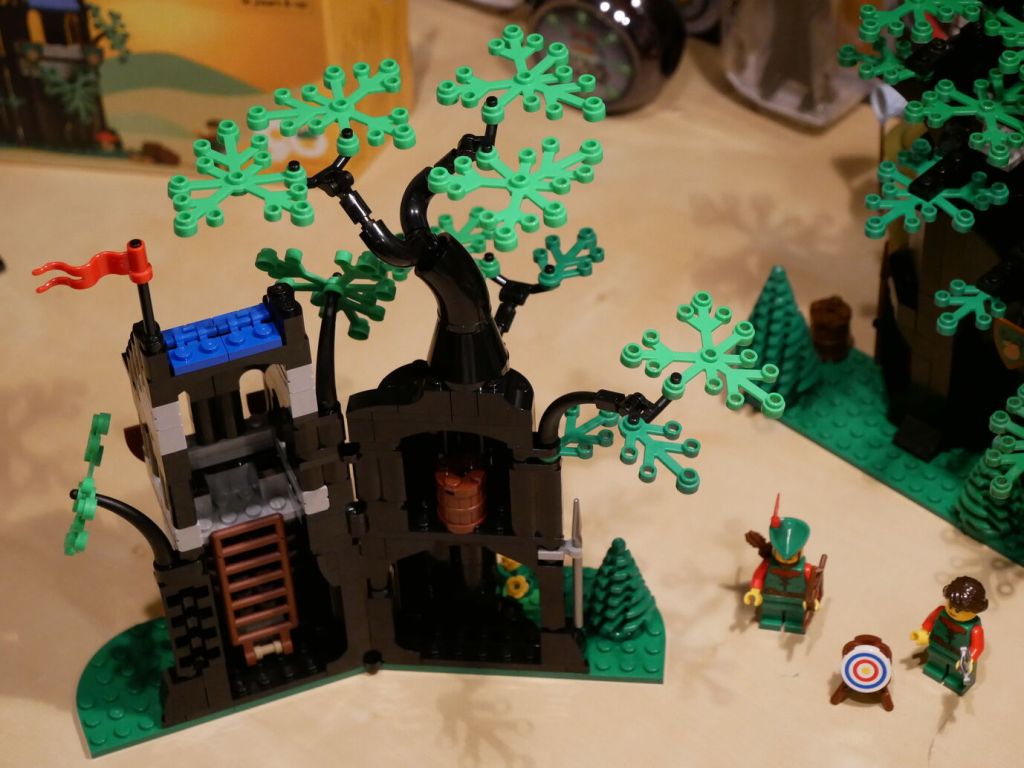
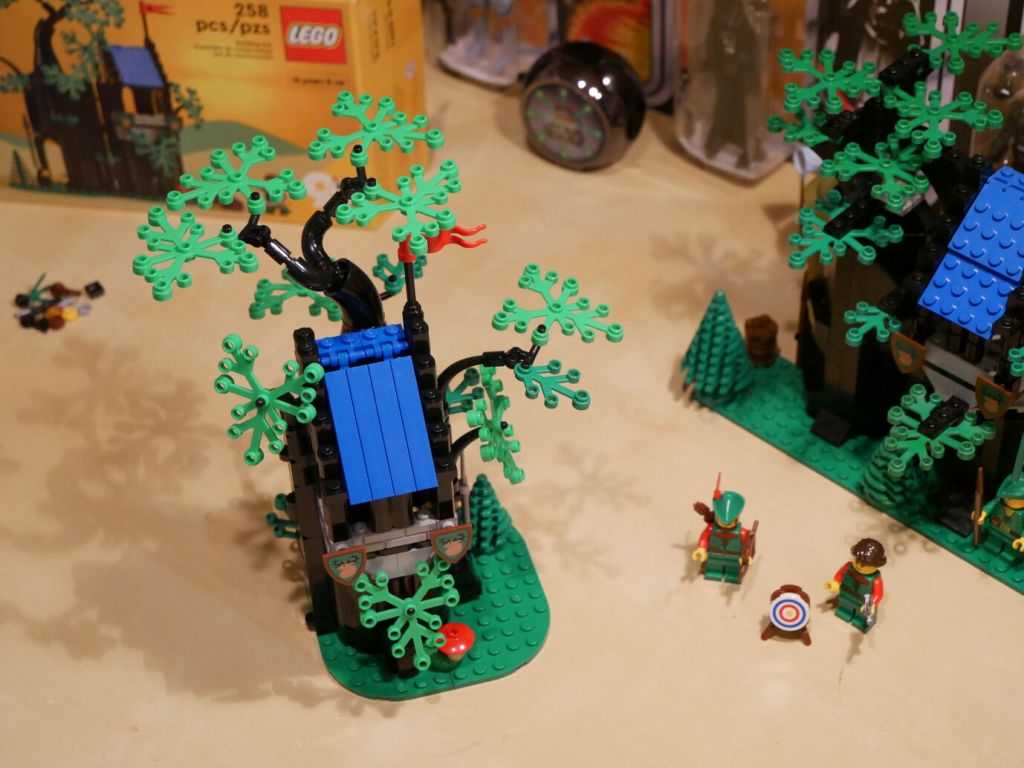
Forest Hideout (40567) has 258 pieces, which is 64 more than the 194 pieces in Forestmen’s Hideout (6054). While the tree branch and leave elements are the same, the tree’s main structure is constructed differently in the two sets. The original relied on Black Panel 3 x 3 x 6 Corner Wall pieces for most of the tree’s main trunk structure. These larger elements reduced the part count of the original. The updated version used a combination of Black Cylinder Half 1 x 2 x 1 and Black Cylinder Quarter 2 x 2 x 5 with 1 x 1 Cutout to create the tree trunk. While there are no vines for swinging in the new version as in the first, the update includes an internal ladder for minifigures to climb to into hideout. 6054 includes two smiling minifigures with hats while 40567 includes a male with hat and female with long hair minifigures.
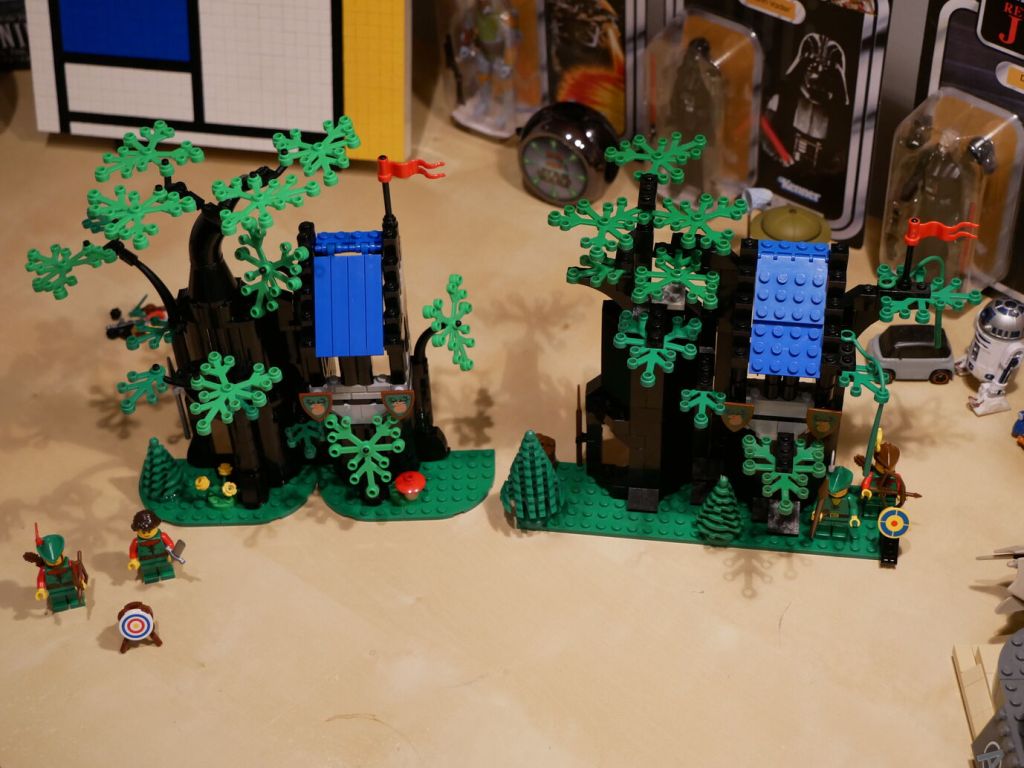
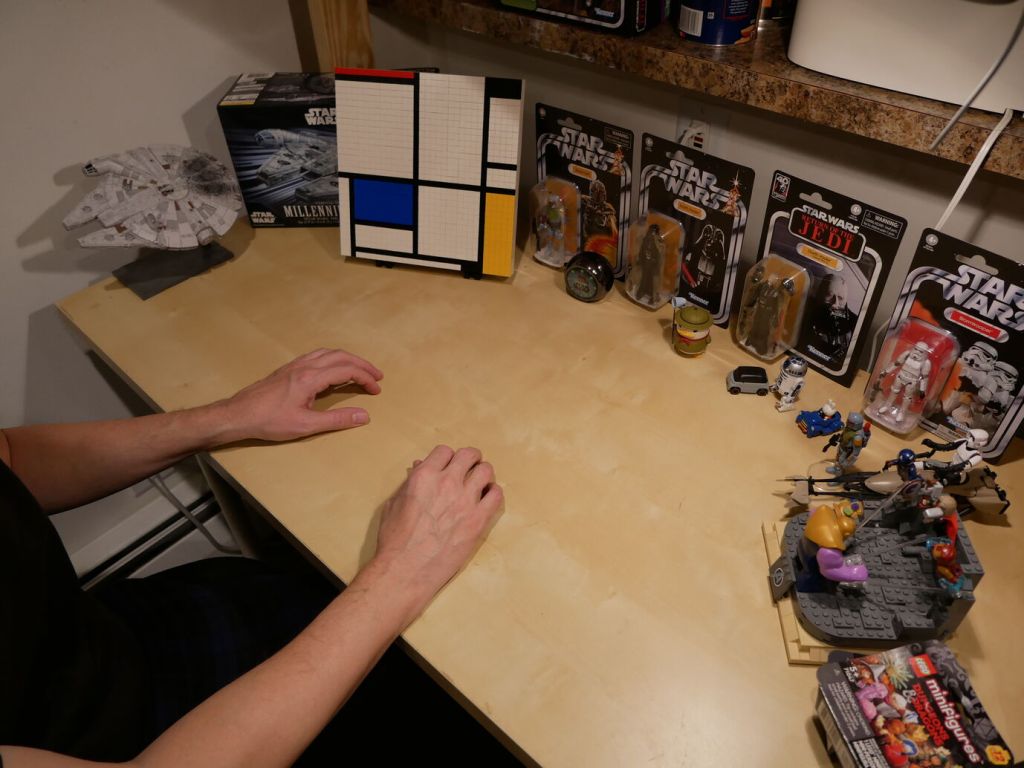
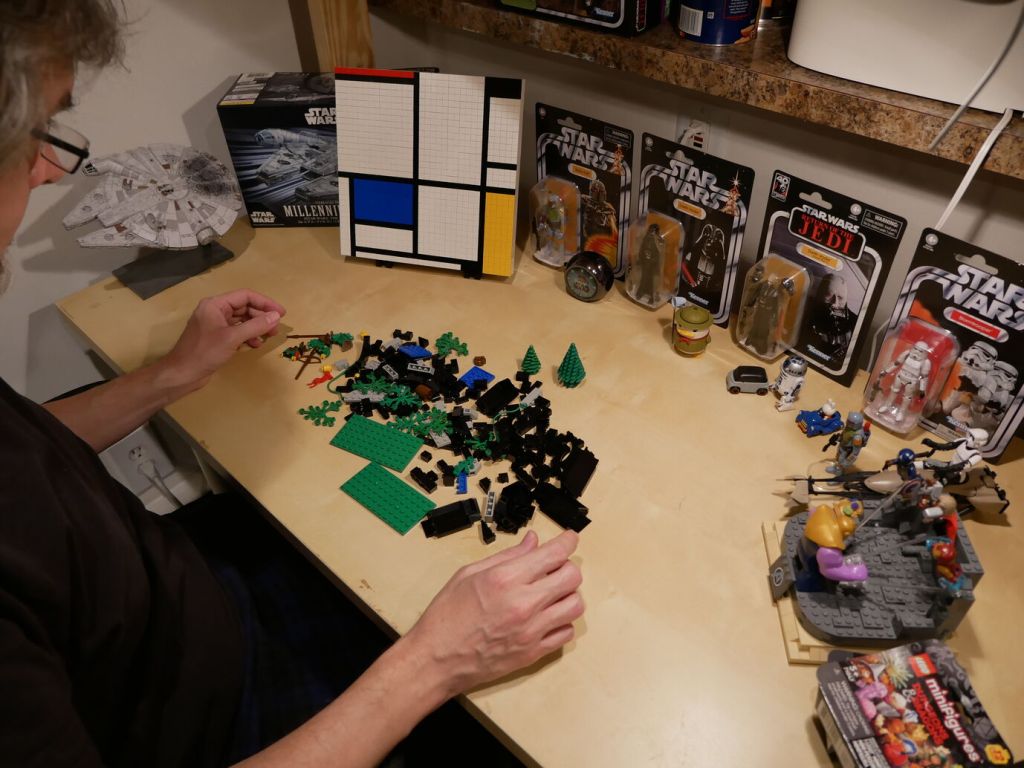
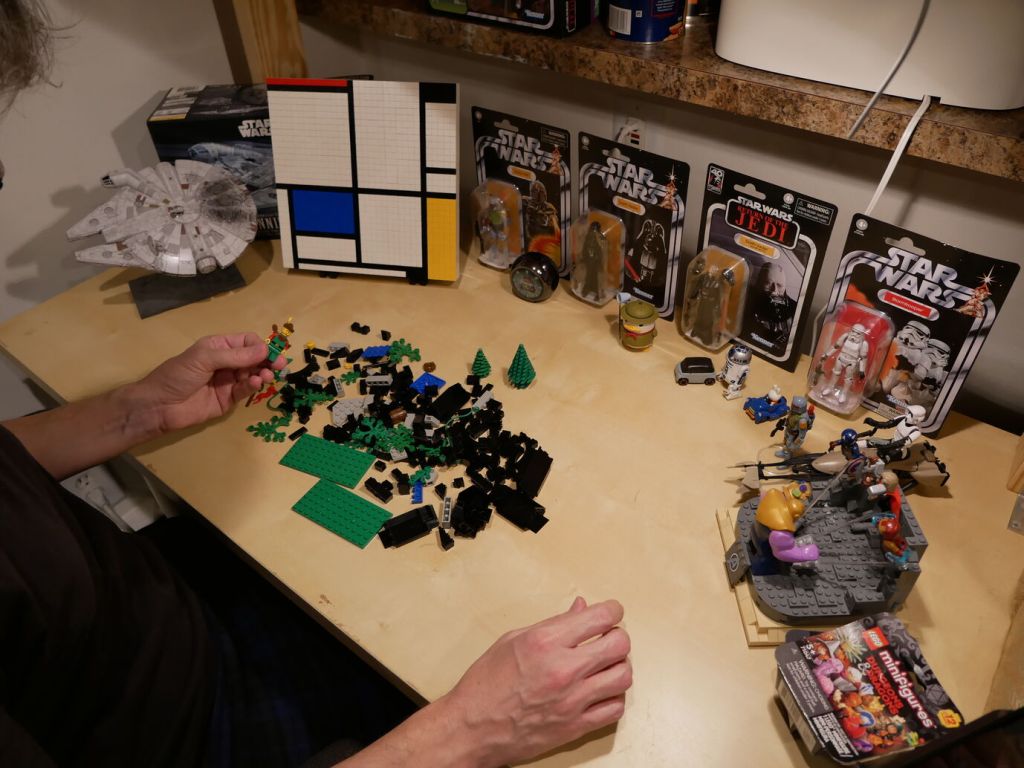
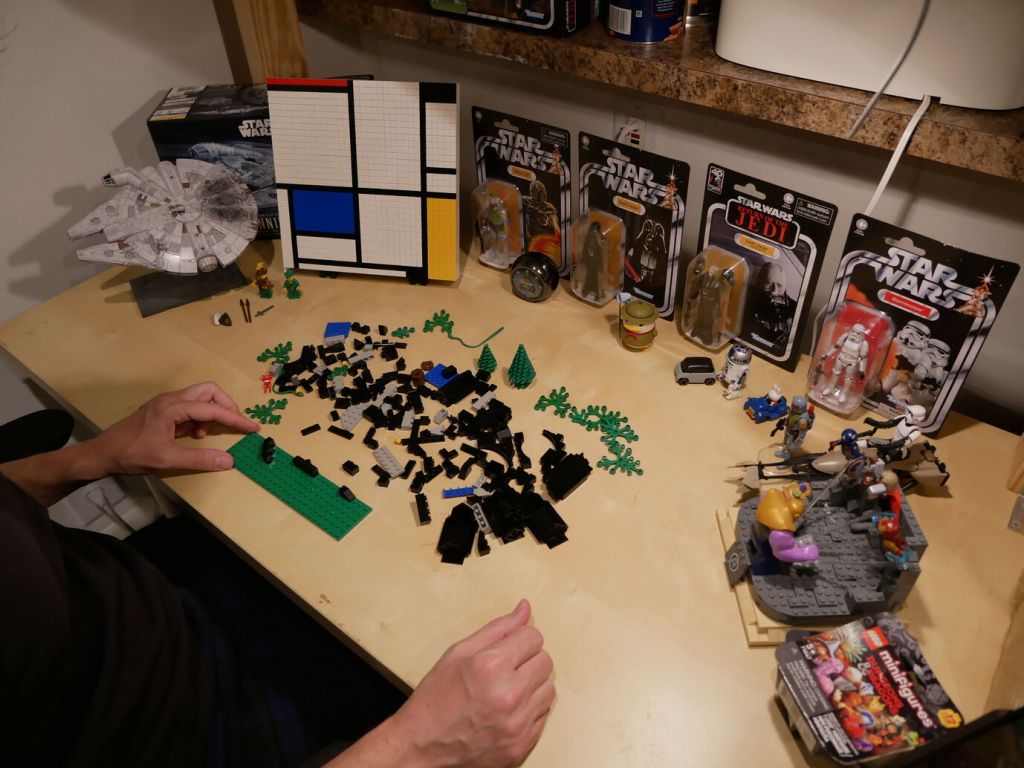
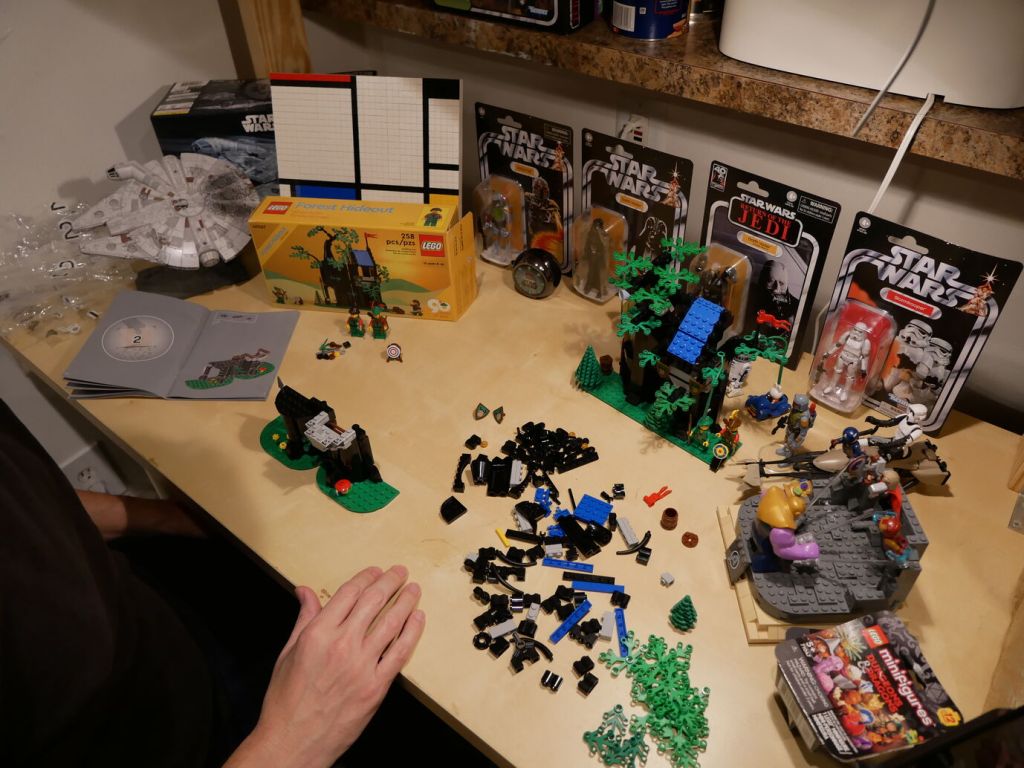
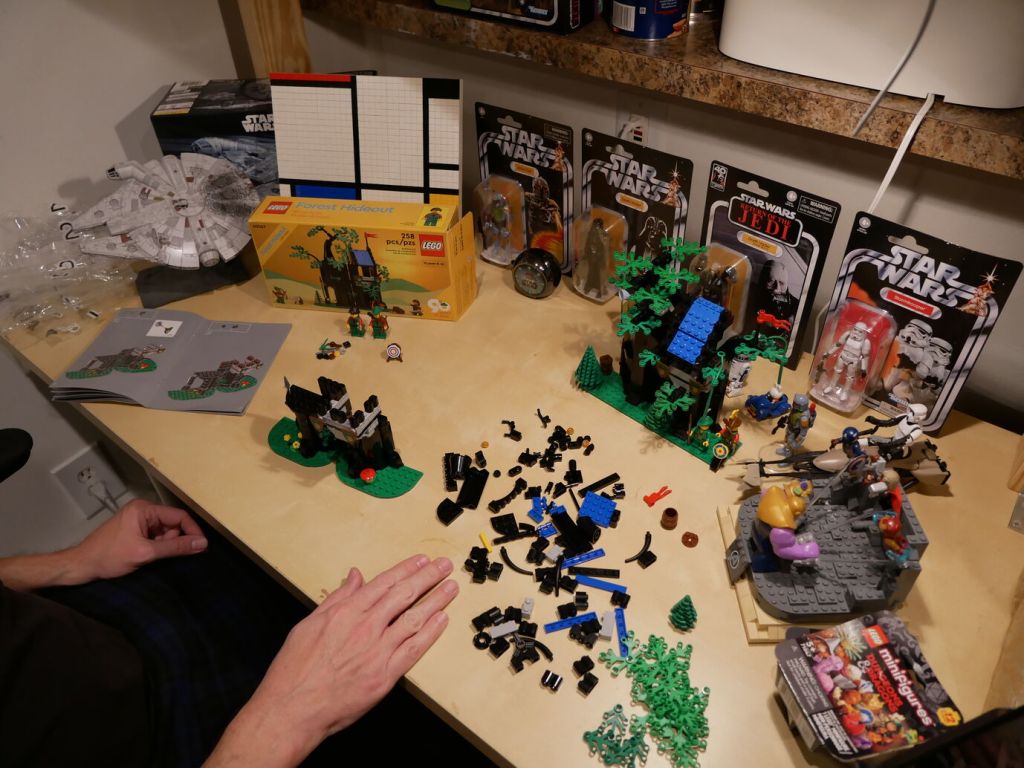
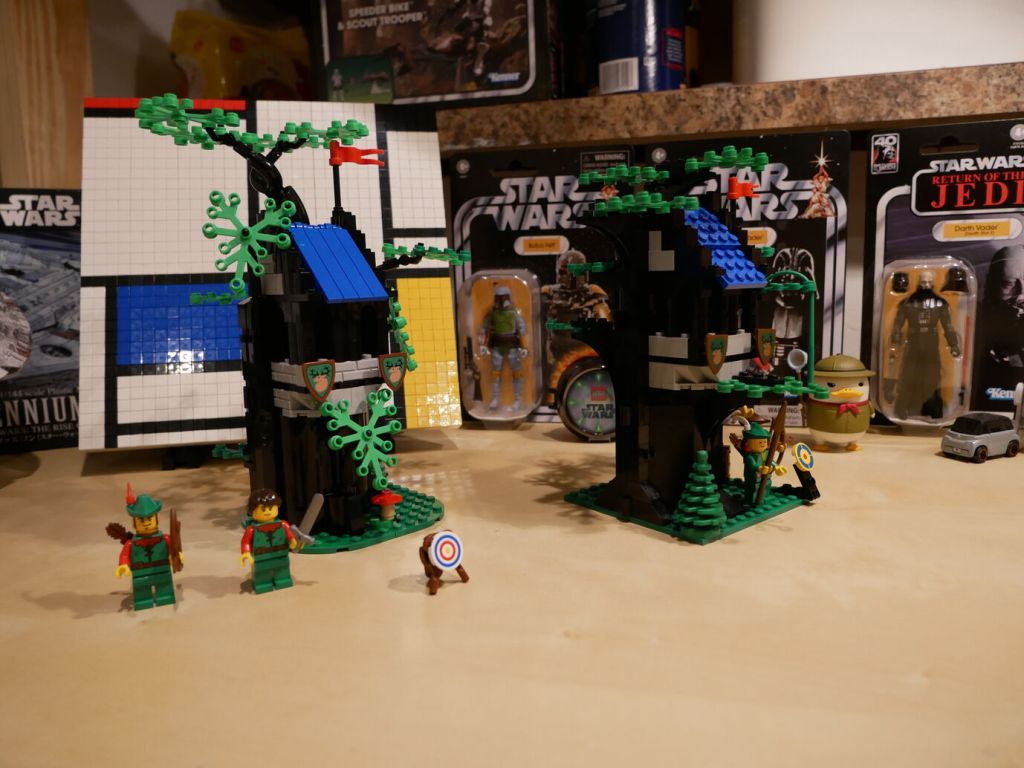
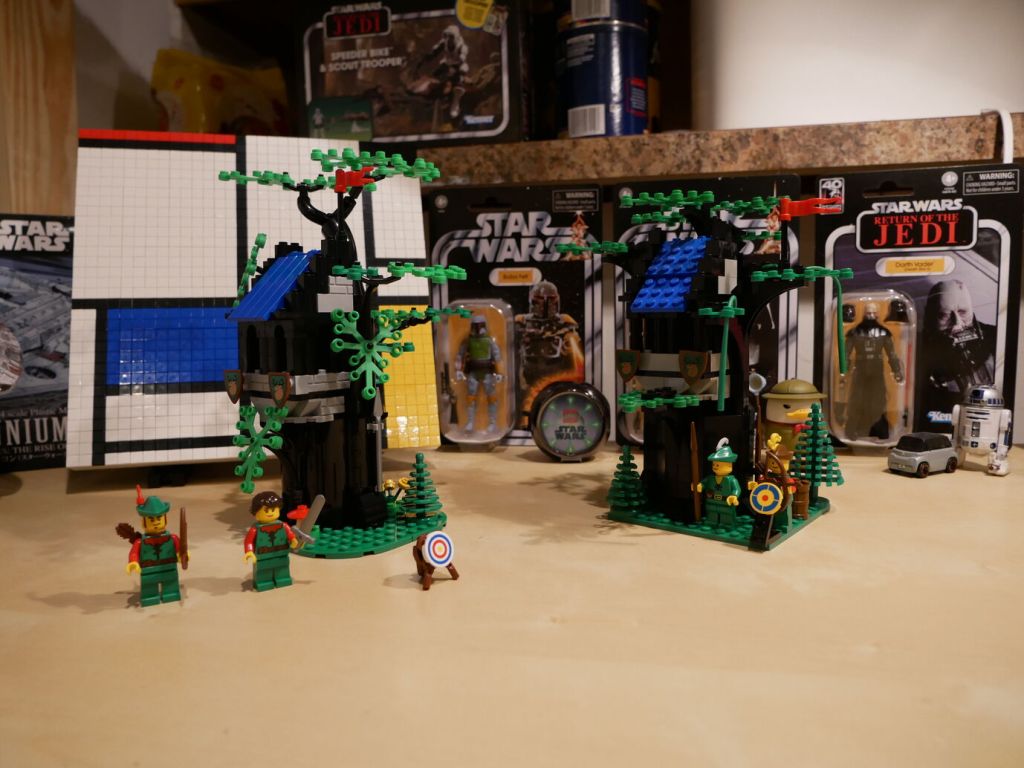
Below, I show an over-the-shoulder view of the building process for each set and then side-by-side comparisons of the completed build of both sets. I used a scanned copy of the 6054 instructions to assemble it, which was displayed on my computer screen out of the frame on the right. Since I hadn’t opened 40567 until this build, it included the original set of instructions, which is seen in the photos.
I have appreciated Piet Mondrian’s neoplasticism artwork for many years. As I wrote about here, I was glad to see his work shown in Lt. Cmd. Data’s quarters on Star Trek: The Next Generation. Then, after seeing some of his works in person at the Museum of Modern Art in Manhattan, I hatched a plan to copy his the painting from Data’s quarters–Mondrian’s Tableau I (1921) on display at the Kunstmuseum Den Haag–using a different medium: LEGO.
Planning with GIMP
Before creating a planning image using GIMP, I had to decide what size I wanted (and could afford) my build to be. I had already decided to use LEGO 1×1 flat tiles as the “painting medium.” Using LEGO’s Pick-a-Brick service online, these bricks cost $0.05 each in a variety of colors. If I went with a 32×32 stud “canvas,” that would give a surface area of 1,024 studs and therefore a need of 1,024 flat tiles to cover all of those studs. This would cost $51.20 for enough tiles to cover a 32×32 surface. Other options that I considered was enlarging each dimension by 1.5 to 48×48 for 2,304 studs and a cost of $115.20 for enough tiles or enlarging by 2 to 64×64 for 4,096 studs and a cost of $204.80 for enough tiles. Even using bricks that I already owned to create the canvas and stand, it was hard to spend more than the $51.20 for enough tiles to cover a 32×32 canvas and essentially fill the volume of your hands cupped together.
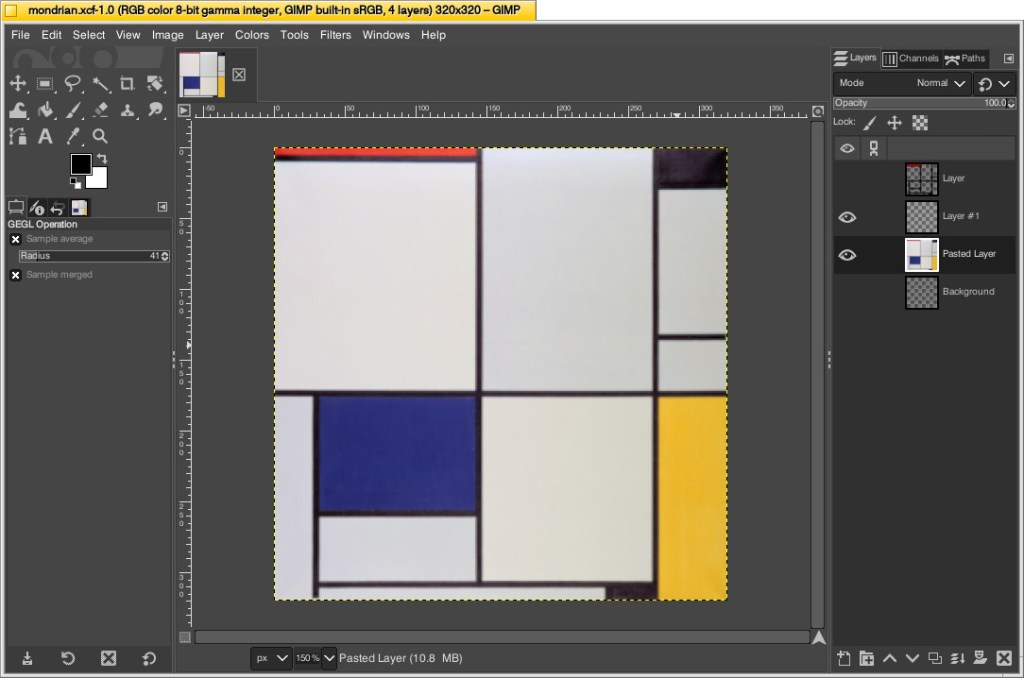
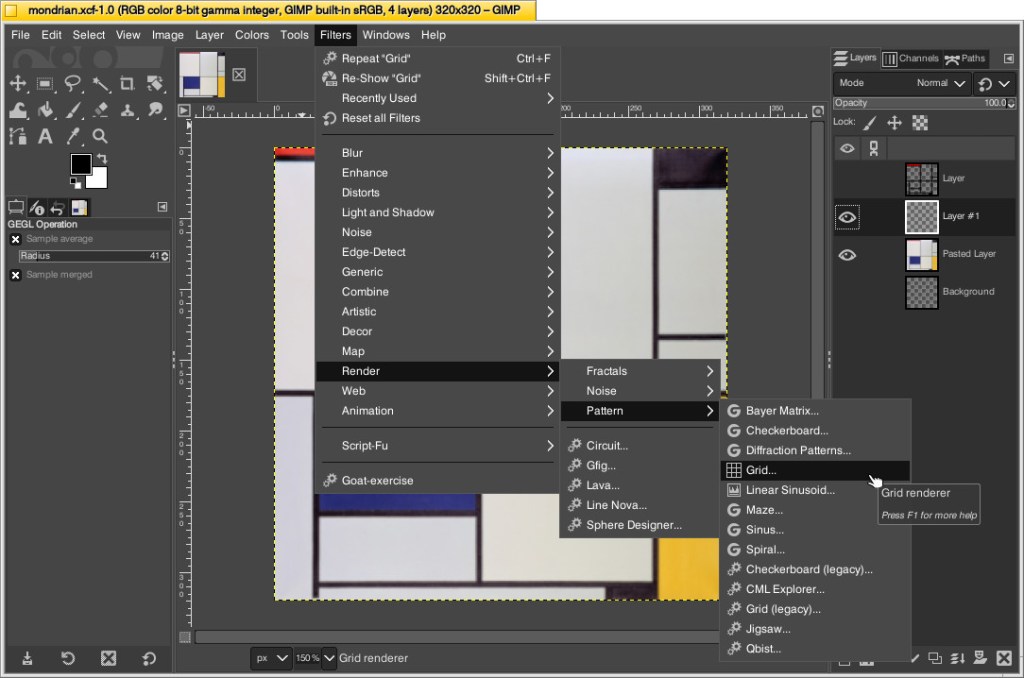
With that decision made, I could begin working in GIMP. First, I opened an image of Mondrian’s Tableau I (1921). The original is painted on a 103cm x 100cm canvas. Since I am creating a perfect square, I needed to square this image and resize it to match my calculations. To do this, I simply selected Image > Scale Image > unlinked the horizontal and vertical resolution > entered 320 for X and Y > clicked Scale. This made the image a perfect square with a resolution of 320 by 320.
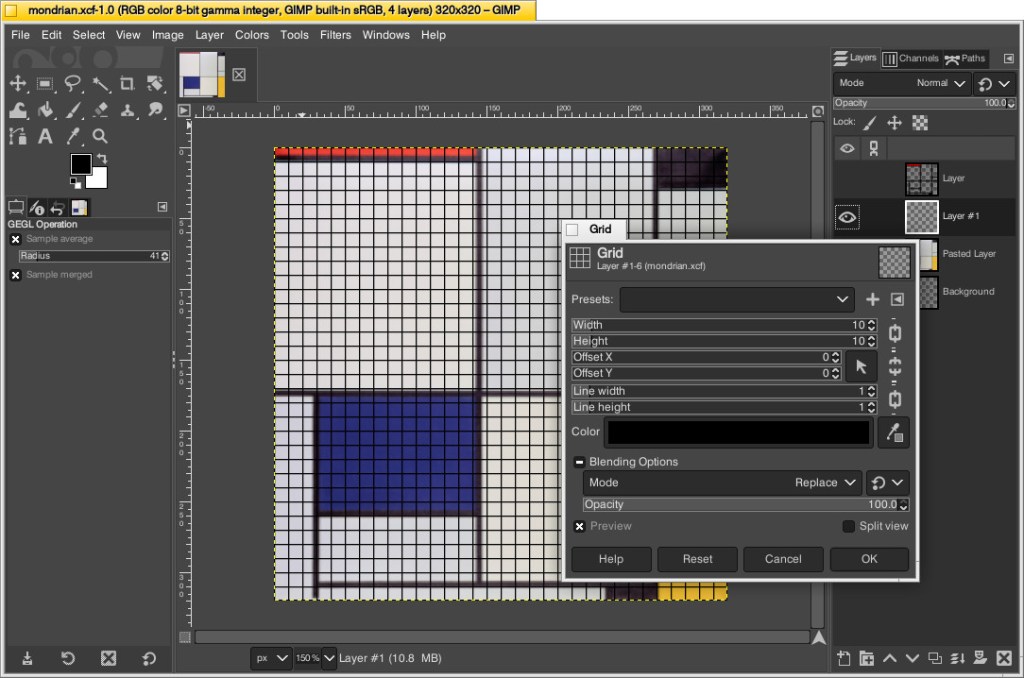
Next, I needed to make the image look more LEGO-like to calculate how many flat tiles I would need of each color. To do this, I added a new layer over the original image and then clicked Filters > Render > Pattern > Grid.
On the Grid pop-up window, I changed the Width and Height to 10–meaning that there would be a grid line every 10 pixels on the X and Y axes. Since I had already scaled the image to 320 pixels on each side, this grid would perfectly approximate the 32 x 32 grid of my LEGO canvas. Also, I set the line width and height to 1 pixel each so that it wouldn’t be too large and obscure the next step. After clicking OK, the grid appears over the image.
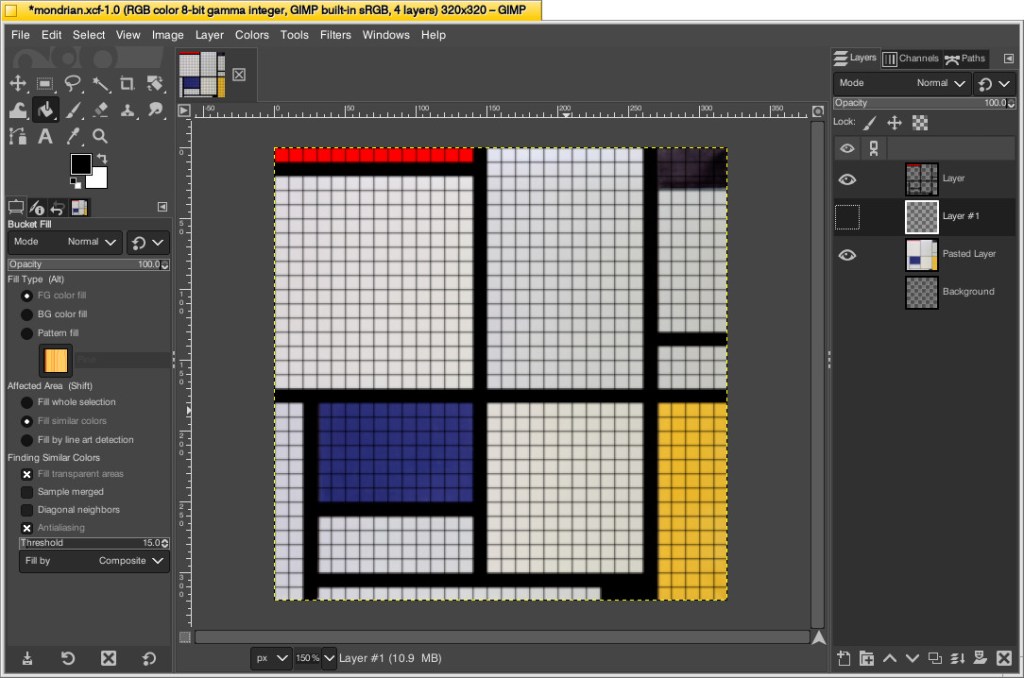
While remaining on the layer with the grid, I selected the paint bucket tool, selected the color of the target areas–black, blue, red, and yellow–in turn, and filled the appropriate squares to match the original painting underneath. I did this to make sure I was making the tile count as accurate as possible. If I hadn’t done this, the black lines would be less noticeable and what I might count as a colored square versus a black line might become confused. At a LEGO resolution of 32×32 studs, it was impossible for me to make it as accurate as the original, so this technique helped me approximate the original with a high degree of accuracy.
Then, I counted the squares of each color to make my LEGO order: 686 white, 177 black, 77 blue, 70 yellow, and 14 red. I ordered a extra flat tiles of each color in case my counting was incorrect.
Building the Canvas
I wanted to build a substantial canvas for the Mondrian instead of using a 32×32 base plate. Also, I wanted to build with as many white bricks and plates as I could to reduce how much I had stored in plastic bins under my desk.
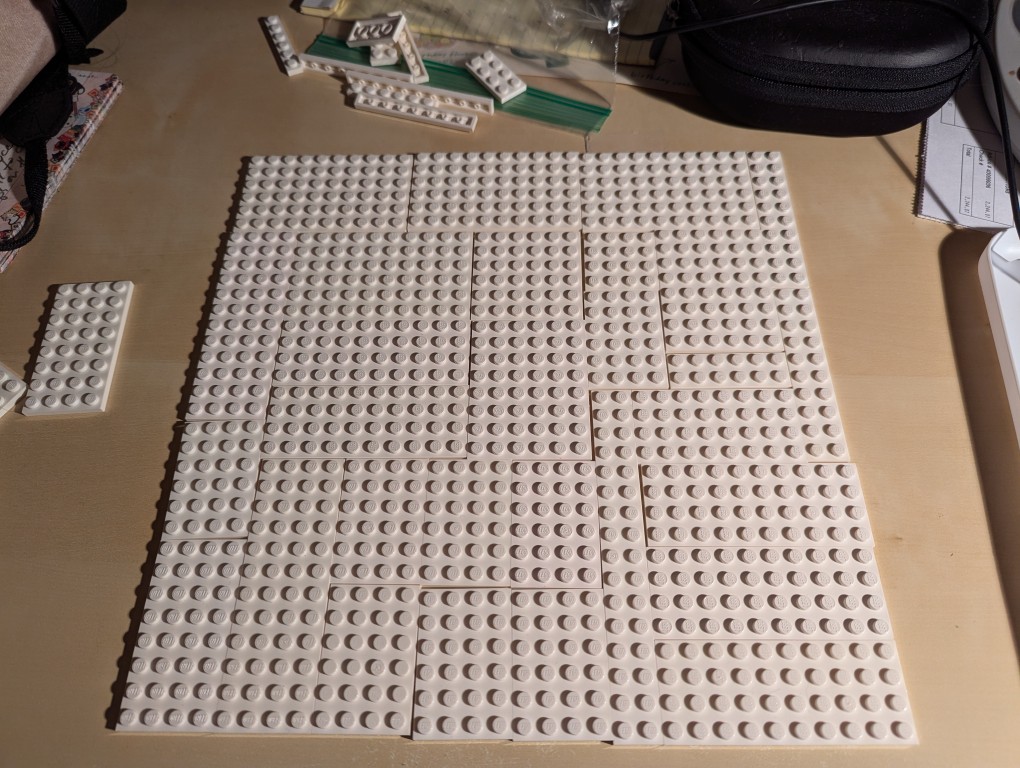
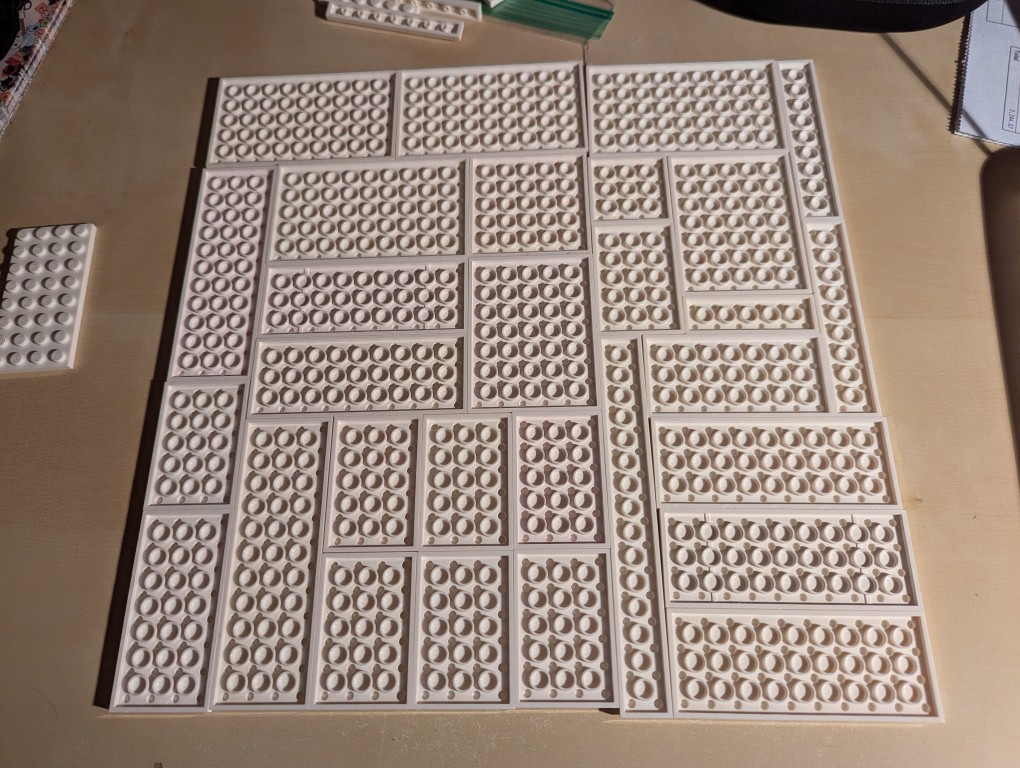
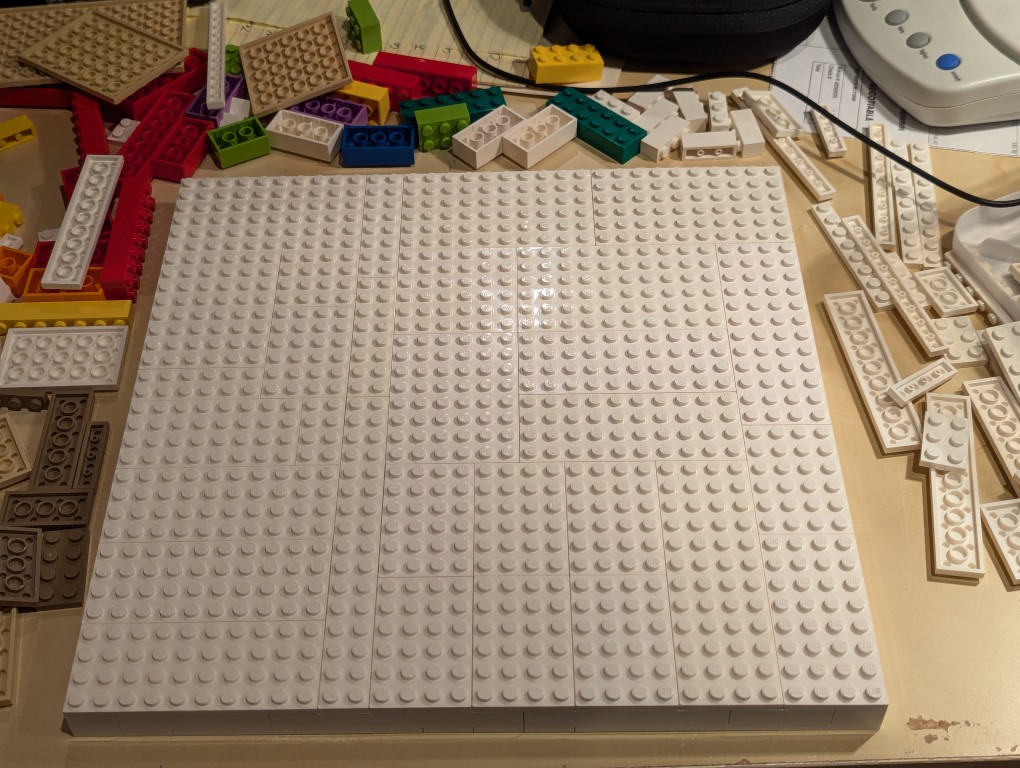
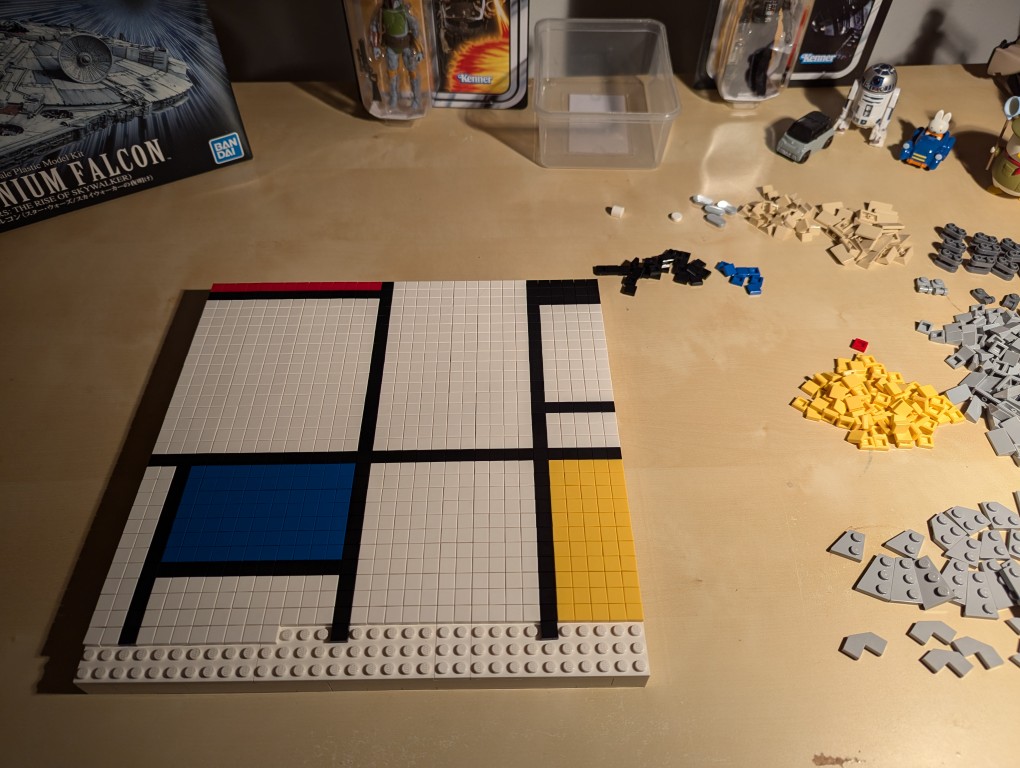
To begin, I laid out a 32×32 grid of plates. I didn’t have a large number of similar types of white plates, so I had to try different configurations before settling on one. If I had to do over again, I would have tried configuring it for more staggered stepping instead of long break lines as I did.
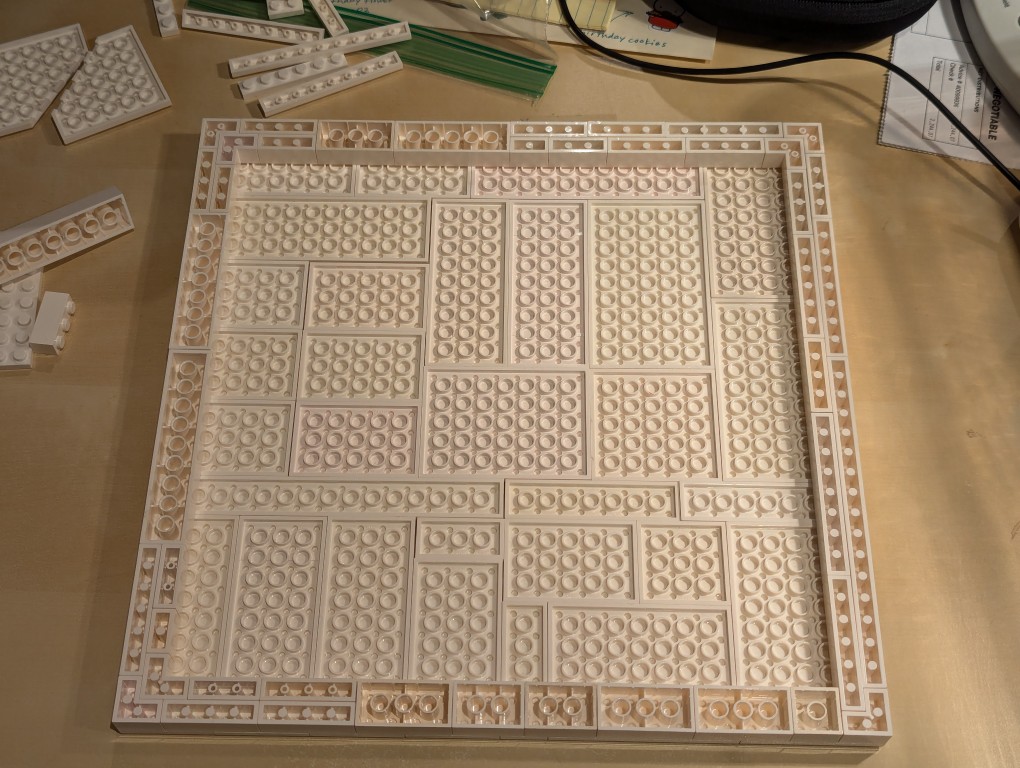
I flipped over the plates to begin building the support frame for the canvas using bricks.
I wanted the canvas to appear stretched, so I continued the color white from the canvas’ plates to the border.
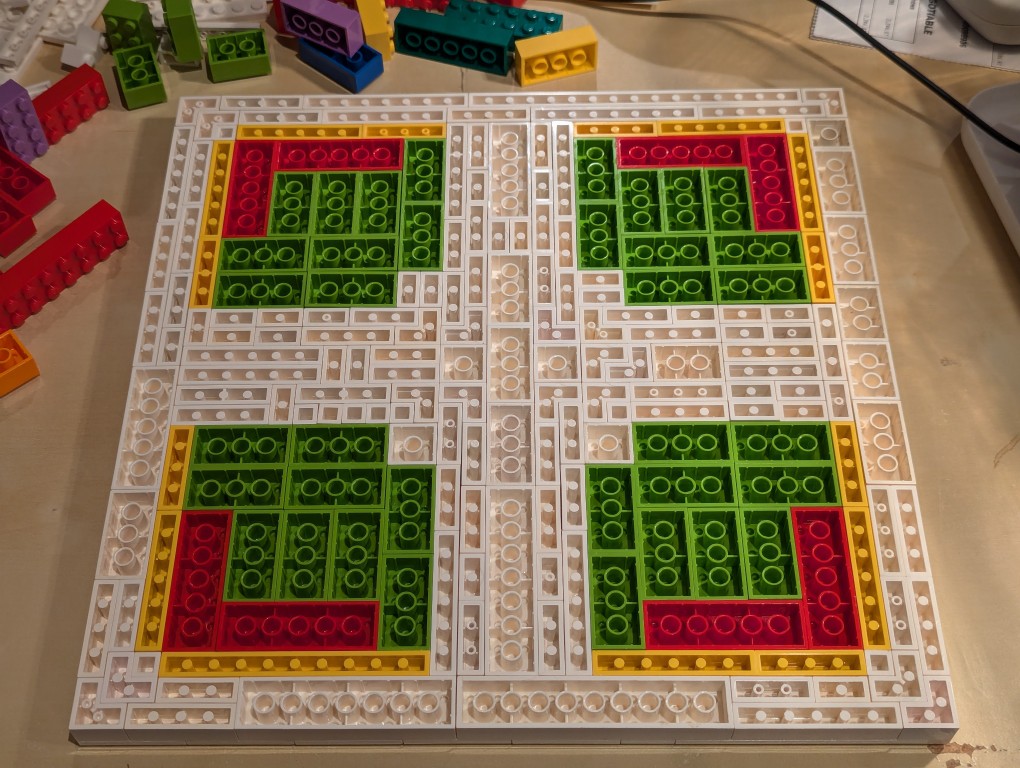
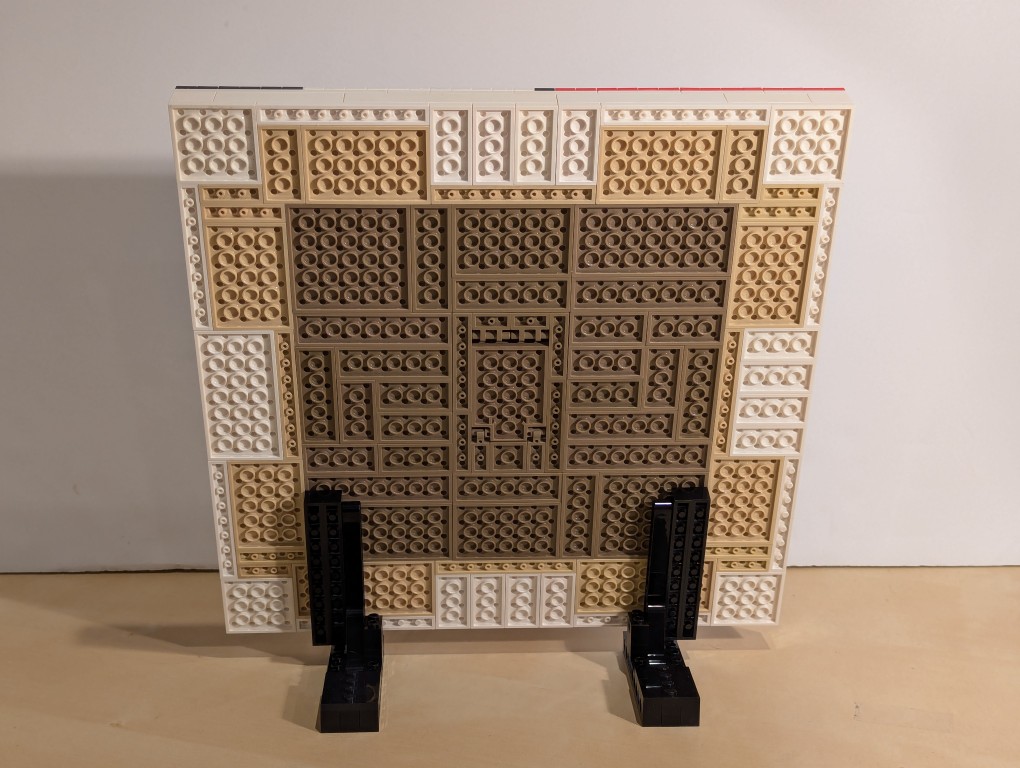
Knowing these other colors would be hidden, I used filler bricks in a mirrored pattern (I would know what it was like underneath even though no one else would).
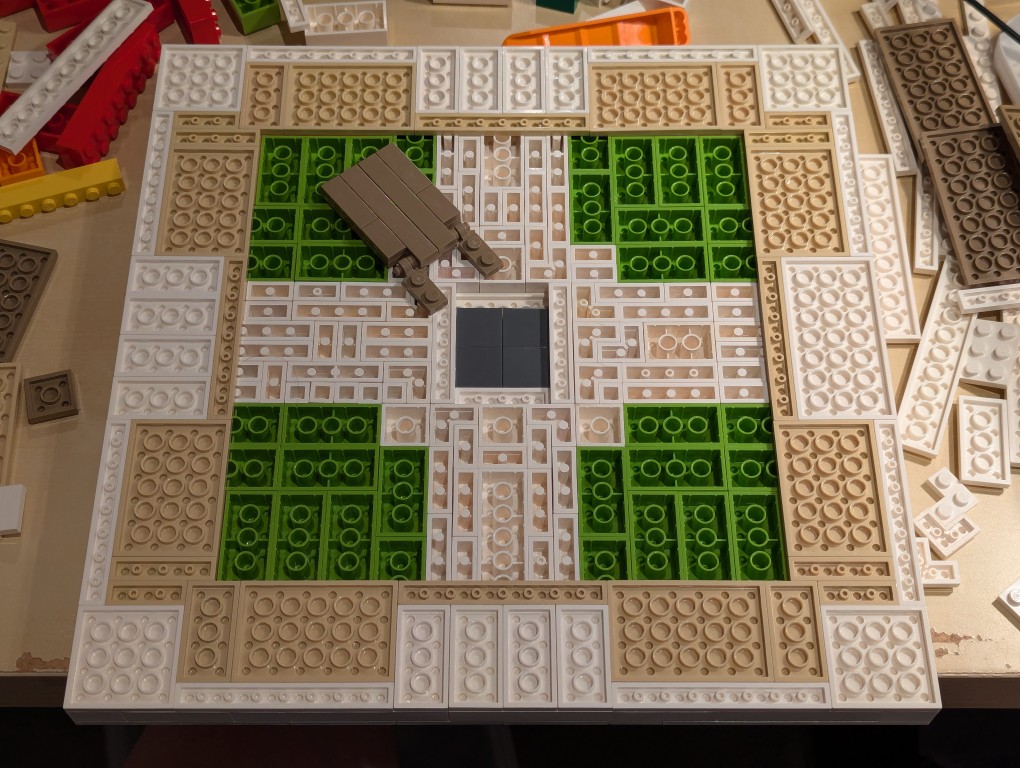
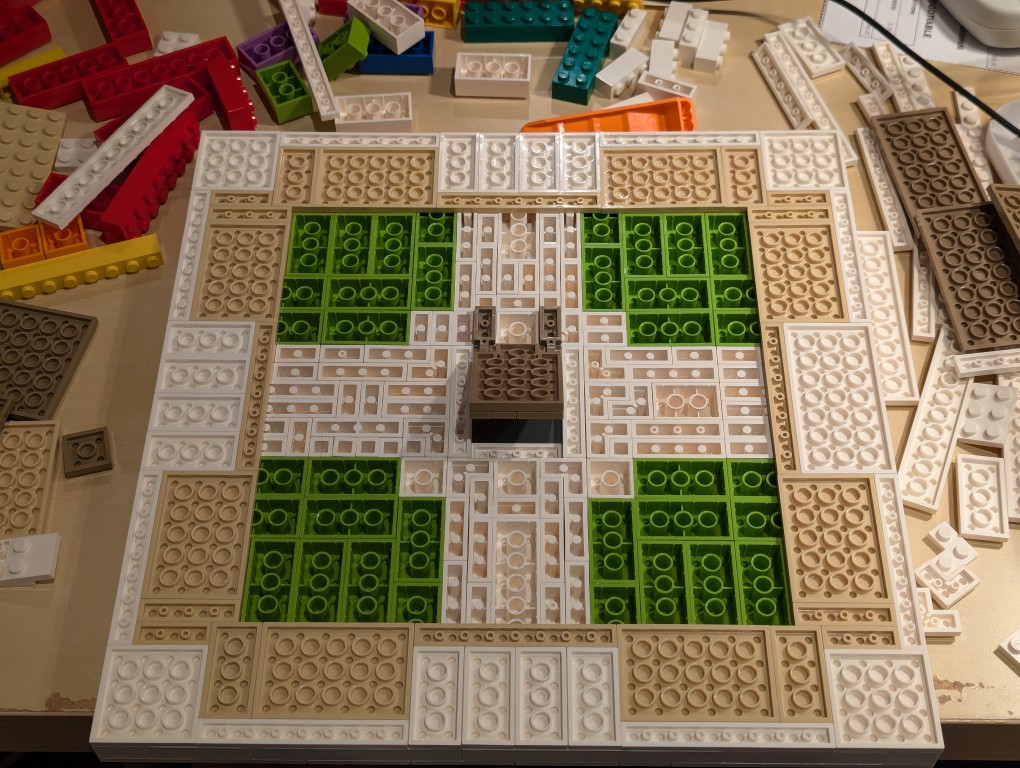
After beginning to cover the filler bricks with white plates (stretched canvas) and sand plates (wood frame), I thought that it would be cool to build a hidden compartment to hold a written statement about the artwork. So, I pulled out some central bricks, filled the center with inverted 2×2 flat tiles.
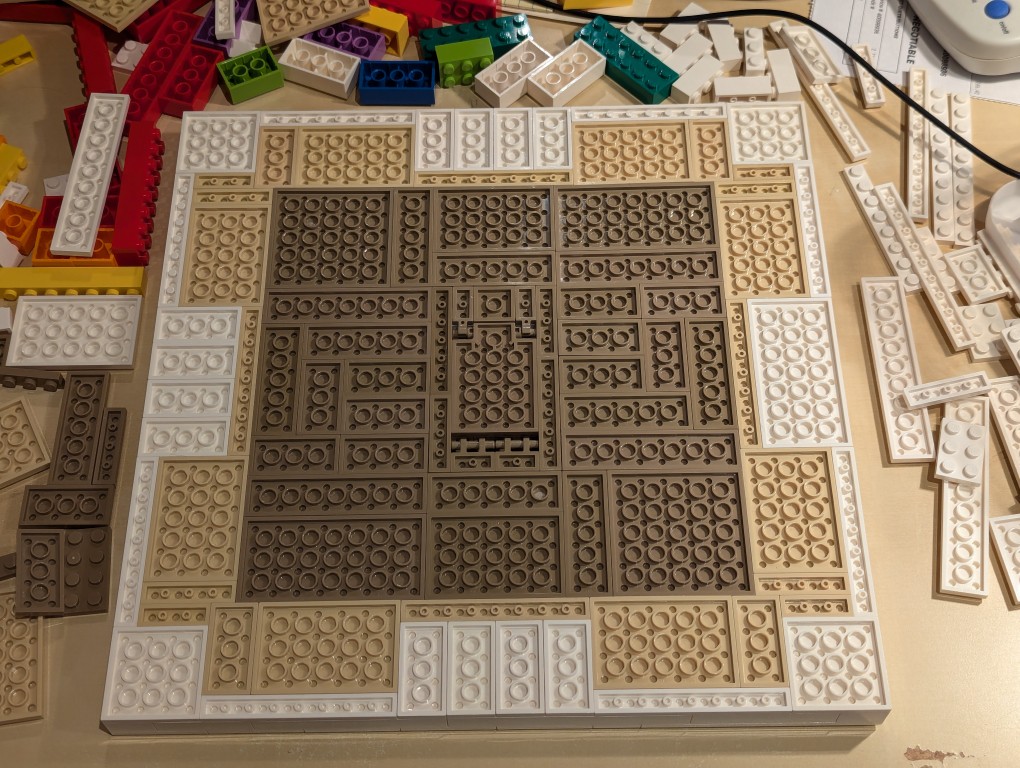
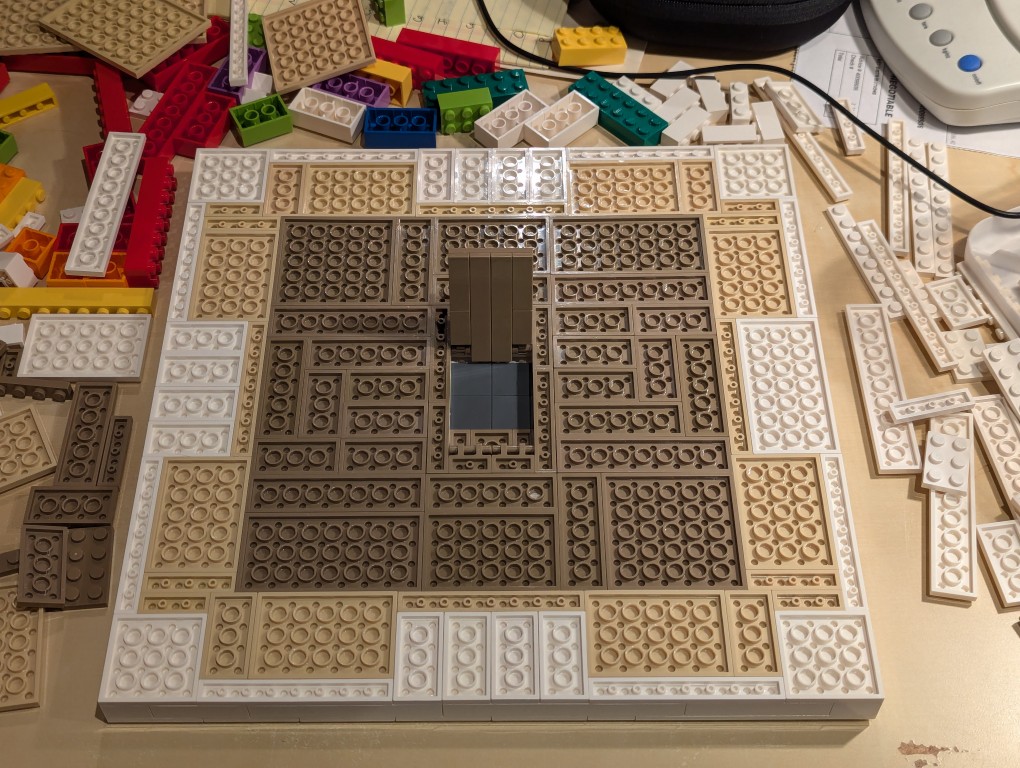
I constructed a compartment door on hinges in the middle of the back of the canvas and filled the rest of the space with dark sand plates (paper backing protecting the canvas).
Here is the hidden compartment door open.
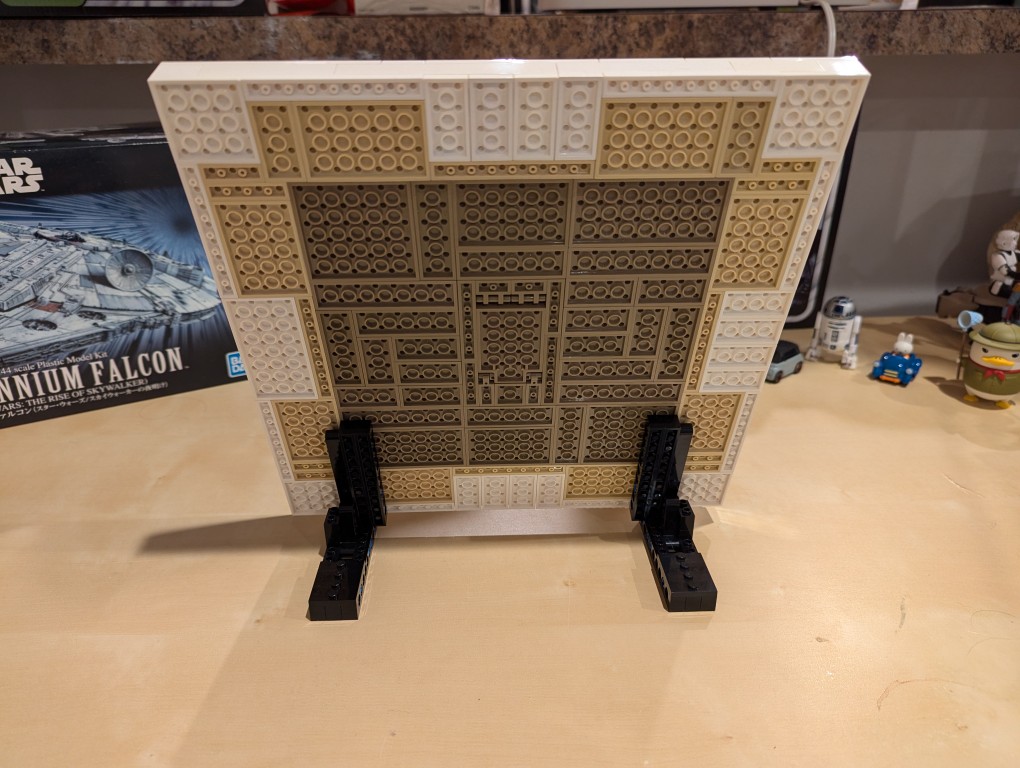
Flipped back over, the canvas is primed and ready for the “paint.”
Constructing Display Stands for the Canvas
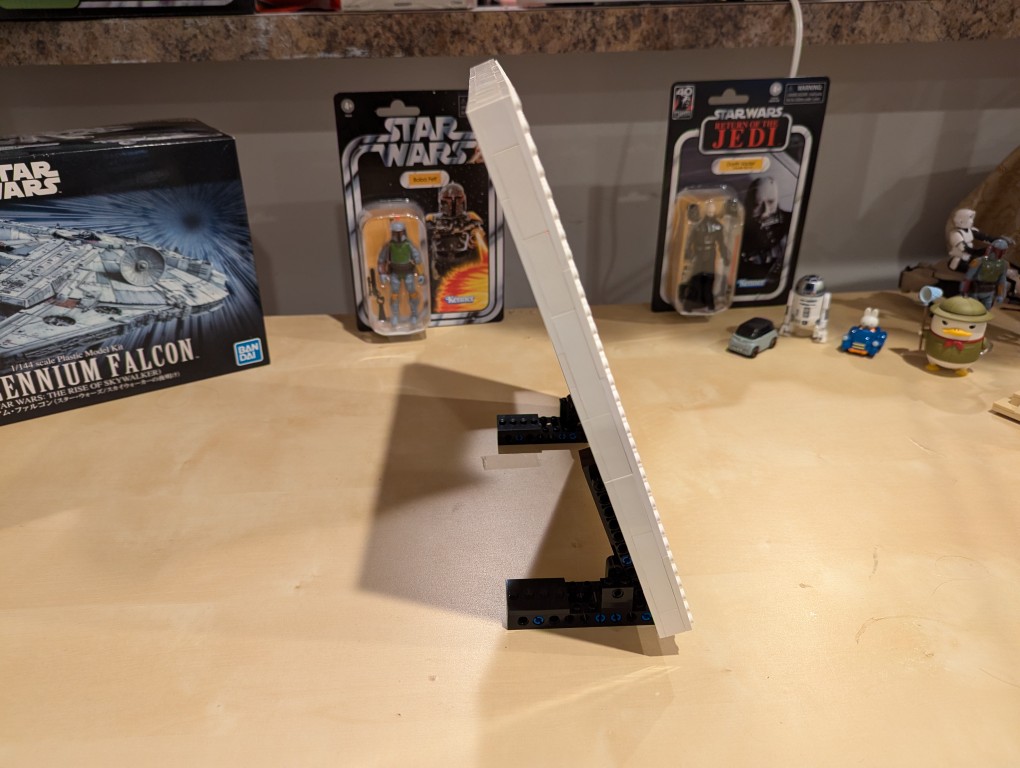
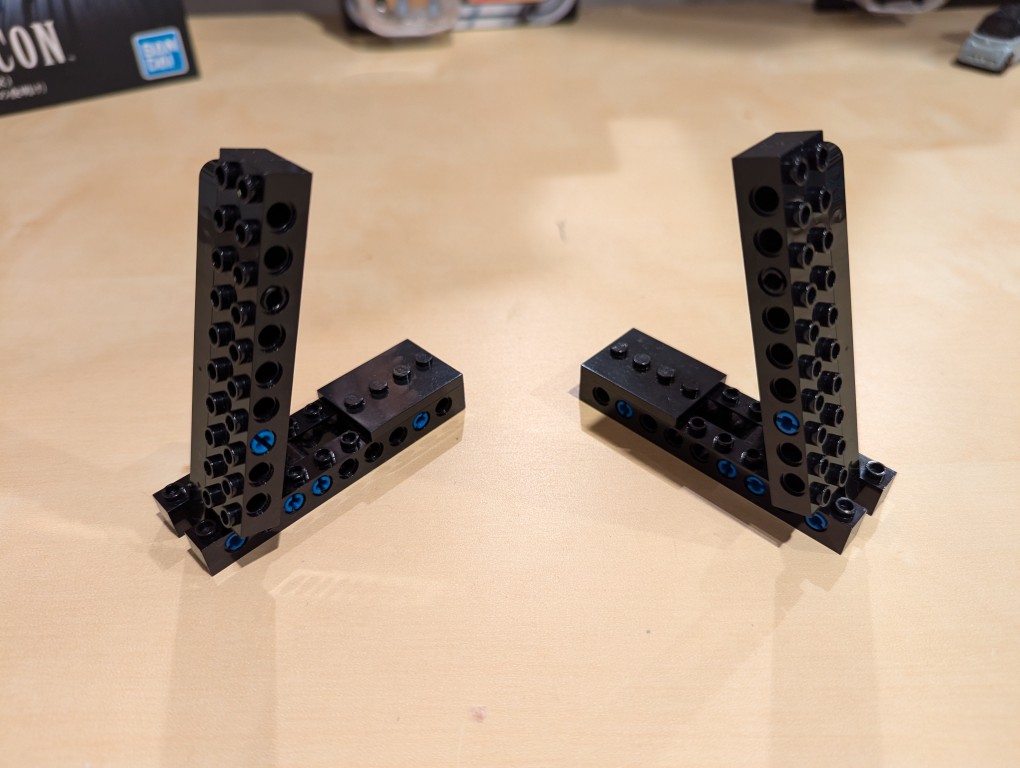
I used LEGO Technic bricks to build two stands for the canvas so that it was held at a stable angle.
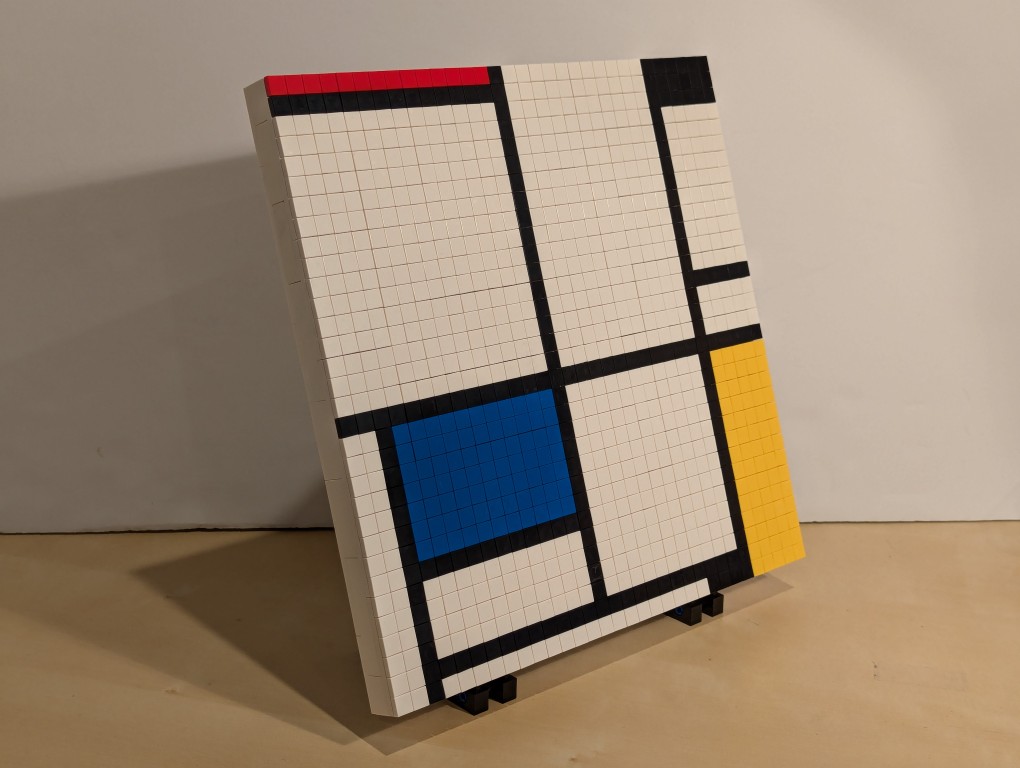
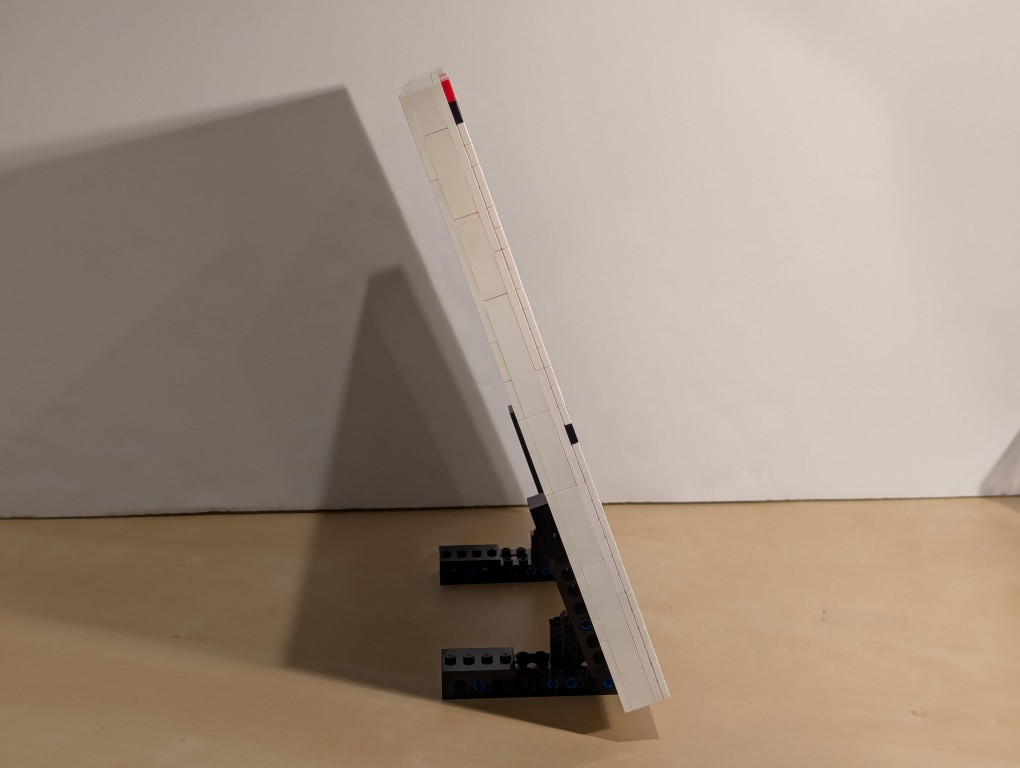
It’s about 70 degrees from horizontal.
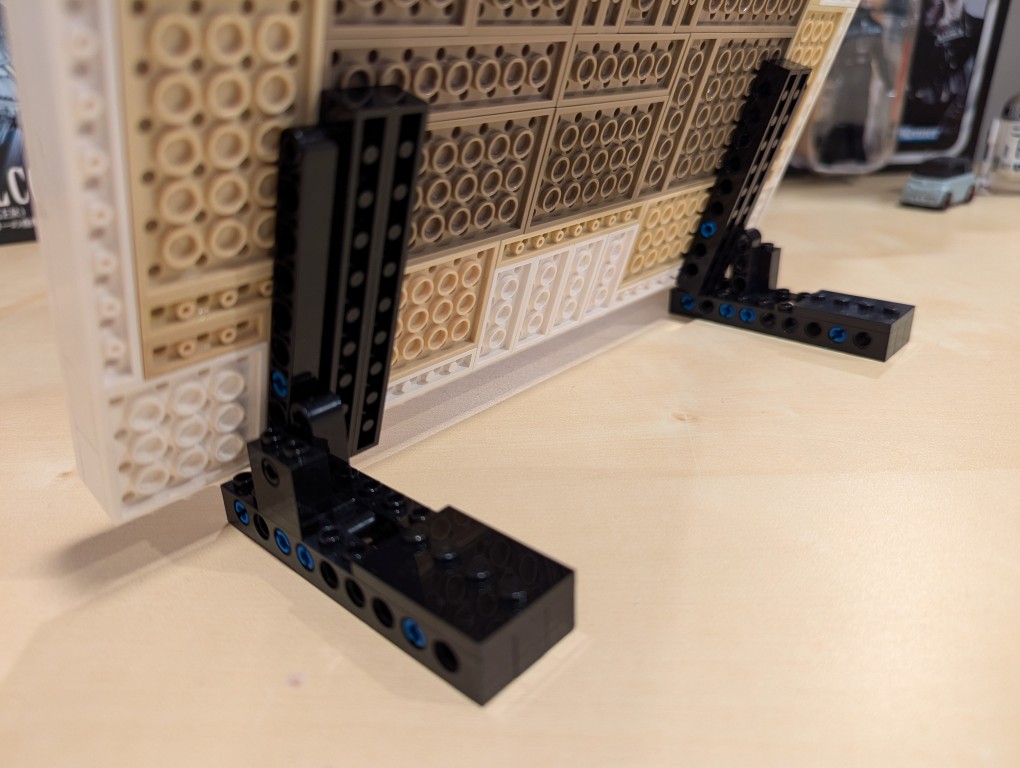
I beefed up the friction connection between the stands and the canvas by using two 1×10 Technic bricks that attach to the canvas.
From the blue color, you can see that I used a number of 3 brick width pins.
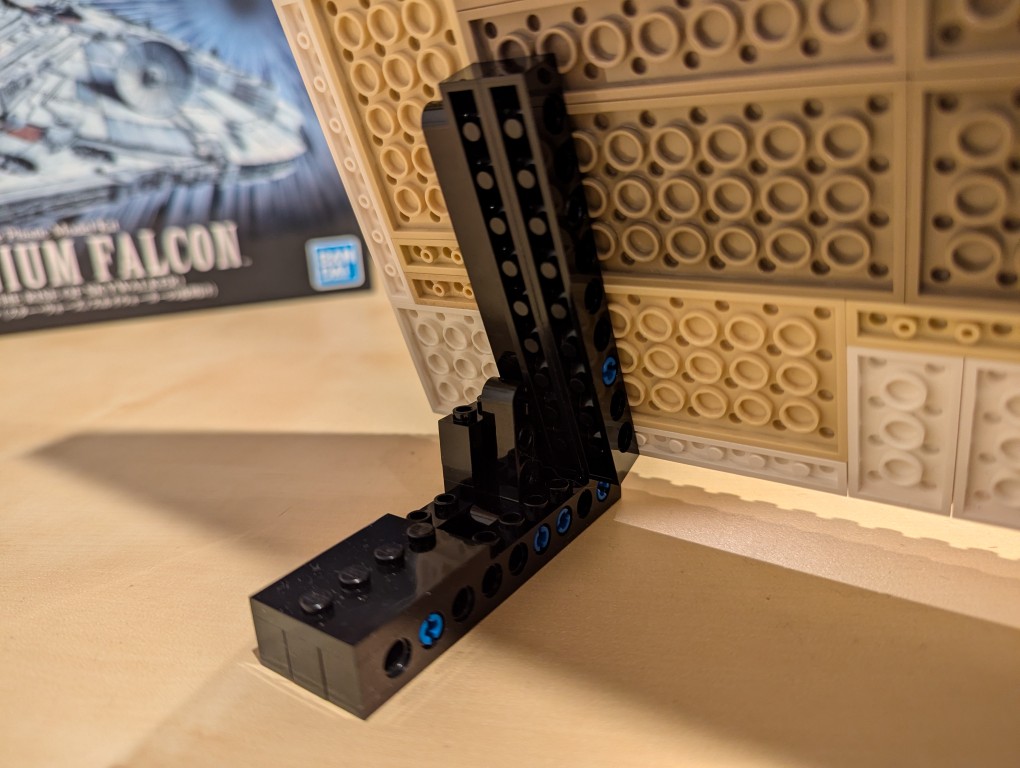
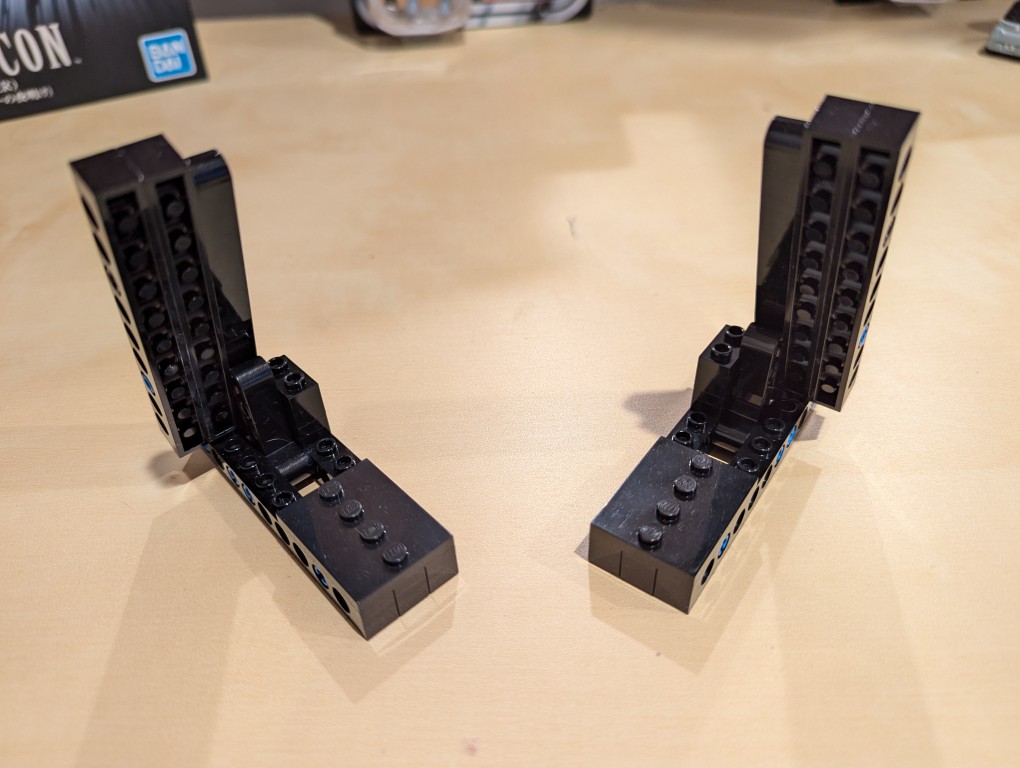
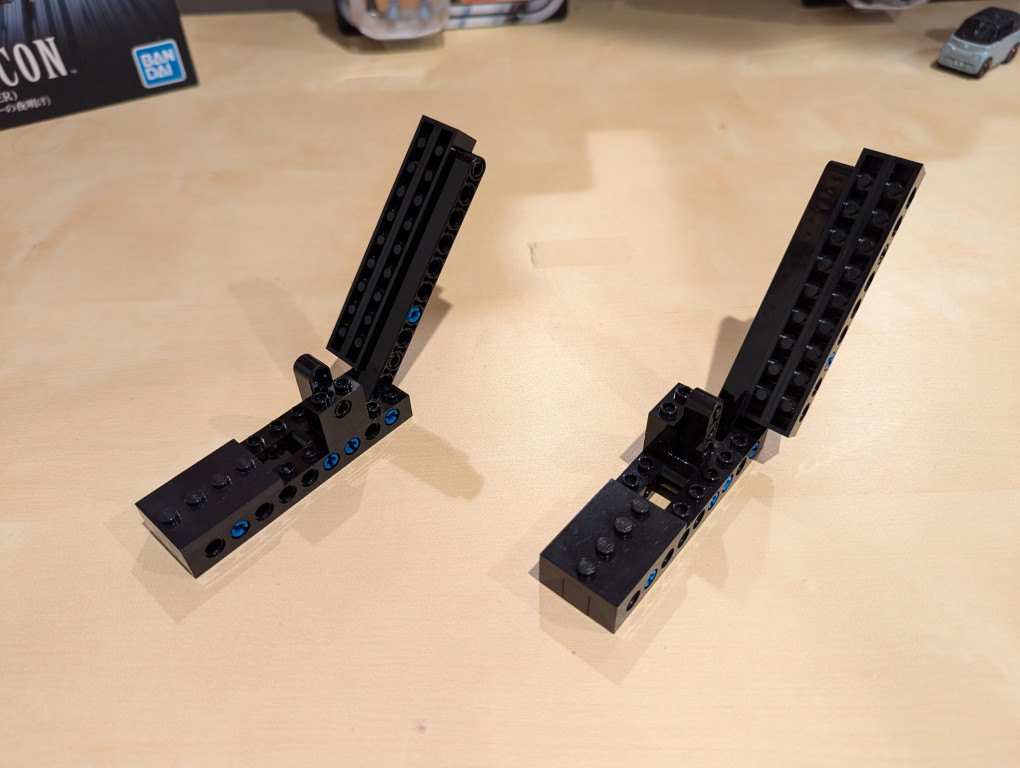
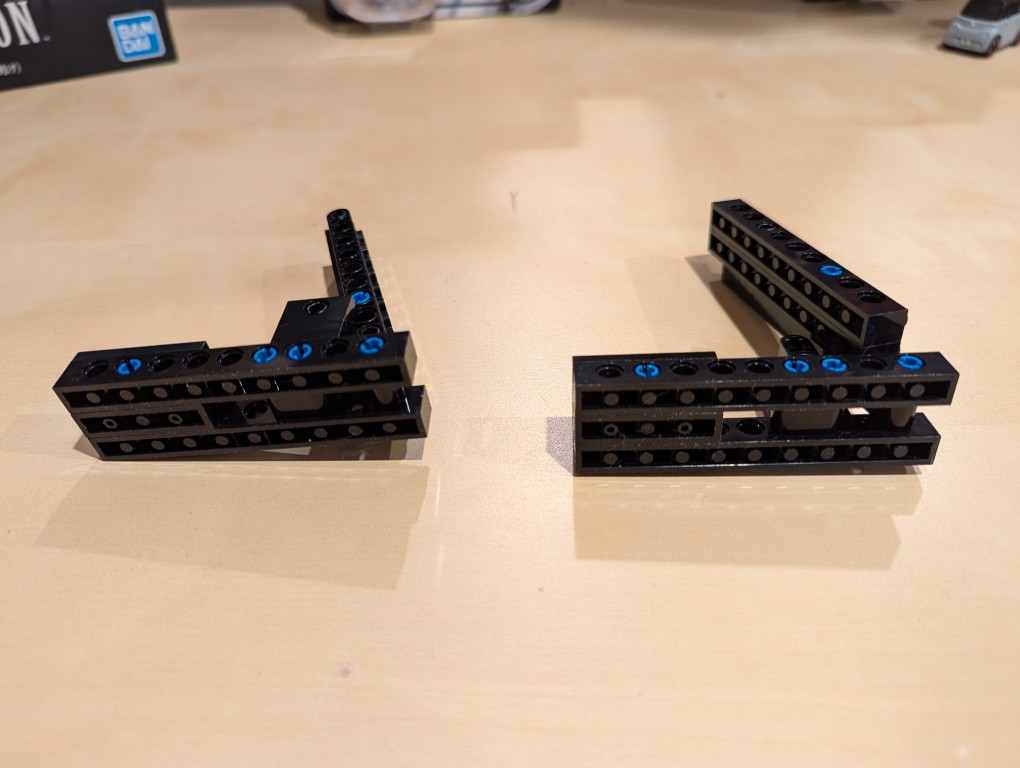
These photos show the stands in more detail detached from the canvas.
Note that the angle is achieved by having the long arm simply rest against a smaller L-shaped Technic support arm. Gravity holds things in place.
I added extra Technic bricks to the stand’s bottom support legs for extra strength.
Assembling Mondrian’s Tableau I (1921)
After placing my LEGO Pick-a-Brick order for the “painting” 1×1 flat tiles, it took about a week-and-a-half to arrive.
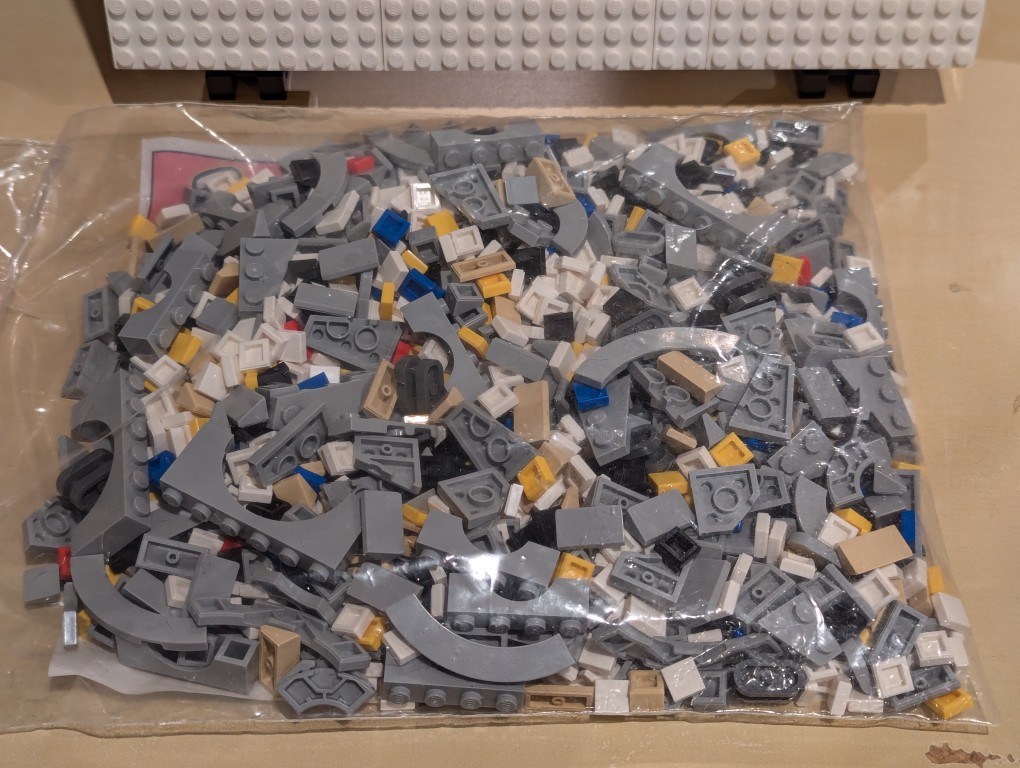
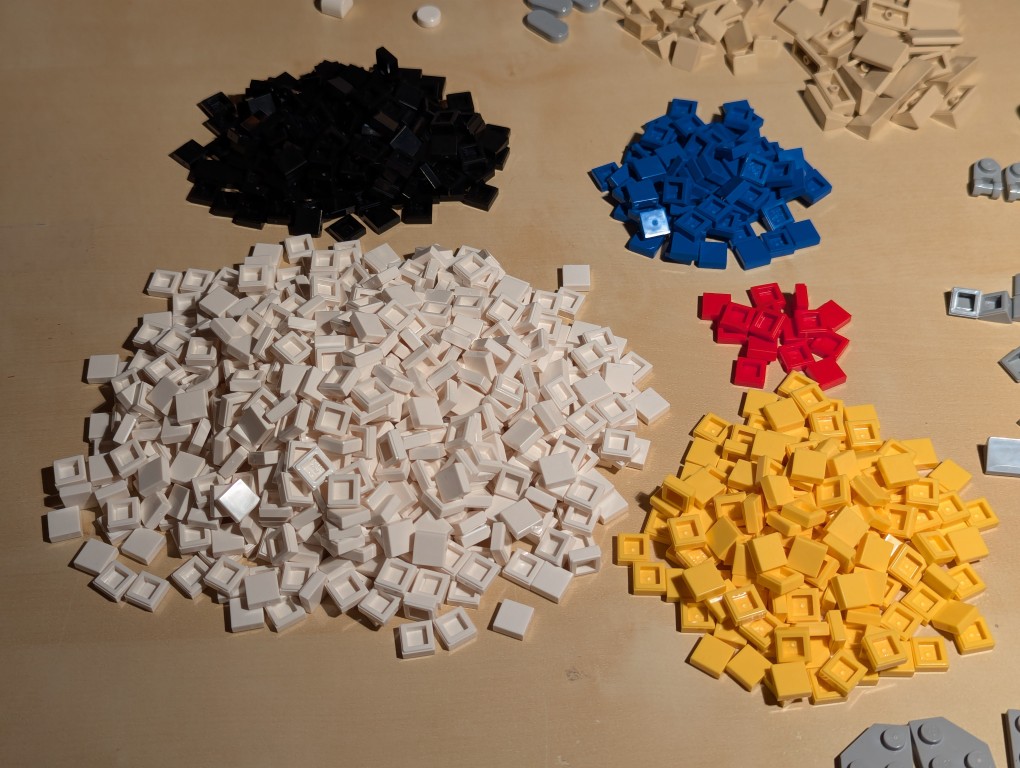
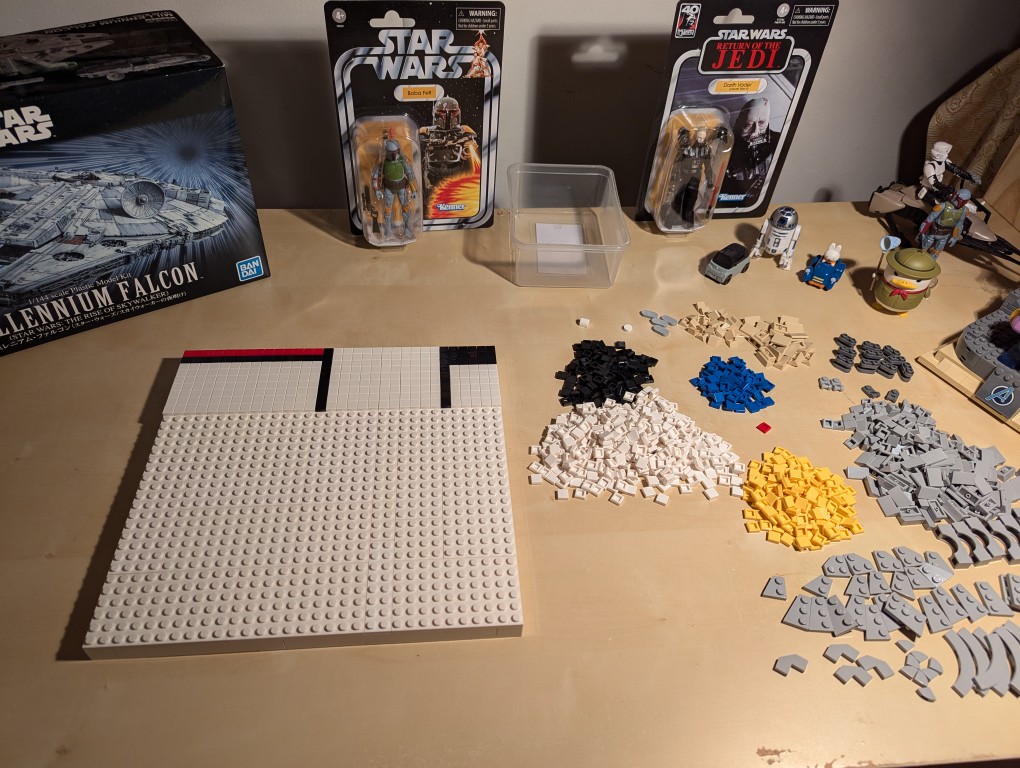
I ordered bricks for a custom Millennium Falcon that I am currently also working on, so I needed to sort everything out.
Here I am sorting the LEGO bricks.
With the bricks sorted, I began to paint my recreation of Mondrian’s Tableau I (1921).
I began at the top horizontal line and created one line at a time–kind of like a CRT drawing a line of pixels across the screen one-at-a-time.
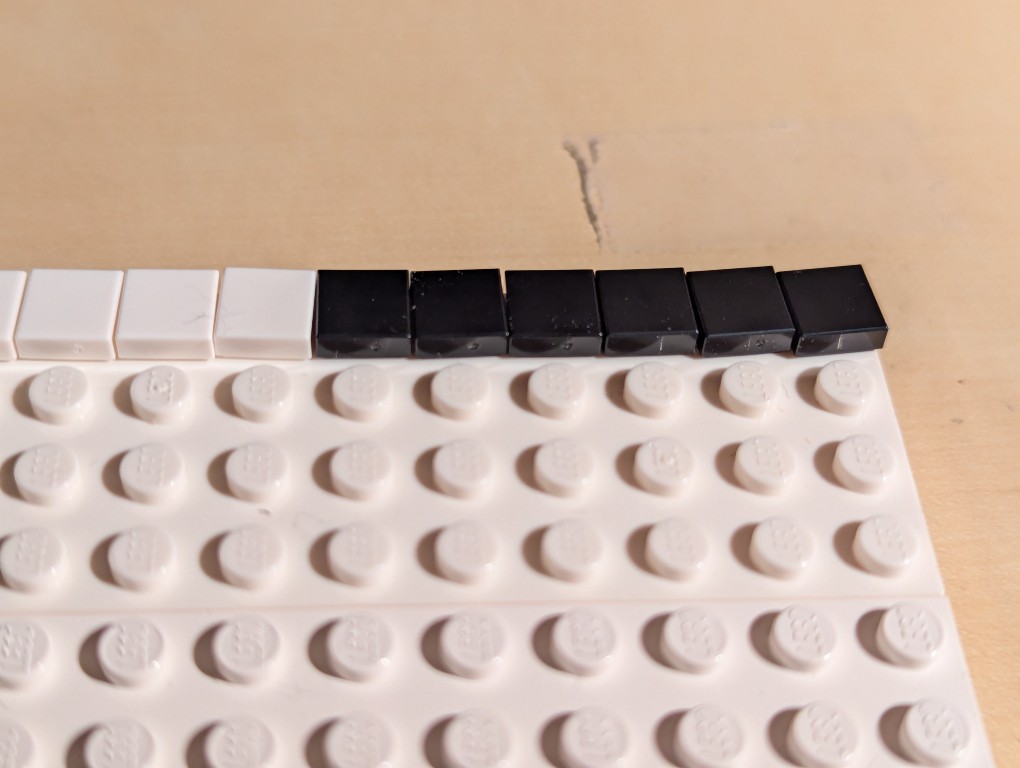
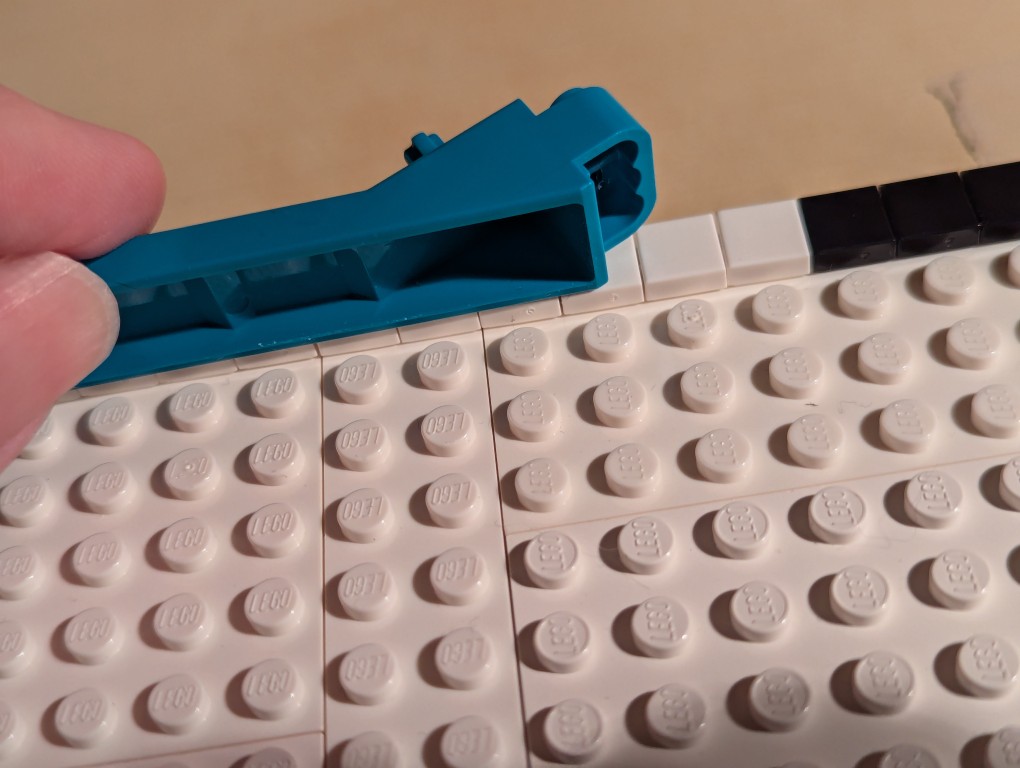
The problem with LEGO flat tiles is that they are difficult to align just by placing them on a stud.
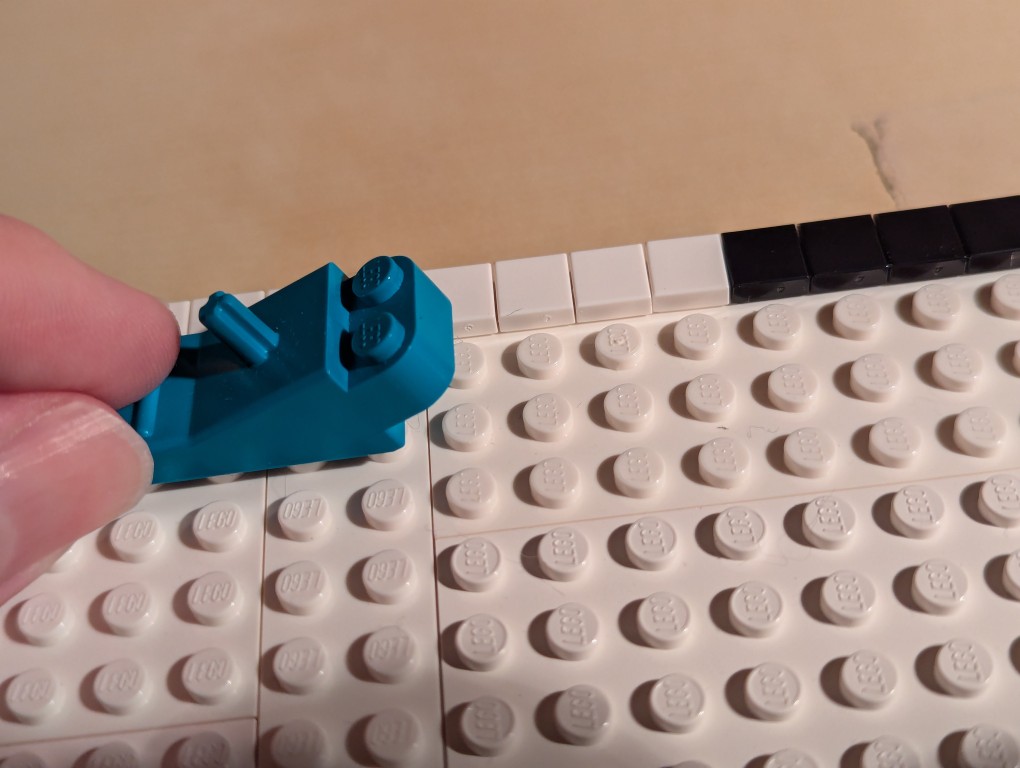
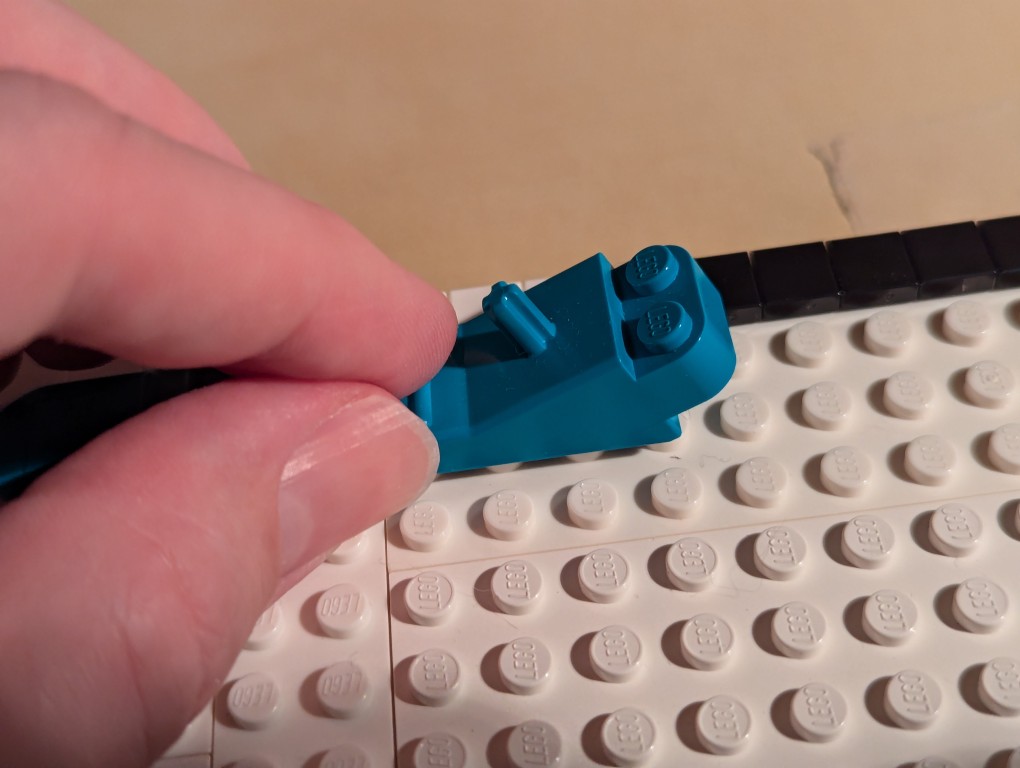
To align each line of flat tiles, you can take a brick separator, place it edge-wise along the flat tiles, and pull it back-and-forth lightly–hard enough to press against the flat tiles’ edges but not so hard as to keep it from moving above the adjacent studs as in the picture above.
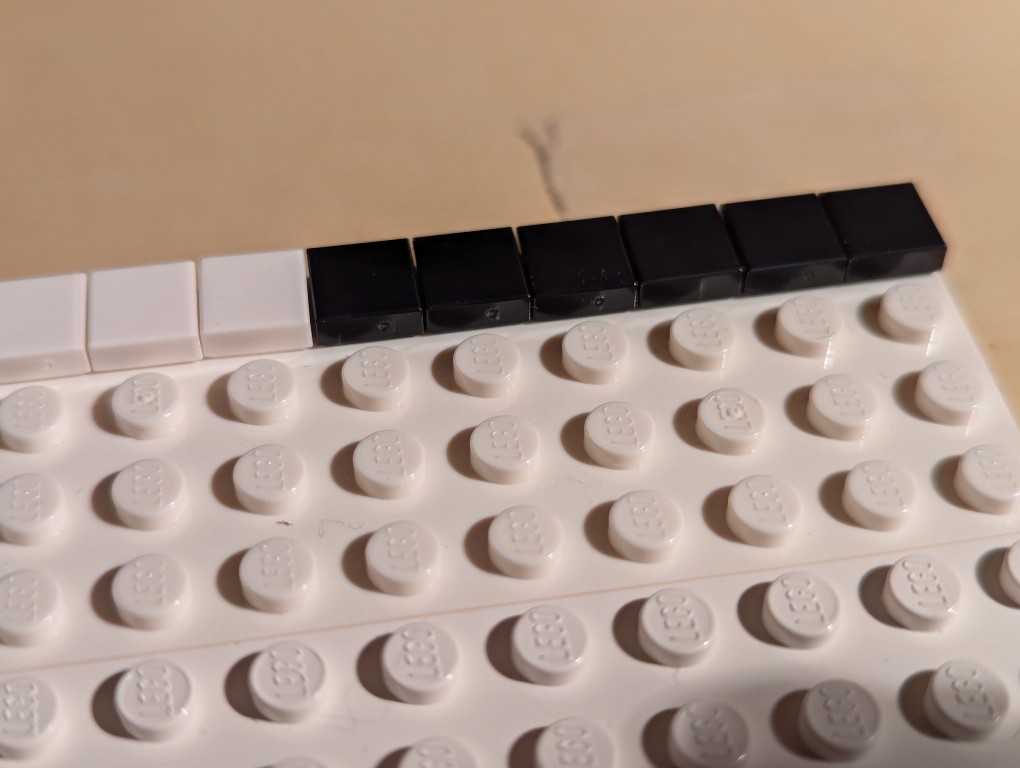
As you can see, the flat tiles are now aligned better. I did this trick for each line of flat tiles as I worked down the canvas.
Nearing the end of the build, I discovered that I didn’t have enough flat tiles in white and black. I recounted and recalculated. My count was correct, but LEGO short changed me about 70 elements from my order and gave me 70 extra yellow tile that I didn’t order. I called their customer service the next day and asked that they correct the order. I received the missing parts after another week-and-a-half. I continued “painting.”
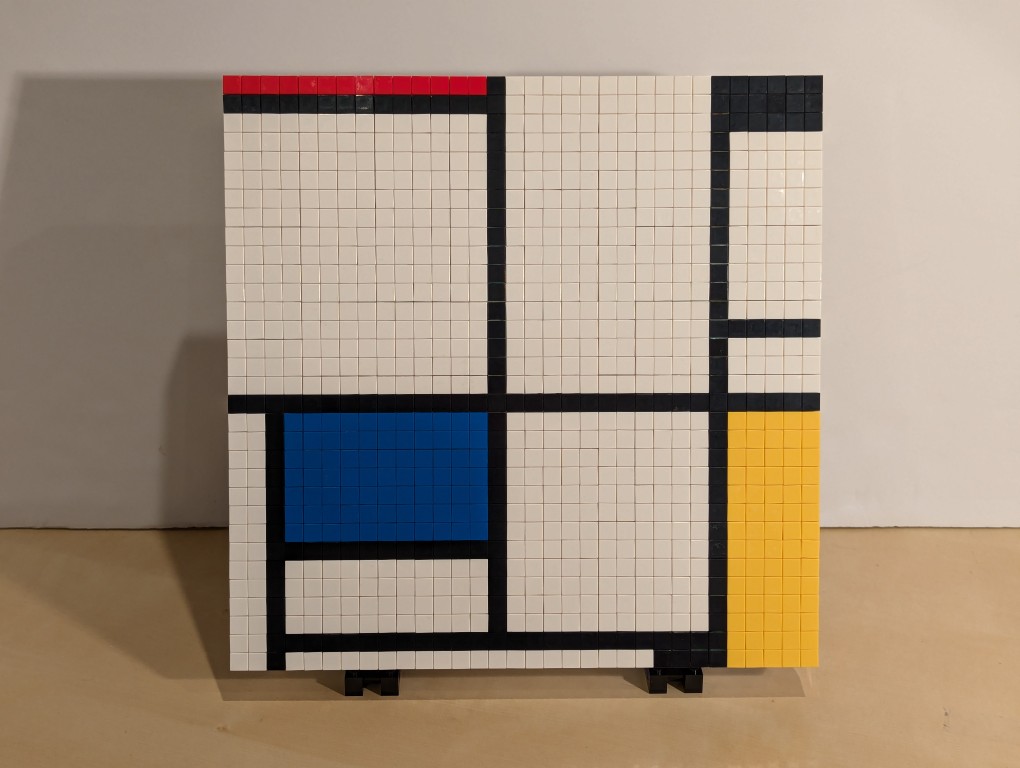
After several weeks, I had completed my copy of Mondrian’s Tableau I (1921) using LEGO!
The side view reveals hints of the “paint” of the lines of 1×1 flat tiles.
The back of the canvas mounted on the display stands has its hidden compartment in the back center of the canvas.
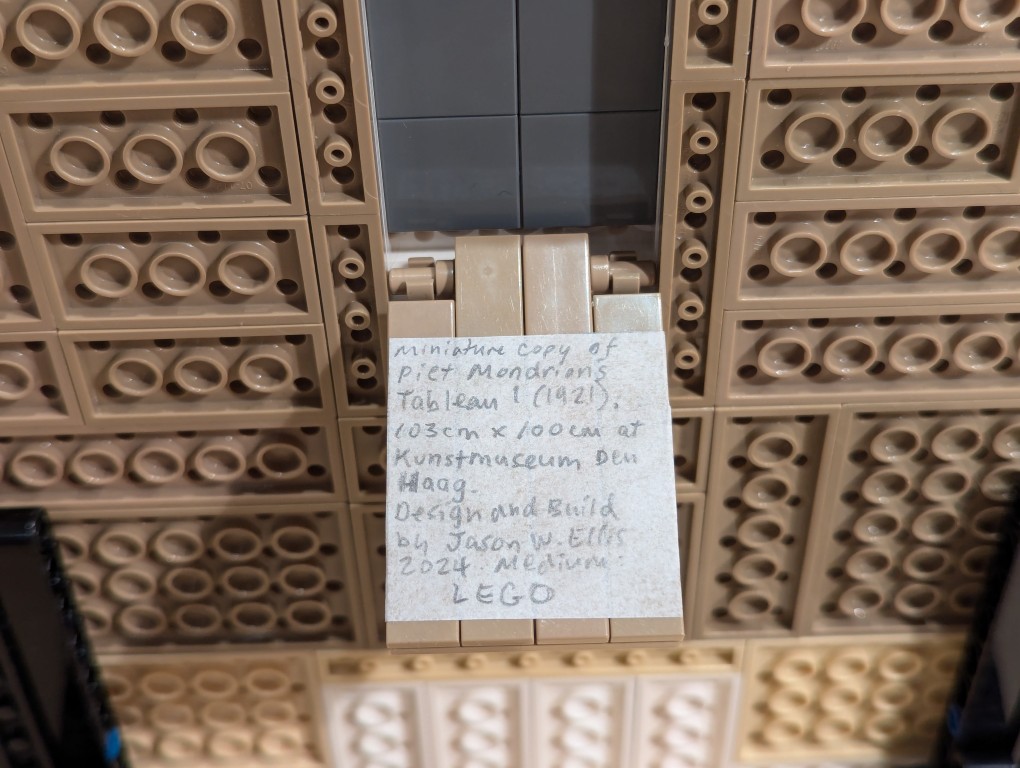
For the hidden artist statement, I cut out a 4×4 square and wrote in pencil, “Miniature copy of Piet Mondrian’s Tableau I (1921), 103cm x 100cm at Kunstmueum Den Haag. Design and Build by Jason W. Ellis 2024. Medium: LEGO.” I pasted it on the flat tiles inside the lid of the hidden compartment.
Despite being woefully behind on the Star Wars transmedia juggernaut, I decided to watch the live-action Ahsoka series this week. While I haven’t seen the animated series Star Wars: The Clone Wars or Star Wars Rebels, which provide the major narrative threads for Ahsoka, I’ve kept up enough with the plot points tangentially (sometimes via LEGO) to respect the characterological mining and intertextual connections that make Ahsoka an interesting story that also does a lot of fan service.
And, I don’t mean fan service in a negative way. The animated stories that provide the foundation for this new live-action series are what kept the Star Wars universe alive for a lot of fans and introduced that universe to a new set of fans. Star Wars might not have have needed an animated lifeline in the same way that Star Trek did in the 1970s, but the animated stories and the fact that it was created forthrightly as canon shows how live-action and animation can both do the heavy lifting of transmedia storytelling of such an important cultural franchise as is Star Wars.