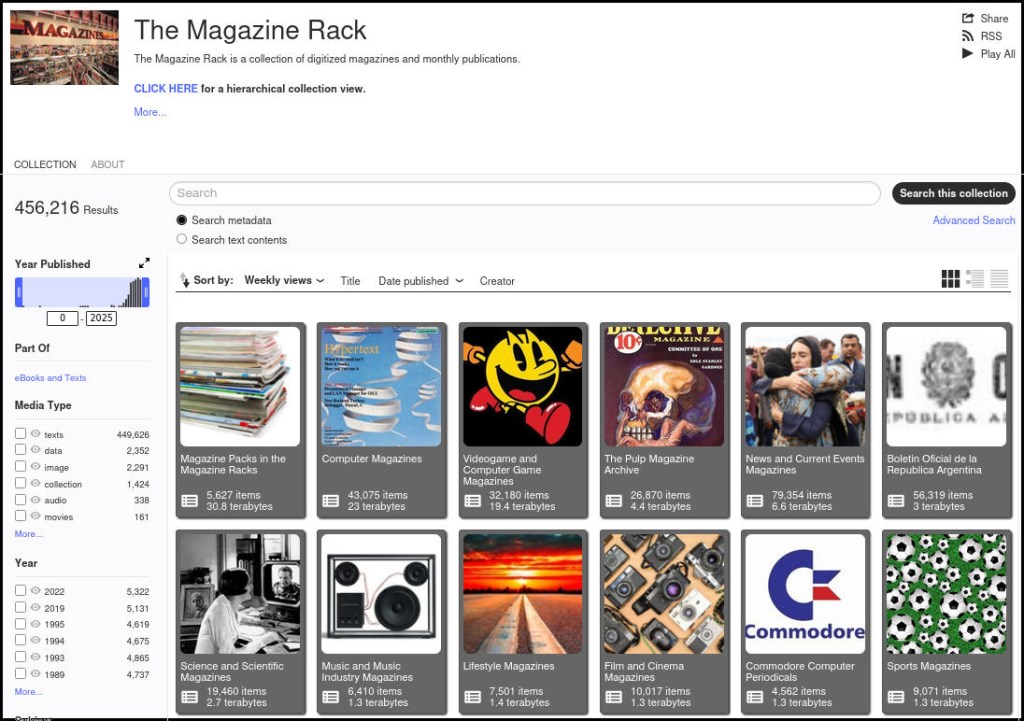
The Internet Archive has a tremendous collection of magazines across all disciplinary possibilities. Most are contained in The Magazine Rack. You can read them online, download them individually, or bulk download them using Jeff Kaplin’s instructions from 2012. Though, I have modified Kaplin’s wget command when files stopped downloading due to changes at archive.org, wget, or both:
While I’m keeping Debian 13 Trixie on my media center computer, I’ve decided to fallback to Debian 12 Bookworm on my laptop and workstation. The more that I used Trixie on those machines, the more I realized some things that I relied on just weren’t working right. Once that software gets updated, I’ll try Trixie again, but for now, especially while I’m frantically getting things ready for classes to begin next Tuesday, I’ll rely on tried-and-true Bookworm.
Last week, I upgraded the Debian 12 Bookworm installation on my workstation to Debian 13 Trixie. After updating my sources file and running apt update and apt full-upgrade, the installation went painlessly and quickly. However, I noticed some glitches with video playback (audio stutter) and listing directory contents on a hard disk drive (prolonged delays even though the drive was in active use and not waking from sleep). I wasn’t that interested in spending time to track down the source of these particular problems, so I decided to do a nuke-and-pave full reinstall of Debian 13.
That led to three days of frustration and reinstalling Debian 13 five times. I now have a stable installation that does what I want, but it took a lot of bashing my forehead into the desk to get here.
To be fair, some of the problems were created by me trying to configure software that I don’t have a deep understanding of using shared knowledge online that might be years old and applicable to older versions of those programs.
The one problem that caused the most headaches wasn’t my fault as far as I can suss out. The installer seemed to alternate assigning the “zero” nvme drive between my two identical 2TB nvme drives. This strange behavior led to me wiping both drives and installing Debian 13 on both during the multiple installations. When it comes to partitioning, I’m super cautious, because even though my data was backed up, I still didn’t want to wipe a drive unless it was what I wanted to do.
Besides the Debian 13 installer’s partitioning software, I wondered if it could have something to do with my motherboard’s bios. I am a few versions behind the latest release, but none of the bios’ change logs mention anything to do with code for handling the nvme drives.
I didn’t document my experience like I should, because I got to a point where I just wanted a stable system so that I could get some work done. I accomplished that at least. Though, I wanted to put this up as a potential warning in case anyone else experiences something similar.
If you’re like me, you might have newer computer hardware that isn’t fully supported by Linux kernel 6.1, which is installed with Debian Bookworm 12. Thankfully, Debian offers Backports, or newer software in testing in Trixie, the development name for Debian 13, that will eventually find its way into future Debian releases for use on an otherwise stable release of Bookworm.
Updating to a newer kernel often brings more hardware compatibility. However, it’s important to remember that using a backport kernel can introduce potential compatibility issues with the software officially supported on Bookworm. Even if installing the latest kernel causes some issues, you can choose to boot from one of your older 6.1 kernels on your install as long as you don’t delete them (by using the apt autoremove command).
I wrote this guide based on my experience installing Linux kernel 6.12 from Backports with the non-free firmware that my hardware needs to work. If you are trying to keep your system free from non-free software, you can omit those references in the instructions below.
Before doing any changes to your Debian installation, remember to backup your files first. Saving important files in more than one media and storing it backups in different physical locations is best practice.
After backing up your files, make sure your install is up-to-date with these commands:
sudo apt update
sudo apt upgrade
After those updates complete, it’s a good rule of thumb to do a reboot to begin working with a clean slate.
Next, add Debian Backports to /etc/apt sources.list. I used vi to do this:
sudo vi /etc/apt/sources.list
In vi, arrow down to the bottom line, type a lowercase “o” to add a blank line below the current line, type lowercase “i” to enter input mode, and type the following line into the document:
deb http://deb.debian.org/debian bookworm-backports main contrib non-free non-free-firmware
After double checking the added line, press the “Esc” key, and type “:wq” to write the file and quit vi.
Now, you need to update apt again:
sudo apt update
After the completes, enter this command to install the latest kernel from backports along with the kernel’s headers and firmware that might be needed for your hardware (such as networking card, video card drivers, etc.).
It might take awhile for the installation to complete. If there are no errors, it should return you to your terminal prompt. If it did, reboot your computer to load the new kernel.
After your computer boots up again, you can verify that you are running the latest kernel by entering this command:
uname -r
After installing the latest kernel, my computer reports this from the uname -r command:
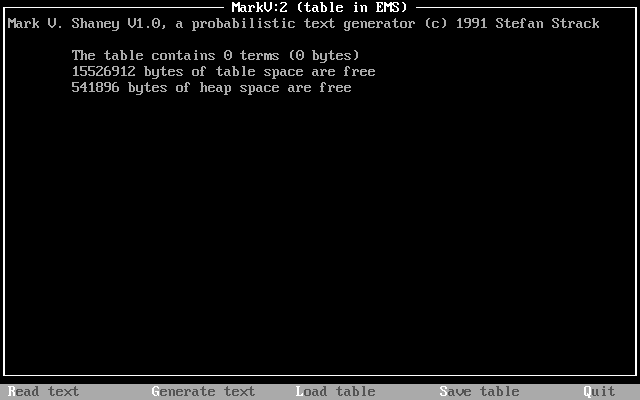
MARKV.EXE (44,365 bytes) was developed in 1991 by Stefan Strack, who is now a Professor of Neuroscience and Pharmacology at the University of Iowa. In the MARKV.DOC (10,166 bytes) file that accompanied the executable, Strack writes, “Mark V. Shaney featured in the “Computer Recreations” column by A.K.Dewdney in Scientific American. The original program (for a main-frame, I believe) was written by Bruce Ellis based on an idea by Don P. Mitchell. Dewdney tells the amusing story of a riot on net.singles when Mark V. Shaney’s ramblings were unleashed” (par. 2). Dewdney’s article on the MARKV.EXE program appears in the June 1989 issue of Scientific American. The article that Strack mentions is available in the Internet Archive here. A followup with reader responses, including a reader’s experiment with rewriting Dewdney’s June 1989 article with MARKV.EXE, is in the January 1990 issue here.
The program works by the user feeding a text into MARKV.EXE, which is “read.” This generates a hashed table of probabilistic weights for the words in the original text, which can be saved. The program then uses that table and an initial numerical seed value to generate text until it encounters the last word in the input text or the user presses Escape. The larger the text (given memory availability) , the more interesting its output text, because more data allows it to generate better probability weights for word associations (i.e., what word has a higher chance to follow a given word). Full details about how the program works can be found in the highly detailed and well-organized MARKV.DOC file included with the executable.
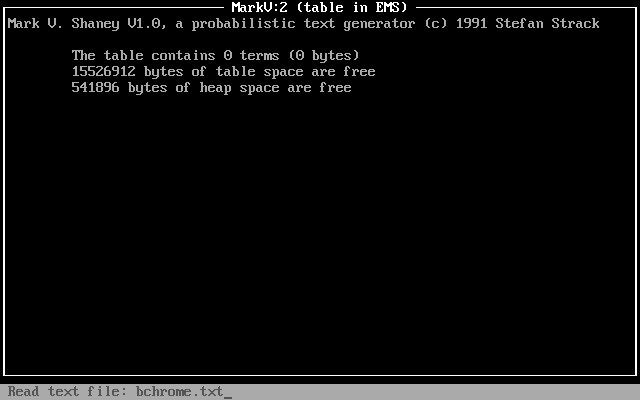
Using DOSBox on Debian 12 Bookworm, I experimented by having MARKV.EXE read William Gibson’s “Burning Chrome” (1982). I pressed “R” for “Read,” entered the name of the text file (bchrome.txt), and pressed enter.
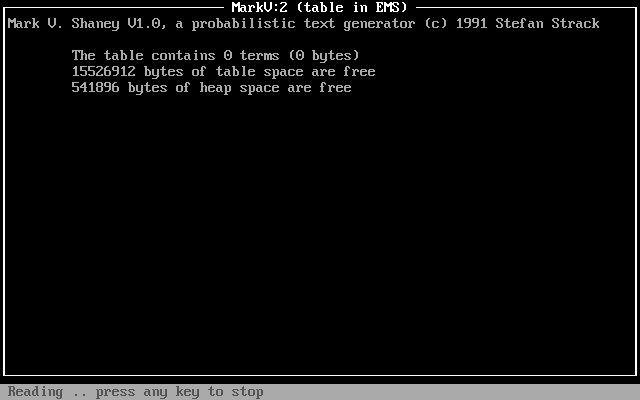
The program reported “reading” for a few minutes (running DOSBox at default settings).
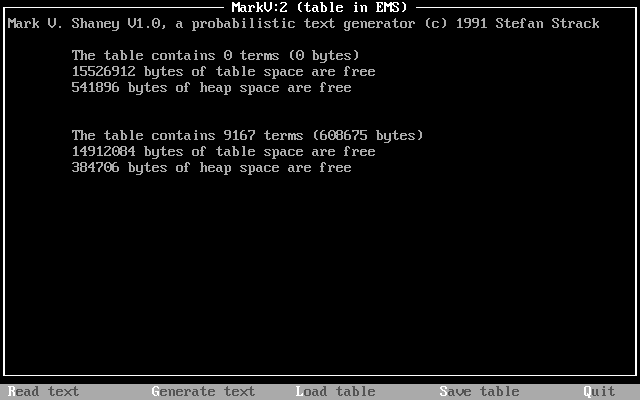
After completing its “reading,” the program reported stats on the table that it created using bchrome.txt: 9167 terms (608,675 bytes).
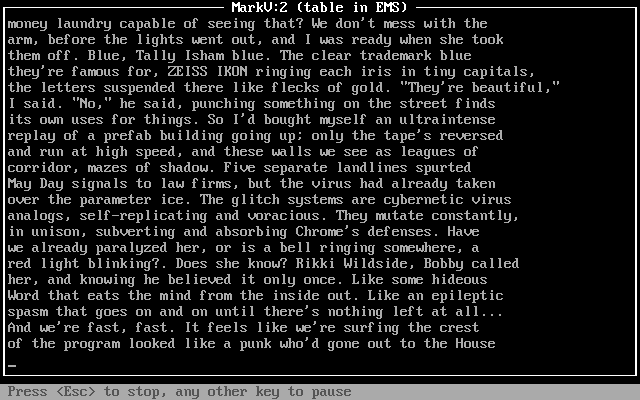
I pressed “G” and the program began to generate text based on its table of probabilities generated from the bchrome.txt text file, which contained the short story, “Burning Chrome.” While the generated text flows across the screen, there are options to press “Esc” to stop or any other key to pause.
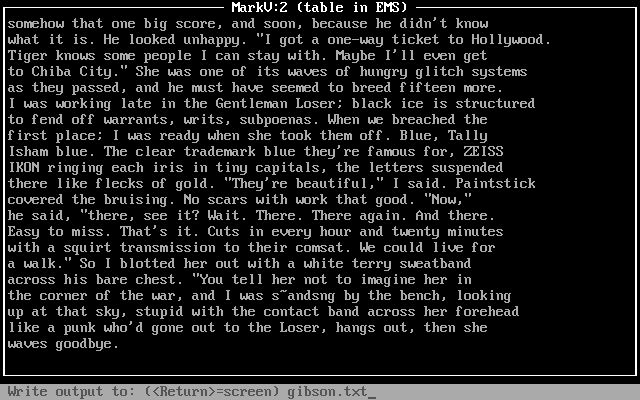
After it completed writing the generated text to the screen, I pressed “S” to save the generated text and it prompted me to type in a file name for the saved generated text: gibson.txt.
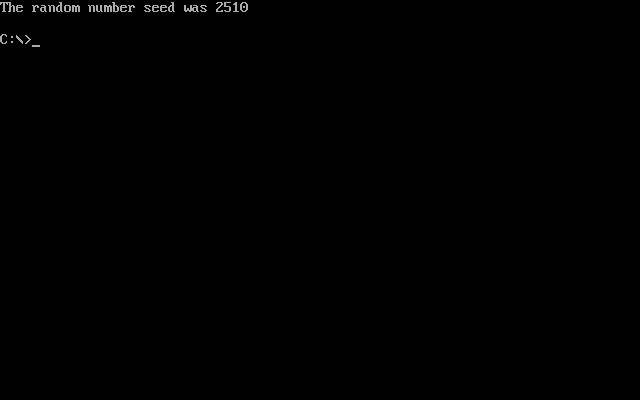
Pressing “S” gives the user an option to save the table for future use. I went with the default name, MARKKOV.MKV (not to be confused with a modern Matroska container file). This file can be loaded in MARKV.EXE on subsequent runs by pressing “L” and entering the name of the table. When the user presses “Q”, the program exits back to DOS and displays a message, “The random number seed was x,” where x is a random number used in the generation of text. If repeatability is important to the user, you’ll want to make a note of that number and use it with the -s modifier when running MARKV.EXE again (e.g., markv.exe -s2510).
Mark V. Shaney’s implementation of a Markov chain that builds a table of next word probability on a small text sample is one example of the predecessors to large language models (LLMs) like LLaMA and ChatGPT. However, Mark V. Shaney’s word association probabilities is far simpler than the much more complicated neural networks of LLMs (especially considering attention) with many orders of magnitude more parameters trained on gargantuan data sets. Nevertheless, Mark V. Shaney is one aspect of the bigger picture of artificial intelligence and machine learning development that led to where we are now.
![terminal screen with system info: jason@desktop:~$ screenfetch | lolcat
_,met$$$$$gg. jason@desktop
,g$$$$$$$$$$$$$$$P. OS: Debian 12 bookworm
,g$$P"" """Y$$.". Kernel: x86_64 Linux 6.12.32+bpo-amd64
,$$P' `$$$. Uptime: 10h 8m
',$$P ,ggs. `$$b: Packages: 2323
`d$$' ,$P"' . $$$ Shell: bash 5.2.15
$$P d$' , $$P Resolution: 1920x1080
$$: $$. - ,d$$' DE: Xfce
$$\; Y$b._ _,d$P' WM: Xfwm4
Y$$. `.`"Y$$$$P"' WM Theme: Haiku-Alpha
`$$b "-.__ GTK Theme: BeOS-r5-GTK-master [GTK2]
`Y$$ Icon Theme: BeOS-r5-Icons-master
`Y$$. Font: Swis721 BT 9
`$$b. Disk: 7.7T / 11T (75%)
`Y$$b. CPU: AMD Ryzen 7 7700 8-Core @ 16x 5.389GHz
`"Y$b._ GPU: NVIDIA GeForce RTX 3090, NVIDIA RTX A4000, NVIDIA RTX A4000, NVIDIA RTX A4000
`"""" RAM: 9486MiB / 63916MiB](https://dynamicsubspace.net/wp-content/uploads/2025/07/system-info-debian-kernel-612.png?w=832)