Kai’s SuperGOO 1.0 is a program geared toward children to easily manipulate images and generate images of human faces that can be further modified using its built-in image editing tools that are accessible through an interesting but not always intuitive user interface.
The “Getting Started with Kai’s SuperGOO” text file includes this explanatory information:
ABOUT SUPERGOO

SuperGOO is organized into two basic rooms: Goo and Fusion. The Goo Room provides you with a series of distortion tools, both brushes and global effects, to create 'funhouse mirror' distortions to your images.

The Fusion Room provides you with both cloning tools- to combine faces (and other images) from your own sources- and a library of facial components to create your own face for the Goo Room.

Both rooms have an In and Out dialogue for importing and exporting saved images, or importing images from a TWAIN device such as a scanner or digital camera.

Play around with SuperGOO once you've got it installed... click a button and watch what happens. That's the quickest way to get acquainted with SuperGOO. For more detail, consult the 'Quick Reference Guide' included with your software. This brief, but thorough, card will provide you with all of the basics you need to know about SuperGOO, from input to output and everything in between. For more detail, consult the SuperGOO User's Guide included on your CD-ROM.
Kai’s SuperGOO ReadMe file includes the following system requirements:
MINIMUM SYSTEM REQUIREMENTS

PC

Pentium Processor
Windows 95 (or higher)
Windows NT 4.0 (or higher)
16 MB Free RAM
25 MB HD Space for Install
40 MB Free HD Space (after Install)
CD-ROM Drive
16-bit video
14" Monitor

MACINTOSH

Power Macintosh
MacOS 7.6.1 (or higher)
16 MB RAM allocated to application
25 MB HD Space for Install
40 MB Free HD Space (after Install)
CD-ROM Drive
16-bit video
14" Monitor
I installed Kai’s SuperGOO on MacOS 8.1 emulated by SheepShaver on Debian Bookworm.

After installation from CD-ROM, the Kai’s SuperGOO 1.0 application file is 976K and has a minimum memory size of 17,290K and a preferred size of 25,482K.
Installation
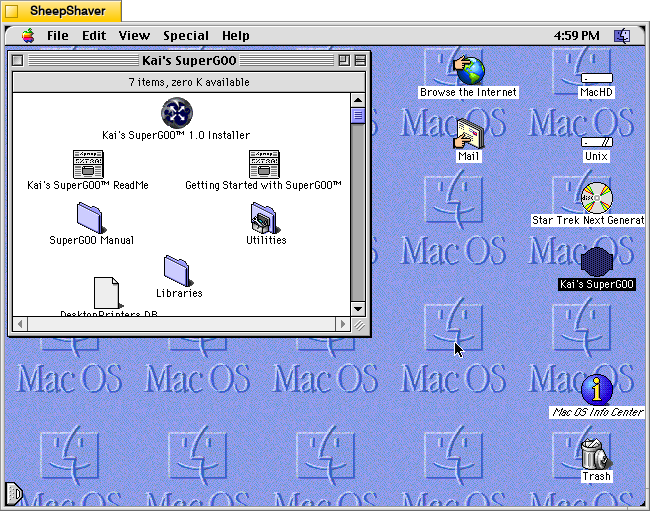
Installing Kai’s SuperGOO is as straightforward as other Mac software of the era that used a basic installer. However, the initial screens shown below gesture toward its inventive user interface. To launch the installer, the user double clicks on “Kai’s SuperGOO 1.0 Installer” located in the root of the CD-ROM disc.
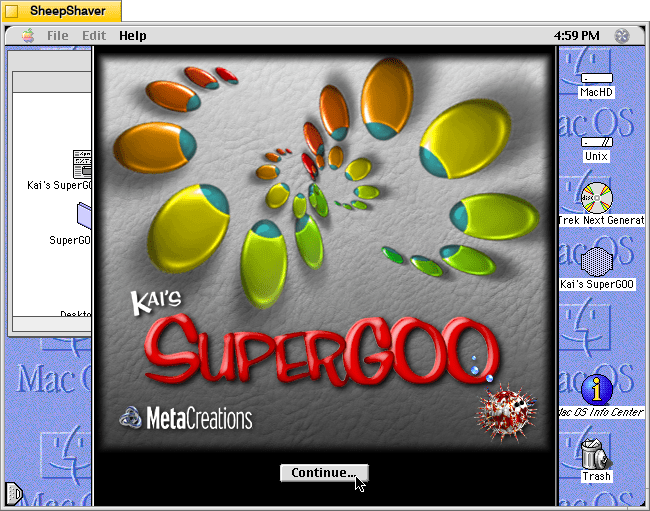
The first screen after launching the installer is shown above.
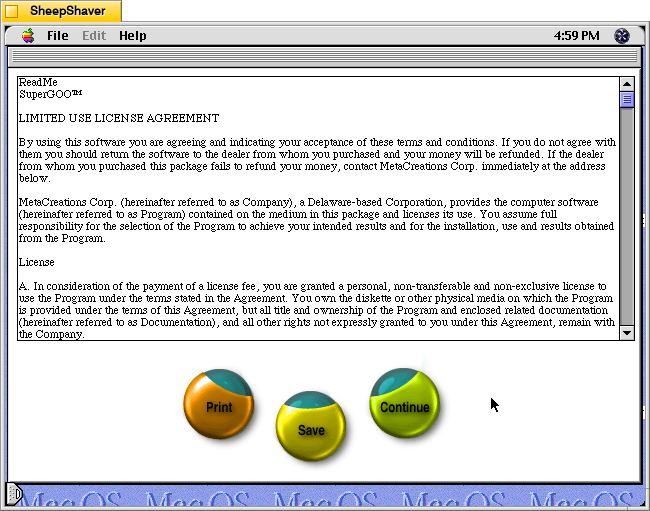
The license agreement screen notably has stylized round buttons for Print, Save, and Continue.
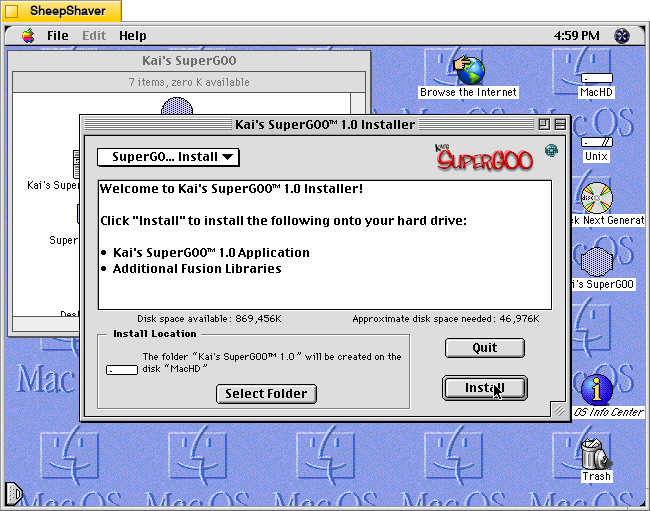
Clicking Continue on the previous screen takes the user to a traditional installer window. Clicking Install begins the installation of files to the selected folder on the user’s hard drive.
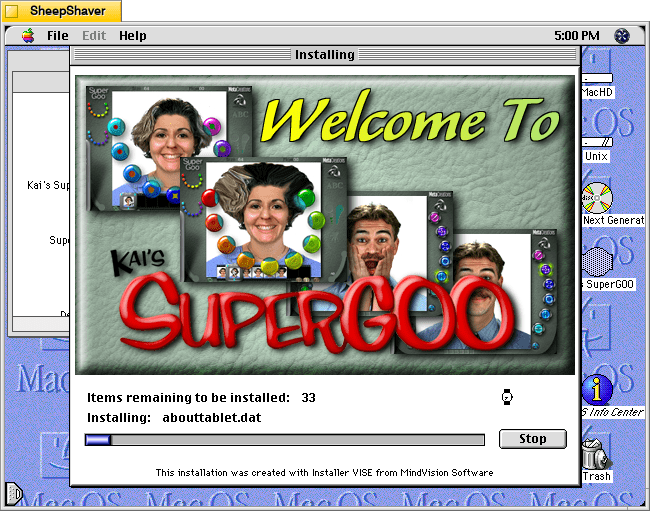
Several demonstration/prompting screens accompany the copying of files.
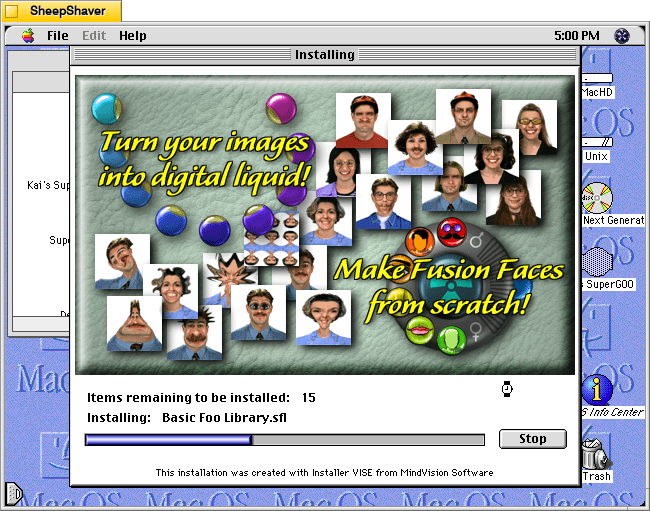
These screens preview key elements of SuperGOO, such as the brushes on the left and the Fusion Faces feature on the right.
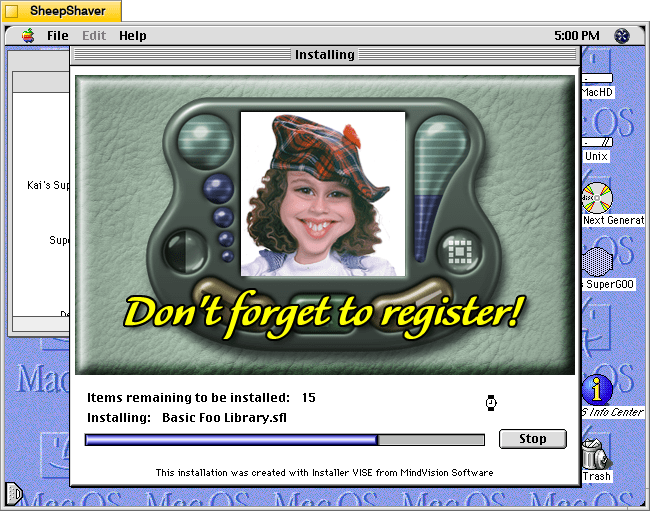
This final screen reminds the user to register, but it also shows a stylized, miniature version of the user interface.
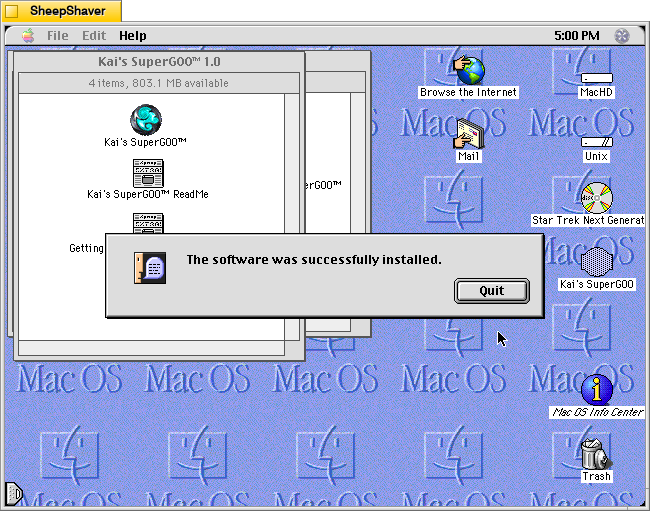
The software is installed and ready for use. In order to use the software, the CD-ROM has to be in the CD-ROM drive and mounted.
Use
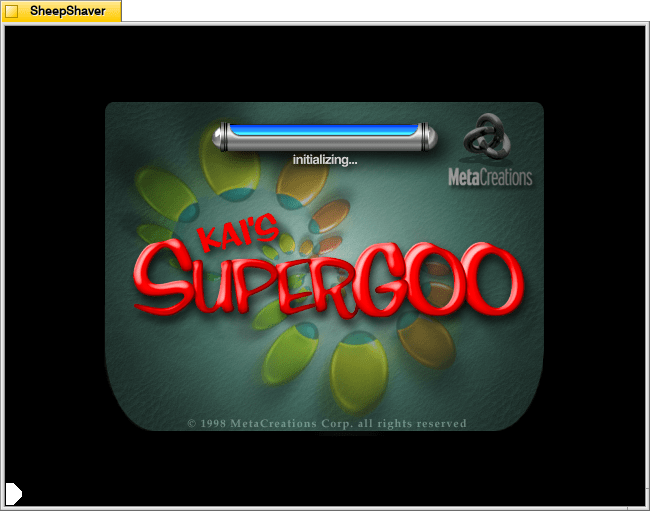

When the user first launches the software, it prompts for a name to personalize it.
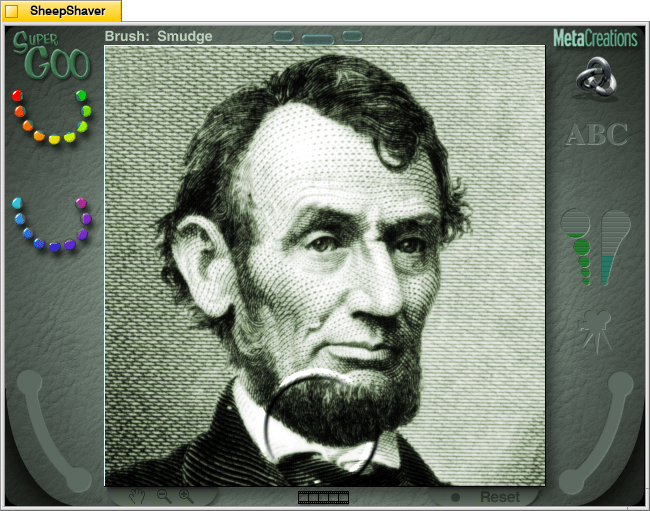
The main screen or what is called the “GOO Room” in the Read Me file. As suggested in that file, the UI invites the user to click on things to see what they do. Should the user find themselves backed inot a corner, there is an option to Reset in the lower right, or simply quitting the software with Cmd+Q and restarting the program. It opens with an image of Abraham Lincoln that can be manipulated using the tools on the left. The top set of tools are called Brushes.
I was left wondering why Abraham Lincoln’s face was selected for manipulation. Perhaps his image is well known and perhaps liked by children, but his important accomplishments as president and his tragic assassination seem to position his face as not deserving the more radical manipulation options available.
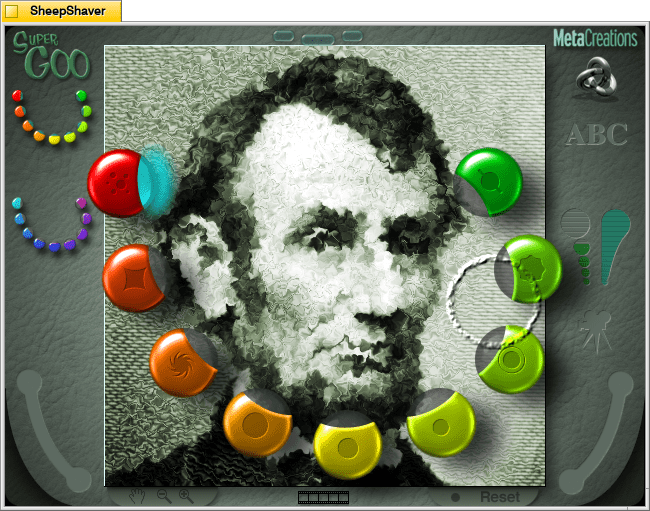
Using the Noise brush, I obscured Lincoln’s face as if it were seen through a primitive piece of glass.
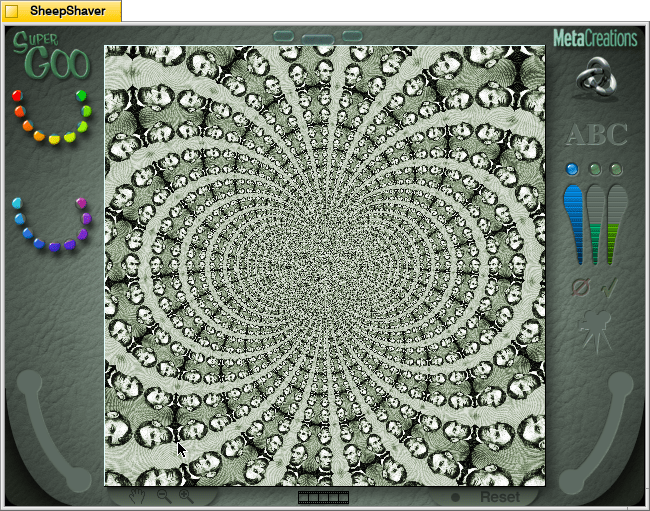
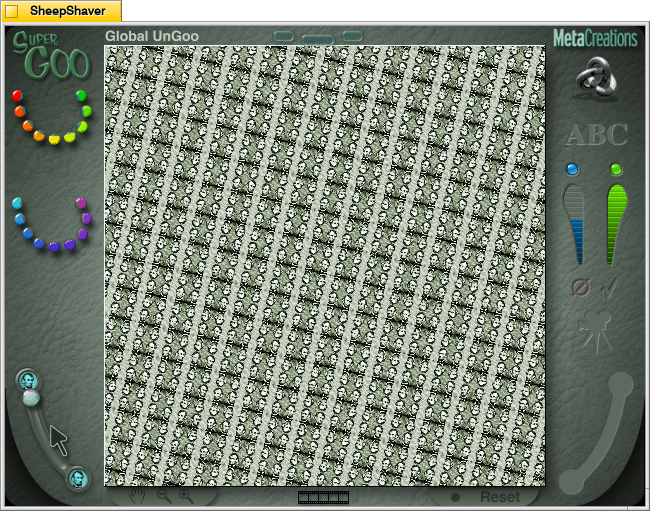
Below the Brushes on the left are the GOO Effects. These create videos using starting image. Above is one frame of Vortex Tiling GOO Effect.
Above is one frame of the Zoom and Rotate effect.
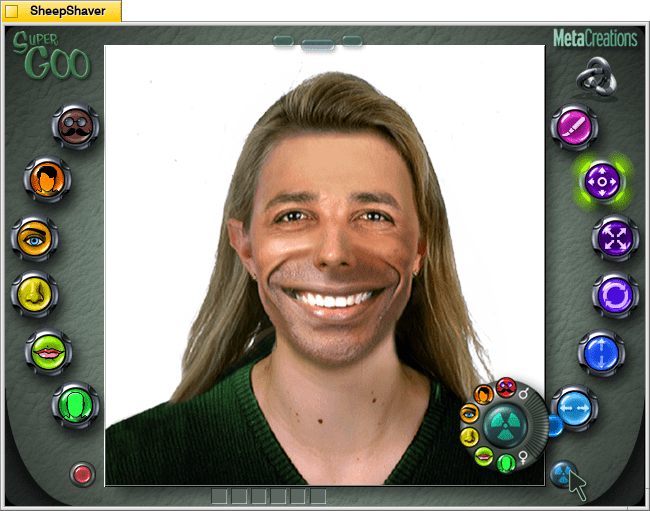
By clicking on the bubble in the top middle of the UI takes the user to the Fusion Room (from the GOO Room) or to the GOO Room (from the Fusion Room). By clicking on the nuclear symbol button in the lower right corner of the Fusion Room gives the user the option to generate a new human face that mixes and matches elements akin to a police facial composite or E-FIT.
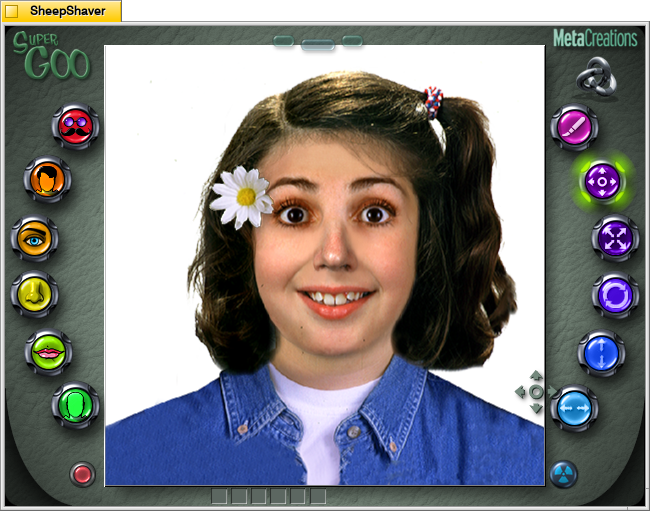
The results are mildly uncanny.

Most random generations result in white faces, but after many, many iterations, I arrived at this face with epicanthic folds. When using the eye selector on the left, there are three female options with epicanthic folds and two male options.
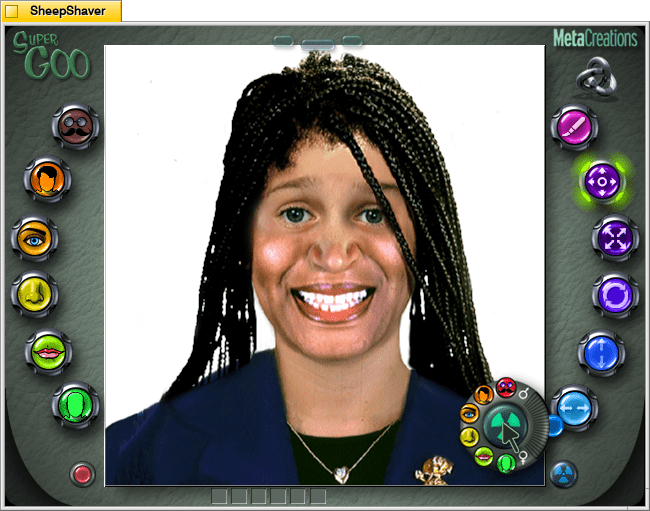
This generated face appears to have darker skin, but there’s no option for changing skin color or adjusting tone. As the various facial features are assembled, there seems to be a kind of blending that makes them work together. However, there isn’t a clear cut way to create faces outside of a narrow skin tone range using the Fusion generator. The natural variety of faces with different skin tones has to be imported.
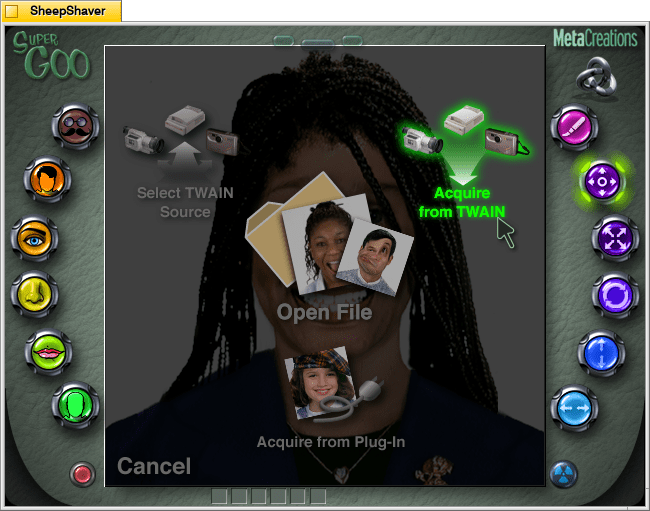
To import an image, the user clicks the bubble in the middle to the left, which opens the “In Panel.” It can interface with image capture and scanning devices that have a TWAIN driver, open an existing file, or acquire from another device plug-in.
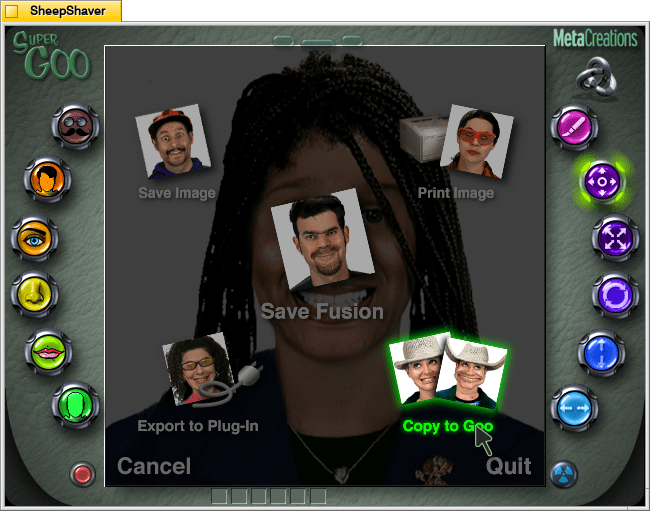
By clicking on the middle bubble to the right, the user comes to the “Out Panel,” which gives options to save the image, print the image, save the currently displayed Fusion generated face, copy the Fusion generated face to the GOO Room, or export the currently displayed image to a plug-in (if installed and selected by the user).
Kai’s SuperGOO is an interesting approach to generating images of people using algorithms. In this case, randomizing carefully edited pieces that seamlessly, more or less, fit together. Unfortunately, the available options for mixing and matching faces are homogeneous and tend toward lighter skin tones and limited facial features. While importing any face or image into the software is an option, the Fusion feature is crippled in terms of representation options available to the user.