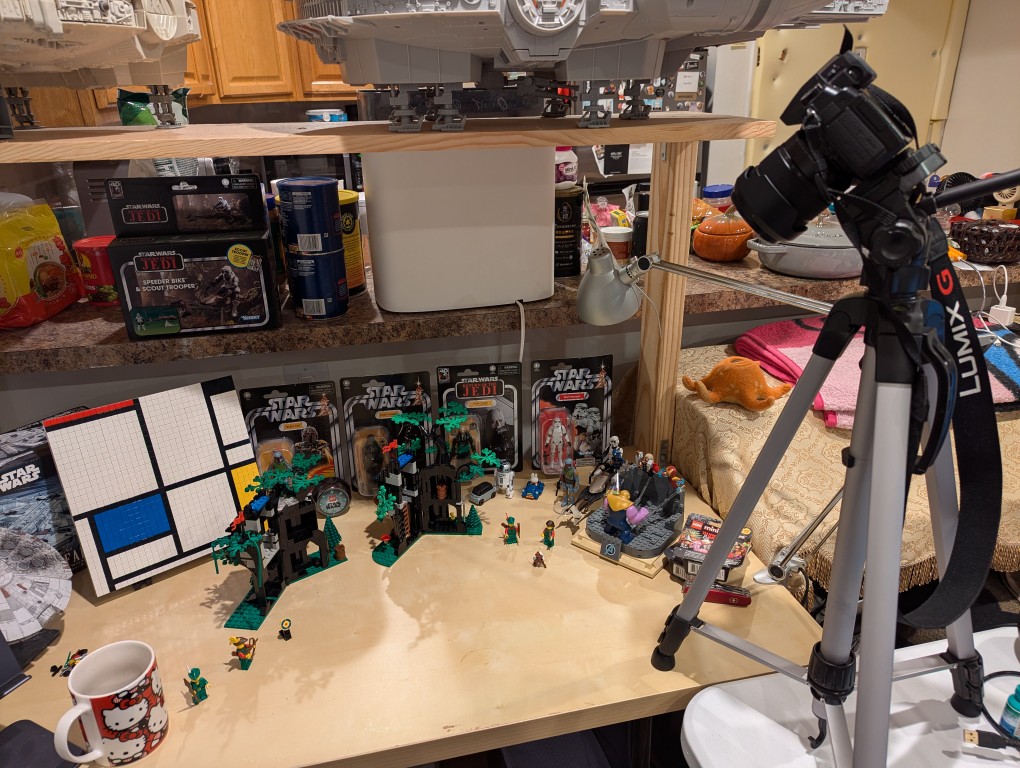
I’ve had this Panasonic Lumix DMC-G85 camera for awhile, but I’ve never had a reason to setup its Wi-Fi remote control feature until I began thinking about taking photos for the post that I published yesterday comparing the builds of LEGO’s Forestmen’s Hidenout (6054) and Forest Hideout (40567). I didn’t want to have to get up to active the shutter each time I took a picture, and I wanted to be in the photos as the builder. Using my smartphone as a remote control of the camera configured with timed shutter release allowed me to take the photos that I had in mind.
It’s relatively easy to configure the DMC-G85 to be controlled with Panasonic Image App (available for Android and iOS) via a smartphone (see pages 52-53 of the official manual here).
The basic version of setting up remote control for the camera is shown in the photos below. First, on the camera, open the menu > setup/wrench > Wi-Fi > Function > New Connection > Remote Shooting.
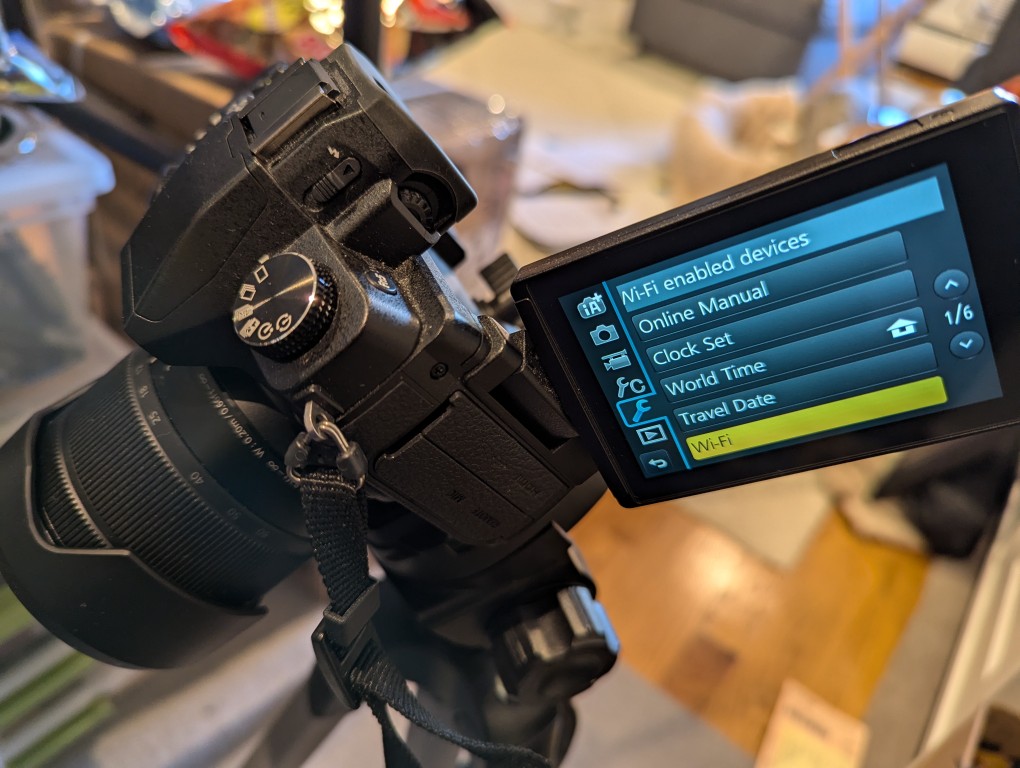
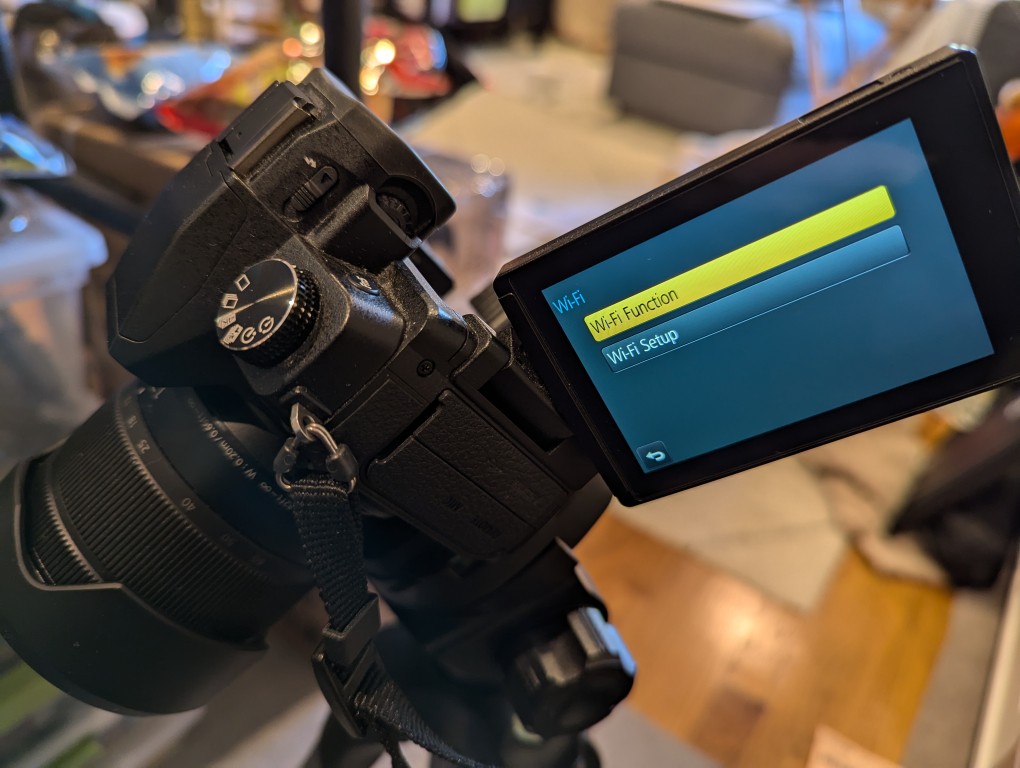
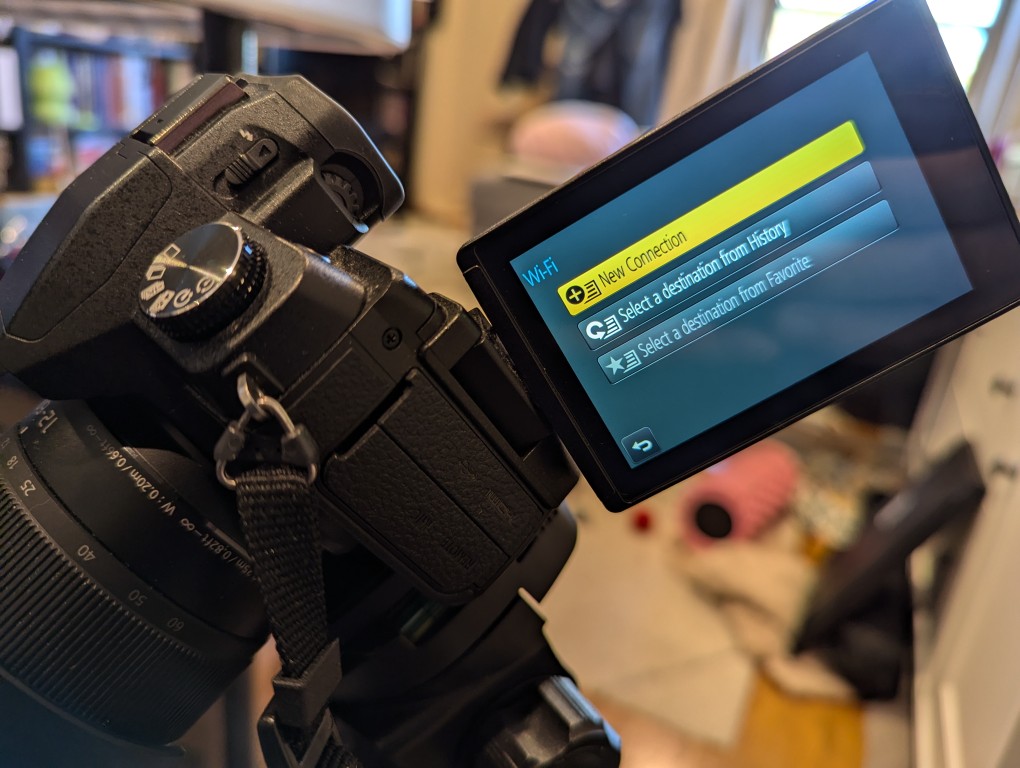
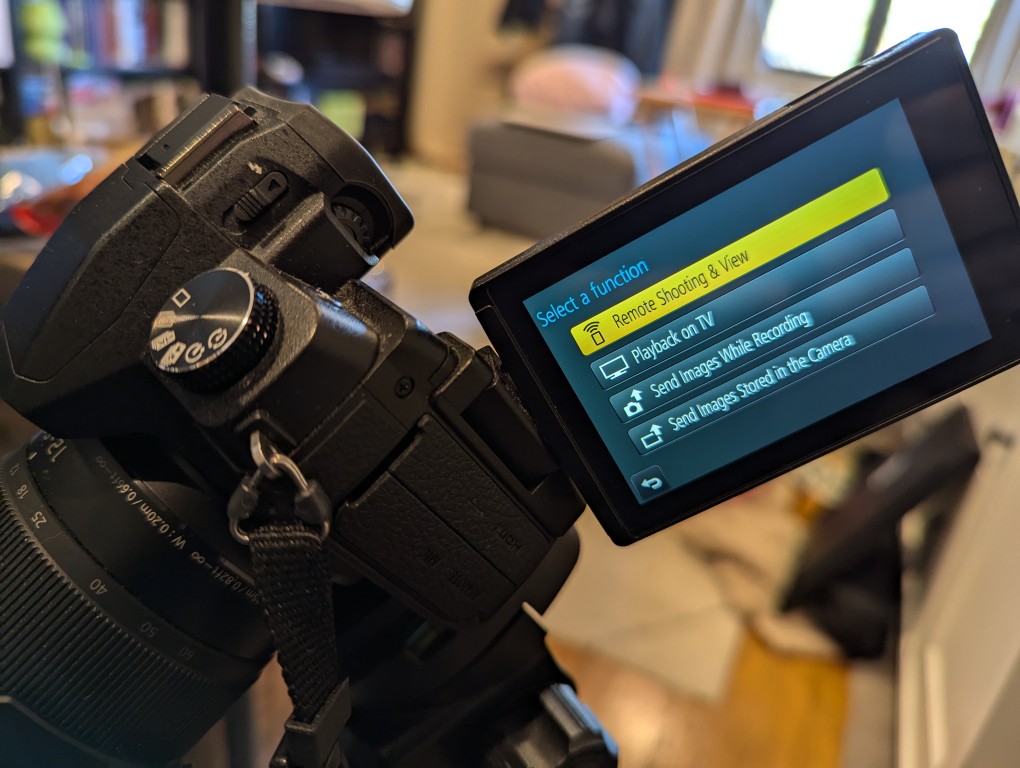
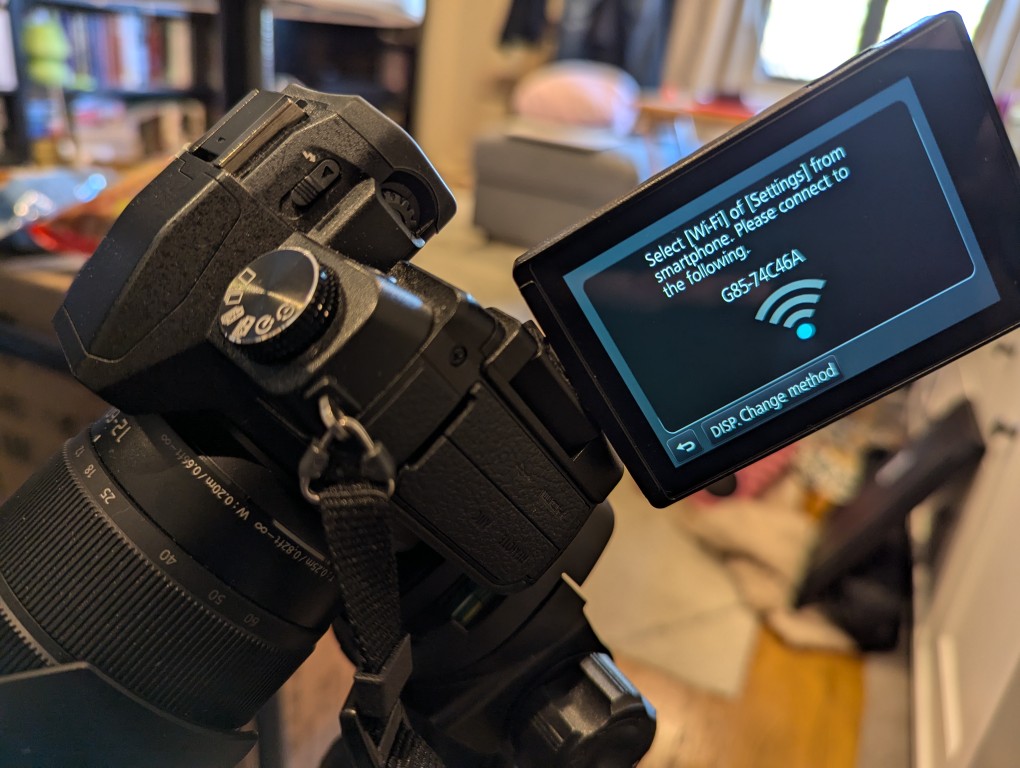
After connecting your smartphone to the displayed Wi-Fi network, install and open the Panasonic Image App.
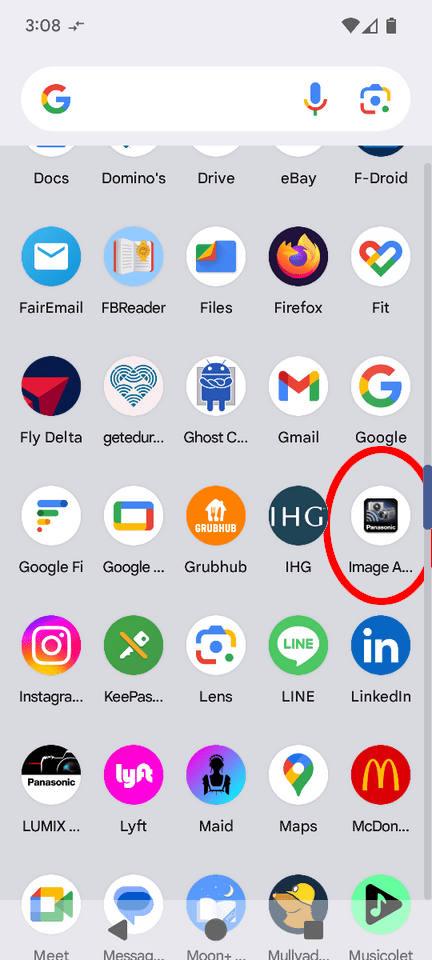
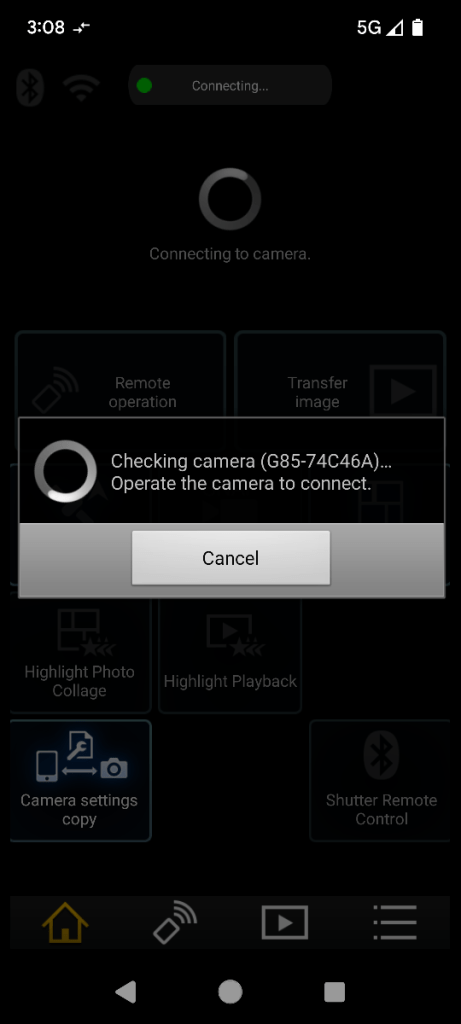
After agreeing to the terms of service, click on the area on the left for “Remote Operation.” When it attempts to connect, it will prompt you to “Operate the camera to connect.” Back on the camera, click the button on the display to accept the connection.
Then, you will see what your camera sees on your smartphone’s screen. There are controls for adjusting the camera and activating the shutter.
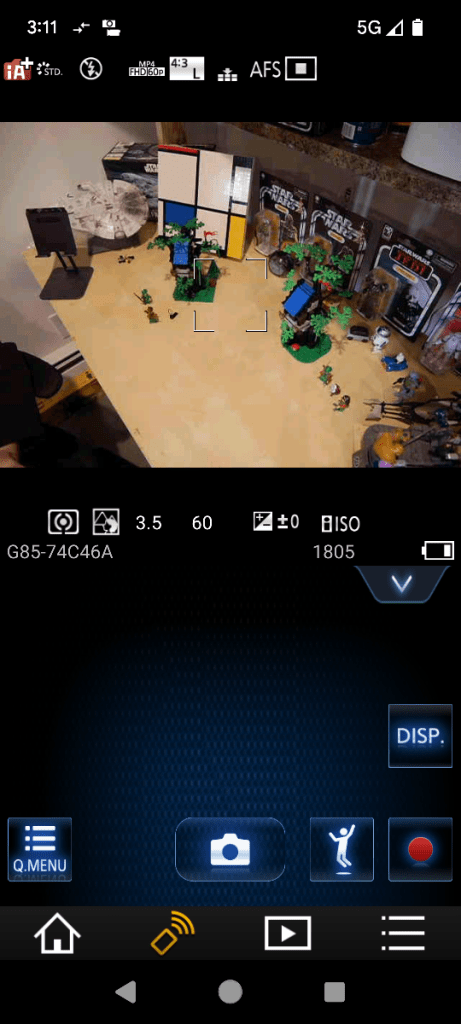
So that I could capture my hands working with LEGO, I set my camera’s shutter timer to 2 seconds. This means when I would click the camera icon/shutter release in Panasonic Image App, there would be a 2 second countdown during which I could put my hands back into the scene before the shutter was released.
When I take night sky photos again, I will definitely use Panasonic Image App to control the camera so that I can avoid vibration induced by my pressing the shutter release button.
