Tag: Text Generation

  • MacTravesty 1.1.1, a Text Analyzer and Generator for Macintosh

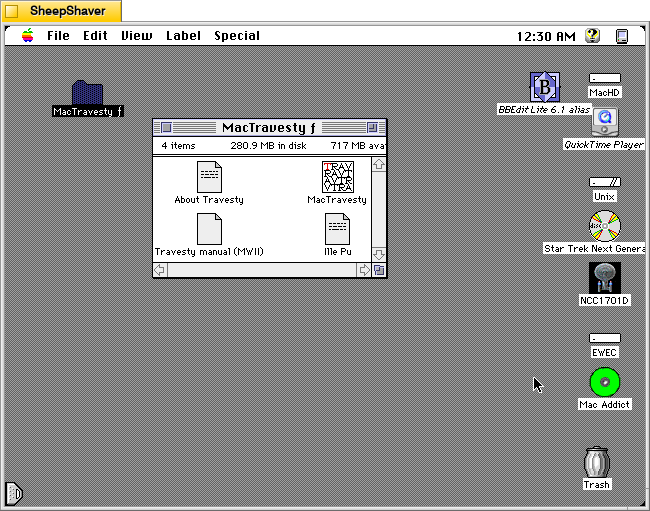
    MacTravesty program folder on Macintosh System 7.5.5 system emulated in SheepShaver.

    Written by Bertil Holmberg, MD, MacTravesty 1.1.1 (available to download from the archived TextWorx Toolshed) is a lean piece of software that can analyze groupings of characters in a text and then based on that analysis generate nonsense text. His Info-Mac abstract explains:

    #### BINHEX     mac-travesty-111.hqx   ****

    From: anbhg@maja.mascan.mas.lu.se (Bertil Holmberg)
    Subject: MacTravesty

    MacTravesty is a small program that analyses a text file and lists all
    the character groups contained in the text. A new pseudorandom text
    based on the language specific character frequencies can then be
    generated.

    This version updates the authors address.
    --
    Bertil Holmberg, M.D. Dept. of Anesthesiology
    Malmoe University Hospital S-205 02 Malmoe, Sweden
    bertil.holmberg@anestesi.mas.lu.se Fax +46 40 33 70 70

    In the “About MacTravesty” file included with the program, he explains further:

    MacTravesty analyses how characters relate to each other in a sample text. More specifically, it will record the ocurrence [sic] of every sequence in the text with one to five characters. These sequences are quite typical for the language studied. A random text based on the character frequencies of English will therefore easily be recognized as English.
    What is MacTravesty good for? You tell me, or ask a linguist.

    MacTravesty was written several years ago in assembler, hence it's speed and the small size of 28 kB! For the same reason it is rather unlikely that a PowerPC version will ever surface. It runs quite fast under emulation, however, a 30 kB text is processed in about 10 seconds.
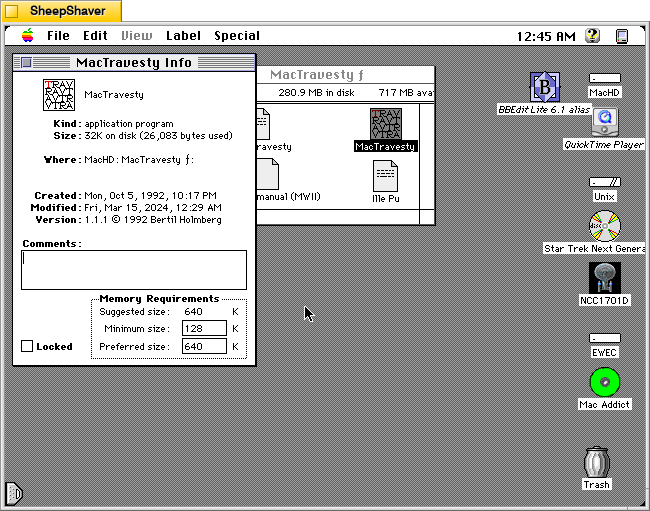
    MacTravesty Get Info window on Macintosh System 7.5.5 system emulated in SheepShaver.

    Looking at the Get Info for the MacTravesty program, we can see that it is a rather lean application being only 32K on disk (26,083 bytes used), and it has very modest memory requirements of 128K minimum and 640K preferred size.
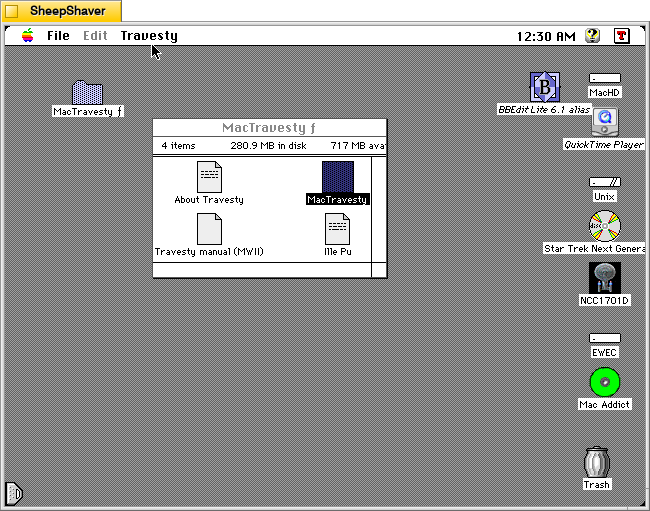
    MacTravesty open on Macintosh System 7.5.5 system emulated in SheepShaver.

    MacTravesty launches to the menu bar and does not show any windows initially.
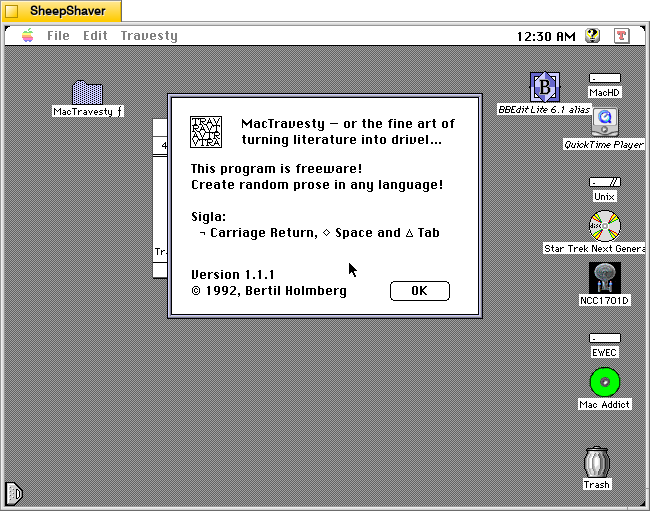
    MacTravesty Apple > About MacTravesty window on Macintosh System 7.5.5 system emulated in SheepShaver.

    Clicking on Apple > About MacTravesty brings up a window that states, “MacTravesty — or the fine art of turning literature into drivel…” Holmberg explains this and the program’s inspiration in the “Travesty manual (MWII)” file’s introduction:

    Introduction
    The lead-in above is borrowed from the Scientific American Computer Recreations column in the pre-Mac issue of November 1983. In this fascinating article, Brian Hayes describes how a letters probability of appearing at a given point in a text, depends strongly on the preceding letters. When examining a text-sample, it is possible to register not only the frequency of occurrence for single letters, but also to do the same for different combinations of several letters. These frequencies can then be used to generate random text that mimics the frequencies found in the original. Though nonsensical, these pseudo-texts have a haunting plausibility, preserving as they do, many recognisable mannerisms of the texts from which they are derived.

    The letter-frequencies for single letters are well known. In addition, they are few enough, not to present any storage problems. Although little statistics is readily available for groups of more than one letter, todays computer technology makes it easy to derive frequencies for virtually any combination of letters. This has not always been the case, only ten years ago, fourth-order letter frequencies was the limit. The large tables necessary to store the frequencies quickly outgrew the limited memory capacity available. Even more important, however, was the lack of efficient algorithms that could reduce the storage requirements.

    In his article BH presents a working method that builds on the fact that all the information that could be incorporated in any frequency table, is present in the original text, where it takes it most compact form. There is a drawback to this scheme, it requires a scan of the entire input text for the generation of each pseudo-random character. The performance is therefore dependent on the product of the lengths of the input and the output strings. If on the other hand, the output was based on a frequency table, it could be generated in a time that was proportional to the sum of the lengths.

    This is where Peter Wayner, in the September 1985 issue of BYTE, comes to our help. He shows that it is quite feasible to build a frequency table, even for larger orders, as long as all the redundant information is left out. The natural storage form for such a table is, of course, the data tree. This well known structure is in fact ideal for the varying requirements of the travesty table. Its practical implementation will be rather more like a bush, though. Each unique character group represents a complete branch with as many ramifications as the current order dictates. Several similar groups will share smaller or larger parts of the same branch. A terminal leaf will contain the frequency count for one group. For more details on the practical implementation, please see below.

    While I don’t think Holmberg is making any assertions about artificial intelligence (AI) and generative AI, I can’t help but think about how his program draws on Hayes and Wayner’s pieces point to one avenue of understanding human language with a computer, and by helping the computer understand language, it could eventually reproduce it.
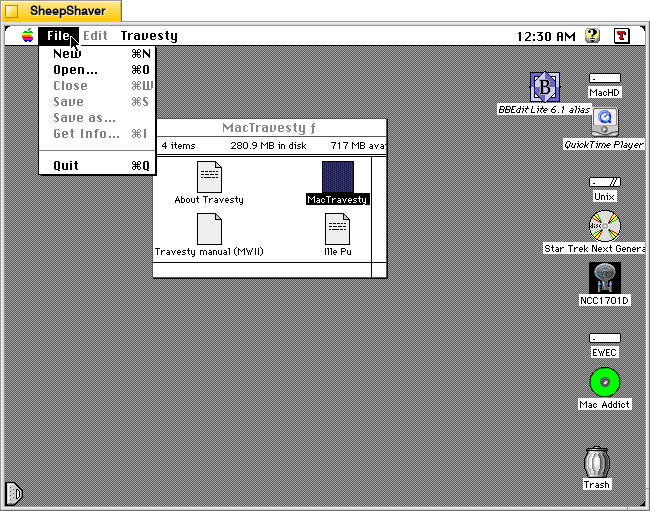
    MacTravesty File menu on Macintosh System 7.5.5 system emulated in SheepShaver.

    The File menu has many standard options but how these work after analyzing a text is unique. Holmberg explains in the manual:

    File menu
    New: Opens an empty document window that bids you to enter plain text in 9 p Monaco. This function uses TextEdit, a small editor that is built into all Macs. Since the purpose of this is to handle short text in dialogs, you may run into trouble if your text exceeds 32K.

    Open: Lets you open a document that has been saved as TEXT. It is NOT possible to open a file with a length of more than 32K.

    Close: Closes the front window. If it is the editor window and this contains a text that has not yet been saved, an alert will give you the opportunity to do so.

    Save: This option is only enabled if a non-saved text is present in the text window.

    Save as: This option is enabled whenever one of two windows is open. When the text window is in front, its content is saved as TEXT with the creator MACA, i.e. MacWrite.
    If the frequency window is in front, its character groups and their counts can be saved in a similar text file. This makes it possible to print out this information from another application. Regrettably, the nice columns come out horizontal when using this function. You can have a look at the file in the editor window. It may be necessary to resize this to get the lines even. If MacWrite is used for printing, hit the "Paragraphs" button when opening the file.

    Get info: This is another context sensitive menu option. For a text file it will show the number of characters, words and paragraphs. If the other window is in front, this feature will tell you about the number of nodes that were created during the analyse, and how many unique character groups that were found.

    Quit If you try to leave MacTravesty without saving some data in the edit window, an alert will tell you so. As is the case with the similar feature of the Close item, pressing the Option key while selecting the appropriate menu item with the mouse will bypass the alert.
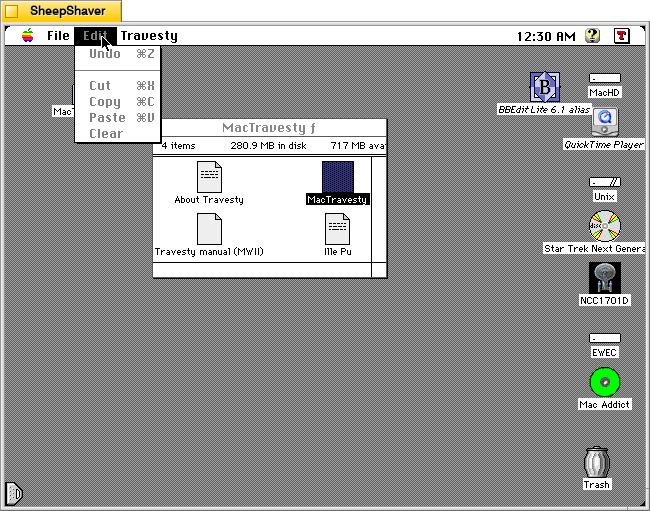
    MacTravesty Edit menu on Macintosh System 7.5.5 system emulated in SheepShaver.

    The Edit menu is also standard fare, but there are some exceptions and caveats explained by Holmberg in the manual:

    Edit menu
    Undo This command is not functional in MacTravesty. It is included for compatibility with certain DAs [desk accessories].

    Cut, Copy, Paste and Clear These are all supported by the MacTravesty editor. In addition, TEXT can be imported and exported through the Clipboard in the usual fashion. Use the Paste function with care, don't let the file size exceed the limit mentioned above.
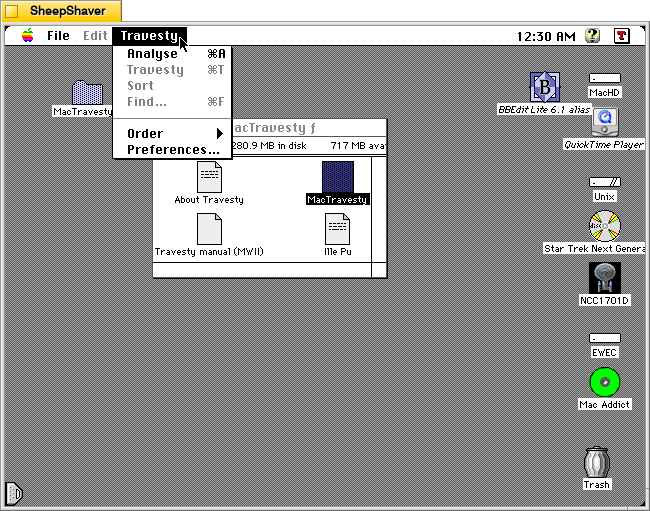
    MacTravesty Travesty menu on Macintosh System 7.5.5 system emulated in SheepShaver.

    The Travesty menu is where the magic happens in this application. Holmberg explains each option in this menu in the manual:

    Travesty menu
    Analyse Choosing a TEXT source file in a standard file dialog will start the generation of a new letter-frequency table. After a brief delay, another dialog will show the progress of the analyse. When this is finished, the groups and their counts are sorted if the relevant box in the Preferences dialog is checked. Next, the frequency window is opened, showing all the character groups that were found. The first group is always selected after an analyse or a sort. To choose another group, just click on it. If the selected group isn't visible after scrolling, hit the Enter button to move it into view. If the analysis is terminated with the Cancel button, the groups that were found up to this point will be displayed. In order to present complete groups only, a complete analyse always wraps around to beginning of the source text.

    Travesty: This menu choice will only be available when the frequency window is in front. Selecting Travesty will then create a pseudo-random text based on the current character group frequencies. A travesty always start with a seed. This must be one of the character groups that were found during the analyse. It is selected either randomly or by the user, as determined by a setting in the Preferences dialog. Double-clicking on one of the groups will also start a travesty. Choosing Travesty again will create another piece of text, that will either replace the previous text, or will be appended to it. The requested text length is also entered in the Preferences dialog. Although this accepts a range of 0-9999 characters, no travesty will be started with a figure that is less than or equal to the order. When appending text, don't forget the 32K limit of TextEdit. The new text will appear in the text edit window mentioned above. If this is already showing and containing a text that hasn't been saved, you will be warned about this fact. Repeated calls to travesty will not result in any further save alerts. A travesty can be edited and saved as any other text.

    Sort: A list of character groups can be sorted either alphanumerically or after the number of groups found. Holding down the option key while selecting this item will toggle the sort from one alternative to the other. Since the sort [on a slow Mac] may take a while for a longer source text, automatic sorting can be turned off in the Preferences dialog.

    Find: Presents a dialog with a square text field that accepts up to five characters, including CRs. After an OK or Enter, the program will try to match these with one of the groups in the frequency list. If a match is found, it will be selected and highlighted. It can then be used as a travesty seed. You will hear a beep if no match is found. The entered text is then highlighted to facilitate a new try. A À (Shift-Option-?) can be used as a wildcard character. Only the first group that is found in this way will be selected, though.

    Order: This will show a hierarchical menu with five items, 1-5. These also have the command key equivalents Cmd-1 and so forth. Order-3 is the default setting. Although it is possible to choose a new order whenever the menu is enabled, a travesty will always use the order that was current at the start of the analyse.

    Preferences: Opens a large dialog with several items, most of which has already been mentioned above.
    Edit: Here you can determine if the text in the edit window shall wrap to the bounds of the window, or to a fixed document size.
    Analyse: A long list of character groups can be confusing if it contains many space-characters. Replacing these with a ×, usually gives a better view of the groups, especially since the CR and the Tab will be represented by a  and a Æ, respectively.
    Sorting was originally such a slow procedure that it was sometimes necessary to inhibit it. As MacTravesty now uses an extremely fast quicksort, you should be able to have this feature enabled most of the time. "Alphanumerically" will place the groups in ascending order, while "By Count" first will arrange them by descending frequency.
    Travesty: This is where you set the length of the travesty and determine how the seed is to be chosen, and whether to append or replace the created text.
    OK Make the current settings the default ones.
    Cancel Just leave the previous defaults as they are.
    Revert Return to the saved settings.
    Save Save the current settings.
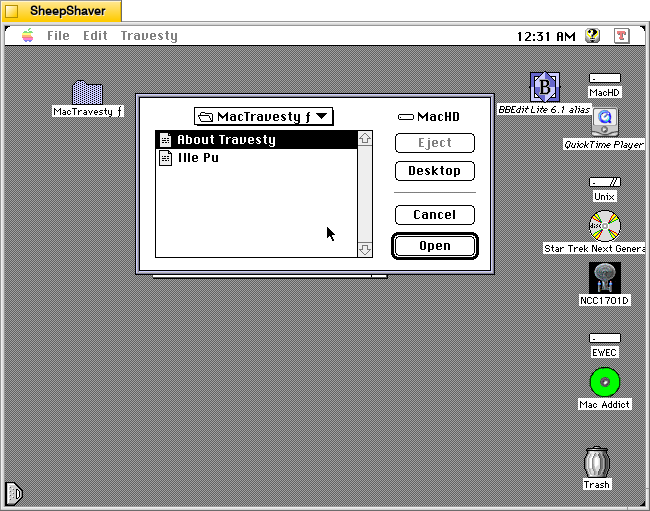
    MacTravesty Analyse file selection dialog on Macintosh System 7.5.5 system emulated in SheepShaver.

    Clicking on Travesty > Analyse brings up a file selection dialog.
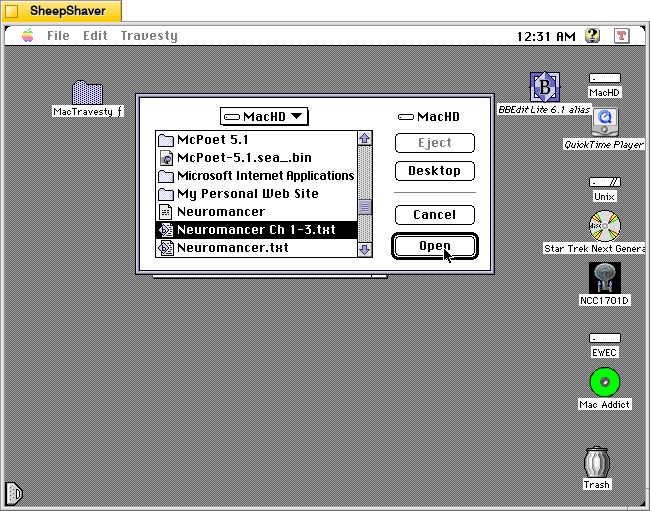
    MacTravesty Analyse file selection of Neuromancer chapters on Macintosh System 7.5.5 system emulated in SheepShaver.

    Navigating to the MacHD, I selected a text file with a sample of chapters from William Gibson’s Neuromancer (1984).
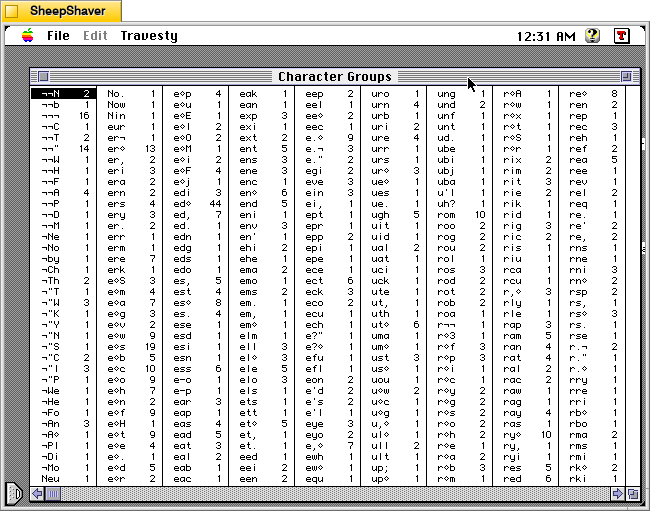
    MacTravesty Character Groups window after analysis of Neuromancer chapters on Macintosh System 7.5.5 system emulated in SheepShaver.

    Very quickly, MacTravesty created this massive character group chart that it can use to generate text based on the relative appearance of certain character groups. Holmberg explains about the performance of the application in the manual:

    Performance
    MacTravesty is quite fast. It will process a small text sample in just a few seconds. Analysing a longer source text may take a minute or so, but this is still quite reasonable. The exact time depends mainly on the length of the source. Since most of the time is spent traversing the travesty tree, the order has only a minor influence on the timing. Here are some data for a relatively long file of about 30K (on a Mac SE/30):

    Order Analyse Sort Nodes Groups
    2 35" 1" 735 673
    3 40" 4" 4359 3605
    4 50" 13" 13736 9377
    5 60" 25" 29653 15917

    Please note that the time required for sorting increases in an almost linear fashion, this an excellent example of how fast the quicksort can be. Using the less efficient shuttlesort, sorting the 15917 groups took about two hours!
    On a Quadra 700 the same 5-order analyse takes 14 and the sort less than two seconds (timings with a Power Macintosh Upgrade Card are similar, the sort takes a few seconds more, though).
    The travesty is also fast, creating a thousand character sample of random prose will only take a few seconds.

    Memory
    Analysing a large source file requires a lot of memory (well, this was originally written in the late eighties). As can be seen above, the number of letter groups increases fast with higher orders. As each node requires 8 bytes, the 5-order analyse in the example needed 237224 bytes for its tree. Since it is very difficult to know in advance how large the tree will become, a certain amount of memory is reserved at the beginning of the analyse. How much depends on the order and on the file size. For each 1024 bytes in the file, a smaller piece of memory is added to a basic allotment. These figures are fetched from the resource TRDF and can be changed as required. This means that even a very short analyse may start out with a sizable chunk of memory, perhaps 90K or so. This is necessary since most of the memory is consumed in the beginning. Any memory that isnÕt used is released at the termination of the analyse.

    This may come out handy, as the next phase also requires a good part of memory. The different character groups in the tree has to be identified and transferred to a separate list, before they can be presented in the frequency window. Each group in the list needs (order*2)+2 bytes, i.e. 191K for our example. Saving the frequencies would require another 190K. The graph below shows how the node count relates to the file size in a 3- and 5-order analyse.

    Implementation
    The travesty tree begins with a dummy root node from which all the branches sprout. This means that there will be at least one node more than the number of character groups. The number of branches at this level equals the number of unique characters in the source. Each node contains four word-length fields; the character code, a count and two offsets to the next branch and twig, respectively. The count is only used in the outermost twigs, i.e. the leafs.

    Using the BYTE example, Here are the shoes, the ships, and the sealing wax: the beginning of its 138-node, 4-order tree will look like this in my implementation:

    [Image could not be decoded.]

    The travesty is created using the method suggested by BH. Taking a 3-order travesty as an example, we would like to add the next pseudo-random character to the sequence Éth. While looking up all variations on thÀ in the tree (e.g. tha, the, tho etc), the counts for these groups are added together. A random number between this sum and zero is then generated. The same counts are then subtracted from the random number one by one. If the result of a subtraction is zero or less, the last character of the group corresponding to this subtraction will be appended to the growing travesty.
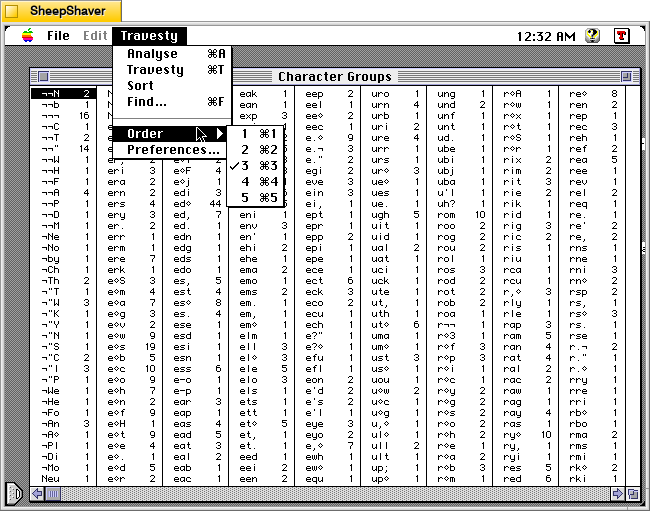
    MacTravesty Travesty menu > Order submenu on Macintosh System 7.5.5 system emulated in SheepShaver.

    The Travesty menu > Order submenu allows for higher or lower order travesties, but as noted above, the order selected before a text was analyzed for creating travesties.
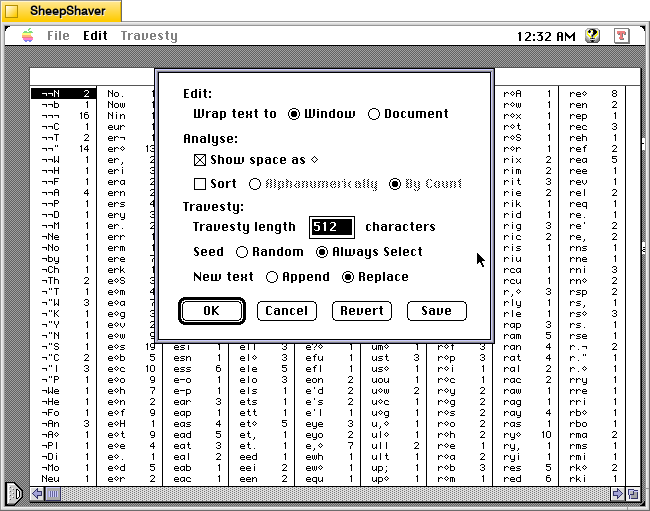
    MacTravesty Travesty menu > Preferences on Macintosh System 7.5.5 system emulated in SheepShaver.

    Clicking on Travesty > Preferences brings up this options window.
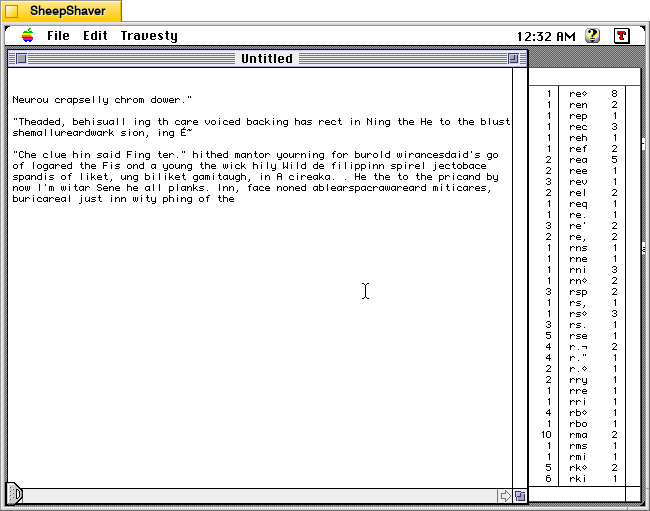
    MacTravesty Travesty > Travesty text generation on Macintosh System 7.5.5 system emulated in SheepShaver.

    After analyzing the Neuromancer chapters, I instructed MacTravesty to generate this travesty of text based on its character group occurrences.
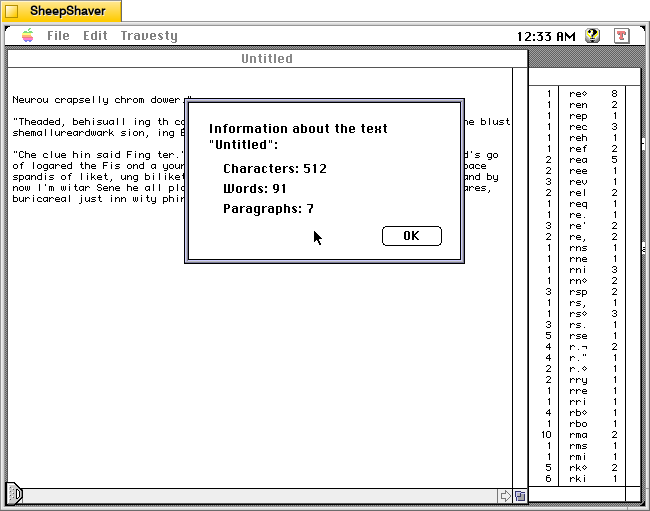
    MacTravesty File > Get Info about the generated text on Macintosh System 7.5.5 system emulated in SheepShaver.

    Clicking on File > Get Info on the travesty text shows that it generated 512 characters, 91 words, and 7 paragraphs (I’m not sure how these are being counted–maybe hard returns starting from the first blank line and the ending blank line?).

    Holmberg concludes the manual by writing:

    The End
    Playing around with MacTravesty can be great fun for a while, but is it actually useful for something? Well, at least you can easily create "greeking" for DTP dummies with MacTravesty. And it should be of some interest to linguists. I'm sure that the rest of you can come up with many more interesting ideas.

    I definitely can see how this program would be useful for desktop publishing, especially at the time when it was first released. But, I’m captivated by how this could have been developed in other directions for the purposes of generative AI–as the basis for a more complicated text generator that operated on the level of words, parts of speech, and scripts. In retrospective imagining, I can see this application as the basis for something exceeding most of the other text generators that I have written about here because it in a sense learns from a text (creating the character groups) and applies that to generating text. If its input were more useful for providing meaningful text generation, it would have been a step in the direction of where we are at now with generative AI.
  • HAIKU 0.2 Hypercard Stack

    HAIKU 0.2 Hypercard stack icon on Macintosh System 7.5.5 system emulated in SheepShaver.
    Created by Fuzzy Gerdes, HAIKU 0.2 is a Hypercard stack that assembles haikus from pre-written 5-syllable and 7-syllable phrases. Unlike some of the more advanced haiku generators like Haiku Master 2.2 or McPoet 5.1, which work on a micro, word-level for constructing haikus, HAIKU 0.2 operates on a macro, phrase-level and puts more work on the part of its human user to think of and type up phrases that contain five and seven syllables, which it randomly selects from to create new 5-7-5 haikus.

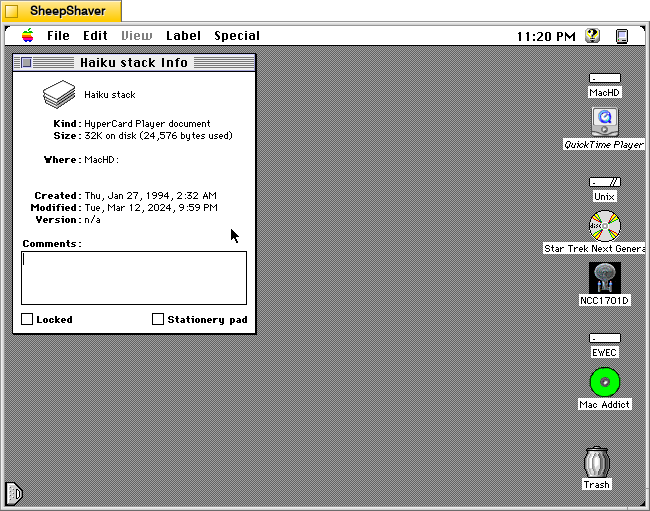
    HAIKU 0.2 Hypercard stack Get Info window on Macintosh System 7.5.5 system emulated in SheepShaver.

    HAIKU 0.2’s file name is “Haiku stack” and it weighs in at 32K on disk (24,576 bytes used).

    HAIKU 0.2 Hypercard stack main window on Macintosh System 7.5.5 system emulated in SheepShaver.

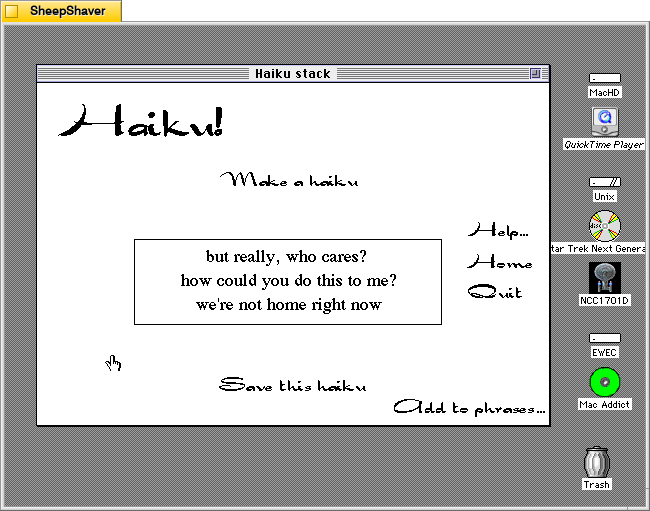
    When the user double clicks on Haiku stack, it launches Hypercard Player, which runs the stack and displays HAIKU 0.2’s main composition window. The main options that can be clicked with the mouse are “Make a haiku,” “Help…”, “Home,” “Quit,” “Add to phrases…”, and “Save this haiku.”

    HAIKU 0.2 Hypercard stack main window on Macintosh System 7.5.5 system emulated in SheepShaver.

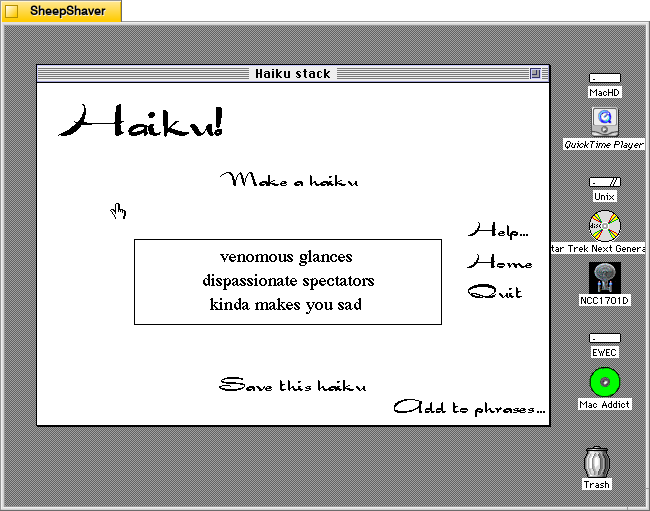
    Clicking on “Make a haiku” in the upper, middle portion of the main window creates a new haiku out of randomly selected five and seven syllable phrases stored in the Hypercard stack.

    HAIKU 0.2 Hypercard stack's Help window on Macintosh System 7.5.5 system emulated in SheepShaver.

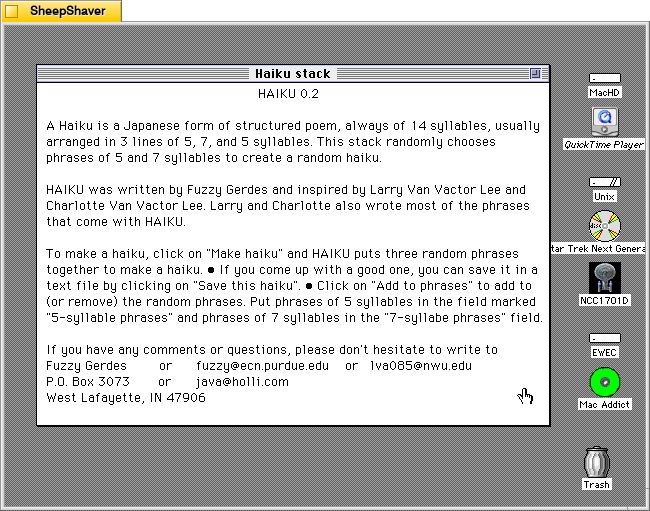
    Clicking on Help loads this page, which explains how it works, how to use it, and credits–written by Gerdes and inspired by Larry Van Vactor Lee and Charlotte Van Vactor Lee, who wrote most of the built-in phrases.

    HAIKU 0.2 Hypercard stack''s save dialog on Macintosh System 7.5.5 system emulated in SheepShaver.

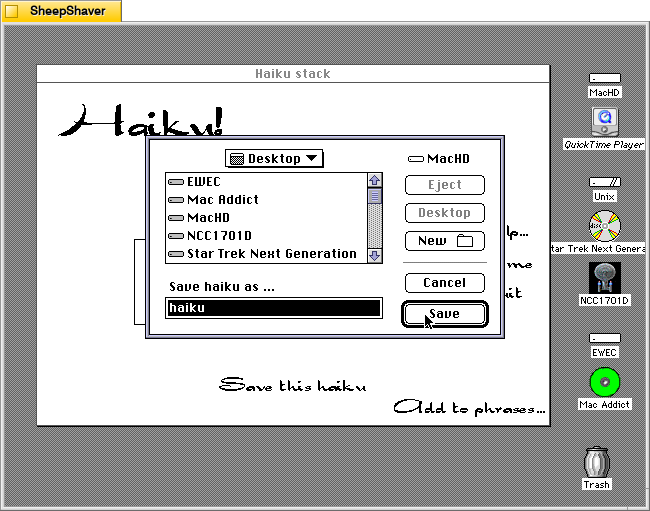
    Clicking on “Save this haiku” opens a standard save dialog box for navigating the system’s files and saving a TeachText file of the haiku currently displayed on the main window.

    HAIKU 0.2 Hypercard stack's Add to phrases page on Macintosh System 7.5.5 system emulated in SheepShaver.

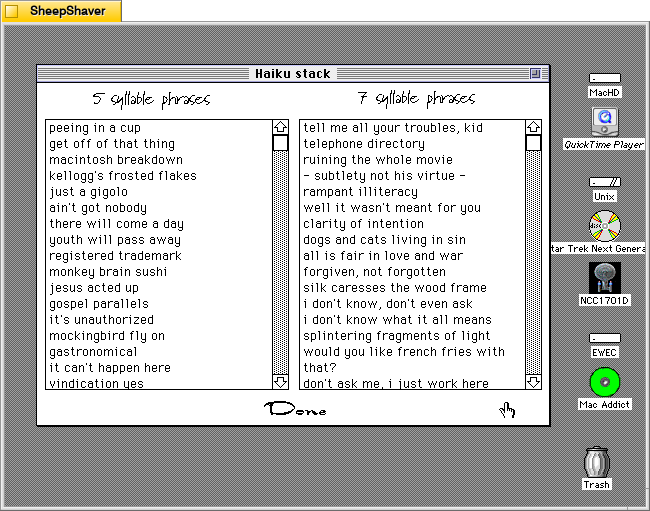
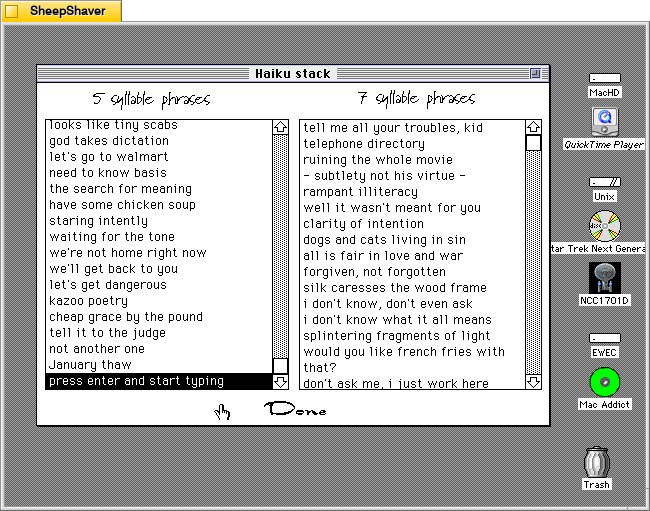
    Clicking on “Add to phrases…”, loads this two-column page labeled “5 syllabus phrases” and 7 syllable phrases.”

    Both columns are editable by clicking on a text line and typing, or the user can scroll to the bottom of the list, press return, and begin entering a new line of text. It doesn’t enforce syllable count–that’s up to the user to count correctly. Clicking “Done” at the bottom of the page returns the user to the main composition page.

    Even though this is a simple haiku generator in terms of how it assembles a haiku by randomly pulling from the 5 syllable phrase list, then the 7 syllable phrase list, and again from the 5 syllable phrase list. However, it and the other Hypercard-based text generators demonstrate the extremely easy to build power of Hypercard. A Macintosh computer with Hypercard gave non-programmers and programmers alike a relatively easy-to-use platform for creating interactive hypertext with graphics and programming. So, even though this and other poem generators like it are pulling text from lists based on simple rules and random numbers, it gestures toward equipping human computer users with feature-rich tools to make computers seemingly intelligent to a degree.

  • ChaosPoetry Generator 1.2 Hypercard Stack for Macintosh

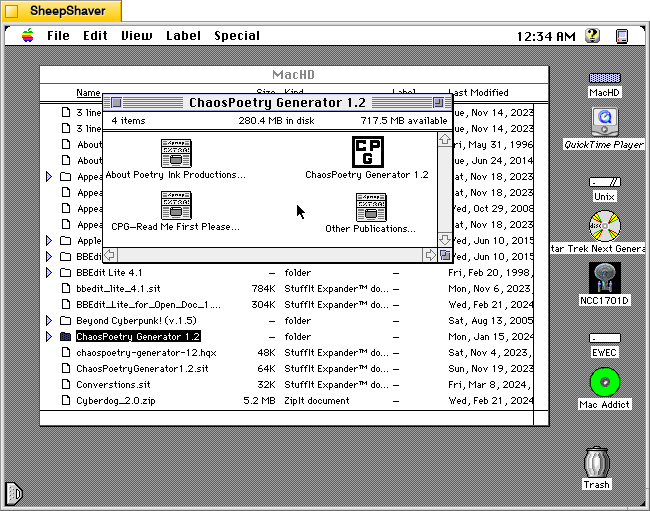
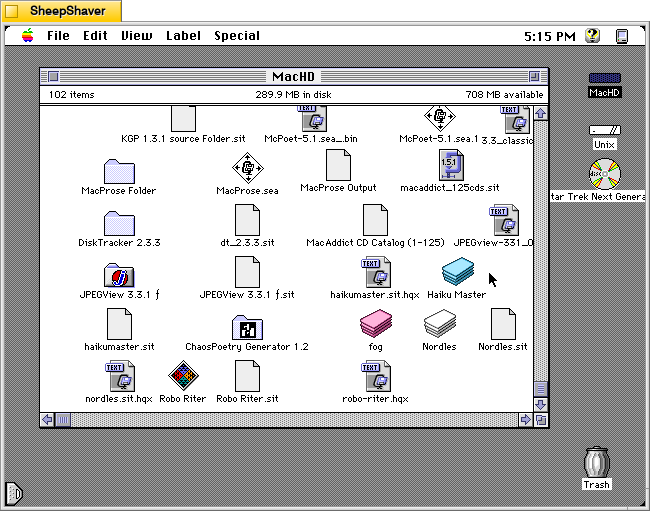
    ChaosPoetry Generator 1.2 folder containing the CPG hypercard stack and three text files on Macintosh System 7.5.5 system emulated in SheepShaver.

    ChaosPoetry Generator 1.2 (downloadable from the TextWorx Toolshed) is a Hypercard stack for Macintosh that strings together words, phrases, and sentences from seven lists that its built-in script randomly pulls from to create combinations that might be interesting, nonsensical, disturbing, or offensive.

    It was made by Professor of English Matthew P. Schmeer when he was an undergraduate studying contemporary poetry at the University of Missouri-St. Louis. He notes that it was inspired by Nordles (I will post about this soon) and McPoet 2.0 (post about version 5.1 is here).

    The abstract that accompanied the file in the Info-Mac Archive provides some more details about its use and purpose:

    #### BINHEX     chaospoetry-generator-12.hqx   ****

    From: poetink@inlink.com
    Subject: ChaosPoetry Generator 1.2.sit


    ChaosPoetry Generator is a HyperCard based writing tool to help writers break through writers block. Full documentation is included within the stack, but a simple explanation is that ChaosPoetry Generator is a random string generator wherein you control the strings.

    This version corrects a major bug which would not allow you to save your generated text. This has been fixed, and now CPG allows full text export.

    We give our permission for this file to be included on the Info-Mac CD-ROM, with our usual stipulations.

    Thank you.

    Matthew W. Schmeer
    <poetink@inlink.com>

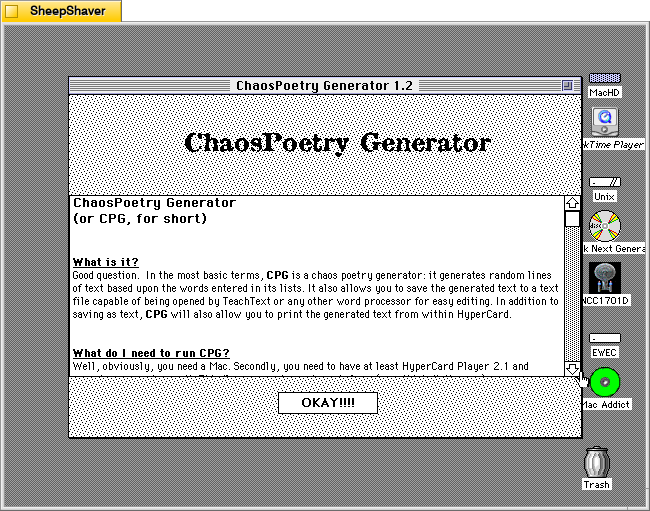
    Inside the Hypercard stack’s about page (screenshots further below), Schmeer writes, “In the most basic terms, CPG is a chaos poetry generator. It generates random lines of text based upon the words entered in its lists. It also allows you to save the generated text to a text file capable of being opened by TeachText or any other word processor for easy editing. In addition to saving as text, CPG will also allow you to print the generated text from within Hypercard.”

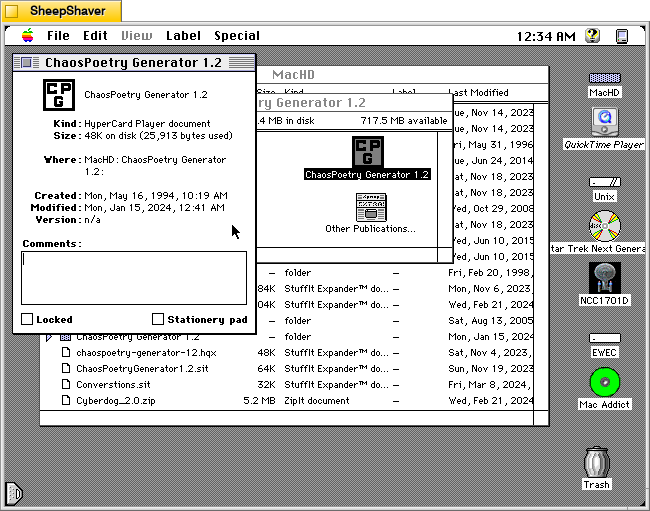
    ChaosPoetry Generator 1.2 hypercard stack Get Info window on Macintosh System 7.5.5 system emulated in SheepShaver.

    The Get Info window on the Hypercard stack reveals that it is very lean at 48K on disk (25,913 bytes).

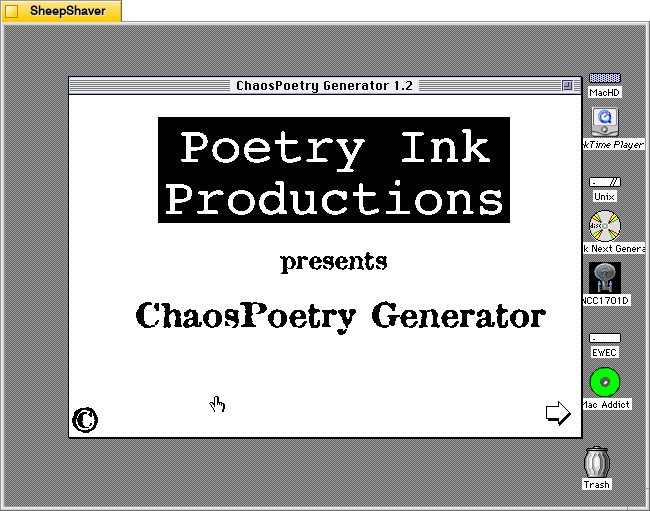
    ChaosPoetry Generator 1.2 launch window on Macintosh System 7.5.5 system emulated in SheepShaver.

    Double clicking on ChaosPoetry Generator 1.2 launches the Hypercard stack in Hypercard Player, which needs to be installed on the host system.

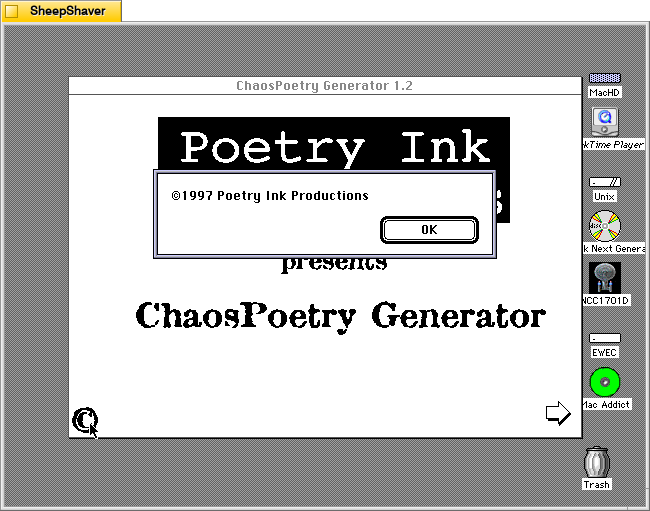
    ChaosPoetry Generator 1.2 copyright window on Macintosh System 7.5.5 system emulated in SheepShaver.

    Clicking on the copyright symbol in the lower left corner brings up this “©1997 Poetry Ink Productions” window.

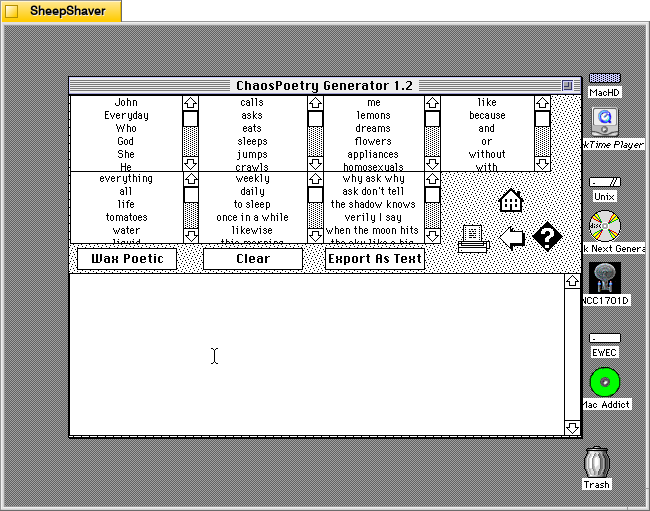
    ChaosPoetry Generator 1.2 generating text window on Macintosh System 7.5.5 system emulated in SheepShaver.

    Clicking the arrow in the bottom right of the launch window brings the user to the text generator. Each of the seven lists can be edited by clicking into them, editing a line, or scrolling to the bottom and adding new text to the list there.

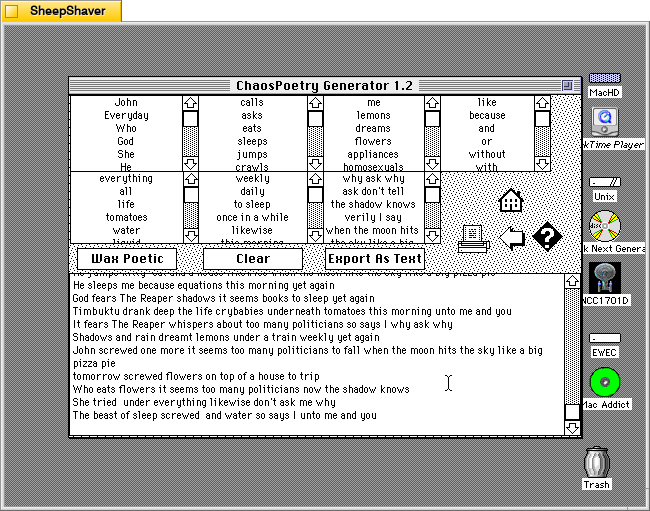
    ChaosPoetry Generator 1.2 text generator window with generated lines of text on Macintosh System 7.5.5 system emulated in SheepShaver.

    Clicking once on the “Wax Poetic” button causes ChaosPoetry Generator to begin generating copious and unending lines of text randomly drawn from the seven lists at the top of the window. The “Wax Poetic” button changes to “Click to Stop,” which when pressed, ceases the text generation. The user can scroll back up the output box at the bottom of the window to read through the generated lines of text. Clicking on the “Clear” button erases the generated text box, and clicking on “Export as Text” gives the user an option to save the generated text as a TeachText document. The printer icon on the right of the window gives an option to print the output in the generated text box.

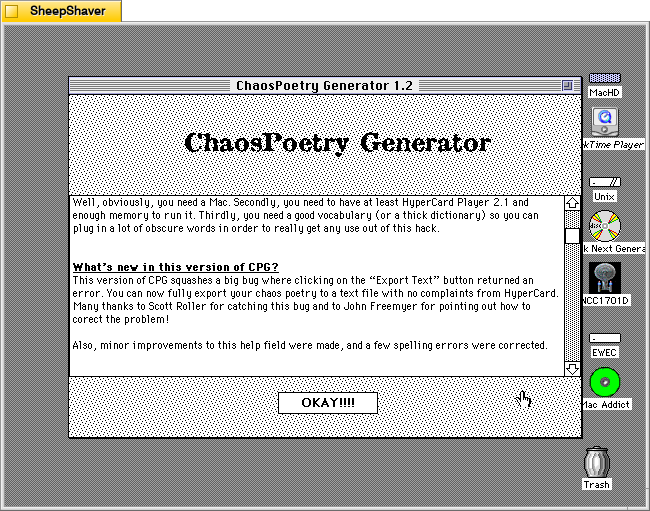
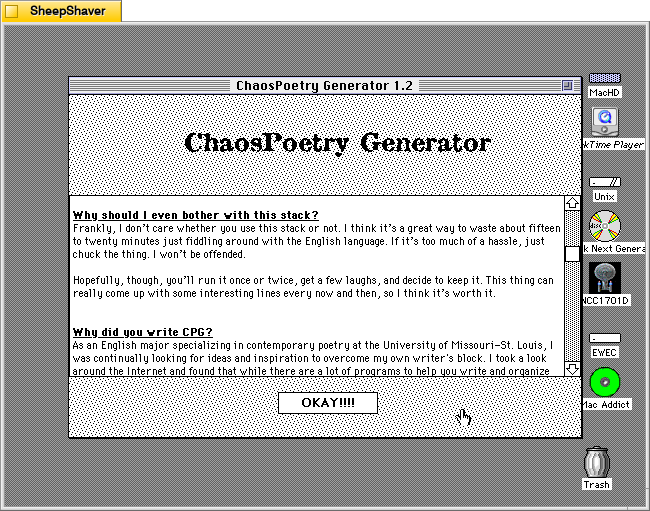
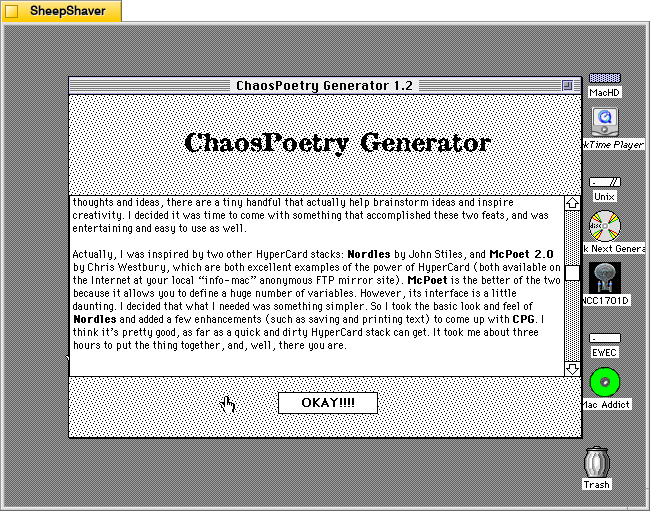
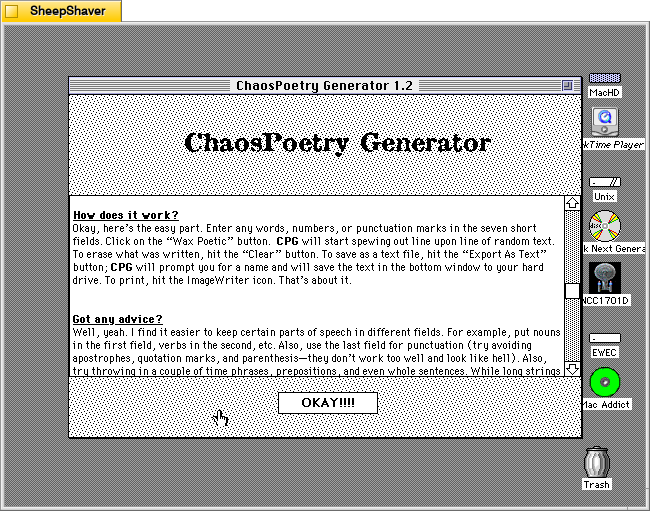
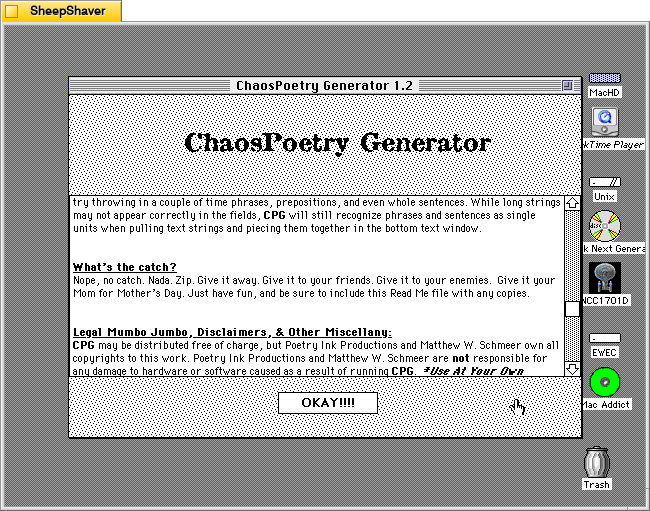
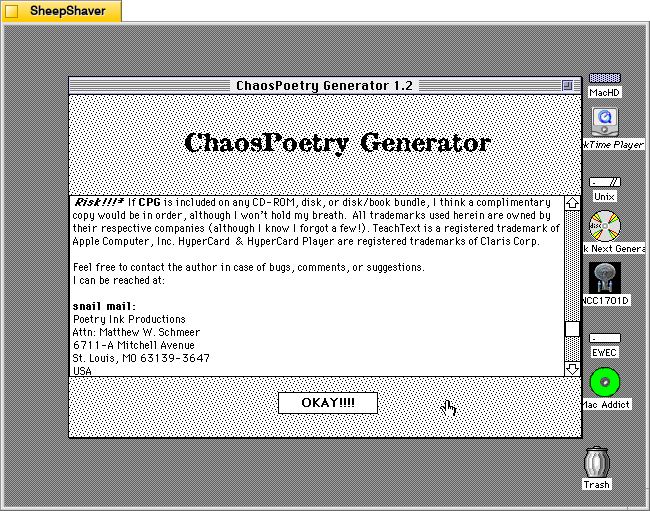
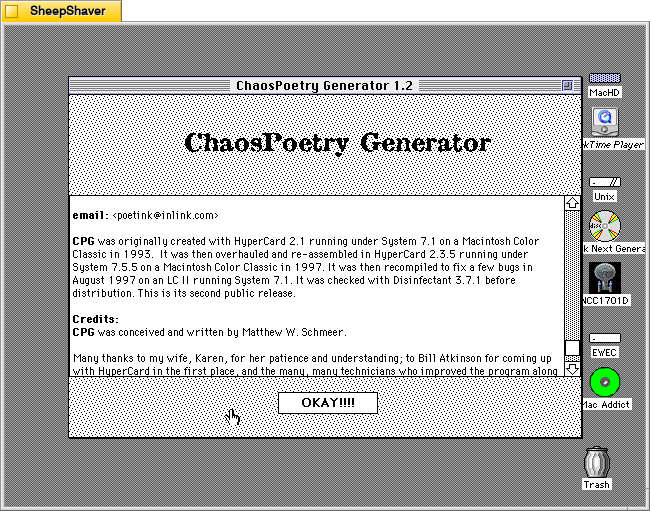
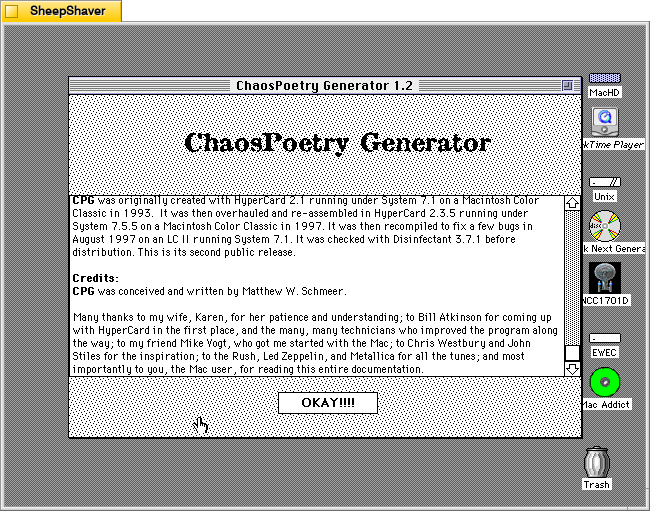
    Clicking on the question mark icon on the right side brings up ChaosPoetry Generator’s info page that includes information about what it is, what’s needed to run the stack, what’s new to this version, why it was written and its inspirations, how it works, and advice on using it. Screenshots of these pages are included above, but the key takeaway from the advice section is that the user should use each column for a different parts of speech: a list of nouns, a list of verbs, a list of adjectives, a list of phrases, etc. Schmeer also notes that punctuation marks should be avoided as “they don’t work too well and look like hell.”

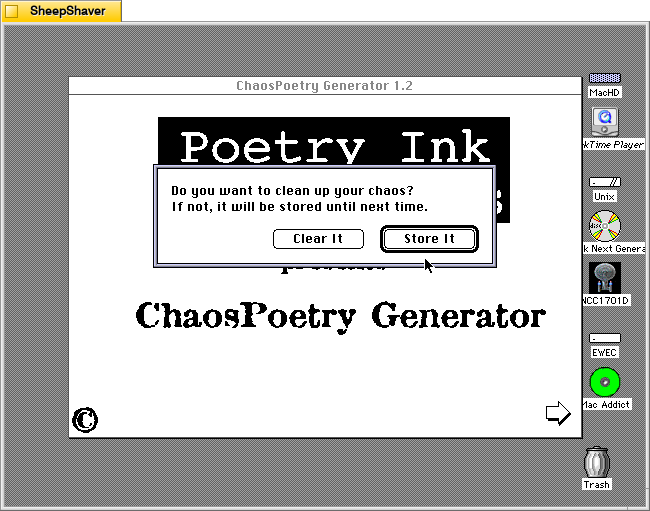
    ChaosPoetry Generator 1.2 prompt to clear or store output after clicking the Home icon on Macintosh System 7.5.5 system emulated in SheepShaver.

    Clicking the Home icon on the text generator window first prompts the user if they would like to clear the generated text or store it.

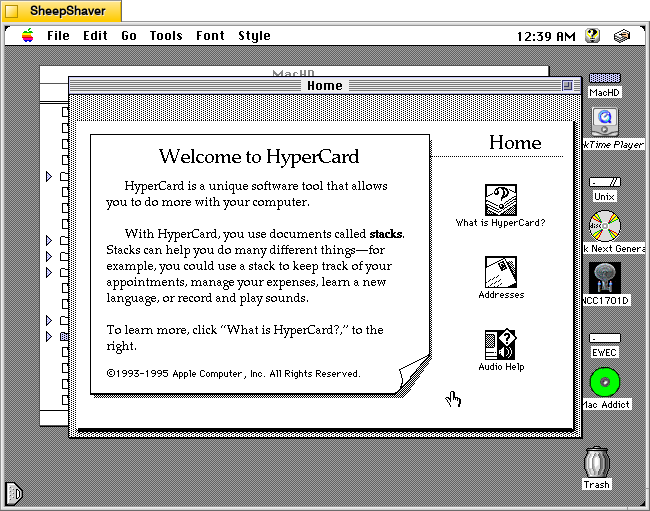
    Hypercard Player home screen on Macintosh System 7.5.5 system emulated in SheepShaver.

    After making a selection on clearing or storing the generated text, the user is taken back to the Hypercard home screen and have essentially quit ChaosPoetry Generator.

    The more that I explore these early examples of text generators, the more I come to realize that the meaning making isn’t so much in the way that they work (with exceptions) but instead in the meaning that we give to their outputs. ChaosPoetry Generator, like some of the other text generating applications and Hypercard stacks for Macintosh of that era, are like a warehouse of monkeys, each typing away frantically on their own typewriter. Given enough time and enough monkeys, eventually they will produce the works of Shakespeare (I first heard about the warehouse of monkeys from Douglas Adams, but the theory is much older). But before we get to that point, there’s going to be a lot of not-Shakespeare output. It’s that stuff that we humans read and think about and give meaning to. The computer, of course, has assembled the words in a certain order, but how those words are understood depends on us interpreting the words and choosing to use them or not, if you’re a writer using ChaosPoetry Generator as a tool, for example.

  • Haiku Master 2.2, a Haiku Generating Hypercard Stack for Macintosh

    Haiku Master application icon on Macintosh System 7.5.5 system emulated in SheepShaver.

    Continuing my work exploring pre-AI generative technologies, I found a copy of Andrew Stone’s Haiku Master, a HyperCard stack for Macintosh that generates haikus, on the archived version of TextWorx Toolshed page, which links to other text generating and manipulating programs for Macintosh and MS-DOS. Haiku Master requires the user to have a copy of Apple’s HyperCard Player installed on the system. I have HyperCard Player 2.4.1 installed on the emulated System 7.5.5 installation on SheepShaver used for these screenshots.

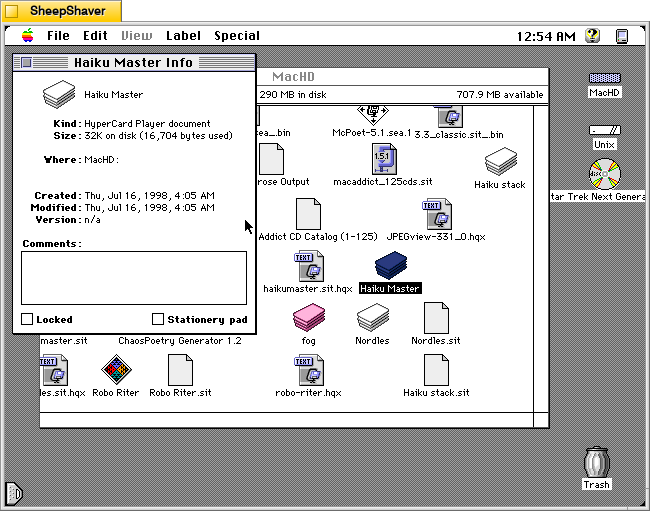
    Haiku Master Hypercard stack Get Info window Macintosh System 7.5.5 system emulated in SheepShaver.

    Haiku Master is a lean HyperCard stack at only 32K on disk and 16,704 bytes actually used. It was created on 16 July 1998.

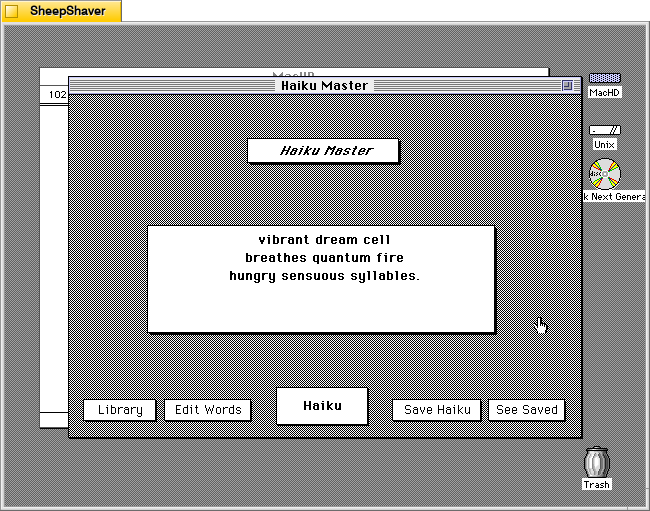
    Haiku Master main window on Macintosh System 7.5.5 system emulated in SheepShaver.

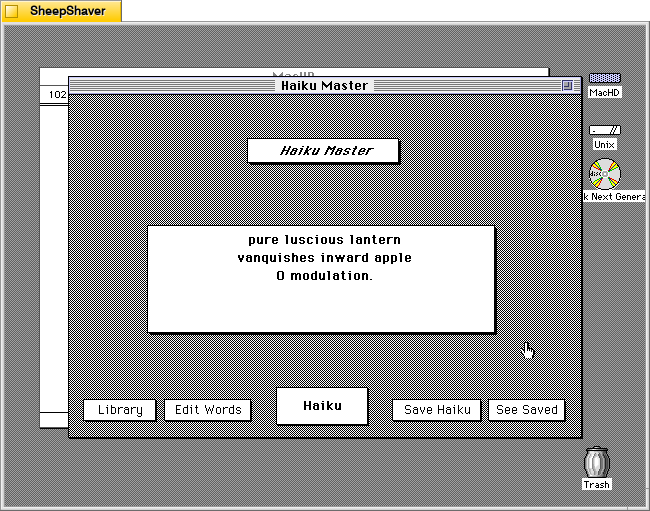
    After double clicking on Haiku Master, the stack automatically launches HyperCard Player and the user is presented with this main window. In the center, a haiku is already generated.

    vibrant dream cell
    breathes quantum fire
    hungry sensuous syllables.

    Instead of a 5-7-5 syllable line arrangement, it seems to generate haiku that are a total of 17 syllables.

    Unlike some of the other text generators that I’ve looked at here, Haiku Master has a singular focus to just create haikus of a certain variety. Other text generators from this era seem to do several different types of text generation, perhaps because once one kind of assembly algorithm is made, it might not be too challenging to alter it for a different kind of text generation, or it might be over time those other programs acquired new features with subsequent new versions.

    By clicking on the Haiku button in the bottom center, another haiku is generated.

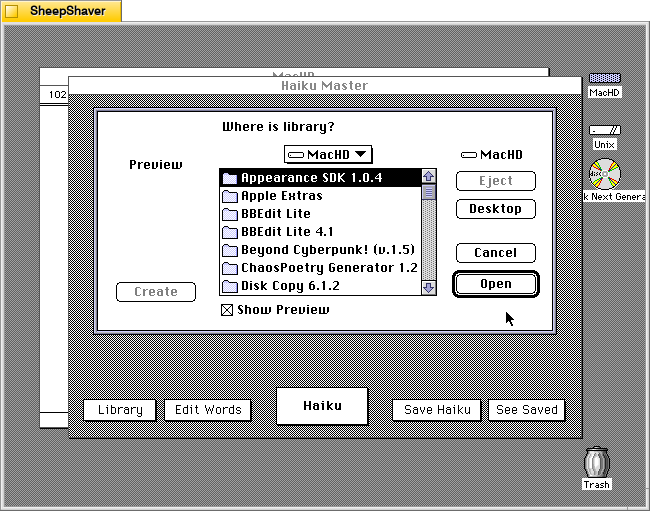
    Haiku Master prompting to open library on Macintosh System 7.5.5 system emulated in SheepShaver.

    Clicking on Library prompts the user to open a file, perhaps a corpus of words? The documentation built into the stack doesn’t explain what a library is or how it is used, and there is no additional documentation or files included in the downloaded archive.

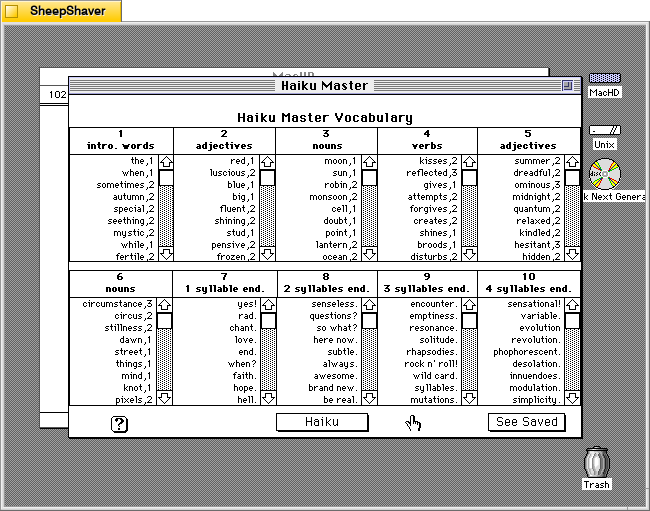
    Haiku Master Edit Words screen on Macintosh System 7.5.5 system emulated in SheepShaver.

    Clicking on Edit Words opens this screen titled Haiku Master Vocabulary with lists of word lists broken down into 10 sections: 1) intro. words, 2) adjectives, 3) nouns, 4) verbs, 5) adjectives, 6) nouns, 7) 1 syllable end, 8) 2 syllables end, 9) 3 syllables end, and 10) 4 syllables end.

    Haiku Master's "How the HAIKU MASTER Works" screen on Macintosh System 7.5.5 system emulated in SheepShaver.

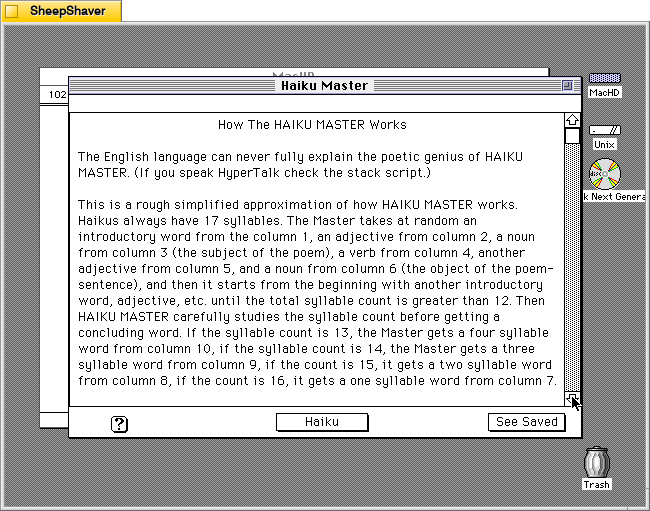
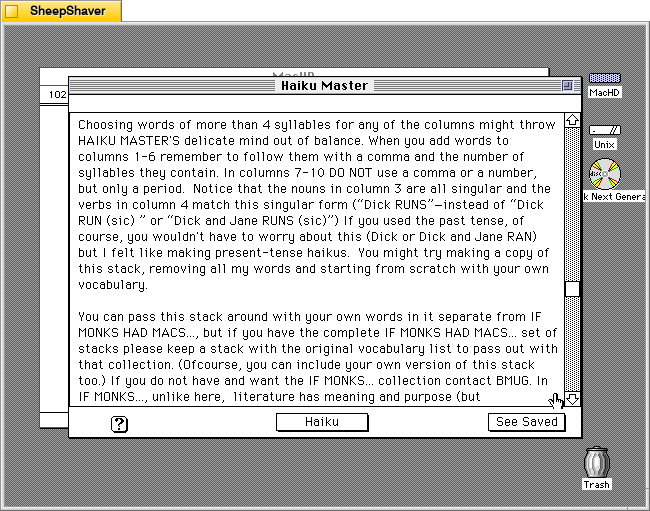
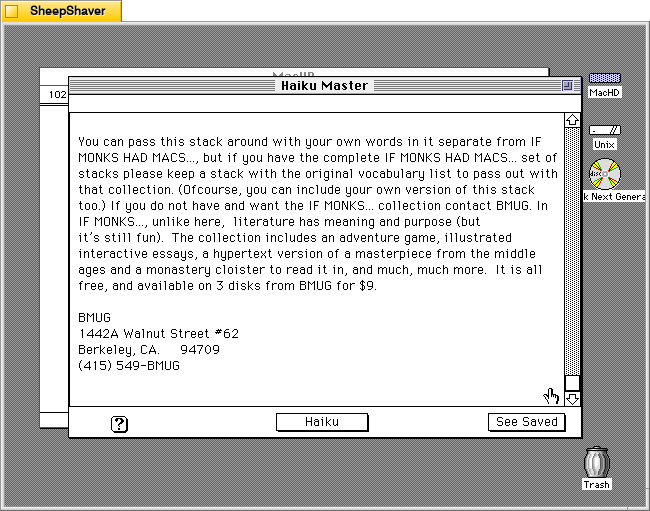
    Clicking on the Help/? question mark icon in the lower left opens this screen of text titled “How the HAIKU MASTER Works.” It explains how it pieces together a haiku of 17 syllables using the words from the 10 categories of word lists as needed. The following two images continue the explanation.

    Haiku Master's "How the HAIKU MASTER Works" screen on Macintosh System 7.5.5 system emulated in SheepShaver.
    Haiku Master's "How the HAIKU MASTER Works" screen on Macintosh System 7.5.5 system emulated in SheepShaver.

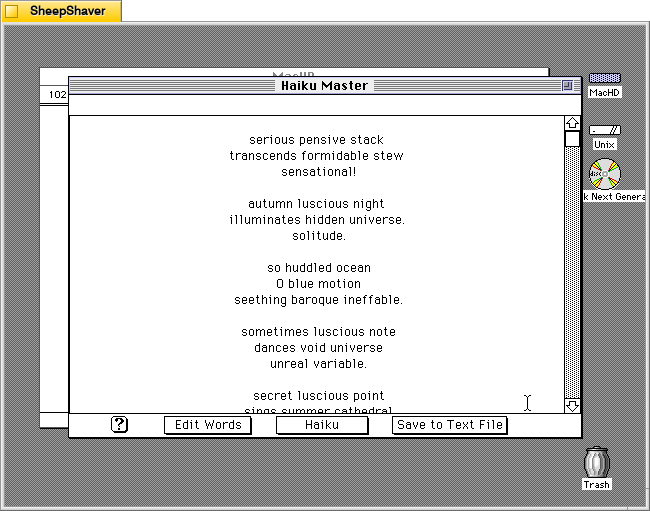
    Clicking on “See Saved” on the screen above or from the main haiku composition window leads you to a running list of previously generated and saved haikus shown below.

    Haiku Master saved haikus screen on Macintosh System 7.5.5 system emulated in SheepShaver.

    From this screen, you can click on “Save to Text File” to save the haikus in an editable text file, or you can click on “Haiku” on the bottom of this screen to take you back to the main composition window shown below.

    Haiku Master main screen on Macintosh System 7.5.5 system emulated in SheepShaver.

    Clicking on “Haiku Master” above the haiku composition area leads you to the about screen shown below.

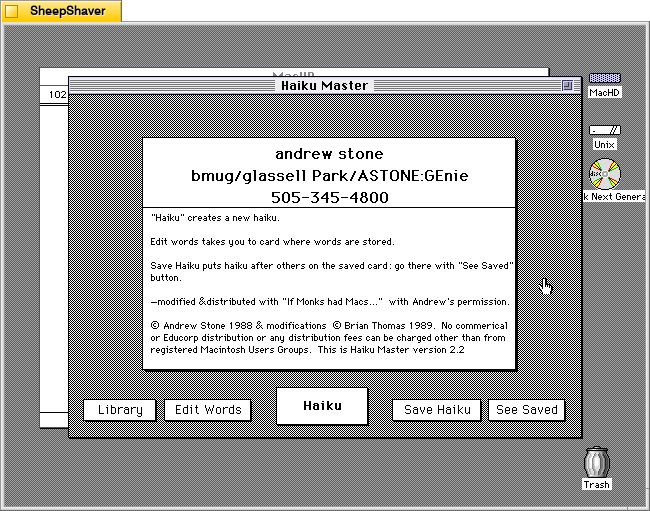
    Haiku Master about screen on Macintosh System 7.5.5 system emulated in SheepShaver.

    The about screen provides Andrew Stone’s contact information, including his GEnie username. It noes that this copy was “modified & distributed with ‘If Monks had Macs…’ with Andrew’s permission.” The modifications were made by Brian Thomas in 1989. It notes this is Haiku Master version 2.2.

    Brian Thomas is the developer who put together If Monks Had Macs . . .. It was distributed by The Voyager Company, a company that innovated early ebooks for Macintosh called Expanded Books and multimedia CD-ROM titles, which I’ve written about previously here, here, here, here, and here.

    This reminds me that during my first year in Brooklyn, Bob Stein, co-founder of Voyager Company, co-founder of The Criterion Collection, and co-director of The Institute for the Future of the Book, reached out to me (I think on Twitter–I hadn’t left the platform yet at that time–as I had shared some things about William Gibson’s Sprawl Trilogy Expanded Book published by Voyager) and graciously spoke with me at his home in Williamsburg one snowy afternoon about Voyager Company, Expanded Books, and personal computer pioneers he was friends with.

  • Robo Riter 3.1, an Automatic Haiku, French Lai, Ballade, and Limerick Text Generator for Macintosh

    Robo Riter application icon on Macintosh System 7.5.5 system emulated in SheepShaver.

    Continuing my exploration of pre-AI text and image generating software, I would like to share some screenshots and information about Robo Riter 3.1, a text-generating program for Macintosh that specializes in haiku, French lai, ballade, and limericks, created by Douglas L. Lieberman, a writer and producer in television, film, and computer multimedia projects.

    Robo Riter has the tag line, “Composes poetry at the click of a button!” And, on his archived website’s contact page, he offers it for download if “you can’t afford to hire a writer.”

    Lieberman wrote the follow abstract when he submitted his program to the pre-1999 info-mac archive (there was a massive purge of software on info-mac that removed Robo Riter and other software from later versions of the info-mac archive after 1999):

    #### BINHEX     robo-riter.hqx   ****

    From: rocketriter@earthlink.net
    Subject: Robo Riter


    From: (Douglas L. Lieberman) rocketriter@earthlink.net
    Subject: Robo Riter


    Robo Riter -- the automatic poetry machine! Composes poems at the click
    of a button, no two ever alike. Robo Riter can create profound and
    deeply moving Haiku, French Lai, Ballades and even Limericks. Amaze your
    friends! Mystify your neighbors! Be the first on your block to own Robo
    Riter, for Poetry On Demand!

    Created with SuperCard 3.0

    System requirements:
    * System 7.6 and above
    * Power Macintosh or 680X0 with at least 16 MB of RAM
    * 2 MB of hard drive space

    --
    Douglas L. Lieberman
    Rocket Riter, Inc.
    Screenwriting for Interactive Media, Stage & Screen
    Visit my website at:
    http://home.earthlink.net/~rocketriter/

    I am indebted to adespoton on MacintoshGarden.org for finding a copy of Robo Riter stored in a 1998 archive of info-mac that was once hosted by Apple Computer. You can browse the directory of programs that includes Robo Riter here.

    Robo Riter application Get Info window Macintosh System 7.5.5 system emulated in SheepShaver.

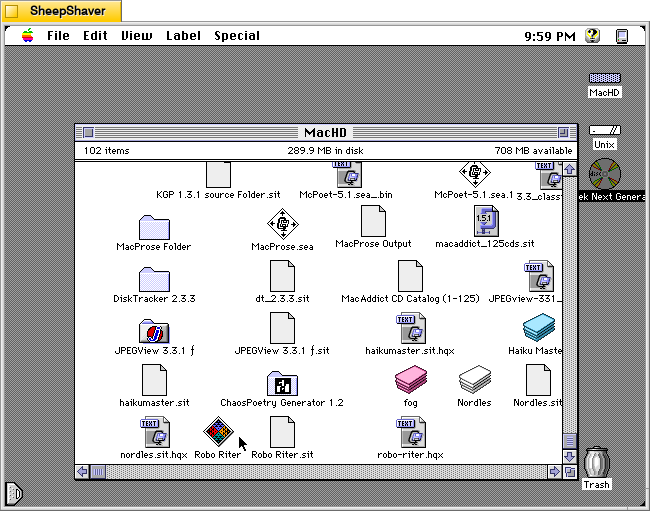
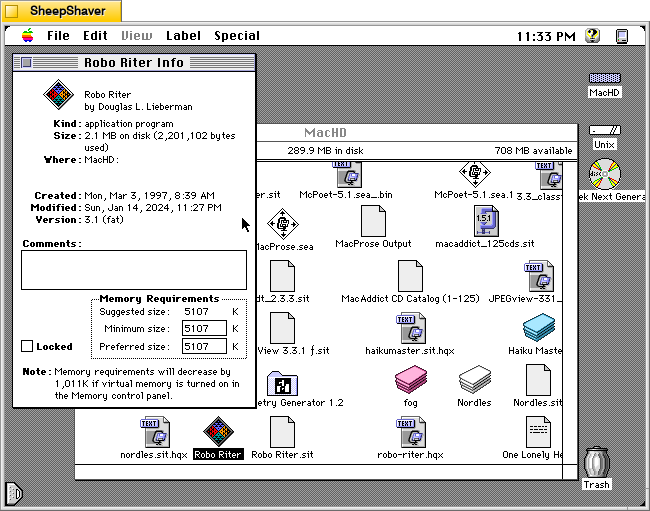
    Before launching Robo Riter, the Get Info window shows that it was created on 3 Mar. 1997. It is a “fat” application, meaning that it can be run on 68k and PPC Macs. It’s suggested memory size is 5,107 K, and its minimum and preferred memory sizes are populated with that value. As I’m running this in SheepShaver, I can’t turn on virtual memory to realize that 1,011 K memory savings mentioned in the Note at the bottom of the window.

    Robo Riter main application window on the Haiku tab on Macintosh System 7.5.5 system emulated in SheepShaver.

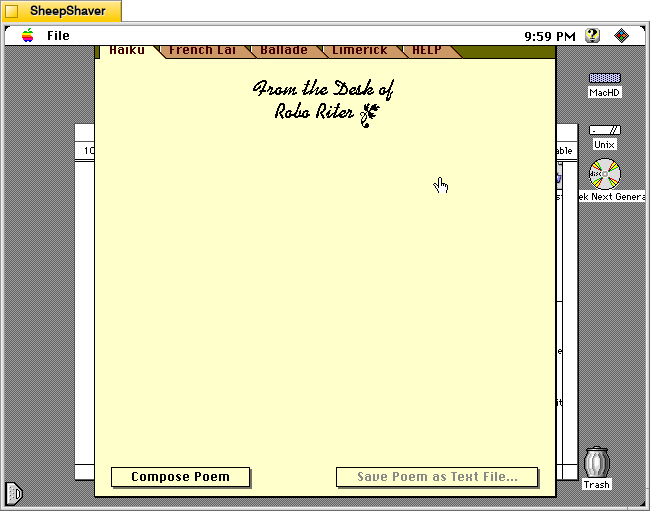
    When Robo Riter is first launched, the window above serves as the main interface for the program. It has tabs across the top of the window for Haiku, French Lai, Ballade, Limerick, and HELP. Below the tabs is the monogram, “From the Desk of Robo Riter” followed by a blank space. At the bottom of the window are two buttons: Compose Poem and Save Poem as Text File. Unlike some of the other text generating programs, there are no options and there are no editable corpus or word lists external to the program itself.

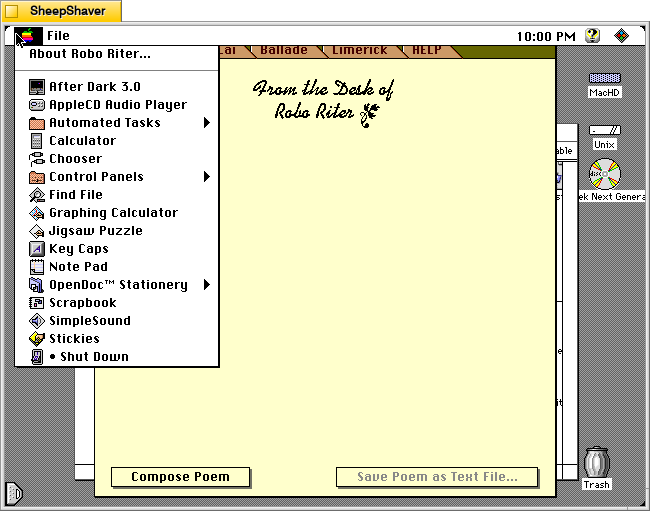
    Robo Riter Apple menu > About Robo Riter on Macintosh System 7.5.5 system emulated in SheepShaver.

    Before looking at Robo Riter’s compositions, let’s check out the two menus. The Apple menu yields “About Robo Riter.”

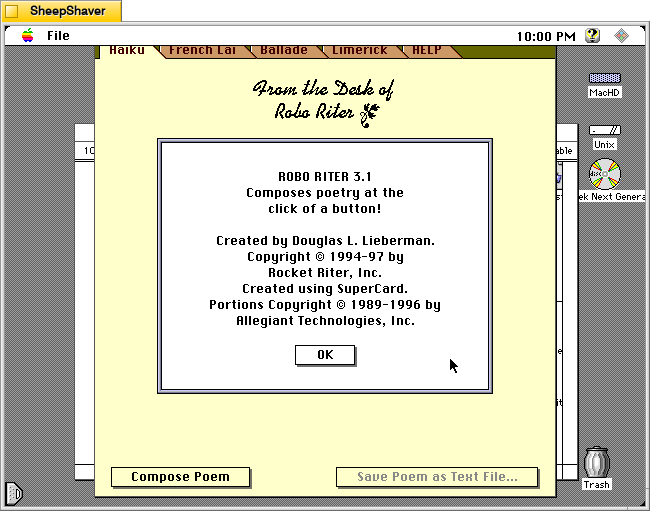
    Robo Riter's About Robo Riter window on Macintosh System 7.5.5 system emulated in SheepShaver.

    The About Robo Riter window indicates that it was built using SuperCard, an application development environment that is like HyperCard on steroids. At the time, Allegiant Technologies had acquired SuperCard.

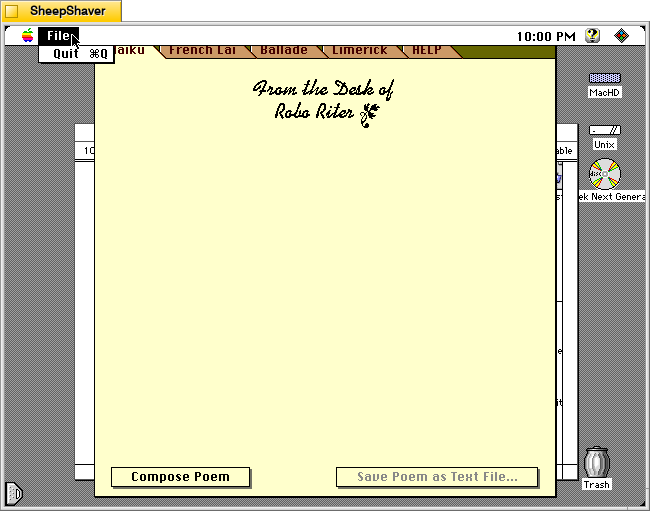
    Robo Riter's File menu on Macintosh System 7.5.5 system emulated in SheepShaver.

    Robo Riter’s File menu only has the option to Quit the program.

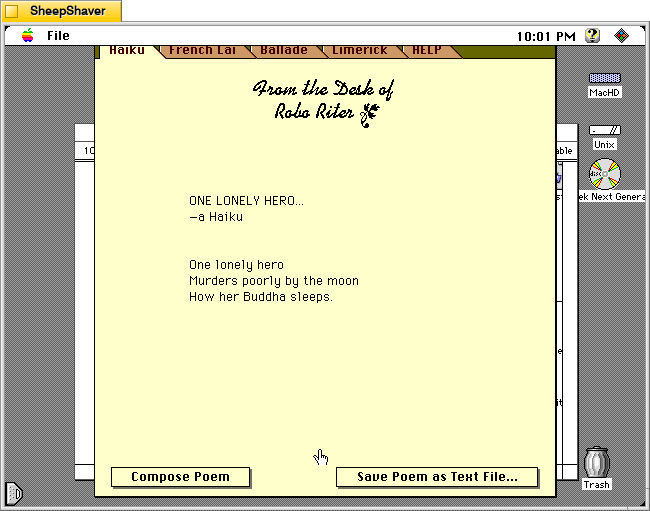
    Robo Riter generated haiku on Macintosh System 7.5.5 system emulated in SheepShaver.

    Returning to the main window and the Haiku tab, clicking on the Compose Poem button results in a haiku written by the program after the program shows a series of three messages or thoughts with corresponding musical notes. For example, it displayed “Letting my mind go whoosh!,” “Counting syllables on my chins,” and “Meditating with profound fervor” before showing the resulting “ONE LONELY HERO” haiku, which appears a word-at-a-time like watching an LLM reply in a chat.

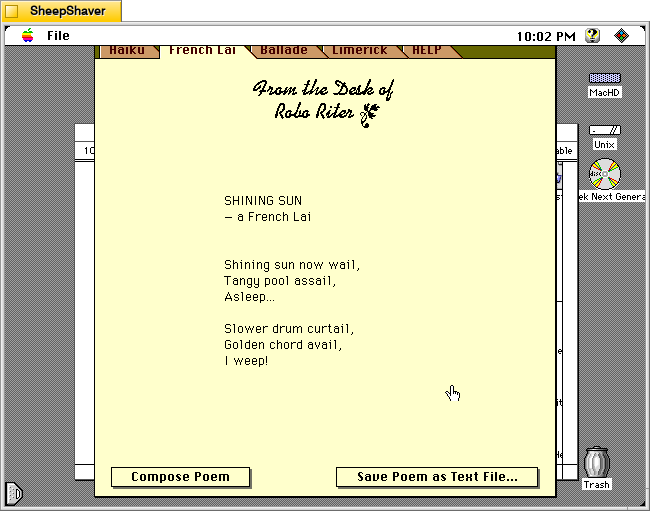
    Robo Riter generated French Lai on Macintosh System 7.5.5 system emulated in SheepShaver.

    After clicking on the French Lai tab, I clicked on Compose Poem. It’s pre-generation text was: “Researching a rather violent subject,” “Illuminating its dynamic aspects,” and “Developing theosophical influences.” Then, the “SHINING SUN” French Lai played across the screen.

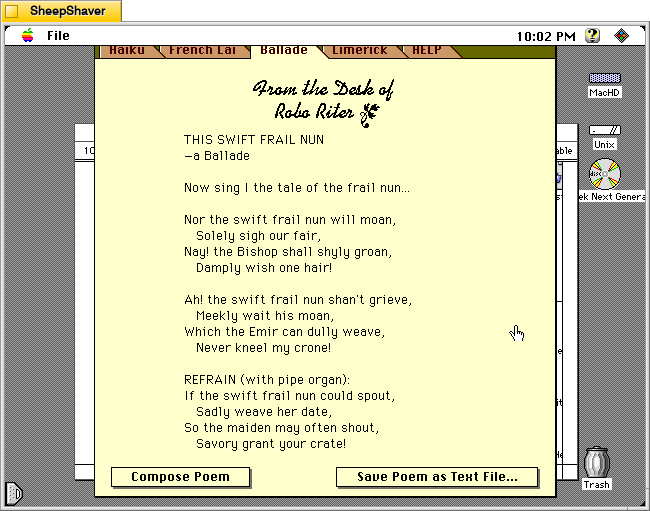
    Robo Riter generated ballade on Macintosh System 7.5.5 system emulated in SheepShaver.

    Next, I clicked on the Ballade tab and selected Compose Poem. It’s pre-generation text was: “Developing a down to earth topic,” “Overlaying sea-faring themes,” and “Selecting perfectly matched rhymes, and rhythms.” Then, “THIS SWIFT FRAIL NUN” appeared in the composition area in the window.

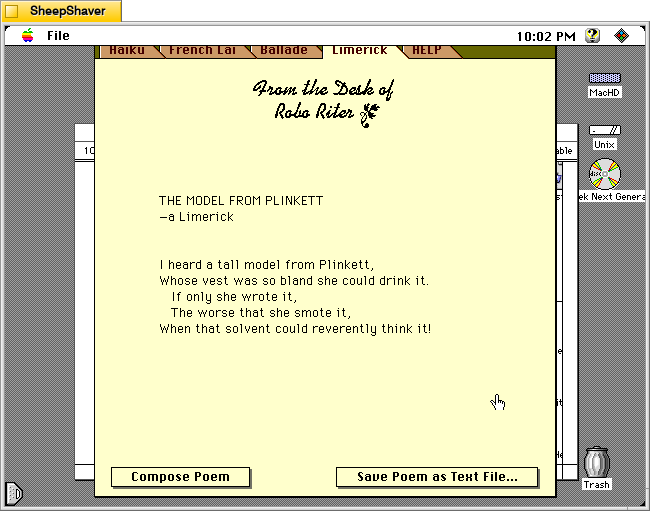
    Robo Riter generated limerick on Macintosh System 7.5.5 system emulated in SheepShaver.

    The Limerick tab proved a little irreverent compared to the other composition tabs, which is fitting, I suppose, given the genre. After pressing Compose Poem,” “Selecting a theme and a punch line” appeared with a corresponding musical tone. Then, “Assembling ill-considered rhymes” appeared with a fart sound, and finally, “Convulsing at my own jokes” with a recorded “whoops” sound before showing “THE MODEL FROM PLINKETT” limerick.

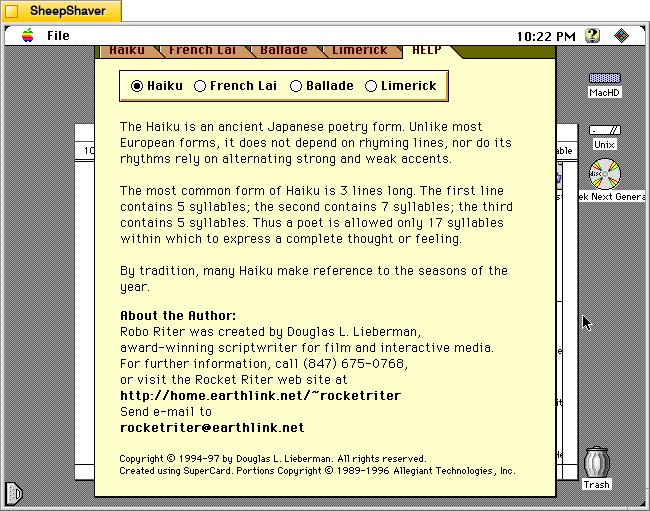
    Robo Riter's Help tab > Haiku on Macintosh System 7.5.5 system emulated in SheepShaver.

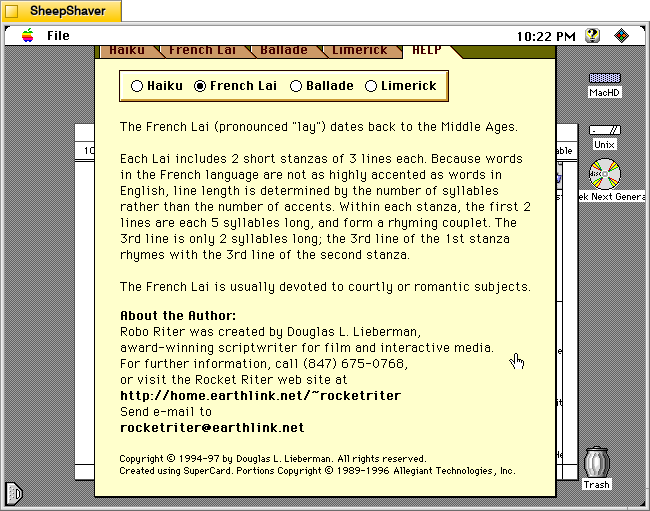
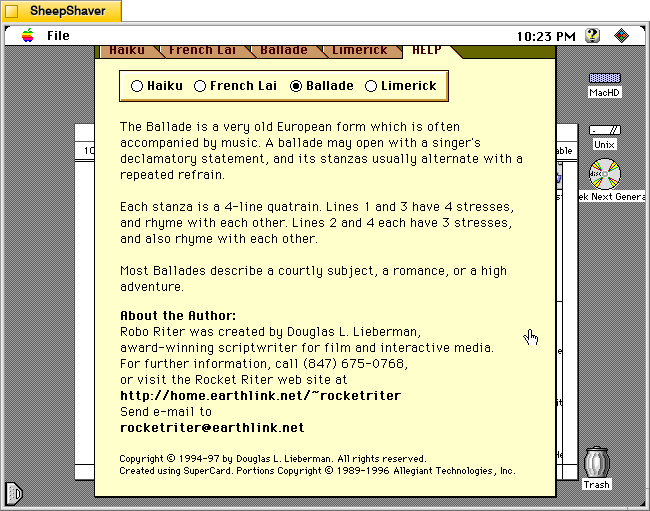
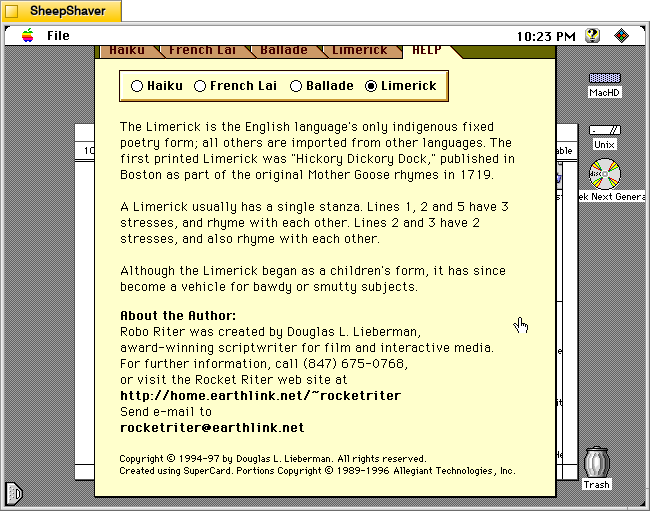
    The HELP tab has sub sections accessible via selecting the radio button next to Haiku, French Lai, Ballade, or Limerick.

    Robo Riter's Help tab > French Lai on Macintosh System 7.5.5 system emulated in SheepShaver.
    Robo Riter's Help tab > Ballade on Macintosh System 7.5.5 system emulated in SheepShaver.
    Robo Riter's Help tab > Limerick on Macintosh System 7.5.5 system emulated in SheepShaver.

    Each of these help sections provide an explanation of that genre of poem’s construction, context, and purpose.

    Robo Riter is more a black box than some of the other text generating applications that I’ve written about before. But, it’s compositions through several iterations seem quite good and interesting. Lieberman seems to have done good work behind the scenes to make his program produce what I read on the few trials that I did.