Tag: Video Cards

  • Improving Cooling in My New AI Workstation

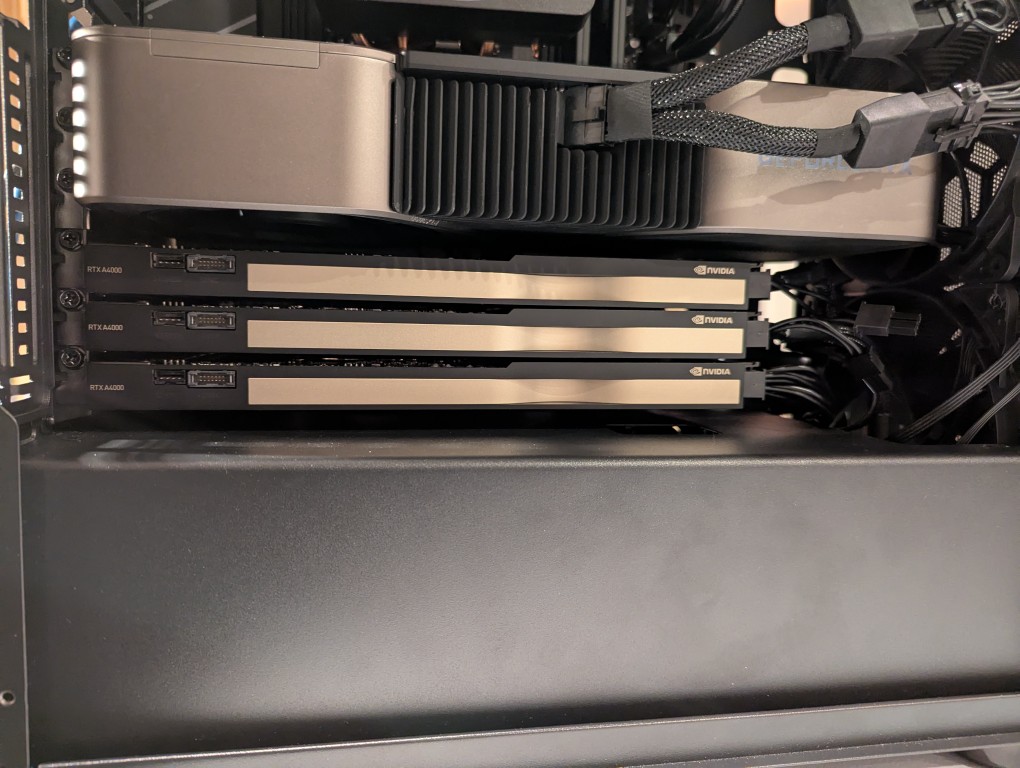
    four installed NVIDIA video cards: 3090 FE and 3 x A4000

    In my original write-up about building my new AI-focused workstation, I mentioned that I was concerned about the temperatures the lower three NVIDIA RTX A4000 video cards would reach when under load. After extensive testing, I found them–especially the middle and bottom cards–to go over 90C after loading a 70B model and running prompts for about 10 minutes.

    There are two ways that I’m working to keep the temperatures under control as much as possible giving the constraints of my case and my cramped apartment environment.
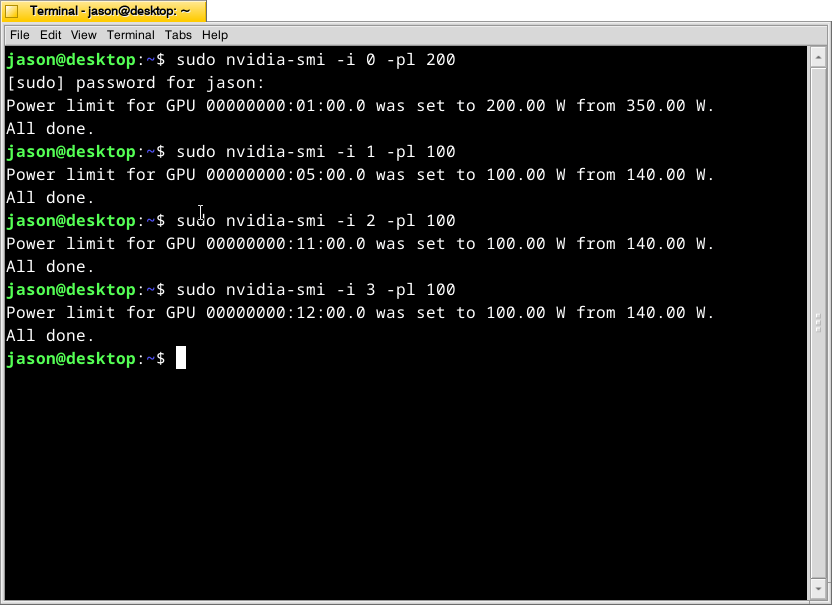
    terminal emulator screen

    First, I’m using these commands as root:

    # nvidia-smi -i 0 -pl 200 
    # nvidia-smi -i 1 -pl 100
    # nvidia-smi -i 2 -pl 100
    # nvidia-smi -i 3 -pl 100

    What this command, bundled with the NVIDIA driver, does is select a video card (the first video card in the 16x PCIe slot is identified as 0, the second video card is 1, the third is 2, and the fourth is 3) and change its maximum power level in watts (200 watts for card 0, 100 watts each for cards 1-3). If the power level is lower, the heat that the card can generate is lower. I set the 3090 FE (card 0) to 200 watts, because it has better cooling with two fans and it performs well enough at that power level (raising the power level leads to steeper slope of work being done).
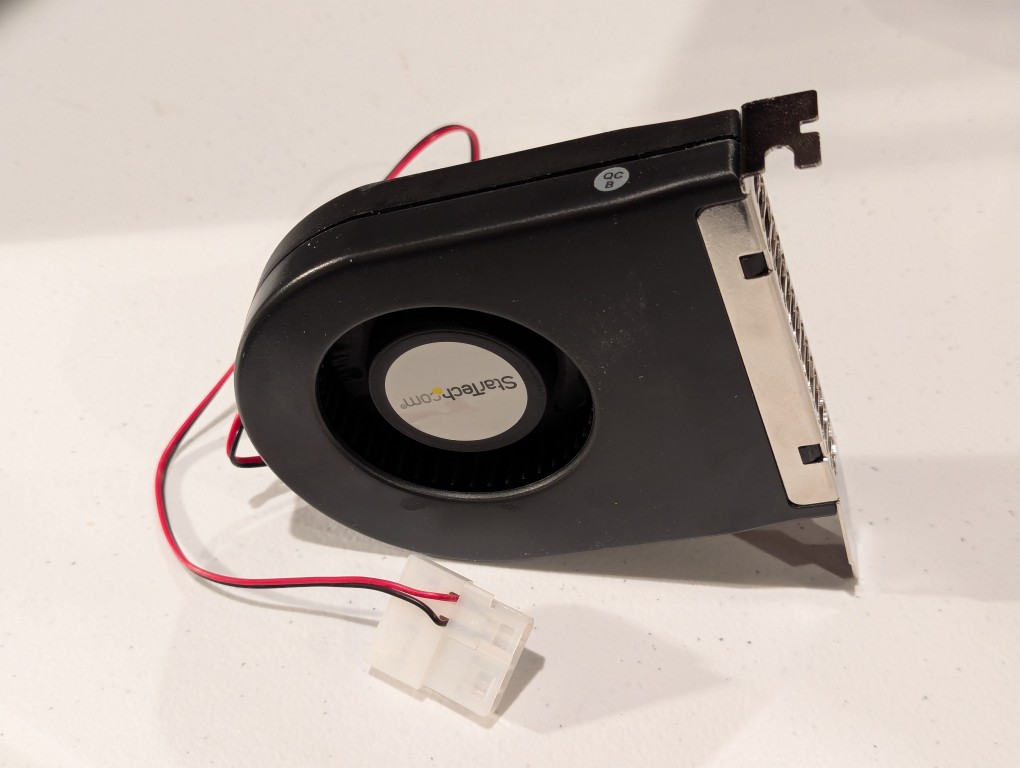
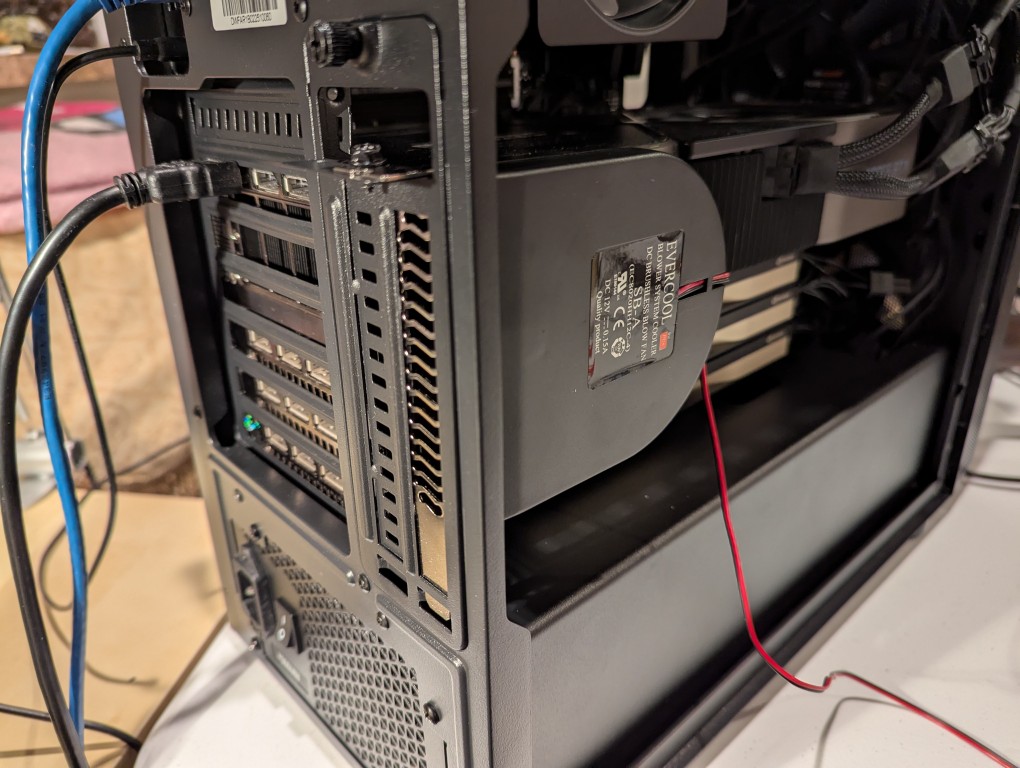
    PC case slot fan with molex power connector

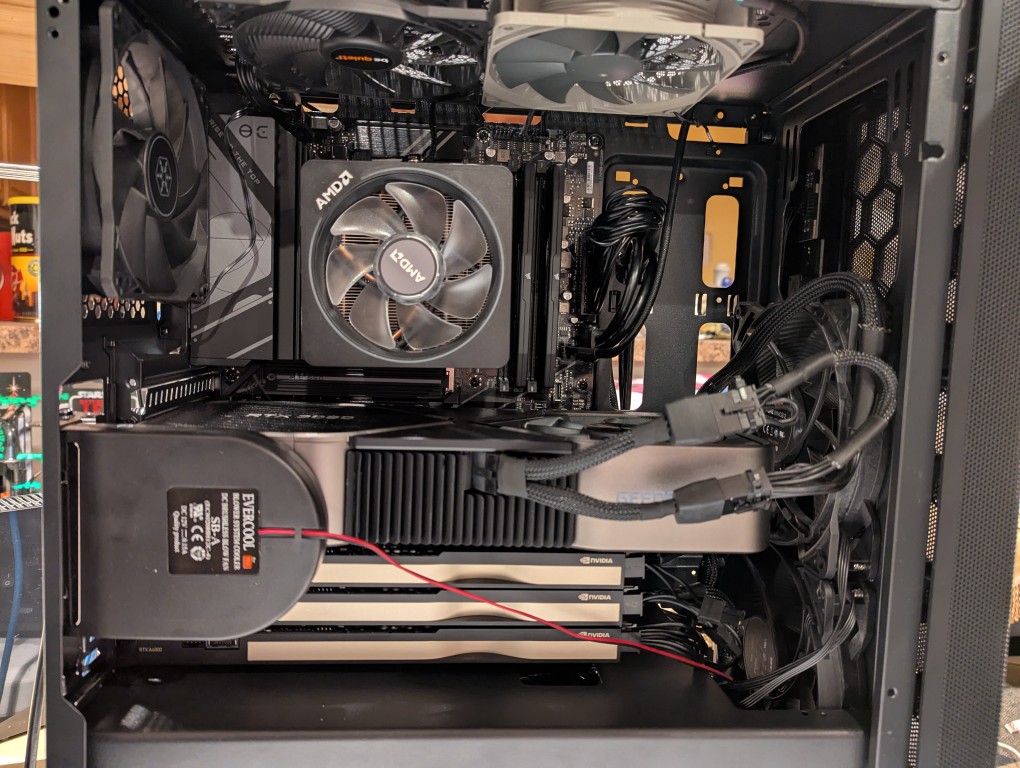
    The second solution was to add more fans. The first fan is a PC case slot fan perpendicular to the video cards. This is a constantly on fan powered by a molex connector that has a blower motor that sucks in air from inside the case and ejects it out the back of the card. These use to be very useful back in the day before cases were designed around better cooling with temperature zones and larger intake and exhaust fans. The second fan was a Noctua grey 120mm fan exhausting out of the top of the case. This brings the fan count to two 140mm intake fans in the front of the case, two 120mm exhaust fans in the top of the case, one 120mm exhaust fan in the rear of the case in line with the CPU, and one slot fan pulling hot air off the video cards and exhausting it out of the back.
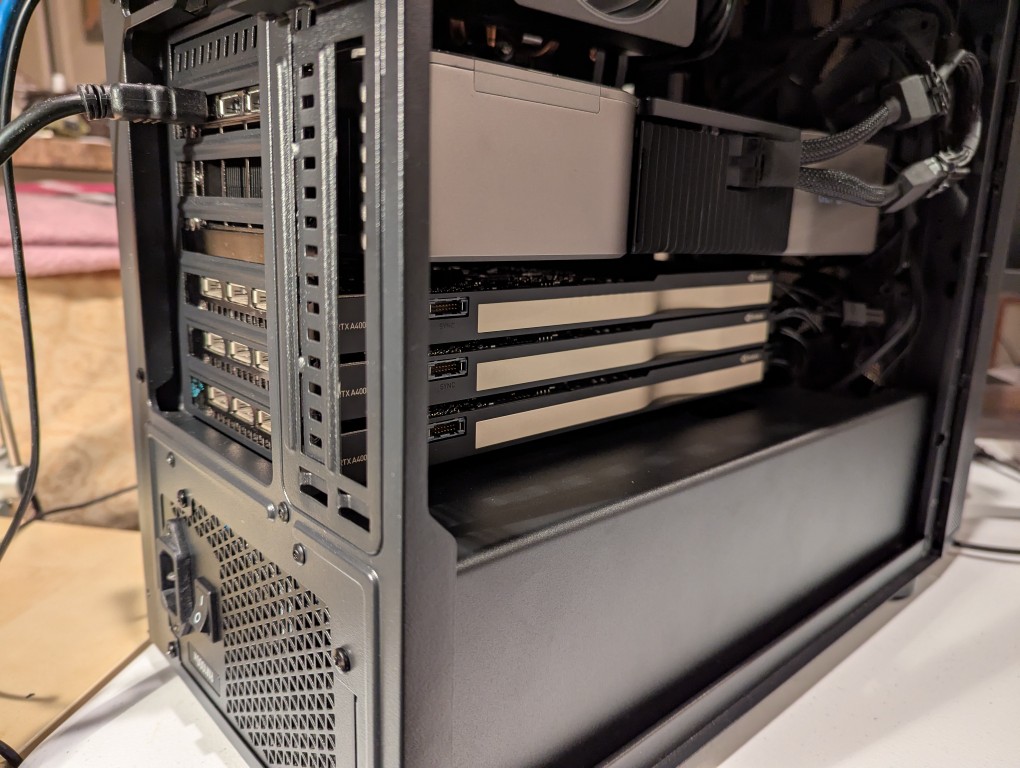
    computer case with four video cards before installing slot exhaust fan
    3/4 view of computer case with slot fan installed
    side view of computer case interior with slot fan above the four video cards

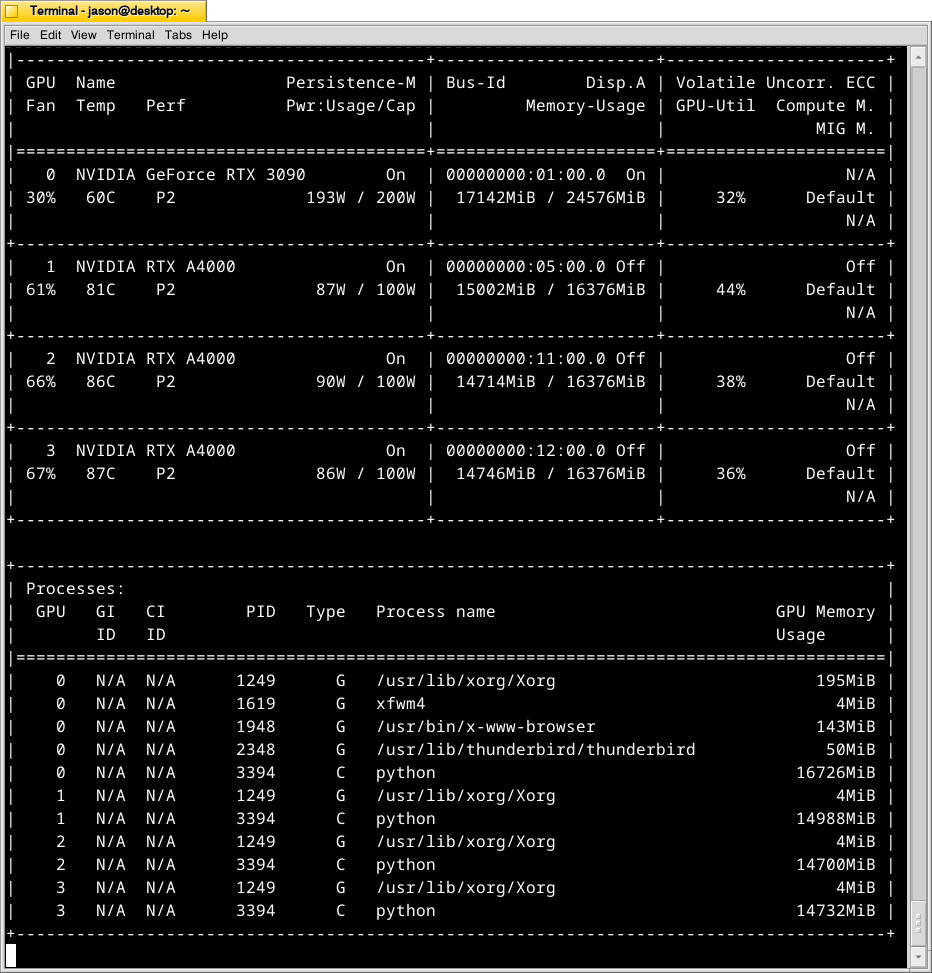
    With these cooling-oriented upgrades, I’ve found that the temperatures are slightly better during operation, but perhaps helping in a way that I had not considered before is that the fans help cool the cards down faster after an operation is completed than the cards were cooling down on their own before. Also, the A4000 temps before seemed to be high, higher, and highest going from card 1 to 2 to 3. Now, the middle card or 2 has a slightly higher temp than the bottom card or 3. Below is the output from:

    nvidia-smi -l 1

    which displays information about the detected NVIDIA video cards including card type, fan speed, temperature, power usage, power cap, and memory usage. The first Terminal screenshot below shows the cards at rest before loading a model. The second Terminal screenshot below shows the cards after a model has been loaded and it is producing output from a prompt for some minutes.
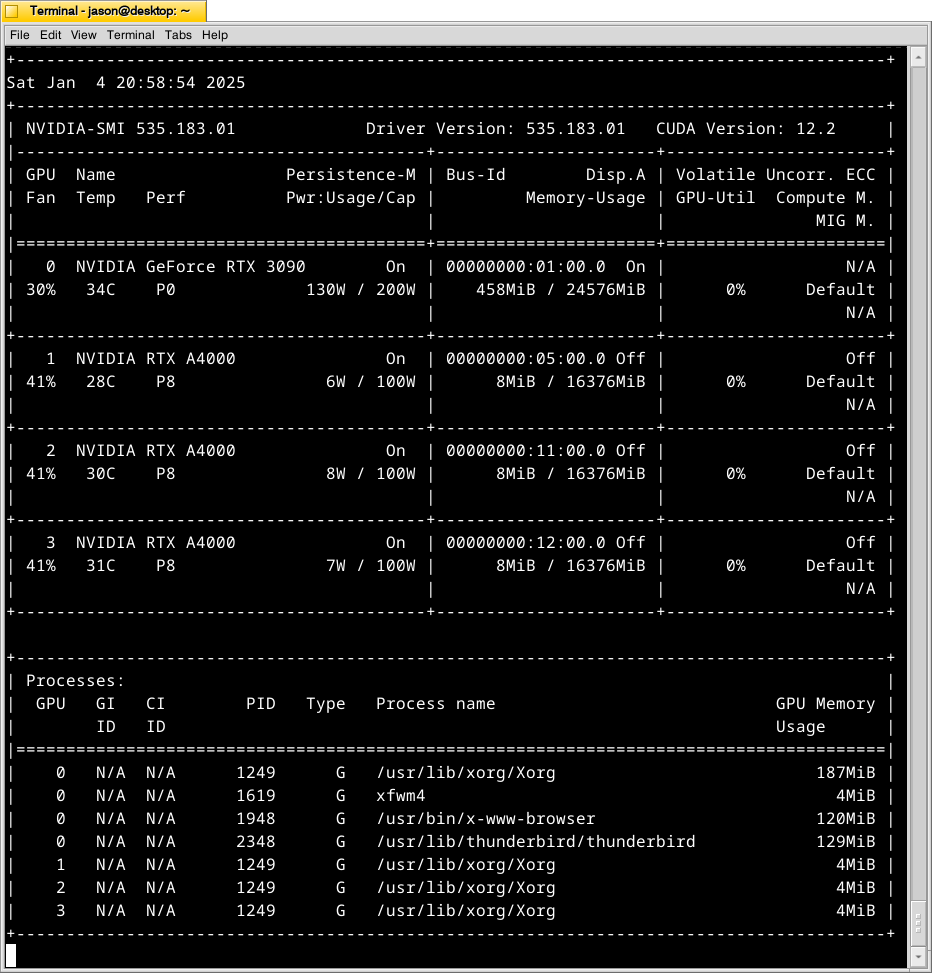
    terminal window with nvidia-smi output of four video cards with lower temperatures and low power draw
    terminal window with nvidia-smi output of four video cards with higher temperatures and higher power draw

    Y made a good point that since it’s the winter, the ambient temperature in the apartment is much cooler–we usually keep it about 66F/19C. When summer comes, it will be much hotter in the apartment even with the window air conditioner going (we are on the top floor of a building that does not seem to be insulated based on sounding and spot temperature measurements).

    The key to healthy computer components is cooling–forcing ambient air into the case and moving heated air out. Seeing how well the slot fan has worked, I’m thinking that a next step would be to drill one or two 120mm holes through the sheet metal side panel directly above where the A4000 video cards are and install high-CFM (cubic feet per minute) fans exhausting out. That would replace the currently installed slot fan. If I went that route, I can purchase PWM (pulse width modulation) fans so that I can connect them to the fan controllers on the motherboard, which will increase the speed of the fans according to the rising temperature inside the case when the computer is doing more work. This will reduce fan noise during low-load times but not affect cooling capacity.

    On a final note, I will report that I initially tried forcing cooler ambient air into the case through those two rear perpendicular slots to the video cards where the slot fan is currently installed. My thinking was that I could force cooler air over the top of the cards and the blower fans on the cards would carry out the hotter air. What I did to test this was build an enclosed channel with LEGO that sealed against the two open slots and had two 70mm PWM fans pulling air from the channel and pushing it down onto the three A4000 video cards. Unfortunately, this actually increased the temperatures on all three A4000s into the mid-90s C! The heat produced by those cards fed back into the LEGO channel and hot air trickled out of the two slots. Lesson learned.
  • All in a Day’s Work: New AI Workstation Build Completed

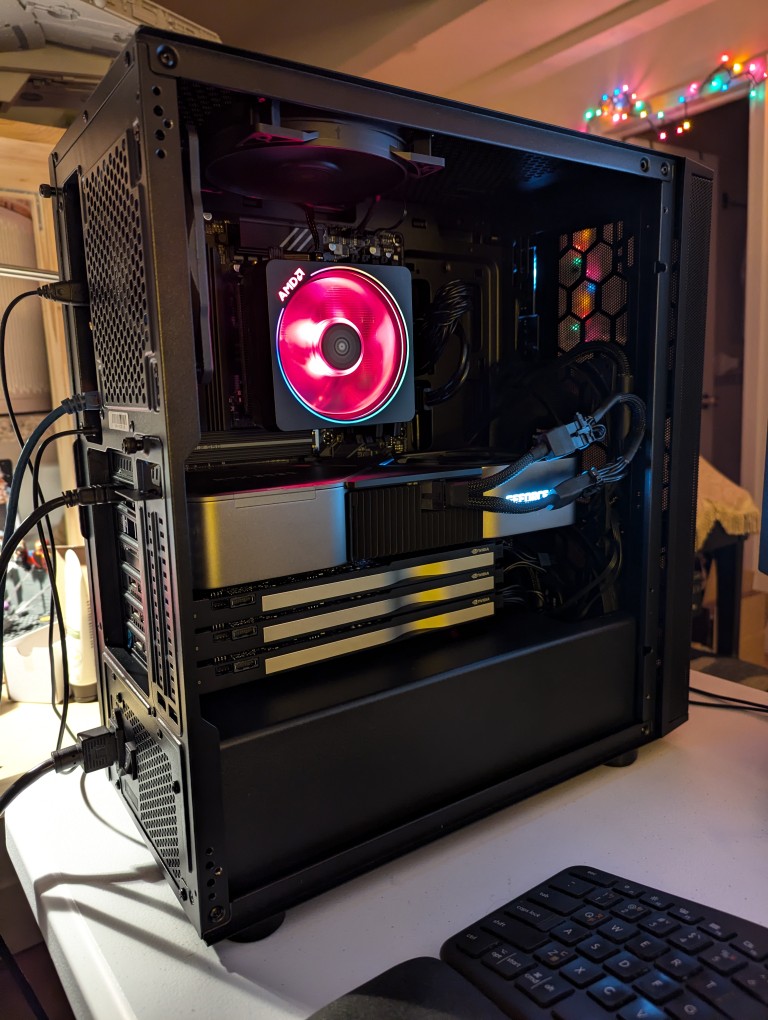
    black computer tower with side panel removed showing the internal components

    This past weekend, I got the final part that I needed to begin assembling my new AI-focused workstation. It took about a whole day from scrounging up the parts to putting it together to installing Debian 12 Bookworm. As you can see in the photo above, it’s running strong now. I’m installing software and testing out its capabilities especially in text generation, which without any optimizing has jumped from 1 token/sec on my old system to 5 token/sec on this system using a higher quantanized model (70B Q4_K_M to 70B Q6_K)!

    RTX 3090 video card and two nvme SSDs on a cardboard box

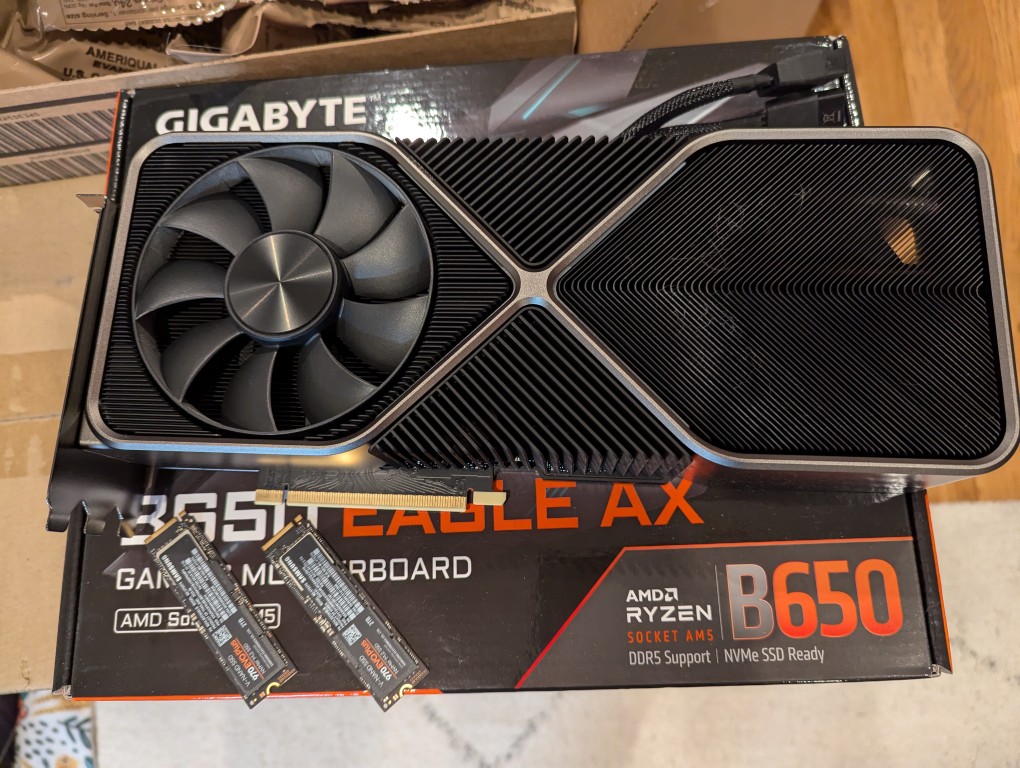
    The first thing that I needed to do with my old system was to remove the components that I planned to use in the new system. This included the NVIDIA RTX 3090 Founders Edition video card and two 2TB Samsung 970 EVO Plus nvme SSDs.

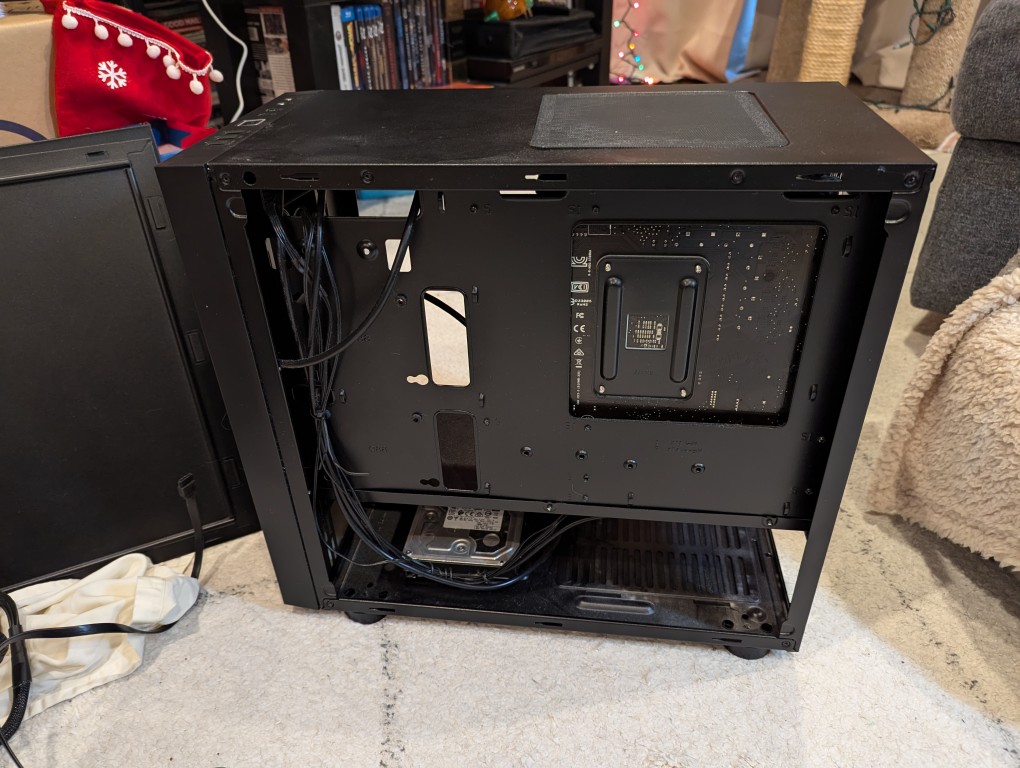
    micro atx case with back side panel removed revealing cables and hard drives

    I almost forgot my 8TB Western Digital hard disk drive that I had shucked from a Best Buy MyBook deal awhile back (in the lower left of the old Thermaltake case above).

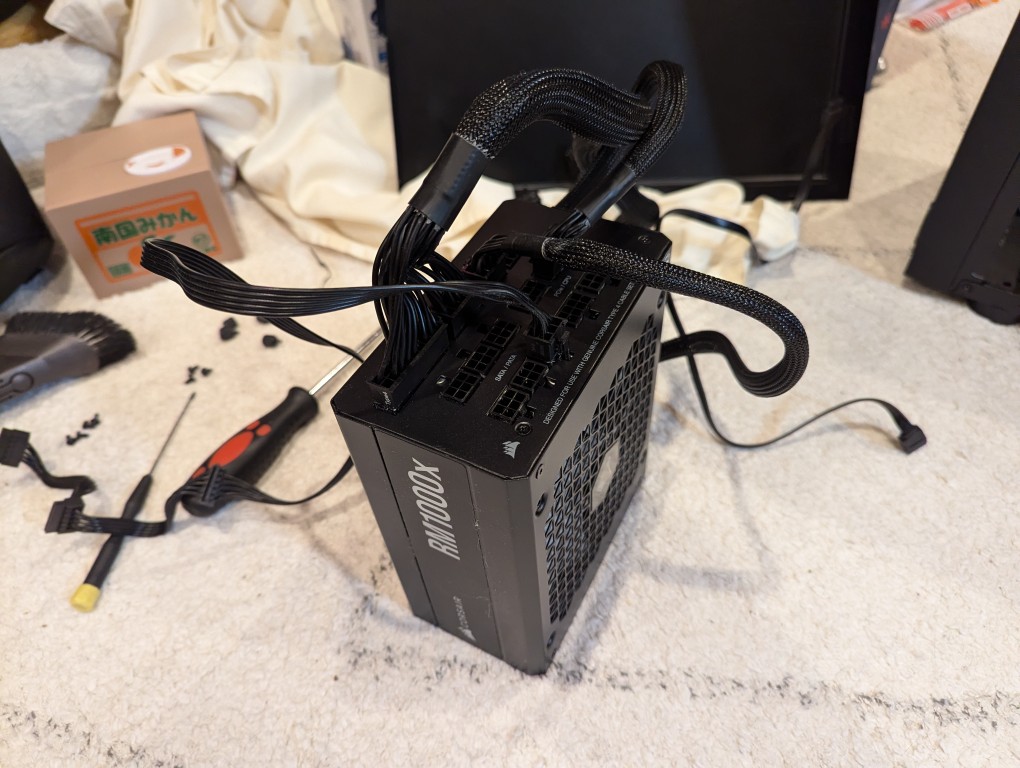
    computer power supply with power cables plugged in

    Finally, I needed the Corsair RM1000X 1000 watt power supply and its many modular connections for the new system’s four video cards.

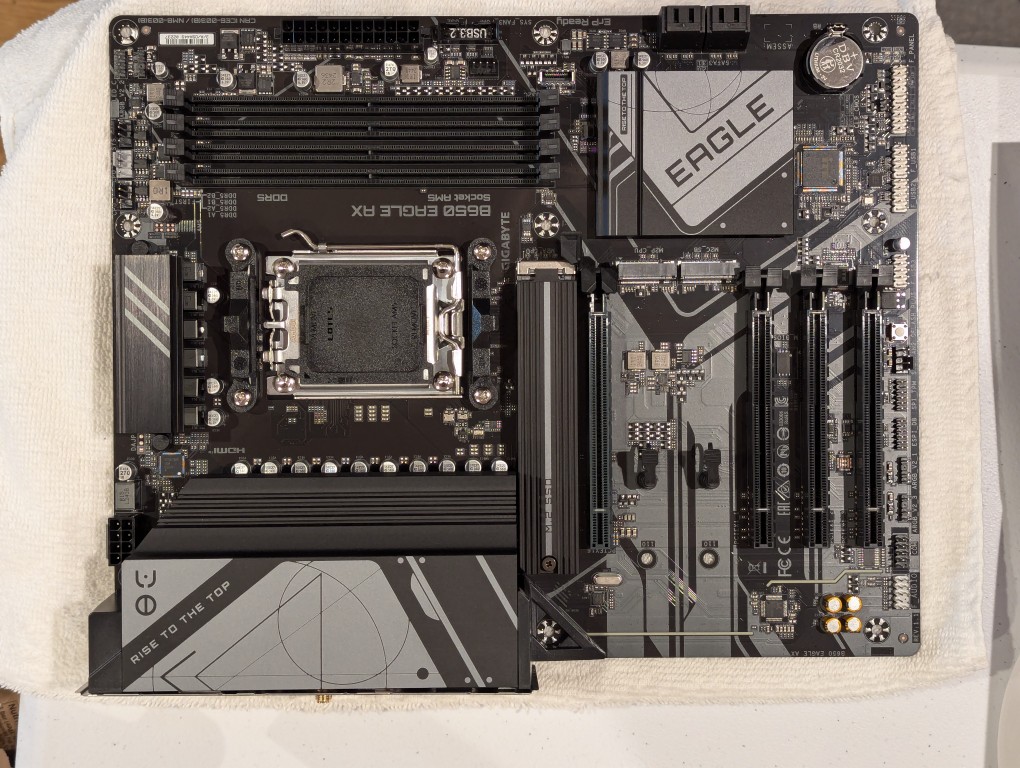
    am5 socket atx motherboard

    The new workstation is built around a Gigabyte B650 Eagle AX motherboard. I selected this motherboard, because it has a unique 16x PCIe slot arrangement–the top one has space for a three slot video card like my 3090, and its lower three slots would support the three NVIDIA RTX A4000 16GB workstation video cards that I had purchased off of eBay used. The lower slots do not run at full speed with 16 PCIe lanes, but when you are primarily doing AI inference, the speed that even 1x PCIe lanes provides is enough. If you are doing AI training, it is better to have a workstation-class motherboard (with Intel Xeon or AMD Threadripper Pro CPUs), because they support more PCIe lanes per PCIe slot than a consumer-based motherboard like this one is built to provide.

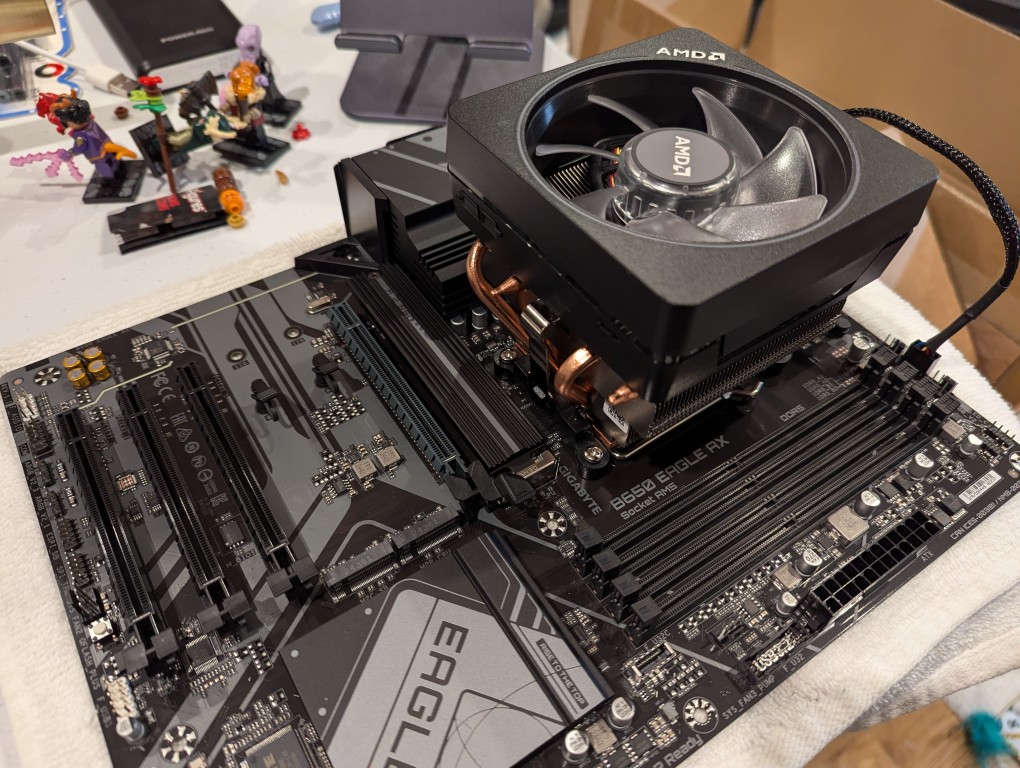
    motherboard with cpu and cpu cooler mounted on top

    The first step with the new motherboard was placing it on a soft surface and installing the CPU. I purchased an AMD Ryzen 7 7700 AM5 socket CPU. It came with AMD’s Wraith Prism RGB Cooler, which is a four heat pipe low-profile CPU cooler. I don’t care for its RGB colors, but it reduced the overall cost and provides adequate cooling for the 7700, which isn’t designed for overclocking.

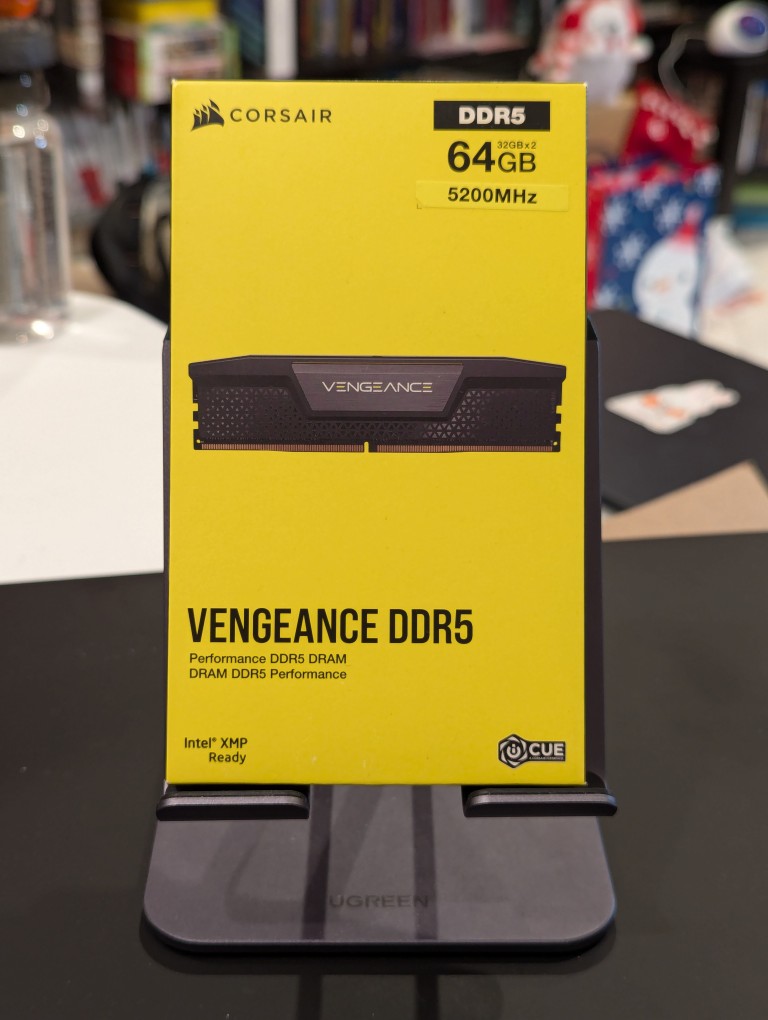
    corsair ddr5 64GB RAM vengeance product box

    Next, I installed the RAM that I just received–64GB Corsair Vengeance DDR5-5200 RAM (32 GB x 2).

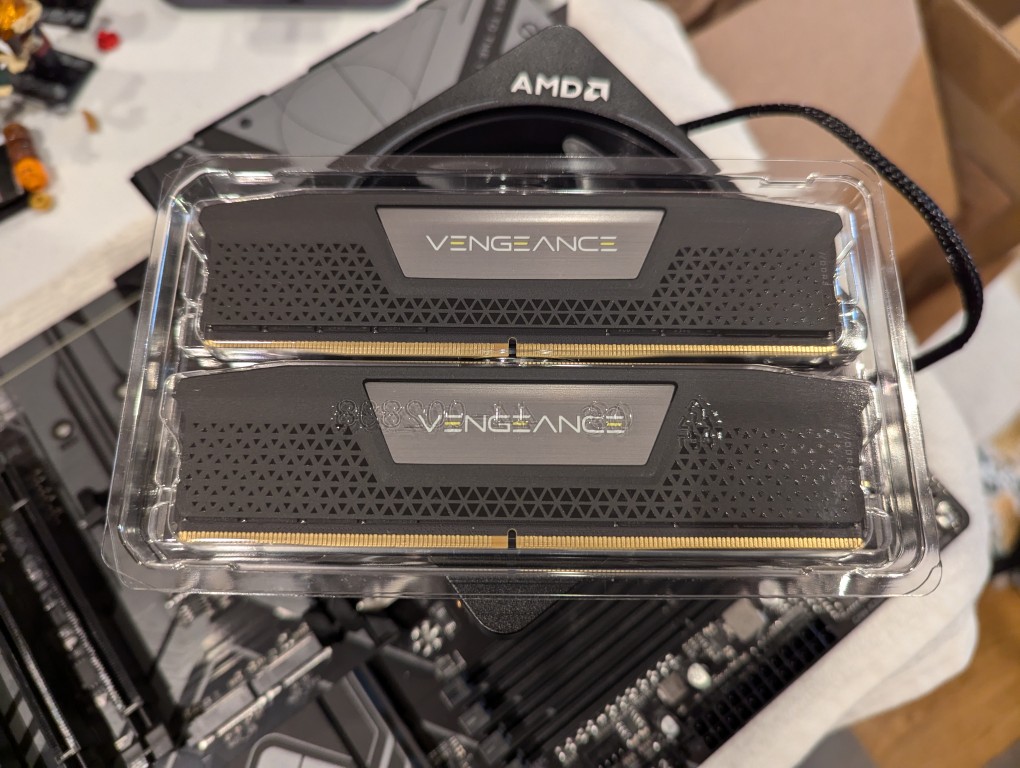
    2 sticks of DDR5 memory in a plastic case sitting on top of a motherboard

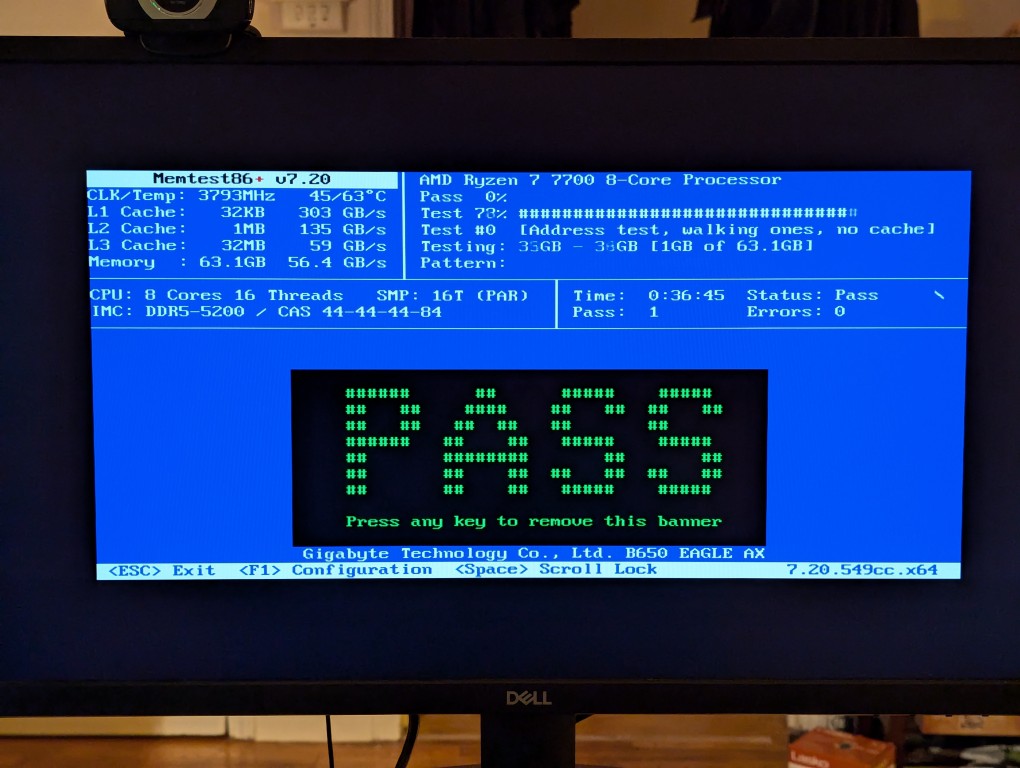
    This RAM runs at the stock highest speed for the 7700 CPU (though, I had to manually change the multiplier to 52x in the BIOS as it was registering as only DDR5-4800–it passed memtest86+ at the higher setting without any errors). As you can see above, it has nice heat spreaders built-in.

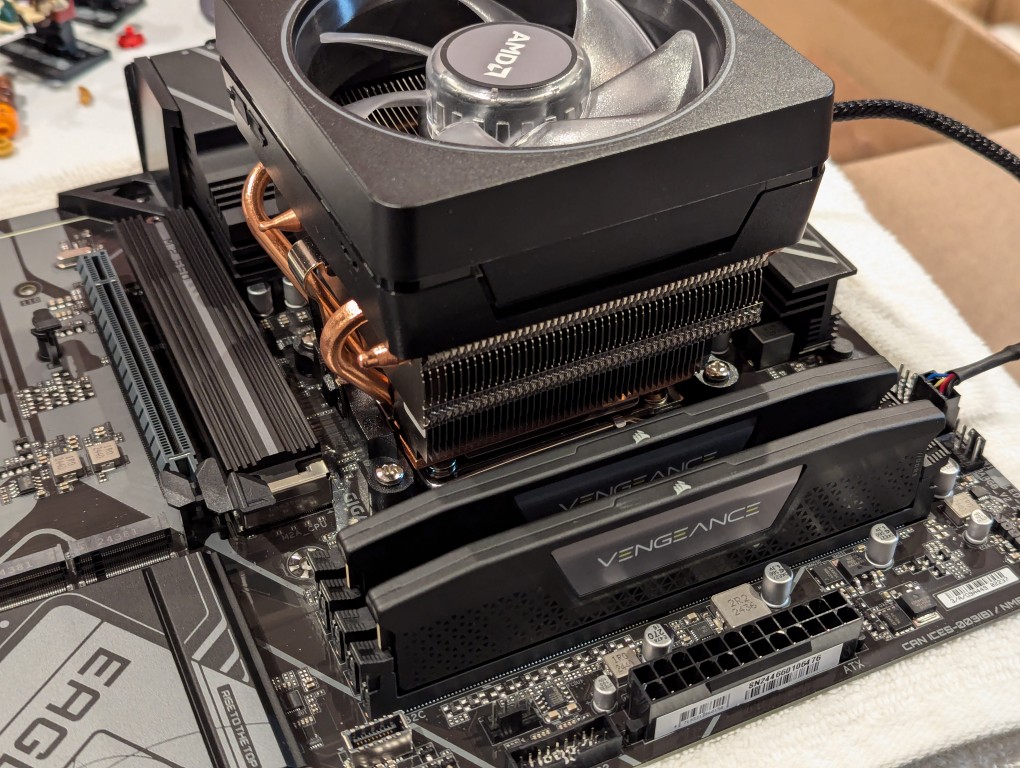
    2 sticks of ddr5 ram installed on a motherboard next to cpu and cpu cooler

    It’s important to note that I went with less RAM than my old system, because it’s well known that the AM5 platform and its current processors are not good at supporting higher RAM speeds for more than two RAM sticks. Since I’m focusing on doing inference with the video cards instead of the CPU (as I had done with the old system), I didn’t need as much RAM. Also, I figured that if I make the leap to a workstation-class CPU and motherboard, I can make a larger RAM investment as those systems also support 8-channel memory (more bandwidth, meaning faster inference) as opposed to the 2-channel memory (less bandwidth, slower CPU inference) on this consumer-focused motherboard.

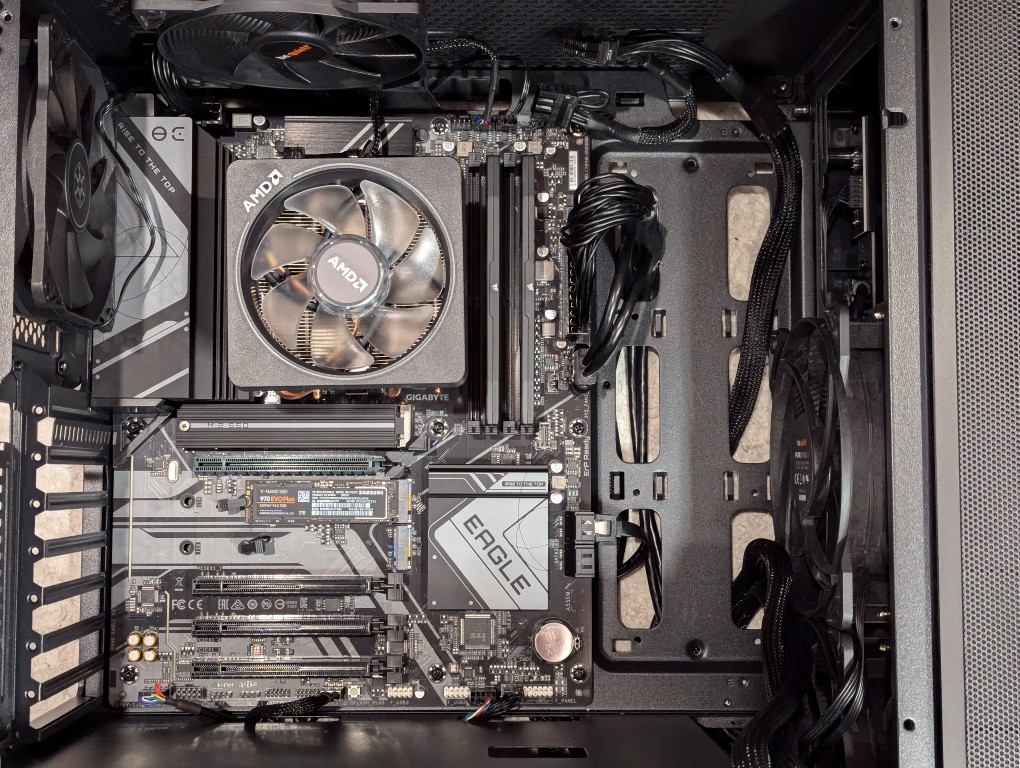
    atx motherboard mounted inside a midtower computer case

    Then, I installed two Samsung nvme SSDs on the motherboard–one under the headspreader directly below the CPU in the photo above and one below the top PCIe slot before installing the motherboard in my new, larger Silverstone FARA R1 V2 ATX midtower case after adding the few additional standoffs that were needed for an ATX motherboard.

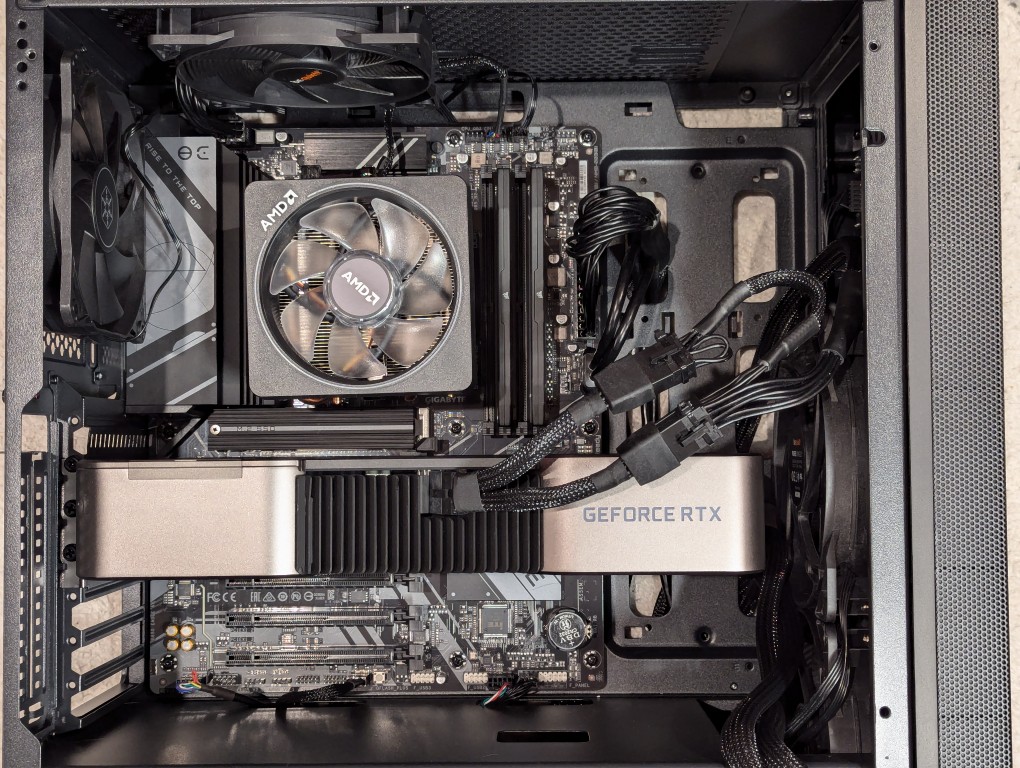
    RTX 3090 video card installed on motherboard inside a midtower computer case

    Out of frame, I installed the Corsair PSU in the chamber below the motherboard compartment after connecting the extra power cables that I needed for the three additional video cards. Then, I plugged in the 3090 video card and connected its two 8-pin PCIe power connectors.

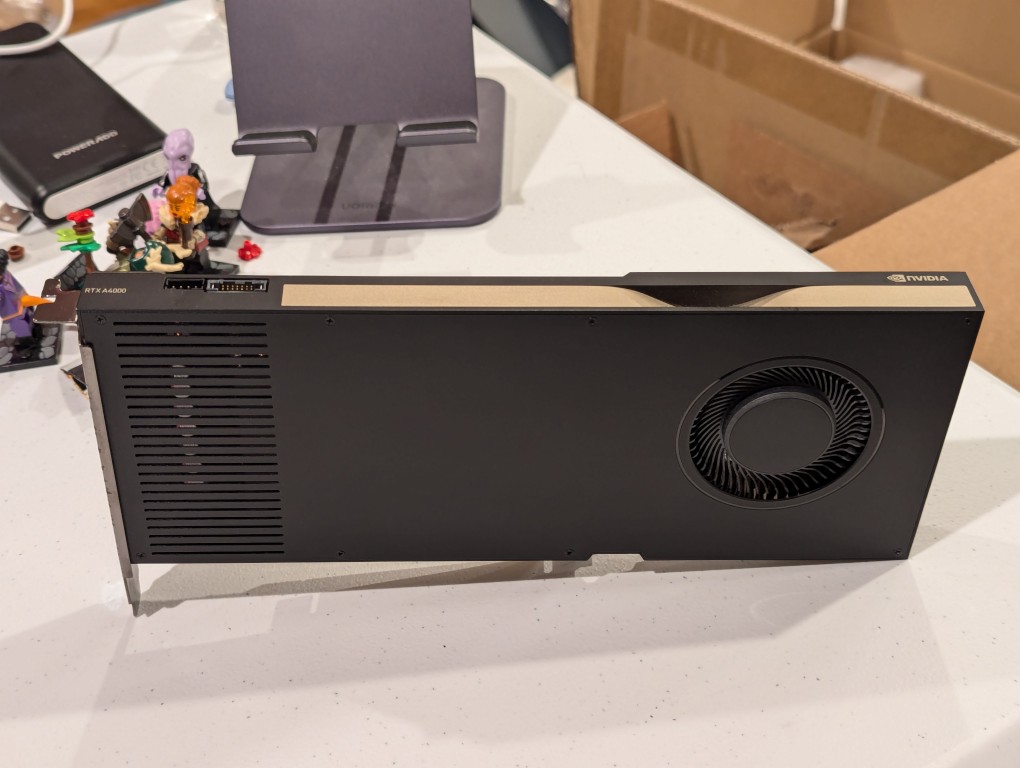
    thin long single slot video card with a single blower fan front

    Then, I turned my attention to the three used RTX A4000 video cards that I got off of eBay. They are single slot PCIe cards with a 6-pin PCIe power connector built into the front of the card close to the top edge.

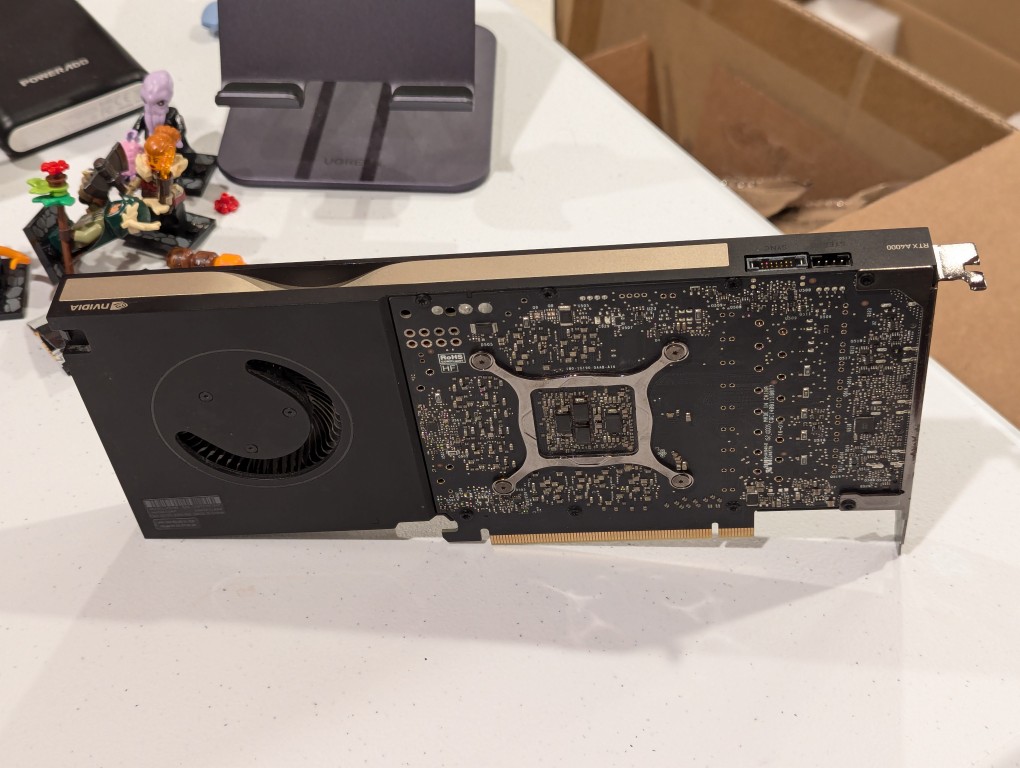
    thin long single slot video card with a single blower fan back with circuit board exposed
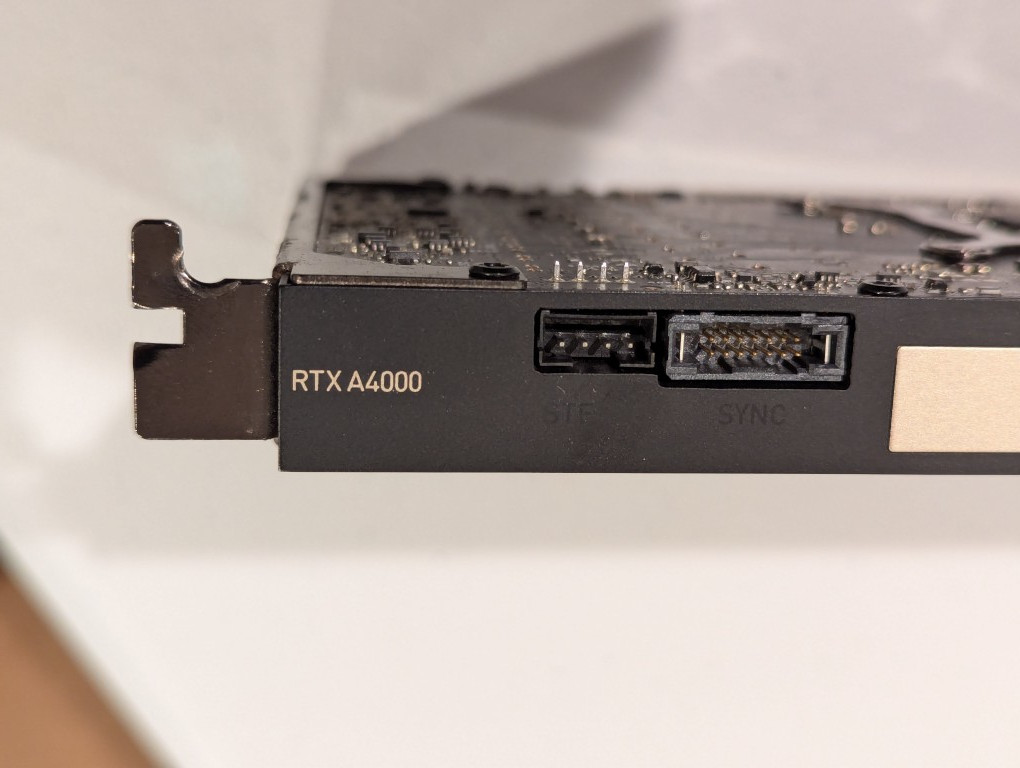
    close up of corner of single slot RTX A4000 logo on top edge of video card
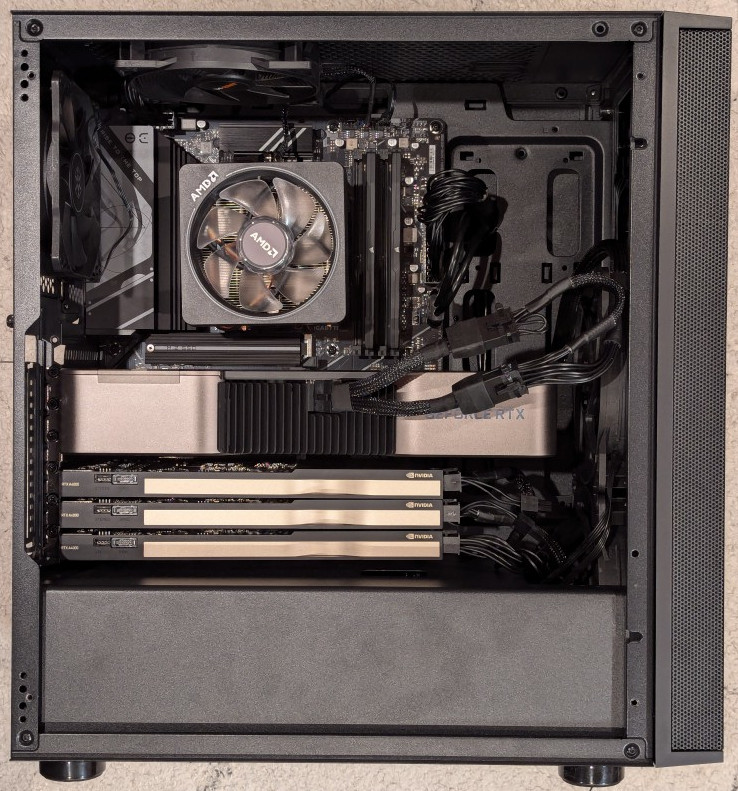
    RTX 3090 and three A4000 video cards installed on ATX motherboard in a midtower PC case

    I installed the three RTX A4000s into the lower three slots and connected a 6-pin power cable to each one.

    memtest86+ RAM test screen with the large word "PASS" in the middle of the screen

    After double checking all of the connections, I powered up the system and booted from a thumbdrive loaded with memtext86+ after disabling Secure Boot in the BIOS. Before going to the trouble of installing an operating system, I wanted to make sure that the new RAM was error free.

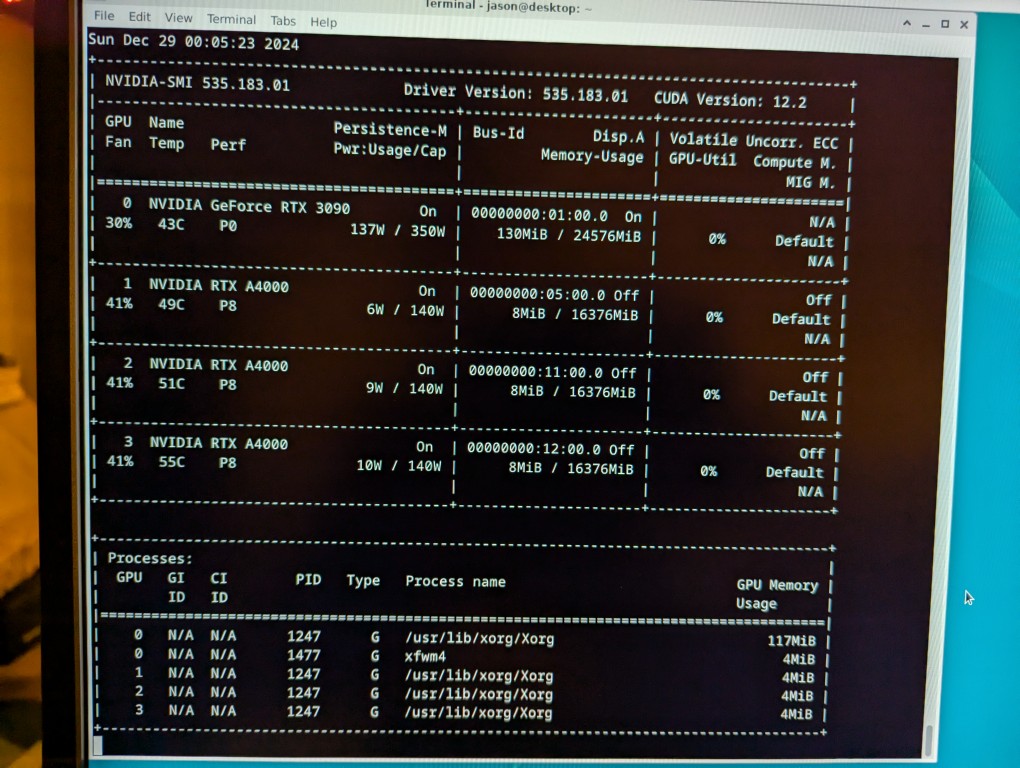
    nvidia-smi screen indicating the presence of four video cards: RTX 3090 and 3x A4000s

    With the RAM checking out, I proceeded to boot from another USB thumb drive loaded with the Debian 12 Bookworm installer. I formatted one of the 2TB Samsung nvme SSDs as the boot drive (LVM with encryption), installed Debian 12, configured the non-free repos, installed the closed source NVIDIA drivers, and checked to make sure all of the video cards were being recognized. nvidia-smi shows above that they were!

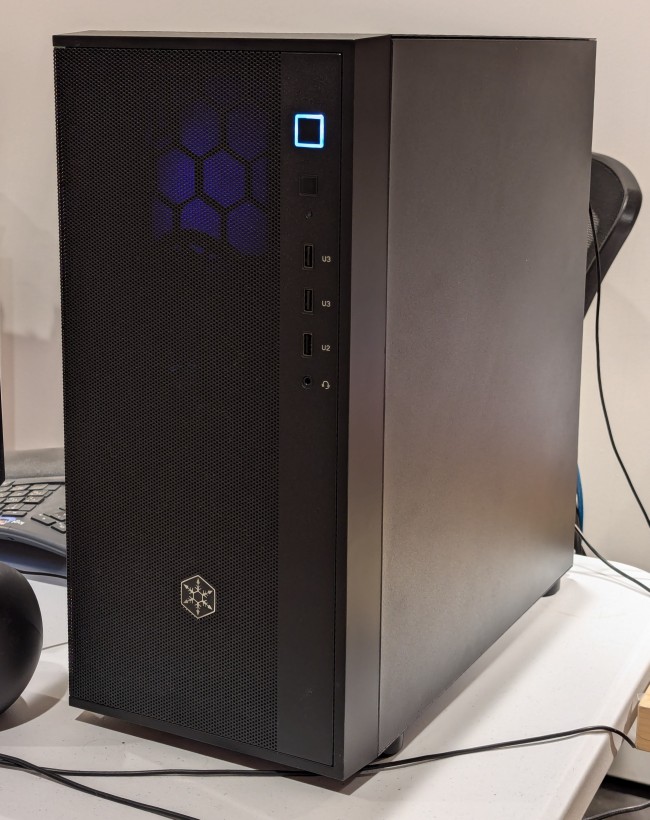
    black midtower atx computer case on a desk

    While testing it, I have it situated on my desk back-to-front, so that I can easily disconnect the power cable and open the side panel.

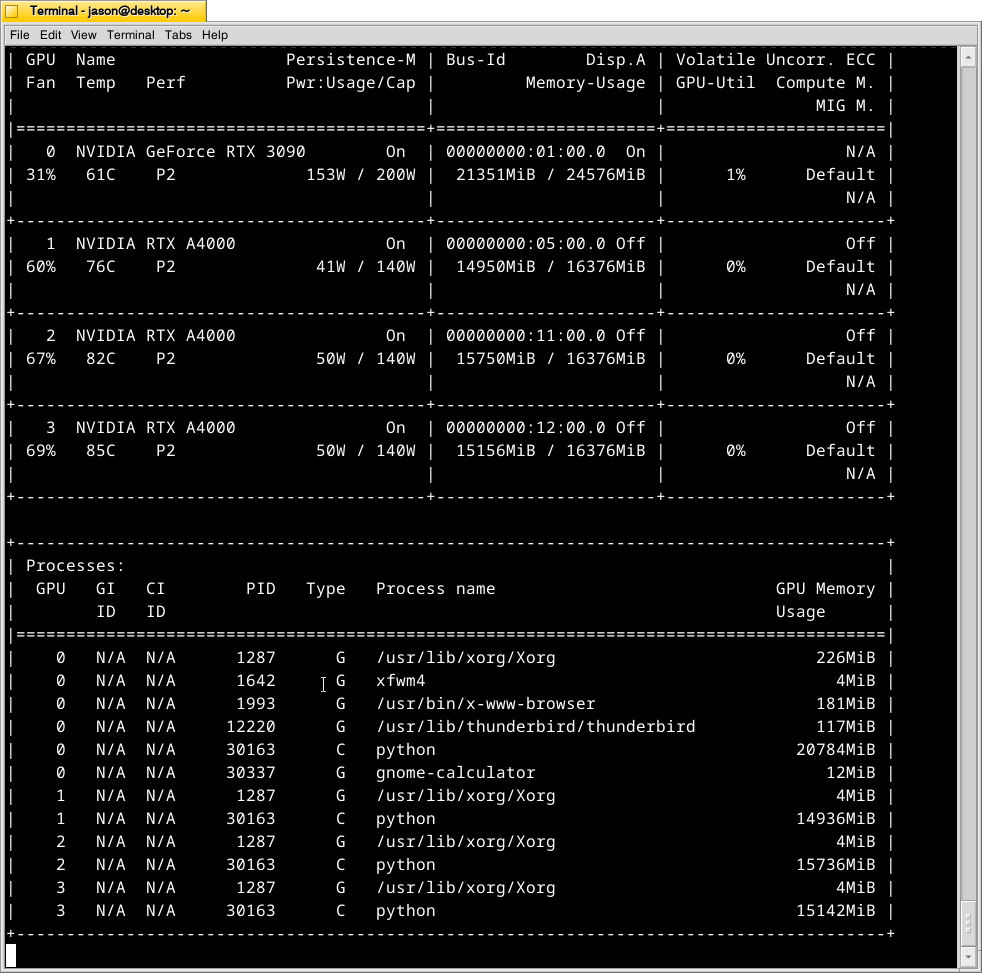
    nvidia-smi screen reporting higher temperatures in each lower video card in the system than the one above it

    The immediate fix that I need to make is improving the cooling for the video cards–especially the three RTX A4000s that are tightly packed at the bottom of the case. Looking at the second column from the left under each video card named is a temperature measurement in Celsius on the nvidia-smi screen captured during a text generating session, each lower card is running hotter than the one above it: the 3090 at the top is reporting 61C, the A4000 beneath it is reporting 76C, the A4000 beneath it is reporting 82C, and bottom most A4000 is reporting 85C. Besides the fact that they are right against one another in the case, there are two other concerns. First, the PCI slot supports on the case are partially covering the exhaust vents on each card. Second, the cooler outside air might not be making it to A4000s as well as I would like even though there are two 140mm fans positioned in the front of the case bringing in cooler outside air, which is exhausted by a 120mm fan in the back above the video cards and a 120mm fan on the top of the case above the CPU cooler. One option is to drill a large hold in the side panel and mount a 120mm fan there to blow outside air directly onto the A4000 cards. Another option that I might try first is rigging a channel from the back of the case to the A4000s to blow air from a two slot port above the A4000 cards to the top edge of those cards. The latter will require less work, so I’ll try it first and see if it changes the temperatures at all.

  • Continuing to Receive New Workstation Components

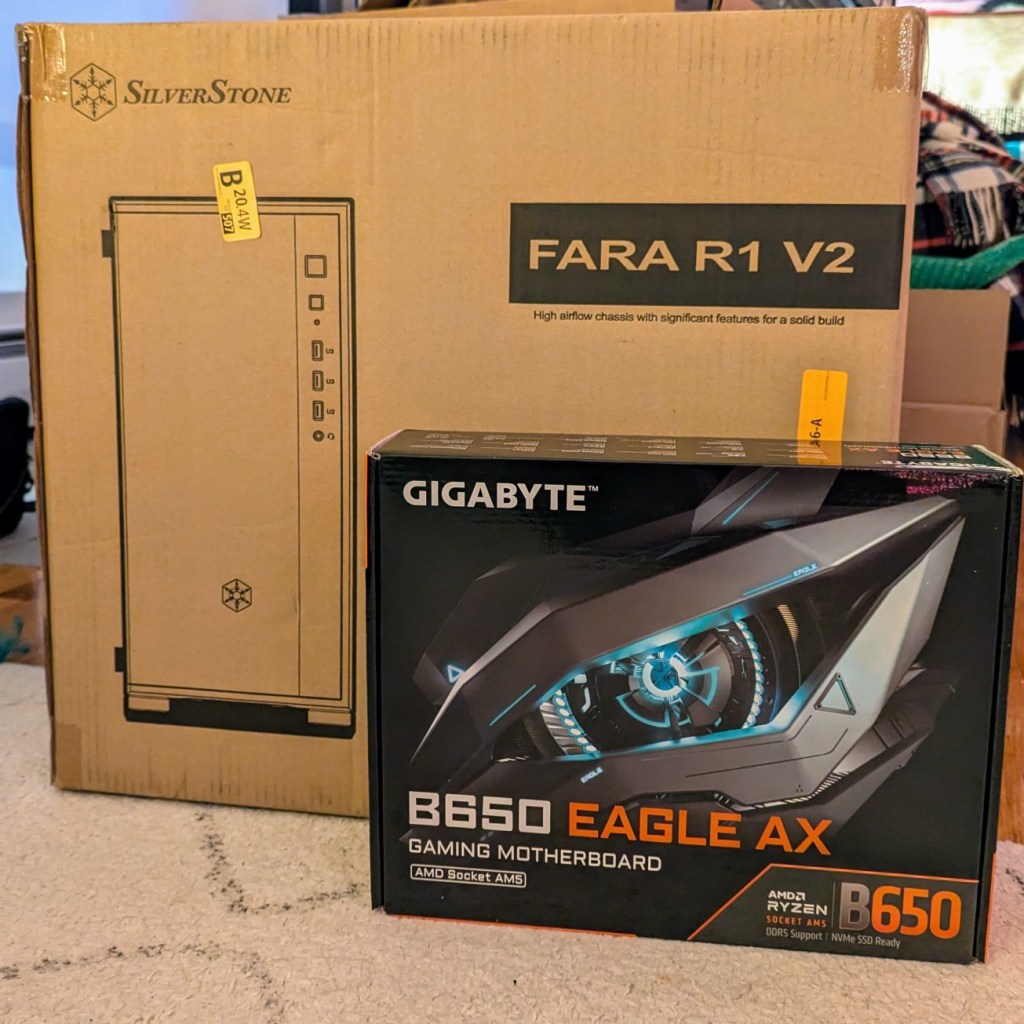
    computer case in a cardboard box and a computer atx motherboard in a cardboard box

    Over the weekend, I received two more pieces of my upcoming AI-focused workstation build to go along with the CPU and A4000 video cards. They are a Gigabyte B650 Eagle AX model ATX motherboard, which has four PCIe slots–one spaced for a 3-slot card like my 3090 and three spaced for single slot cards like the A4000s, and a Silverstone Fara R1 V2 ATX mid-tower case, which was the least expensive steel case without a glass window and good ventilation. My new Corsair DDR5 RAM won’t arrive until after Christmas, so the actual build will have to wait until then.

  • New AI Workstation Build Continues: Three NVIDIA A4000 Video Cards

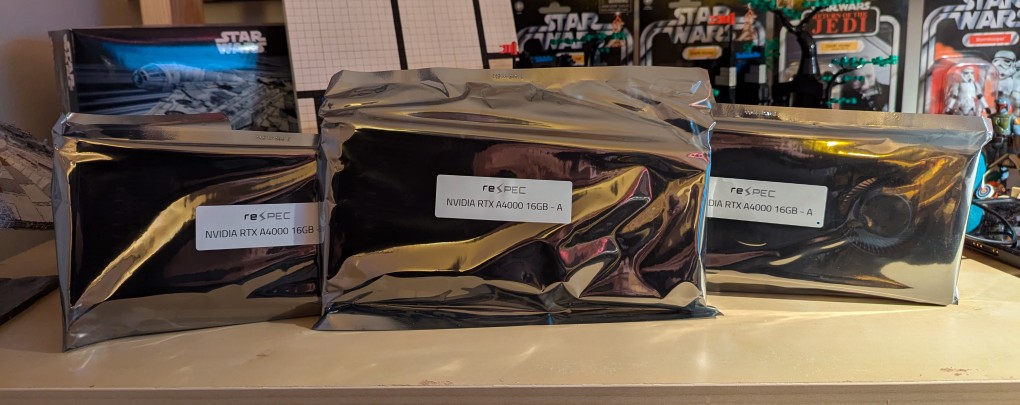
    After receiving a new AMD Ryzen 7 7700 CPU earlier this week, I received the three NVIDIA RTX A4000 16GB VRAM video cards pictured above in antistatic bags today for my new AI workstation. Brand new, these cards run just over $1000, but I got these refurbished ones from an eBay seller for just under $600 each. These three video cards will work alongside my NVIDIA RTX 3090 Founders Edition 24GB VRAM video card for a total of 72GB VRAM, which will allow me to run low-or-no quantized large language models at a much faster output rate than I currently can using the 3090 with system RAM. The limited PCIe lanes on the Gigabyte motherboard that I ordered shouldn’t be too limiting as far as inference work is concerned.

  • Finding the Best Bang for the Buck in Generative AI Hardware

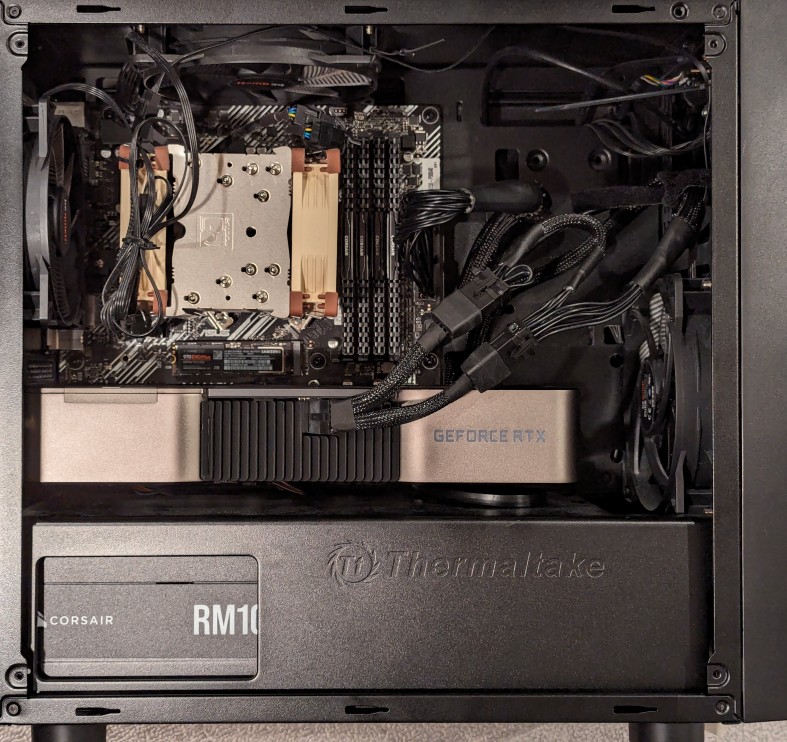
    Desktop PC with NVIDIA RTX 3090 Founders Edition GPU

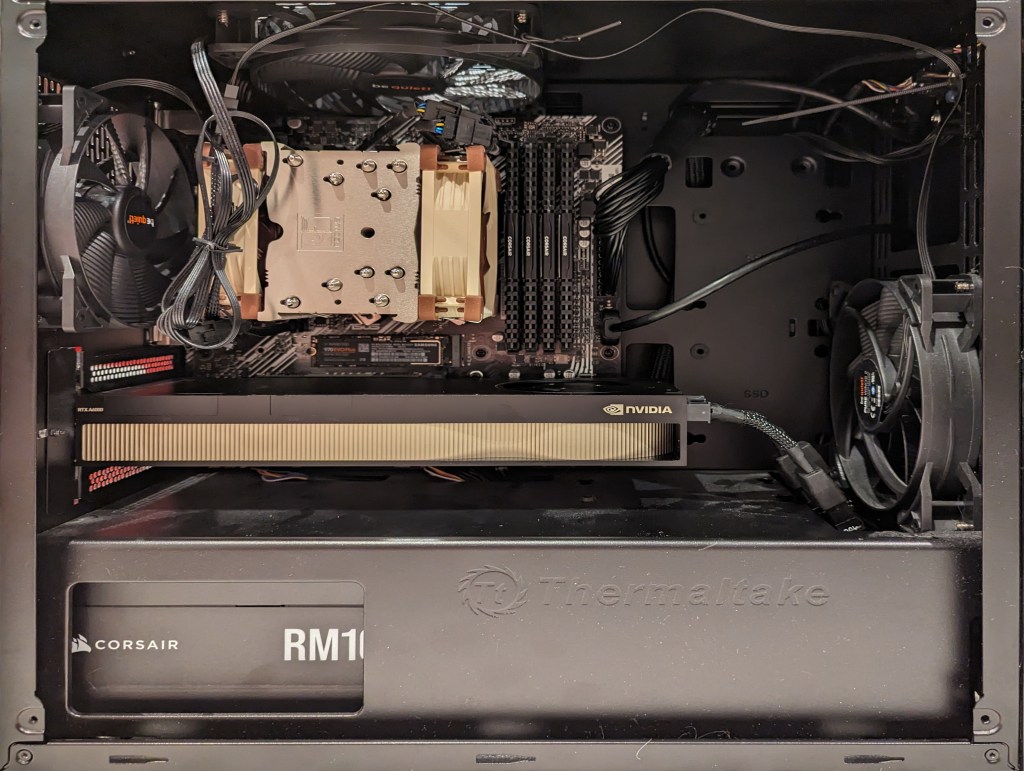
    As I documented last year, I made a substantial investment in my computer workstation for doing local text and image generative AI work by upgrading to 128GB DDR4 RAM and swapping out a RTX 3070 8GB video card for NVIDIA’s flagship workstation card, the RTX A6000 48GB video card.

    After I used that setup to help me with editing the 66,000 word Yet Another Science Fiction Textbook (YASFT) OER, I decided to sell the A6000 to recoup that money (I sold it for more than I originally paid for it!) and purchase a more modest RTX 4060 Ti 16GB video card. It was challenging for me to justify the cost of the A6000 when I could still work, albeit more slowly, with lesser hardware.

    Then, I saw Microcenter begin selling refurbished RTX 3090 24GB Founder Edition video cards. While these cards are three years old and used, they sell for 1/5 the price of an A6000 and have nearly identical specifications to the A6000 except for having only half the VRAM. I thought it would be slightly better than plodding along with the 4060 Ti, so I decided to list that card on eBay and apply the money from its sale to the price of a 3090.

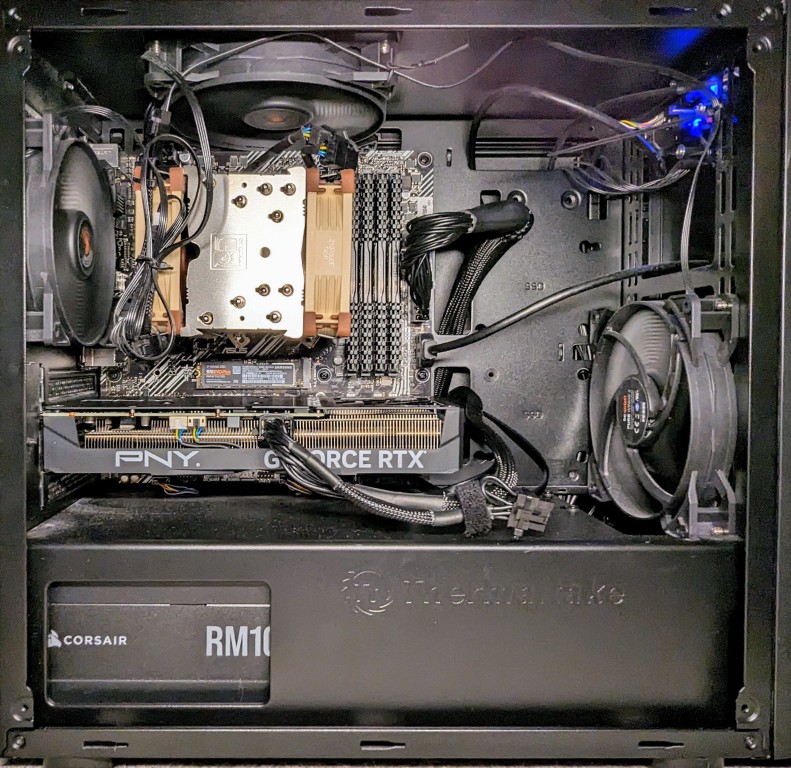
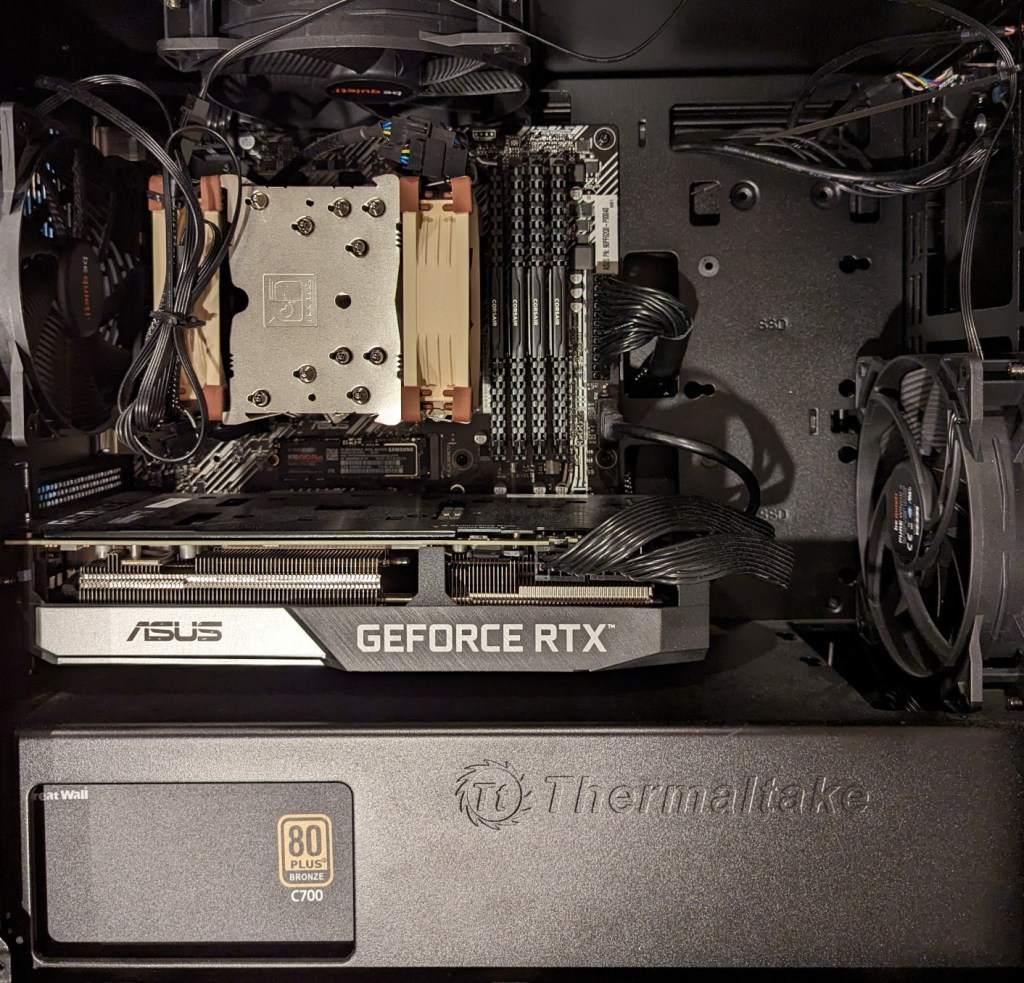
    As you can see above, the 3090 is a massive video card–occupying three slots as opposed to only two slots by the 3070, A6000, and 4060 Ti shown below.

    The next hardware investment that I plan to make is meant to increase the bandwidth of my system memory. The thing about generative AI–particularly text generative AI–is the need for lots of memory and more memory bandwidth. I currently have dual-channel DDR4-3200 memory (51.2 GB/s bandwidth). If I upgrade to a dual-channel DDR5 system, the bandwidth will increase to a theoretical maximum of 102.4 GB/s. Another option is to go with a server/workstation with a Xeon or Threadripper Pro that supports 8-channel DDR4 memory, which would yield a bandwidth of 204.8 GB/s. Each doubling of bandwidth roughly translates to doubling how many tokens (the constituent word/letter/punctuation components that generative AI systems piece together to create sentences, paragraphs, etc.) are output by a text generative AI using CPU + GPU inference (e.g., llama.cpp). If I keep watching for sales, I can piece together a DDR5 system with new hardware, but if I want to go with an eight-channel memory system, I will have to purchase the hardware used on eBay. I’m able to get work done so I will keep weighing my options and keep an eye out for a good deal.