Category: Computers

  • Lenovo ThinkPad P1 Gen 4 Powerhouse Workstation

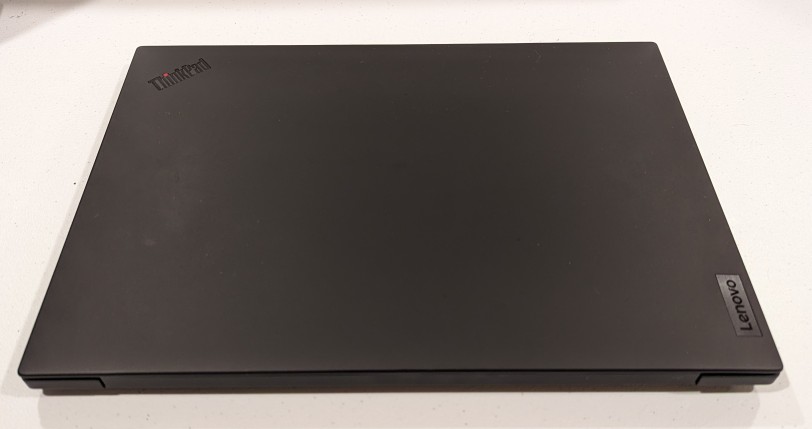
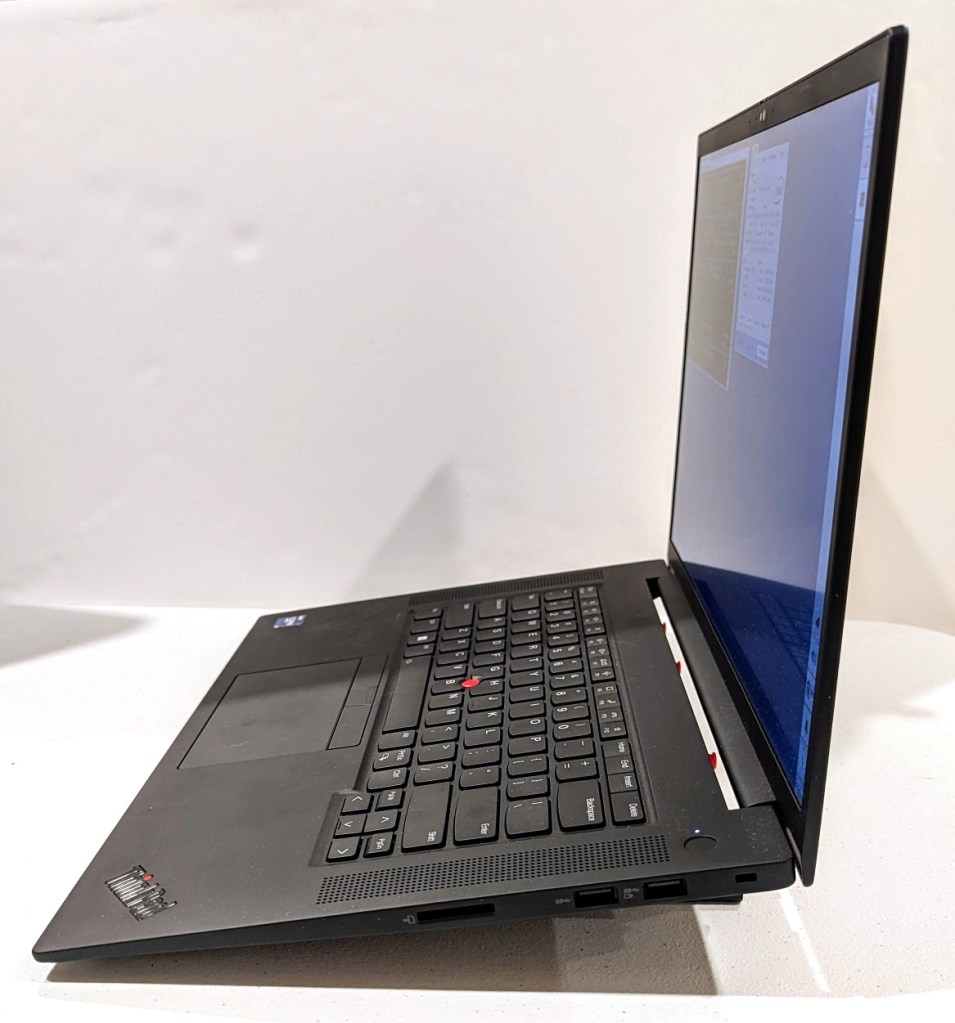
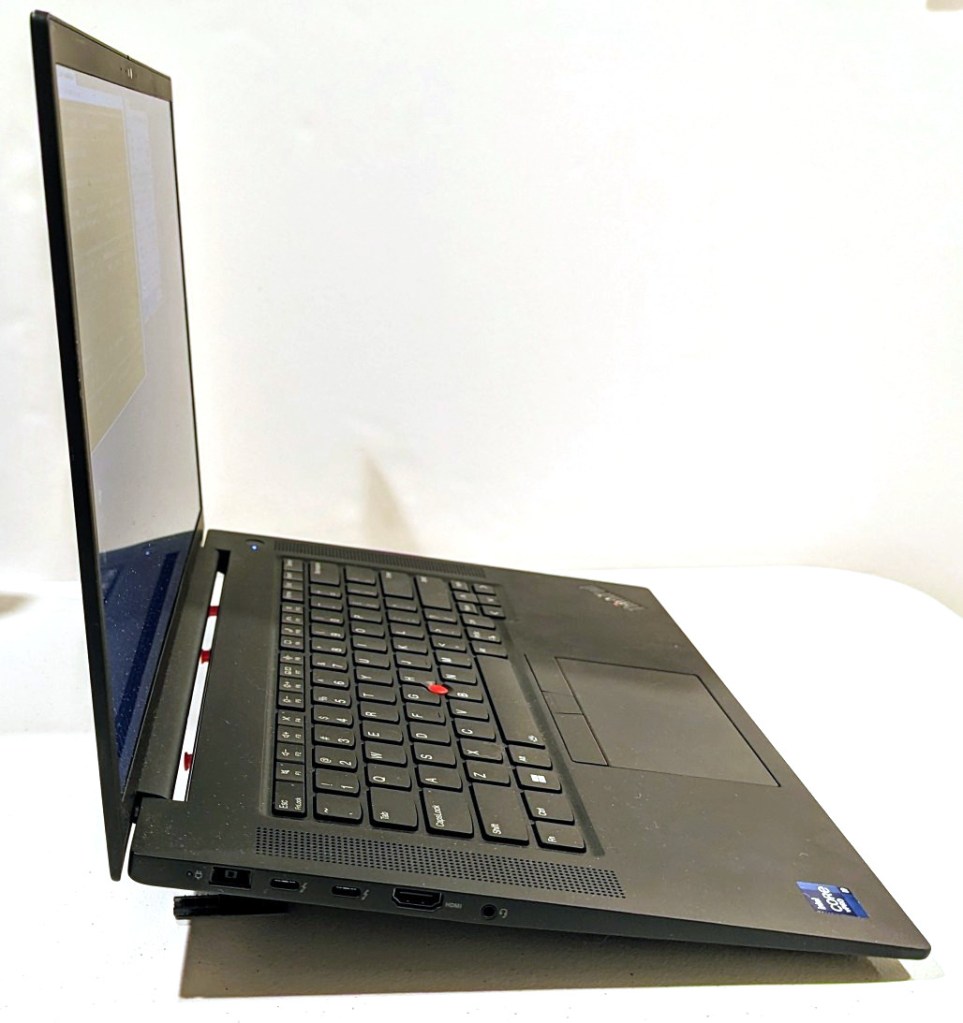
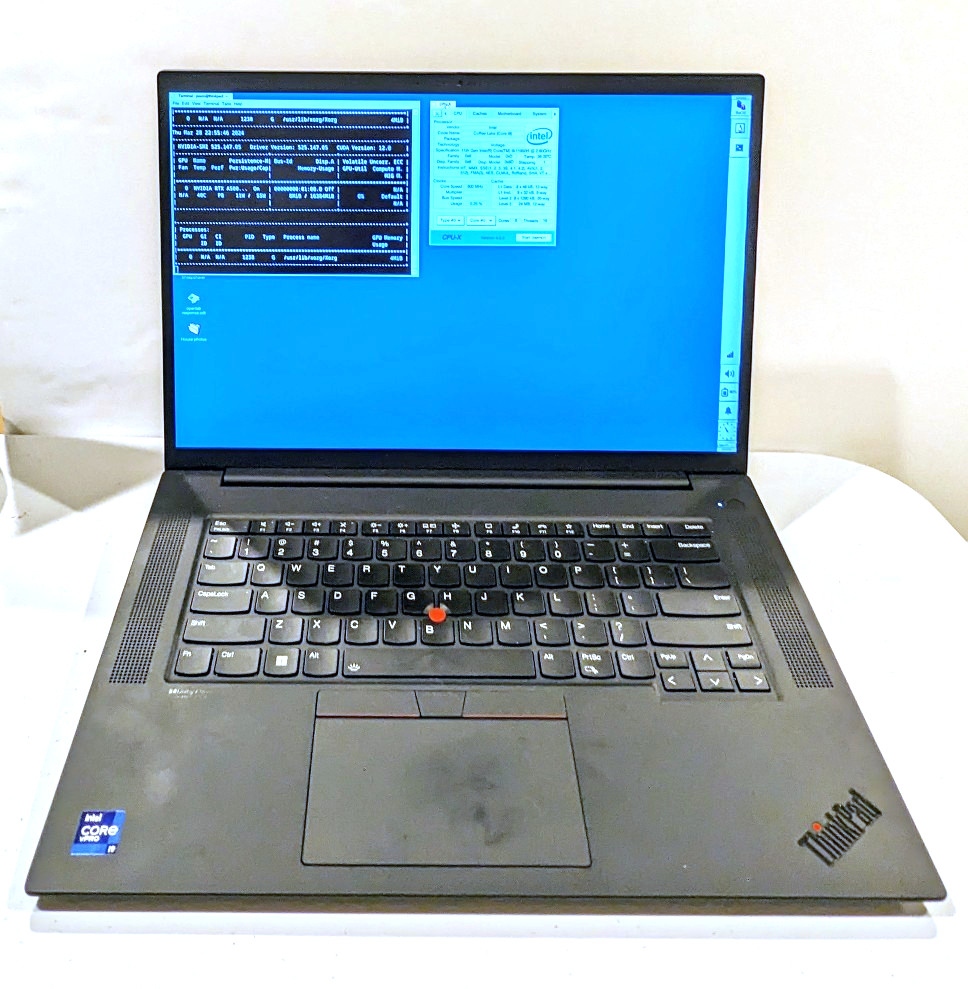
    Lenovo ThinkPad P1 Gen 4 16" QHD+ i9-11950H✓64GB RAM✓2TB SSD✓RTX A5000 with screen open and showing Debian 12 desktop

    About halfway through my sabbatical, I needed to visit my parents in Georgia, but I also needed to continue working on my research projects. I didn’t feel safe about lugging my A6000 desktop computer (in checked baggage or shipping), so I followed my own advice and started looking for a used workstation-class laptop.

    It took a few weeks, but I landed this awesome, practically new Lenovo ThinkPad P1 Gen 4 from a seller on eBay. It has a 16″ QHD+ screen (that I scale down to 1080p for my eyes), an i9-11950H (8 core/16 thread) CPU, 64GB DDR4 RAM, 2TB SSD, and an NVIDIA RTX A5000 16GB discrete video card (Stable Diffusion and llamacpp worked without any hiccups).

    It plows through all of the work that I throw out at, but it does sound like a jet engine when its two cooling fans spin up. I have found that raising it off the desk by a couple of inches helps tremendously with cooling by increasing air flow. I had been using rigged up stands, but I built a special stand out of LEGO that I will show in detail tomorrow (but there’s a sneak peek in the photos below).
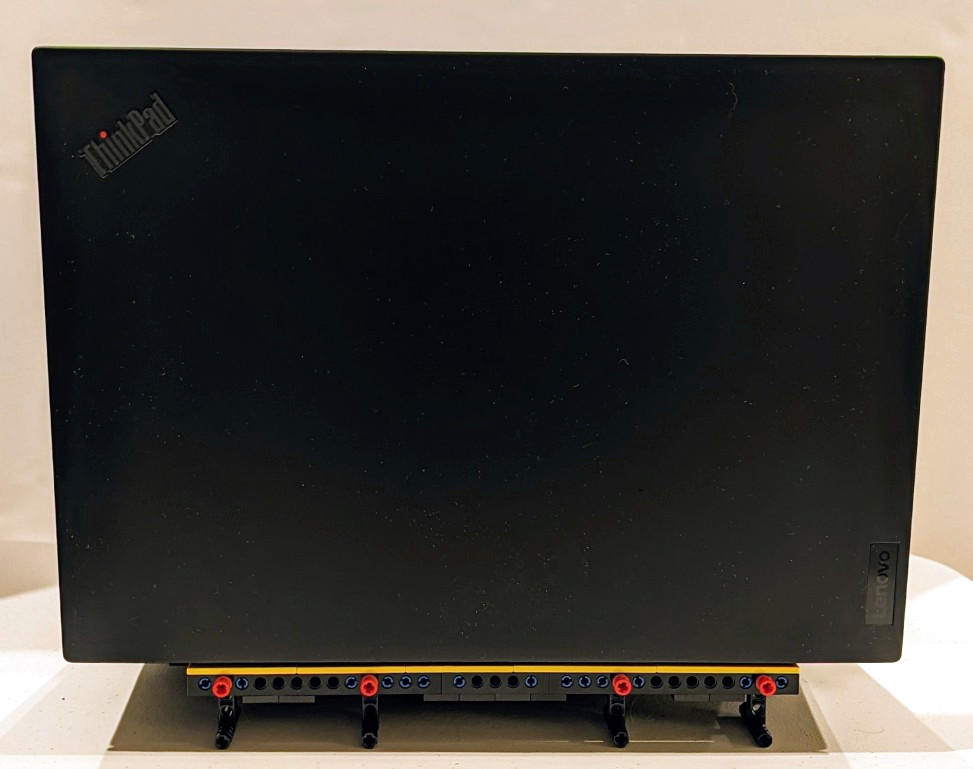
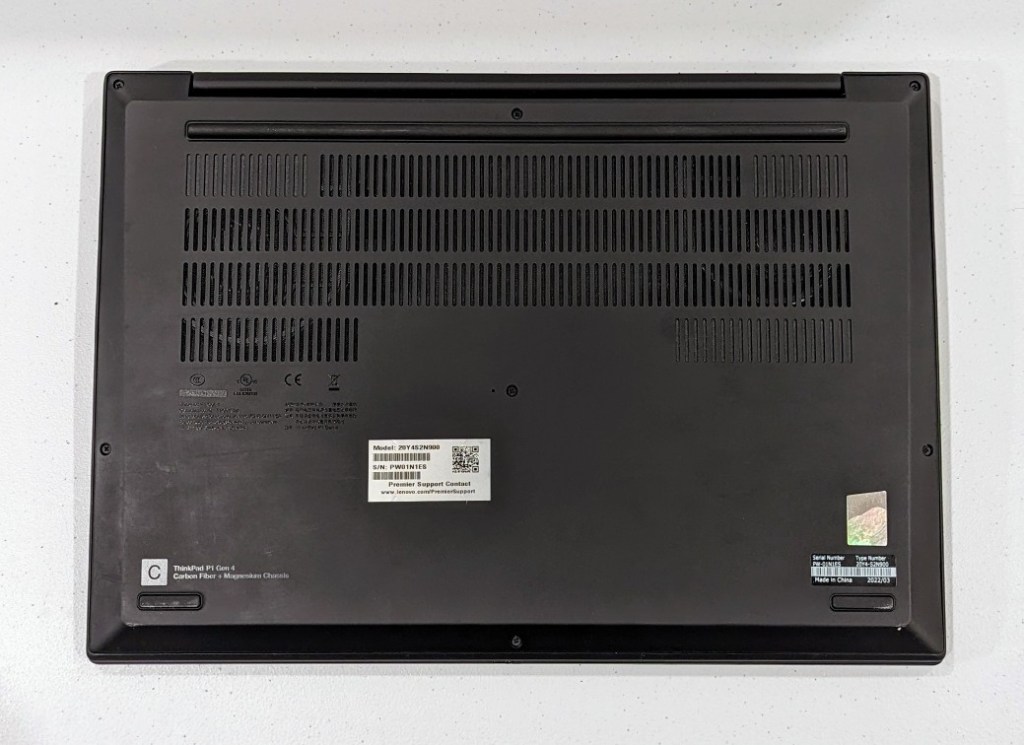
    I can’t sing this laptop’s praises loudly enough! It works well with Debian 12 Bookworm, but it does have some issues with power saving/hibernation, which is a known issue and might have some work around that I haven’t tried yet.

    The one thing that it can’t do without when doing GPU-focused work is it’s chonky 230 watt external power supply. I bring it with me when I know it will eat through its battery doing jobs. I recently upgraded my backpack to a Mystery Ranch 2-Day Assault Pack, which has a built-in sleeve that easily accommodates 16″ laptops like this one (but it can be tricky to use the laptop side egress slot due to the ThinkPad’s thickness).

  • Easy DIY Dust Filter for the Thermaltake Versa H17 MicroATX Tower Case

    Black Thermaltake Versa H17 MicroATX Tower Case

    Thermaltake’s Versa H17 MicroATX PC mini tower case is an excellent minimalist case with a relatively small footprint. I chose this case, because it doesn’t have a side window or excessive RGB lighting. I wish that I could disable the power light, which is a bright, room illuminating blue, but I simply cover it with a microfiber cloth.

    It’s designed to have air instake from the edges of the front face, which are covered with a fine grill, a 120mm opening at the rear bottom of the case with a magnetic dust filter for the PSU, and a larger approximately 3/4″ x 4″ opening at the bottom of the front plastic face assembly. The latter is a problem, because it’s basically a rectangular hole through which dust enters the entire case but especially in the shrouded PSU/disk zone in the bottom of the case.

    While working recently on my desktop computer–swapping out video cards and installing a new SSD–I figured that I should do something about that air inlet. I used what I had on hand to create a DIY solution.

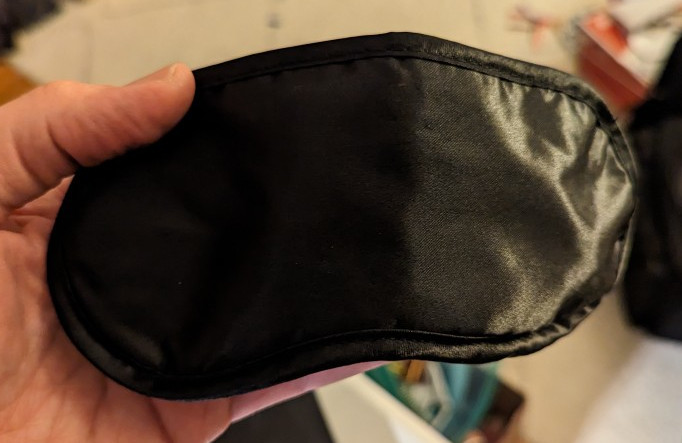
    black airline sleep mask

    First, I took this airline supplied sleep mask. I could feel that it had foam underneath its outer fabric layer, which would work great for capturing dust before it enters the case. I used scissors to cut into the face of the mask within the sewn border.

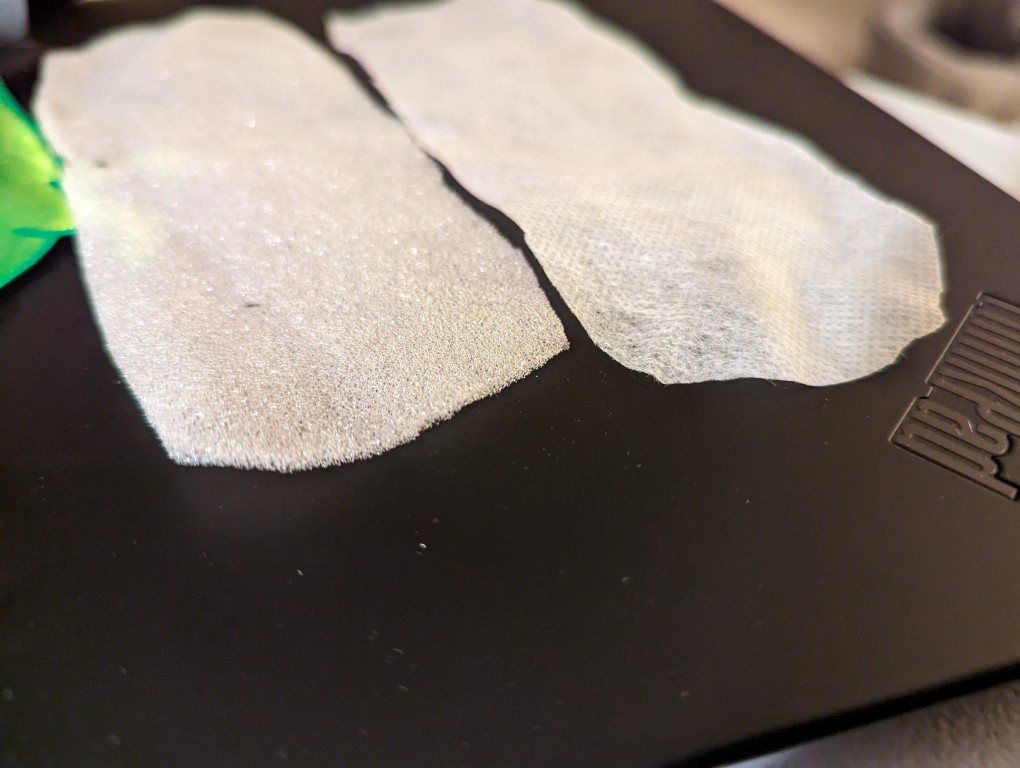
    foam and filter paper inside the sleep mask

    After cutting into the mask, I found two different kinds of material. On the left is a soft 1/16″ thick white foam and on the right is a thin cotton-like material that might also be used for face masks and personal protection equipment (PPE). For my project, I opted to use the thicker foam on the left. While it might not filter as much dust as the fabric on the right, I think it will give a better balance between airflow and filtration.

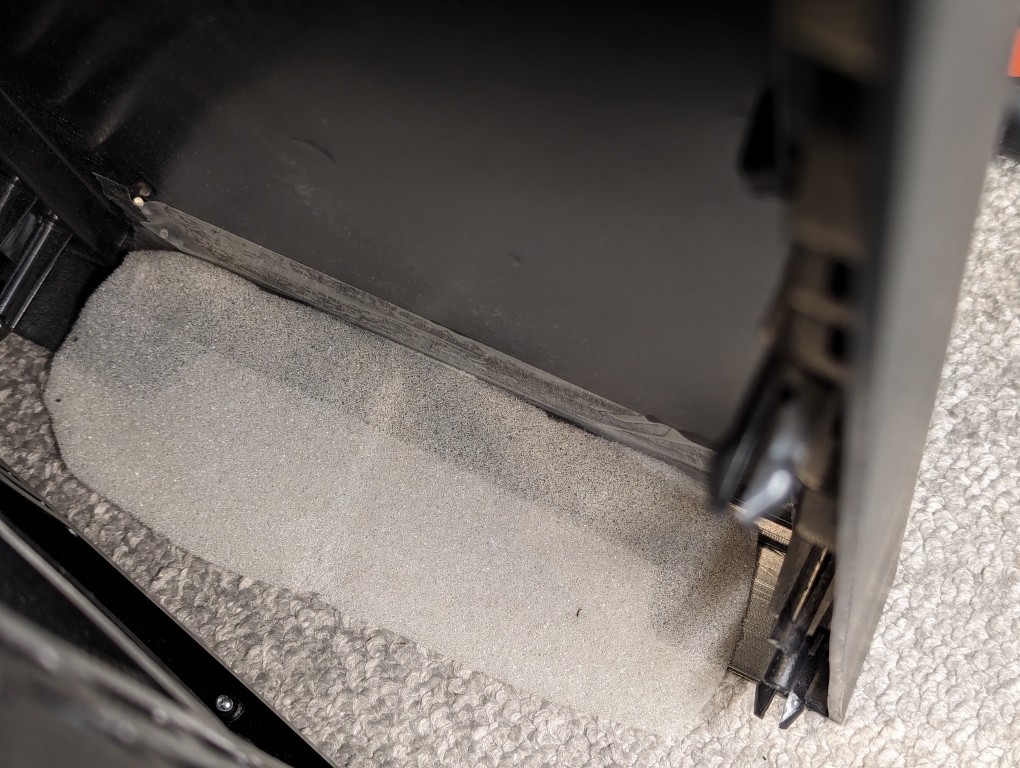
    foam taped over air inlet under the front face of the Thermaltake Versa H17 PC case

    I pulled off the face of the Thermaltake Versa H17 case and taped the foam over the air inlet with a piece of packing tape.

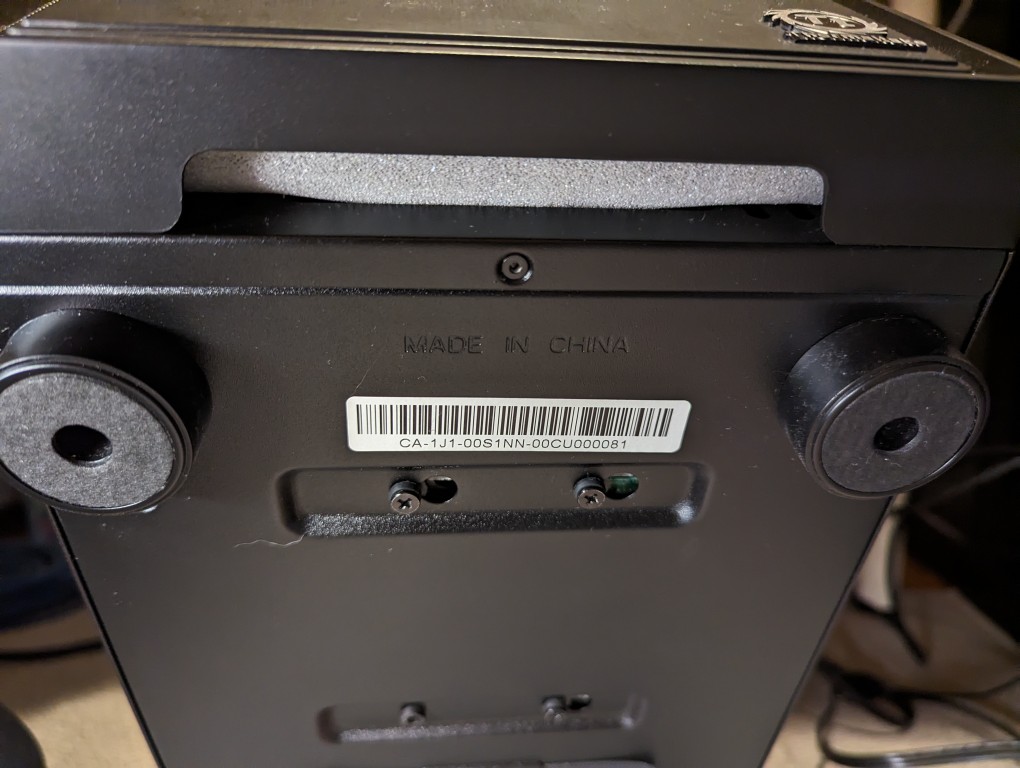
    bottom of Thermaltake Versa H17 case with the foam covering the air inlet.

    After reattaching the face, the foam covers the air inlet. It might take a few tries to make sure the foam covers it completely. The use of additional tape on either end of the foam might help.

  • New 2TB Samsung 970 EVO Plus NVMe M.2 SSD for My Desktop

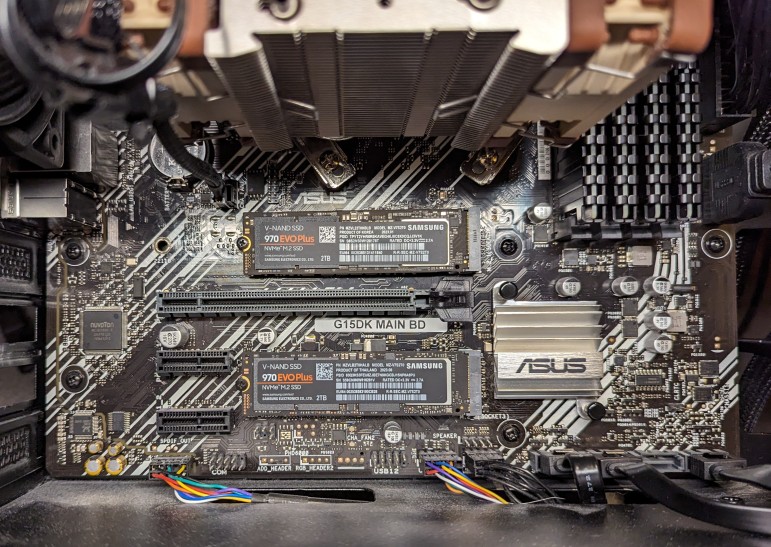
    Inside a computer with 2 Samsung 2TB 970 EVO Plus NVMe m.2 SSDs installed on a micro ATX motherboard

    When the prices of flash memory prices plummeted last year, I upgraded my desktop’s boot drive to a 2TB Samsung 970 EVO Plus NVMe m.2 SSD (pictured in the top m.2 position in the photo above). This past week, I saw that Microcenter had the same drive on sale, so I picked up a second one (pictured in the bottom m.2 position in the photo above) to replace a 512GB Western Digital drive.

    To install the new SSD in the bottom slot, I had to remove the video card, replace the SSD, and re-install the video card.

  • More PNY NVIDIA RTX 4060Ti 16GB Photos

    PNY NVIDIA RTX 4060Ti 16GB video card installed in a MicroATX AMD Ryzen 7 system.

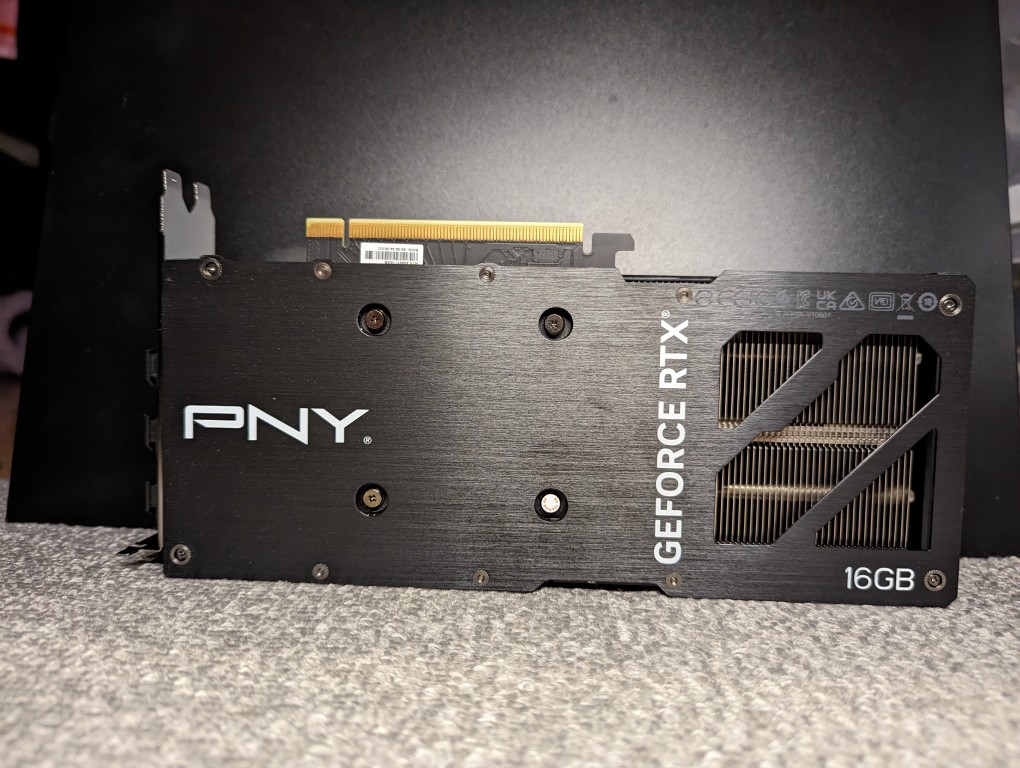
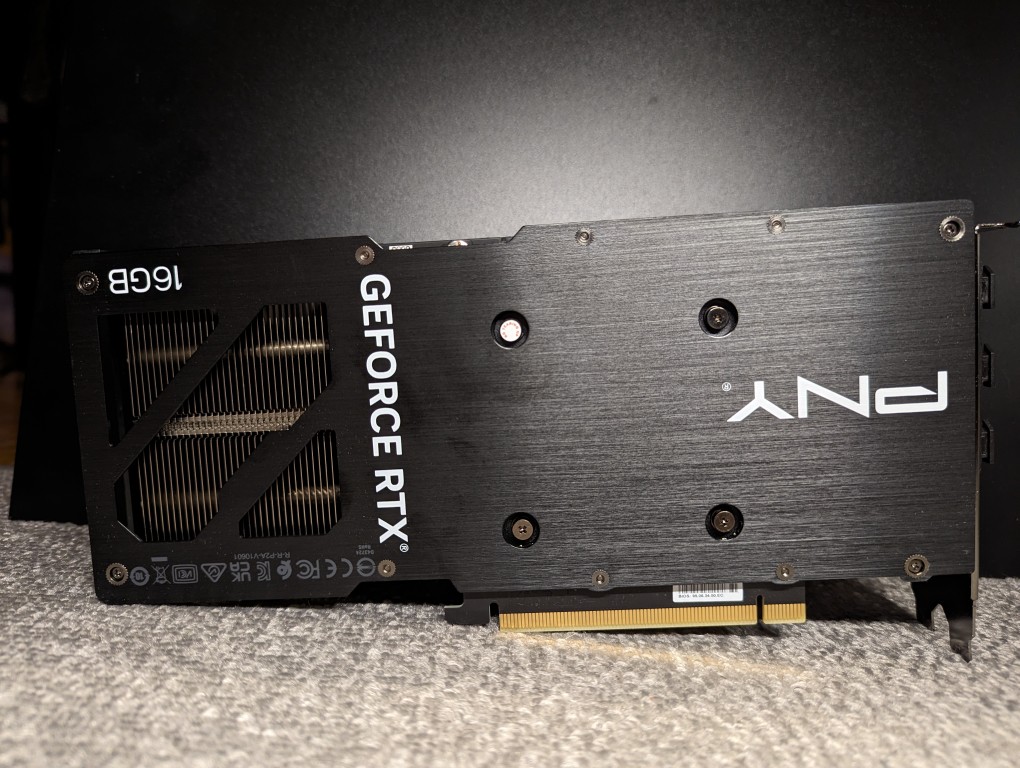
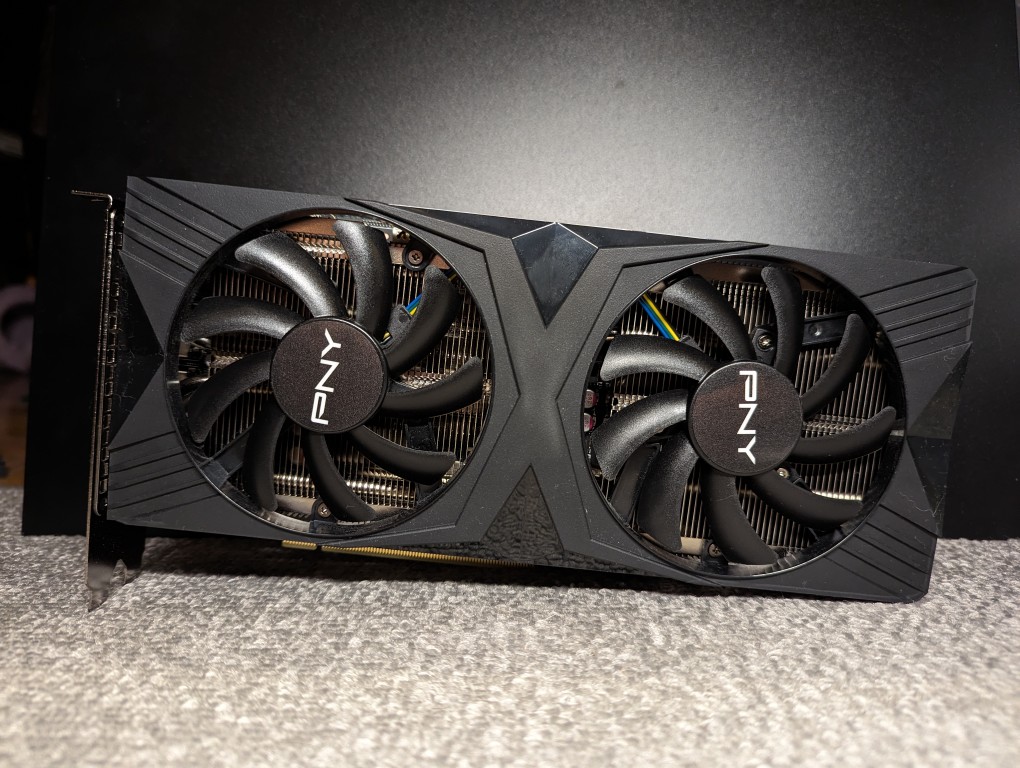
    I’ve been pleased with the performance of the PNY NVIDIA RTX 4060Ti 16GB video card that I got to replace the A6000 (before and after photos here). While the new card has less memory, bandwidth, and horsepower, it does what I need it to do.

    Also, as you can see in the photo above, it’s installed length is the same as my ASUS micro ATX motherboard. The card’s specs state that it is 9.65″ long, which makes sense accounting for the bracket that extends beyond the motherboard at the back of the case. For the space conscious builders, this card is a nice fit for micro ATX builds.

    Here are some more photos of the card outside the computer:

  • Before and After Video Card Views

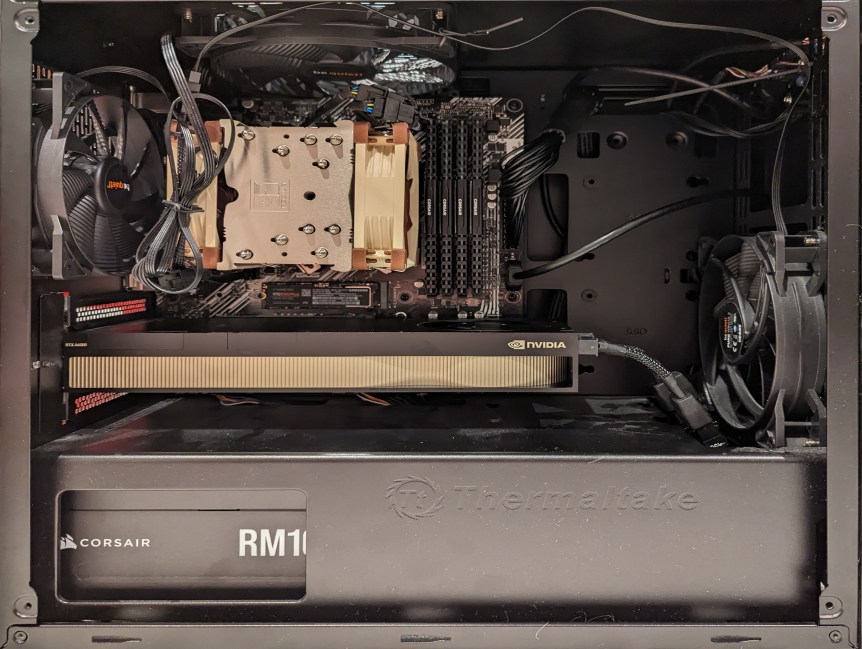
    AMD Ryzen 7 System with NVIDIA A6000 Video Card

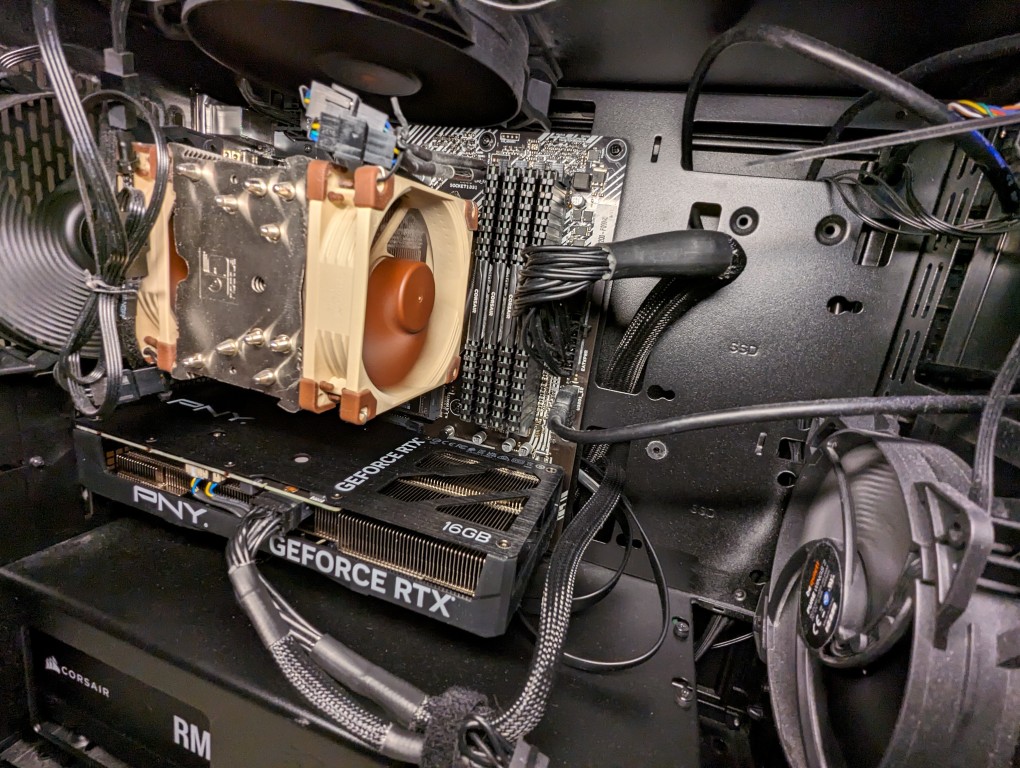
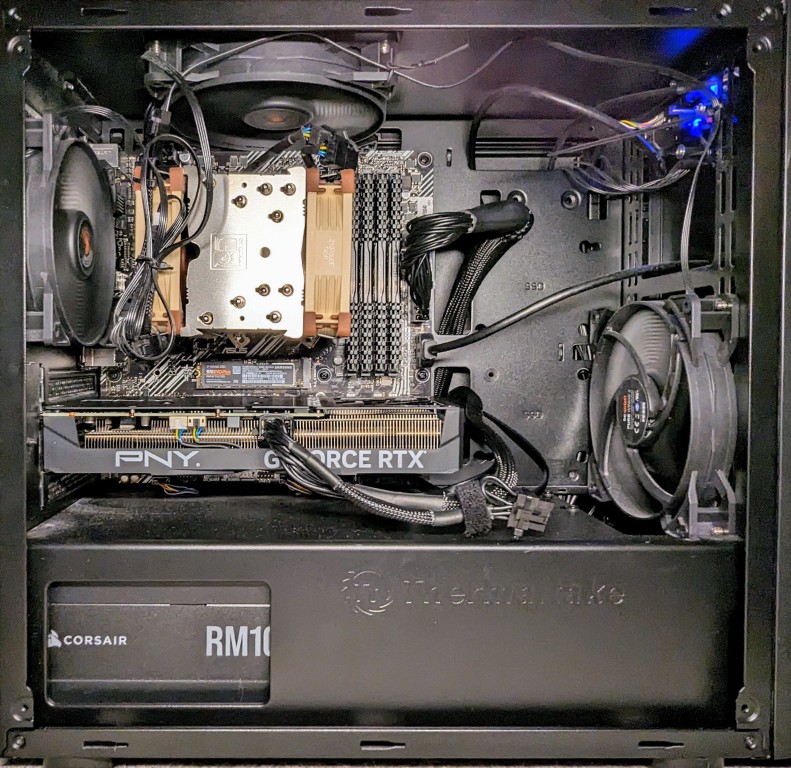
    When I swapped out the NVIDIA RTX A6000 48GB (seen above) for the RTX 4060Ti 16GB (seen below), I rerouted the main motherboard power cable and installed extra hard drives in the bottom power supply enclosure.

    At peak, the video card power draw has gone from 300w to 140w. The noise of the 4060Ti’s fans is a little more noticeable during full load, perhaps due to it’s open blowing fan design as opposed to the enclosed blower design of the A6000. And, I’ve re-familiarized myself with the memory optimizing features of A1111 for image generation, which I used to have to make use of with my old RTX 3070 8GB video card that I had before upgrading to the A6000. Later this week, I’ll test out how many LLM layers I can load on to the 4060Ti’s 16GB of VRAM with koboldcpp.

    AMD Ryzen 7 PC with NVIDIA RTX 4060Ti 16GB Video Card.