Category: Computers

  • Personal Cloud Storage with Syncthing and a Tiny Raspberry Pi Zero W Computer

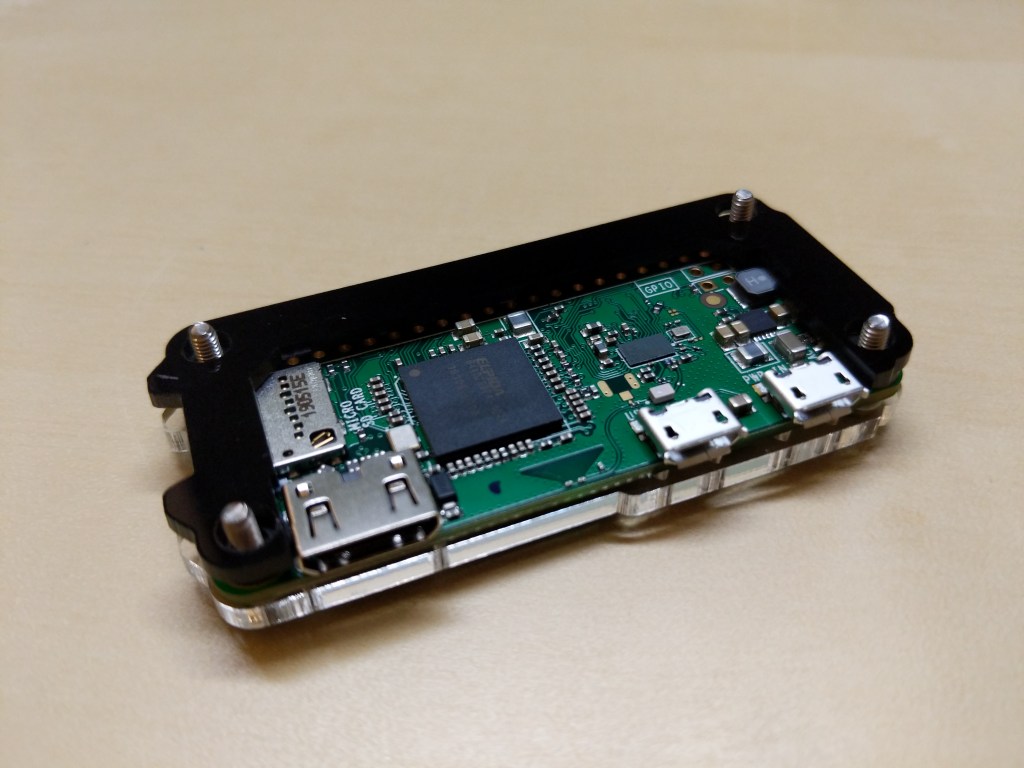
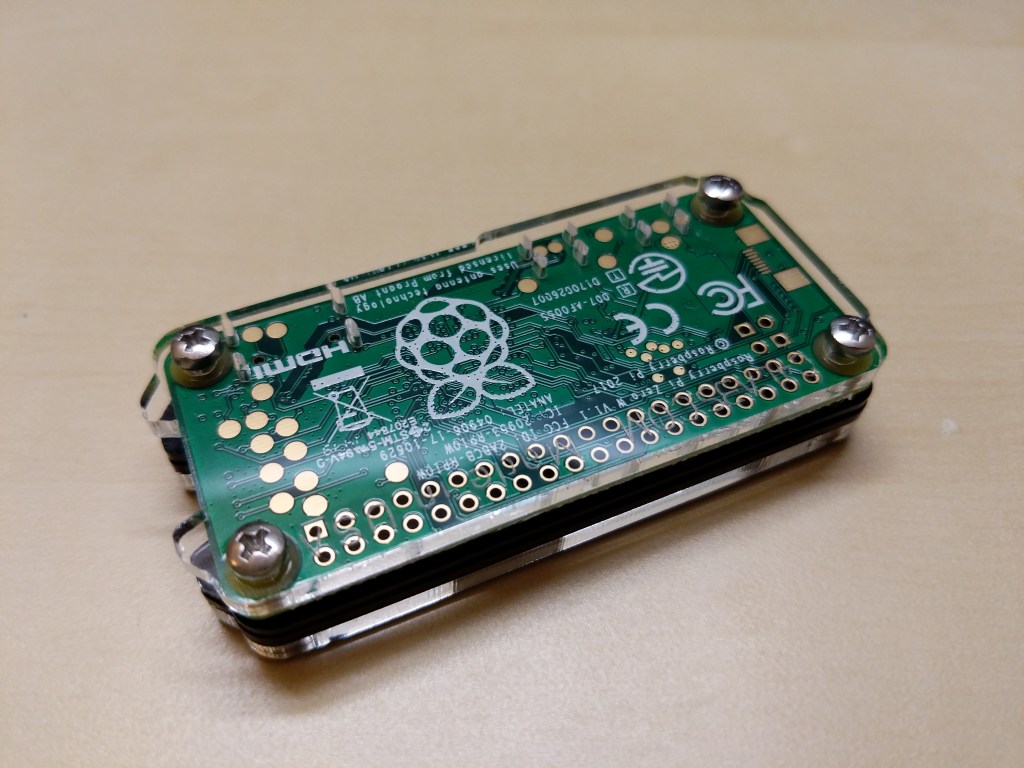
    Raspberry Pi Zero W v1.1

    I like Syncthing, the continuous file synchronization program. Syncthing helps me pickup and continue my work regardless of the device I happen to be using, because it synchronizes my files across all devices. Think Dropbox but on my own hardware.

    Also, I like tiny, low-power computers, like the Raspberry Pi 2. The Raspberry Pi and other lightweight computers demonstrate how even small computers are powerful enough for servers and desktop computing.

    When Dropbox became more bloated with the new app design and refusing to offer a lower cost tier for those of us with modestly lower file synchronization needs, I began using Syncthing to create a folder of files synchronized between my desktop computer (at home) and my Surface Go (laptop used at work). I’ve been wanting to add a third node in my personal cloud storage solution, in part as an exercise in Linux and tiny computing and in part as another safe repository of my files. So, it made sense to combine my use of Syncthing with my enthusiasm for tiny computing by adding a third node to my Syncthing setup with a $10 Raspberry Pi Zero W (RPi0).
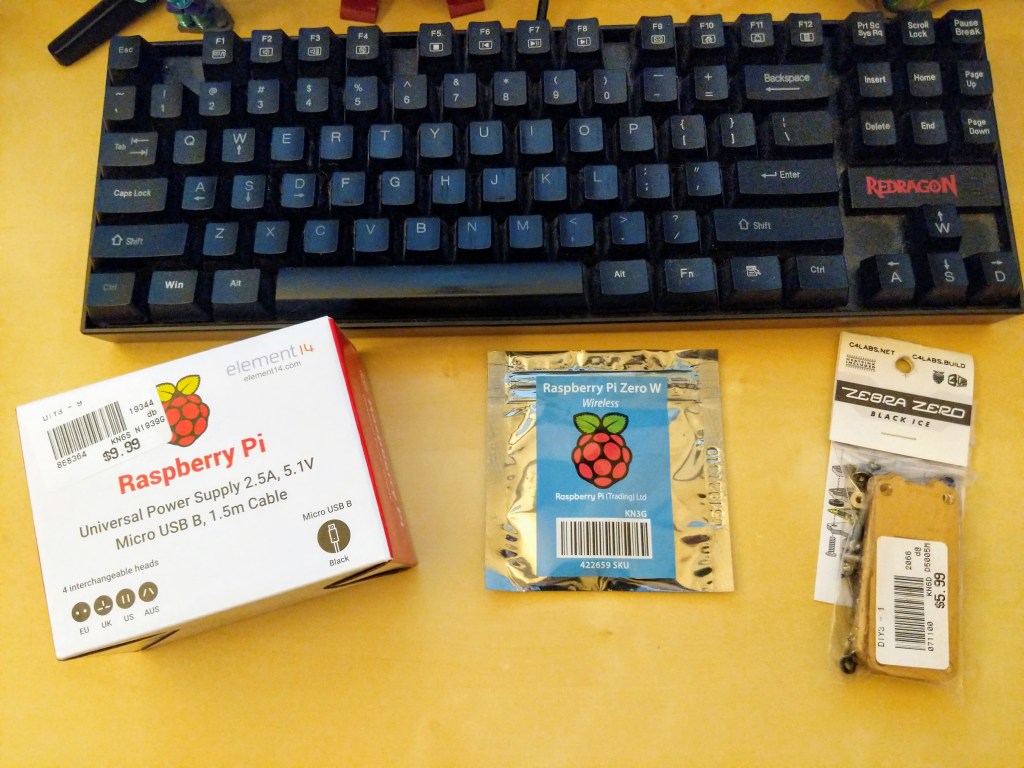
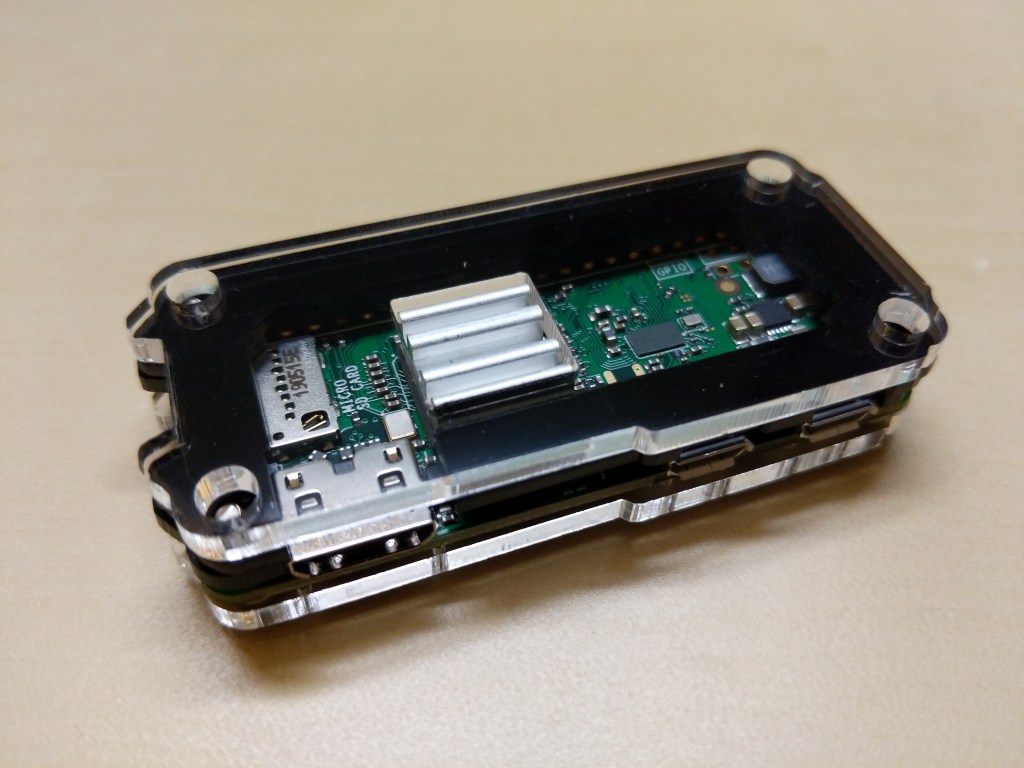
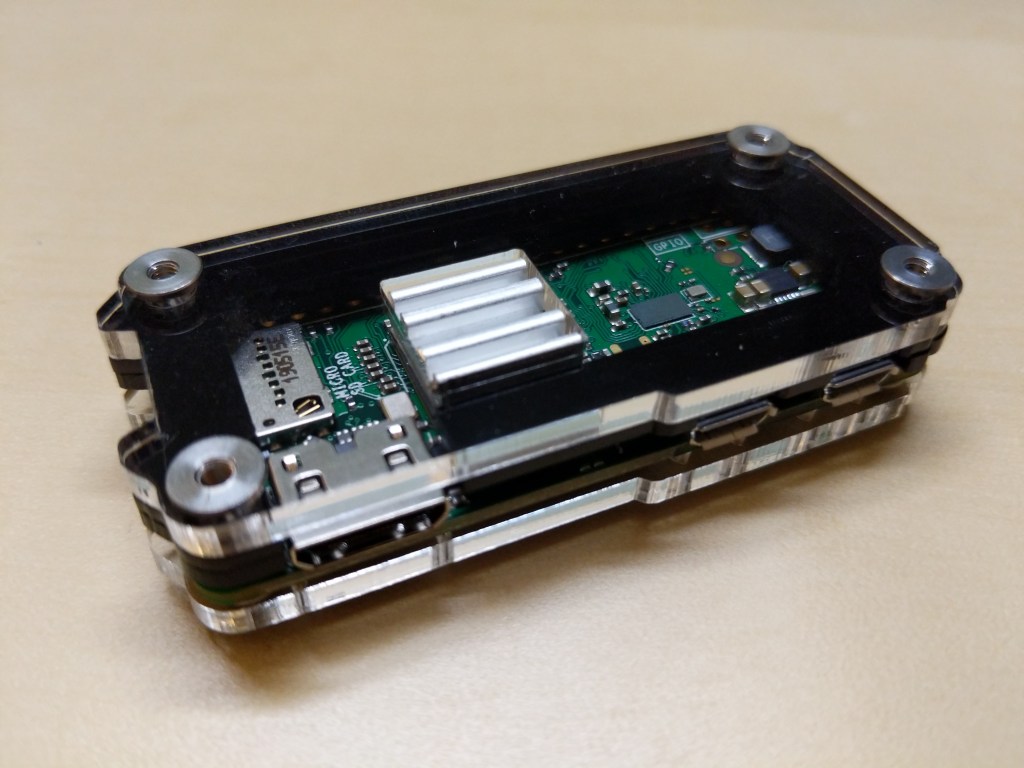
    Raspberry Pi Micro USB Power Supply, Raspberry Pi Zero W, and C4 Labs Zebra Zero Black Ice Case

    I picked up a RPi0 version 1.1, a C4 Labs Zebra Zero Black Ice Case with heatsink from Microcenter using their curbside pickup, which cost about $26 total.

    I setup the RPi0 as a headless computer, meaning that it doesn’t have a monitor or keyboard attached. I will configure and control it remotely over my LAN.

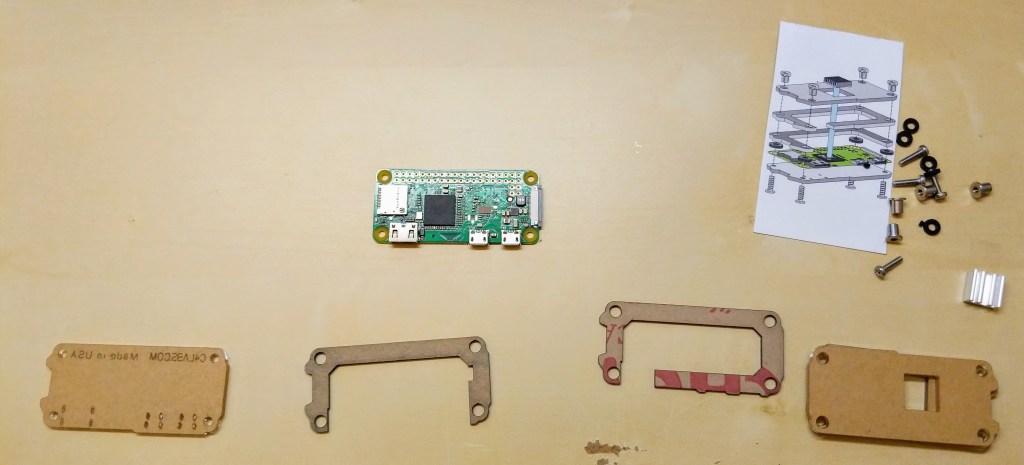
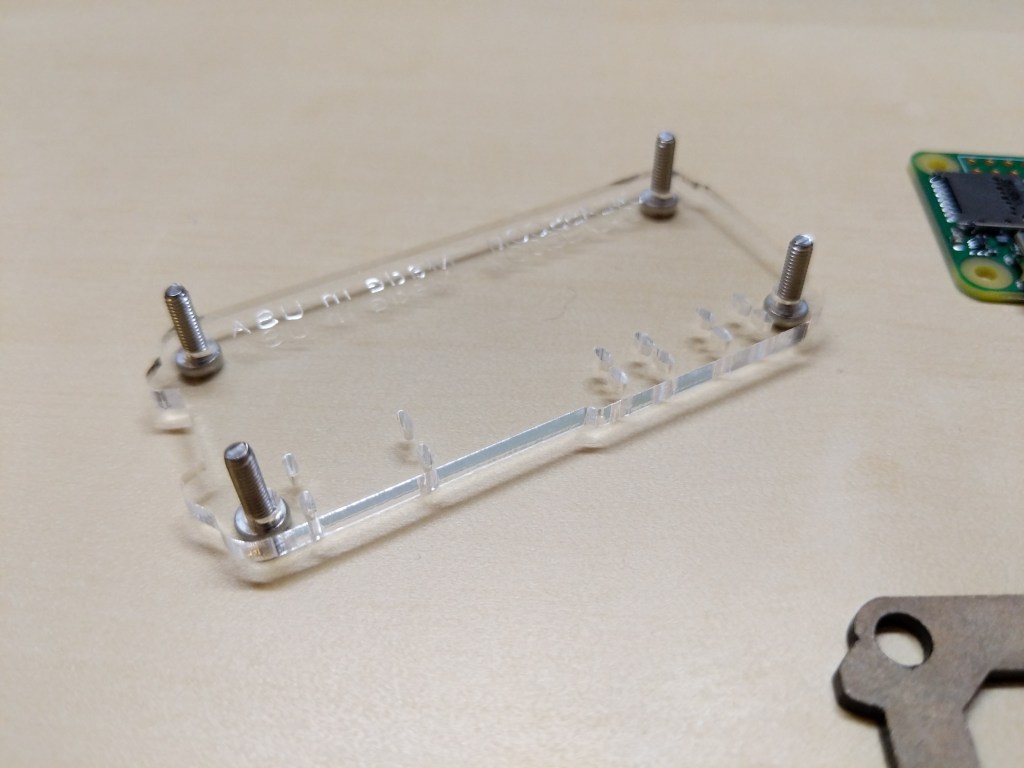
    Before turning to the software and preparing the microSD card for the RPi, I assembled the case and installed the heatsink on the CPU. A case for the RPi0 wasn’t necessary, but I thought it prudent to get one for two reasons: 1) I have a cat and a small thing with a wire sticking out might be enticing, and 2) I plan to leave it on all the time, so a heatsink like the one included in this case kit will help dissipate heat produced by the RPi0’s CPU.
    Before powering up the RPi0, I downloaded Raspbian Lite (a lean version of the Linux-based Raspbian OS for the RPi), balena Etcher (to burn the installer image to my microSD card), PuTTY (to SSH into the RPi0 to configure, administer, and install software), and Apple’s Bonjour network printer software (to easily connect to the .local hostname of the RPi0).

    Then, I followed Mitch Allen’s excellent directions for setting up a headless RPi0.

    Next, I followed these detailed directions for installing and configuring Syncthing to launch and load automatically when the RPi0 is powered up.

    Since I installed Apple’s Bonjour software as part of Mitch Allen’s instructions above, I was able to easily connect to the RPi0’s Syncthing web admin page by going to “raspberrypi.local:8384” on my desktop’s web browser.

    Before setting up Syncthing to sync files, I wanted to lockdown the web admin page by going to Actions > Settings > GUI where I checked “Use HTTPS for GUI” and added a “GUI Authentication User” and “GUI Authentication Password”.

    As a test, I rebooted the RPi0 and confirmed that Syncthing launched automatically at bootup and confirmed that authentication was required to access the web admin page remotely.

    Also, I made sure that I had Syncthing running on the desktop computer and the RPi0. Due to some initial problems with syncing, I unlinked my desktop and Surface Go from syncing, and moved the files and folders out of my default sync folder so that the sync folder is empty to begin with.

    Then, I added a remote device to Syncthing on my desktop PC and on the RPi0 (both installations of Syncthing have to have the other device added).

    On each Syncthing web admin page click “Add Remote Device” to add the other computers that you want to sync

    First, on each computer (in my case, the desktop PC and the RPi0), click “Add Remote Device” on the Syncthing web admin page.

    Enter the Device ID generated by Syncthing on the other computer. On my local network, it auto-suggested the ID of the desktop PC on the RPi0 and vice versa.

    Second, on the “Add Device” screen that appears, type in the Device ID of the other computer. In my case, Syncthing auto-suggested the Device ID of the desktop PC when I was configuring the RPi0 and vice versa since these devices are on the same local area network.
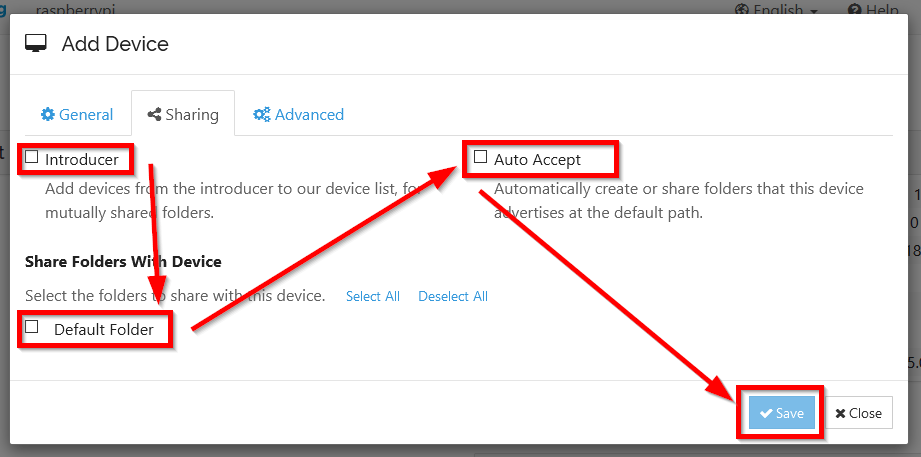
    On the Sharing tab, check all three boxes

    Third, click on the “Sharing” tab on the “Add Device” screen, and check all three boxes: Introducer tells connected devices to add devices from the other synced devices, Default Folder is what folder is being shared, and Auto Accept will automatically include new folders created or shared within the default shared path. Finally, click “Save.”

    After adding each other device on each Syncthing installation, they should begin syncing the default folder. I added one file back on my desktop PC to test this. After that file synced on both devices, I added my files back and they began syncing with the RPi0.

    The final step in my setup was to add the Surface Go as another remote device. After starting Syncthing on the Surface Go, I added it to the desktop PC and I added the desktop PC to the Surface Go’s Syncthing configuration. While the Surface Go began copying files, the RPi0 added the Surface Go as a remote device automatically. Now, all three devices sync my files.

    A better configuration would be to have the RPi0 off-site so that my files would be protected from burglary or fire. Therefore, I wouldn’t recommend Syncthing as a foolproof backup solution that gives you the same sense of security as off-site storage unless you can arrange to have your files off-site (then, I would recommend going further than what I did and have your RPi0’s drive encrypted to protect your files should the off-site device be compromised).

    For my purposes, using Syncthing on two work-focused devices and one tiny RPi0 computer server gives me some peace of mind through an additional layer of redundancy.

    Now, I want to explore what else I can have this RPi0 do as a headless server!
  • “It’s All Going According to Plan:” Deleting My EA Origin Account After Frustration with Star Wars: Battlefront II

    ea origin all going to plan.png

    Yesterday, I deleted my EA Origin account, because I was fed up with how things were “going according to plan.” EA’s and other forced online game portals plan seems to be two fold: 1) require players to login to a service to play a local-instance, single-player video game, and 2) waste as much time and bandwidth resources of players as possible in the function of updating the front end portal and the games accessed via the portal by denying users the choice to update if and when they choose to do so.

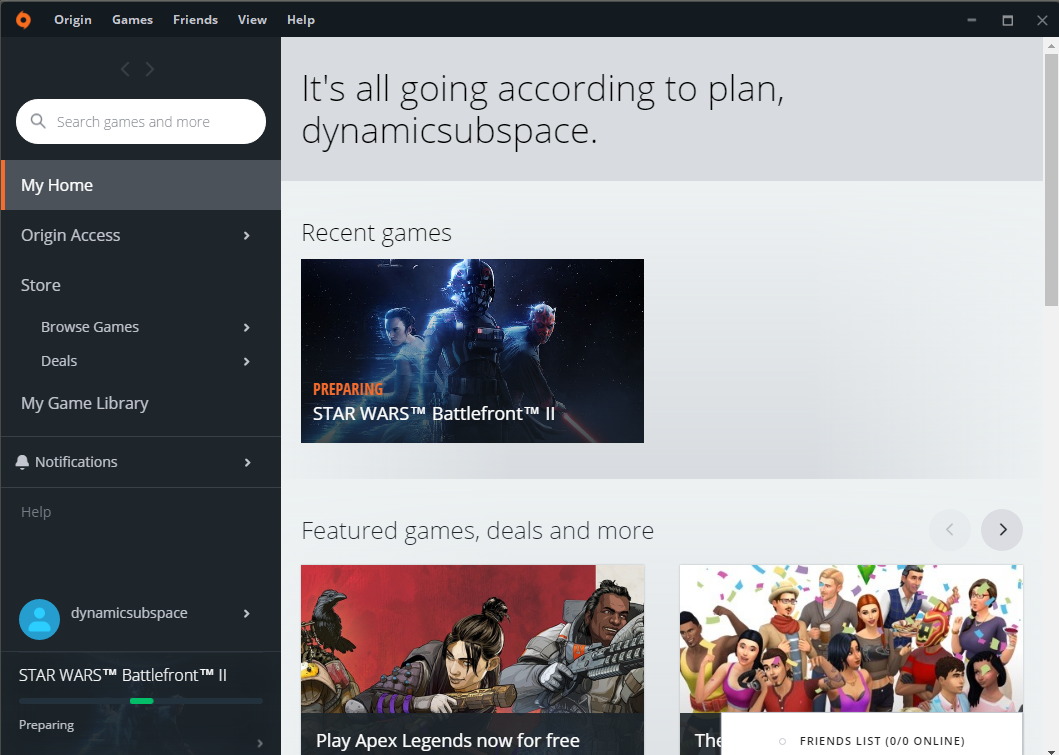
    The straw that broke the camel’s back for me was the above message from EA–“it’s all going according to plan” and the unending “preparing” to download a very large, required update for Star Wars: Battlefront II.

    Finding a few free minutes before bed, I wanted to fly the Millennium Falcon through the wreckage of blasted cruisers and obliterate as many TIE Fighters as possible. I play against computer-controlled adversaries. I don’t play against other players over the Internet. Everything regarding my game play experience takes place locally on my PC.

    Nevertheless, EA requires me to login to Origin before playing Star Wars: Battlefront II. Before logging in, Origin required a software update. I did this. Since I hadn’t logged in for a few months, I had forgotten my password. I had to reset it. I logged in. Then, Origin required a large update to Star Wars: Battlefront II before I could play the game. I waited. I waited some more. I only wanted to play the game for about 10 minutes before bed time. Now, I had invested about 20 minutes on updating software and resetting passwords.

    While it was “preparing to update” as seen above, I began researching how to delete my EA Origin account. I discovered that they make this as difficult as possible. You have to chat with a representative instead of clicking a link after logging into your account. I began doing this while still Origin was still “preparing.” The representative, who was nice enough, followed his script to try to dissuade me from deleting my account and instead deactivate it. I persisted with deletion and after another 10 minutes, I was told that it would take some additional time to delete my account but I didn’t need to stay on the chat while this was done.

    Finally, the representative asked me if I would like to share why I wanted to leave EA Origin. I told him this:

    I simply don’t like having to login to a service to play a game–especially when logging in might involve downloading gigabytes of installation updates. I understand why EA and other game publishers do this, but I don’t want to have to do this. I should be able to launch the game that I want to play and just play it. So, I wanted to delete my account and give up on EA Origin and Star Wars Battlefront II. I’ll seek out those games that let me play them on my terms.

    I am vociferously against the shift to enforced online-only gaming for games that have a single-player mode. Games should be able to be enjoyed locally without hindrance if there is a single-player mode built into the game as there is with Star Wars: Battlefront II.  Of course, I understand the need to login to a service when the game is enjoyed in multiplayer mode, but not all players opt for this kind of game play experience. Some of us enjoy playing the various single-player experiences within the game.

    I purchased the game when it was on sale, so I will consider the money that I spent on it already invested in the times that I was able to fly the Millennium Falcon through the blasted wrecks of space battles.

    However, I will never purchase another single-player option game from EA or any other video game publisher that doesn’t give me a modicum of respect to enjoy the game on my terms–no logging into online services (if I’m not playing against others online, I don’t need to login) and no required updates (I should be able to choose how and when I update the software on my computer).

    I encourage others to avoid these games and seek out those made by publishers who respect players who value single-player game experiences.

    As a final note, I was saddened to hear that Disney CEO Bob Iger signaled the company’s happiness with EA’s work with the licensed Star Wars intellectual property, even after the debacles with the launch of Star Wars: Battlefront II and my own frustrations with the game. I wish that Disney would partner with a company that puts customers/players first–both in terms of game play experiences and respect of the player’s approach to gaming and software maintenance.

  • EVGA nVidia GeForce GTX 1060 6GB Video Card Upgrade, Incredible Graphics in Games and Simulations

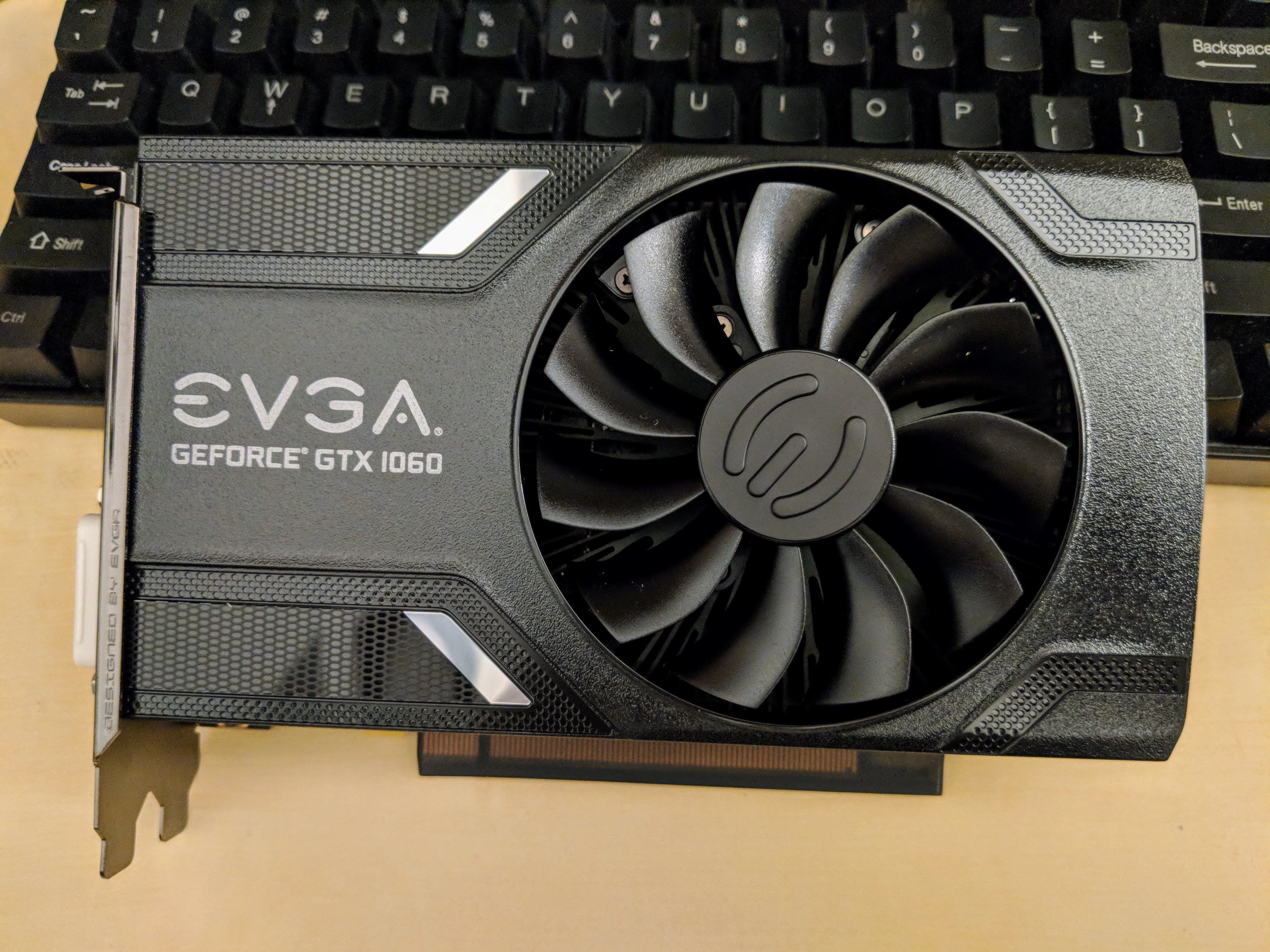
    IMG_20180816_151648

    When I built my desktop PC last year, I opted for a low-end video card, because my graphics requirements were modest and it helped keep the cost of computer parts down. Since then, I’ve wanted to experience a better visual experience on my computer in games and graphics simulations, meaning more detail and effects, and higher frame rates at 1080p resolution.

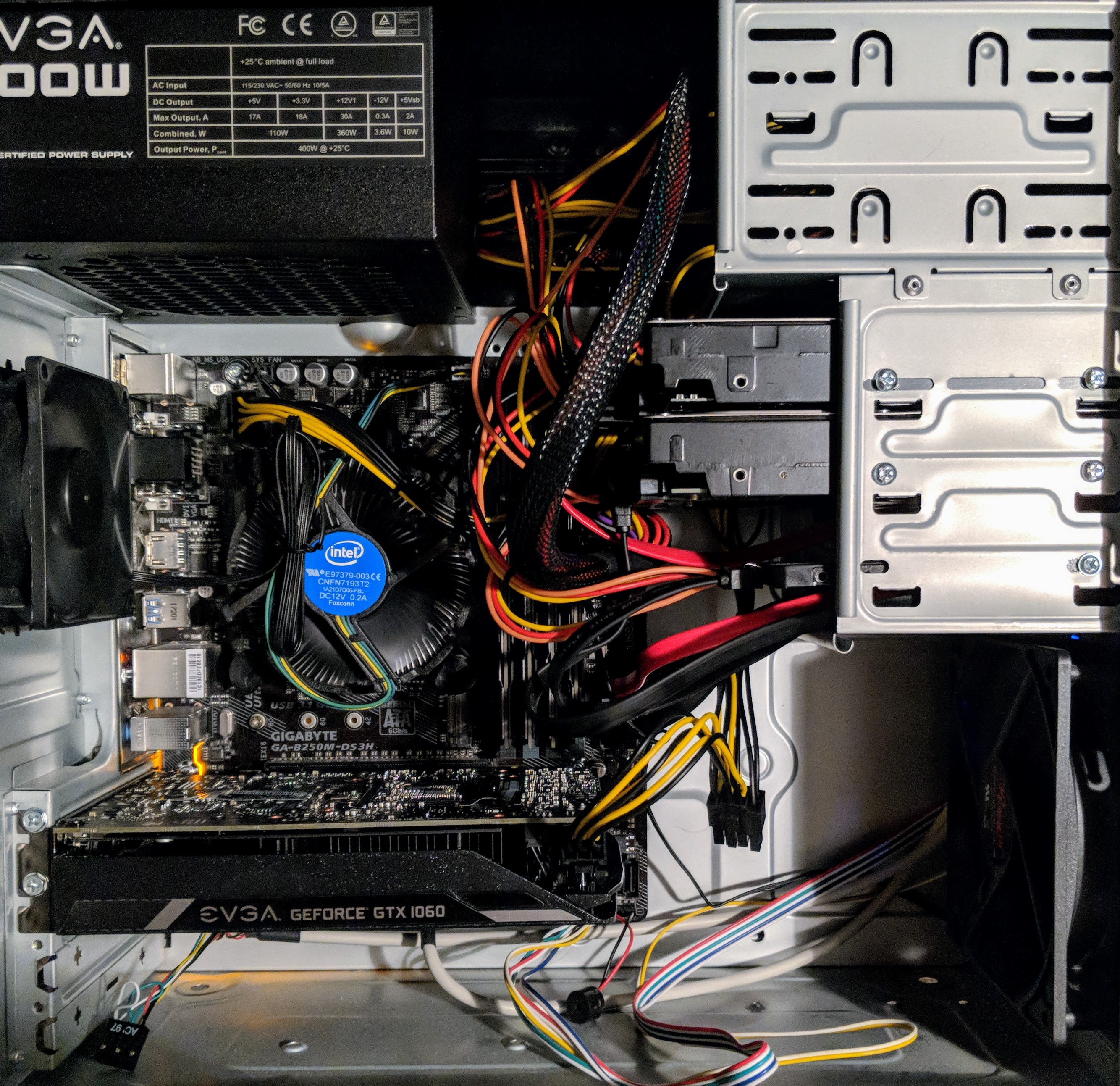
    IMG_20180816_152457

    Unfortunately, video card prices were outrageously inflated due to high demand from Etherium and other easy-entry cryptocurrency miners. With the welcome crash of electricity-wasting cryptocurrency markets and the anticipated announcement of a new generation of video cards from nVidia, the prices of video cards began to return to lower prices, which prompted me to begin looking for an upgrade.

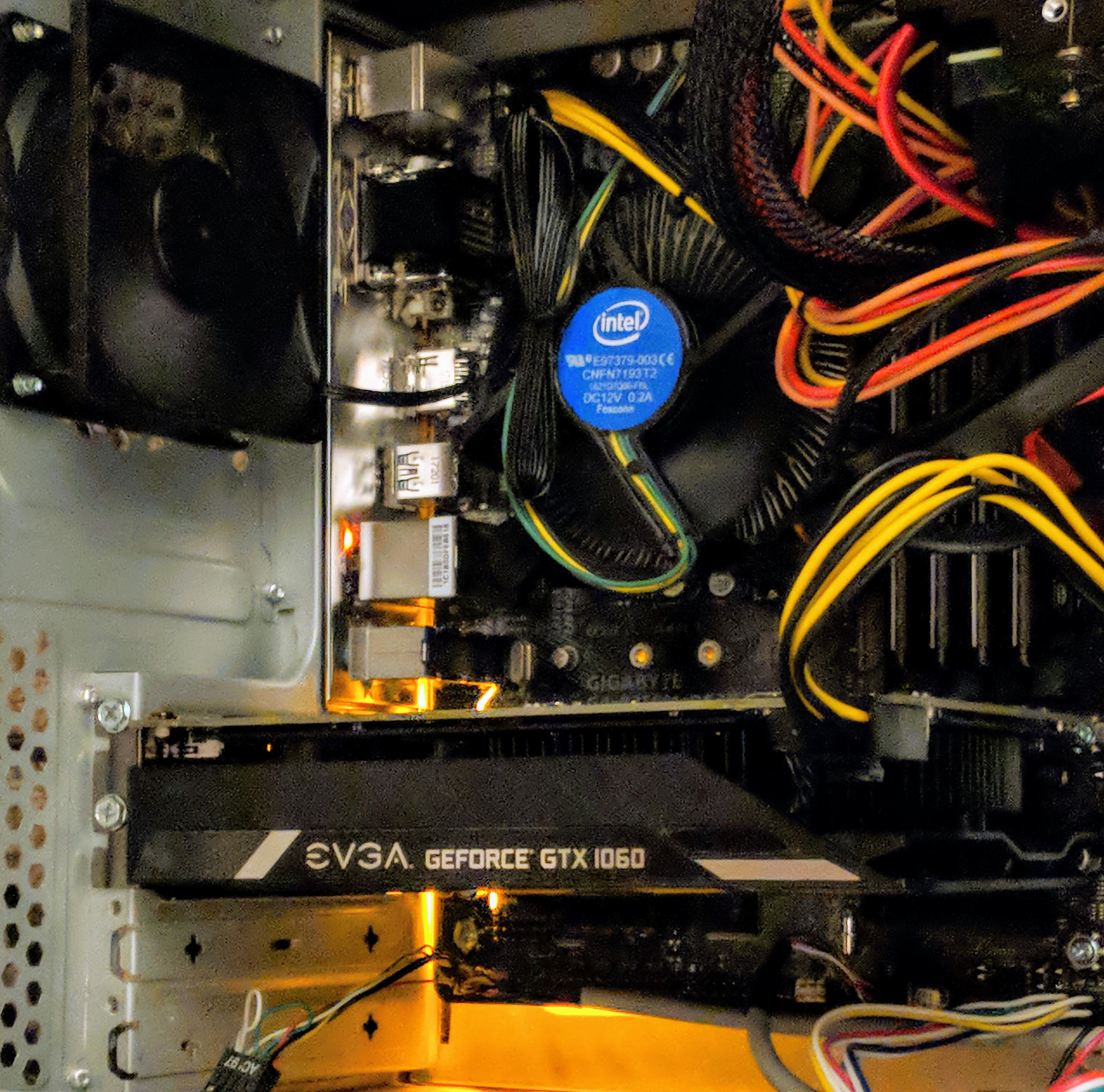
    IMG_20180816_152530

    Considering that I have a 400-watt EVGA PSU and my monitor is 1080p, I focused on nVidia’s GeForce GTX 1060, because despite its Pascal architecture’s very modest power requirements (recommended 400 watt PSU and 6-pin PCIe auxiliary power), it pushes very high-quality graphics at 1080p resolution. While the 3GB model was less expensive than the 6GB model, I chose the latter, because it has more CUDA cores (1280 vs. 1152), more texture mapping units/TMU (80 vs. 72), and more streaming multiprocessors/SM (10 vs. 9). These enhancements coupled with twice as much GDDR5 video ram justified its slightly higher price for better performance and hopefully greater use lifespan. I went with EVGA’s single fan version of the 1060, because I have had good experiences with their products and I appreciate their streamlined, unostentatious, and quiet design on this video card.

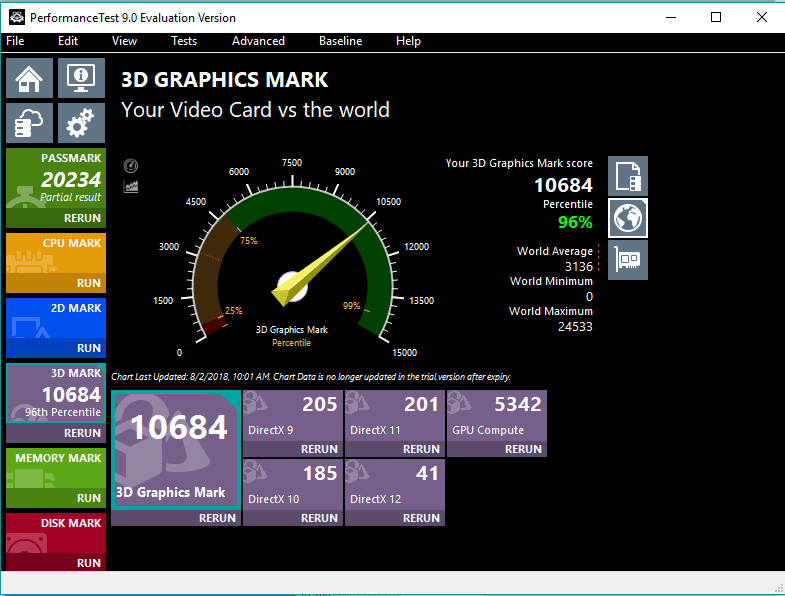
    3dgraphicsmark-1060

    After purchasing the GeForce GTX 1060 6GB video card for $280 from Microcenter and installing it in my PC, I stress tested it and ran benchmarks to verify that everything was okay after the upgrade. As you can see above, it scored a 3D Graphics Mark of 10684, which is more than twice as high as the 3,954 scored by my old Radeon RX 550 4GB video card.

    ffxiv-heavensward-1060-2

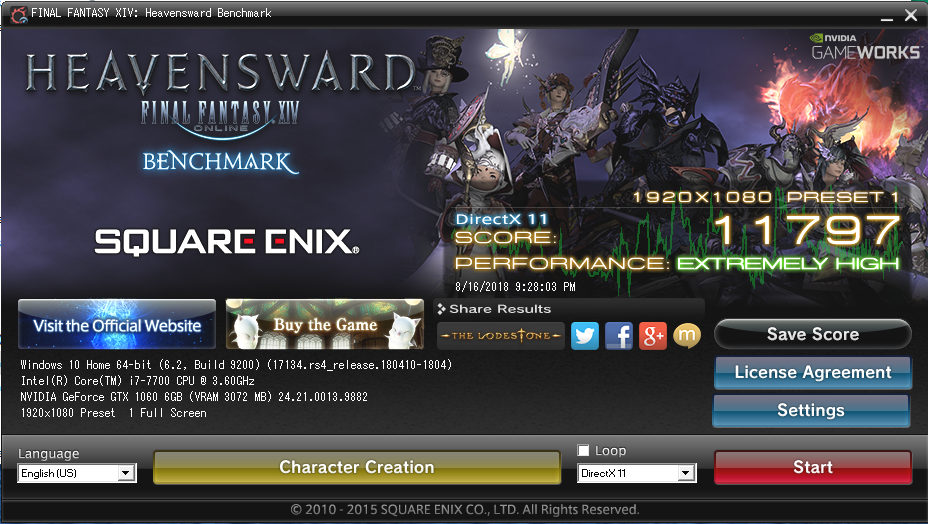
    In the Final Fantasy XiV Heavensward benchmark, the GTX 1060 GB scored an 11,797 at 1080p, while the RX 550 4GB scored only 4,416 at the same resolution.

    Desktop Screenshot 2018.08.24 - 14.32.17.07

    In the Docking Bay 94 Unreal Engine 4 simulation, I get well over 40 fps with the settings maxed out at 1080p. Read about how the simulation was made and find download links on 80 level.

    Star Wars Battlefront II (2017) Screenshot 2018.08.24 - 15.28.51.41

    And, I get to fly the Millennium Falcon in EA’s Star Wars: Battlefront 2 video game. While the game’s graphics are amazing, I was reticent to purchase it after its launch debacle with in-game purchases and loot crates. Thankfully, EA backtracked on those things after the gaming and Star Wars fan communities collectively denounced these greedy and unethical practices.


    Destiny 2 Screenshot 2018.08.24 - 15.39.36.50

    Finally, EVGA’s current video game promotion includes a free copy of Destiny 2 with the purchase of a GTX 1060 or higher video card. After redeeming my copy, I’ve played a little of it, and I like it. I’m a big fan of the original Halo by Bungie, and this game reminds me of that game without the story relying on a single archtype hero, such as Master Chief. In Destiny 2, you can create your own character based on class (Titan, Hunter, or Warlock), species, sex, and appearance. For my first experience in the game, I created a Hunter. The GTX 1060 6GB video card makes this game run smooth and look beautiful at 1080p.

    Overall, I’m very glad that I made this upgrade to my PC. If you’re considering an upgrade now rather than waiting for nVidia’s recently announced RTX line of video cards, I strongly recommend the GTX 1060 6GB as a lower cost, high performance video card.

  • Retro-Review of Used Lenovo ThinkPad X230 Sourced from eBay

    IMG_20180716_141139

    I’ve wanted an IBM ThinkPad since I first saw my boss’ at Netlink in the fall of 1998. But, while I’ve been invested in PCs over the years tangentially, I reserved Macs as my primary desktop or laptop computing platform, which combined with the premium price on IBM and then Lenovo ThinkPads kept me in the Apple premium category. Put another way, I could afford one but not both.

    Apple, as I’ve confided with friends, is diverging from my computing interests and needs. While design has been an important part of Apple’s DNA since the Apple II (arguably even earlier if we consider Woz’s design aesthetics for the Apple I motherboard layout), its increasing emphasis on fashion and accessorization and seeming less technological investment and innovation in its desktop and laptop computers have soured my allegiance to the company and its computers.

    So, I thought about how to try out a different kind of PC laptop–one that I had wanted but could not afford when it was originally released–and make an investment in extending the life of what some folks might consider an obsolete or recyclable computer.

    Within this framework, I wanted a laptop to take the place of the MacBook Pro that I had sold on eBay awhile back while the resell value was still high before rumored price reductions as product refreshes roll in. It needed to be relatively lightweight and have a small footprint. Also, it needed to have good battery life. And of course, it needed to run the software that I use on my home-built desktop PC.

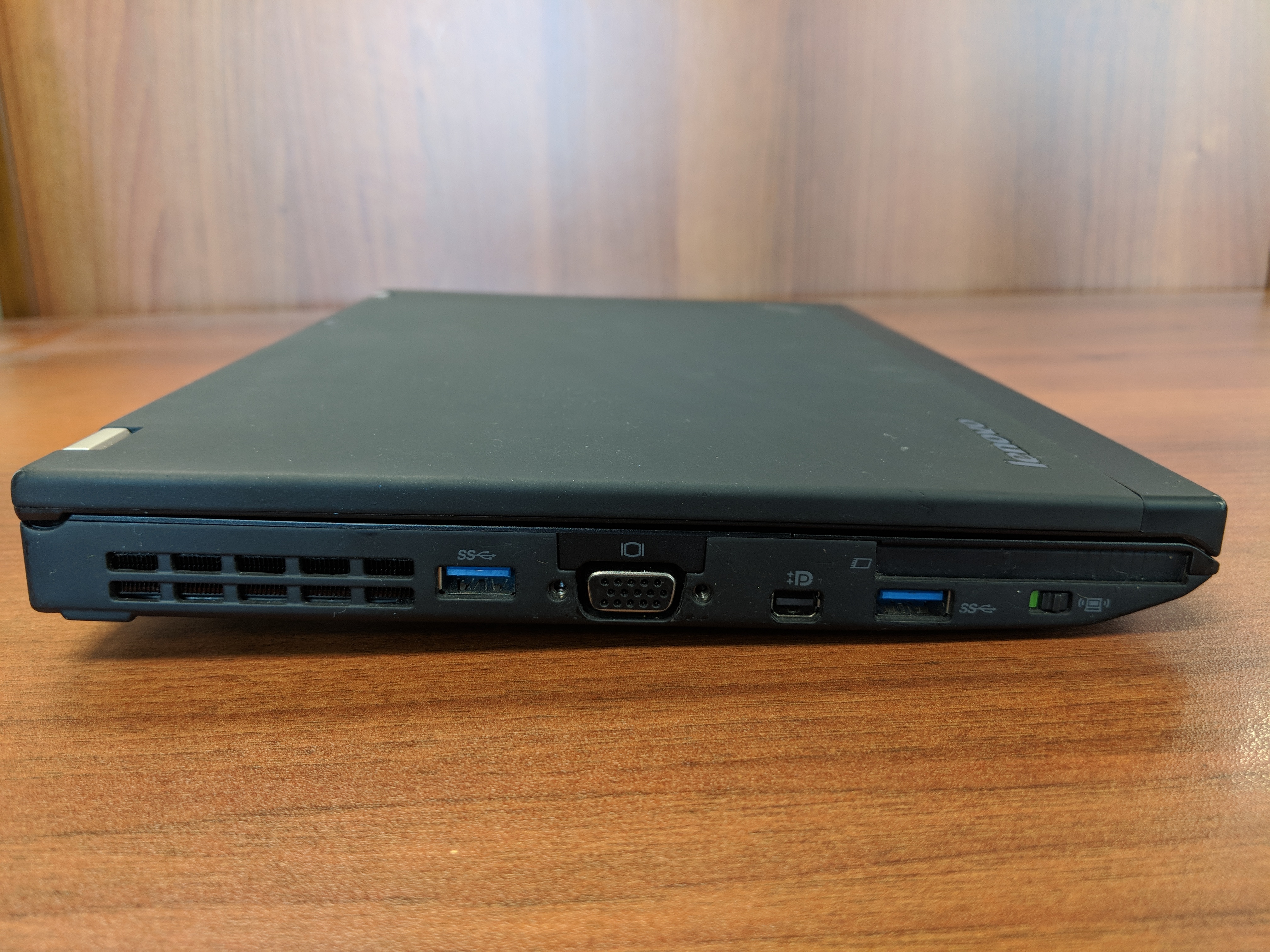
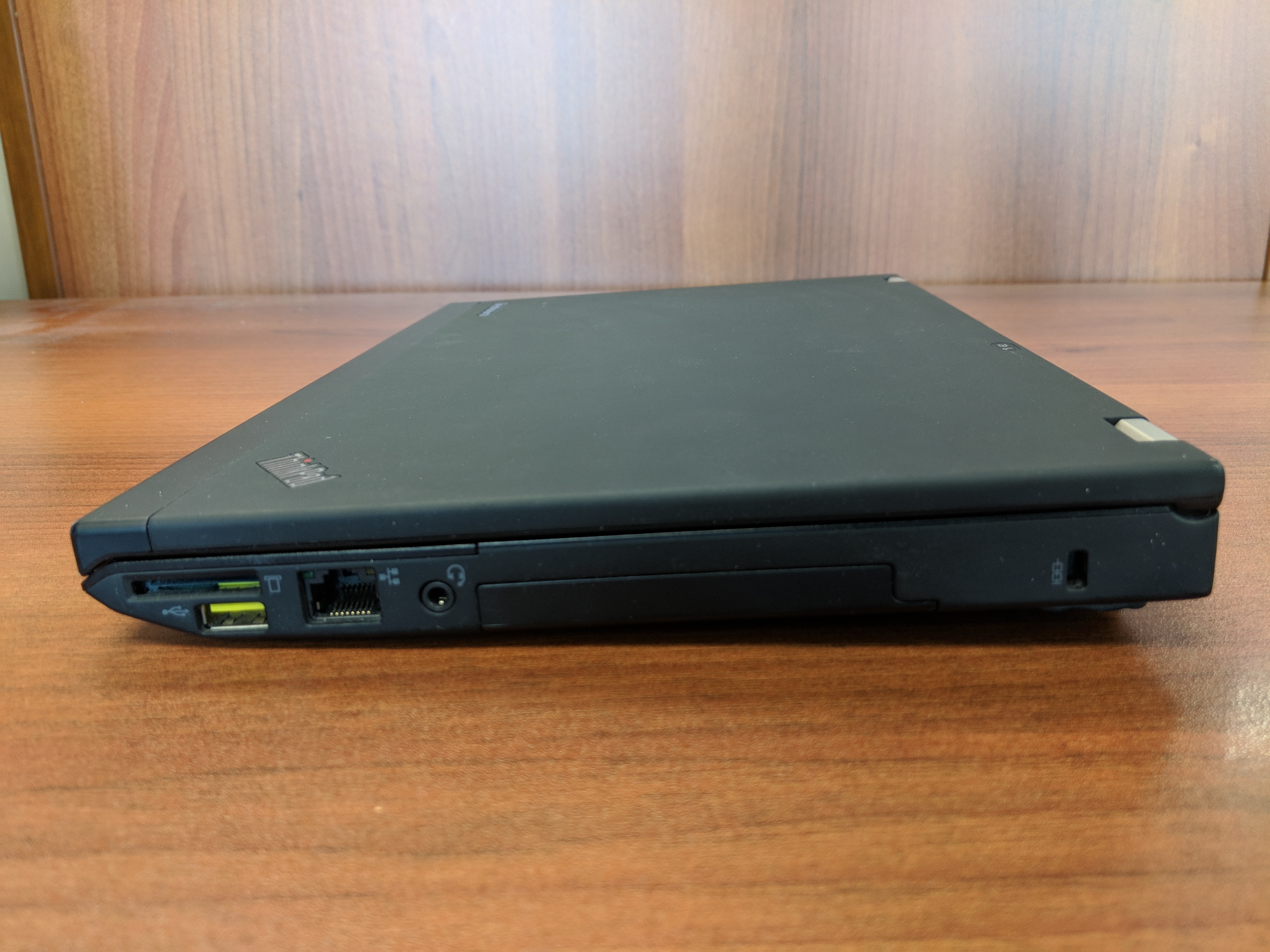
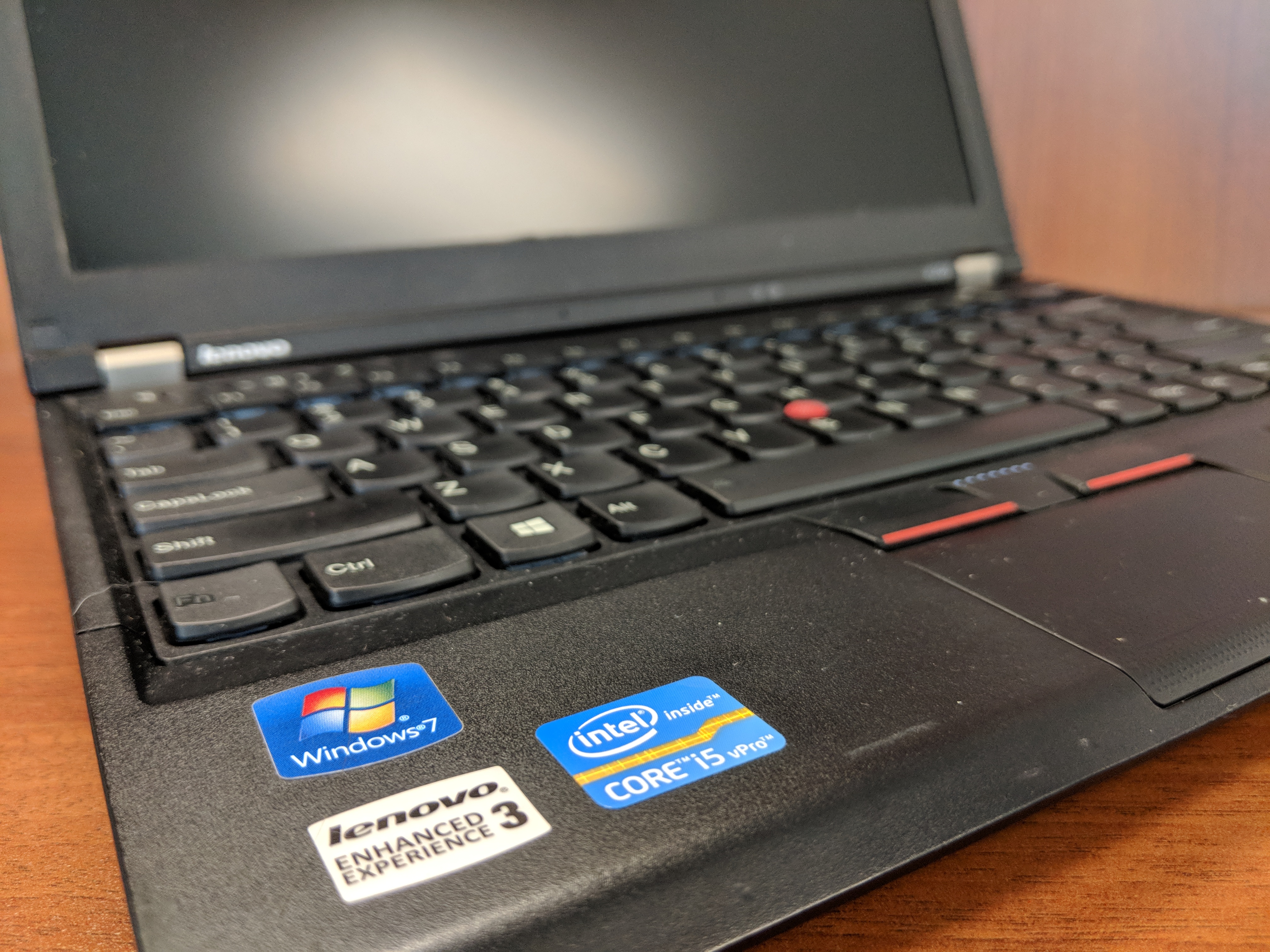
    Eventually, I decided to purchase a very well taken care of Lenovo ThinkPad X230 on eBay. Originally released in 2012 for a lot more than what I paid for it, this ThinkPad model features an Intel Core i5 3320M Ivy Bridge CPU running at 2.6GHz with 2 cores and supporting 4 threads. It has 8GB DDR3 RAM and a 180 GB SSD. In addition to built-in WiFi, it has an ethernet port, 3 USB 3.0 connectors, an SD Card reader, VGA and Display port connectors, and a removable battery.

    From a user interface perspective, it has a chiclet keyboard which responds well to typing quickly. Its touchpad leaves a little to be desired in terms of responding to some gestures like scrolling, but its red pointing nub and paddle-style mouse buttons at the top of the touchpad are exquisite. It includes some feature buttons like a speaker mute button next to volume keys above the function key row, and on the left side there is a radio on/off switch for the WiFi and Bluetooth.

    Initially, I tried out the ThinkPad X230 with Ubuntu, and everything seemed to work out of the box (though, I added TLP for advanced power management). However, I switched back to Windows 10 Professional with a full nuke-and-pave installation, because I have some software that is far easier to run natively in Windows instead of through Wine or virtualization in Linux.

    In Windows 10 Professional, the ThinkPad X230 meets all of my productivity needs. I use LibreOffice for most things, but I also rely on Google Docs in Chrome for some tasks (like inventorying the City Tech Science Fiction Collection). The WiFi works well even at City Tech, which has one of the most cantankerous wireless networks I’ve encountered. At home, I use it on my lap to browse while watching TV.

    The X230 is snappy and quick despite its age. Of course, the SSD and ample RAM support increased input/output for the older CPU. Chrome, LibreOffice, and Windows Explorer respond without hesitation. It easily plays downloaded Solo: A Star Wars Story 1080p trailers in VLC, too.

    With the included 6 cell 45N1022 battery, it runs for several hours (this is a used battery, so its capacity might be lower than one that is brand new). I purchased a 9 cell 45N1175 battery, which I’m testing out now. With the 6 cell battery, it is just shy of 3 pounds, and with the 9 cell battery is a little over 3 pounds. I’m hoping that between the two of them that I can get plenty of work done on the go without being tethered to a power outlet.

    Future tests include running World of Warcraft and watching full length movies. The display’s viewing angles could be better, but I’m willing to accept them as they are as I can adjust the brightness and display gamma easily using keyboard shortcuts and the Intel Display Adapter software to minimize its poorer display quality as compared to the latest HiDPI displays available now.

    I’m tickled to use the Lenovo ThinkPad X230 as my main laptop. Now, I can say that I’m a proud ThinkPad owner instead of a zealous Apple user.

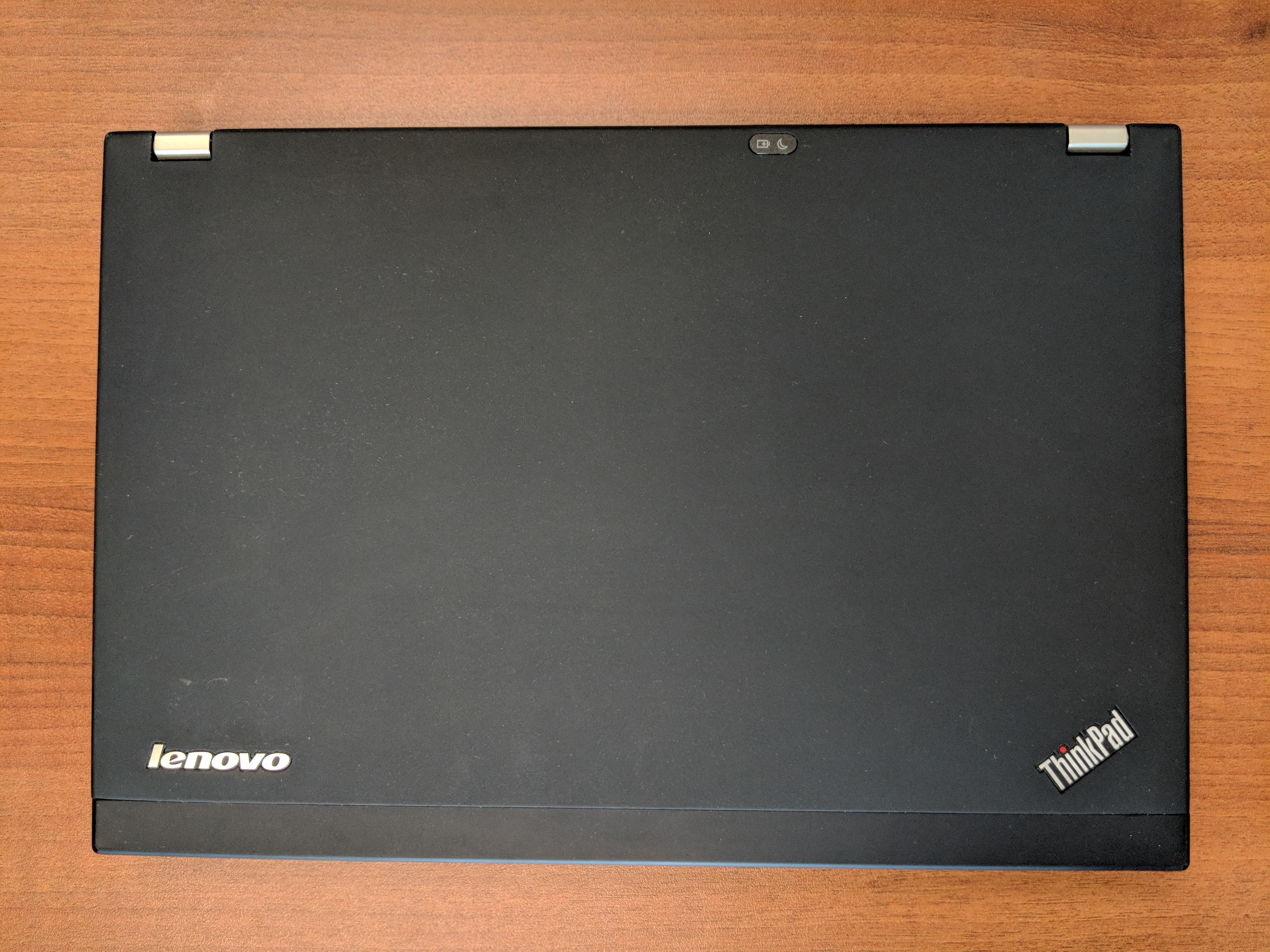
    At the bottom of this post, I’ve included more photos of the X230.

    If you’re considering a new computer, I would, based on this and my other vintage computing experiences, suggest that you consider trading up for a used or refurbished machine. Getting a used computer keeps that computer out of a landfill or being destroyed for its rare metals, and it might be an opportunity to try out a computer that you might have missed on its first time around.

  • PC Computing, August 1994

    Maker:L,Date:2017-10-2,Ver:5,Lens:Kan03,Act:Kan02,E-Y

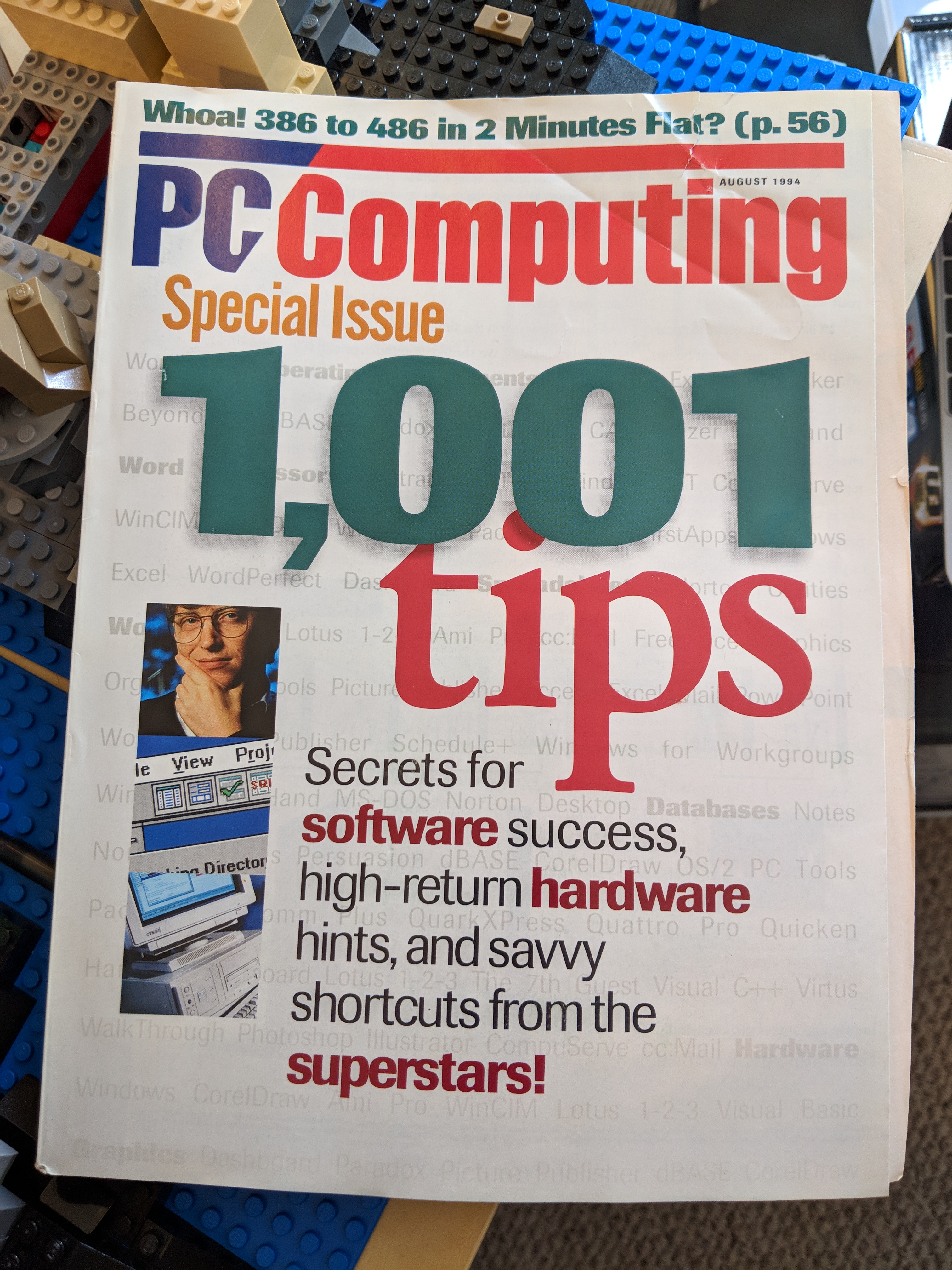
    The August 1994 issue of PC Computing was my go-to source for customizing my 486/DX2 66MHz system back in high school. I wanted to relive some of those tricks in my emulated DOS environments today, so I began hunting around for a copy to refresh my memory. After having no luck with nearby collections on Worldcat, I reached out to several eBay sellers who offer back issues of computer magazines. Seller sij167 replied that he had a copy that he would offer up, which I immediately purchased. It arrived very well protected this afternoon.

    In this issue, the Operating Environments section is particularly helpful for building batch files to do a variety of otherwise tedious typing tasks. There are tips from “superstars,” including Bill Gates and Peter Norton. There are opposite-end-of-the-spectrum columns by John Dvorak and Penn Jillette. And, of course, the advertising! I wonder if I would get a reply if I send off a bubbled-in information request postcard?

    A note about the magazine’s title: The Wikipedia page for the magazine lists it as “PC/Computing.” The magazine’s logo is styled with a slash between PC and Computing as shown in the photo above. However, the magazine’s masthead page lists the magazine as “PC Computing” with a space separating PC and Computing, as does the footer on odd number pages throughout the magazine.