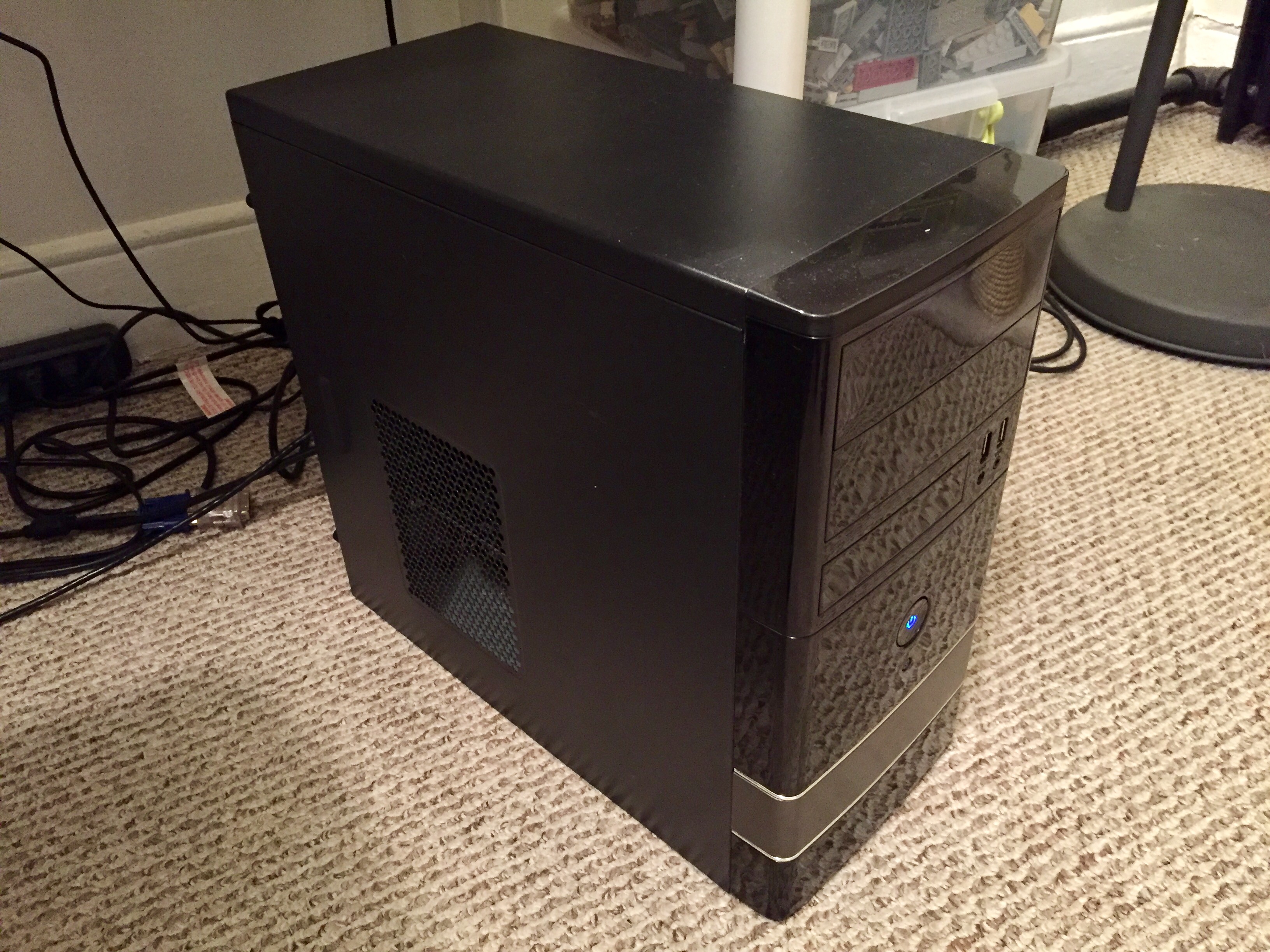
Over the past two weeks, I built a new desktop computer to replace my i5-based Intel NUC, because I wanted more CPU horsepower and a dedicated graphics card.
The NUC6i5SYH has a soldered i5-6260U CPU. This part has only two CPU cores, which support two threads each for a total of four threads. With this new build, I use a socket-based i7-7700, which has four CPU cores, each of which supports two threads for a total of eight threads. Coupled with a higher, maximum clock rate, this i7 processor can do more work in less time than the i5-6260U CPU in the Intel NUC.
For watching 1080p videos and lower resolution 3D graphics, the i5-6260U’s integrated graphics are more than sufficient. However, I wanted to play some 3D games and use Unreal Engine 4 for a project. The entry-level graphics of AMD Radeon’s RX 550 coupled with a design that does not require a higher-wattage PSU seemed adequate for this particular build.
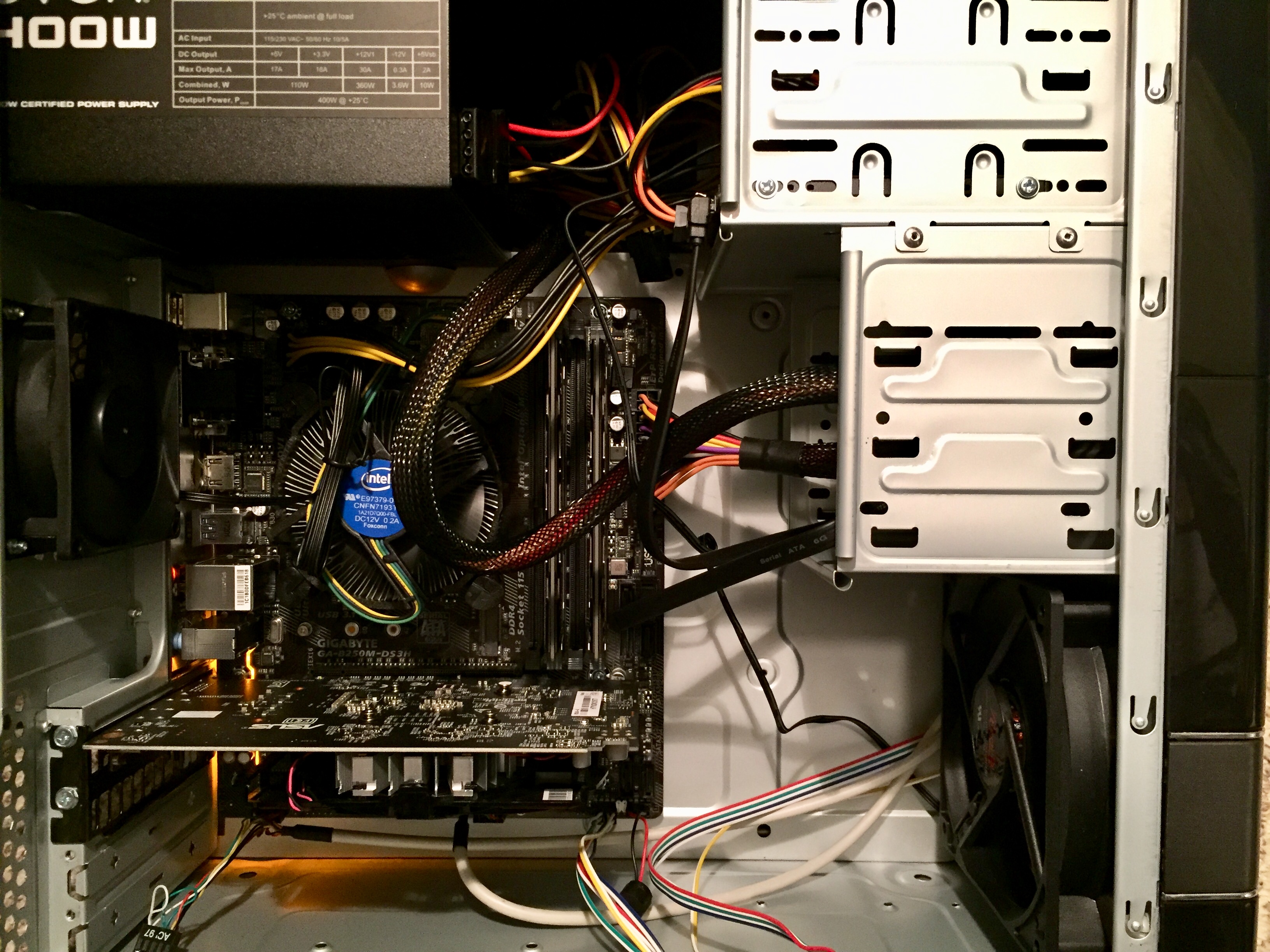
My new computer’s specs, sourcing, and pricing are:
Intel i7-7700 (Microcenter, $280)
Gigabyte B250-DS3H mATX Motherboard (Microcenter, $10 on promotion and free after rebate)
Asus Radeon Rx-550 4GB GDDR5 Video Card (Microcenter, $103)
Crucial 8GB 2×4 DDR4-2400 RAM (Microcenter, $75)
ADATA SU800 128GB 3D-NAND 2.5 Inch SATA SSD (Amazon, $56)
EVGA 400 watt PSU (Amazon, $30)
ROSEWILL Micro ATX Mini Tower Computer Case, FBM-01 (Amazon, $25)
Redragon K552-N KUMARA Mechanical Gaming Keyboard (Amazon, $27)
Teknet Gaming Mouse (Amazon, $11)
Microsoft Windows 10 Home USB (Amazon, $110)
Total: $727
With any computer build that I undertake, I am most interested in maintaining access to legacy software and operating systems for my research. While I haven’t tested everything, I have confirmed that Sheepshaver/MacOS 7.5.5 and VirtualBox/Windows 98 are up-and-running.
After this preliminary setup, I ran the following benchmarks to stress test and evaluate the system. The results are included below as a measure for anyone interested in how a system like mine performs.
Performance Test 9, CPU Test

Using the evaluation copy of Performance Test 9, the CPU Test yielded a result of 11,399, which places the system above the average for this CPU and in the 92nd percentile.
Performance Test 9, 3D Graphics Mark Test

I opted for the budget/entry-level RX 550 video card, because only a few games that I play would benefit from a greater investment in this part of the overall build. Nevertheless, I was pleased with the 3,954 3D Graphics Mark result, which places the system in the 71st percentile.
Unigen Heaven Benchmark 4.0
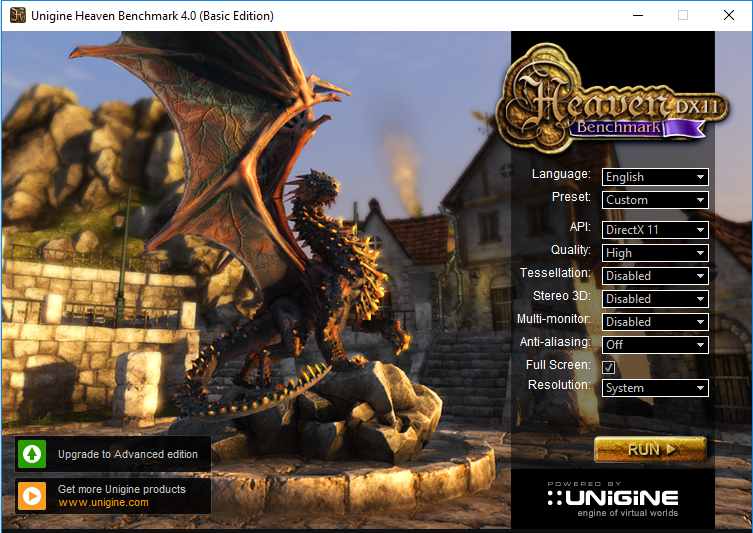
My system earned a Heaven Benchmark score of 843 and it sustained an average 33.5 frames per second.
Unigine Heaven Benchmark 4.0
FPS:
33.5
Score:
843
Min FPS:
17.9
Max FPS:
68.6
System
Platform:
Windows NT 6.2 (build 9200) 64bit
CPU model:
Intel(R) Core(TM) i7-7700 CPU @ 3.60GHz (3599MHz) x4
GPU model:
Radeon RX 550 Series 22.19.677.257 (4095MB) x1
Settings
Render:
Direct3D11
Mode:
1920×1080 fullscreen
Preset
Custom
Quality
High
Tessellation: Disabled
Powered by UNIGINE Engine
Unigine Corp. © 2005-2013
Unigen Valley Benchmark 1.0

In the Valley Benchmark, my system gained a score of 1,415 with an average 33.8 frames per second.
Unigine Valley Benchmark 1.0
FPS:
33.8
Score:
1415
Min FPS:
21.1
Max FPS:
58.3
System
Platform:
Windows 8 (build 9200) 64bit
CPU model:
Intel(R) Core(TM) i7-7700 CPU @ 3.60GHz (3599MHz) x4
GPU model:
Radeon RX 550 Series 22.19.677.257 (4095MB) x1
Settings
Render:
Direct3D11
Mode:
1920×1080 fullscreen
Preset
Custom
Quality
High
Powered by UNIGINE Engine
Unigine Corp. © 2005-2013
Final Fantasy XIV: Heavensward Benchmark
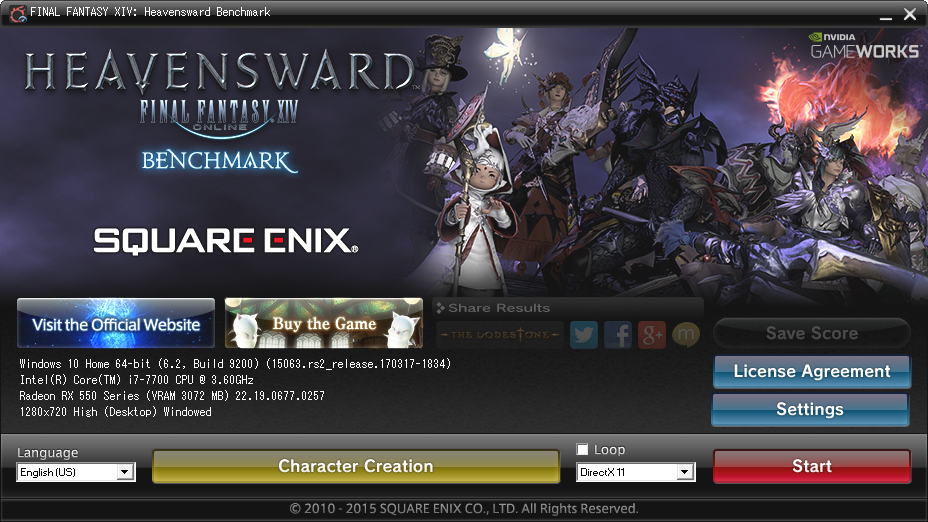
After creating a character and running the benchmark, my computer earned a score of 8077, Extremely High performance, and it maintained an average 59.933 frames per second.
FINAL FANTASY XIV: Heavensward BenchmarkFINAL FANTASY XIV: Heavensward
BenchmarkTested on: 10/27/2017 10:38:37
PMScore: 8077
Average Frame Rate: 59.933
Performance: Extremely High -Easily capable of running the game on the highest settings.
Loading Times by Scene Scene #1 1.251 sec Scene #2 5.183 sec Scene #3 3.822 sec Scene #4 3.259 sec Scene #5 4.570 sec Scene #6 1.514 secTotal Loading Time 19.600 sec
DAT:s20171027223837.dat
Screen Size: 1280x720Screen Mode: WindowedDirectX Version: 11Graphics Presets: High (Desktop)General-Wet Surface Effects: Enabled-Occlusion Culling: Enabled-LOD on Distant Objects: Disabled-Real-time Reflections: Highest Quality (DirectX 11 Only)-Edge Smoothing (Anti-aliasing): FXAA-Transparent Lighting Quality: High-Grass Quality: High-Background Tessellation: High Quality-Water Tessellation: High QualityShadows-Self: Display-Other NPCs: DisplayShadow Quality-LOD on Shadows: Enabled-Shadow Resolution: High – 2048p-Shadow Cascading: Best-Shadow Softening: StrongTexture Detail-Texture Filtering: Anisotropic-Anisotropic Filtering: x8Movement Physics-Self: Full-Other NPCs: FullEffects-Limb Darkening: Enabled-Radial Blur: Enabled-Screen Space Ambient Occlusion: HBAO+: Standard Quality (DirectX 11 Only)-Glare: NormalCinematic Cutscenes-Depth of Field: Enabled
SystemWindows 10 Home 64-bit (6.2, Build 9200) (15063.rs2_release.170317-1834)Intel(R) Core(TM) i7-7700 CPU @ 3.60GHz8151.770MBRadeon RX 550 Series (VRAM 3072 MB) 22.19.0677.0257
Benchmark results do not provide any guarantee FINAL FANTASY XIV: A Realm Reborn (Windows version) and FINAL FANTASY XIV: Heavensward (Windows version) will run on your system.
FINAL FANTASY XIV: Heavensward Official Website http://na.finalfantasyxiv.com/pr/(C) 2010-2015 SQUARE ENIX CO., LTD. All Rights Reserved.
Share ResultsType 1http://sqex.to/ffxiv_bench_na #FFXIV Score: 8077 1280×720 High (Desktop) DX11 Intel(R) Core(TM) i7-7700 CPU @ 3.60GHz Radeon RX 550 Series Type 2http://sqex.to/ffxiv_bench_na #FFXIV Score: 8077 1280×720 High (Desktop) DirectX11 Windowed Radeon RX 550 Series Type 3http://sqex.to/ffxiv_bench_na #FFXIV 1280×720 High (Desktop) DirectX11 Score: 8077 Extremely High Type 4http://sqex.to/ffxiv_bench_na #FFXIV 1280×720 High (Desktop) DirectX11 Windowed Score: 8077 Full ResultsFINAL FANTASY XIV: Heavensward Benchmark Score: 8077 Extremely High 1280×720 High (Desktop) DirectX11 Windowed Intel(R) Core(TM) i7-7700 CPU @ 3.60GHz Radeon RX 550 Series http://sqex.to/ffxiv_bench_na #FFXIV
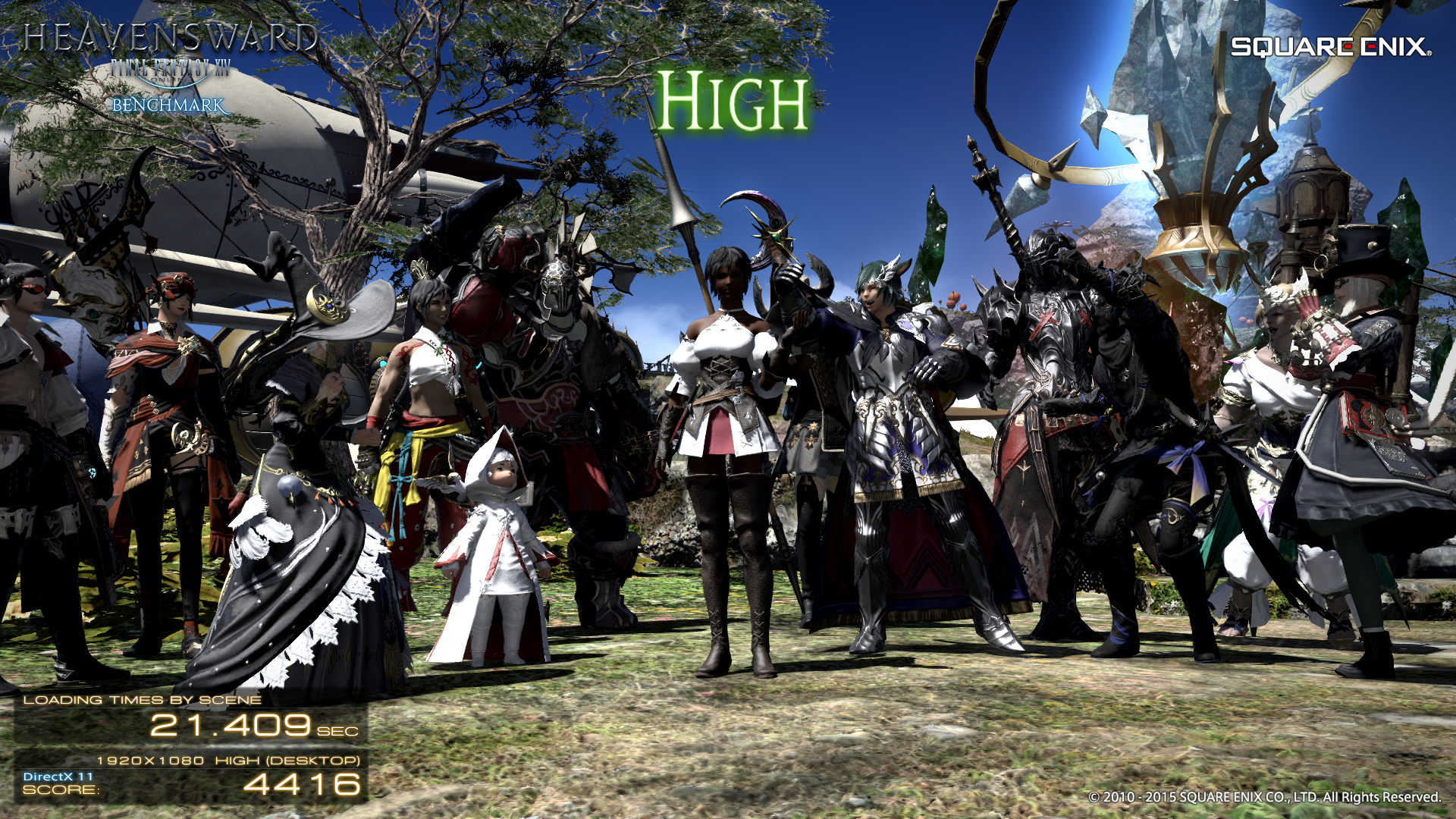
Then, I ran the test again in 1080p resolution in full-screen mode. This resulted in a lower rating of “high” with a numerical score of 4,416.
Final Fantasy XIV Stormblood Benchmark

I ran the Final Fantasy XIV Stormblood benchmark twice–once at 720p in windowed mode (default) and once at 1080p in full screen mode. I imported my created character from Heavensward into Stormblood.

In 720p, windowed mode, my system scored 10,877 (extremely high).
FINAL FANTASY XIV: Stormblood BenchmarkFINAL FANTASY XIV: Stormblood BenchmarkTested on: 10/28/2017 3:58:19 PMScore: 10877Average Frame Rate: 73.707Performance: Extremely High -Easily capable of running the game on the highest settings.Loading Times by Scene Scene #1 2.109 sec Scene #2 2.956 sec Scene #3 2.329 sec Scene #4 3.194 sec Scene #5 5.589 sec Scene #6 1.192 secTotal Loading Time 17.373 sec
DAT:s20171028155819.dat
Screen Size: 1280x720Screen Mode: WindowedDirectX Version: 11Graphics Presets: High (Laptop)General-Wet Surface Effects: Enabled-Occlusion Culling: Enabled-LOD on Distant Objects: Enabled-Real-time Reflections: Off-Edge Smoothing (Anti-aliasing): FXAA-Transparent Lighting Quality: Normal-Grass Quality: Normal-Background Tessellation: High Quality-Water Tessellation: High Quality-Glare: OffShadows-Self: Display-Other NPCs: DisplayShadow Quality-LOD on Shadows: Enabled-Shadow Resolution: Normal – 1024p-Shadow Cascading: Best-Shadow Softening: StrongTexture Detail-Texture Filtering: Anisotropic-Anisotropic Filtering: x4Movement Physics-Self: Full-Other NPCs: FullEffects-Limb Darkening: Enabled-Radial Blur: Enabled-Screen Space Ambient Occlusion: HBAO+: Standard-Glare: NormalCinematic Cutscenes-Depth of Field: Enabled
SystemWindows 10 Home 64-bit (6.2, Build 9200) (15063.rs2_release.170317-1834)Intel(R) Core(TM) i7-7700 CPU @ 3.60GHz8151.770MBRadeon RX 550 Series (VRAM 4044 MB)
This software does not guarantee that your system will run the Windows versions of FINAL FANTASY XIV: A Realm Reborn, FINAL FANTASY XIV: Heavensward, and FINAL FANTASY XIV: Stormblood.
FINAL FANTASY XIV: Stormblood Official Website http://na.finalfantasyxiv.com/pr/(C) 2010-2017 SQUARE ENIX CO., LTD. All Rights Reserved.
Share ResultsType 1http://sqex.to/ffxiv_bench_na #FFXIV Score: 10877 1280×720 High (Laptop) DX11 Intel(R) Core(TM) i7-7700 CPU @ 3.60GHz Radeon RX 550 Series Type 2http://sqex.to/ffxiv_bench_na #FFXIV Score: 10877 1280×720 High (Laptop) DirectX11 Windowed Radeon RX 550 Series Type 3http://sqex.to/ffxiv_bench_na #FFXIV 1280×720 High (Laptop) DirectX11 Score: 10877 Extremely High Type 4http://sqex.to/ffxiv_bench_na #FFXIV 1280×720 High (Laptop) DirectX11 Windowed Score: 10877 Full ResultsFINAL FANTASY XIV: Stormblood Benchmark Score: 10877 Extremely High 1280×720 High (Laptop) DirectX11 Windowed Intel(R) Core(TM) i7-7700 CPU @ 3.60GHz Radeon RX 550 Series http://sqex.to/ffxiv_bench_na #FFXIV
Next, I ran the benchmark again but in 1080p resolution and in full-screen mode.
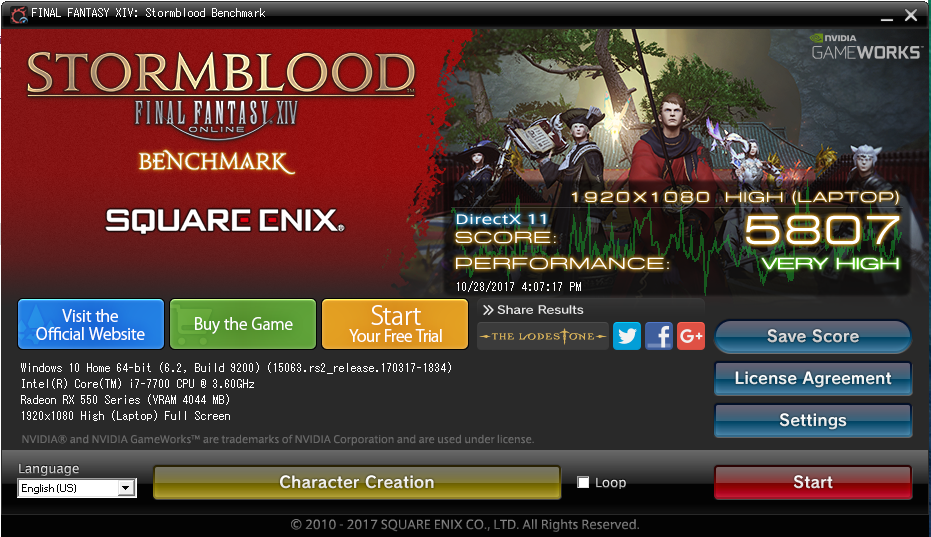
This time, my computer scored only 5,807 (very high). Watching the benchmark demo unfold on my monitor was exciting, and the game looked gorgeous!
FINAL FANTASY XIV: Stormblood BenchmarkFINAL FANTASY XIV: Stormblood BenchmarkTested on: 10/28/2017 4:07:17 PMScore: 5807Average Frame Rate: 39.137Performance: Very High -Easily capable of running the game. Should perform exceptionally well, even at higher resolutions.Loading Times by Scene Scene #1 2.298 sec Scene #2 2.920 sec Scene #3 2.417 sec Scene #4 3.088 sec Scene #5 5.725 sec Scene #6 1.032 secTotal Loading Time 17.484 sec
DAT:s20171028160717.dat
Screen Size: 1920x1080Screen Mode: Full ScreenDirectX Version: 11Graphics Presets: High (Laptop)General-Wet Surface Effects: Enabled-Occlusion Culling: Enabled-LOD on Distant Objects: Enabled-Real-time Reflections: Off-Edge Smoothing (Anti-aliasing): FXAA-Transparent Lighting Quality: Normal-Grass Quality: Normal-Background Tessellation: High Quality-Water Tessellation: High Quality-Glare: OffShadows-Self: Display-Other NPCs: DisplayShadow Quality-LOD on Shadows: Enabled-Shadow Resolution: Normal – 1024p-Shadow Cascading: Best-Shadow Softening: StrongTexture Detail-Texture Filtering: Anisotropic-Anisotropic Filtering: x4Movement Physics-Self: Full-Other NPCs: FullEffects-Limb Darkening: Enabled-Radial Blur: Enabled-Screen Space Ambient Occlusion: HBAO+: Standard-Glare: NormalCinematic Cutscenes-Depth of Field: Enabled
SystemWindows 10 Home 64-bit (6.2, Build 9200) (15063.rs2_release.170317-1834)Intel(R) Core(TM) i7-7700 CPU @ 3.60GHz8151.770MBRadeon RX 550 Series (VRAM 4044 MB)
This software does not guarantee that your system will run the Windows versions of FINAL FANTASY XIV: A Realm Reborn, FINAL FANTASY XIV: Heavensward, and FINAL FANTASY XIV: Stormblood.
FINAL FANTASY XIV: Stormblood Official Website http://na.finalfantasyxiv.com/pr/(C) 2010-2017 SQUARE ENIX CO., LTD. All Rights Reserved.
Share ResultsType 1http://sqex.to/ffxiv_bench_na #FFXIV Score: 5807 1920×1080 High (Laptop) DX11 Intel(R) Core(TM) i7-7700 CPU @ 3.60GHz Radeon RX 550 Series Type 2http://sqex.to/ffxiv_bench_na #FFXIV Score: 5807 1920×1080 High (Laptop) DirectX11 Full Screen Radeon RX 550 Series Type 3http://sqex.to/ffxiv_bench_na #FFXIV 1920×1080 High (Laptop) DirectX11 Score: 5807 Very High Type 4http://sqex.to/ffxiv_bench_na #FFXIV 1920×1080 High (Laptop) DirectX11 Full Screen Score: 5807 Full ResultsFINAL FANTASY XIV: Stormblood Benchmark Score: 5807 Very High 1920×1080 High (Laptop) DirectX11 Full Screen Intel(R) Core(TM) i7-7700 CPU @ 3.60GHz Radeon RX 550 Series http://sqex.to/ffxiv_bench_na #FFXIV
Conclusion
While I certainly understand choosing components for overclocking, I opted for a build that was stable first and provided performance second.
I am very happy with my system’s stability and performance. If your processing needs outweigh your graphics needs, I recommend building a system similar to this one.





 Ever since I installed Windows 10 on this desktop computer build (detailed