I’ll be speaking on a discussion panel about Artificial Intelligence, Generative AI, and College Writing at Borough of Manhattan Community College, CUNY (BMCC), Fiterman Hall 1304 on Wednesday, April 2 from 2-4 PM. If you’re free, it would be great if you could join us for what I think will be a lively in-person conversation. Details are below and the event flyer is posted above and below.
The Spring 2025 Robert Lapides Faculty Forum
Wednesday April 2 Fiterman Hall 1304 (245 Greenwich St.) 2-4 pm
A Step Toward the Unified Macro-Mind or a Cybernetic Lawnmower in the Groves of Academia? : Generated Text and the Future of College Writing
Recently, Large Language Models and generated texts have sent shockwaves through the academic community. Do they represent the initial glimmerings on a new horizon of transhuman creativity or are they, in Noam Chomsky’s phrase, merely “glorified autofill,” a “high-tech plagiarism” based on a self-cannibalizing database? Where old-fashioned plagiarism now seems like a relatively simple matter of ethics and originality, Artificial Intelligence and the looming specter of the Literary Chatbot bring a whole host of more tangled issues of Perception, Knowledge, Autonomy, and Class Warfare into the classroom.
Many believe the neural net models of cognition don’t begin to pierce the mystery of the mind—Roger Penrose and others remain unconvinced that human thinking can be reduced meat-puppet computation, while John Searle’s Chinese Room parable undermines the idea that mere symbol-juggling can ever result in emergent consciousness. Still, techno-optimists believe we are at the precipice of an age of cyborg enhancements in which human potential will be radically expanded and the primate mind will be uploaded into Cloud-dwelling immortality.
We will be discussing these issues and many others in an open symposium with CUNY professors Jason Ellis, Carlos Hernandez, Lisa Sarti, and Shane Snipes. We encourage our colleagues to come to voice their concerns and hopes on this increasingly crucial and urgent matter.
The event is named in memory of Robert Lapides, a past English department professor at BMCC. Reading his obituary, you get the sense that he did good work that saved voices from the past from erasure, and created space for voices in the present to carry the work forward.
“Robert Lapides, professor emeritus in the English Department, husband of Professor Diane Dowling, died on January 1, 2021. At BMCC for over 40 years, Professor Lapides will be remembered for his passion, his life-long fight for social, economic, and racial justice, and his commitment to building communities where differences can be expressed. Never afraid to speak up or ask questions, he was genuinely interested in his students and colleagues. His intense curiosity about people, places, politics, history, literature, psychology, religion–about what it means to be human–informed all his efforts. He encouraged his students to embrace their humanity, including the parts of themselves they felt they needed to hide, building their courage to write honestly. His legacy can be found in his influence on the many students and colleagues he worked with, the online communities he created, in his faculty magazine Hudson River, and for editing Lodz Ghetto, collected writings left behind by Jews confined to the Lodz Ghetto in WWII. Until the end, he was working on his book about the creative development of Charles Dickens, which will be published posthumously” (from Ellen Moody’s Under the Sign of Sylvia blog, 25 Mar. 2021).
Last week, I showed my students how to create a digital signature that they can insert into letters that they write in their word processor of choice. It’s very easy to do and simplifies things if you need to send a PDF of a letter without having to print, sign, and scan it.
Follow these steps:
Take a clean, white sheet of paper and sign your name using a black pen or marker.
Lean your paper on a completely flat, inclined surface and avoid a light behind you so that you don’t cast a shadow over your signature.
Take out your phone and enter the camera app. Carefully align your camera so that it takes a photo of your signature straight on (meaning, your camera’s photo sensor should be parallel to the piece of paper with your signature). It can be helpful to zoom in slightly with your camera app so that you don’t have to be very close to the paper with your signature. If there’s any question about focusing, take the time to tap your signature on the screen so that the camera app focuses on your signature.
Open your signature photo in your phone’s image editing app. First, crop the image to just your signature. Then, maximize the brightness and maximize the contrast, which will make the paper appear pure white and your black signature pops. Save this edited version of your photo.
Email your edited version of your signature photo to yourself so that you can download it on your computer.
Drag the saved image into your word processor document where you left space between your closing and typed name, or use your word processor’s image insert option. If the image appears very large, click on a corner of the signature image and drag to resize the signature.
Depending on your word processing software, you might need to change the image alignment settings for the signature image (so that it is placed where you want and the typed text of your letter doesn’t fall behind or around it in a strange or unexpected way.
Save your document and export it as a PDF to email to wherever it needs to go.
As a bonus, save your signature image someplace safe so that you can reuse it as needed.
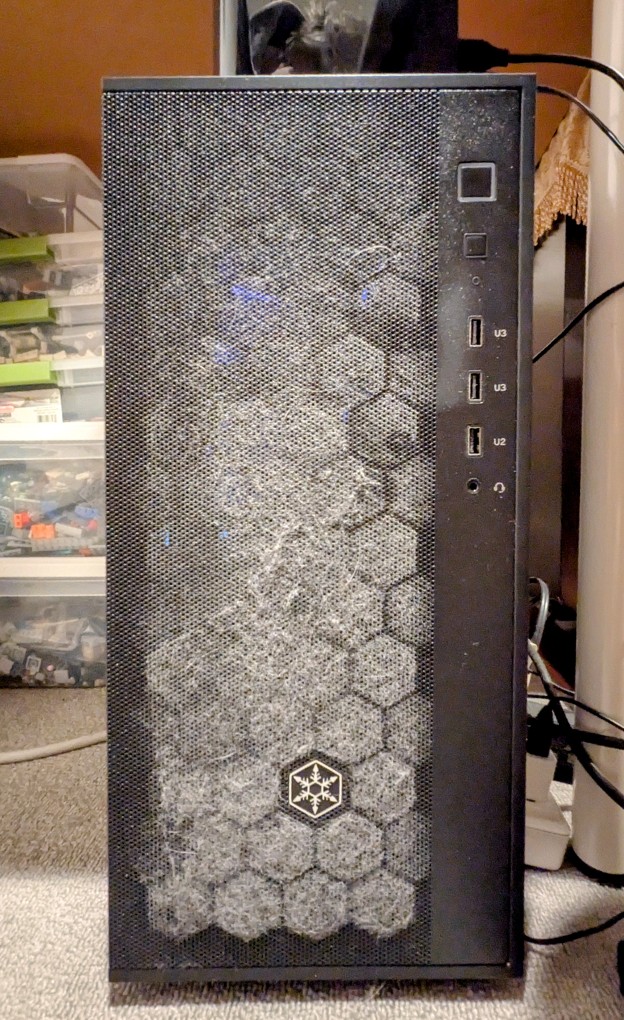
Due to the noise my workstation makes during AI inference, I keep it on the floor under an adjacent desk. Down there, it’s in the shadows. So, I was a little surprised how dusty the front air intake was after being in operation just a little over a month. It probably says a lot about how bad the air quality is in my apartment despite running three HEPA air cleaners in a roughly 600 square foot space. I know that it would be better for the PC to be up off the floor–on the desk, for example. Unfortunately, its noise and disco lights on the CPU fan and white light on the NVIDIA RTX 3090 make this an undesirable choice. I’ll have to remember to vacuum it every two weeks or so, and I might add a foam sheet behind the front grill to help catch more dust before it goes into the case and lands on the components’ heatsinks and fans.
I’m reminded of The Crafsman‘s “Don’t Forget Your Dust Mask.”
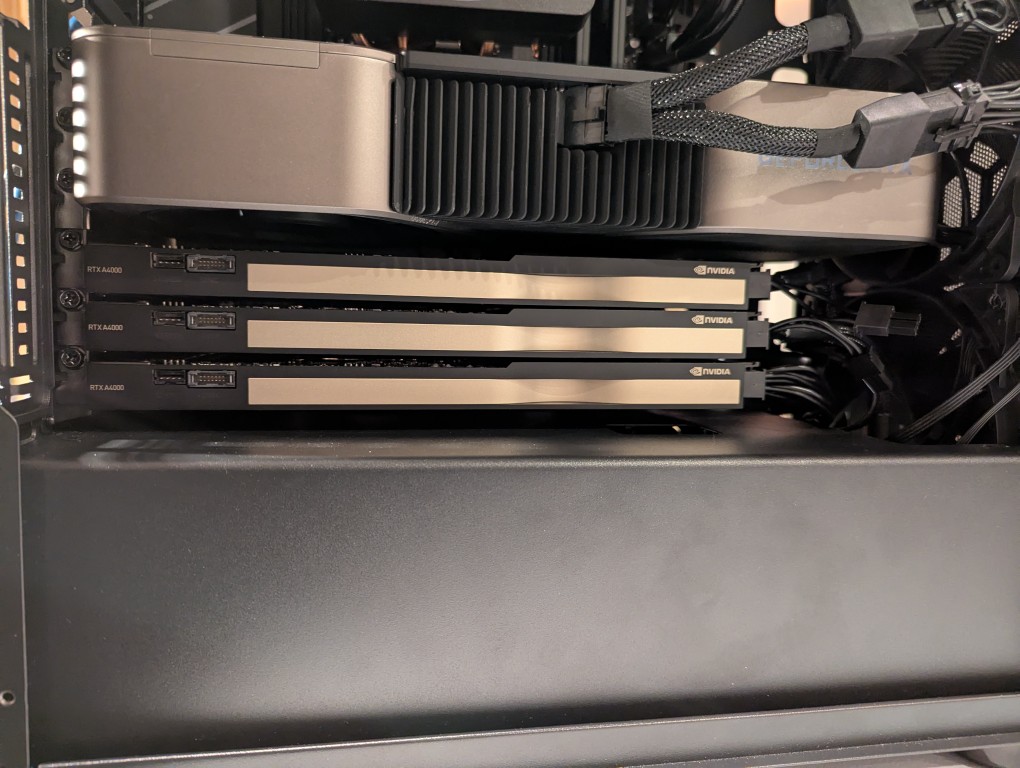
In my original write-up about building my new AI-focused workstation, I mentioned that I was concerned about the temperatures the lower three NVIDIA RTX A4000 video cards would reach when under load. After extensive testing, I found them–especially the middle and bottom cards–to go over 90C after loading a 70B model and running prompts for about 10 minutes.
There are two ways that I’m working to keep the temperatures under control as much as possible giving the constraints of my case and my cramped apartment environment.
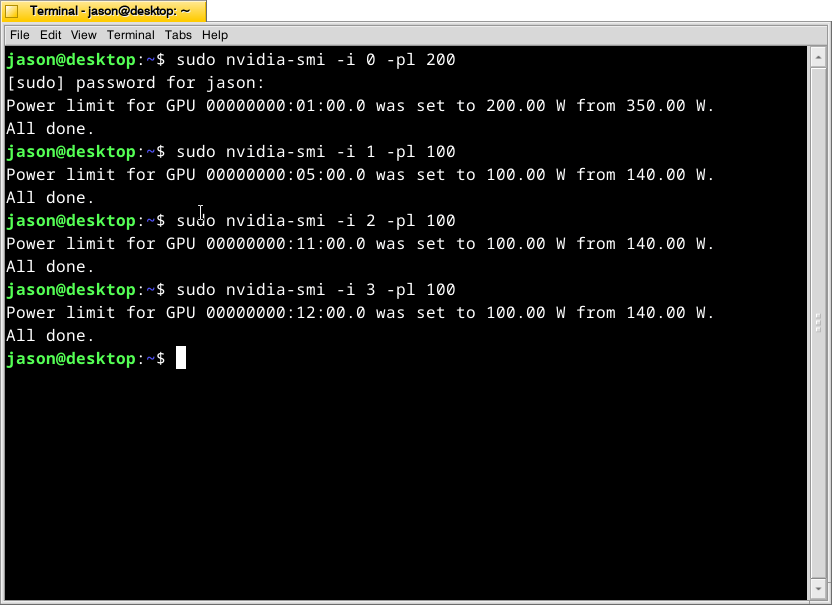
What this command, bundled with the NVIDIA driver, does is select a video card (the first video card in the 16x PCIe slot is identified as 0, the second video card is 1, the third is 2, and the fourth is 3) and change its maximum power level in watts (200 watts for card 0, 100 watts each for cards 1-3). If the power level is lower, the heat that the card can generate is lower. I set the 3090 FE (card 0) to 200 watts, because it has better cooling with two fans and it performs well enough at that power level (raising the power level leads to steeper slope of work being done).
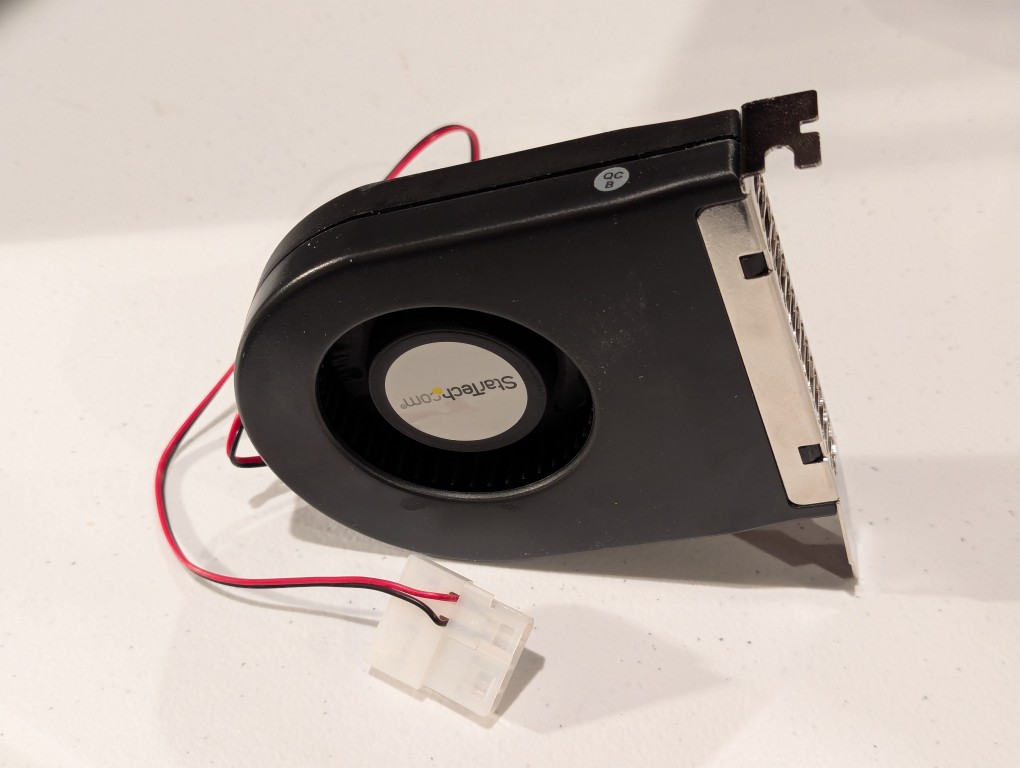
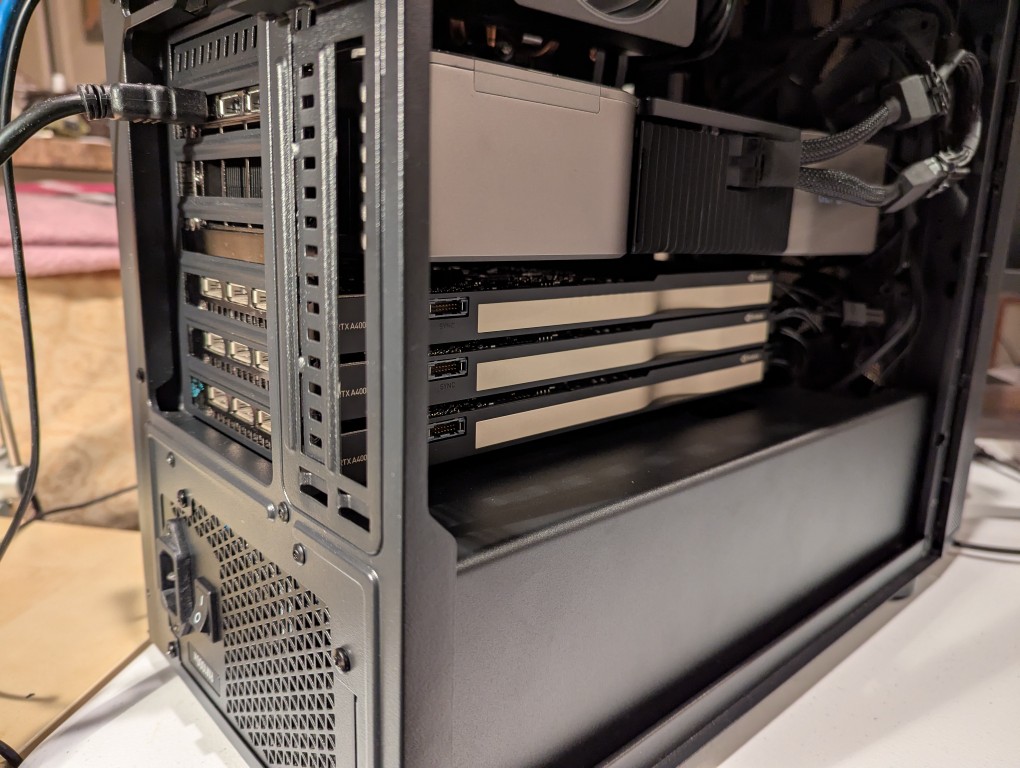
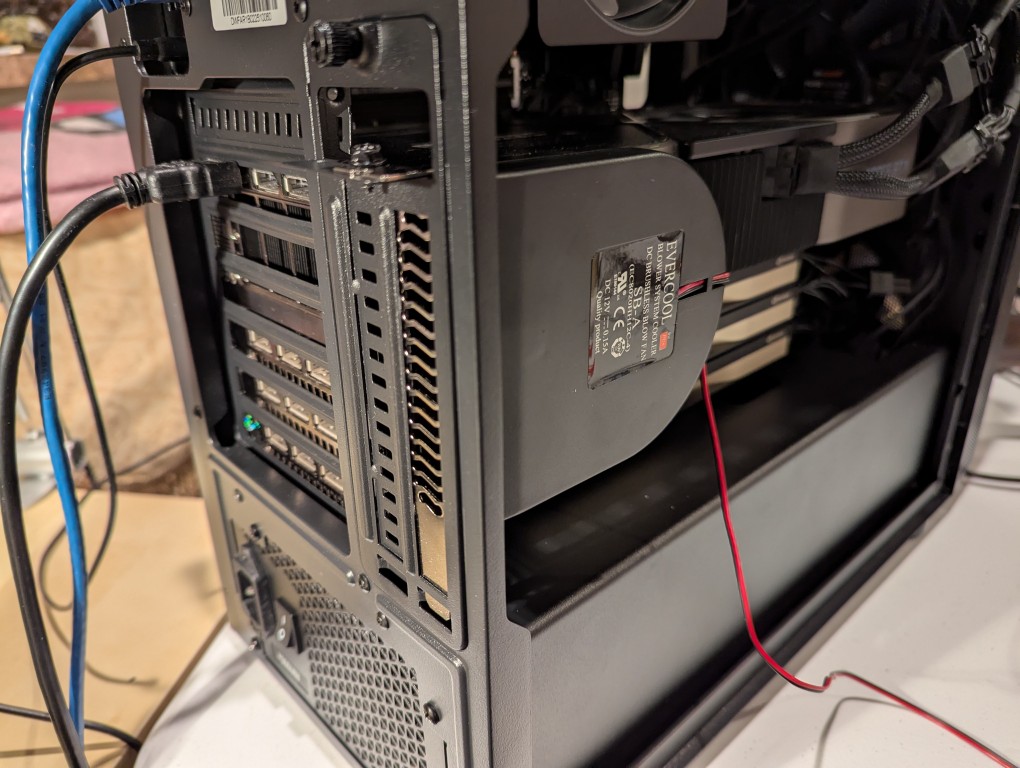
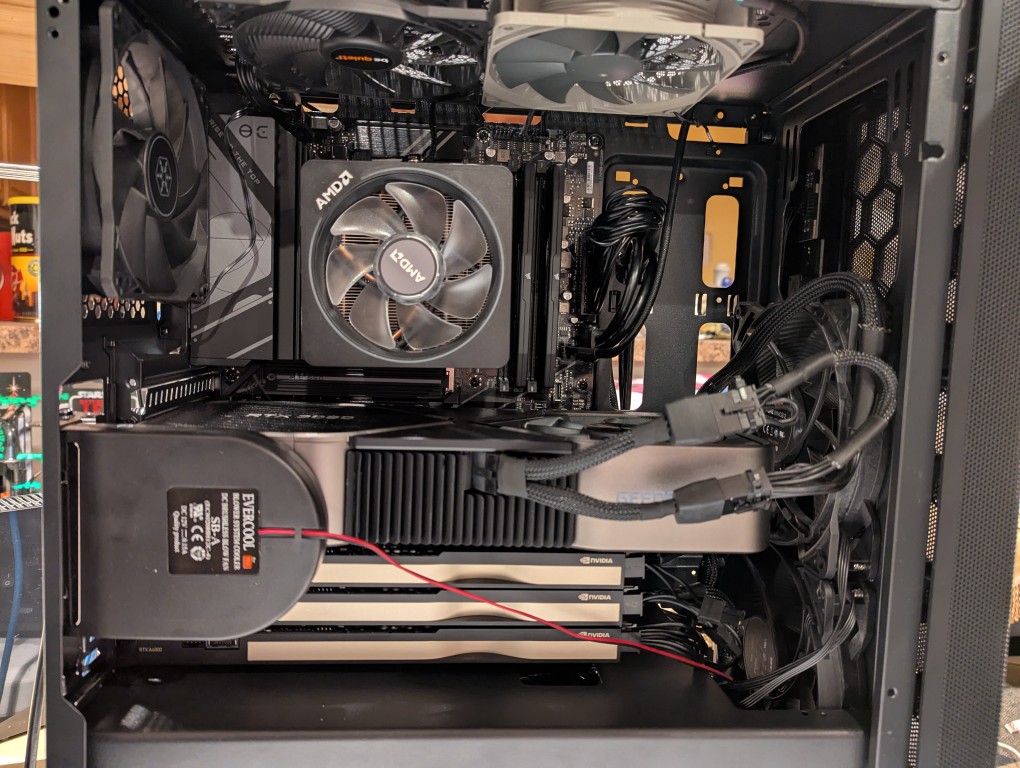
The second solution was to add more fans. The first fan is a PC case slot fan perpendicular to the video cards. This is a constantly on fan powered by a molex connector that has a blower motor that sucks in air from inside the case and ejects it out the back of the card. These use to be very useful back in the day before cases were designed around better cooling with temperature zones and larger intake and exhaust fans. The second fan was a Noctua grey 120mm fan exhausting out of the top of the case. This brings the fan count to two 140mm intake fans in the front of the case, two 120mm exhaust fans in the top of the case, one 120mm exhaust fan in the rear of the case in line with the CPU, and one slot fan pulling hot air off the video cards and exhausting it out of the back.
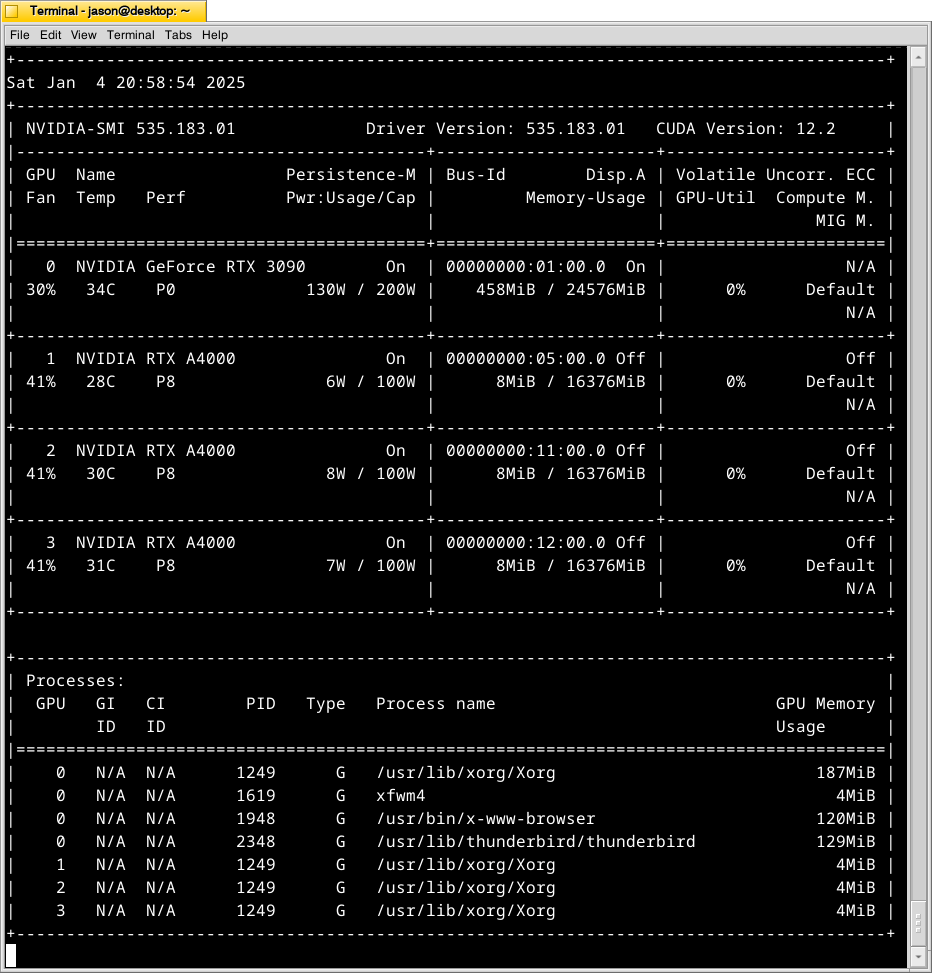
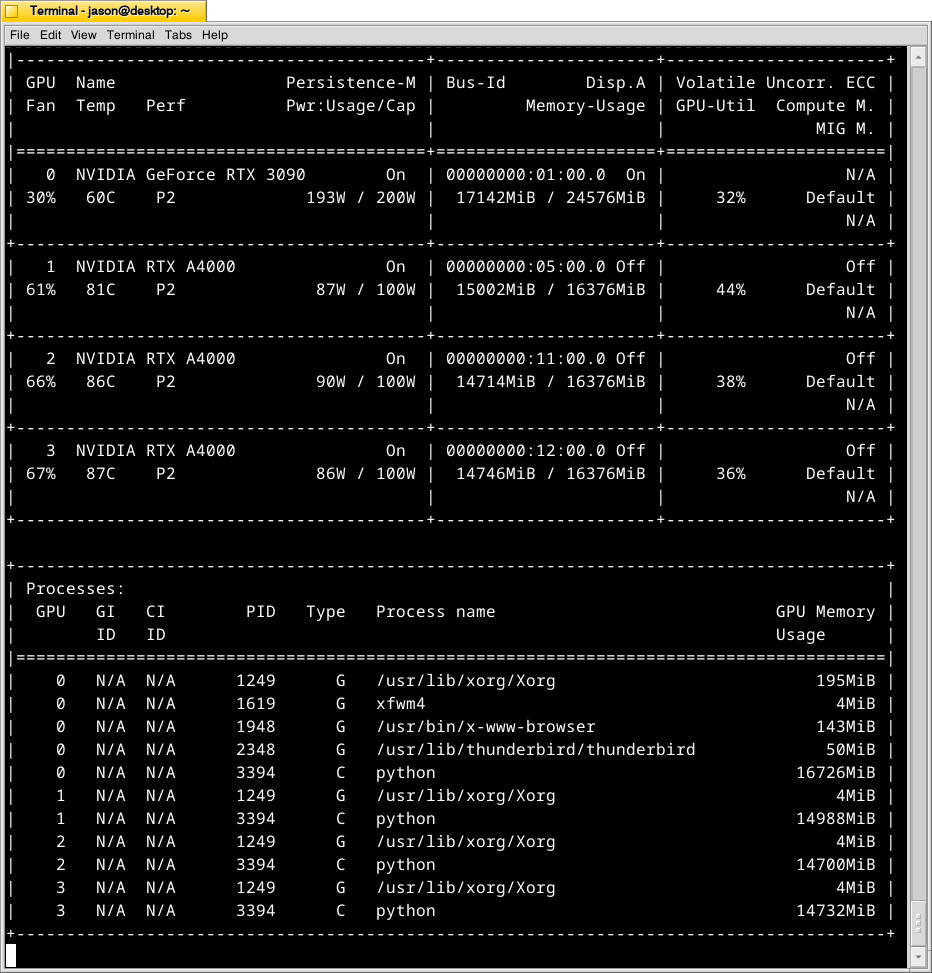
With these cooling-oriented upgrades, I’ve found that the temperatures are slightly better during operation, but perhaps helping in a way that I had not considered before is that the fans help cool the cards down faster after an operation is completed than the cards were cooling down on their own before. Also, the A4000 temps before seemed to be high, higher, and highest going from card 1 to 2 to 3. Now, the middle card or 2 has a slightly higher temp than the bottom card or 3. Below is the output from:
nvidia-smi -l 1
which displays information about the detected NVIDIA video cards including card type, fan speed, temperature, power usage, power cap, and memory usage. The first Terminal screenshot below shows the cards at rest before loading a model. The second Terminal screenshot below shows the cards after a model has been loaded and it is producing output from a prompt for some minutes.
Y made a good point that since it’s the winter, the ambient temperature in the apartment is much cooler–we usually keep it about 66F/19C. When summer comes, it will be much hotter in the apartment even with the window air conditioner going (we are on the top floor of a building that does not seem to be insulated based on sounding and spot temperature measurements).
The key to healthy computer components is cooling–forcing ambient air into the case and moving heated air out. Seeing how well the slot fan has worked, I’m thinking that a next step would be to drill one or two 120mm holes through the sheet metal side panel directly above where the A4000 video cards are and install high-CFM (cubic feet per minute) fans exhausting out. That would replace the currently installed slot fan. If I went that route, I can purchase PWM (pulse width modulation) fans so that I can connect them to the fan controllers on the motherboard, which will increase the speed of the fans according to the rising temperature inside the case when the computer is doing more work. This will reduce fan noise during low-load times but not affect cooling capacity.
On a final note, I will report that I initially tried forcing cooler ambient air into the case through those two rear perpendicular slots to the video cards where the slot fan is currently installed. My thinking was that I could force cooler air over the top of the cards and the blower fans on the cards would carry out the hotter air. What I did to test this was build an enclosed channel with LEGO that sealed against the two open slots and had two 70mm PWM fans pulling air from the channel and pushing it down onto the three A4000 video cards. Unfortunately, this actually increased the temperatures on all three A4000s into the mid-90s C! The heat produced by those cards fed back into the LEGO channel and hot air trickled out of the two slots. Lesson learned.