Category: Lego

  • Ditched Roku for a Discounted Origimagic Ryzen 5 Mini PC

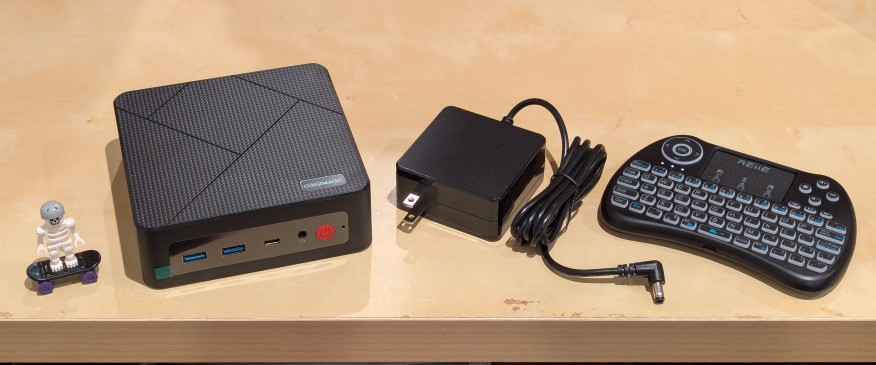
    lego minifigure skeleton on skateboard next to origimagic c4 mini pc, power adapter, and handheld keyboard with trackpad

    I’ve been unhappy with Roku’s increasing advertising through images and now full-motion video and their lack of support for a variety of codecs in their media player app. So, I’ve been looking for awhile for a good deal on a mini pc that could replace the Roku for playing media and also support some light gaming. Also, considering the impending tariffs (i.e., a tax on Americans), I hoped to find something as soon as possible.

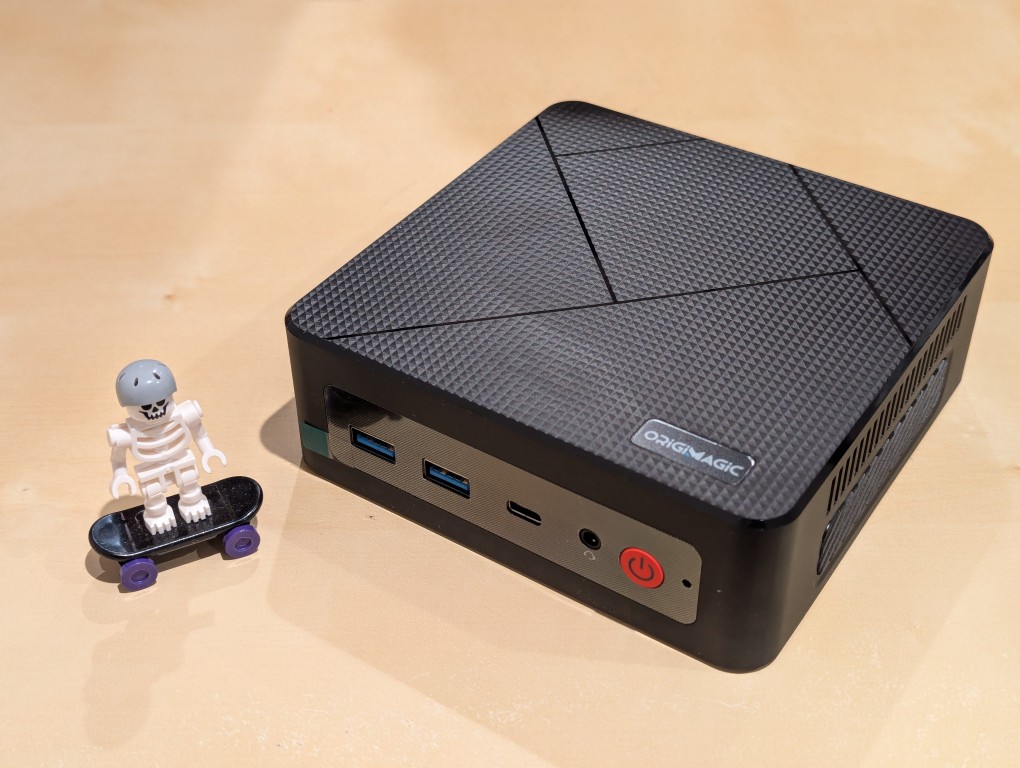
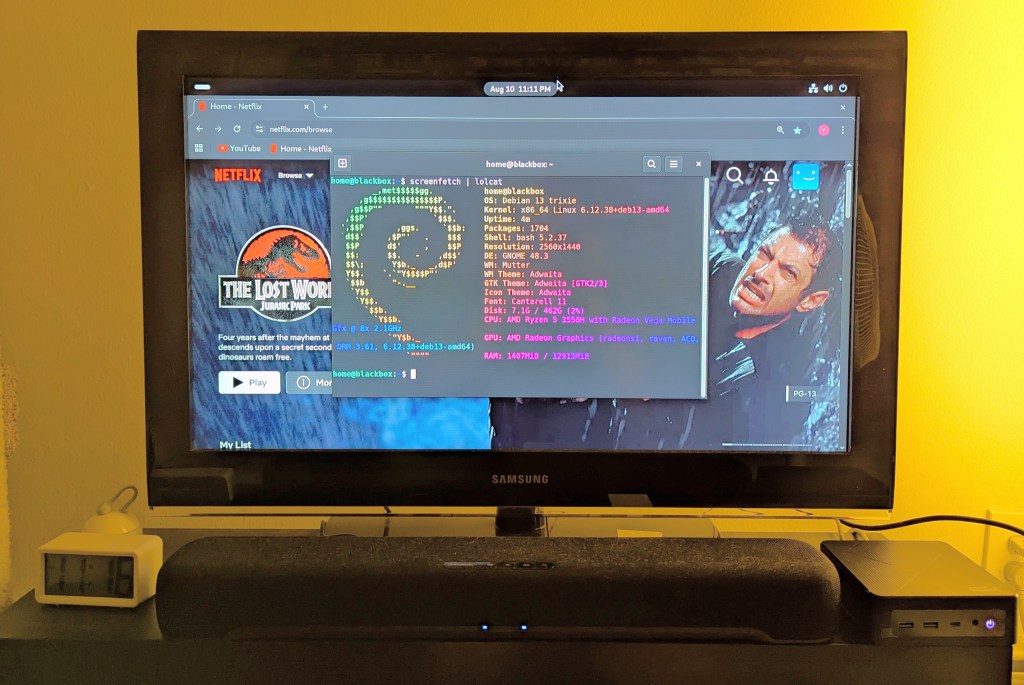
    After tracking several mini pcs on Amazon and eBay for a few weeks, I finally pulled the trigger when Amazon offered the Origimagic C4 Mini PC with a Ryzen 5 3550H (4 core, 8 threads) on sale for $153. It’s CPU has a lot more horsepower while using 25 watts of power than Intel’s similarly priced mini pc processors. It came stock with 16GB DDR4 RAM, 512GB PCIe SSD, 1 x Type-C USB, 4 x Type-A USB (3 are USB 3 and 1 is USB 2), headphone jack, HDMI, DisplayPort, and dual ethernet.

    To operate it from the sofa, I got a $10 reiie H9+ Mini Keyboard with Touchpad that uses a wireless USB adapter to connect to the mini pc.

    lego minifigure skeleton on skateboard next to origimagic c4 mini pc
    lego minifigure skeleton on skateboard next to origimagic c4 mini pc

    Before setting anything up, I created a flash drive with Debian 13 Trixie, the latest version that was released over the weekend on Saturday.

    To do this, I inserted a 16GB flash drive into my workstation, but I didn’t mount the device. I downloaded the network install ISO for Debian 13 from here. Then, I ran lsblk in a terminal window to see what device address corresponded to the flash drive. It’s important to not make a mistake here, because it’s easy to overwrite another drive using this method. lsblk lists the devices, which are all in the “/dev/” folder, so when I saw that my flash drive was assigned the address “sdb”, I knew that its full address was “/dev/sdb”. With that info, I then wrote the downloaded Debian 13 netinstall ISO directly to the flash drive using this command:

    sudo cp debian-13.0.0-amd64-netinst.iso /dev/sdb

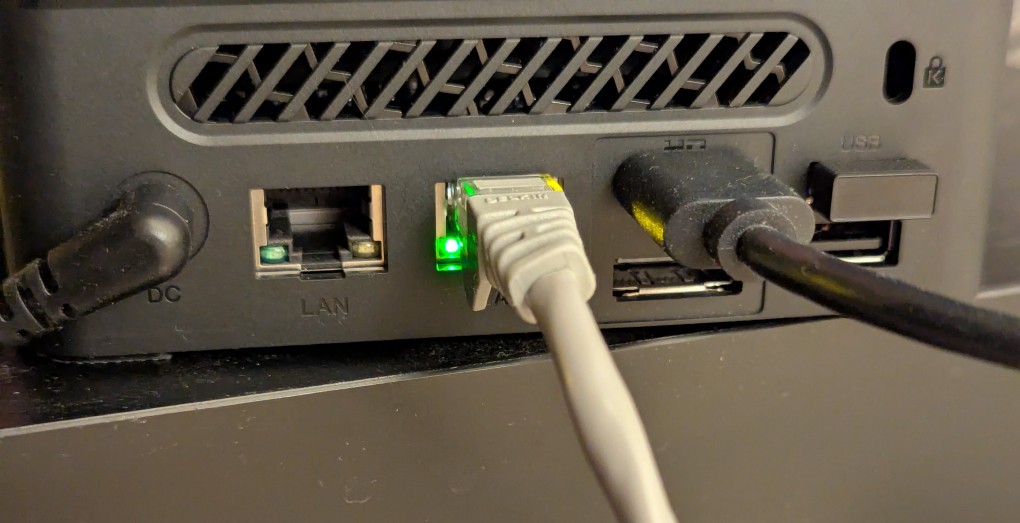
    After the copying to the flash drive had finished, I ejected it from my workstation and took it over to the mini pc. I plugged in the power adapter, ethernet cable (I arbitrarily picked the one furthest from the power plug), HDMI cable to the TV, the keyboard receiver USB, and the Debian 13 installation flash drive.

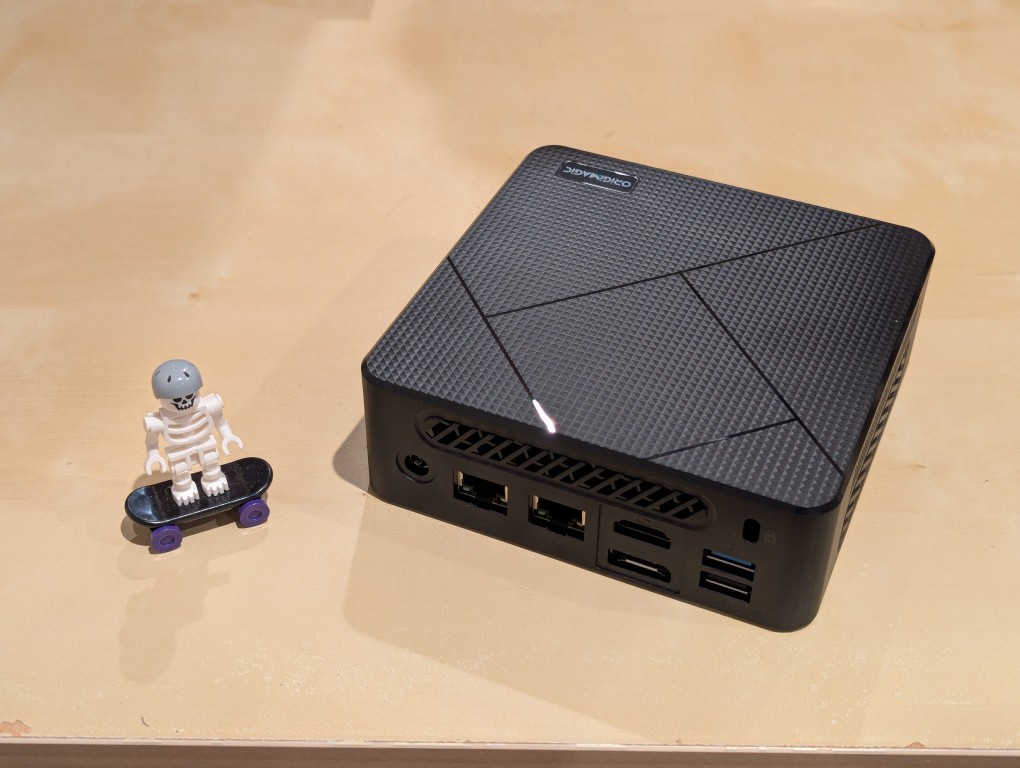
    I did experience some frustration with getting the Debian 13 flash drive to boot the mini pc. As soon as the mini pc booted, I was unable to enter BIOS or open the boot menu. Instead, it kept booting into the Windows 11 setup, which I did not want to use. At first, I thought it might be a problem with the tiny wireless keyboard and trackpad, so I switched to my Logitech keyboard and trackball, which are both tied to one Logitech USB receiver. I tried different USB plugs on the front and rear of the mini pc until I was finally able to enter bios (pushing DEL at boot) when the keyboard USB receiver is in the top-right USB port on the rear of the mini pc as shown below (it is a USB3 port). It might have been bad luck on my part with the other ports, so I can’t say this is a peculiarity with this hardware for certain. Nevertheless, it’s good to exhaust all possibilities like this.

    back of mini pc: power plug, two ethernet ports (one plugged in), HDMI (plugged in), display port, and 2 usb ports (one has a tiny device plugged in)

    Once in the BIOS, there’s not many options except for disabling hardware (I disabled WiFi), turning off Secure Boot and the Trusted Computing Module, and other odds and ends. I saved the settings, rebooted, and went into the Boot Menu (F7), selected the Debian 13 netinstall flash drive, and began the installation (a full nuke-and-pave: erasing the NVMe drive and setting up Debian 13 as the only operating system).

    While I use XFCE on my laptop and workstation, I opted for the GNOME desktop environment on the mini pc, because I thought its screen controls and overall user interface would be easier to see and navigate from across the room. If I don’t like it, I can always install XFCE.

    Because two of the main sources of media for us is Netflix and YouTube, I installed Chrome to handle those sites. I have VLC and Kodi for everything else.

    samsung tv and soundbar with a mini pc on the right side of the tv stand. the screen is showing netflix Jurassic Park the lost world in the background while the foreground terminal shows the pc's info, which is also in the second paragraph above.
  • How I Shot the LEGO Pride Flag Photo

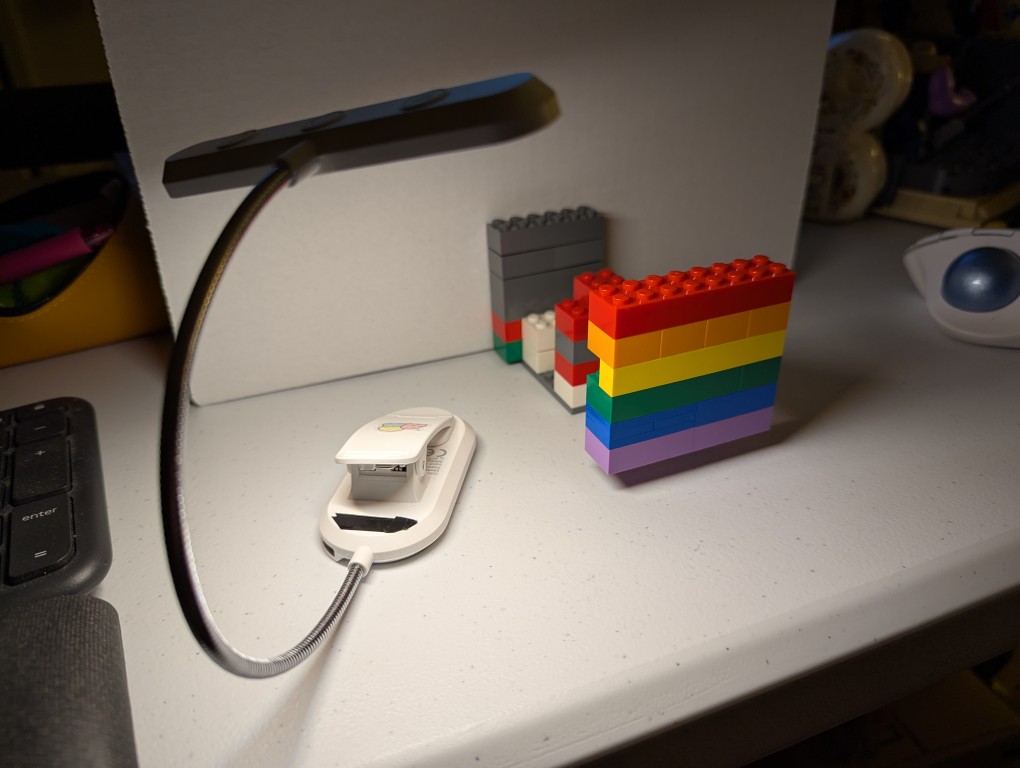
    lego bricks resembling the pride flag are connected to a mix of other hidden lego bricks in front of a white cardboard box and illuminated by a book reading light

    On Monday, I posted happy wishes for Pride Month with a photo that I made of a LEGO Pride Flag.

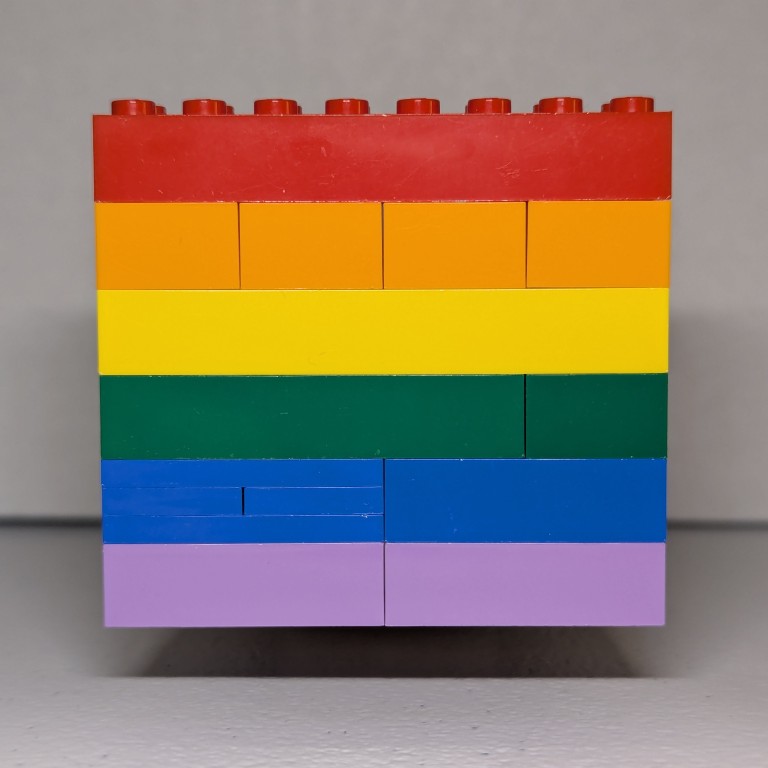
    To create the photo, I first dug through my boxes of LEGO to find 8 stud wide bricks that matched as close as possible to the Rainbow Flag’s approximation of ROYGBIV: red, orange, yellow, green, blue, and purple.

    My first shots had the flag resting on the table some distance in front of a white cardboard box, which served as a neutral background. For lighting, I held a USB rechargable book reading light belonging to Y just above my smartphone to avoid casting a shadow from the camera.

    I didn’t like how these turned out, because the flag was kind of boring just sitting there. So, I thought about levitating it like in Monday’s post.

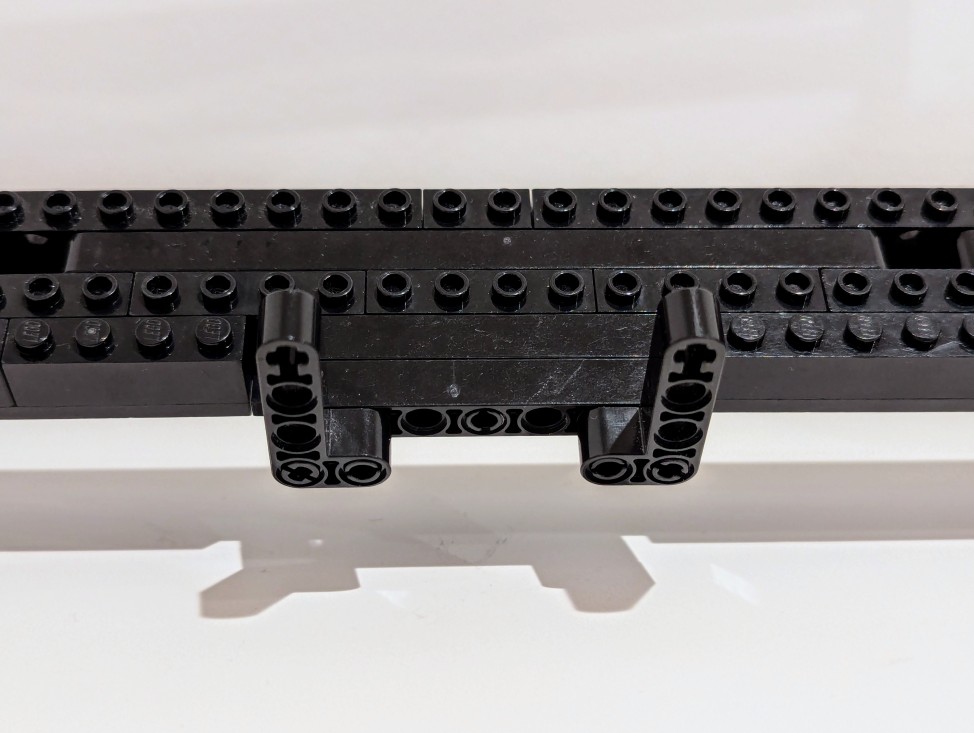
    To levitate the flag, I built a counter-weighted assembling of 6-stud wide bricks with an armature that connected behind the yellow bricks in the Pride Flag. I built this armature one brick higher than the flat to give it the illusion of floating in midair.

  • Happy Pride Month!

    red, orange, yellow, green, blue, and purple pride flag made out of lego bricks in front of a white background

    I want to wish my LGBTQIA+ friends, coworkers, students, and people of the world a Happy Pride Month! It’s a celebration of those folks’ accomplishments and contributions, and remembrance of the hard work, struggle, and loss for liberation that unfortunately still isn’t over. I stand with LGBTQIA+ folks in the fight for liberty and equality for all.

  • How to Control a Panasonic Lumix DMC-G85 with a Smartphone

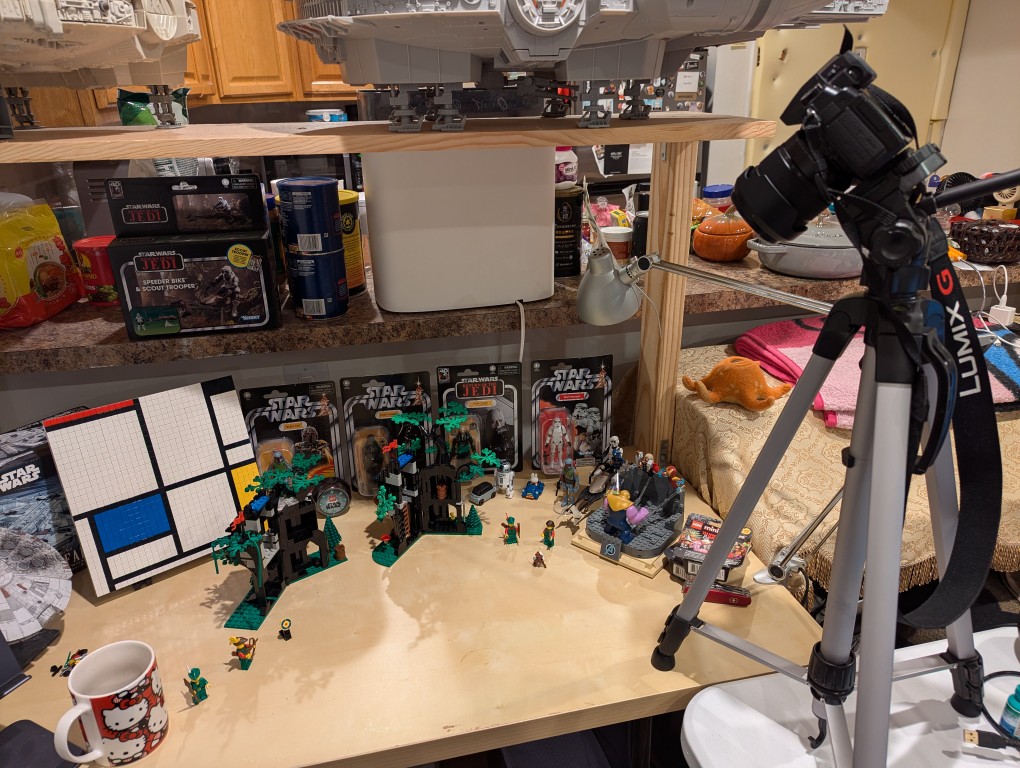
    I’ve had this Panasonic Lumix DMC-G85 camera for awhile, but I’ve never had a reason to setup its Wi-Fi remote control feature until I began thinking about taking photos for the post that I published yesterday comparing the builds of LEGO’s Forestmen’s Hidenout (6054) and Forest Hideout (40567). I didn’t want to have to get up to active the shutter each time I took a picture, and I wanted to be in the photos as the builder. Using my smartphone as a remote control of the camera configured with timed shutter release allowed me to take the photos that I had in mind.

    It’s relatively easy to configure the DMC-G85 to be controlled with Panasonic Image App (available for Android and iOS) via a smartphone (see pages 52-53 of the official manual here).

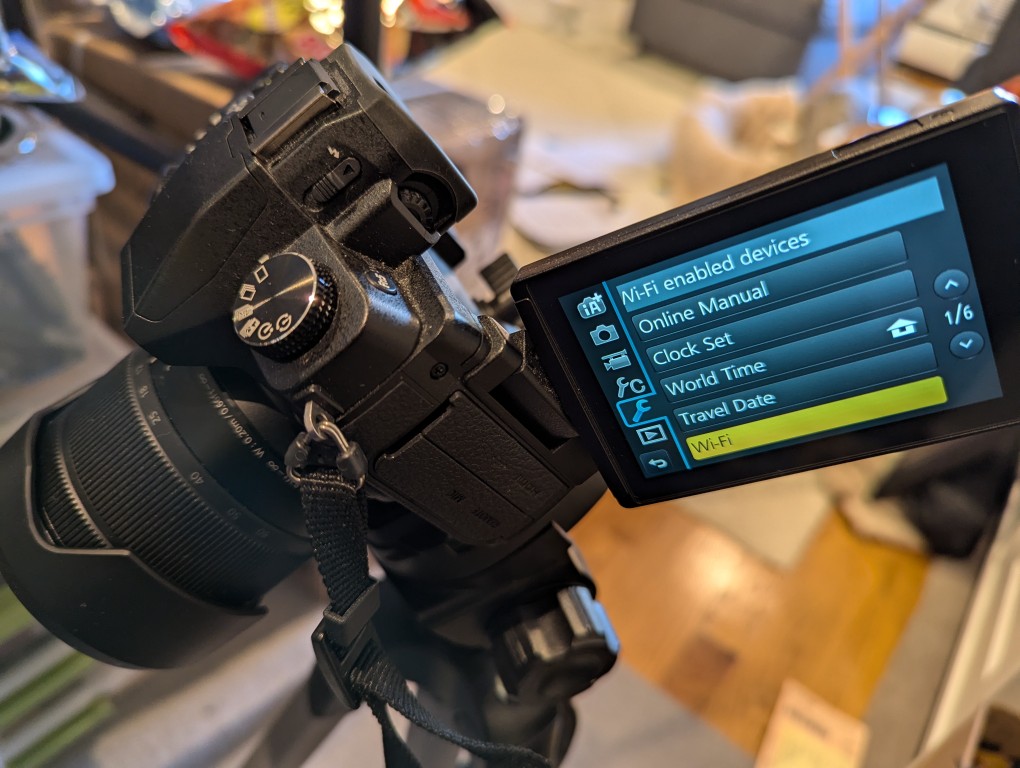
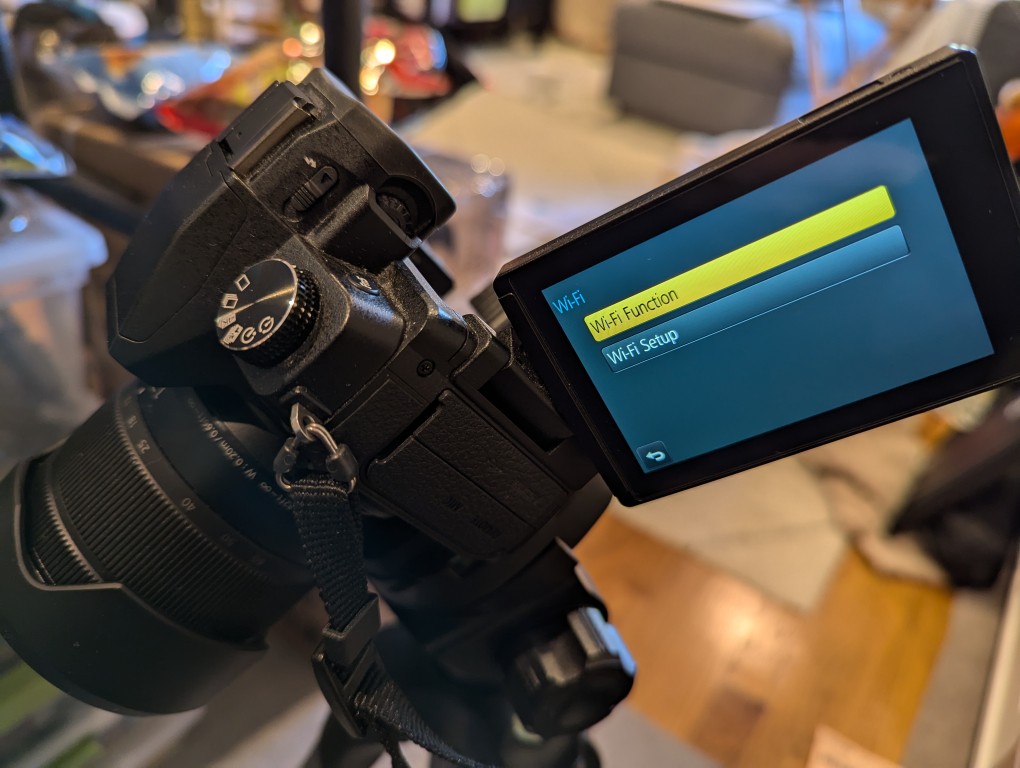
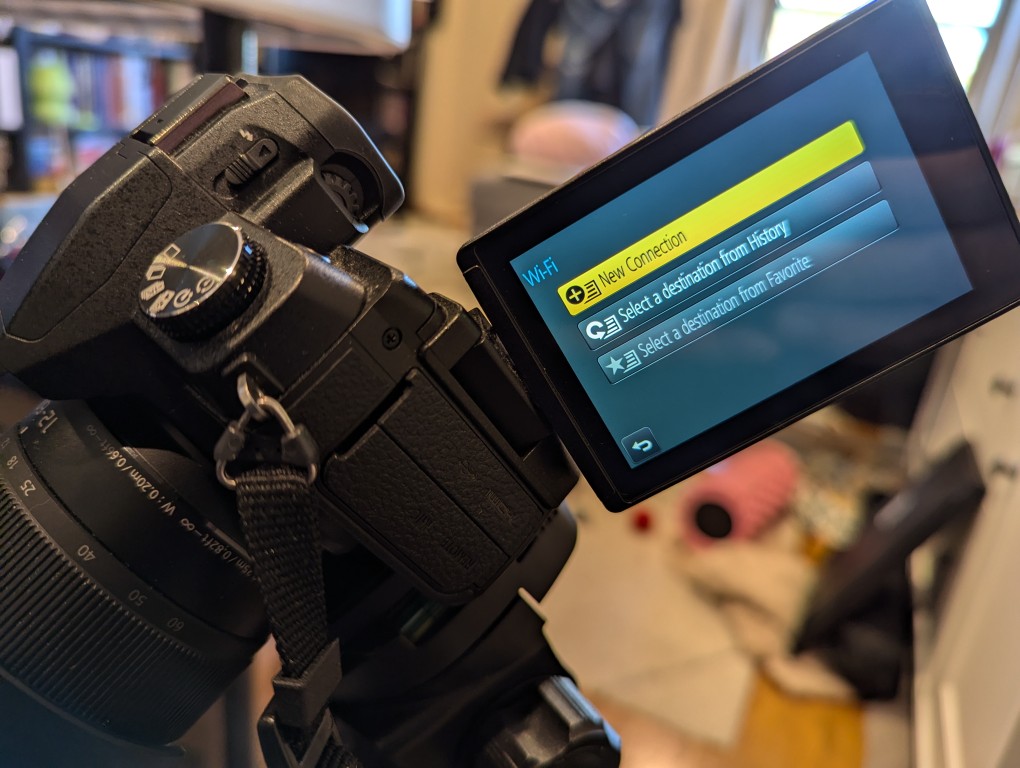
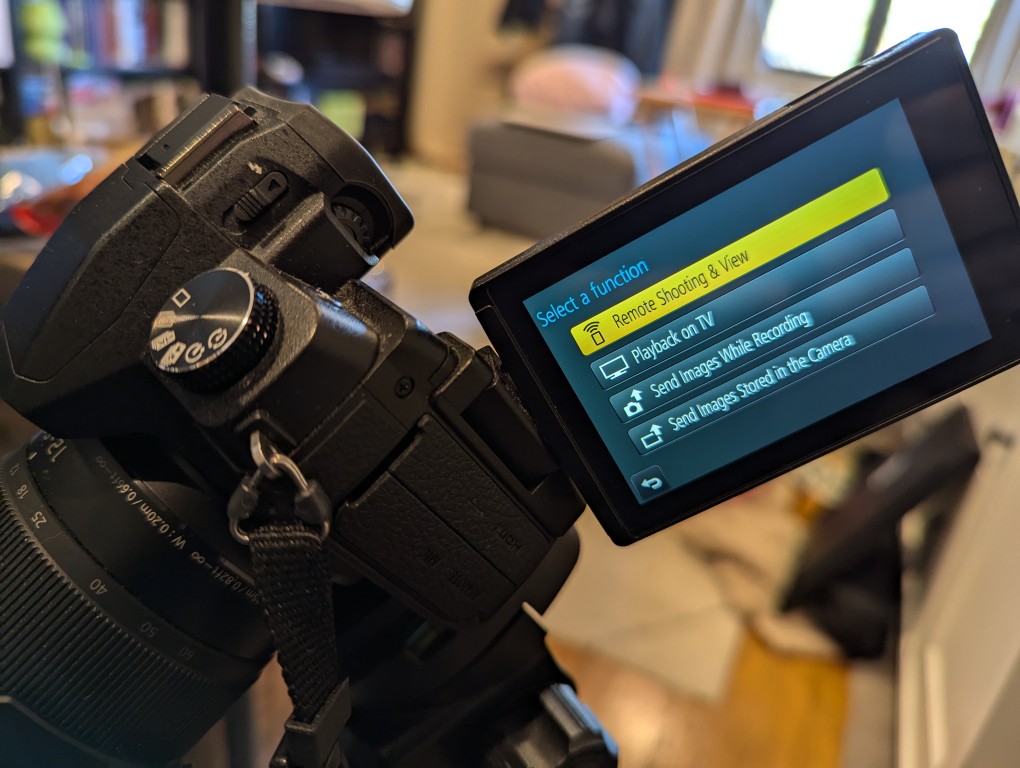
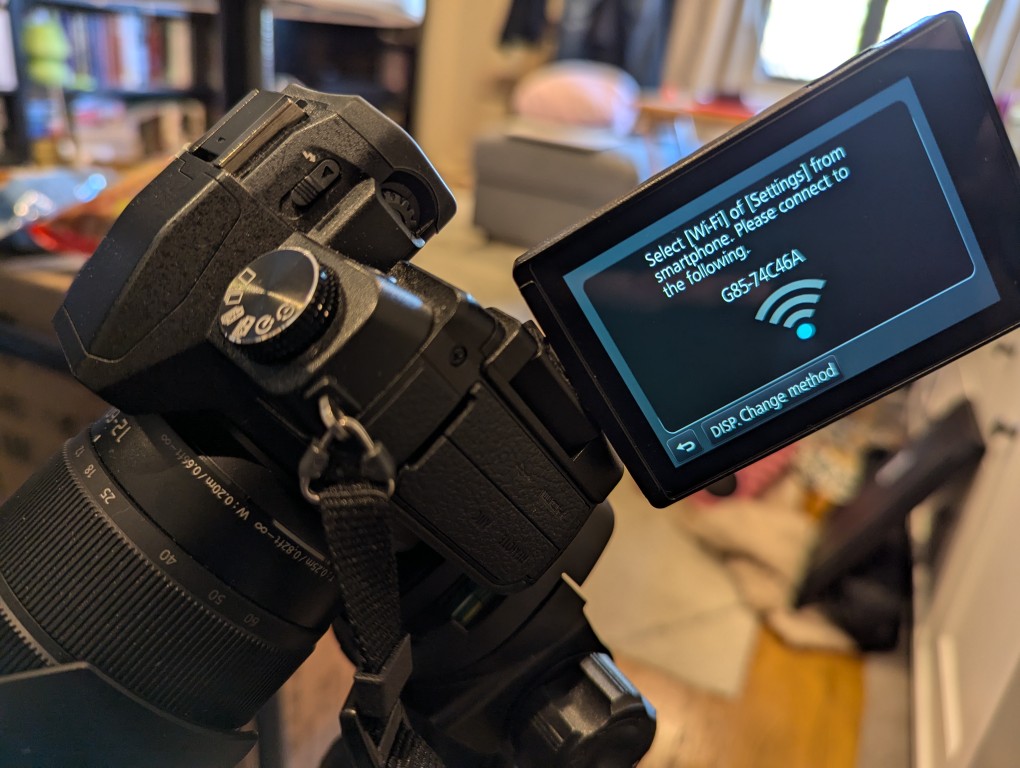
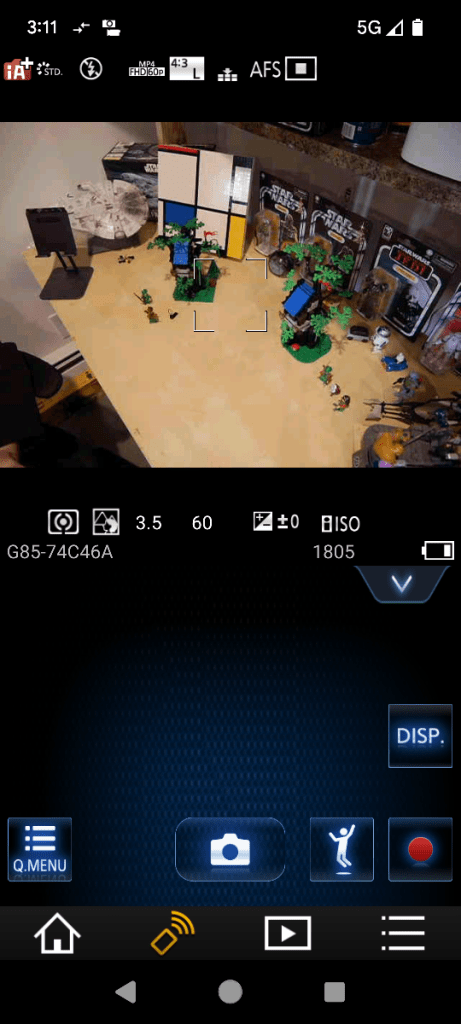
    The basic version of setting up remote control for the camera is shown in the photos below. First, on the camera, open the menu > setup/wrench > Wi-Fi > Function > New Connection > Remote Shooting.

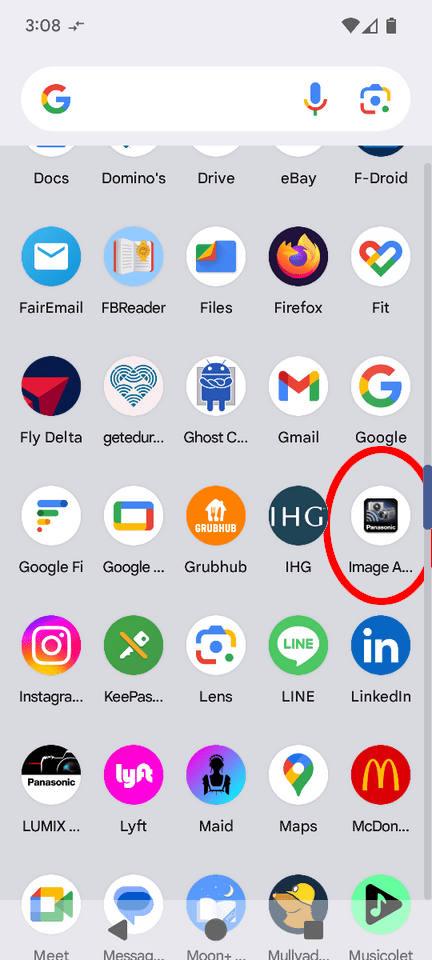
    After connecting your smartphone to the displayed Wi-Fi network, install and open the Panasonic Image App.

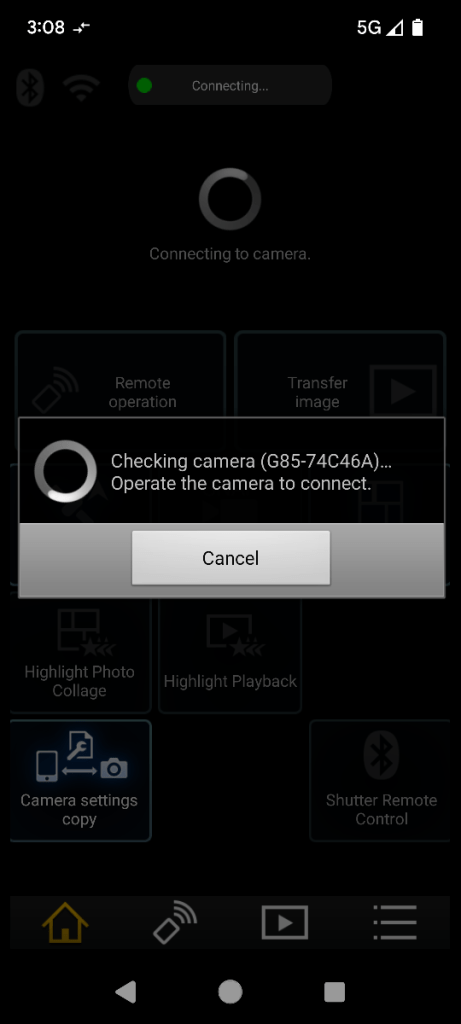
    After agreeing to the terms of service, click on the area on the left for “Remote Operation.” When it attempts to connect, it will prompt you to “Operate the camera to connect.” Back on the camera, click the button on the display to accept the connection.

    Then, you will see what your camera sees on your smartphone’s screen. There are controls for adjusting the camera and activating the shutter.

    So that I could capture my hands working with LEGO, I set my camera’s shutter timer to 2 seconds. This means when I would click the camera icon/shutter release in Panasonic Image App, there would be a 2 second countdown during which I could put my hands back into the scene before the shutter was released.

    When I take night sky photos again, I will definitely use Panasonic Image App to control the camera so that I can avoid vibration induced by my pressing the shutter release button.

  • Back-To-Back Building of LEGO’s Forestmen’s Hideout (6054) and Forest Hideout (40567)

    LEGO's Forestmen's Hideout (6054) and Forest Hideout (40567)

    One of my favorite LEGO sets when I was younger was LEGO’s Forestmen’s Hideout (6054) from 1988. In 2022, LEGO released a Gift with Purchase (GWP) set that updates the 6054 set with modern bricks and design called Forest Hideout (40567). I’ve had Forest Hideout sitting on a shelf for the past two years. When Y asked me recently if I was ever going to put it together, it got me thinking about the original 6054 set. I began watching auctions on eBay for a good deal on a complete set (a boxed original was out of the question due to its much higher cost). Eventually, I found a complete set of 6054 for a reasonable price. After receiving it in the mail, I sat down to build both sets back-to-back and record it with my Panasonic Lumix DMC-G85 camera set to 2 second timer and controlled by the Panasonic Image App on my Pixel 6 phone (I’ll show how to set that up in a future post).

    Forest Hideout (40567) has 258 pieces, which is 64 more than the 194 pieces in Forestmen’s Hideout (6054). While the tree branch and leave elements are the same, the tree’s main structure is constructed differently in the two sets. The original relied on Black Panel 3 x 3 x 6 Corner Wall pieces for most of the tree’s main trunk structure. These larger elements reduced the part count of the original. The updated version used a combination of Black Cylinder Half 1 x 2 x 1 and Black Cylinder Quarter 2 x 2 x 5 with 1 x 1 Cutout to create the tree trunk. While there are no vines for swinging in the new version as in the first, the update includes an internal ladder for minifigures to climb to into hideout. 6054 includes two smiling minifigures with hats while 40567 includes a male with hat and female with long hair minifigures.

    Below, I show an over-the-shoulder view of the building process for each set and then side-by-side comparisons of the completed build of both sets. I used a scanned copy of the 6054 instructions to assemble it, which was displayed on my computer screen out of the frame on the right. Since I hadn’t opened 40567 until this build, it included the original set of instructions, which is seen in the photos.

    Forestmen’s Hideout (6054)

    Forestmen's Hideout (6054) build
    Forestmen's Hideout (6054) build
    Forestmen's Hideout (6054) build
    Forestmen's Hideout (6054) build
    Forestmen's Hideout (6054) build
    Forestmen's Hideout (6054) build
    Forestmen's Hideout (6054) build
    Forestmen's Hideout (6054) build
    Forestmen's Hideout (6054) build
    Forestmen's Hideout (6054) build
    Forestmen's Hideout (6054) build
    Forestmen's Hideout (6054) build
    Forestmen's Hideout (6054) build
    Forestmen's Hideout (6054) build
    Forestmen's Hideout (6054) build
    Forestmen's Hideout (6054) build
    Forestmen's Hideout (6054) build
    Forestmen's Hideout (6054) build
    Forestmen's Hideout (6054) build

    Forest Hideout (40567)

    Forest Hideout (40567) build
    Forest Hideout (40567) build
    Forest Hideout (40567) build
    Forest Hideout (40567) build
    Forest Hideout (40567) build
    Forest Hideout (40567) build
    Forest Hideout (40567) build
    Forest Hideout (40567) build
    Forest Hideout (40567) build
    Forest Hideout (40567) build
    Forest Hideout (40567) build
    Forest Hideout (40567) build
    Forest Hideout (40567) build
    Forest Hideout (40567) build
    Forest Hideout (40567) build
    Forest Hideout (40567) build
    Forest Hideout (40567) build
    Forest Hideout (40567) build
    Forest Hideout (40567) build
    Forest Hideout (40567) build
    Forest Hideout (40567) build
    Forest Hideout (40567) build
    Forest Hideout (40567) build

    Side-By-Side Comparison of 6054 and 40567

    LEGO Forest Hideout (40567) and Forestmen's Hideout (6054)
    LEGO Forest Hideout (40567) and Forestmen's Hideout (6054)
    LEGO Forest Hideout (40567) and Forestmen's Hideout (6054)
    LEGO Forest Hideout (40567) and Forestmen's Hideout (6054)
    LEGO Forest Hideout (40567) and Forestmen's Hideout (6054)
    LEGO Forest Hideout (40567) and Forestmen's Hideout (6054)