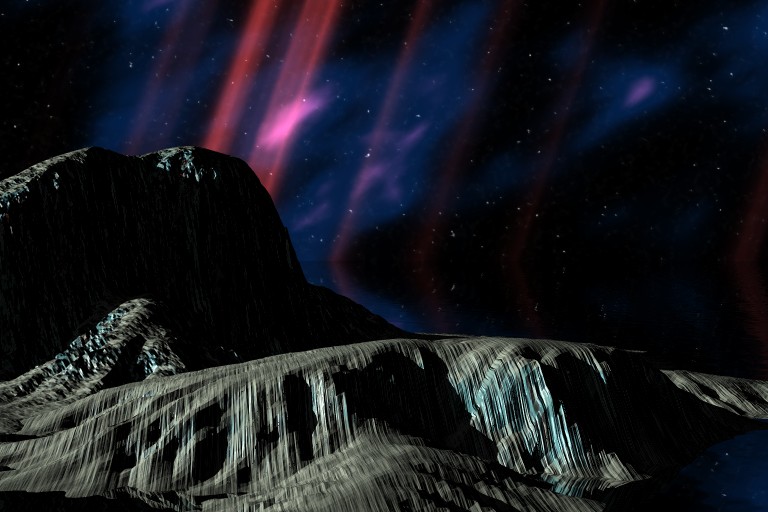
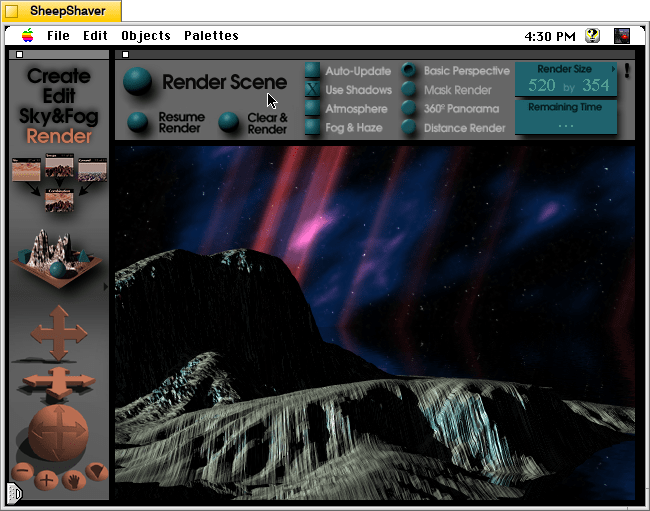
Outer space scene rendered in KPT Bryce 1.0.1 on Mac OS 7.5.5.
A conversation on LinkedIn yesterday with a former Professional and Technical Writing student about user experience (UX) and generative artificial intelligence (AI) technologies reminded me of the UX innovations around an earlier exciting period of potential for computers creating art: KPT Bryce, a three-dimensional fractal landscape ray trace rendering program for Mac OS released in 1994. It was one of the first programs that I purchased for my PowerMacintosh 8500/120 (I wrote about donating a similar machine to the Georgia Tech Library’s RetroTech Lab in 2014 here). Much like today when I think about generative AI, my younger self thought that the future had arrived, because my computer could create art with only a modicum of input from me thanks to this new software that brought together 3D modeling, ray tracing, fractal mathematics, and a killer user interface (UI).
Besides KPT Bryce’s functionality to render scenes like the one that I made for this post (above), what was great about it was its user interface, which made editing and configuring your scene before rendering in an intuitive and easy-to-conceptualize manner. As you might imagine, 3D rendering software in the mid-1990s was far less intuitive than today (e.g., I remember a college classmate spending hours tweaking a text-based description of a scene that would then take hours to render in POVRay in 1995), so KPT Bryce’s easy of use broke down barriers to using 3D rendering software and it opened new possibilities for average computer users to leverage their computers for visual content creation. It was a functionality and UX revolution.
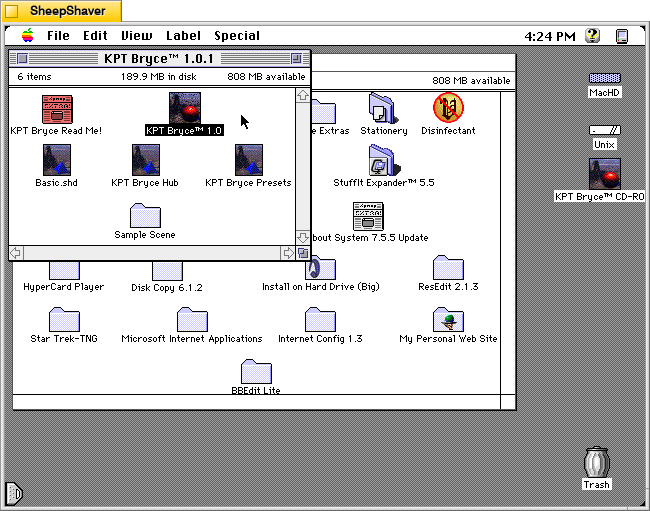
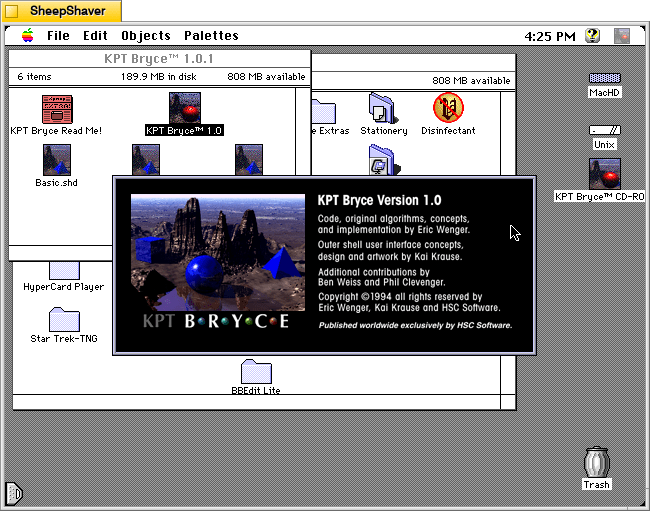
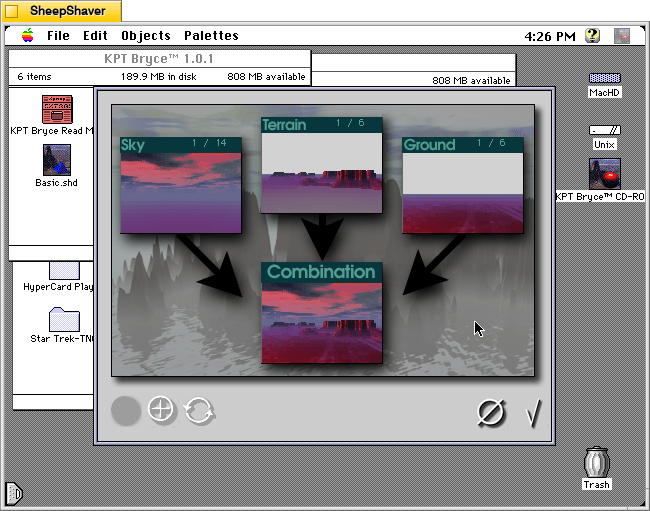
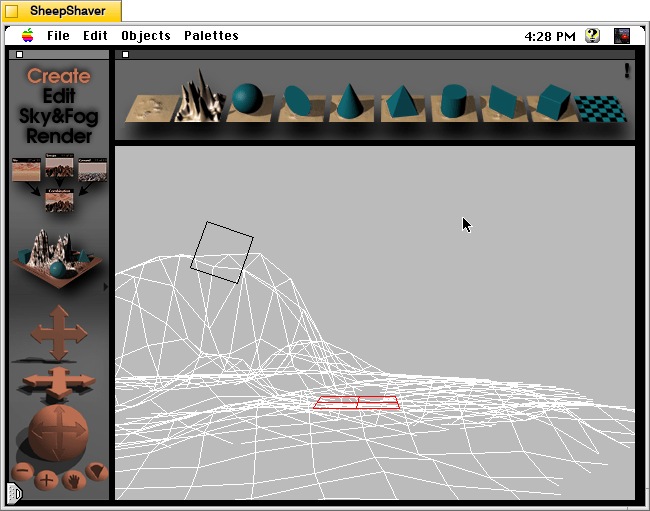
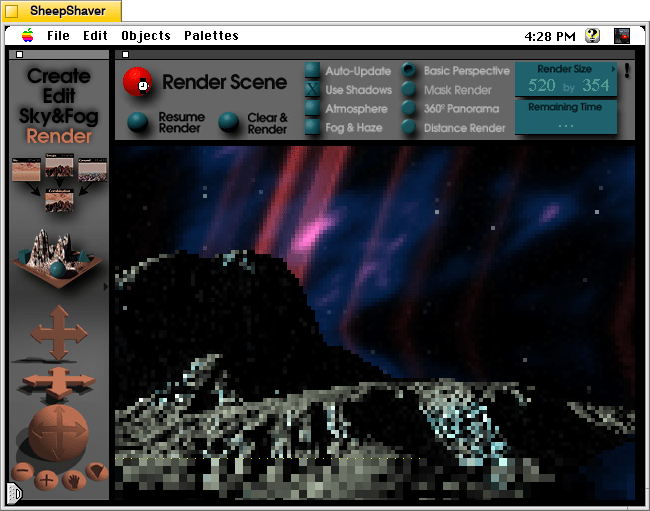
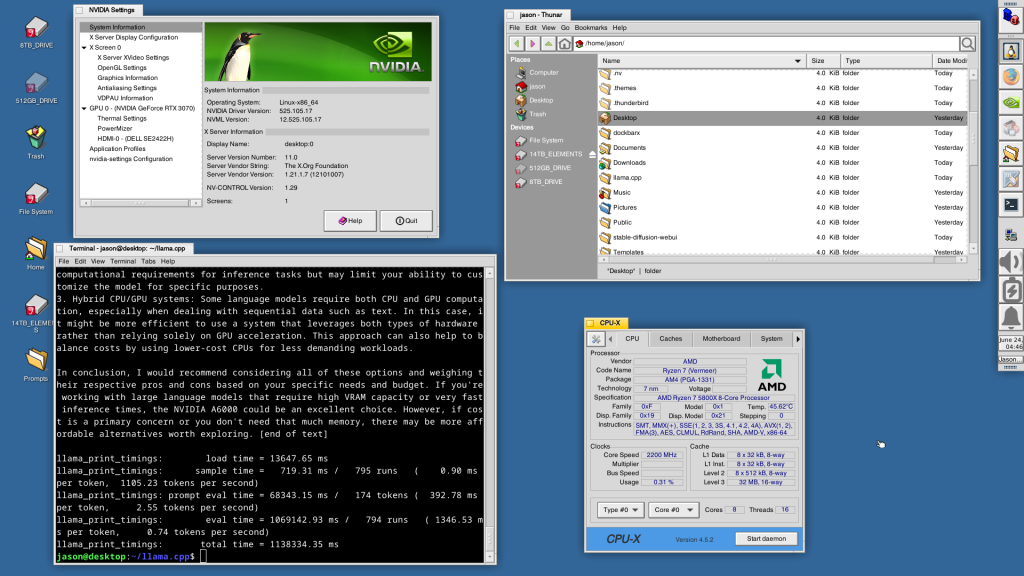
Below, I am including some screenshots of KPT Bryce 1.0.1 emulated on an installation of Mac OS 7.5.5 on SheepShaver (N.B. I am not running SheepShaver on BeOS–I’ve modified my Debian 12 Bookworm xfce installation to have the look-and-feel of BeOS/Haiku as I documented here).
KPT Bryce 1.0 program folder copied to the computer’s hard drive from the KPT Bryce CD-ROM.KPT Bryce 1.0 launch screen.KPT Bryce initial scene randomizer/chooser. Note the UI elements on the lower window border.KPT Bryce’s scene editor opens after making initial selections. KPT Bryce’s rendering screen–note the horizontal dotted yellow line indicating the progression of that iterative ray tracing pass on the scene.KPT Bryce rendering completed. It can be saved as an image by clicking on File > Save As Pict.
This weekend, I installed Debian 12 Bookworm with Xfce desktop environment on my desktop computer, because I wanted a pure Xfce installation on top of a distro running a 6.0 or higher kernel to theme as close to BeOS as I can get.
As I’ve written about before here, I have fond memories of using BeOS on my old PowerMacintosh 8500/120. When I used it on that hardware, it felt like the future. Many of its features were ahead of its time for a desktop computing environment. It was also incredibly easy to navigate and interact with due to its colors, icons, and textured UI elements.
I believe that BeOS and Haiku OS have GUIs that are easy to see and interact with, because they aren’t flattened to death like most contemporary operating systems, which have less contrast and textured borders that hinder visual comprehension and interaction.
I tried installing Xubuntu, but after installation, I was greeted by the login prompt, I entered my credentials, received a black screen (NB: not rebooting–for some reason the DE wouldn’t launch and it would kick me back to the login screen), and was greeted again by the login prompt. Since that was a fresh installation, I was concerned about the long-term stability of it on my computer. Hence, I tried out Debian 12, which installed and booted without a hitch!
I describe step-by-step how to make Xfce mimic BeOS in the sections below.
Window Manager Theme
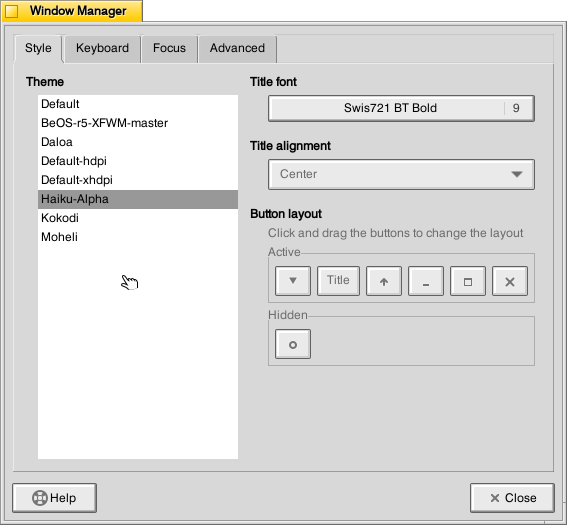
Perhaps the most notable aspect of BeOS/Haiku’s look-and-feel is the yellow, tabbed window title bar. Some tutorials suggest using the BeOS-r5-XFWM theme, but I opted for the Haiku-Alpha theme, because it only keeps the close window tic box and eliminates the other options such as minimize, maximize, etc., which you can still operate by setting one option to title bar double clicks and others from the drop-down right-click menu.
Decompress the downloaded file and move the resulting folder into ~/.themes (remember to turn on “show hidden files and folders” in your file manager, and create the .themes folder if it does not already exist). Then, go to Settings > Window Manager > select Haiku-Alpha. Also, set the font to Swis721 BT Bold size 9 (see font section below for more info).
Appearance Theme
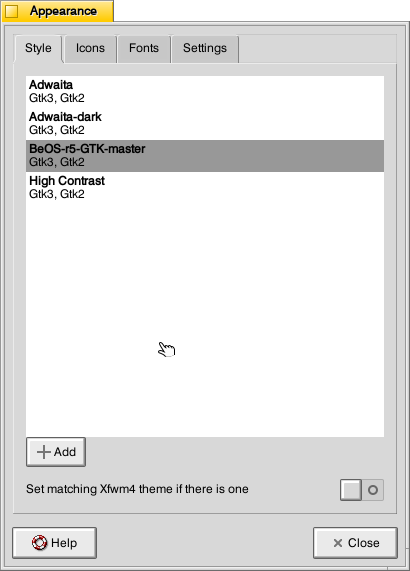
To give Xfce the general look-and-feel of BeOS’s relatively high contrast interface (by today’s modern, flat interface standards), I installed the BeOS-r5-GTK theme.
Decompress the downloaded file and move the resulting folder into ~/.themes. Then, go into Settings > Appearance > Style > select BeOS-r5-GTK-master.
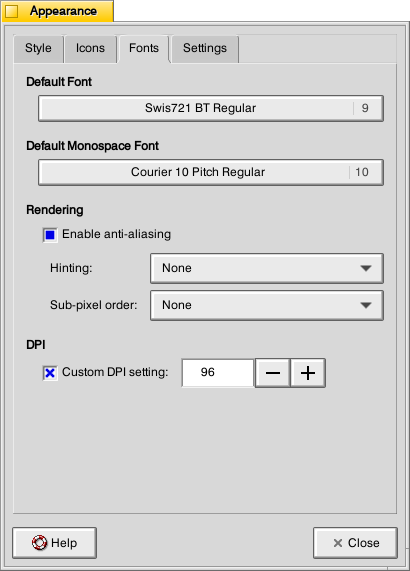
Next, click on the Fonts tab. For Default Font, select Swis721 BT Regular size 9, and for Default Monospace Font, select Courier 10 Pitch Regular size 10 (see Font section below for more info).
Fonts
There are two essential fonts, which can be easily found through Google searches: Swis721 BT Roman and Courier 10 Pitch for Powerline.
Once downloaded, move the ttf files into ~/.fonts (remember to turn on “show hidden files and folders” in your file manager, and create the .themes folder if it does not already exist).
There are two main areas where the fonts need to be set. First, go to Settings > Window Manager > Style tab and set the Title font to Swis721 BT Bold size 9. Then, go to Settings > Appearance > Fonts tab and set the Default Font to Swis721 BT Regular size 9 and set the Default Monospace Font to Courier 10 Pitch Regular size 10.
Mouse Cursors
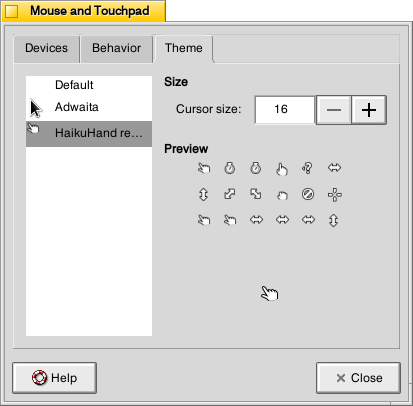
The hand mouse cursor is an integral element of BeOS’s look-and-feel. I opted to use HaikuHand reHash.
Decompress the downloaded file and move its folder into ~/.icons (remember to turn on “show hidden files and folders” in your file manager, and create the .themes folder if it does not already exist). Then, select HaikuHand reHash in Settings > Mouse and Touchpad > Theme.
Icons
The isometric view icons for BeOS capture that mid-to-late-1990s era of gesturing towards 3D through 2D designs. Vaporware Mac System 8 Copland exemplified this aesthetic, too (but aspects of it found its way into the eventual MacOS 8 and others incorporated its design elements into shareware like Aaron and the Iconfactory’s innovative icon sets. I created some icons in this style, too.
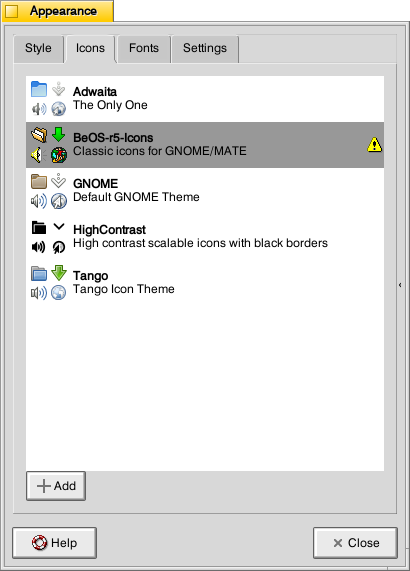
Decompress the downloaded file and move it into ~/.icons (remember to turn on “show hidden files and folders” in your file manager, and create the .themes folder if it does not already exist). Then, go to Settings > Appearance > Icons tab > select BeOS-r5-Icons.
Desktop
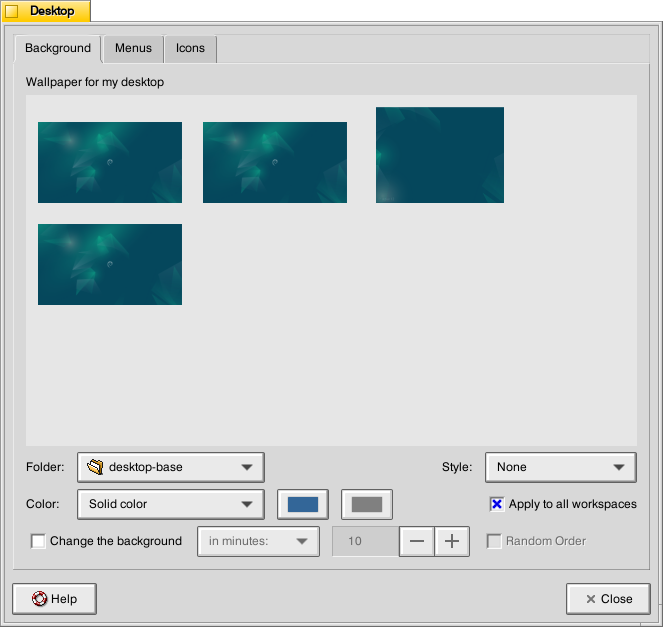
There are BeOS desktop wallpaper pictures that you can download and set as your wallpaper. However, I wanted a simpler solid color background. To achieve this, go to Settings > Desktop. Set Style to “None,” and set Color to “Solid color.” Then, click on the color rectangle to the right of Color, and next, click on the “+” under Custom and enter this hex value for the default deep blue BeOS desktop color: #336698.
Dock
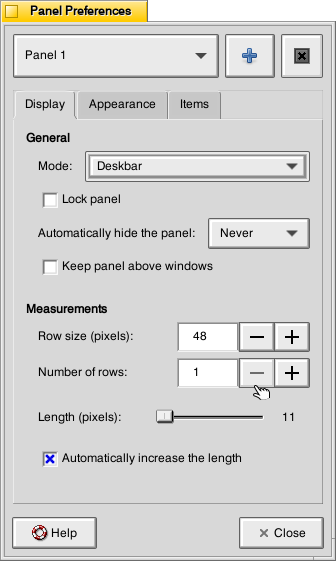
After a lot of head-hitting-the-desk, I settled on using the Xfce’s Panel instead of a more visually interesting dock that used a BeOS-inspired theme (e.g., BeOS-dr8-DockbarX). I was able to get DockbarX installed from source eventually, but I couldn’t get the Xfce4 DockbarX plugin to work with the Xfce Panel. It wasn’t from a lack of trying! It’s worth trying to get those installed–you might have better luck. For me, I needed to move on, so I settled on customizing the Xfce panel to meet my needs and fit the BeOS aesthetic well enough. I went to Settings > Panel > Display tabl to set Panel 1 in Deskbar Mode, set the Row size to 48 with 1 row and ticked “Automatically increase the length. On the Appearance tab, I set the Fixed icon size to 48.
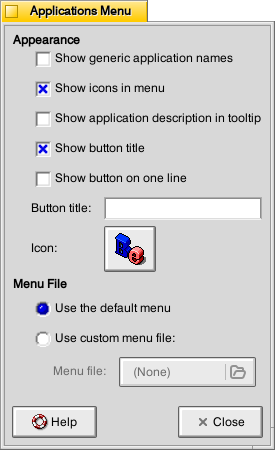
On the Items tab, I clicked the preferences for the Applications Menu, removed the Button title and changed the Icon to the isometric 3D Be logo (this will be an option after you’ve installed the icons pack as described above in the Icons section).
It would be easy to configure the panel to be more like the original Deskbar in BeOS, too. The main changes needed would be to increase the Number of rows to 4 or 5, change the Application menu icon to the flat “BeOS” logo icon (included in the icon pack installation in the Icons section above).
And, it’s important to remember that there was not one, eternal version of BeOS. As with any developed software, it changed over time with its UI and look-and-feel changing with it. For me, the 1996 Developer Release is what I remember most because I ran it on bare metal on my PowerMacintosh 8500/120. It continued to evolve and change after that in ways that I am less familiar with.
QMMP/Winamp Skin
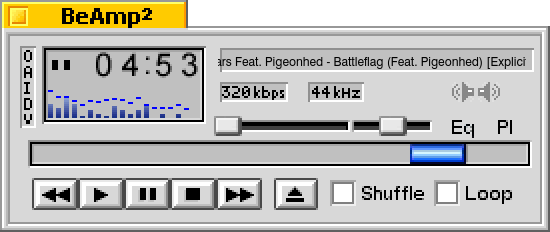
If you use QMMP for listening to music on your computer, you’ll need to grab a Winamp skin to give it the BeOS look and title bar. BeAmp Too is my favorite. There are a few others available if you search for “beos” on the Winamp Skin Museum.
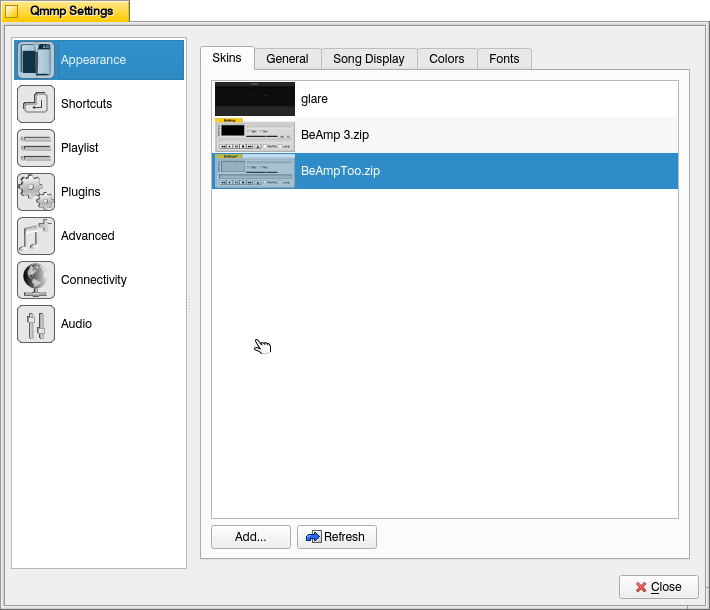
Whichever one you choose, download the zip file for the theme to your Downloads folder. Then, open QMMP, right click on the title bar and choose Settings, click on the Appearances section on the left, click the Skins tab, and then click on “Add…” at the bottom, navigate to your downloaded theme zip file and select it. QMMP will copy the file into the ~/.qmmp/skins directory for you. Select the theme on the Appearances > Skins tab to activate the theme.
Other Tweaks
The following are other tweaks to Xfce that I prefer for daily use.
Disable overlay/auto hiding scrollbars
Edit /etc/environment and add the line
GTK_OVERLAY_SCROLLING=0
Save the file. Logout and login to see the change take effect.
White font for desktop items
Go to ~/.config/gtk-3.0/ and create a file named gtk.css (edit this file if it already exists). Add these lines to it:
XfdesktopIconView.label {
    color: white;
}
Save the file. Logout and login to see the change take effect.
Consistent Scroll Bar Speed
In folders with many files, I have noticed that if I begin scrolling but slow down a little, the speed of scrolling after that point for the rest of my mouse-down drag will be EXCEEDINGLY slow. This is by design–a feature called zoom scrolling. Well, I don’t like it. If you don’t like it either, you can tame it by setting the trigger time to longer than the default of 500 milliseconds. To do this, go to ~/.config/gtk-3.0/ and create a file named settings.ini (edit this file if it already exists). Add these lines to it:
[Settings]
gtk-long-press-time=5000
Save the file. Logout and login to see the change take effect.
Thanks to:
An unnamed Reddit user (their account has been deleted) posted an excellent write up of their BeOS-r5-XFCE theming of XFCE in r/unixporn that gave me a roadmap for what was possible.
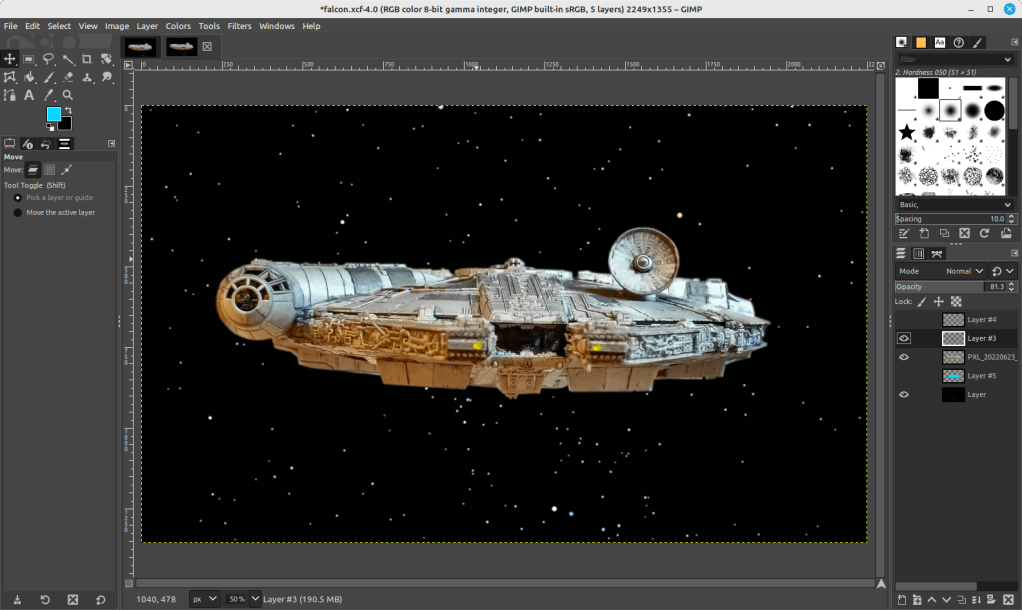
This week, I created the composite image above of the Millennium Falcon midflight among the stars. This most recent exercise in making was made possible by the Falcon model at the center of the composition that I assembled in June 2021 while healing from a broke toe.
I like to think about how one project links to another, how one kind of making supports another kind of making. Making and culture go hand-in-hand. One new thing makes possible countless new things given tools, materials, and know-how.
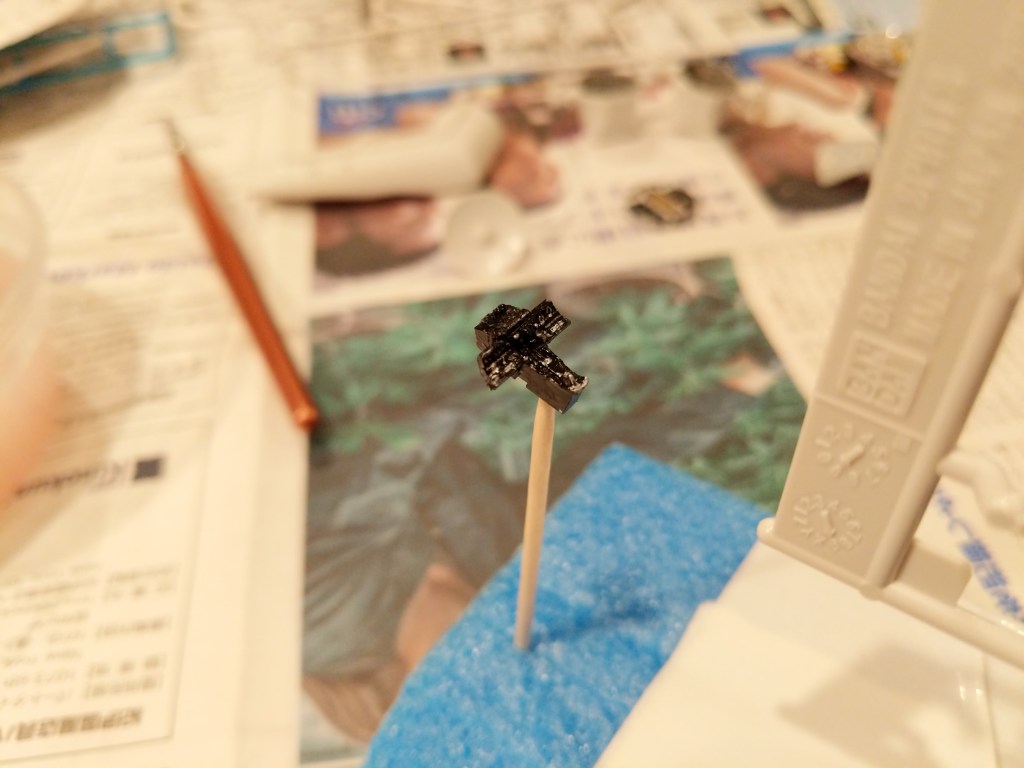
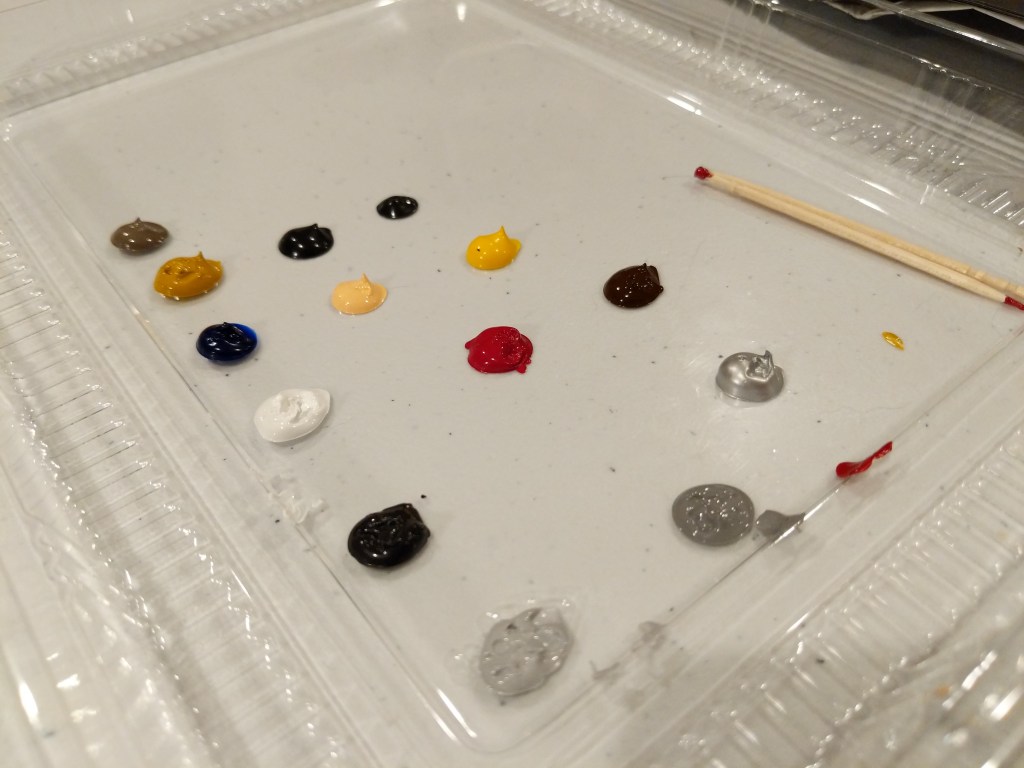
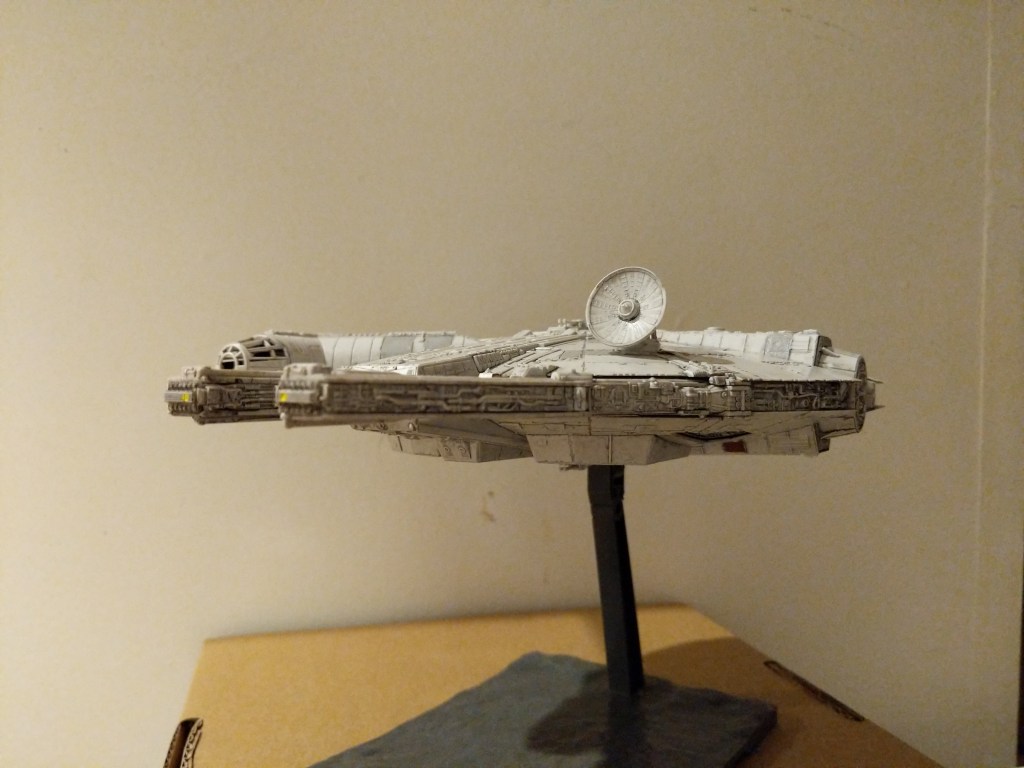
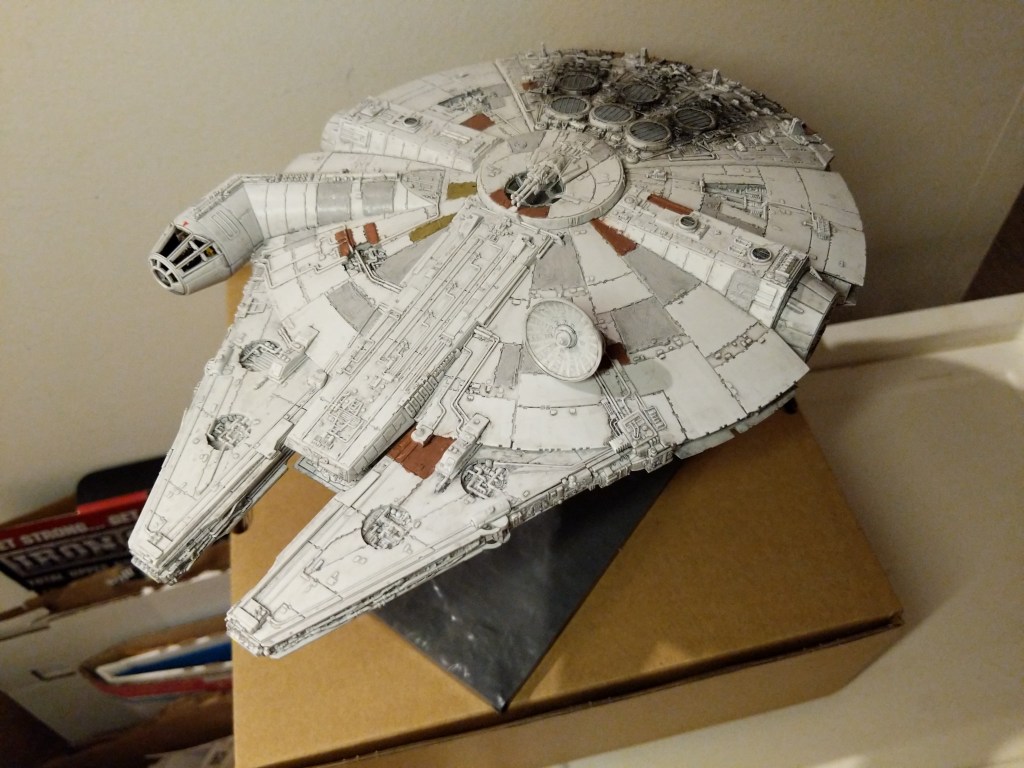
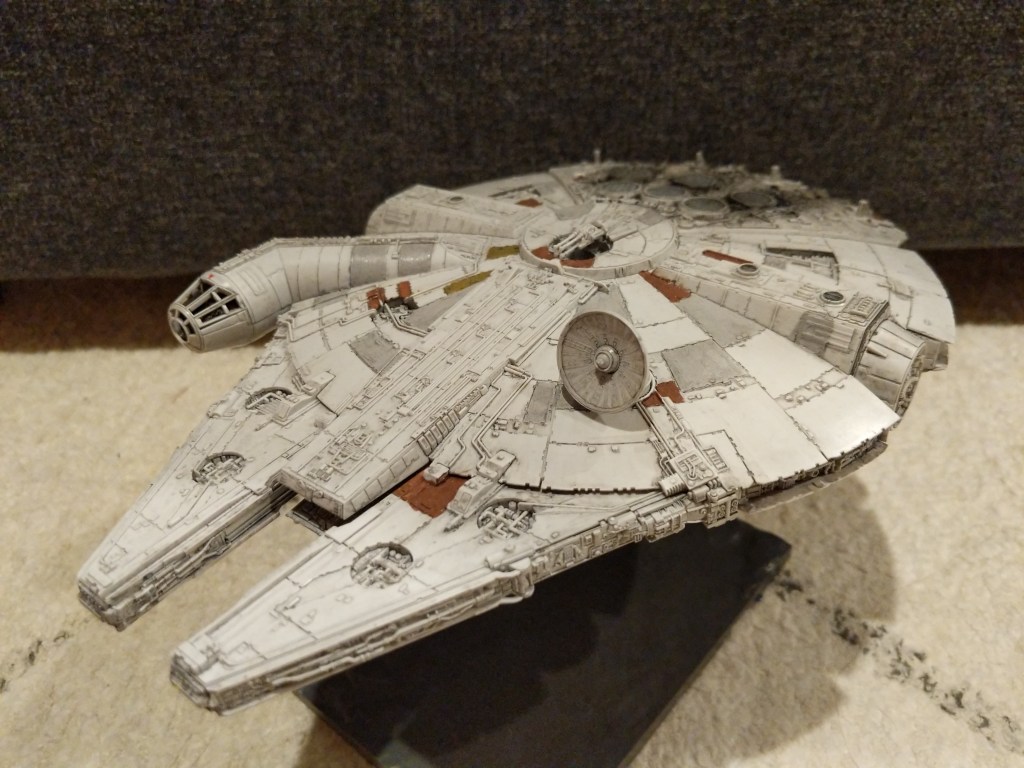
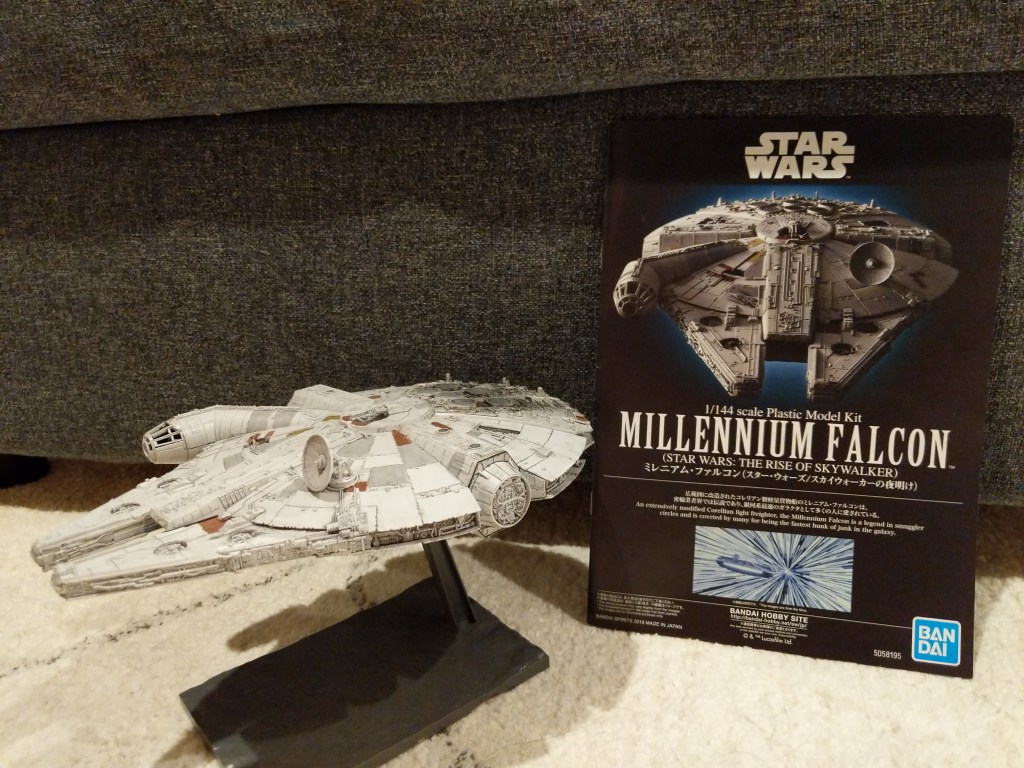
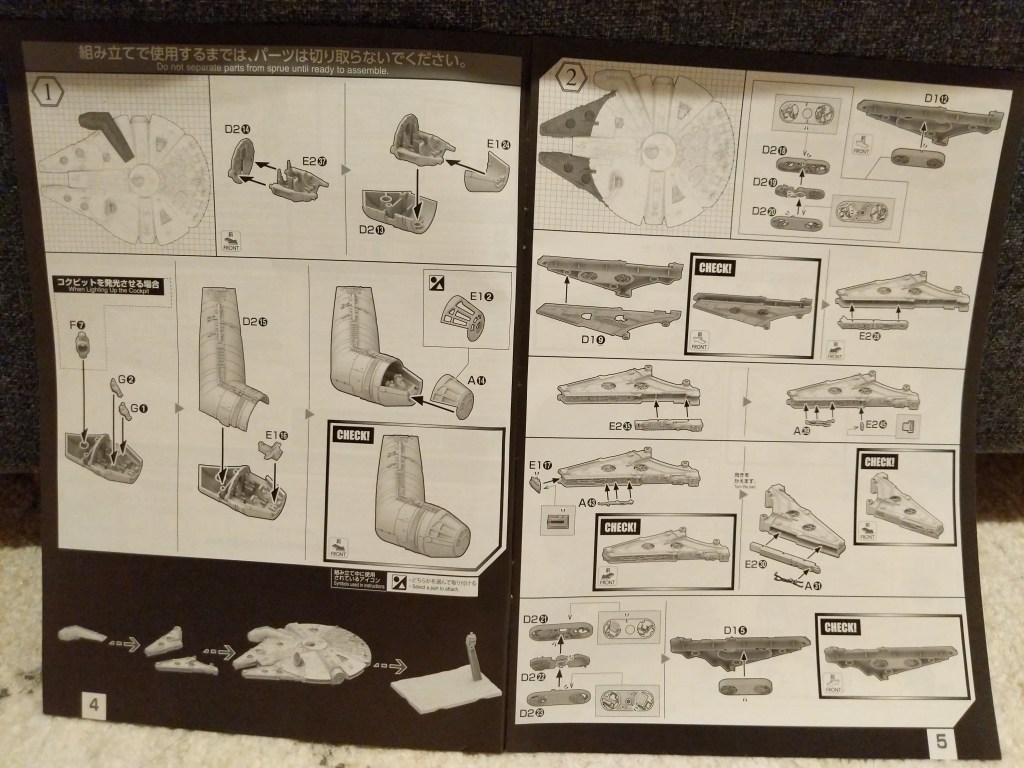
In this case, I assembled and painted a Bandai 1/144-scale Millennium Falcon plastic model set from Star Wars: The Rise of Skywalker. Proper assembly, though by no means professional, required tools (e.g., sprue cutter, paint brushes, and toothpicks), materials (e.g., plastic model glue, acrylic paints, and tape), and know-how (e.g., cutting, filing, gluing, and mixing paints and washes).
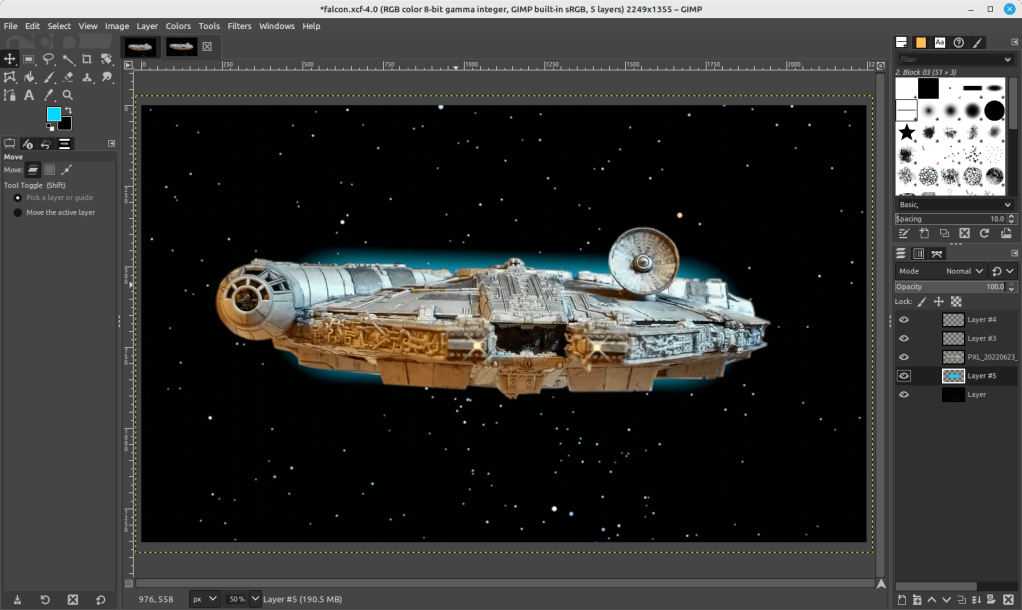
A year later, I created the science fictional composite image above. Its production required tools (e.g., Linux Mint-running desktop computer, GNU Image Manipulation Program, or aka GIMP, and the Internet), materials (e.g., the assembled model, a photo of the model in an orientation appropriate for the composite image, and a public domain photo of a star field), and know-how (e.g., an idea for what the finished product will look like, a workflow for using GIMP to achieve it, and an understanding of how to use GIMP’s affordances including layers, opacity, and filters for each stage of the workflow).
Assembling the Model
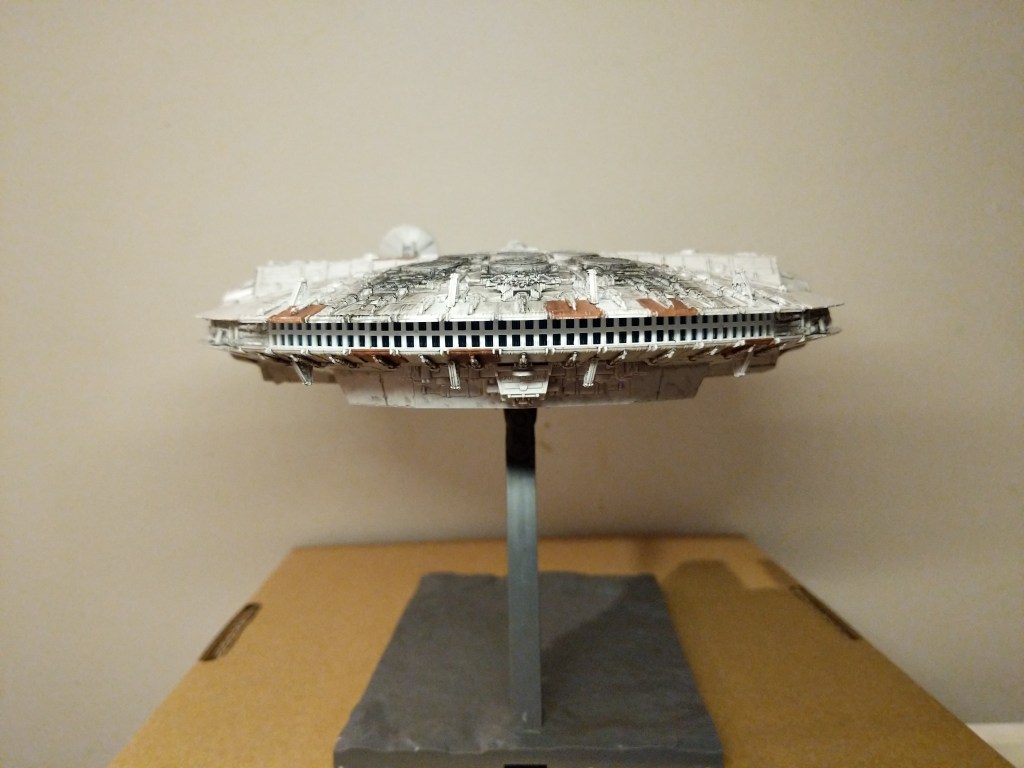
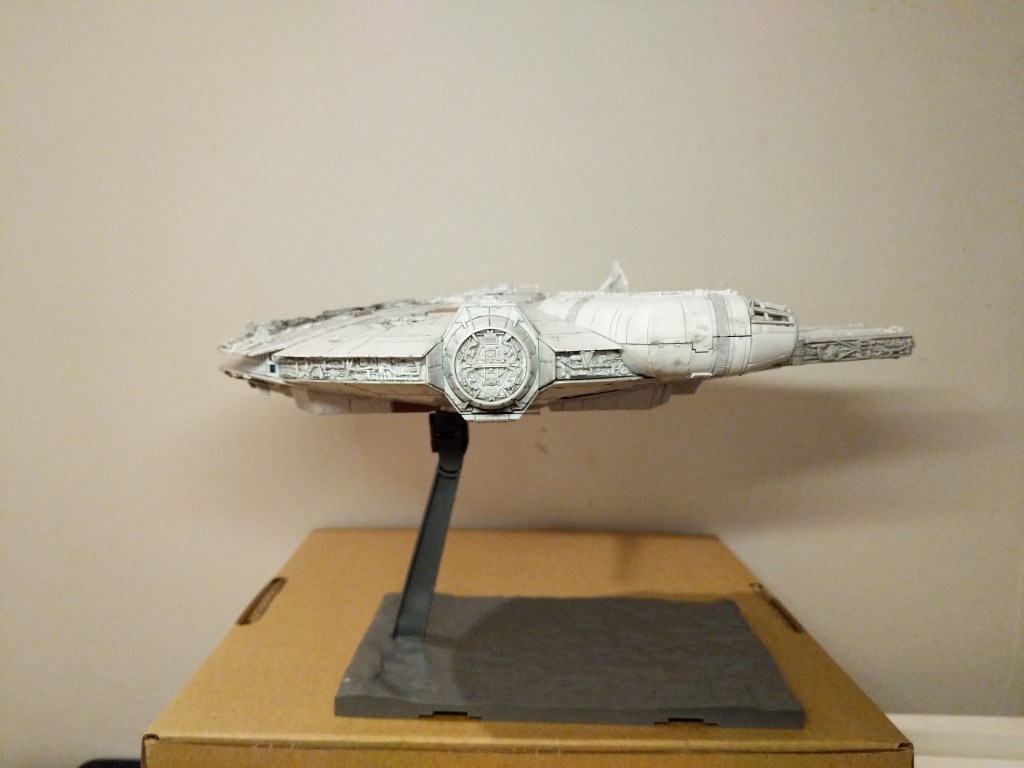
The completed Bandai 1/144 Millennium Falcon model is only about 9 1/4″ long. Hence, it and its constituent parts are very tiny. I built and painted the model over the course of a week. Given more time and equipment, I would have liked to have done a more professional job with lots of masking and airbrushed paint. Given my limitations, I decided to have fun and use what I had at hand to assemble and paint the model.
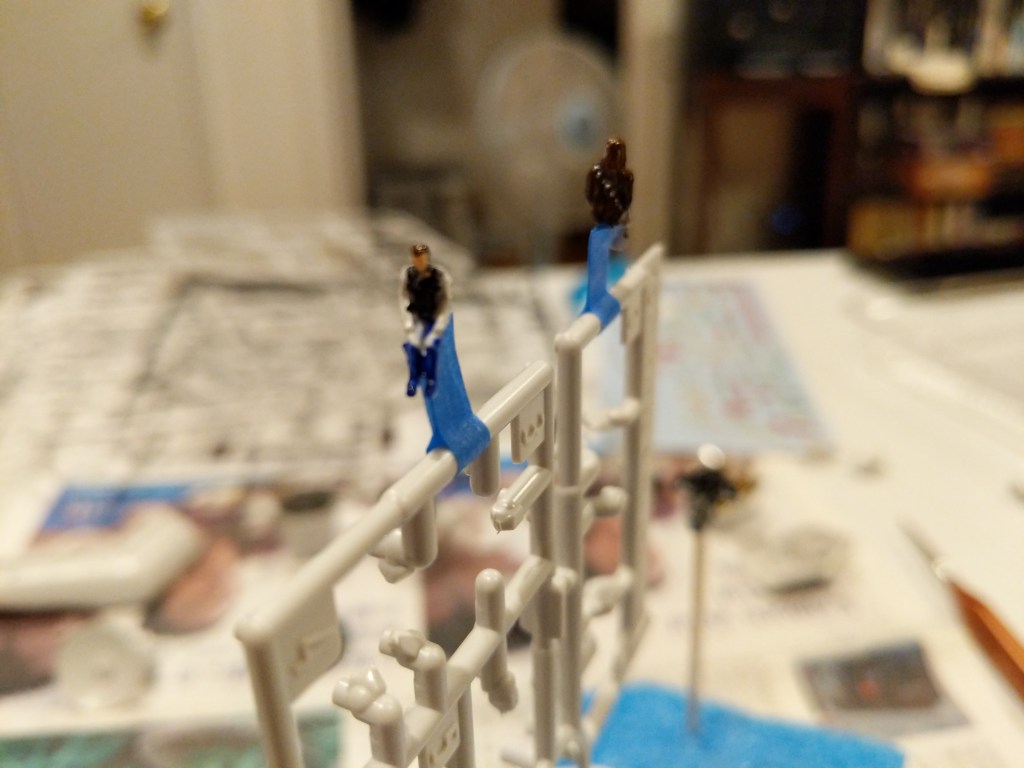
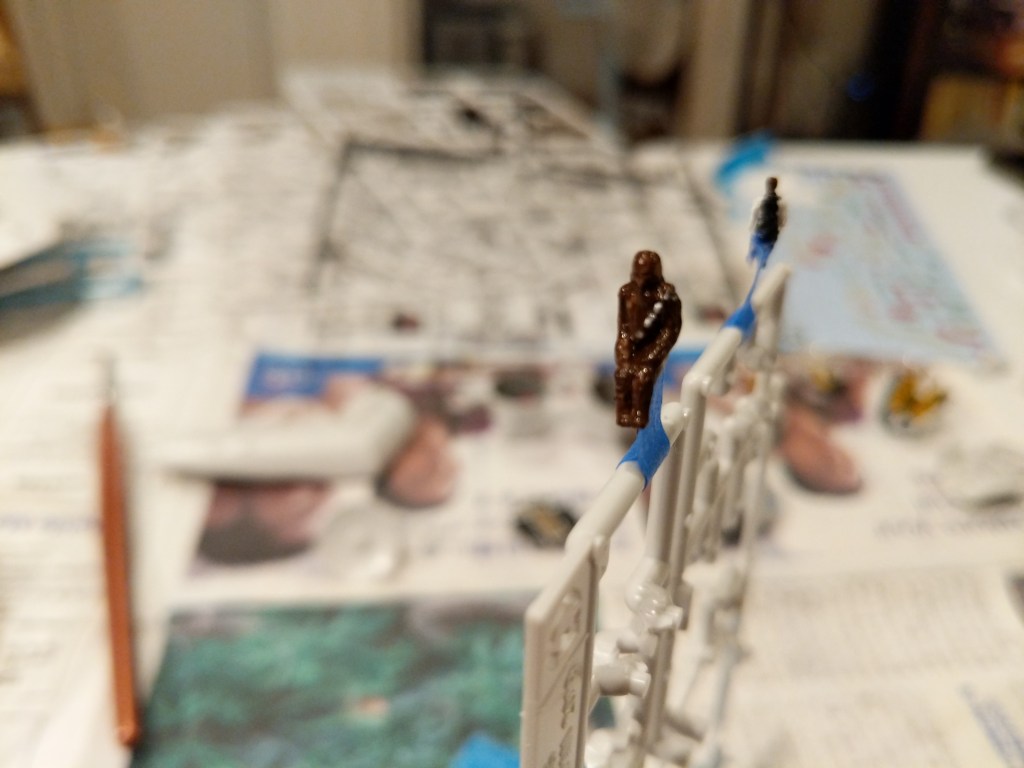
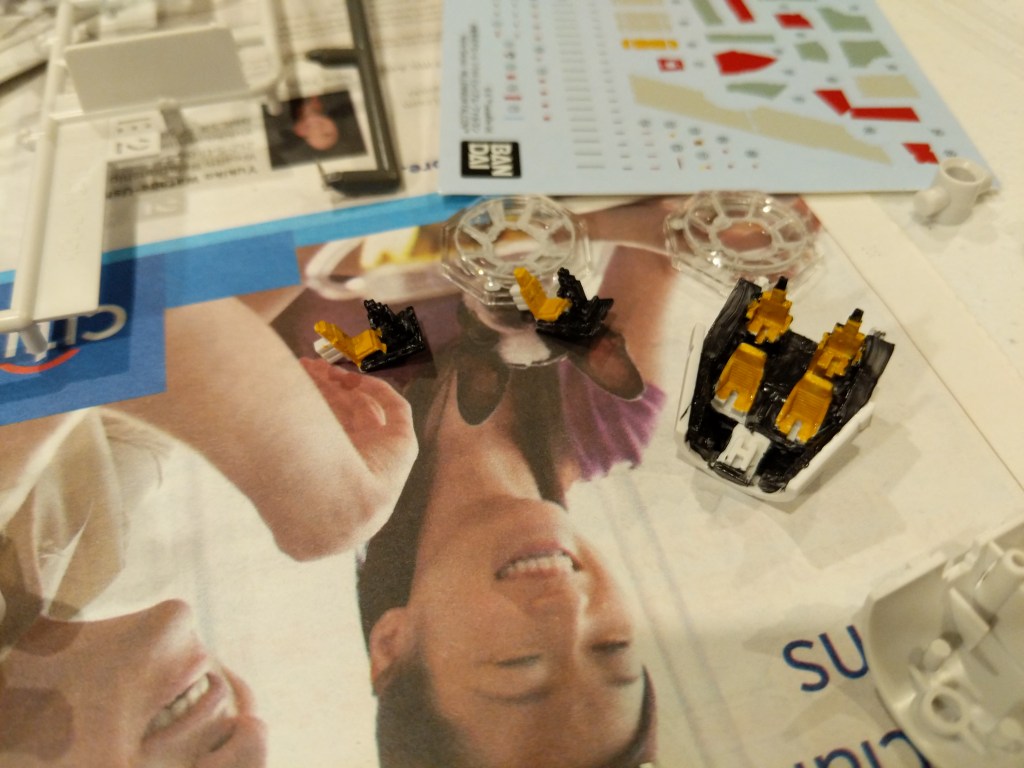
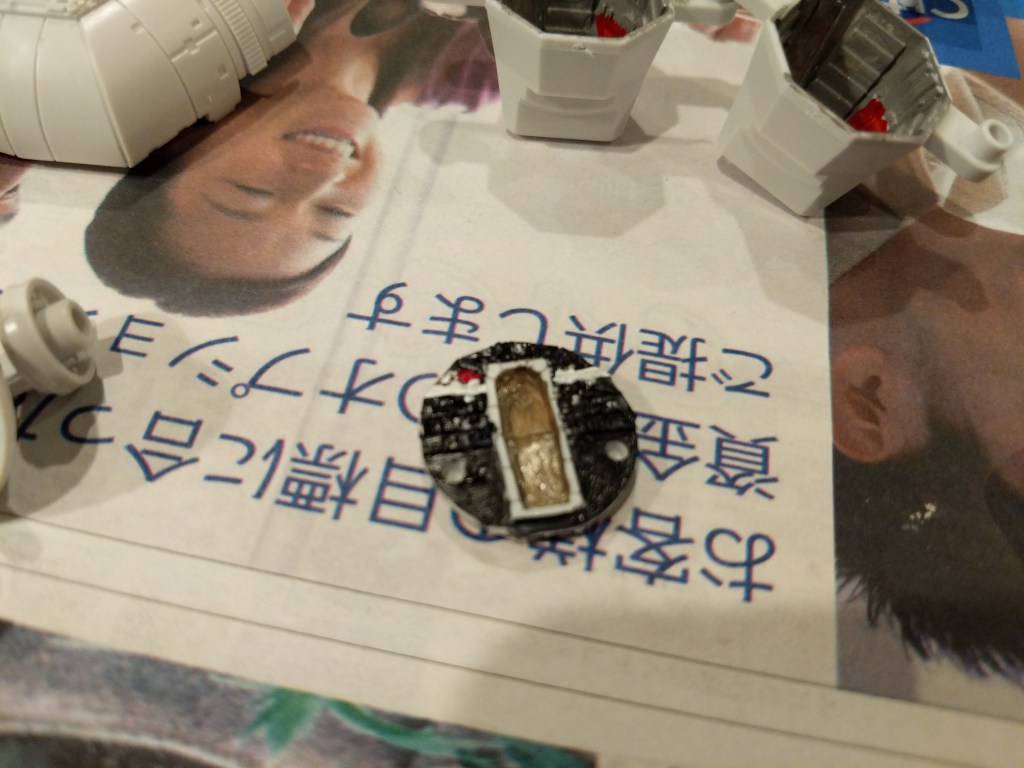
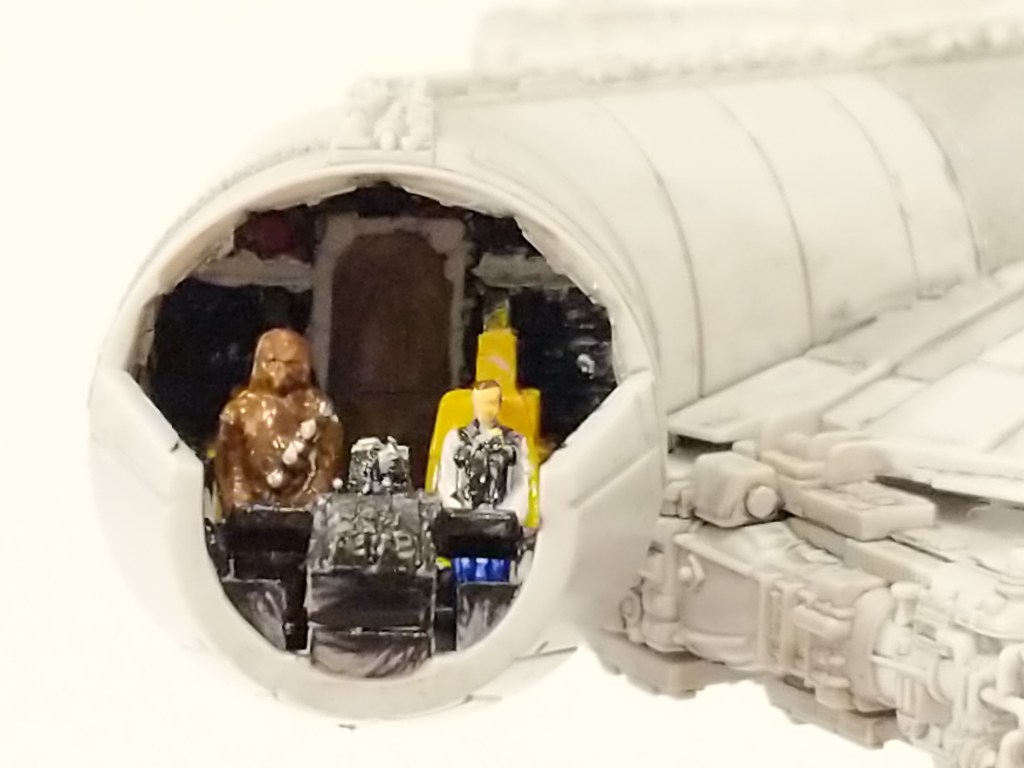
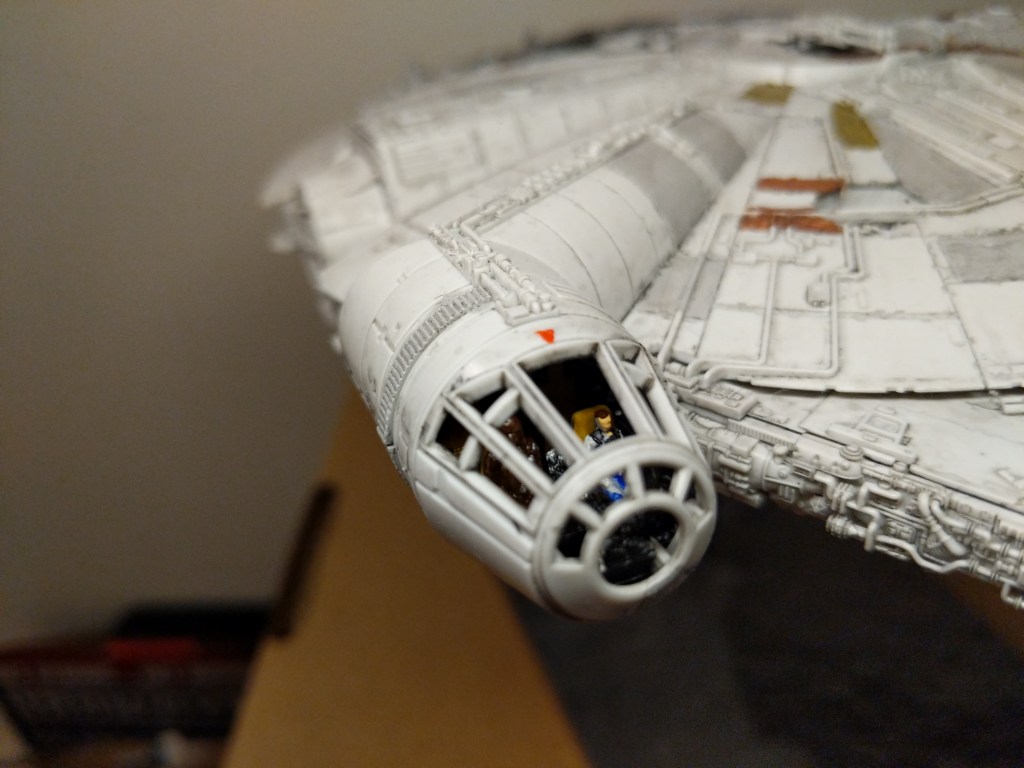
One example of the assembly process is pictured below. It involves the cockpit. Even though the model is sold as the Falcon from The Rise of Skywalker, it included Han Solo and Chewbacca figures, which I decided to use instead of the other cast miniatures. For these detailed elements of the model, I used a combination of toothpicks, very fine brushes, and dabs of paint to achieve the intended effect.
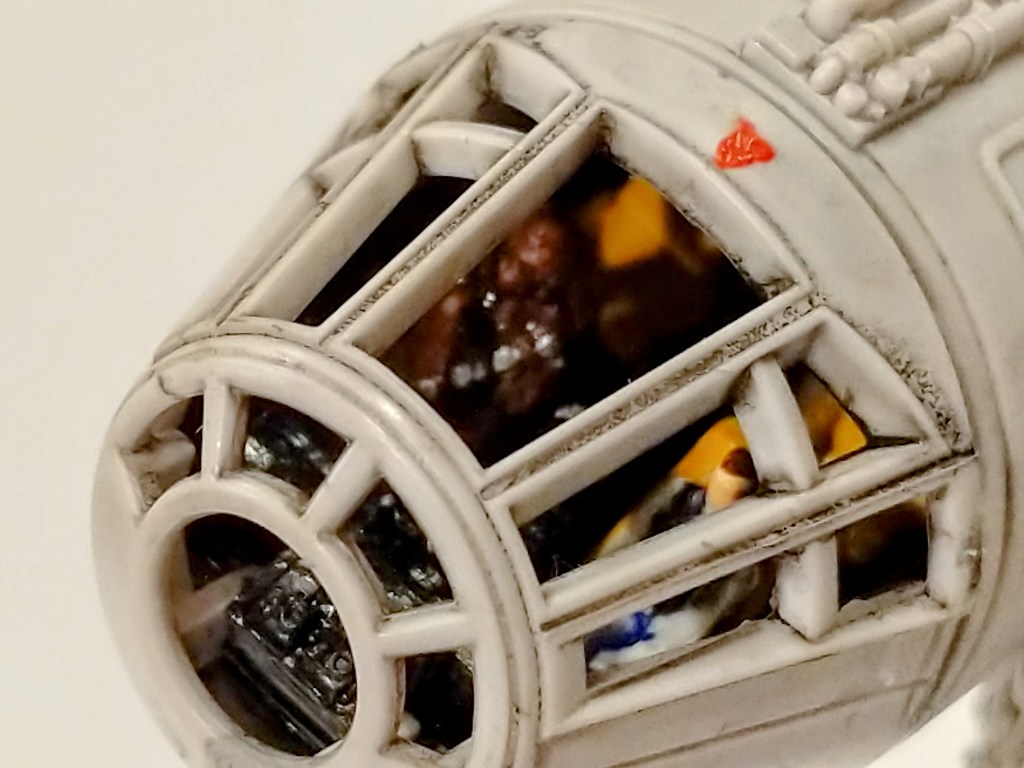
The pictures below show the assembled cockpit with shaky, imperfect paint application on the left and remnants of the dark wash that I applied to age and highlight lines on the model’s surface on the right.
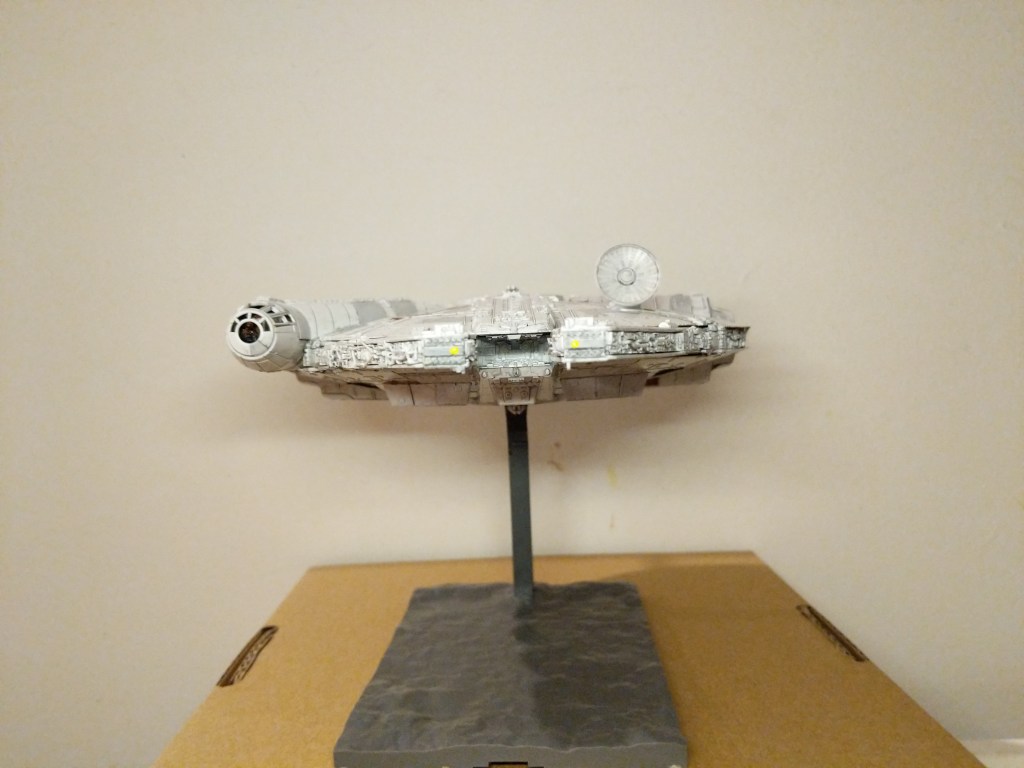
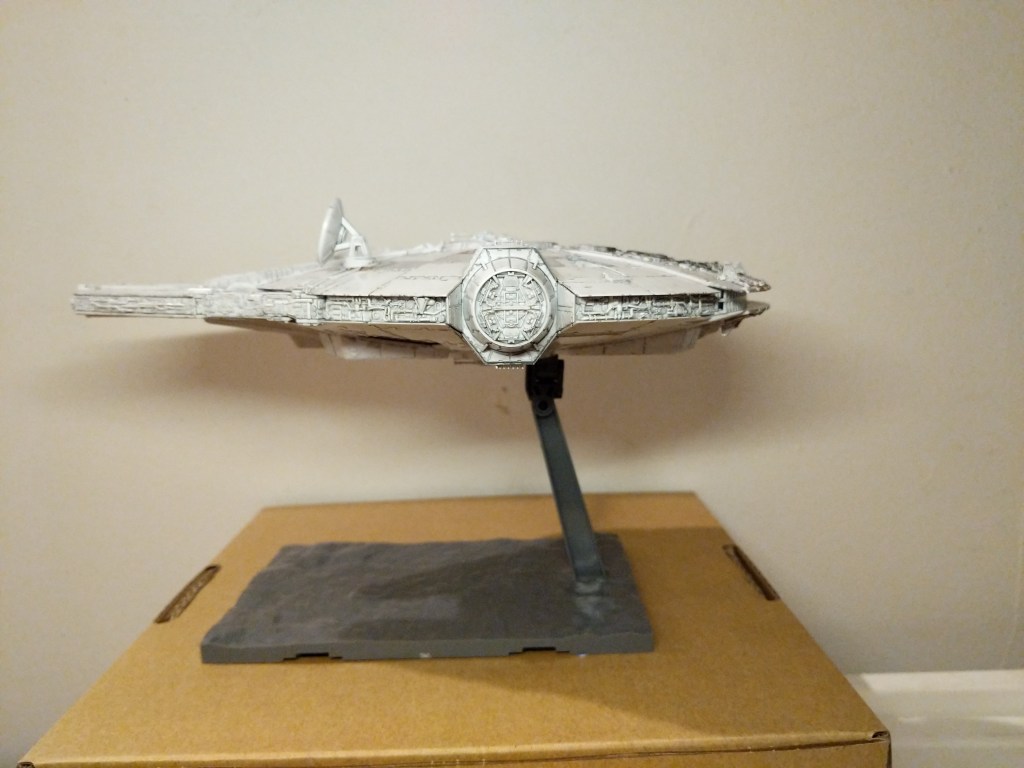
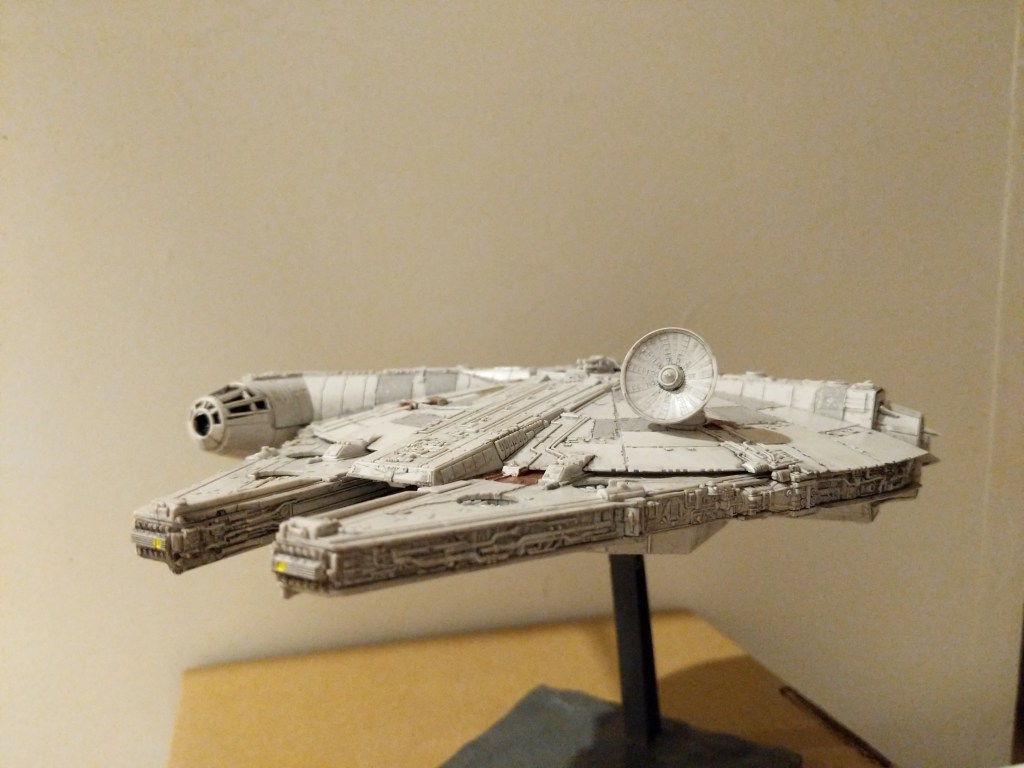
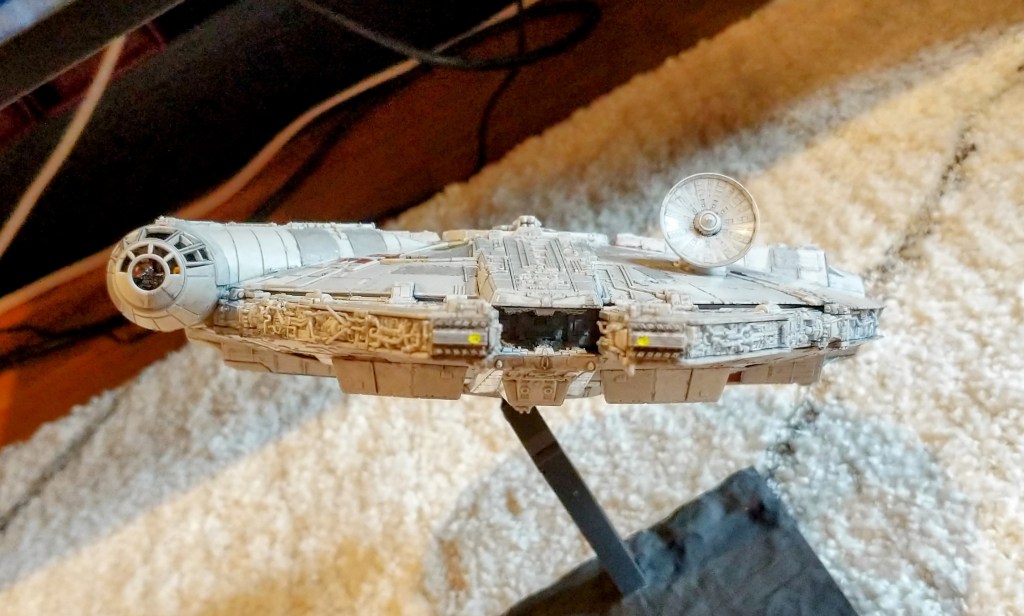
The photos below show the completed model perched on its included, adjustable stand.
Overall, Bandai’s model was expertly designed, easy to assemble, and highly respectful of its source material.
Creating the Composite Image in GIMP
The Bandai 1/144-scale Falcon sits on my desk to the left of my keyboard between LEGO models of The Mandalorian’s N-1 and the Millennium Falcon from The Force Awakens (It’s safe to say that I aspire to have as cluttered and interesting workspace as Ray Bradbury has in the opening to Ray Bradbury Theater shown here). So, I see it everyday.
Recently, I was thinking wouldn’t it be fun to use it to create an in-flight image using the model. That stray thought picked up the thread from making the model and began creating a linkage to using the model to create something new–a fantastic image of the Falcon flying in outerspace.
Looking through my photos, I selected the one below due to it’s orientation and composition within the photo’s rectangular frame.
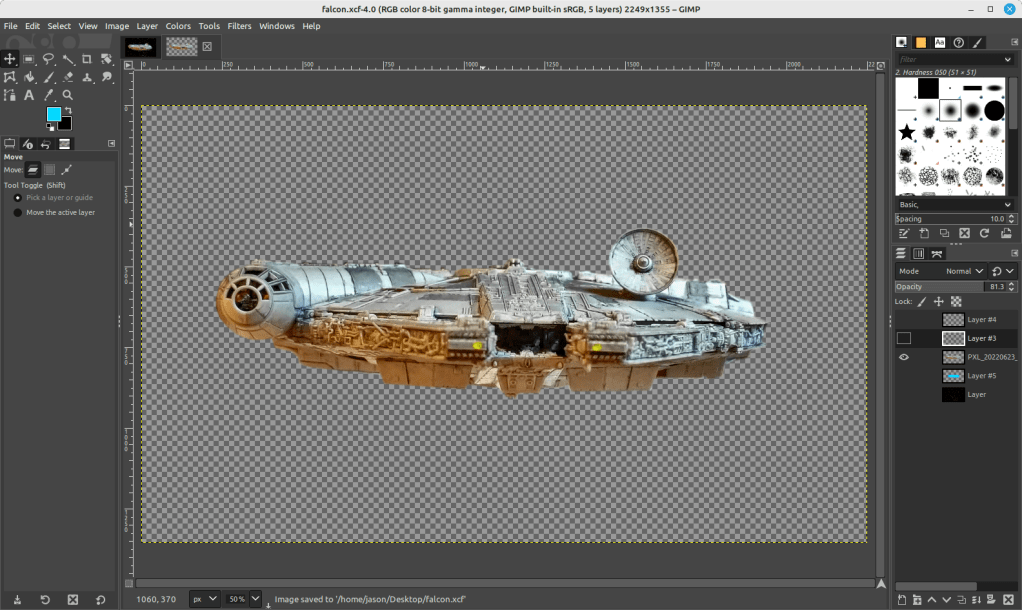
I cut out the Falcon and added it to its own layer with a translucent background in GIMP. I selected all of the window areas in the cockpit and adjusted the brightness and contrast to make the interior a little more recognizable. Then, I adjusted the shadows and exposure to make the Falcon’s exterior “pop.” Next, I used the clone tool to copy matte colors to hide some of the shinier/mirrored spots (especially in the dish and in the panels directly beneath the dish). And, I used the clone and smudge tools to fill in a gap between top and bottom parts of the cockpit (the black line as seen above).
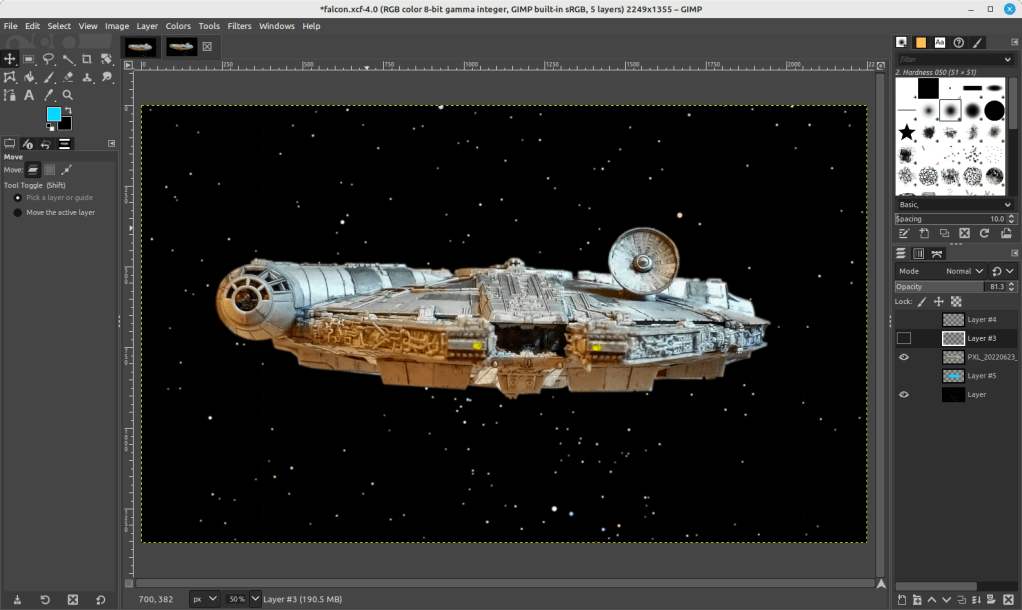
To put the Falcon in outer space, I created a base layer and pasted a star field image from NASA (found here).
On the ventral side of the Falcon, you can see that the sides of the lower mandible are catching light that throws off the image if we’re imagining one light source (e.g., a star–of course, there could be two stars, but most of the ventral side of the Falcon is in shadow, so I wanted to stick to that). So I selected those bright areas and then used the clone tool to copy that coloration from either side–the left side looks redder and the right side more neutral–onto its own layer. I set the clone tool to 50% opacity to control the shade as shown below.
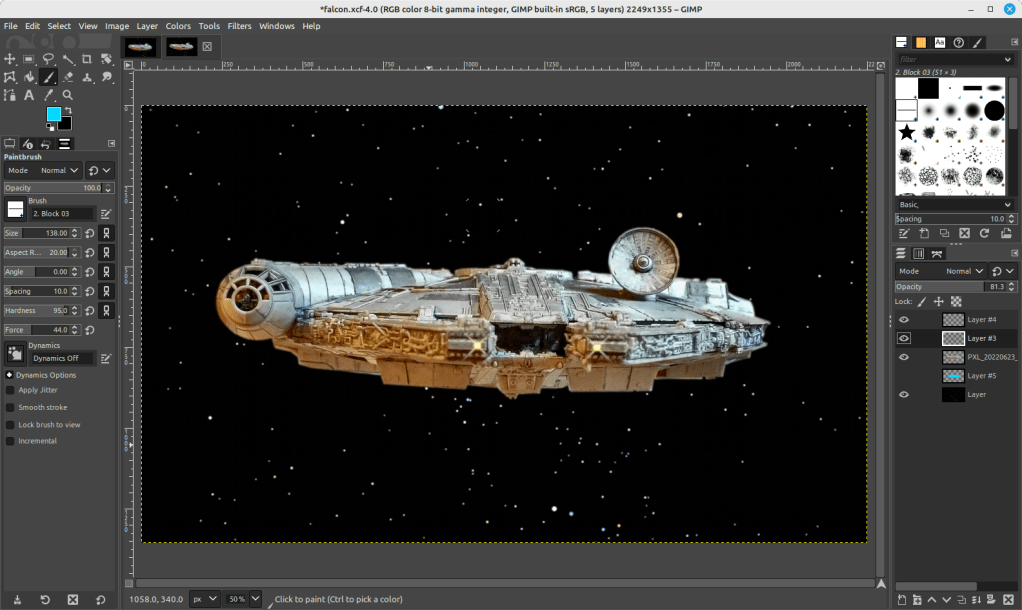
To make the scene appear more alive, I added layers for the headlights (a center circle of very bright yellow with crossed Block 03 brushes at 45 and 135 degrees for the diffraction spikes with a smidge of Gaussian blur).
And finally, the Falcon needs its engines, which I created with a large, single brush stroke with neon blue light (##04d9ff) with 95% hardness but only 44% force (not that kind!).
Conclusion
A plastic model building project from the past makes another project of science fictional image manipulation possible. Making in the present is linked to making in the past. This is the general work of culture–linkages up and down time, across geographies and nations, circuitous and not always obvious. This blog post is a microcosm of the macrocosmic work of inhabiting and building our culture. I suggest in closing that we should all reflect and chart these linkages. We might not be able to map them all, but those that we do, pays a debt of gratitude perhaps both ways–we in the present rely on that we are given from the past and the past lives on through the work that we do today.
Download the full size composite Falcon image here.
Due to COVID-19, City Tech (and all of CUNY) shifted its in-person classes to online, distance learning instruction. In this post, I reflect on my current class’s transition to distance learning, show how I have configured my office and computer for screencasting and video conferencing, describe some software and services that support distance learning, and give instructions for uploading a video to YouTube.
My Transition to Distance Learning
For my current Science Fiction (ENG2420) class, this was not too much of a disruption, because I was already leveraging online technologies to support student learning and course material accessibility. I designed the course as a zero textbook cost class, meaning I find resources that I can make available to students via PDFs and handouts, and choose readings that are available freely online, such as the unparalleled Archive.org.
Also, I redesigned some of the course assignments to emphasize the importance of note taking by teaching good note taking practices and evaluating students on the quality of their notes. To support this, I recorded each lecture during our earlier in-person classes and posted them on YouTube after class ended, so that students could use the videos to fill in gaps in their notes and allow those students who missed a class to make their own notes based on the video lectures.
I collect student work via email and on OpenLab, “an open-source, digital platform designed to support teaching and learning at City Tech (New York City College of Technology), and to promote student and faculty engagement in the intellectual and social life of the college community.” I joined the OpenLab team as a co-director of the project this year, but I have been using OpenLab in all of my classes since joining City Tech in 2014.
Now with classes meeting asynchronously online, I have tweaked assignments and the schedule to accommodate students accessing materials and completing their assignments. I hold office hours once a week at a regularly scheduled time via Google Hangouts, and I can hold private office hours by appointment with students. I use email to respond to questions and concerns on a daily basis.
Now that I have reconfigured a space in my apartment to support my class and the many other online meeting responsibilities that I have with OpenLab and other projects, I wanted to share some tips and ideas to help others transitioning to facilitating their classes with distance learning.
Office Configuration
I know how easily distracted I am by busy backgrounds, I wanted to provide as neutral a space for my lectures and online meetings. To this end, I appropriated my apartment’s closet as a distance learning and video conferencing studio.
I positioned the Logitech C615 webcam so that I am centered in the frame when video conferencing or recording myself lecture. Above the camera, I positioned a white light to illuminate my face.
I arranged the desk so that my back would be against a solid white wall as pictured above looking from behind my monitor towards where I would be sitting facing the monitor and webcam.
Notice that I taped a small piece of cardboard above the webcam. This blocks glare on the camera lens from the light above that illuminates my face. I was careful to cut and position it so that it is out of frame of the camera lens. Depending on your webcam, be careful not to cover the microphone if you build a similar lens shade.
To the side of my desk, I have a larger lamp that points against the wall and behind me. This reduces my shadow from the desk lamp in front of me.
The end result looks like this:
Software and Online Services for Distance Learning
As mentioned above, I use email and the OpenLab for interacting with students, disseminating materials, and collecting student work. And, I am using Google Hangouts for regular office hours since it is a far easier lift for students than official CUNY supported video platforms like Skype and WebEx.
To create my class lectures, I do the following things.
First, I create a presentation slide deck using Slides in Google Docs.
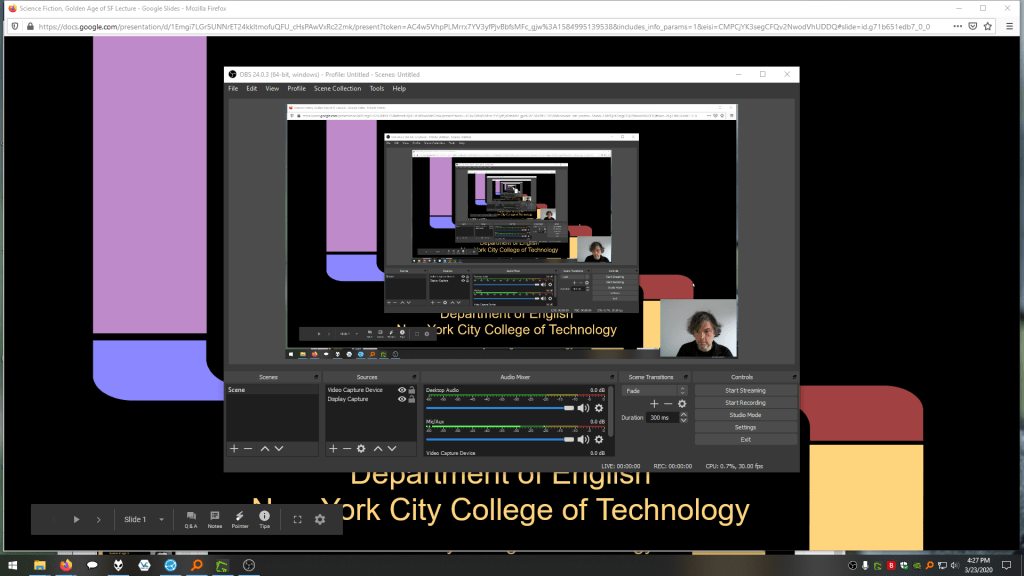
While presenting my slides in full screen mode, I use OBS Studio, a “free and open source software for video recording and live streaming” that supports Windows, Mac, and Linux, to record a video of my desktop (the Slides presentation) and my webcam video and audio in a smaller picture-in-picture that positioned in the lower right corner of the screen, which produces a video like my recent lecture embedded below.
Before I can post the video to YouTube, I like to edit it (though, editing isn’t absolutely necessary). I like to use Shotcut, a “a free, open source, cross-platform video editor.” After trimming the video, I then upload it to YouTube, get the video’s sharable link, and embed the video with the link in my class’ OpenLab site.
OBS Studio and Shotcut have steep learning curves, but each have extensive online documentation and there are communities of users online who share tips and advice about how to setup and use these powerful tools.
In some cases, you might not even need a computer. iPhones with iOS and Android phones can use video recording software that’s built-in or with an app to record and edit video, and there’s a YouTube app for both platforms that you can use for uploading the resulting video.
In the next section, I will show you step-by-step instructions for uploading a video made on a computer to YouTube.
Uploading a Video to YouTube
Once you have a video ready to share with students, the following step-by-step guide for uploading your video to YouTube shows you how to upload and share a link to your video.
First, navigate to YouTube.com and login to your account. Then, click on the camera icon in the upper right corner and then click “Upload Video.”
Second, drag-and-drop your video from your computer into the center of the window that opens, or click on “Select File” to navigate to and select your video file on your computer.
Third, while your video is uploading and processing (updates are shown along the bottom edge of this window shown above), fill out the Title and Description boxes and choose a thumbnail for how the video will initially display before the play button is pressed. Then, scroll down the window.
To comply with the COPPA law, select if your video is for kids or not. Then, click Next in the lower right hand corner.
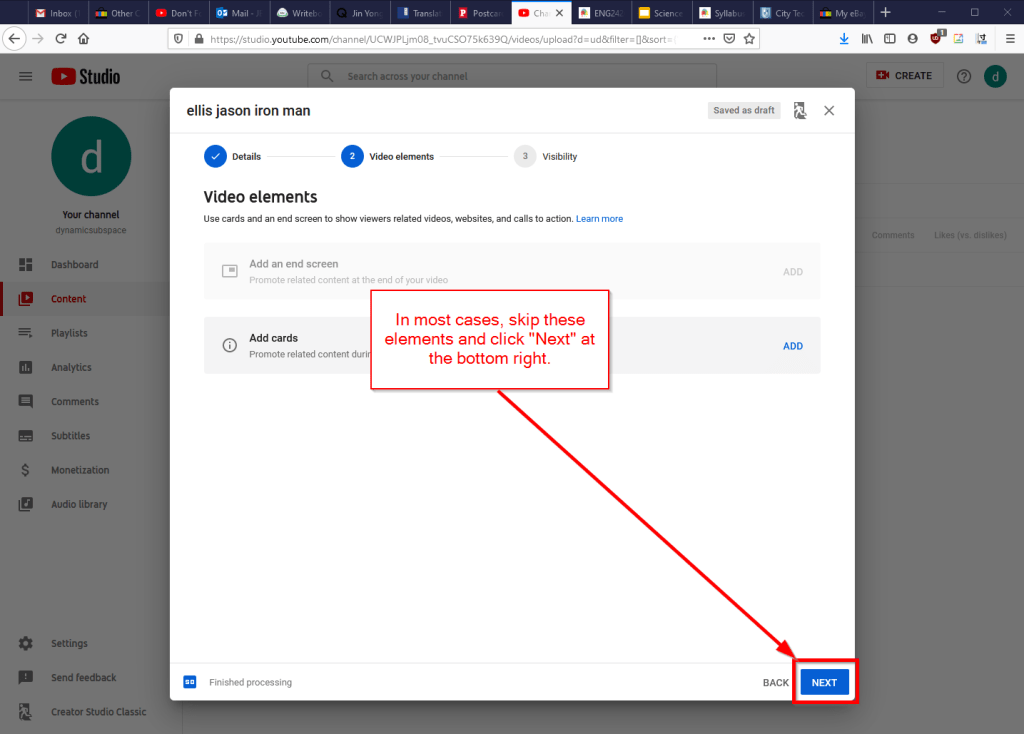
Fourth, you can skip the options on the Video Elements screen and click Next in the lower right corner.
Fifth, select the Visibility option for your video. The most versatile choices are Public (this is what I choose) and Unlisted. In these cases, you will have a sharable video link that you can send via email or easily embed in a webpage. Private is also an option, but you have to choose who is permitted to see the video, which requires students having a Google account and you knowing those accounts to grant permission to each one. After making your selection, click Publish in the lower right corner.
Finally, highlight and copy the video link on the resulting screen, or click on the copy icon on the right to automatically copy the video link to the Clipboard. Click “Close” on the lower right to return to your list of videos on YouTube. With the link on your Clipboard, you can go to email, OpenLab, or another platform to paste and share the video link with your students.
On OpenLab and WordPress-based sites, pasting the link into a post or page will automatically embed the video so that students can simply navigate to your class site and watch the video on the class site instead of going over to YouTube as an additional step.
If you’re working on transitioning your classes to distance learning, it’s okay to feel overwhelmed and frustrated like Miao Miao below. Just don’t give up. We’re doing good work for our students, and it takes time to think through and implement distance learning. Also, it’s okay to let your students know that this is a work-in-progress and things might change based on what works and what doesn’t.
My Skateboarding Vert Ramp and Street Skating Model
I began this new LEGO MOC (my own creation) project while reading Michael Brooke’s The Concrete Wave: The History of Skateboarding (1999) and after assembling my Mike McGill re-issued skateboard.
Some ideas from skateboarding culture inspired this project. First, there’s the tension between Thrasher’s “Skate and Destroy” and Transworld Skateboarding’s “Skate and Create.” The former appearing in the December 1982 issue and the latter appearing in response in its first issue in May/June 1983. When I first skated, I didn’t know about this difference of ethos, but I can say that I was drawn to reading Transworld Skateboarding more so than Thrasher. Transworld’s ethos of making something from the act of skateboarding fits well with my own attitude of doing good in the world through teaching and making (as opposed to wrapping the act of destruction into an aggressive skating attitude–understanding, of course, there is a certain amount of hyperbole in this motto and more back story worth investigating–see the interview by Adam Creagan with Craig Stecyk in Thrasher March 2010, pp. 80-81, and Konstatin Butz’s Grinding California, pp. 73).
Second, many skaters talk about riding as an act of self-expression, creativity, and doing. While the act of skating is ephemeral, skaters build analogies between the sport and other creative endeavors such as writing, playing, painting, expression, and language. For example: Rodney Mullen writes, “[Skateboarding] has been the arena where I could stake my claim, the play where I would contribute my verse, and even the pen with which I write” (qtd. in Brookle 11). Chris Long writes, “‘How glad I am that I skateboard’ . . . finding my own lines and creating my own ways of playing” (qtd. in Brooke 173). Darrel Delgado writes, “Skateboarding in a pool is like being a painter, and every new pool is a blank canvas and you are the artist. Every artist has a different approach and every pool is different, which keeps the intrigue alive. You can go wherever your mind and the transitions will let you go” (qtd. in Brooke 135). Mike Valleley writes about finding skateboarding, “I got an identity and something productive. It was creative, physical activity and I used my entire being to do it” (qtd. in Brooke 137). Tony Alva writes, “Just do something that’s in tune with an individual type of expression. I think that’s what’s so important about skateboarding” (qtd. in Brooke 175). Dave Hackett writes, “Pure and simple, [skateboarding is] a healthy, radical art form. . . . Skateboarding utilizes the every-expanding environment of steel, concrete, plaster, or wood as its canvas. . . . The skater becomes one with his board, while the board in turn translates the language of the terrain” (qtd. in Brooke 176). On these points, I think skateboarding and LEGO building overlap–in both cases, skateboarding and making, the fulfilling goal is creative and imaginative expression through a given medium–the former being the assemblage of body, skateboard, and terrain, and the latter being the assemblage of builder and brick.
I wanted to combine different aspects of skateboarding into a single model. I grew up with street skating, because there weren’t any local skate parks (though, I have discovered in my research that there was a skate park in Brunswick in the late-1970s called Nova Skate Park–more on that in a future post). But, I always wanted to skate vert and pipes, so I thought about combining what I knew with what I wanted to learn.
I got the idea for the ramp’s vert and transition design from LEGO 60200 Capital City set, which has one component that is a combined skateboard ramp/wall climb/basketball court. It uses dark grey inverted arches for the transition, which I agreed was the best choice of brick–albeit in tan color to emulate the color of wood–for the ramp that I had in mind.
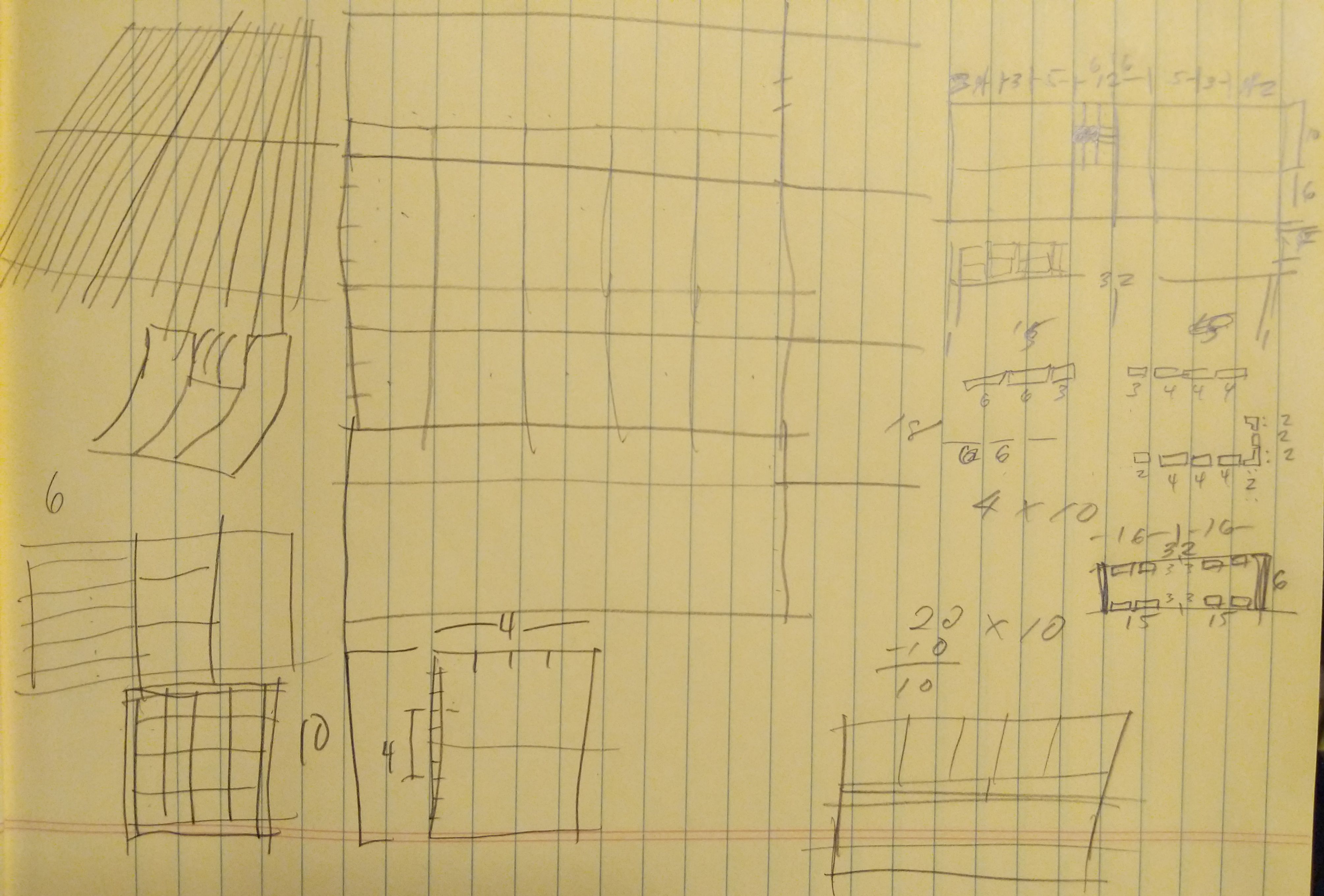
Brainstorming and calculating dimensions in studs.
The next consideration was how large a model to make. I knew that I would have to purchase the inverted arch bricks for the ramp, so I looked for a seller with a good price and selection of elements that would help me realize the idea crystalizing in my mind. Alphabrix, a seller with great feedback had 20 tan, inverted arch bricks, which would let me build a 10-stud wide ramp. I figured that its length should be at least double its width, if not more. Ultimately, I settled on a 10-stud wide ramp with a 28 stud length including both tables. This allowed two studs on either side of the ramp for stairs if I went with an overall length of 32 studs for the model. Since I opted for a 32 stud length, I figured that a 16 stud width for the overall model would be enough to add a street skating scene in the model’s foreground.
After receiving the Bricklink parts and sorting out some necessary elements from my collection, I built the vert ramp first. Even though this would occupy the rear part of the model, it would dominate the model and be its focus. I wanted to get it right. I thought about how I would build a real one. I wanted a steel foundation that would be elevated off the ground. The ramp and tables would be made out of wood. As a new ramp, I wanted to give it a little bit of style with alternating color–light and dark tan tiles emulating different sheets of plywood. On the right side, I wanted a sloping launch that divided two drops on the front and back–this was a ramp design that I saw many years ago that gave the skaters a divided coping for new trick opportunities.
With the vert ramp complete, I turned my attention to the base and its foregrounded street skating area comprising 6 studs by 32 studs. The bottom of the base are dark grey plates supporting a circumference of Technic bricks and filled in with 2 x 4 bricks. I covered the surface mostly with tan 4 x 6 plates. I built up a curb with 1 x 4 and 1 x 6 bright yellow plates covered with the same colored tiles. Within that area, I filled in with a single layer of light grey tiles–some with single studs and the rest without to allow placement of obstacles like barrels and trash cans, which can be skated around or ollied over. Finally, I put concrete cones down to support the ramp behind the street skate area.
Finally, I combined the vert ramp with the base and its street skate area. I used yellow, dark blue, and orange tiles to skirt the Technic bricks around the base. The vert ramp’s coping permits posing of skaters doing hand plants. In the foreground, I added a stereo (probably playing an eclectic mix of They Might Be Giants, The Beastie Boys, and Technotronic) and snacks including pizza and cookies (shredding fuel).
Usually, it takes me several days to weeks to complete a build like this, which I have chronicled on other blog posts. However, I built this model in a single evening. I think my mind had been working on the project while I waited for the needed bricks to arrive in the mail. Even though I wasn’t haptically manipulating the bricks in my hands, I was daydreaming and imagining how to put the model together at odd times between placing the brick order and receiving them in the mail.
While imagining myself shredding on my completed LEGO skateboarding model and thinking about picking up my McGill deck to hit the streets with, I’m reminded of the Kevin J. Thatcher’s first editorial in the January 1981 issue of Thrasher: “The average individual was never properly exposed to the unlimited possibilities of a platform with four wheels under it–a simple basic mechanical device which serves as an energy-efficient mode of transportation, a basis for a valid sporting activity, and as a vehicle for aggressive expression. . . . Thrashing is finding something and taking it to the ultimate limit–not dwelling on it, but using it to the fullest and moving on. Skateboarding has not yet reached its maximum potential, and who can say what the limits are? To find out–Grab that board!” (6). Grab that board, grab that LEGO brick, grab that camera, grab whatever it is that you can express yourself with, because that is the thing with which you can leave your mark on the world.
Works Cited
Brooke, Michael. The Concrete Wave: The History of Skateboarding. Warrick Publishing, 1999.
Butz, Konstatin. Grinding California: Culture and Corporeality in American Skate Punk. Transcript Verlag, 2012.
Creagan, Adam. “Skate and Destroy: The Stecyk Scrawl Lives On.” Thrasher, March 2010, pp. 80-81.
Lowboy. “Skate and Destroy, or Multiple Choices (Something to Offend Everyone).” Thrasher, December 1982, pp. 24-29.
Thatcher, Kevin J. “Talking Ed.” Thrasher, January 1981, pp. 6.
Tracker Peggy (Peggy Cozens). “Skate and Create.” Transworld Skateboarding, May/June 1983, pp. 13-15.