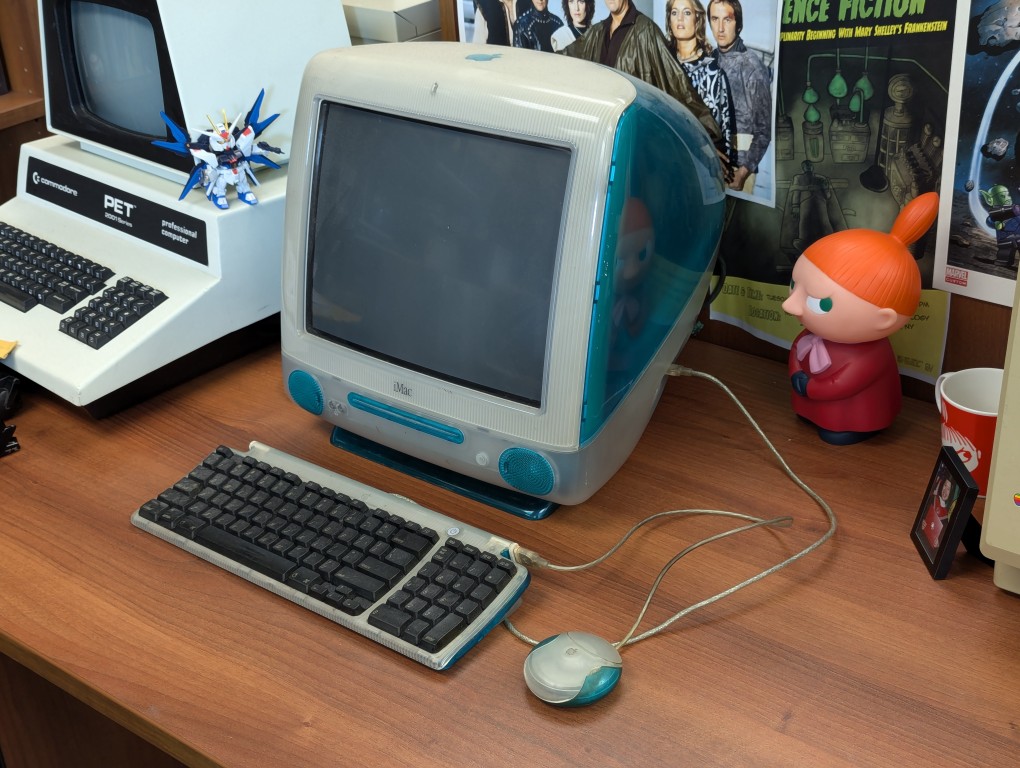
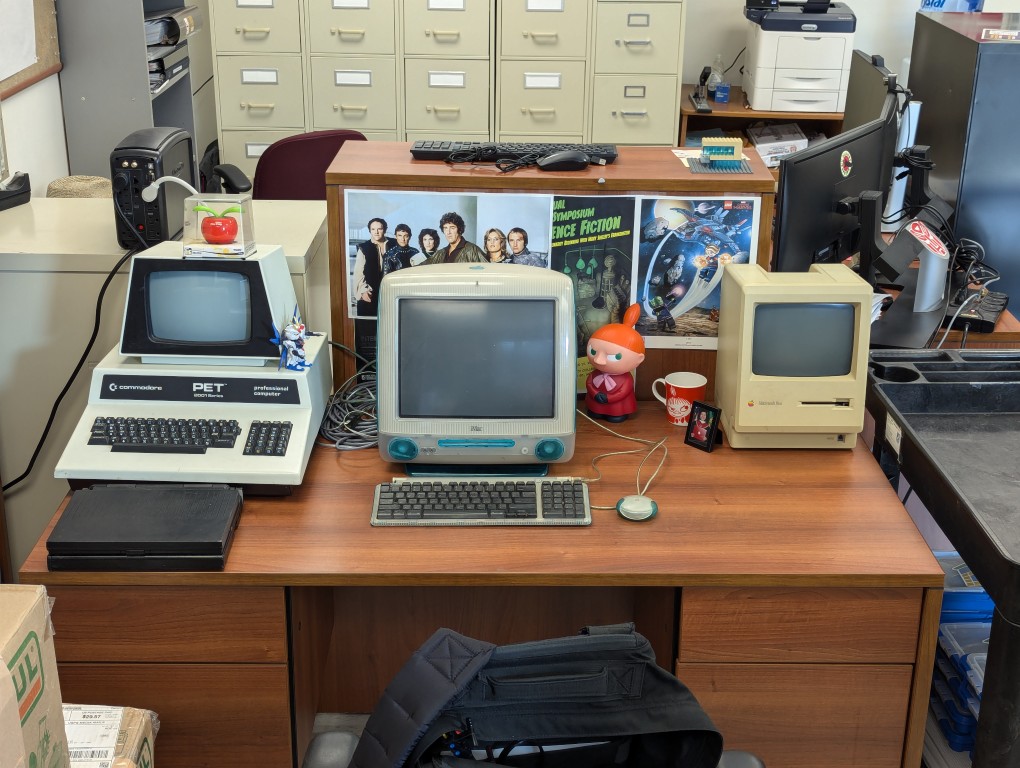
Last year, Pat Ruddin, a kind and tenacious colleague, passed away. Also a Macintosh aficionado, she kept this original Bondi Blue iMac in her office on a filing cabinet. When I came back from my sabbatical, it had made its way to my desk where I maintain the Retrocomputing at City Tech collection of vintage computers. It’s a prestigious addition to the collection, and a marvelous remembrance of Pat.
My first on-site job at NetlinkIP on St. Simons Island, Georgia was to go to a big, fancy house and setup their original iMac. Soon thereafter, my friend Chris Lee got an iMac, too. I think that I still had my Power Macintosh 8500 at that time. When I got a job at Mindspring in Atlanta, I upgraded to a Blue and White G3, which I later traded to Chris for a Dual G4 (this was a surprising and gracious offer that rekindled our friendship after drifting apart).
Pat’s iMac doesn’t boot up now, but I think it will make a great project for rejuvenation.
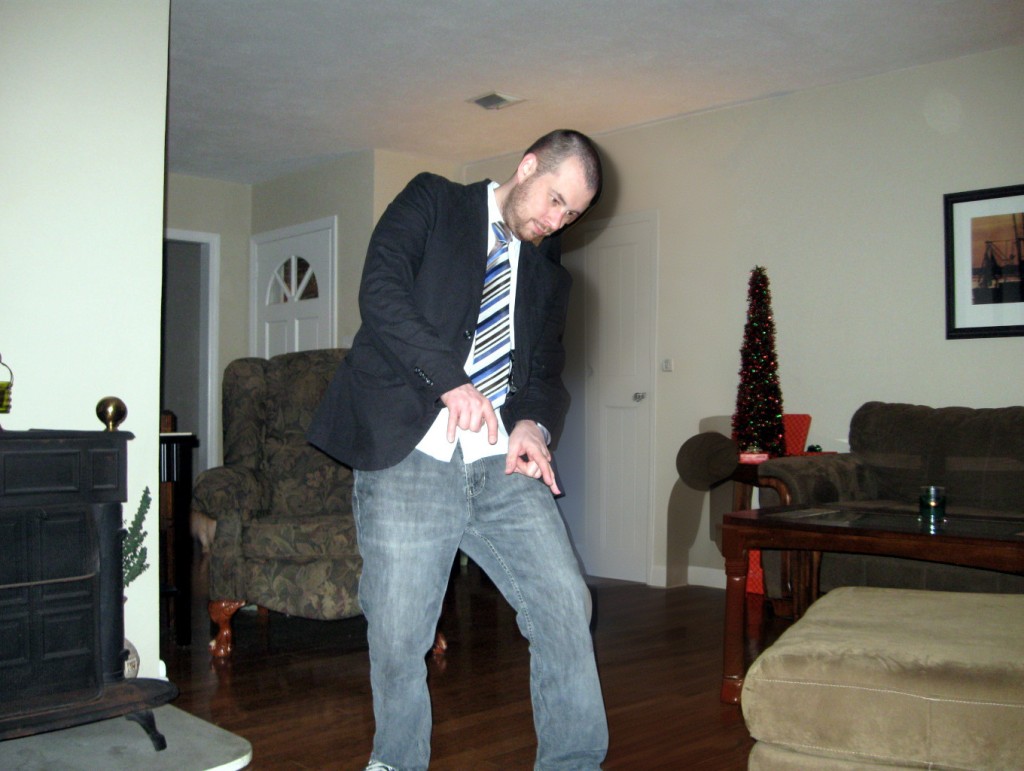
Recently, I was telling my City Tech colleague Kate Falvey about a habit of thought that I have when I encounter things that I would ordinarily want to share with a specific person who I think would be interested in that thing even though that person might have passed away. That kind of thought happens more often with my friend Chris Lee, who passed away in 2016. Our mutual interest in computers, pop culture, and video games was the currency of our friendship over many years that began when he saw me pull out my Apple Powerbook 145B in Mr. Norris’ Graphic Design class at Brunswick High School. Later, after we had a falling out around 2000, he mended the bridge and we became good friends again.
When we were younger, our great ambition was to open a computer repair shop and publicize it with a video of us marching through flames as Rammstein’s “Du Hast” blasts in the background. He pushed the limits of good sense by loading what I believe to be a record number of Control Panels and Extensions that would dance along the bottom of his Mac’s boot screen–at least three full lines of icons at 1024 x 768. He created archives of sound that surpassed mortal lifespans capable of listening to it all. He mastered anything released for the Nintendo GameCube. He had a phenomenal memory for movie dialog–a specialized eidetic memory that would have been a superpower at trivia night.
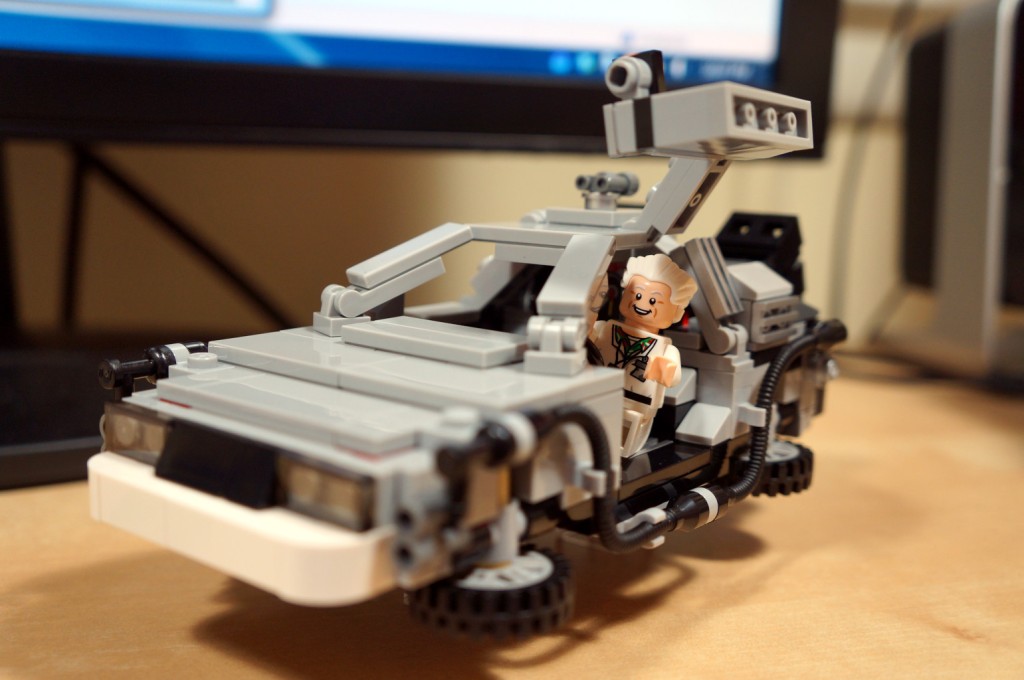
The last thing that we talked about was how much had gone on in our lives so far. I texted him, “Too bad we don’t have a time traveling DeLorean. We could stop by and blow our younger selves’ minds 😎.” His reply and last text to me was, “I wish I had a DeLorean.”
Not long after that, I got a call from our friend Kenny. Chris had died. He was back in Brunswick where our friendship had started. I couldn’t really write about it then, and even now, it’s difficult. I’m not able to say all that I feel and how I wish that I could share just a few things with Chris again.
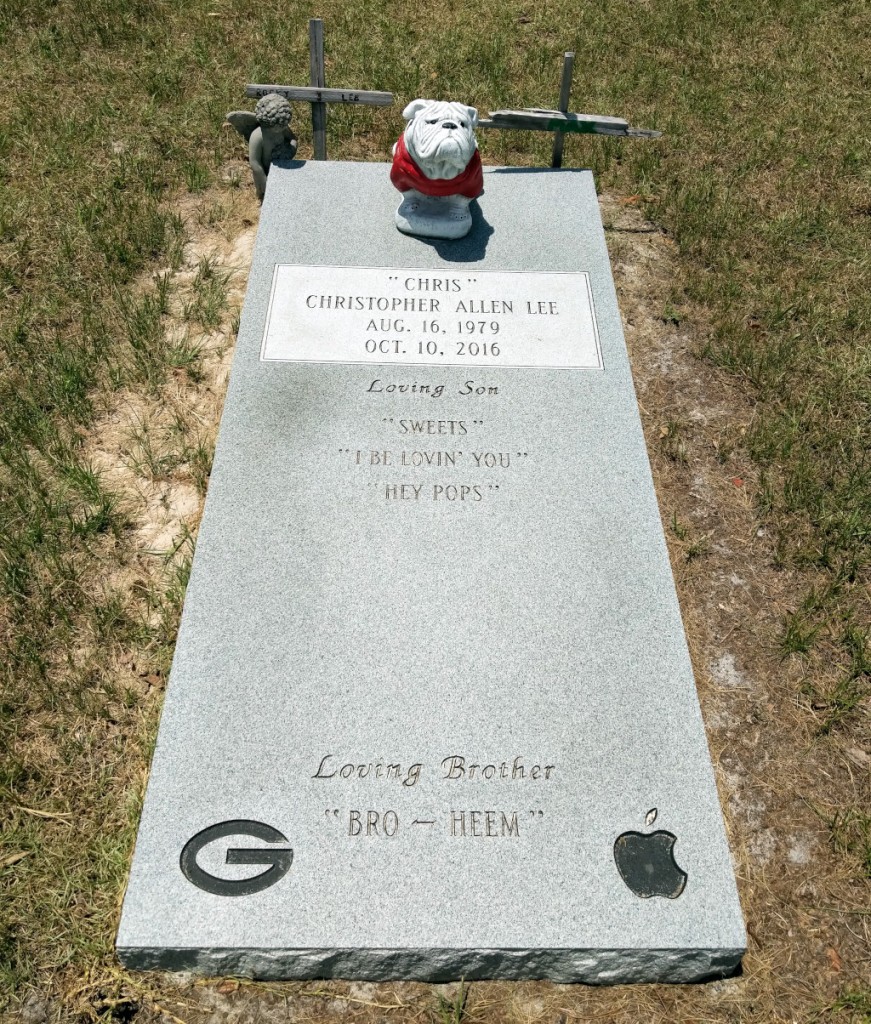
When I visit my parents, I try to visit Chris’s grave in Smyrna Cemetery, which is between Nahunta and Hortense. His grave marker highlights some of his life’s loves, including Apple Computer. Of course, I wish that Chris could hear when I talk, but I know that what I say is only heard by regret.
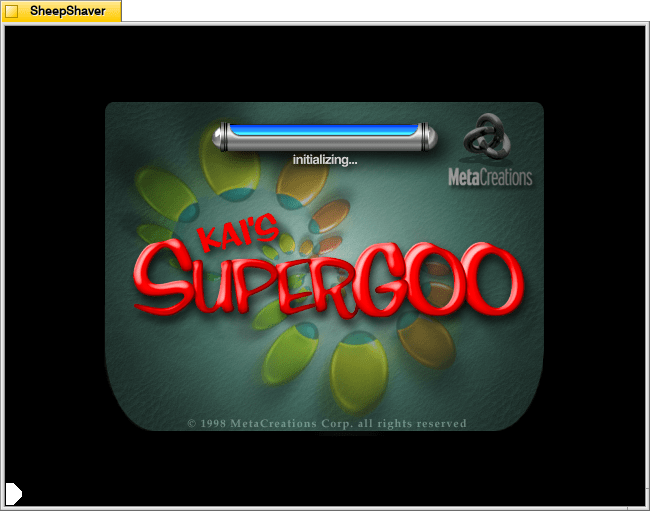
Kai’s SuperGOO 1.0 is a program geared toward children to easily manipulate images and generate images of human faces that can be further modified using its built-in image editing tools that are accessible through an interesting but not always intuitive user interface.
The “Getting Started with Kai’s SuperGOO” text file includes this explanatory information:
ABOUT SUPERGOO

SuperGOO is organized into two basic rooms: Goo and Fusion. The Goo Room provides you with a series of distortion tools, both brushes and global effects, to create 'funhouse mirror' distortions to your images.

The Fusion Room provides you with both cloning tools- to combine faces (and other images) from your own sources- and a library of facial components to create your own face for the Goo Room.

Both rooms have an In and Out dialogue for importing and exporting saved images, or importing images from a TWAIN device such as a scanner or digital camera.

Play around with SuperGOO once you've got it installed... click a button and watch what happens. That's the quickest way to get acquainted with SuperGOO. For more detail, consult the 'Quick Reference Guide' included with your software. This brief, but thorough, card will provide you with all of the basics you need to know about SuperGOO, from input to output and everything in between. For more detail, consult the SuperGOO User's Guide included on your CD-ROM.
Kai’s SuperGOO ReadMe file includes the following system requirements:
MINIMUM SYSTEM REQUIREMENTS

PC

Pentium Processor
Windows 95 (or higher)
Windows NT 4.0 (or higher)
16 MB Free RAM
25 MB HD Space for Install
40 MB Free HD Space (after Install)
CD-ROM Drive
16-bit video
14" Monitor

MACINTOSH

Power Macintosh
MacOS 7.6.1 (or higher)
16 MB RAM allocated to application
25 MB HD Space for Install
40 MB Free HD Space (after Install)
CD-ROM Drive
16-bit video
14" Monitor
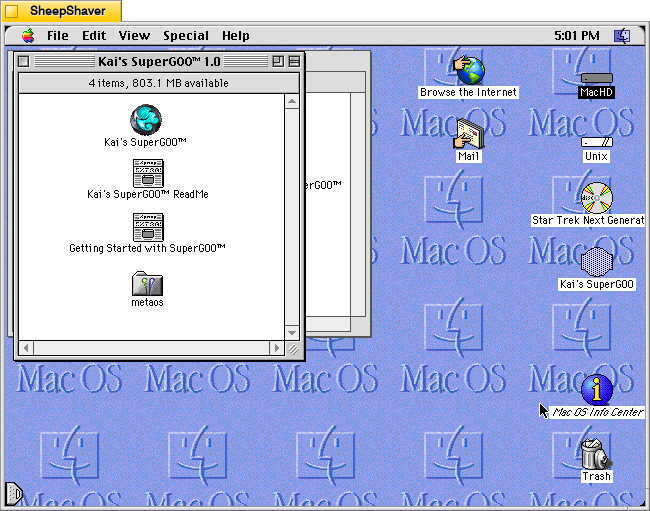
I installed Kai’s SuperGOO on MacOS 8.1 emulated by SheepShaver on Debian Bookworm.
After installation from CD-ROM, the Kai’s SuperGOO 1.0 application file is 976K and has a minimum memory size of 17,290K and a preferred size of 25,482K.
Installation
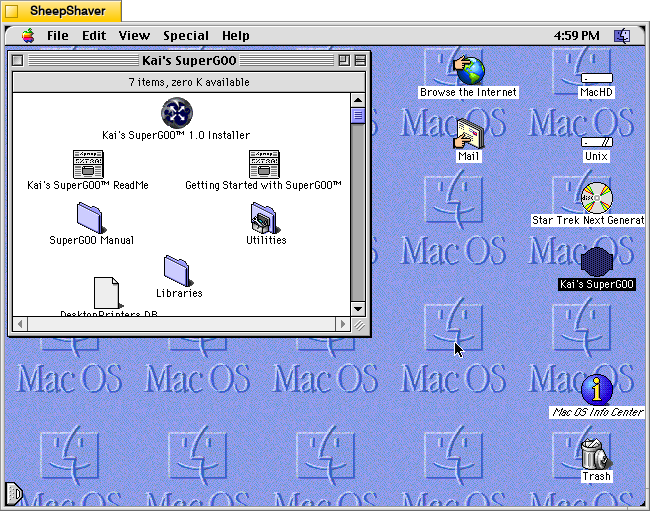
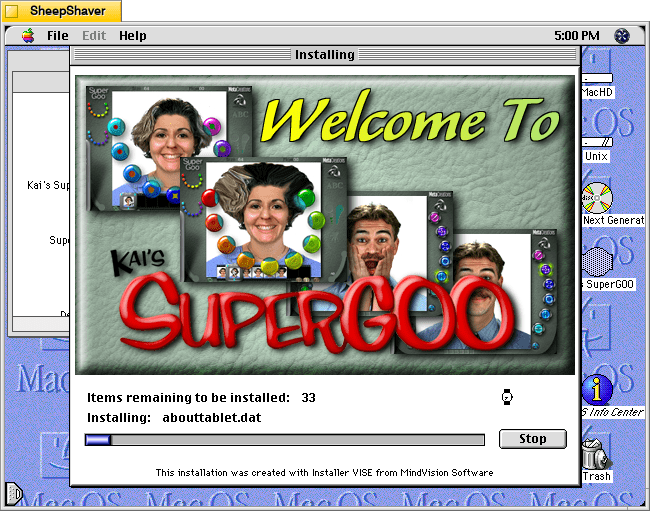
Installing Kai’s SuperGOO is as straightforward as other Mac software of the era that used a basic installer. However, the initial screens shown below gesture toward its inventive user interface. To launch the installer, the user double clicks on “Kai’s SuperGOO 1.0 Installer” located in the root of the CD-ROM disc.
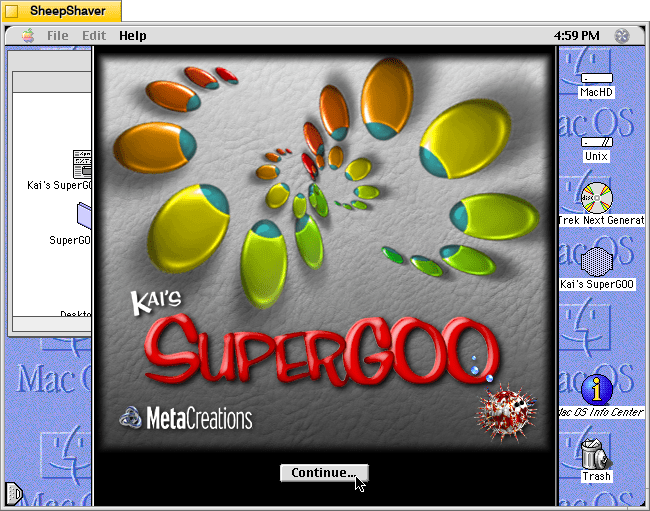
The first screen after launching the installer is shown above.
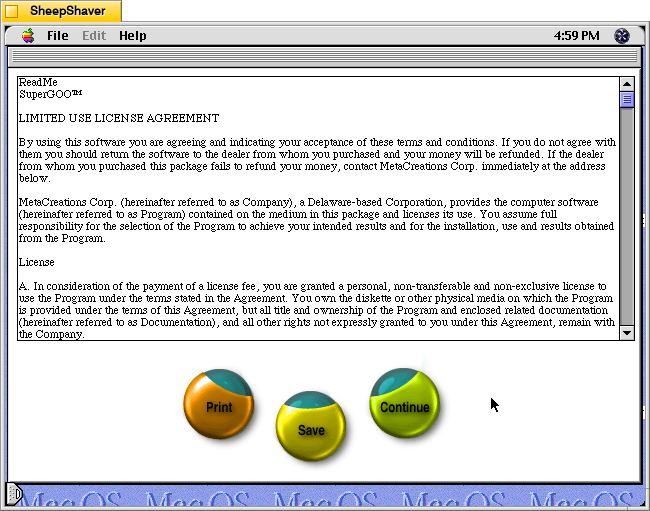
The license agreement screen notably has stylized round buttons for Print, Save, and Continue.
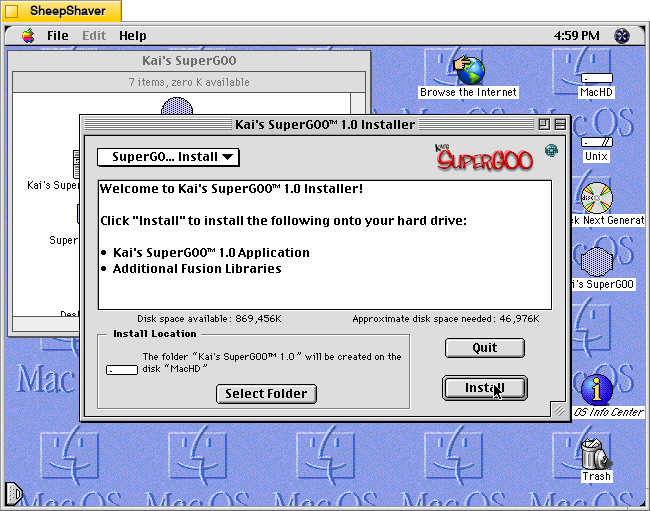
Clicking Continue on the previous screen takes the user to a traditional installer window. Clicking Install begins the installation of files to the selected folder on the user’s hard drive.
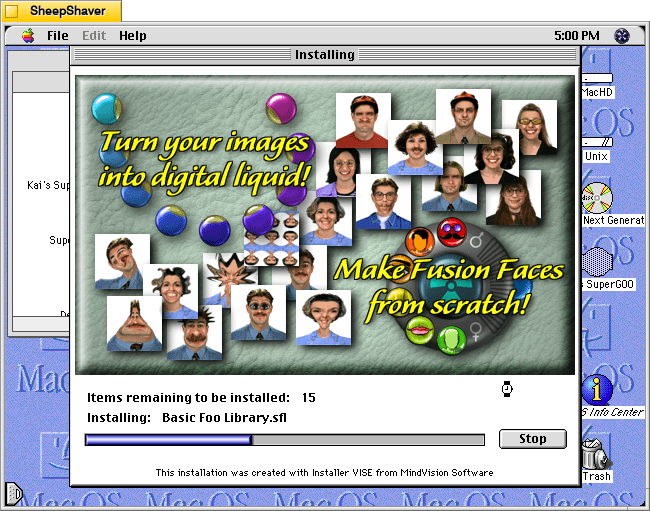
Several demonstration/prompting screens accompany the copying of files.
These screens preview key elements of SuperGOO, such as the brushes on the left and the Fusion Faces feature on the right.
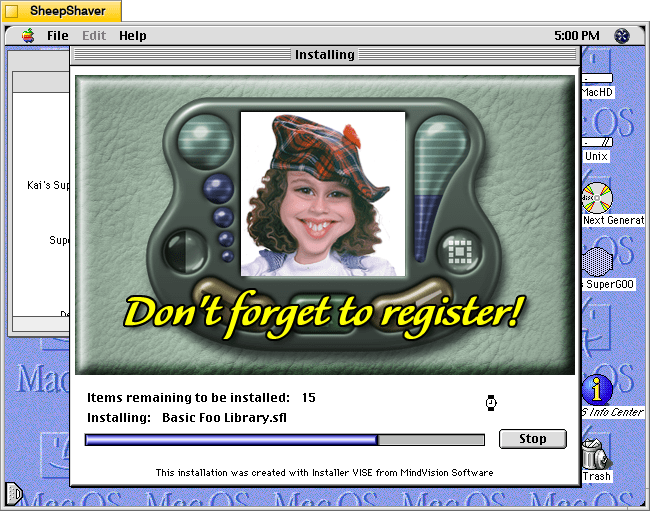
This final screen reminds the user to register, but it also shows a stylized, miniature version of the user interface.
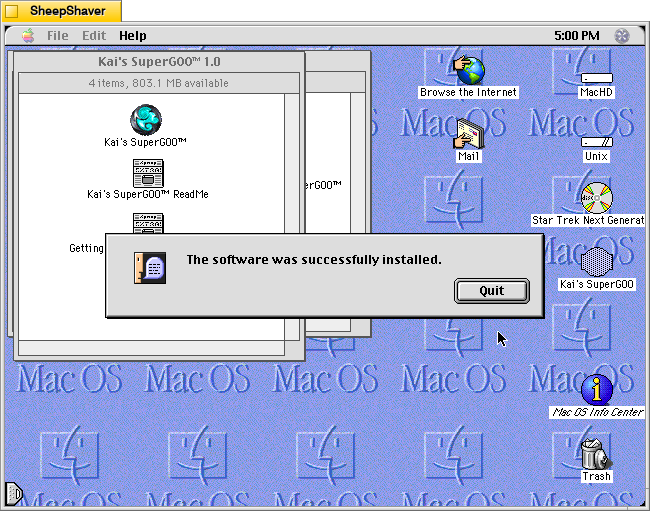
The software is installed and ready for use. In order to use the software, the CD-ROM has to be in the CD-ROM drive and mounted.
Use
When the user first launches the software, it prompts for a name to personalize it.
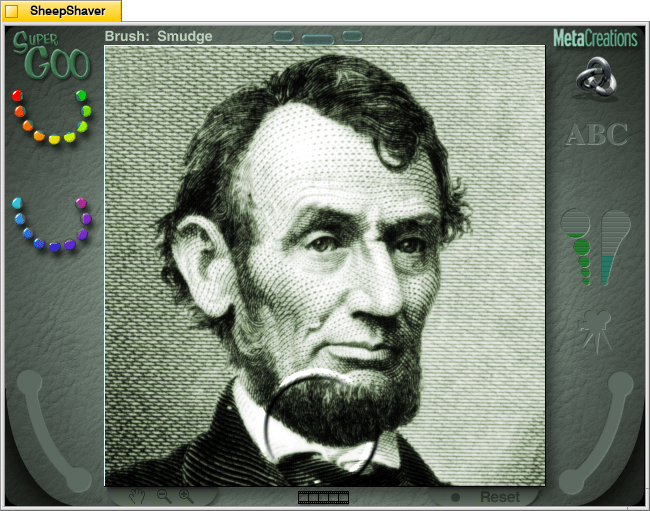
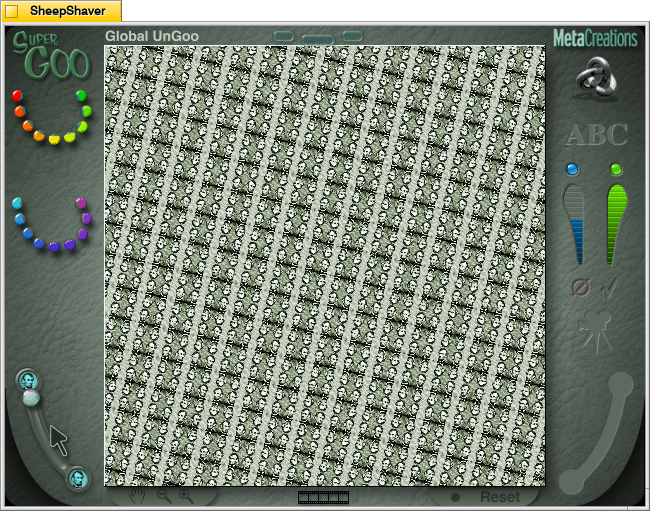
The main screen or what is called the “GOO Room” in the Read Me file. As suggested in that file, the UI invites the user to click on things to see what they do. Should the user find themselves backed inot a corner, there is an option to Reset in the lower right, or simply quitting the software with Cmd+Q and restarting the program. It opens with an image of Abraham Lincoln that can be manipulated using the tools on the left. The top set of tools are called Brushes.
I was left wondering why Abraham Lincoln’s face was selected for manipulation. Perhaps his image is well known and perhaps liked by children, but his important accomplishments as president and his tragic assassination seem to position his face as not deserving the more radical manipulation options available.
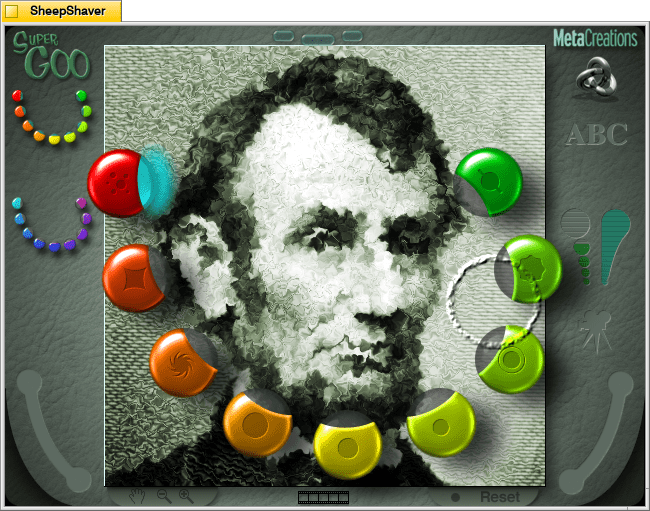
Using the Noise brush, I obscured Lincoln’s face as if it were seen through a primitive piece of glass.
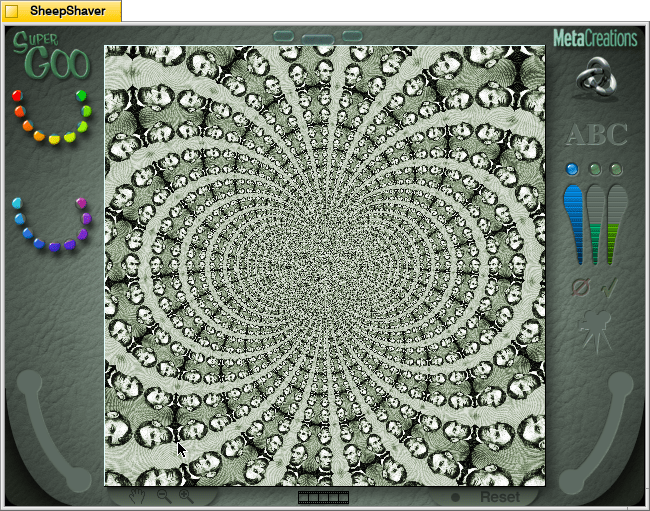
Below the Brushes on the left are the GOO Effects. These create videos using starting image. Above is one frame of Vortex Tiling GOO Effect.
Above is one frame of the Zoom and Rotate effect.
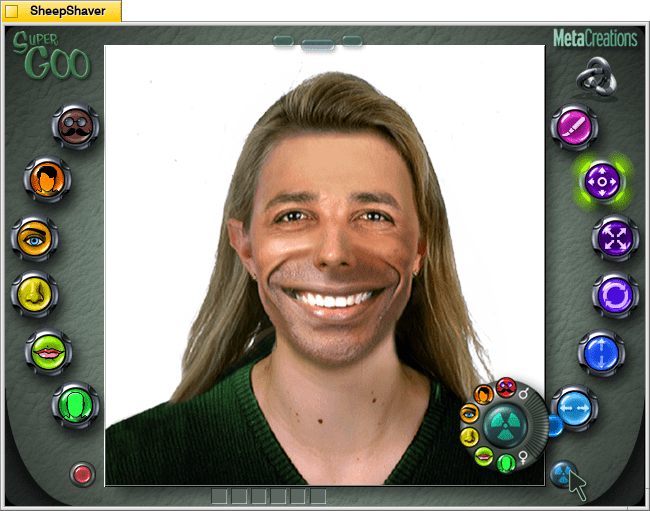
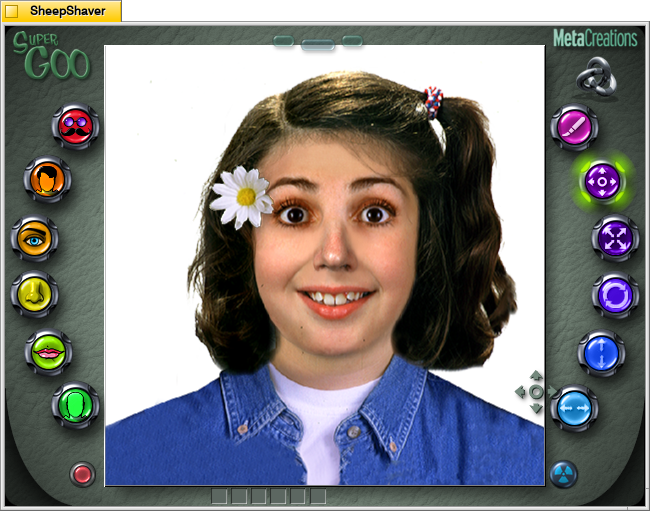
By clicking on the bubble in the top middle of the UI takes the user to the Fusion Room (from the GOO Room) or to the GOO Room (from the Fusion Room). By clicking on the nuclear symbol button in the lower right corner of the Fusion Room gives the user the option to generate a new human face that mixes and matches elements akin to a police facial composite or E-FIT.
The results are mildly uncanny.
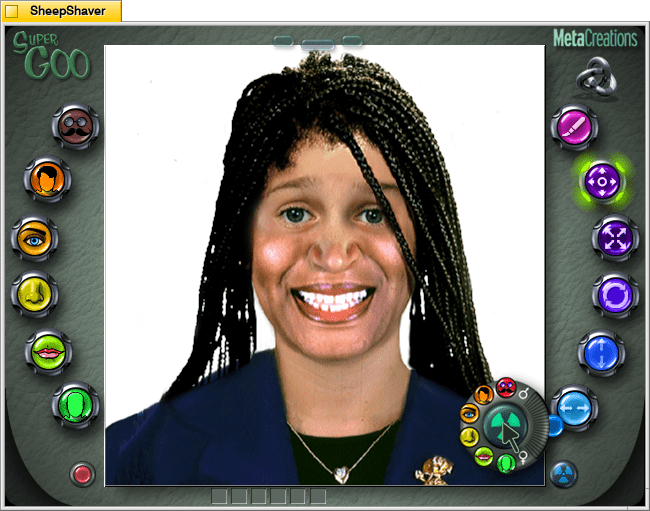
Most random generations result in white faces, but after many, many iterations, I arrived at this face with epicanthic folds. When using the eye selector on the left, there are three female options with epicanthic folds and two male options.
This generated face appears to have darker skin, but there’s no option for changing skin color or adjusting tone. As the various facial features are assembled, there seems to be a kind of blending that makes them work together. However, there isn’t a clear cut way to create faces outside of a narrow skin tone range using the Fusion generator. The natural variety of faces with different skin tones has to be imported.
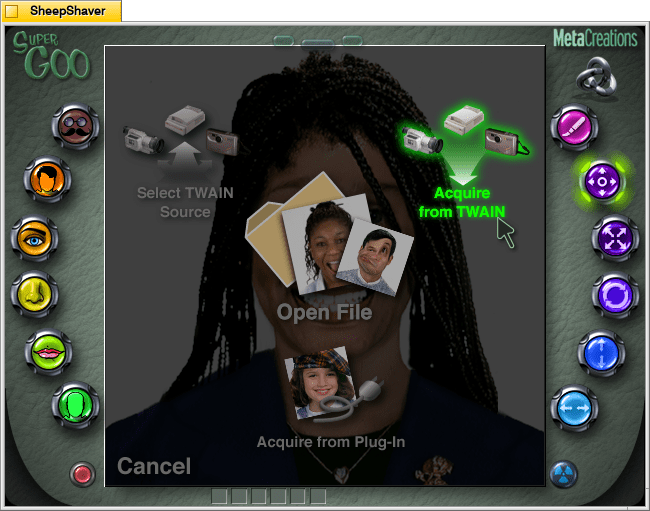
To import an image, the user clicks the bubble in the middle to the left, which opens the “In Panel.” It can interface with image capture and scanning devices that have a TWAIN driver, open an existing file, or acquire from another device plug-in.
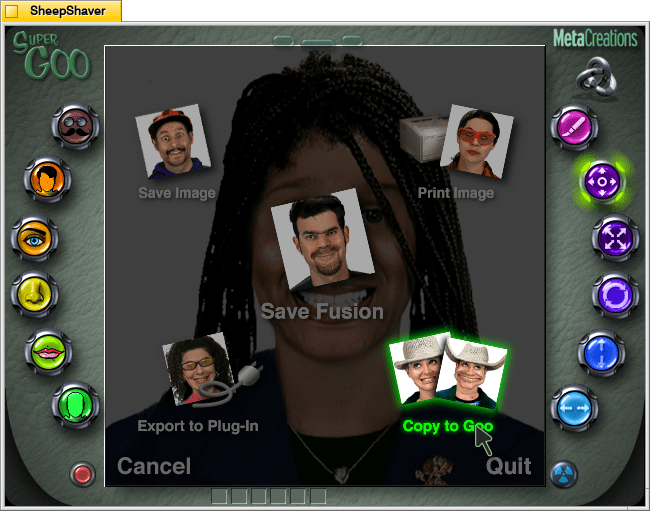
By clicking on the middle bubble to the right, the user comes to the “Out Panel,” which gives options to save the image, print the image, save the currently displayed Fusion generated face, copy the Fusion generated face to the GOO Room, or export the currently displayed image to a plug-in (if installed and selected by the user).
Kai’s SuperGOO is an interesting approach to generating images of people using algorithms. In this case, randomizing carefully edited pieces that seamlessly, more or less, fit together. Unfortunately, the available options for mixing and matching faces are homogeneous and tend toward lighter skin tones and limited facial features. While importing any face or image into the software is an option, the Fusion feature is crippled in terms of representation options available to the user.
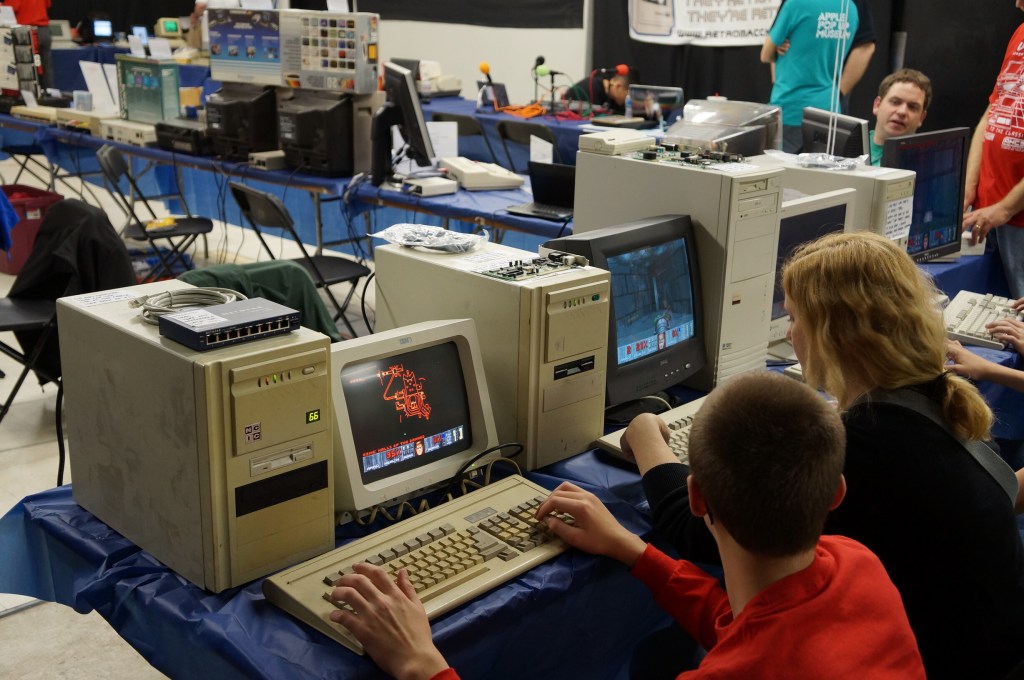
On April 20, 2013, I attended the first Vintage Computer Festival Southeast outside Atlanta, Georgia at what is now the Computer Museum of America with my friends Mark, Paul, and Bob. This was the spring of my first full year back in Atlanta after becoming a Brittain Fellow at Georgia Tech in Fall 2012. It was a good day like old times before I went to grad school.
The following year, I co-presented with Wendy Hagenmaier about Vintage Computing at Georgia Tech, which I blogged about here. I will post photos from the 2014 VSFSE next week.
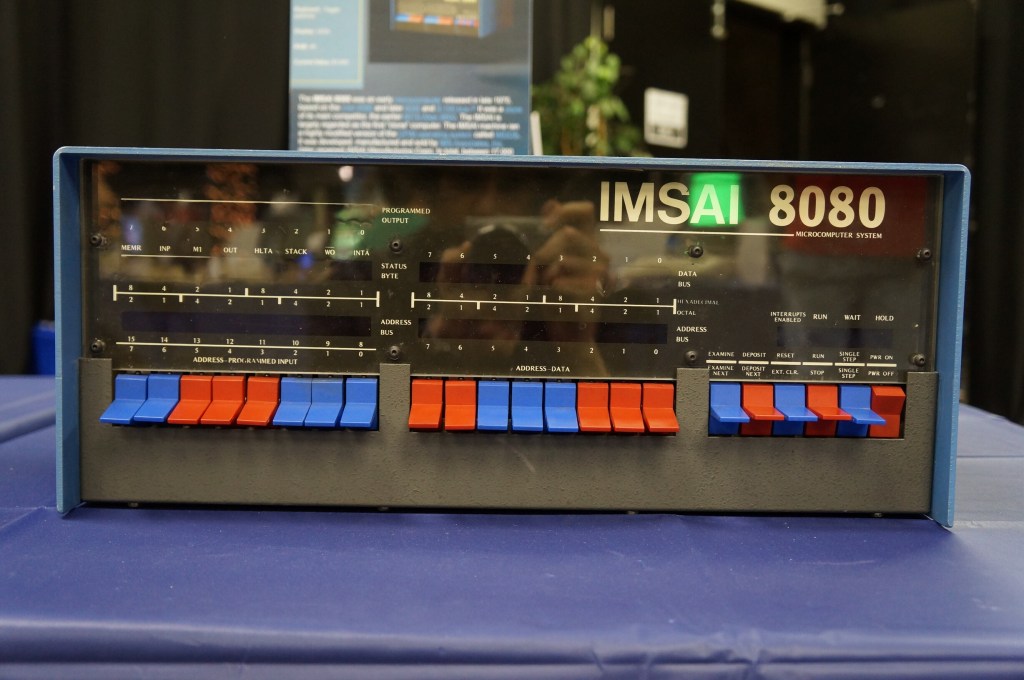
IMSAI 8080 (WarGames)
If you’ve seen the film WarGames (1983), you know what kind of mischief you can get up to with a tricked out version of an IMSAI 8080.
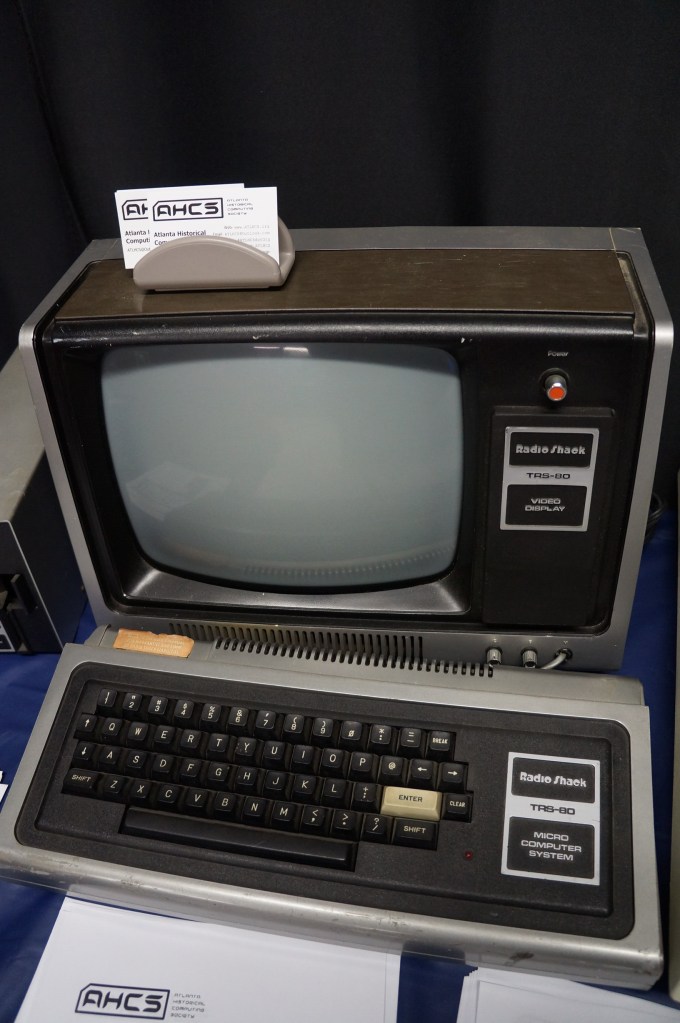
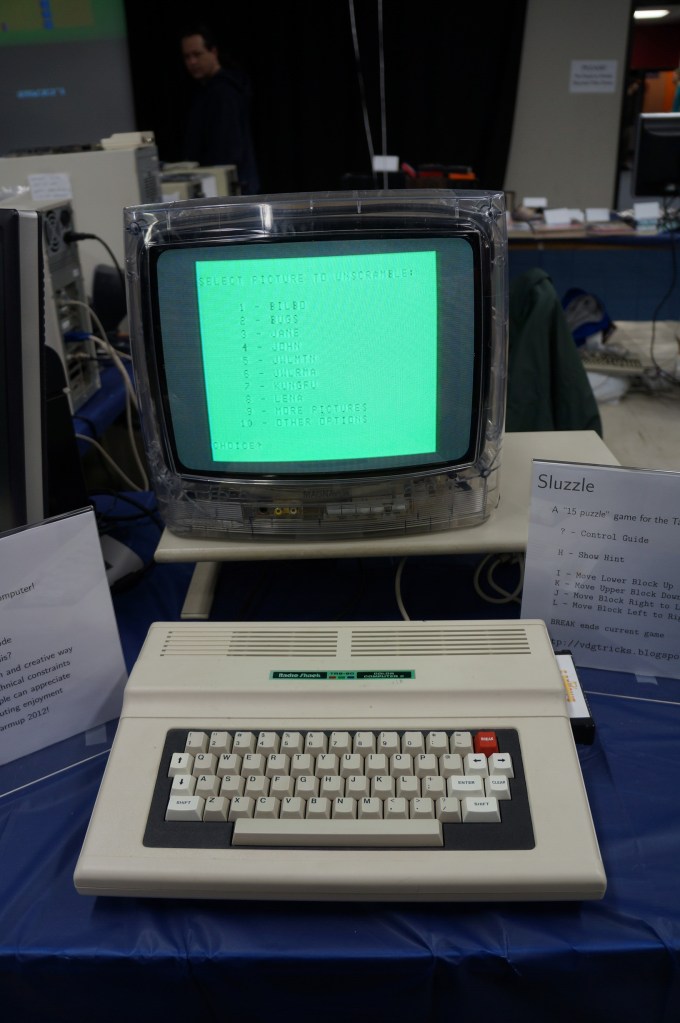
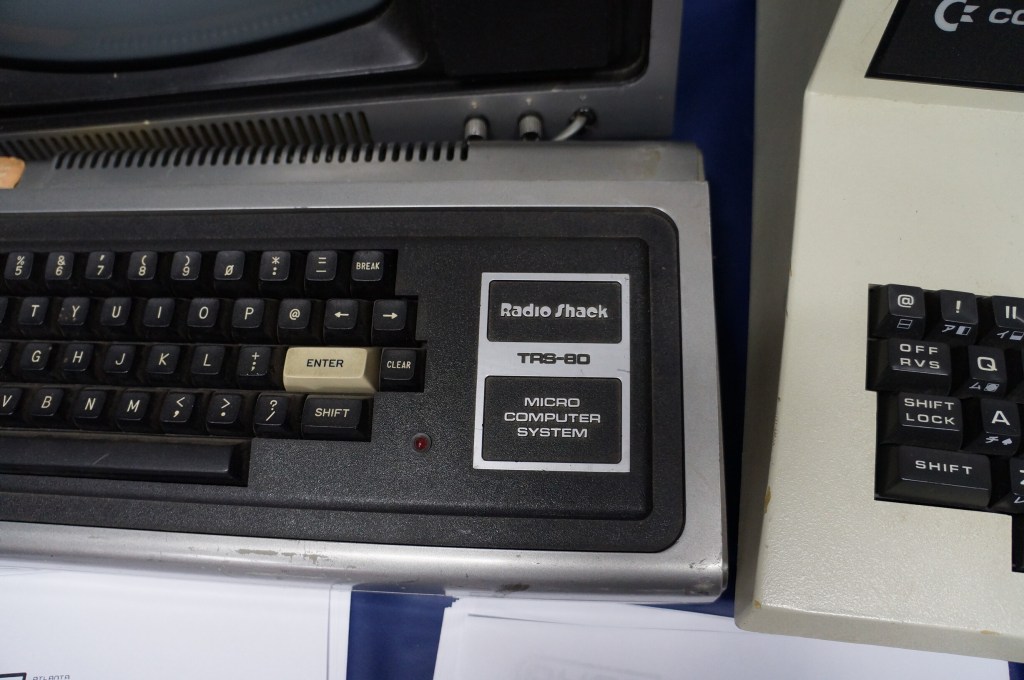
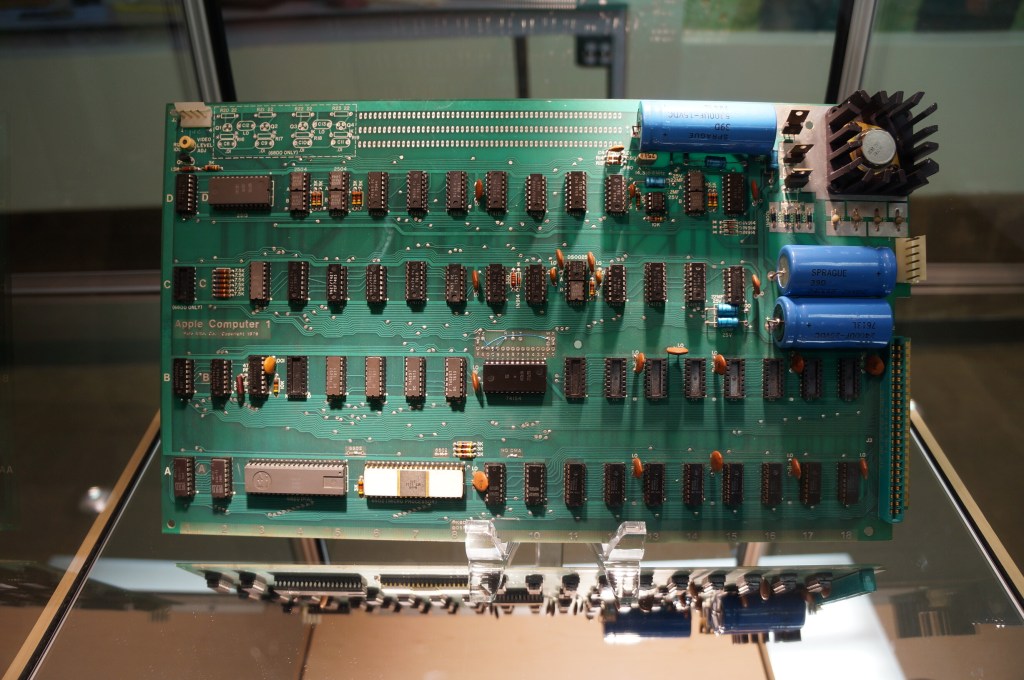
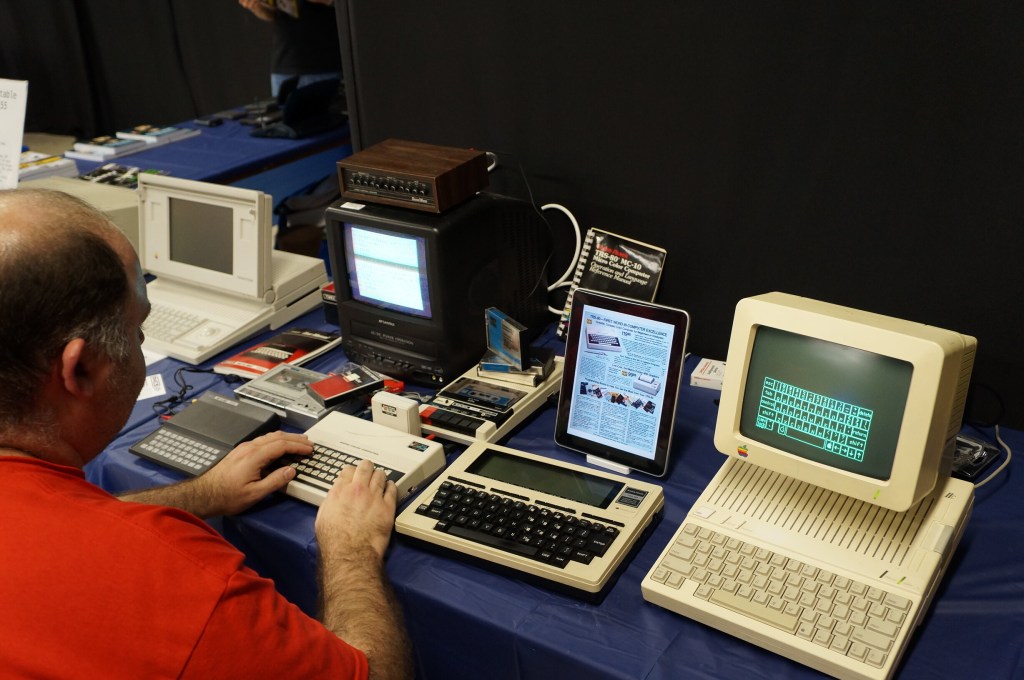
The Big Three: Radio Shack TRS-80, Commodore PET, and Apple II
I often regale my students with tales of the rise of the personal computer with the big three mass manufactured models: Radio Shack’s TRS-80, Commodore’s PET, and Apple’s Apple II (though, it’s actually an Apple IIe pictured below).
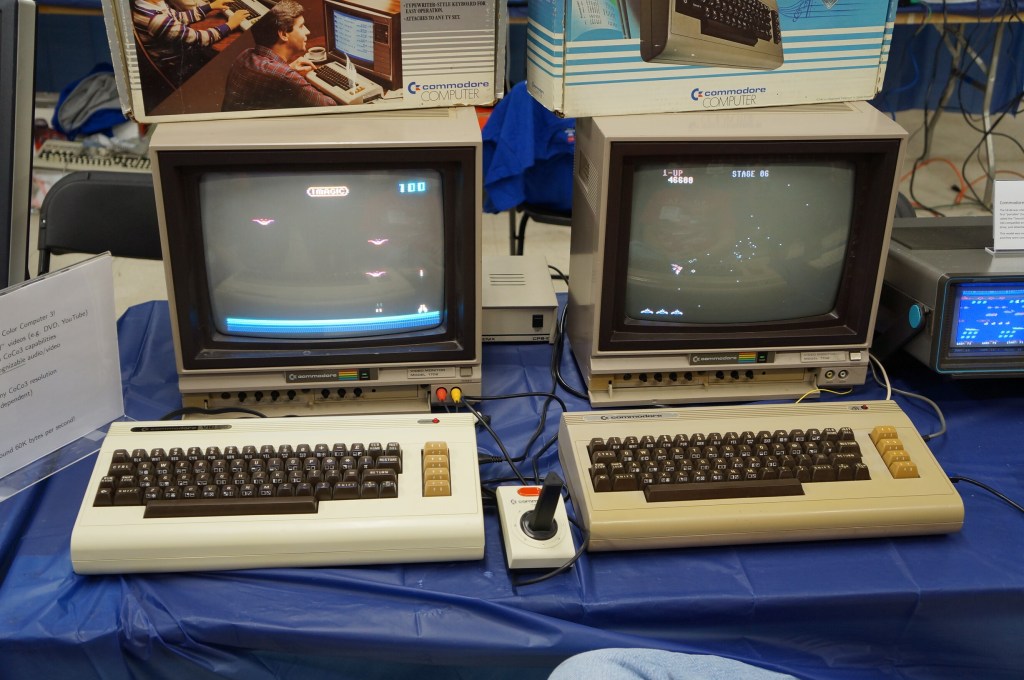
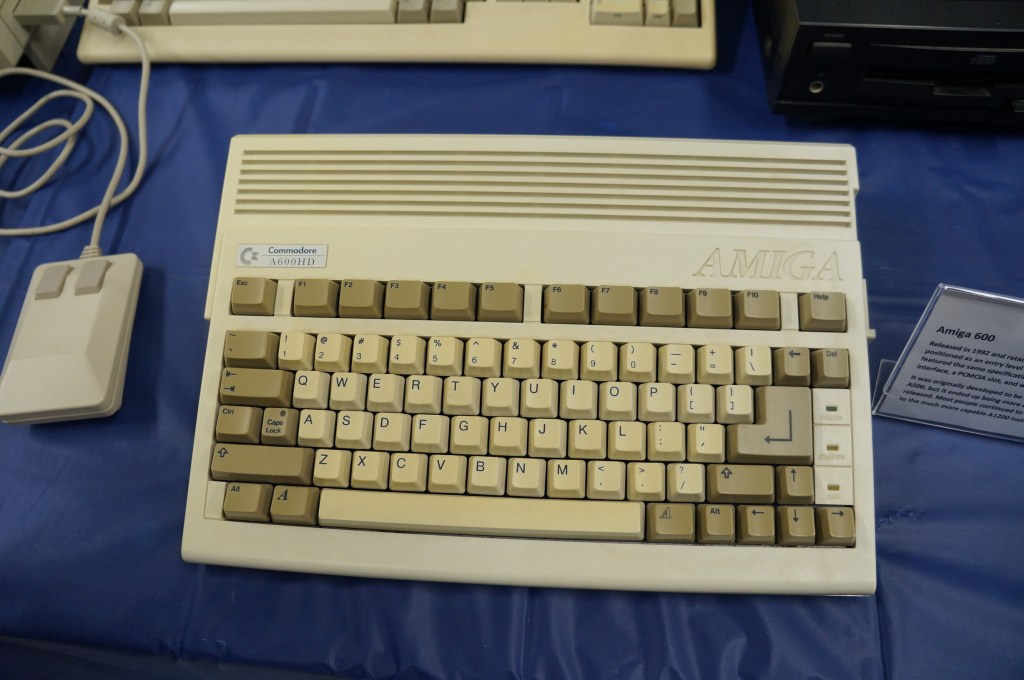
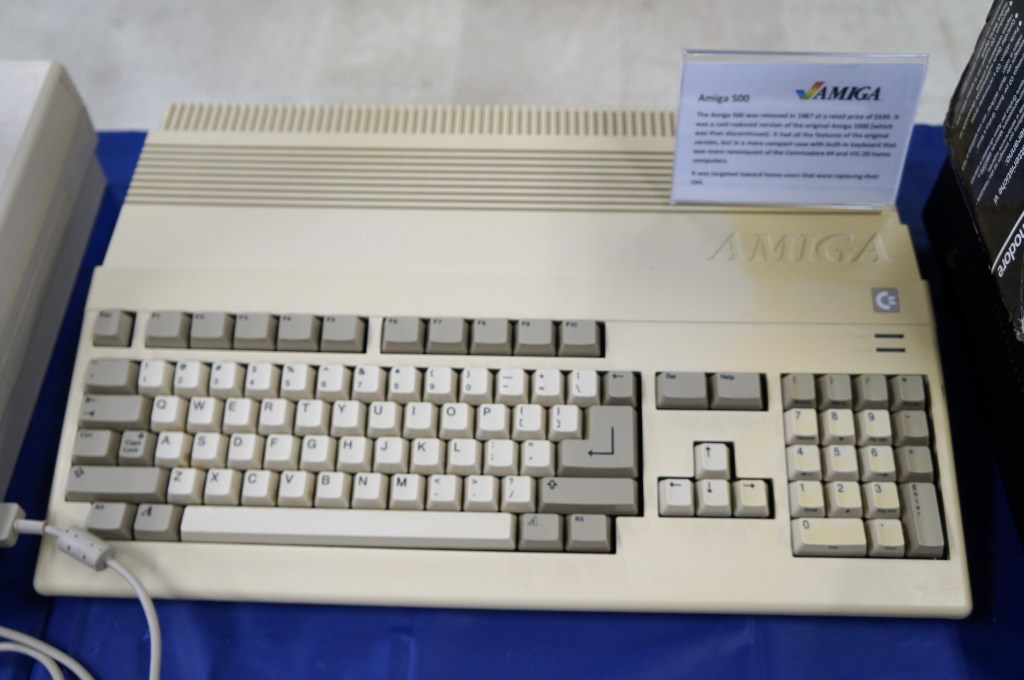
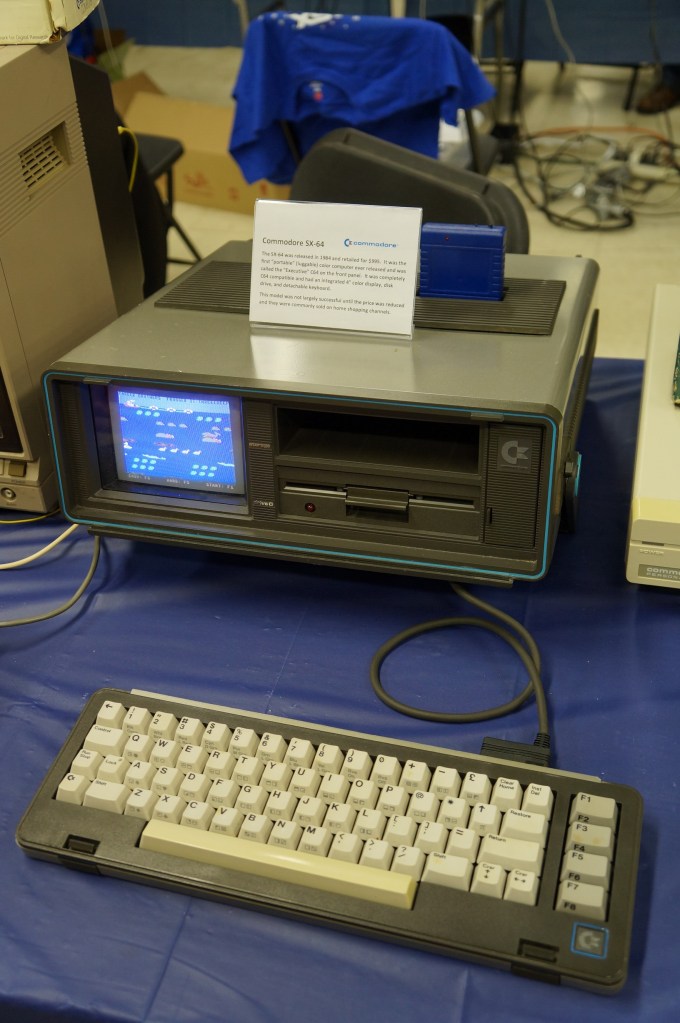
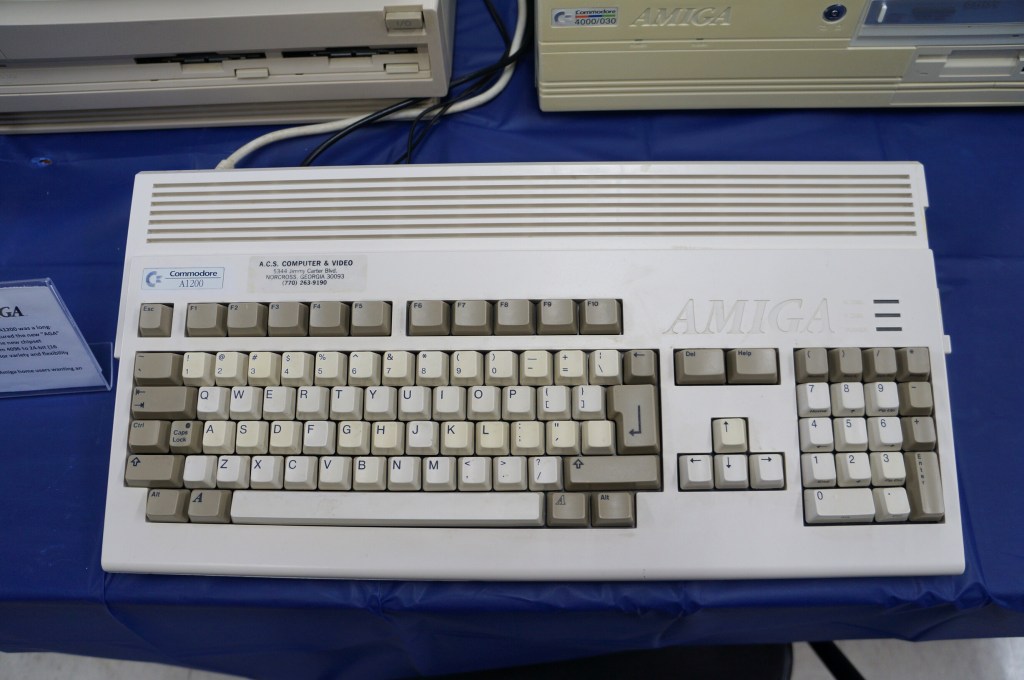
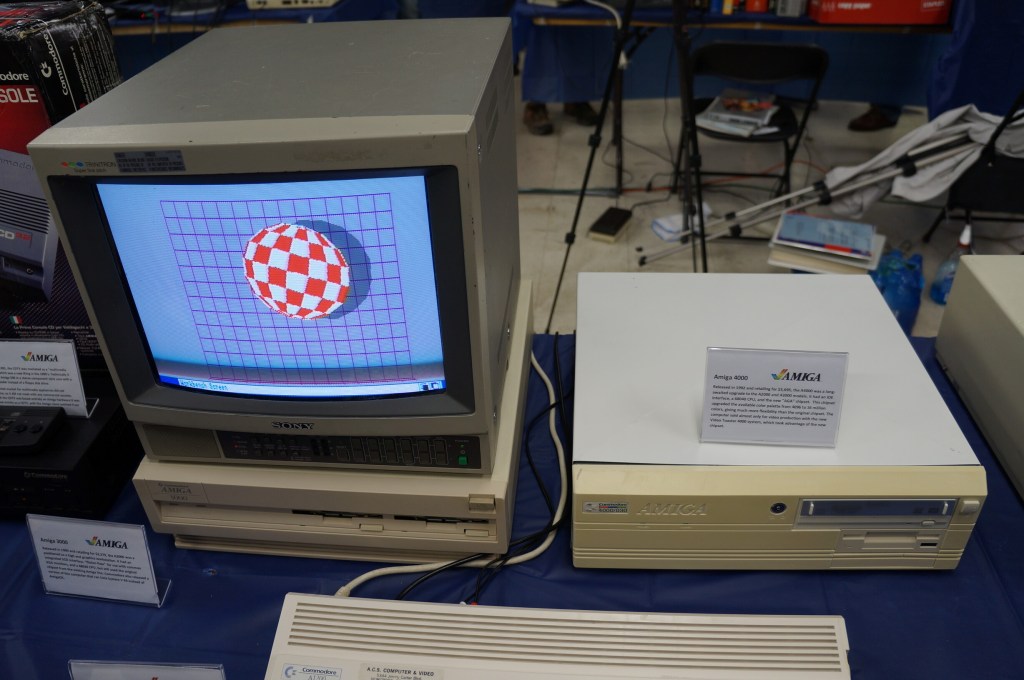
Commodore VIC-20, Commodore 64, and Amiga
I didn’t know anyone with a VIC-20 or Commodore 64 growing up. Mark told me about having a VIC-20 when he was younger. After my trials with the Tandy Color Computer 3, my first GUI-based computer was an Amiga 2000HD. I used it for years for writing, drawing, and gaming until a tree branch attached to a long strand of Spanish moss swung Tarzan-style into my bedroom window and hit the back of the Amiga. It never ran again after that strike.
Years later, I got another Amiga 2000 from someone at a Goodwill auction. He had won the pallet that I wanted that included the Amiga. I don’t remember what I paid him for it, but I stored it at my used computer stall at Duke’s Y’all Come Flea Market in Darien, Georgia. We had a falling out and I abandoned what I still had in the stall, which included the Amiga. I never found out if it still ran or not.
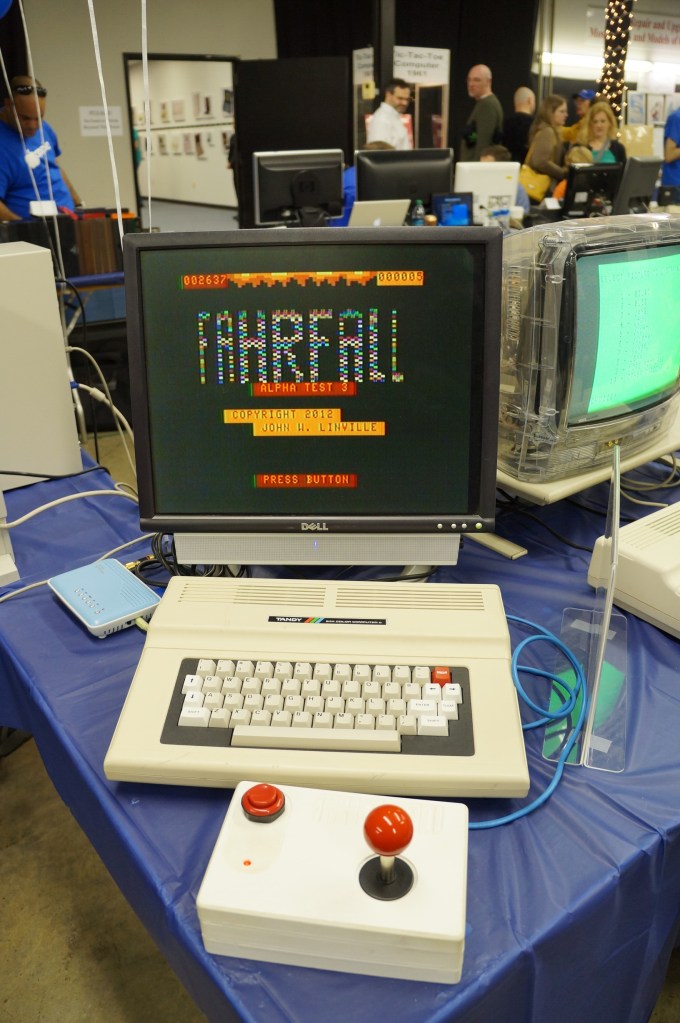
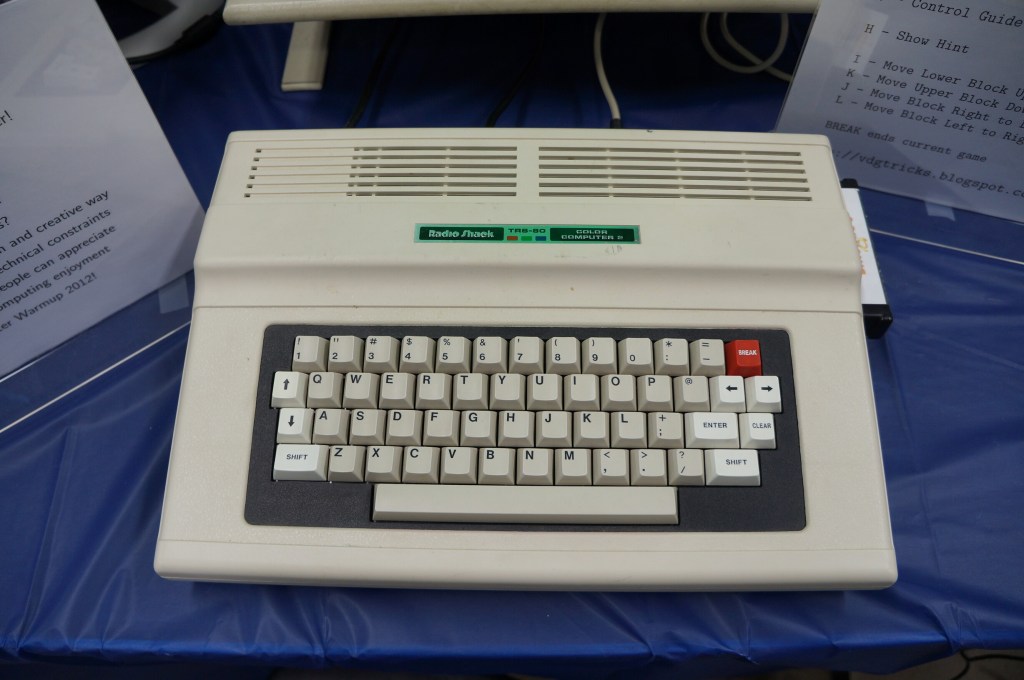
Radio Shack TRS-80 and Color Computer Series
My first desktop computer was a Tandy Color Computer 3 that I hooked up to the family console TV. While I did all that I could with it, I think my mom recognized my frustrations. I wanted to make it work so badly after not having a computer and wanting one for so long. The next Christmas, my folks gave me a Commodore Amiga 2000HD, which was light years ahead of the CC3.
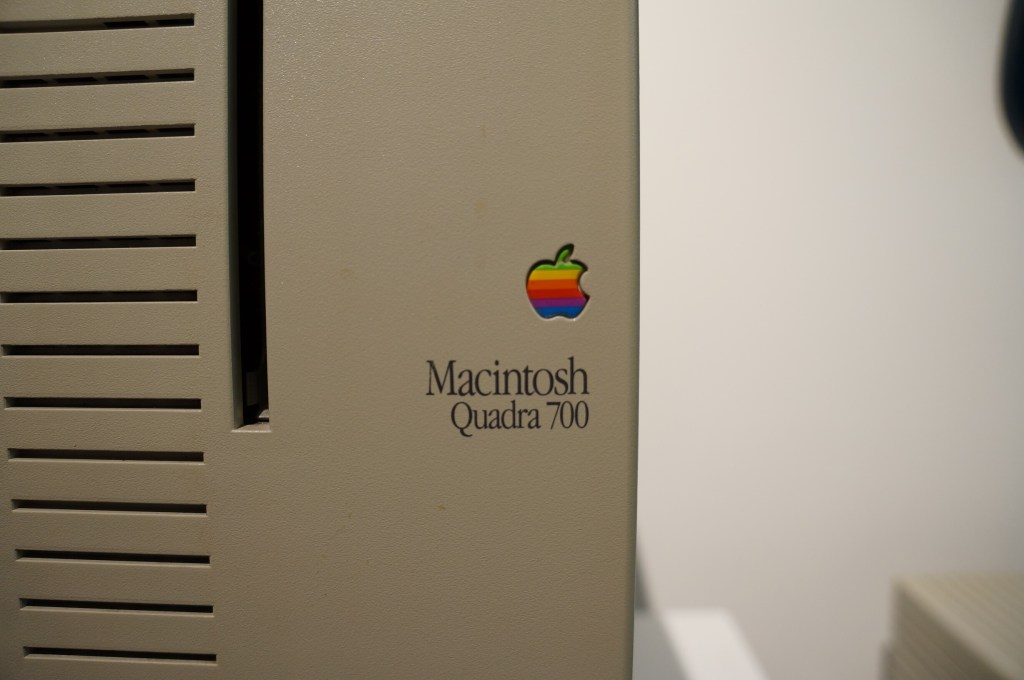
I had a Quadra 700 when I lived in Atlanta with Y. I put it in a box and left it with my folks in Georgia when we moved to NYC. Where it is now is anyone’s guess. There are many hiding places for a small box with this tiny powerhouse of a Mac. I hope to find it again one day.
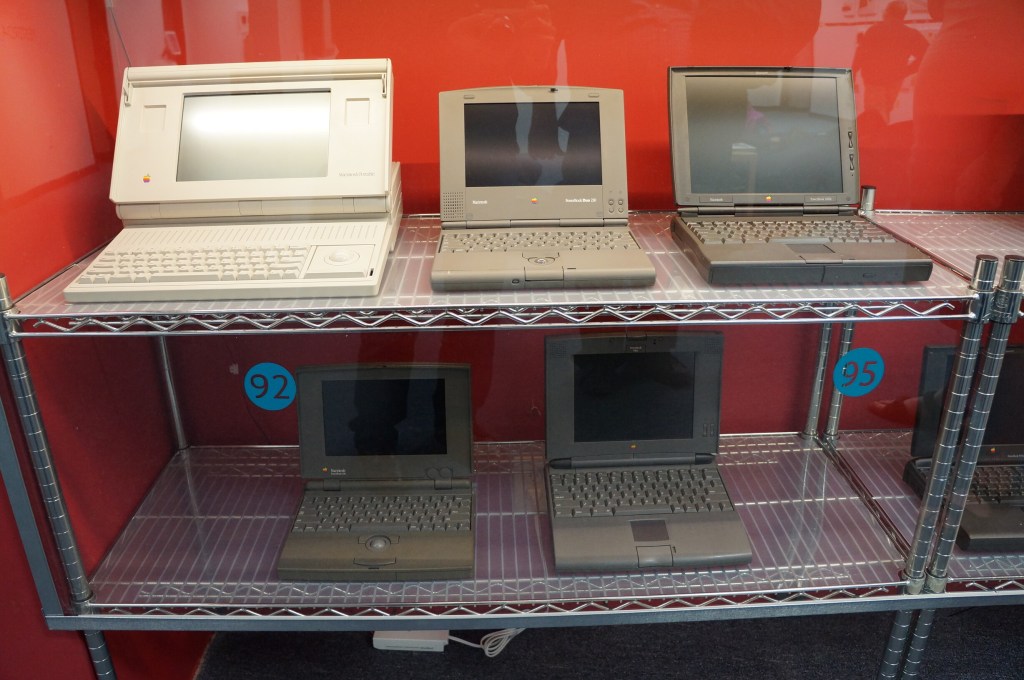
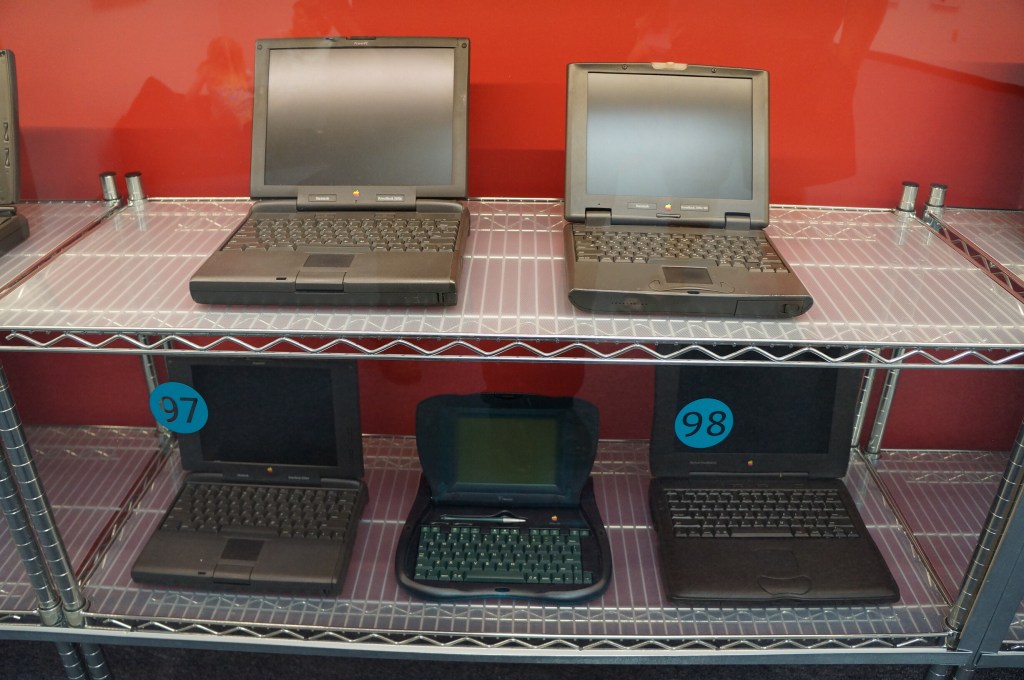
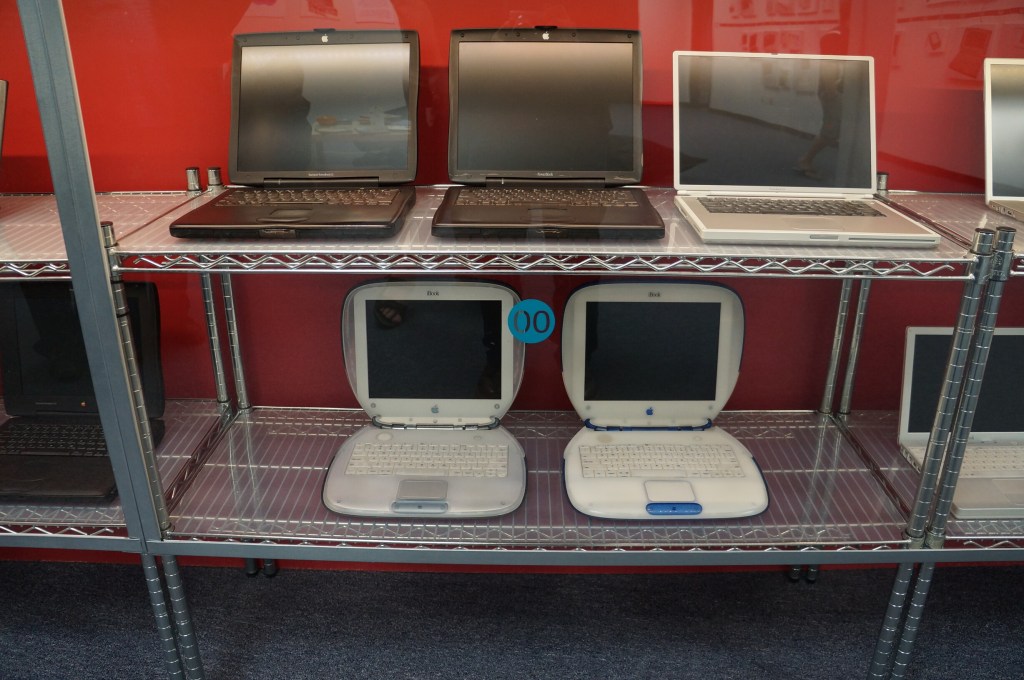
Portable Macintosh and Powerbook Line
My first laptop was a PowerBook 145B, which was my companion during my last two years of high school and the beginning of college of Georgia Tech. Later, I owned a PowerBook G4, iBook G3 (the result of a trade with my friend Kenny), 15″ MacBook Pro (2006), 12″ MacBook (unibody, 2008), and 15″ MacBook Pro (2012–Y still uses it).
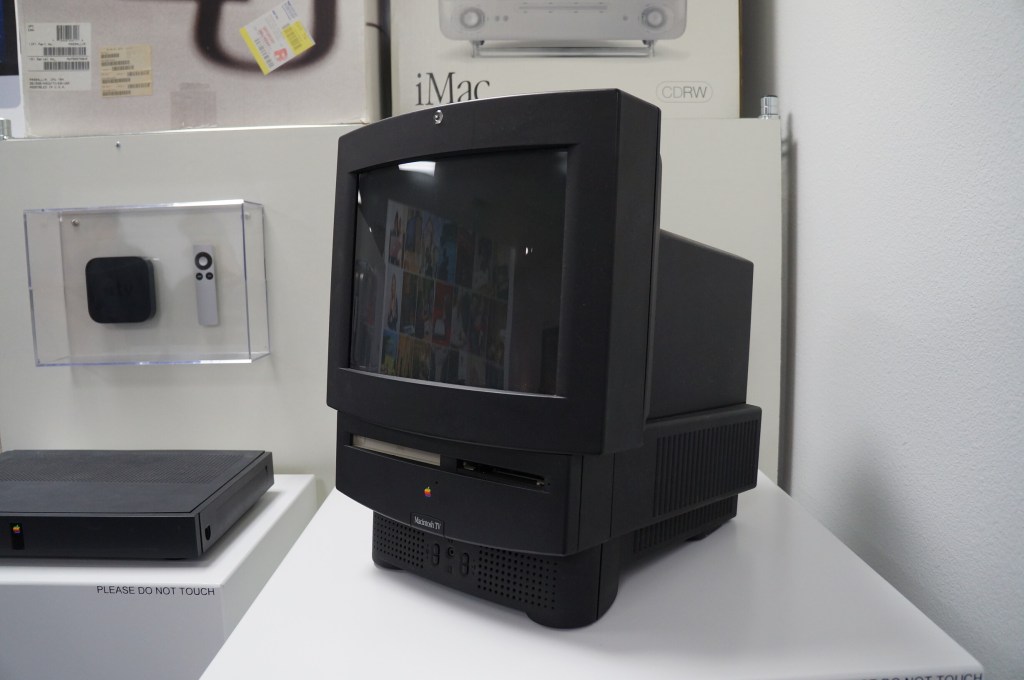
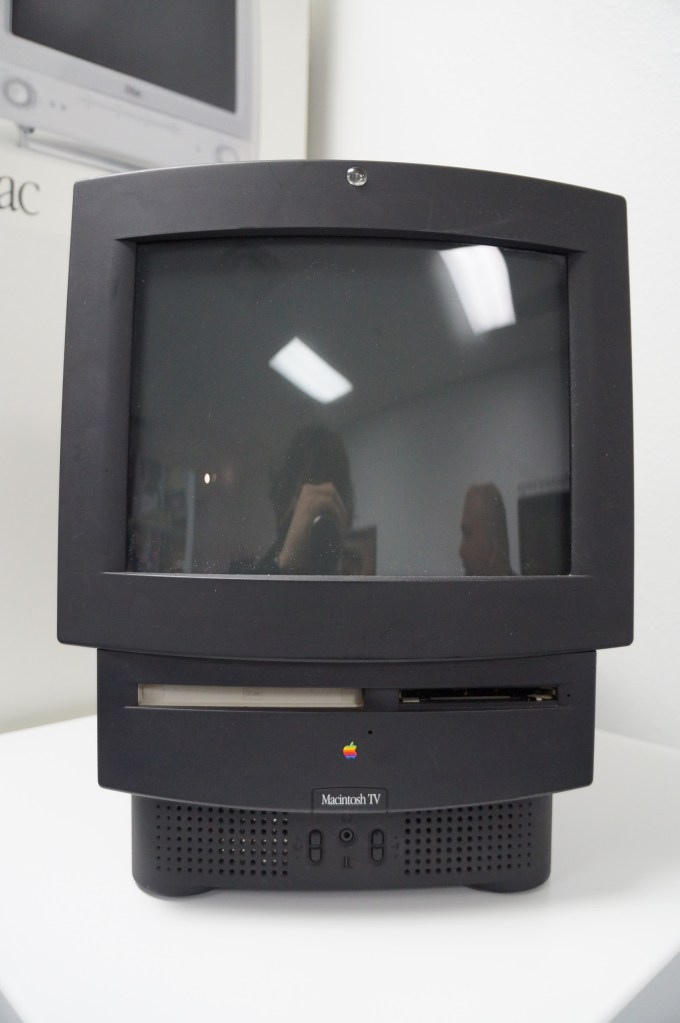
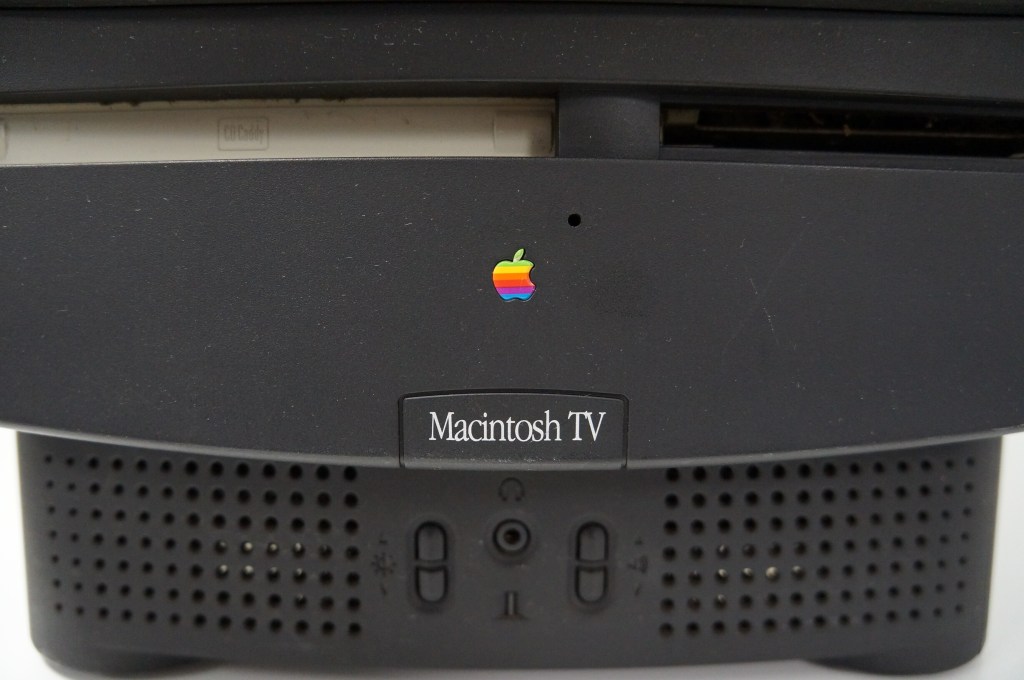
Apple Macintosh TV
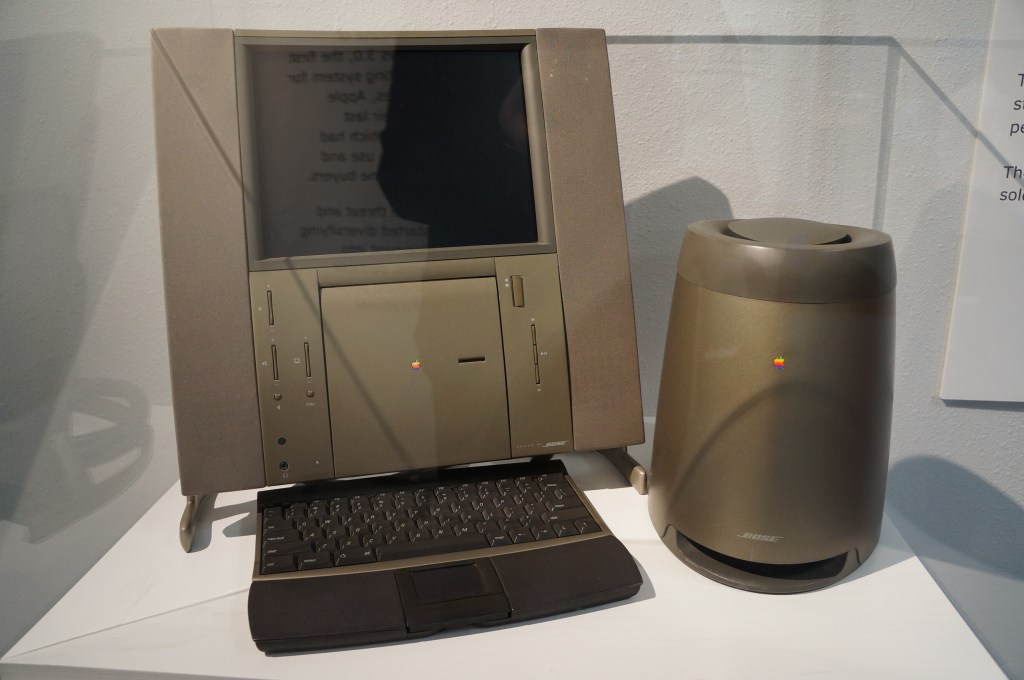
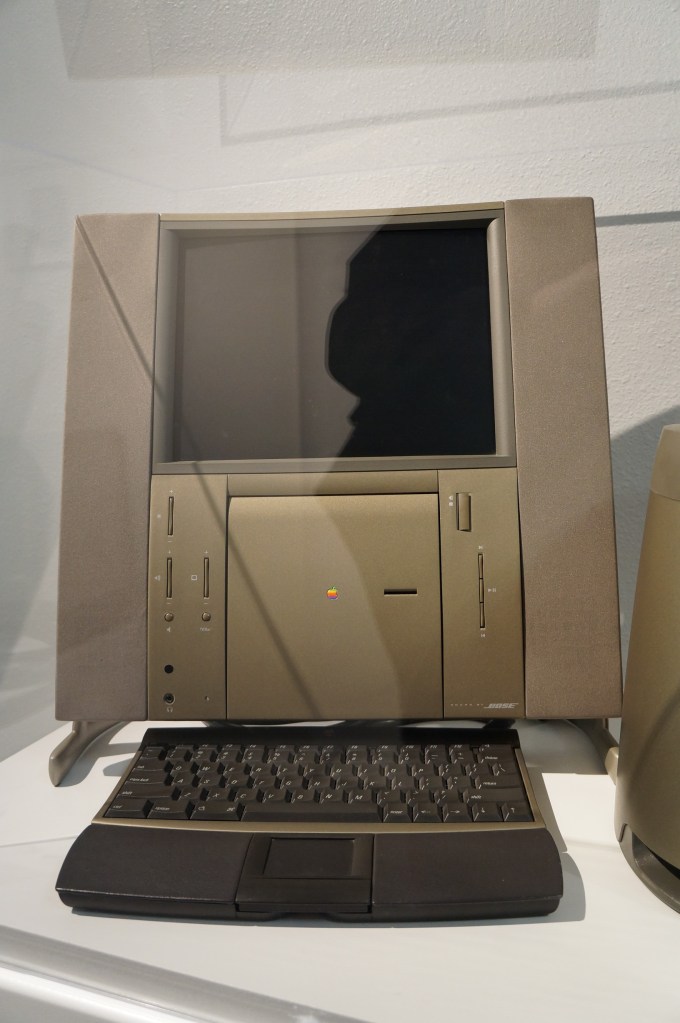
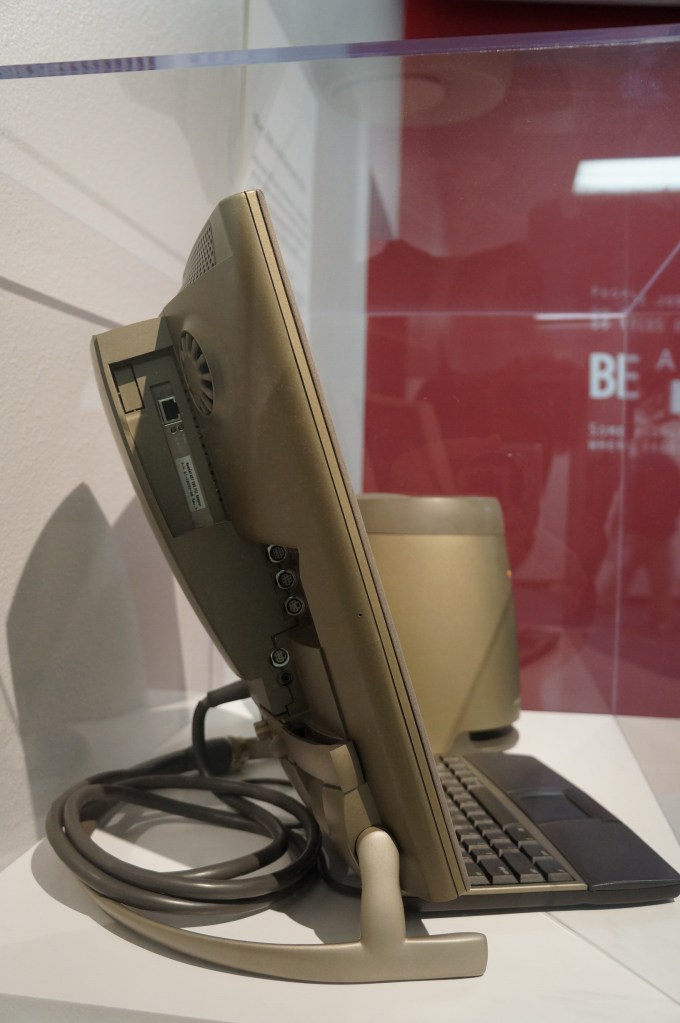
20th Anniversary Macintosh
When the 20th Anniversary Macintosh debuted, my friend Chris and I lusted after it. It was a sexy computer, but it had an out of this world price tag of $10k (though, that included having a technician deliver, setup, and demo the computer in your own home). In retrospect, it was a terrible product that ignored what the original Macintosh represented as an every person’s computer. This computer was about style and prestige and money. A lot about what Apple represents today after Steve Job’s passing seems to be drifting back toward what this computer represents.
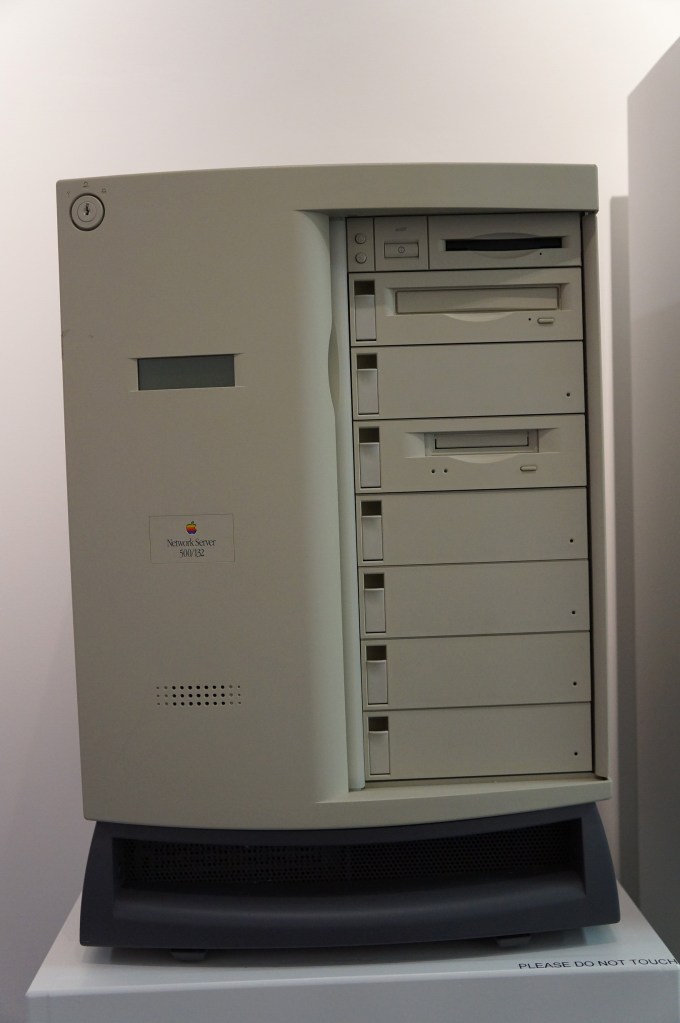
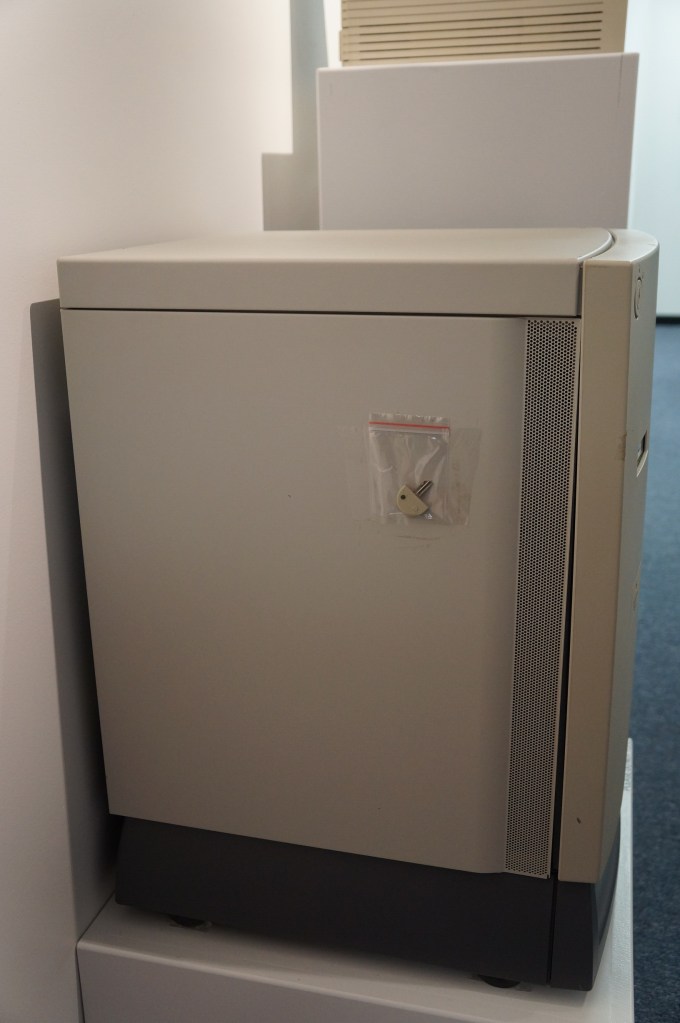
Network Server 500/132
Macintosh Add-Ons
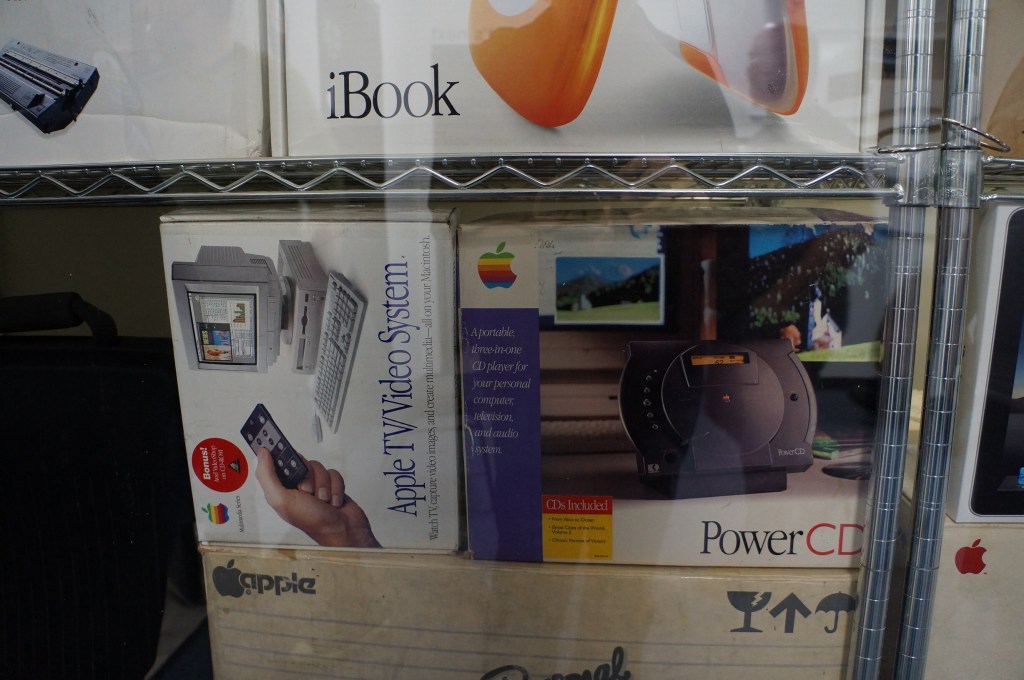
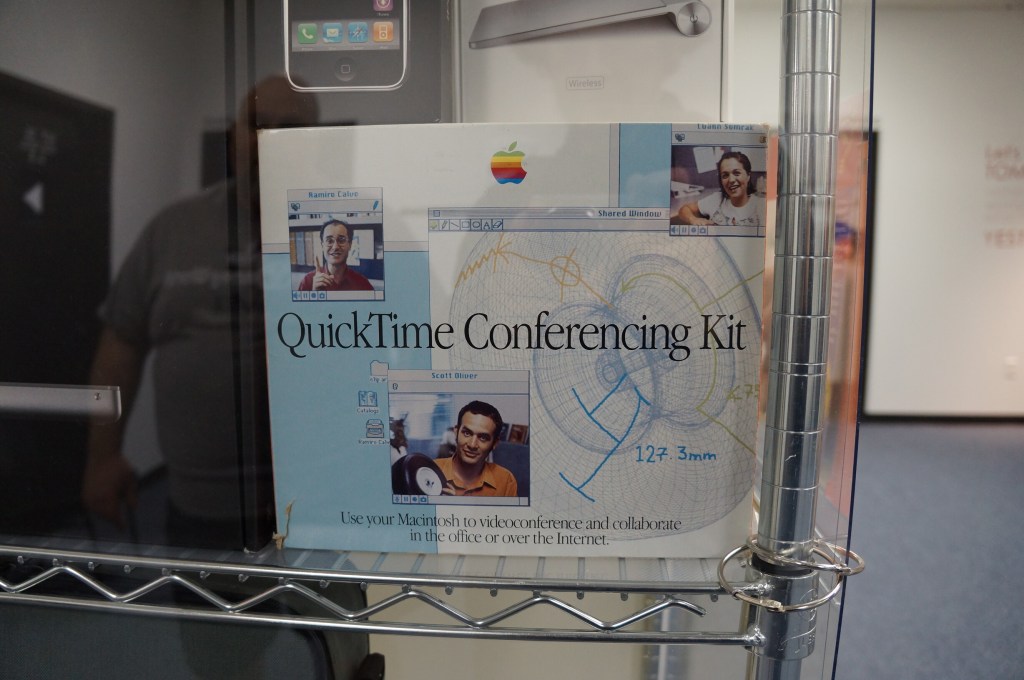
The Apple TV/Video System was an expansion card that gave you a TV tuner and video inputs for your Mac. The PowerCD was an external SCSI CD-ROM drive for Macs that might not have a CD-ROM drive built-in. And the QuickTime Conferencing Kit included a camera and software for video conferencing and collaborative tools like a shared whiteboard–back in 1995.
Apple Newton
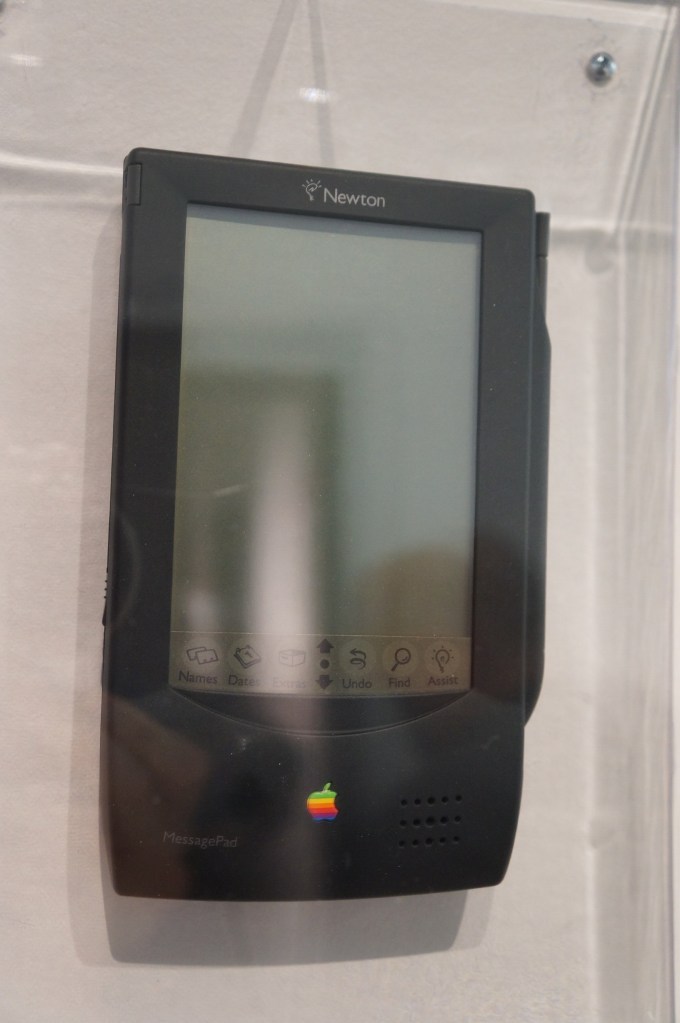
The thing that used to burn me up when Apple released innovative products like the Newton, popular media like SNL would shit all over them, which would turn the general conversation away from what the products could do and had the potential to do towards the limitations and lack of imagination by those folks who would otherwise never purchase or use those products. It wasn’t criticism. It was product assassination. Had that not happened, I think the Newton would have been in a stronger position that might have let it develop further before getting killed off.
It seems like the Internet and social media provides a force or pressure against these negative megaphones of the past. However, there’s equally a lot of fanboys and cheerleaders who don’t temper their enthusiasm with a little bit of reality.
iMacs and G4 Cube
My first experience with an original Bondi Blue iMac was soon after its announcement. I was working at NetlinkIP on St. Simons Island, Georgia when a client called asking for help setting it up. I drove out to a very nice house on the island, unboxed, and configured it to dial up to the Internet. Admittedly, I took longer than was necessary so that I could thoroughly check it out.
Later, my friend Bert got a G4 Cube. Despite its complete lack of internal expandability beyond upgrading its RAM or hard drive, he used his beyond what I think most people would. Every USB port was used for devices or hubs and it was connected to his stereo system. He used it for a lot of graphics and video work and showed how it really was a supercomputer in a small package.
I had a 17″ Luxo iMac for awhile in the early 2000s, but I sold it before I built another desktop PC using an AMD Athlon 2500+ CPU. While I had it though, I liked its crisp 17″ LCD and it was a powerhouse for some of the video editing projects that I did at the time.
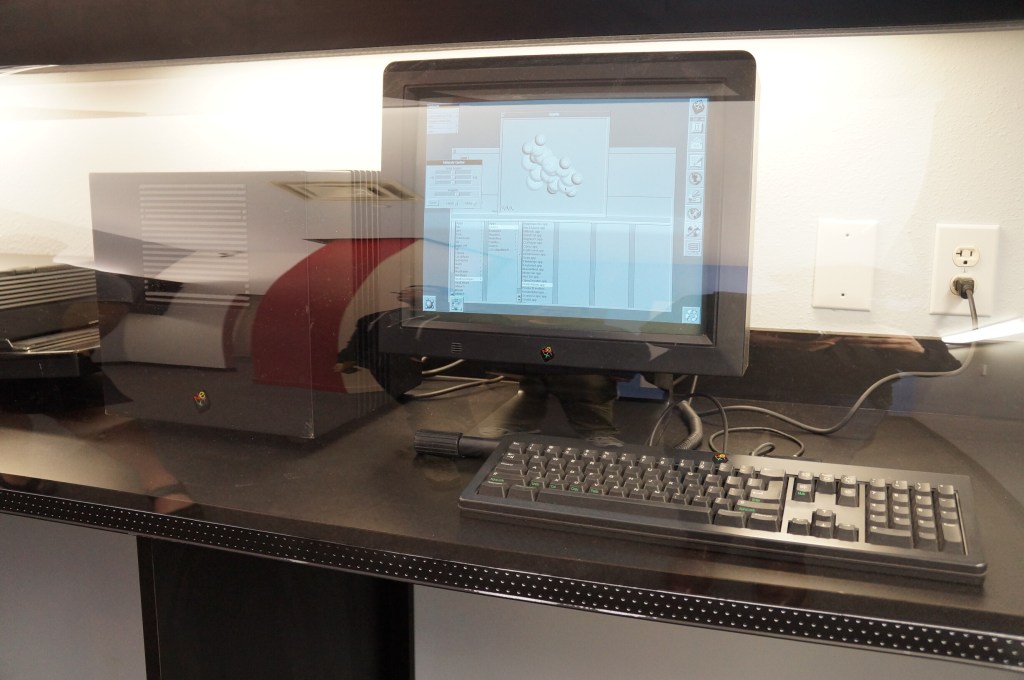
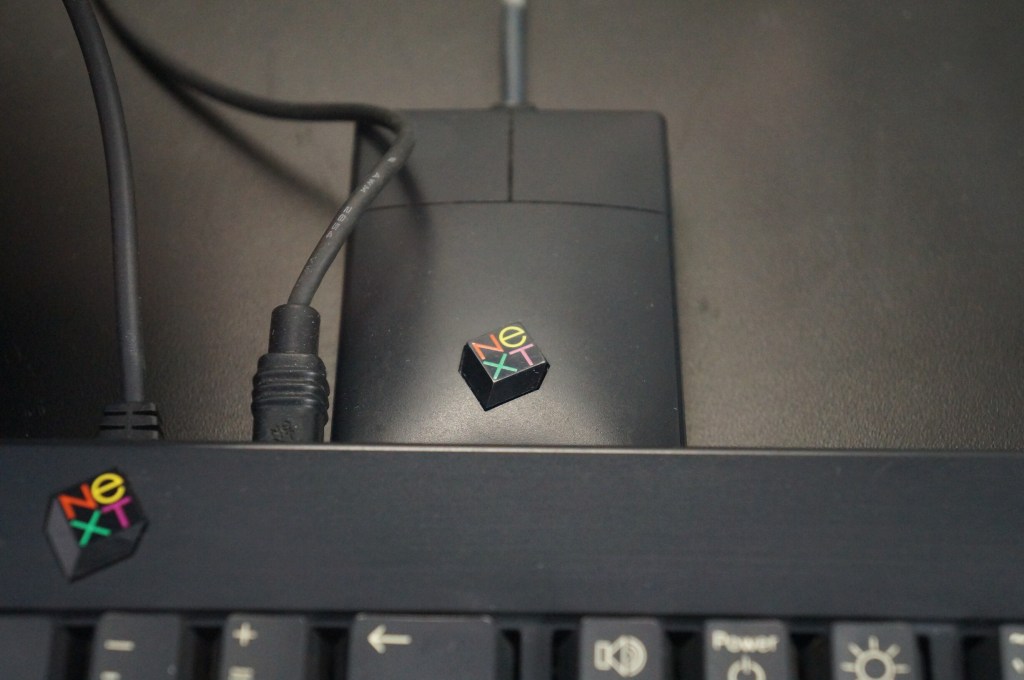
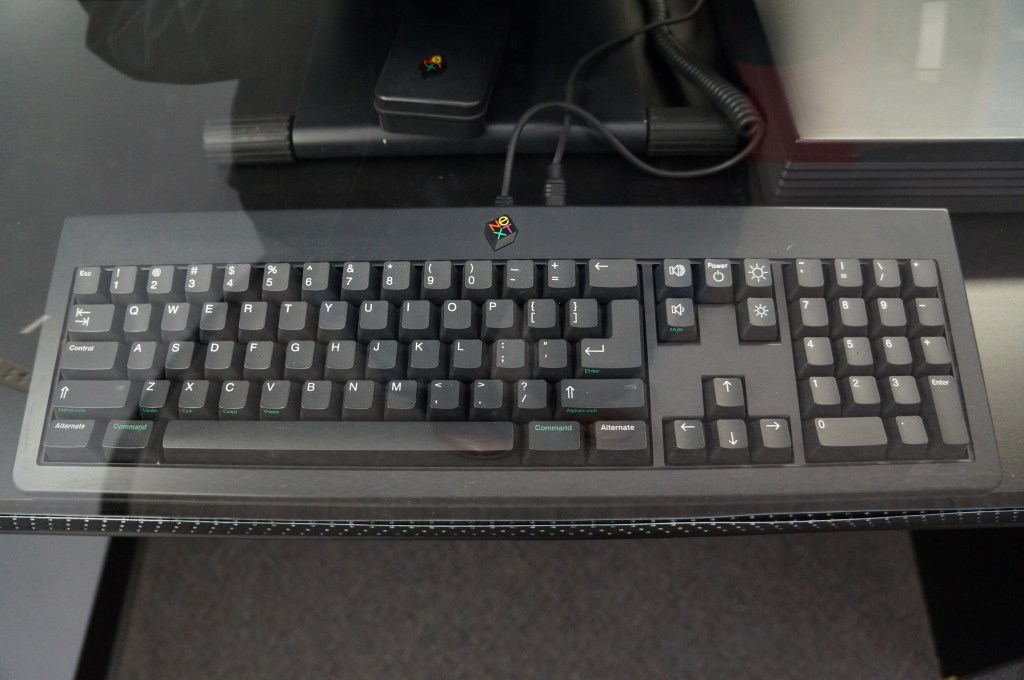
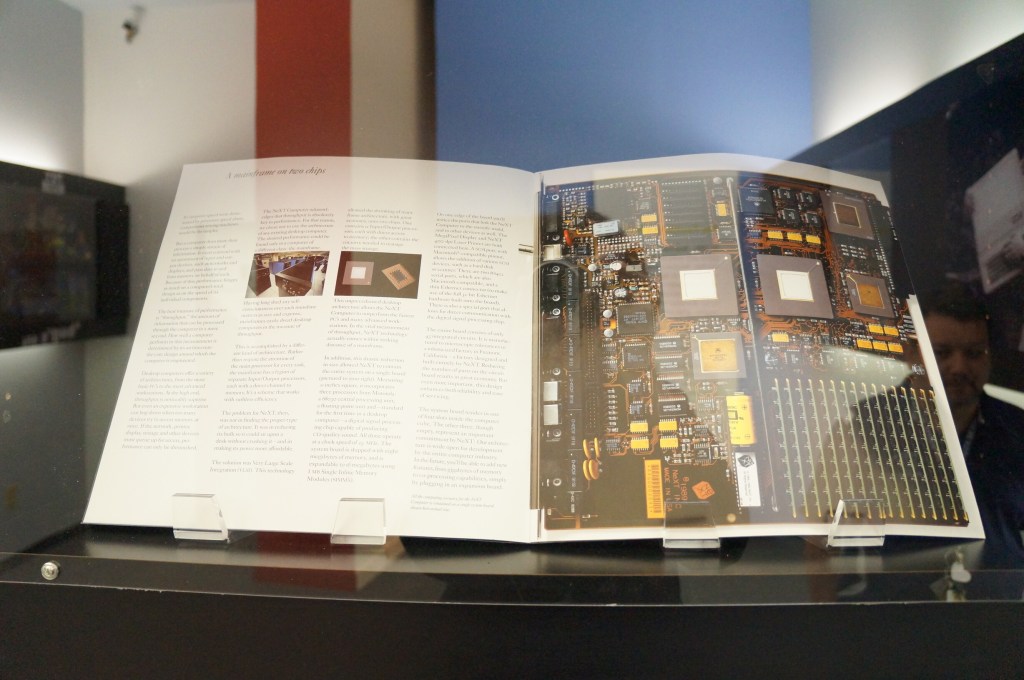
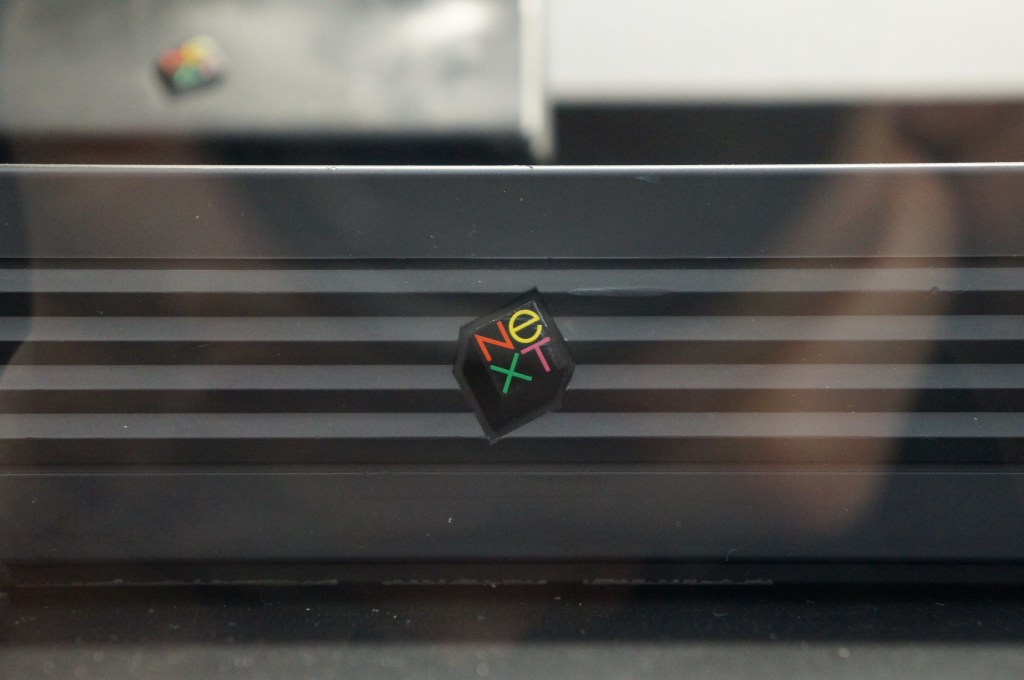
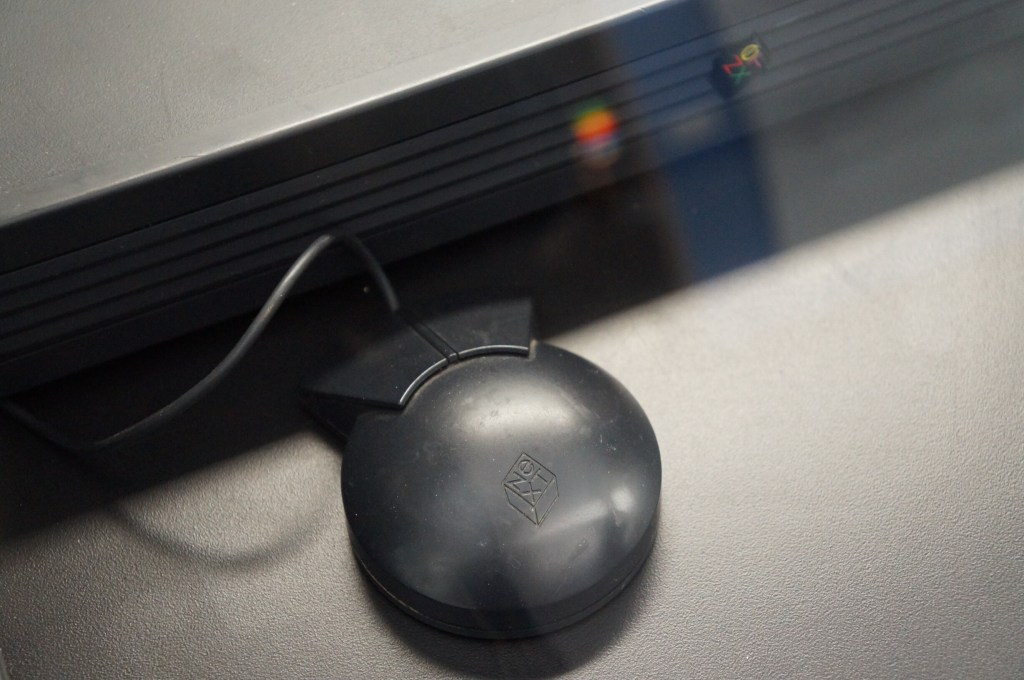
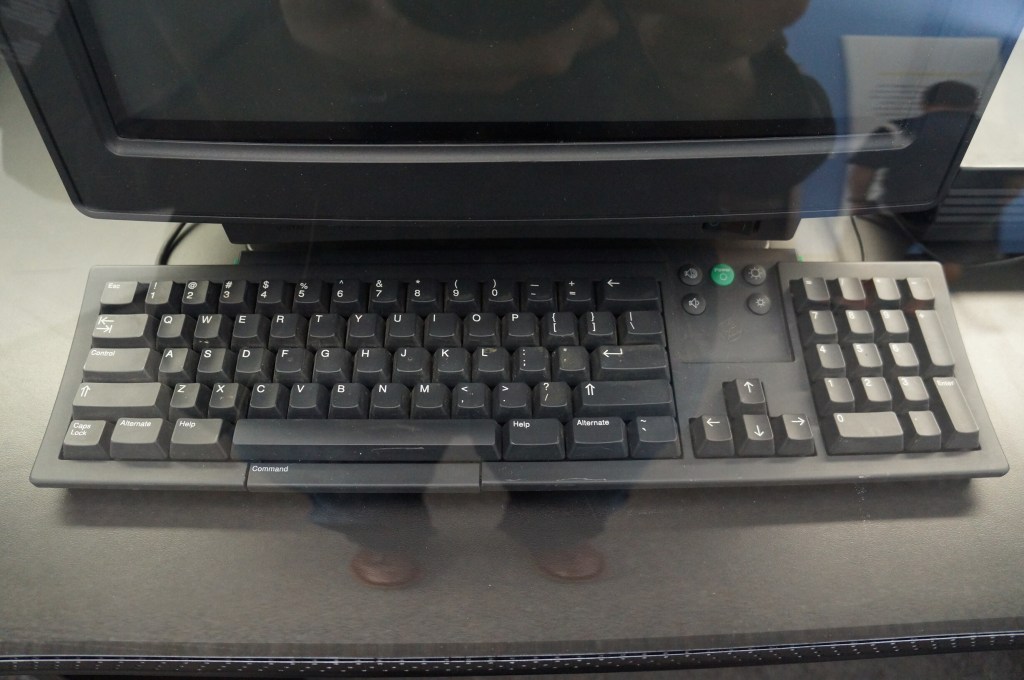
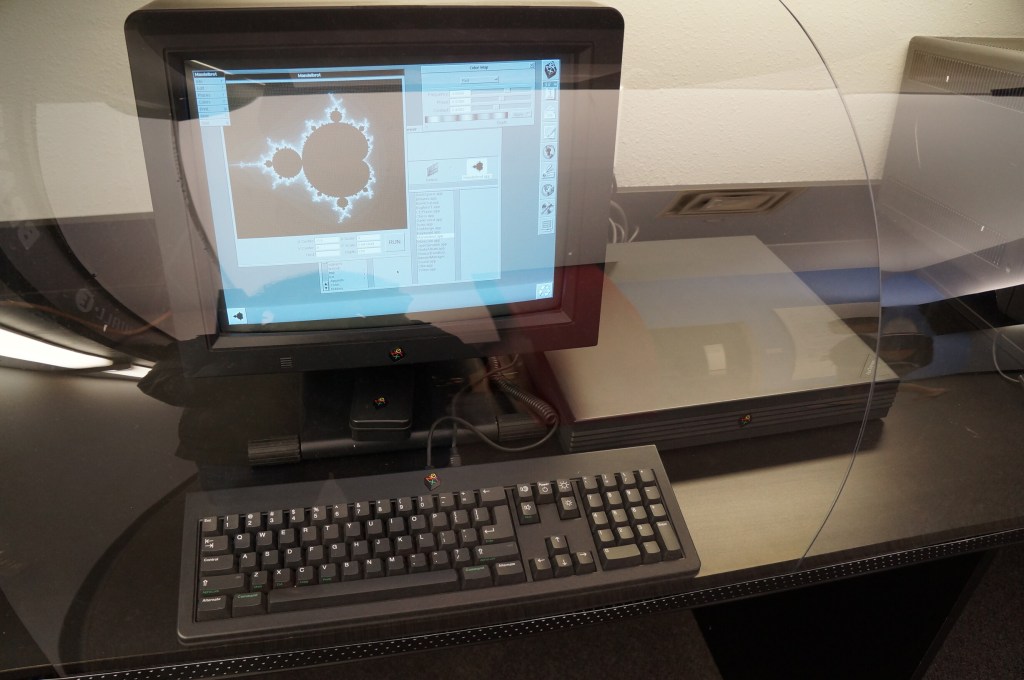
NeXT Computer
Steve Jobs’ second act and the salvation of Apple when the prodigal son returned.
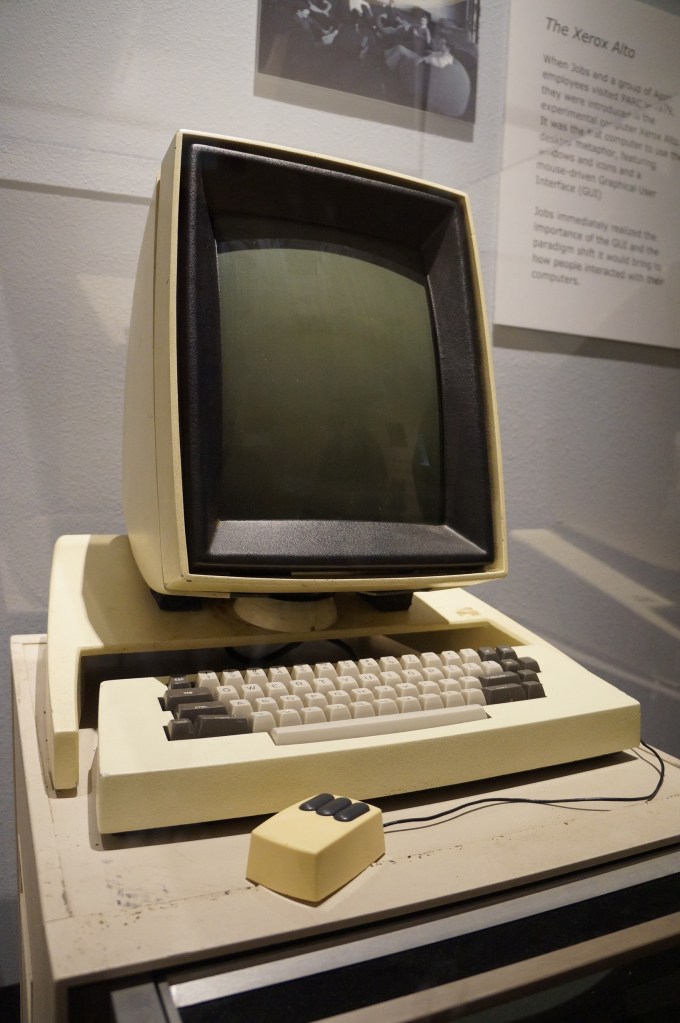
Xerox Alto
This is Xerox’s GUI desktop minicomputer that brought together what Xerox PARC had been developing and demoed to Steve Jobs and his team at Apple that led to the Lisa and eventually the Macintosh.
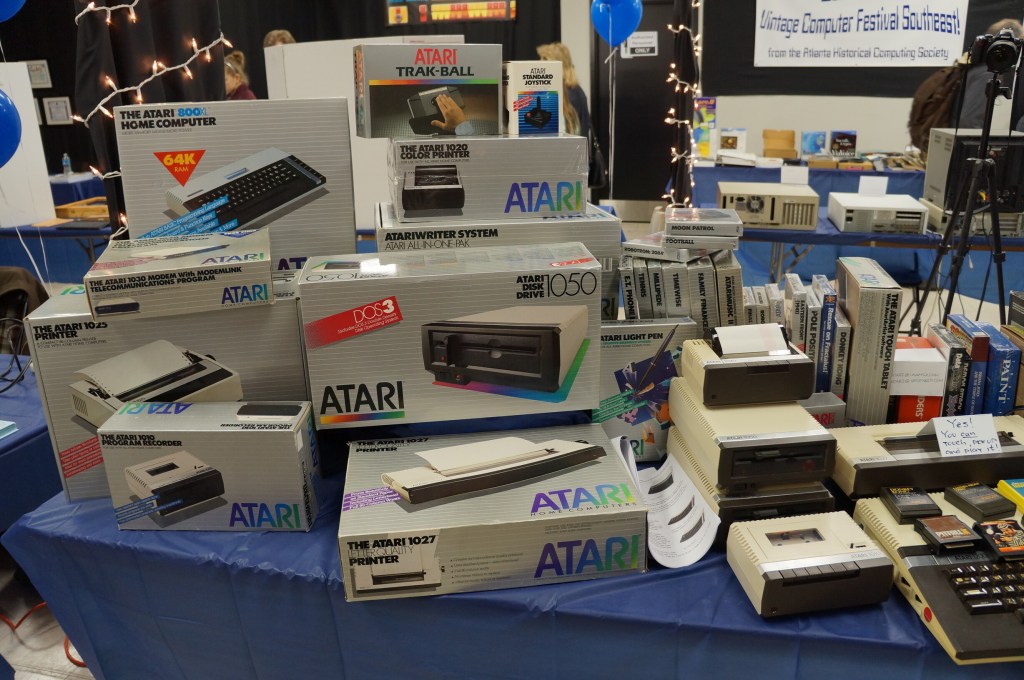
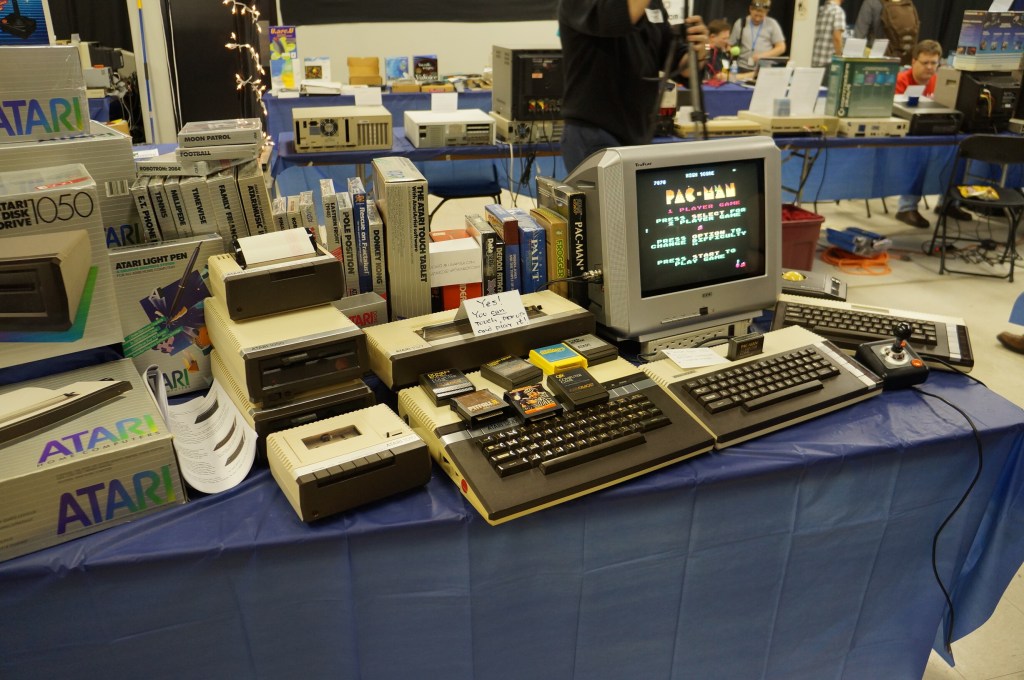
Atari Computer
Portable Computing Miscellaneous
I really like the concept of pocket computers. When I was in middle school, my grandparents gave me a Radio Shack PC-7 Basic Programmable calculator. It looked like a calculator with a built-in soft cover that had a ABC keyboard layout. Considering its programmability, it was the first computer that I owned. The only digital device I had before that was an Atari 2600.
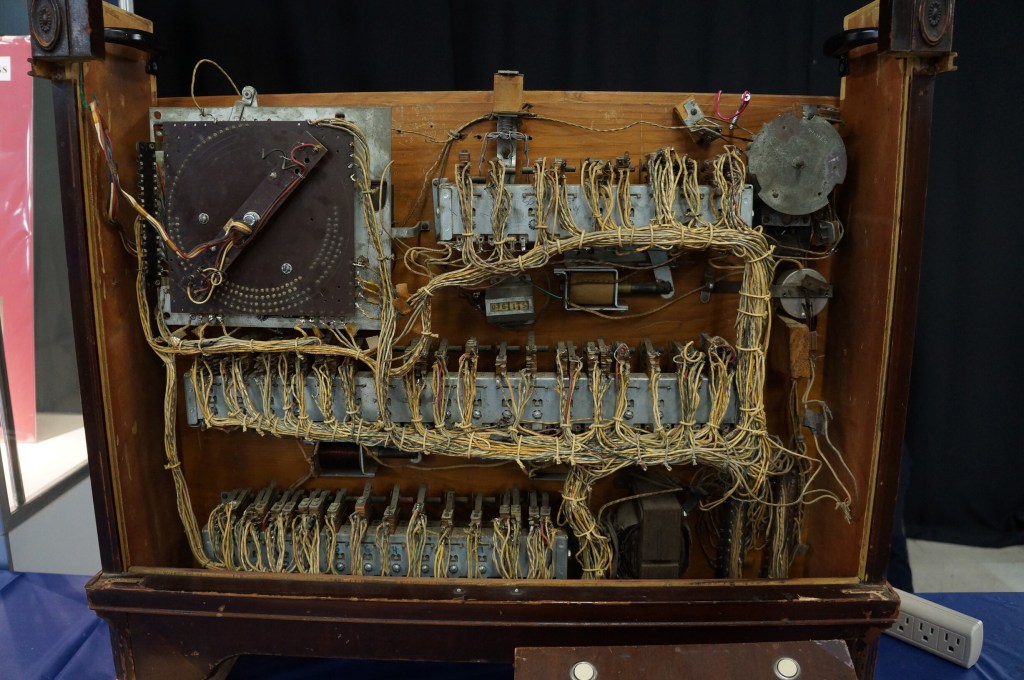
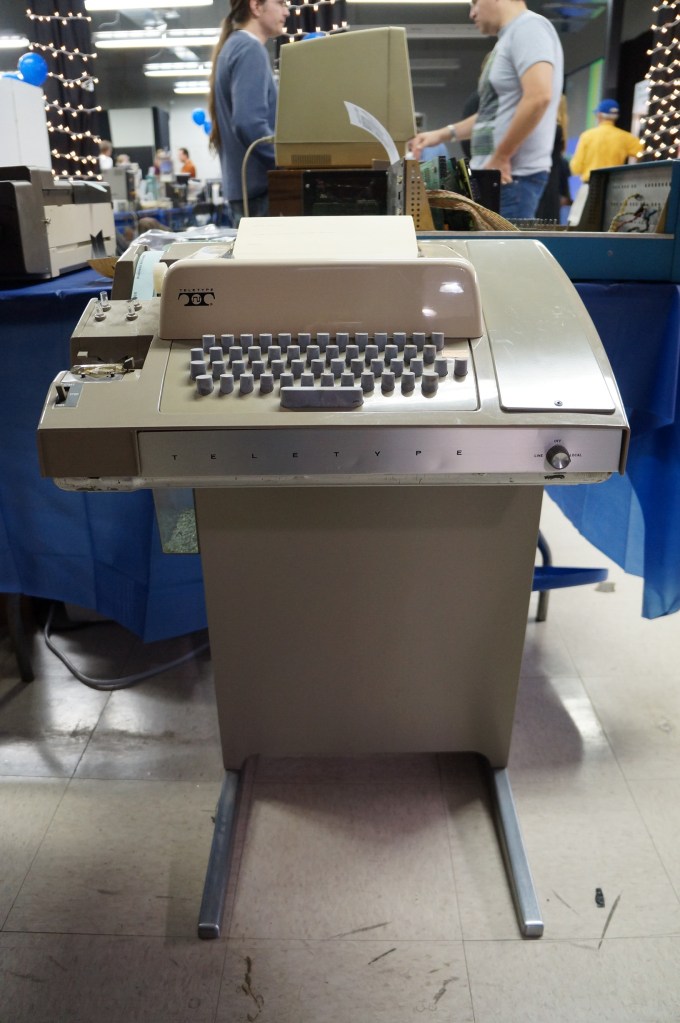
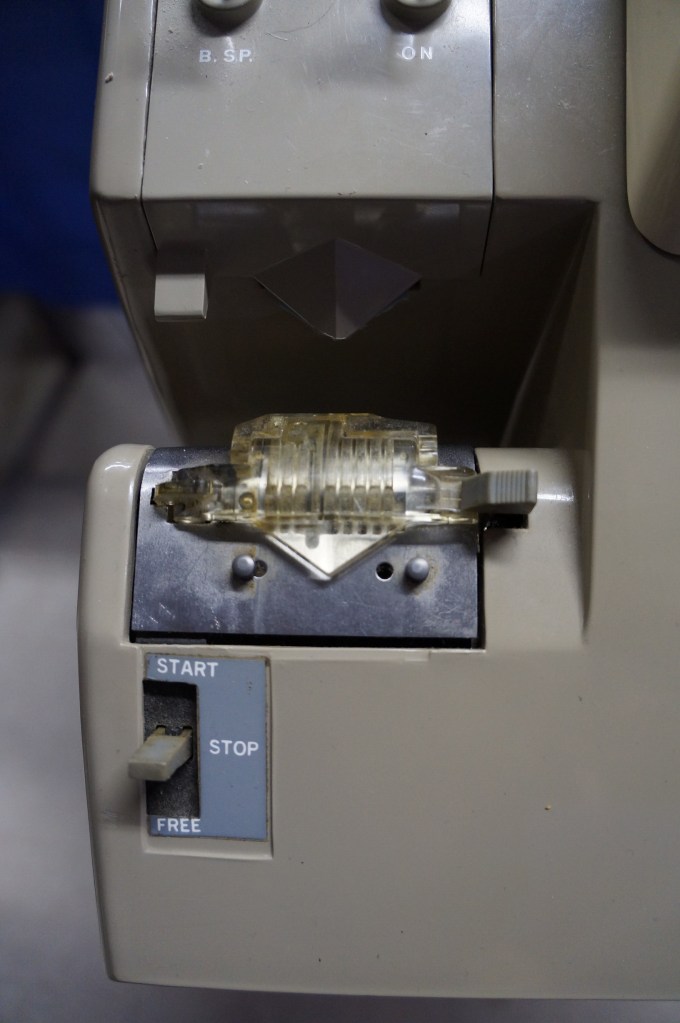
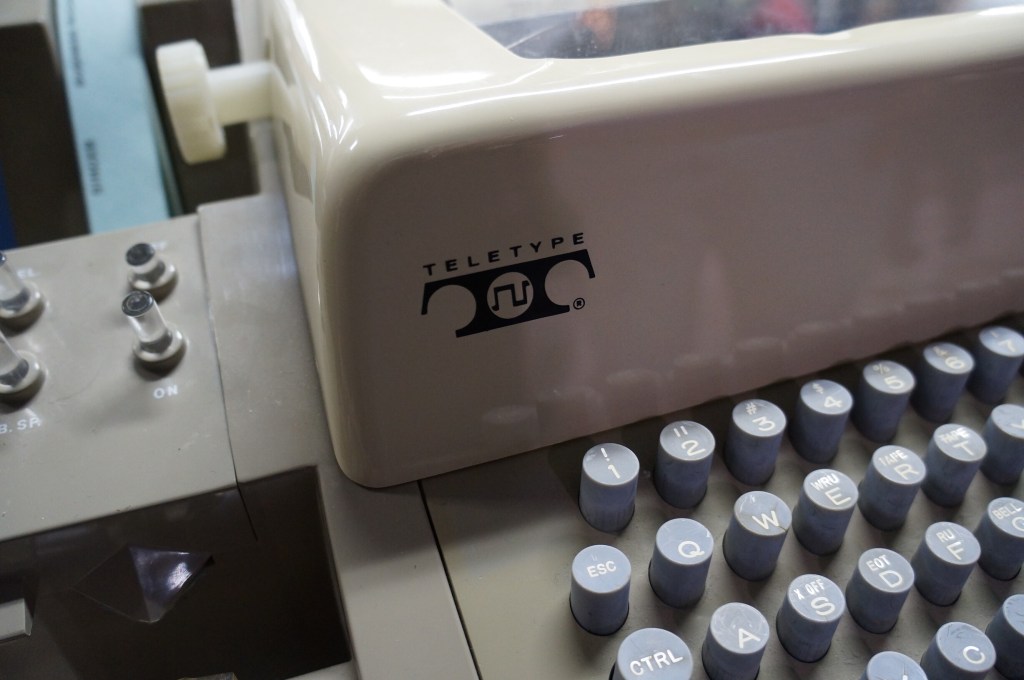
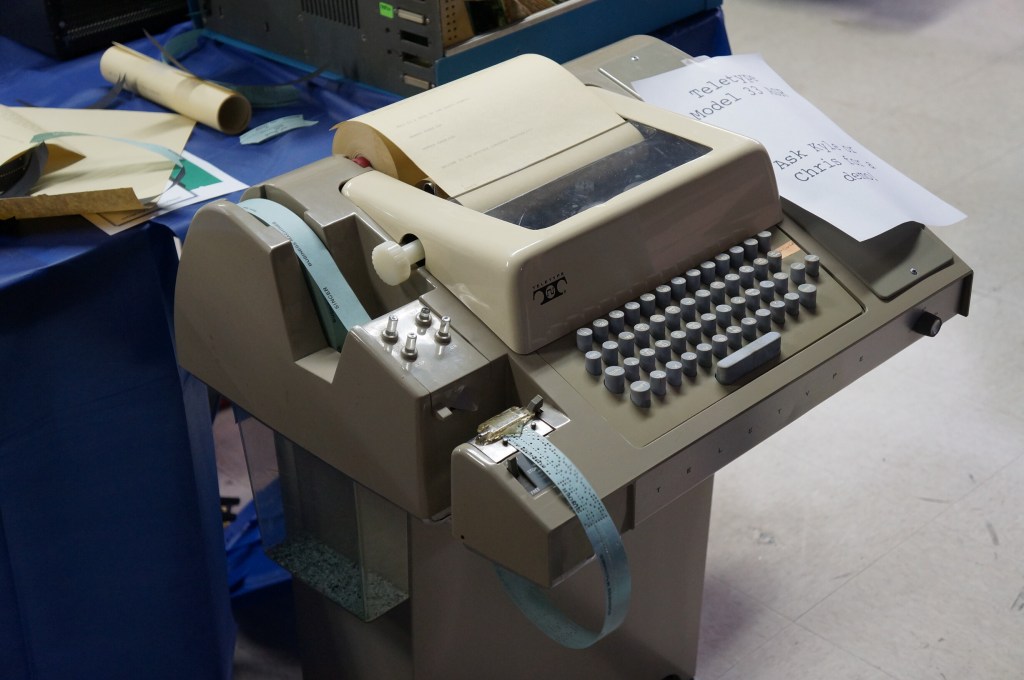
Who needs a display, printer, and program storage when you have a teletype machine like this hooked up to a mainframe or time-share minicomputer?
Captain Crunch Whistles and Tone Generating Blue Box
With the sounds generated by these cereal box toy whistles, which were adapted and expanded electronically with so-called blue boxes, you could commandeer the phone network for your own uses.
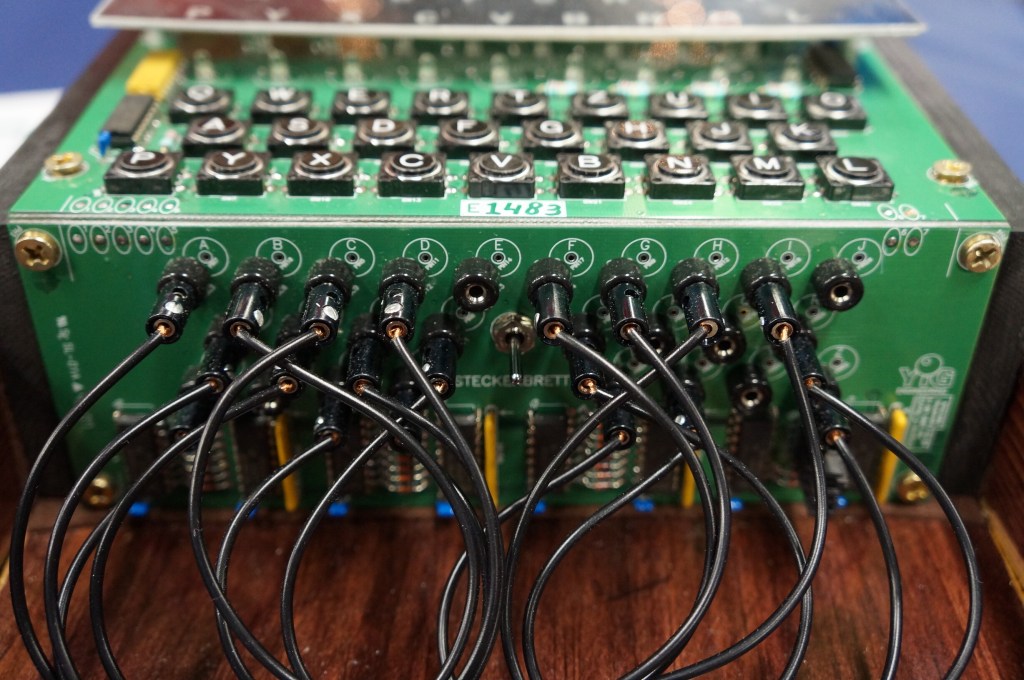
Digital Enigma Machine
This is a digital re-creation of the German Enigma machine used to cyptographically secure their communications during WWII.
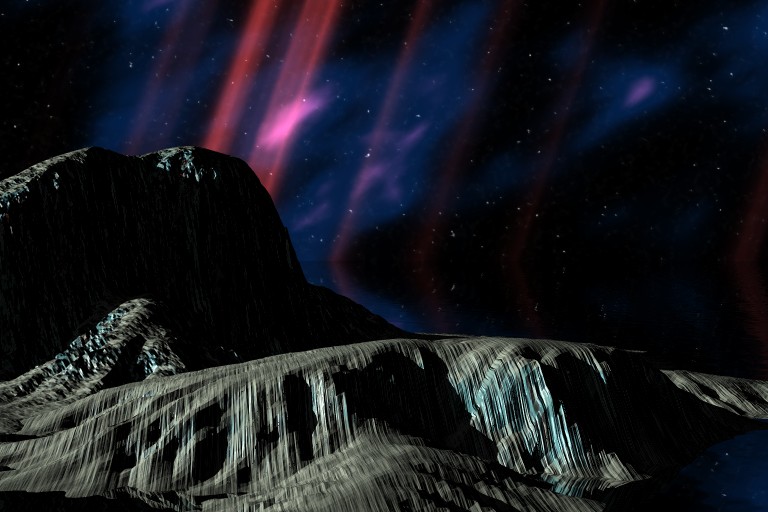
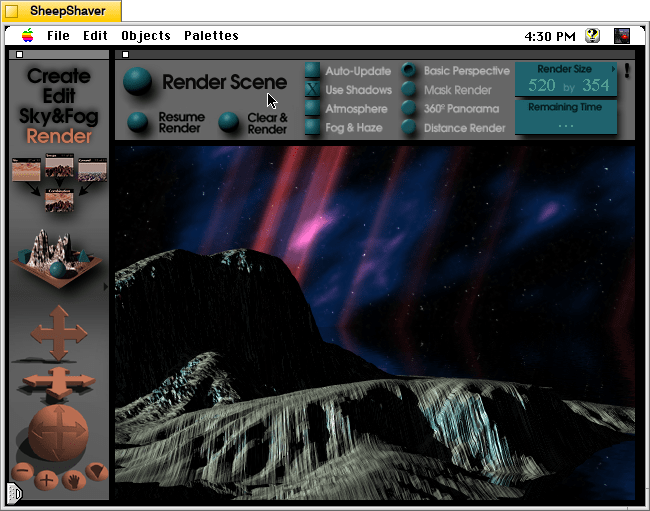
Outer space scene rendered in KPT Bryce 1.0.1 on Mac OS 7.5.5.
A conversation on LinkedIn yesterday with a former Professional and Technical Writing student about user experience (UX) and generative artificial intelligence (AI) technologies reminded me of the UX innovations around an earlier exciting period of potential for computers creating art: KPT Bryce, a three-dimensional fractal landscape ray trace rendering program for Mac OS released in 1994. It was one of the first programs that I purchased for my PowerMacintosh 8500/120 (I wrote about donating a similar machine to the Georgia Tech Library’s RetroTech Lab in 2014 here). Much like today when I think about generative AI, my younger self thought that the future had arrived, because my computer could create art with only a modicum of input from me thanks to this new software that brought together 3D modeling, ray tracing, fractal mathematics, and a killer user interface (UI).
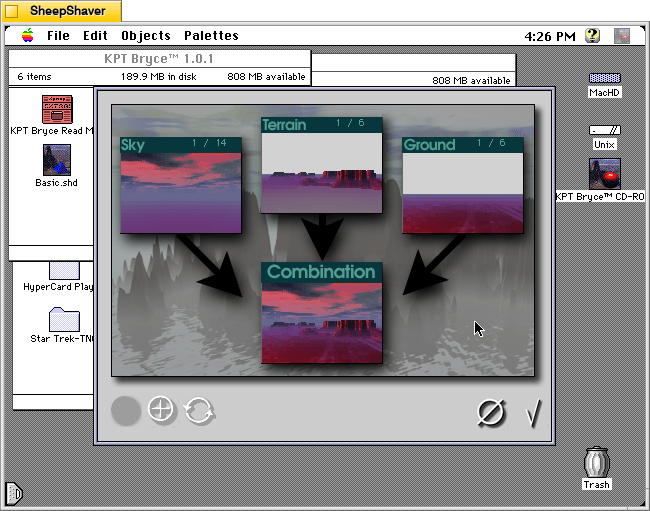
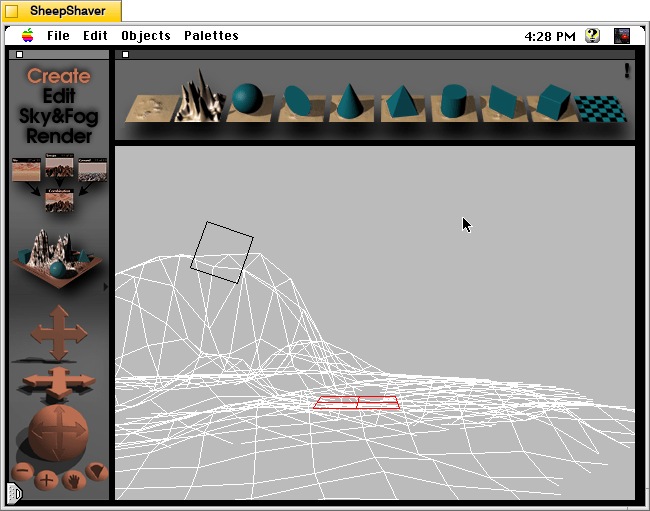
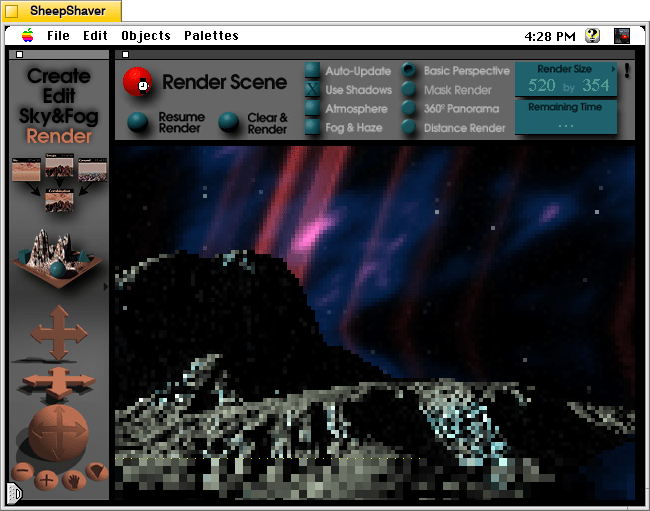
Besides KPT Bryce’s functionality to render scenes like the one that I made for this post (above), what was great about it was its user interface, which made editing and configuring your scene before rendering in an intuitive and easy-to-conceptualize manner. As you might imagine, 3D rendering software in the mid-1990s was far less intuitive than today (e.g., I remember a college classmate spending hours tweaking a text-based description of a scene that would then take hours to render in POVRay in 1995), so KPT Bryce’s easy of use broke down barriers to using 3D rendering software and it opened new possibilities for average computer users to leverage their computers for visual content creation. It was a functionality and UX revolution.
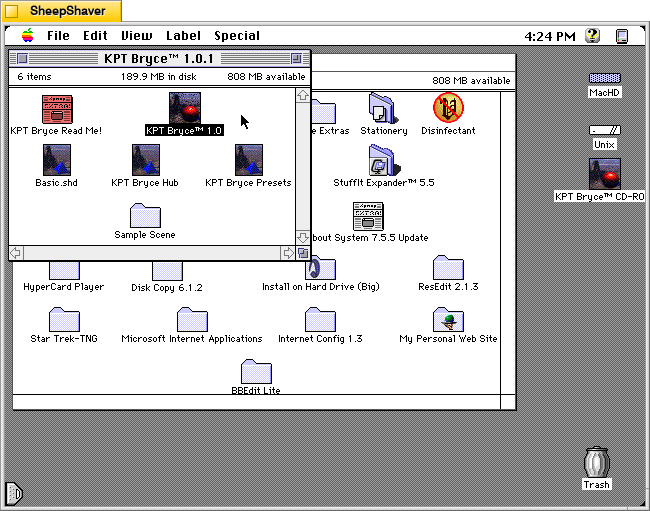
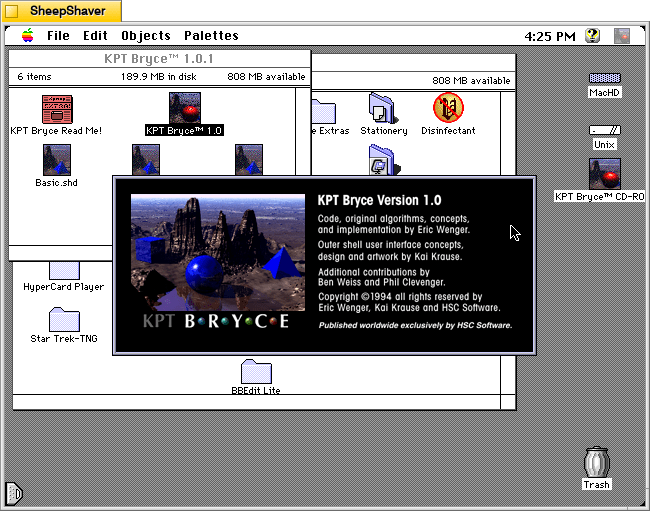
Below, I am including some screenshots of KPT Bryce 1.0.1 emulated on an installation of Mac OS 7.5.5 on SheepShaver (N.B. I am not running SheepShaver on BeOS–I’ve modified my Debian 12 Bookworm xfce installation to have the look-and-feel of BeOS/Haiku as I documented here).
KPT Bryce 1.0 program folder copied to the computer’s hard drive from the KPT Bryce CD-ROM.KPT Bryce 1.0 launch screen.KPT Bryce initial scene randomizer/chooser. Note the UI elements on the lower window border.KPT Bryce’s scene editor opens after making initial selections. KPT Bryce’s rendering screen–note the horizontal dotted yellow line indicating the progression of that iterative ray tracing pass on the scene.KPT Bryce rendering completed. It can be saved as an image by clicking on File > Save As Pict.