Nordles is a Hypercard stack that combines words from three different lists randomly together into combinations made by John Stiles.
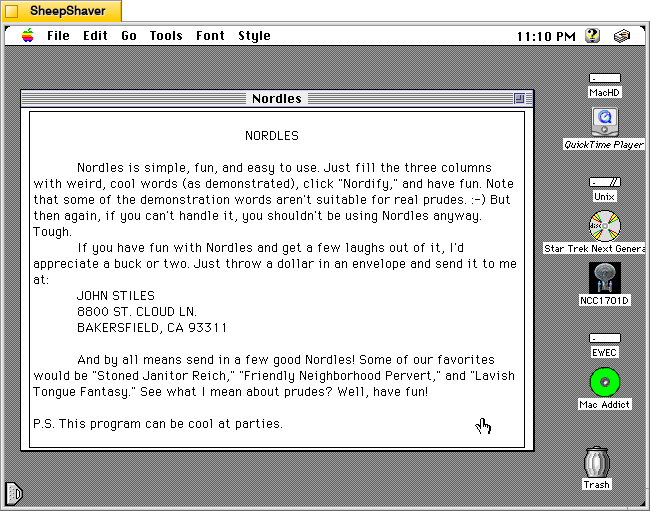
In the stack’s about screen, Stiles writes, “Nordles is simple, fun, and easy to use. Just fill the three columns with weird, cool words (as demonstrated), click “Nordify,” and have fun. Note that some of the demonstration words aren’t suitable for real prudes :-) But then again, if you can’t handle it, you shouldn’t be using Nordles anyway. . . . P.S. This program can be cool at parties.”
As mentioned in yesterday’s post about ChaosPoetry Generator, Nordles inspired Mathew P. Schmeer to create his word combination generator, which supports seven columns of words and phrases to Nordle’s three.
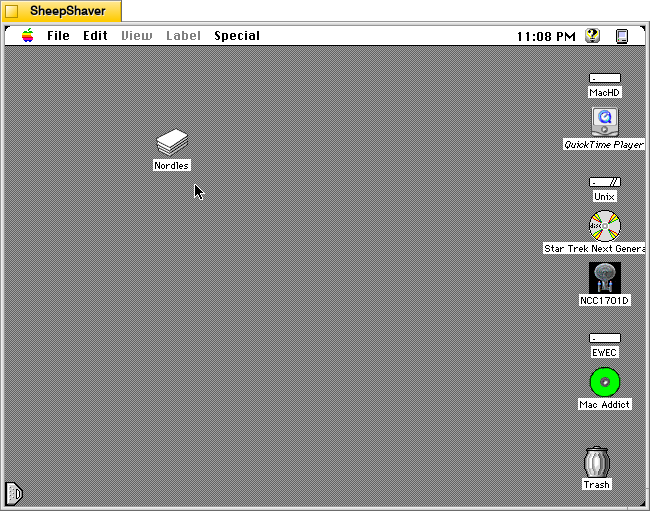
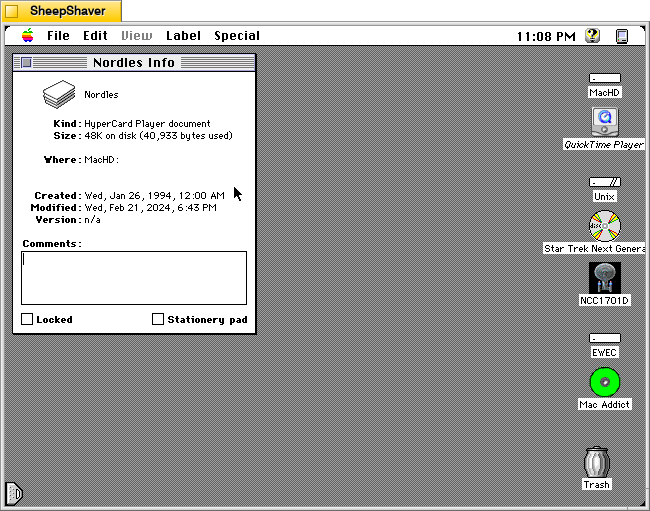
Nordles is only 48K on disk (40,933 bytes used). As a Hypercard stack, it requires Hypercard Player to be installed. When a Hypercard stack is double clicked, it automatically launches the stack in Hypercard Player.
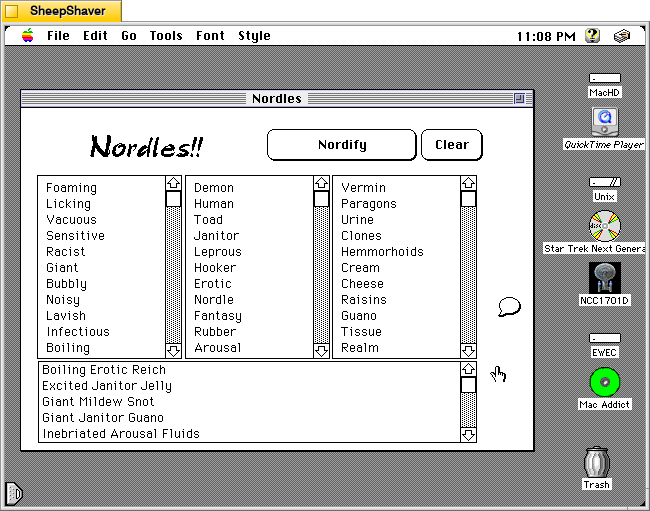
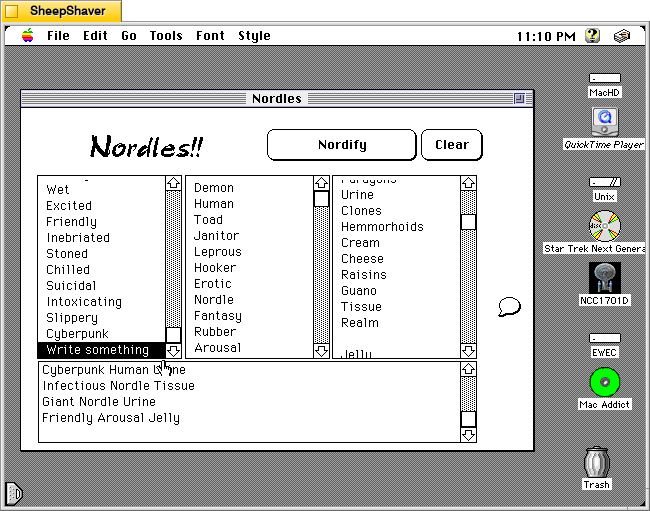
After launching Nordles, the main window opens. It has three columns of words, which can be edited and added to. Many of the default words are NSFW, and their combinations are even more NSFW.
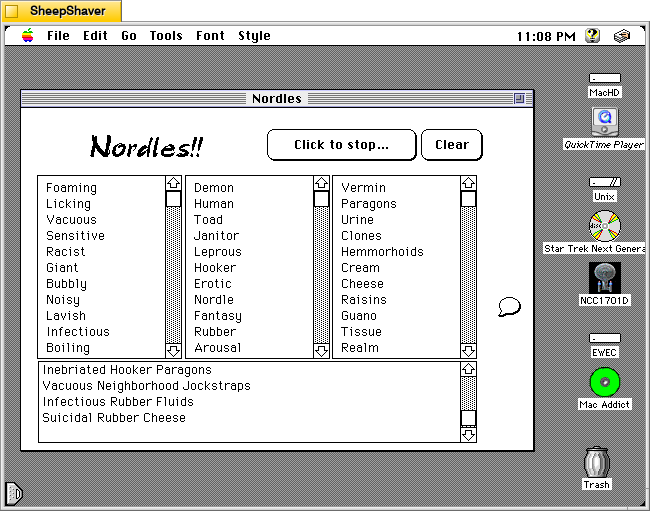
When the “Nordify” button is clicked it changes to “Click to stop…” and the stack randomly assembles three-word combinations using a word from each list. These generated combinations continue appearing in the box at the bottom of the main window until “Click to stop…” is clicked.
To edit words in a list, the user clicks on a word already there to begin typing. Existing words can be edited or swapped out for a new word. Also, the user can scroll to the bottom of the list, click the last word in the list and press return on the keyboard to add a new line for a new, additional word. In the image above, I added a line in the first column and typed, “Write something,” and I deleted a word from the third column list on the right.
To learn more about the Hypercard stack and its programmer, click on the message bubble icon on the right side of the main window. It includes the text that I included at the beginning of the post along with Stiles’ address and his favorite word combination creations.
While Nordles can be puerile, it can be reconfigured with the way the user enters words into the three columns/lists. Borrowing Schmeer’s suggestion for ChaosPoetry Generator, using one column for nouns, one for adjectives, and one for verbs, might yield some interesting creations that might be useful for writers–whether they be professionals or students in a classroom. The generated combinations could inform how a poem gets written (e.g., your poem must include all three words) or the topic of a flash fiction story (e.g., your story must use all three words in a phrase somewhere in your story).
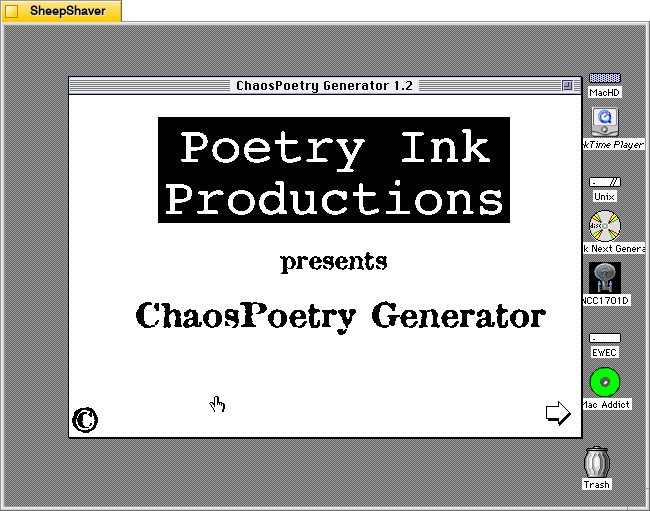
ChaosPoetry Generator 1.2 (downloadable from the TextWorx Toolshed) is a Hypercard stack for Macintosh that strings together words, phrases, and sentences from seven lists that its built-in script randomly pulls from to create combinations that might be interesting, nonsensical, disturbing, or offensive.
ChaosPoetry Generator is a HyperCard based writing tool to help writers break through writers block. Full documentation is included within the stack, but a simple explanation is that ChaosPoetry Generator is a random string generator wherein you control the strings.
This version corrects a major bug which would not allow you to save your generated text. This has been fixed, and now CPG allows full text export.
We give our permission for this file to be included on the Info-Mac CD-ROM, with our usual stipulations.
Thank you.
Matthew W. Schmeer <poetink@inlink.com>
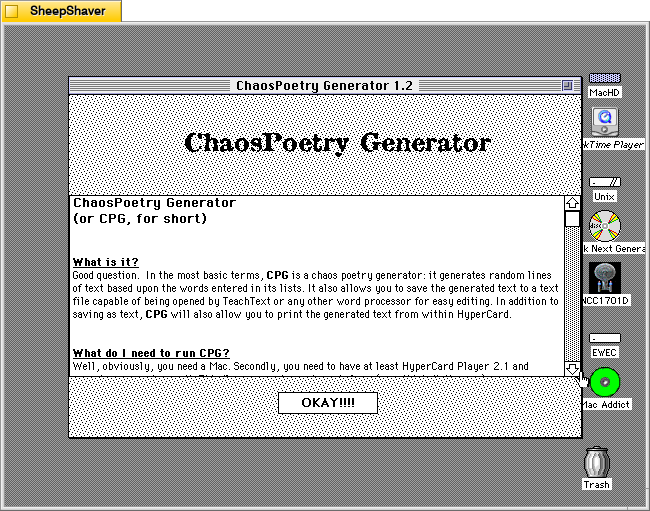
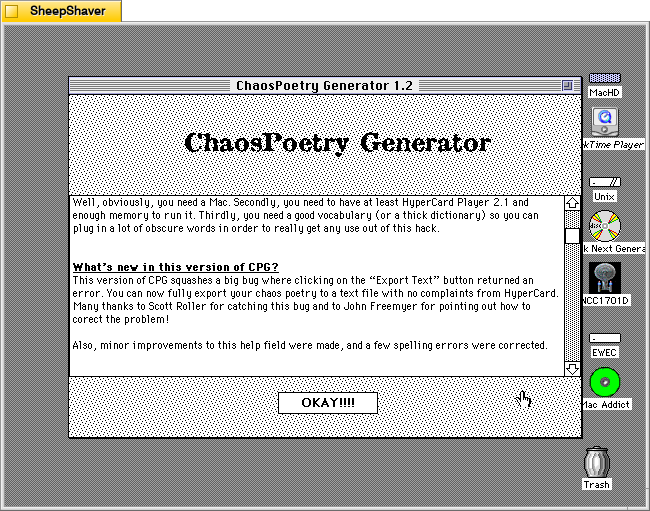
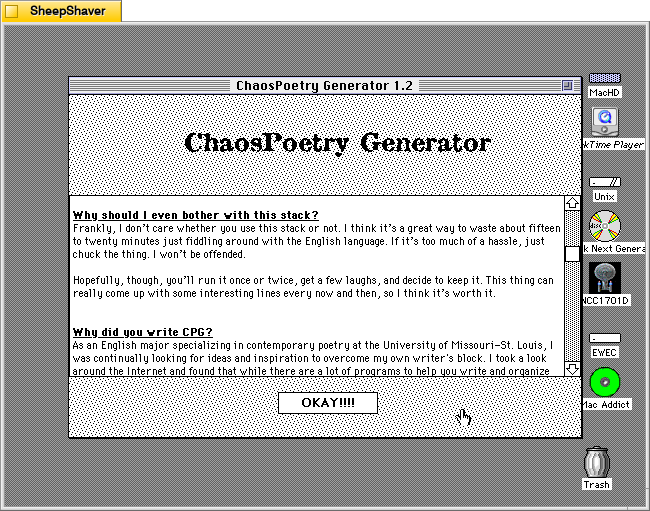
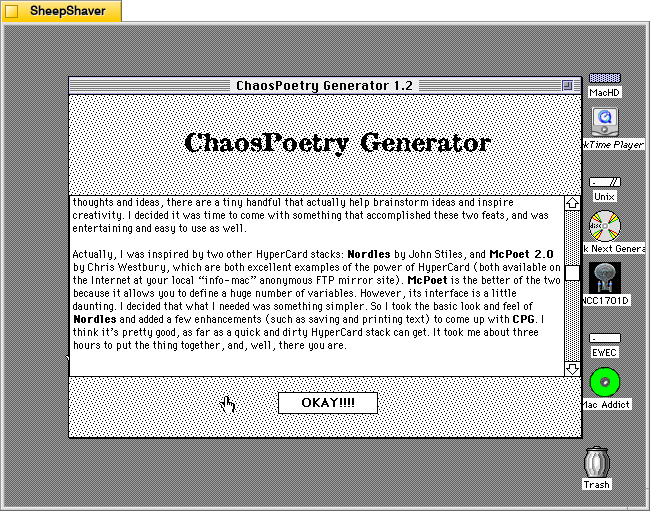
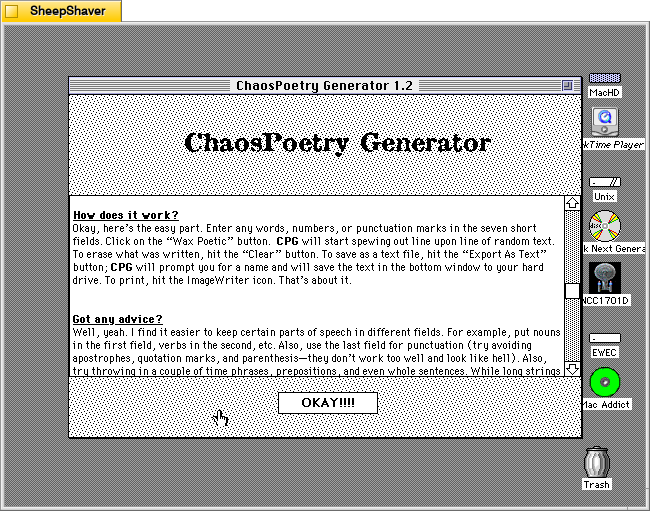
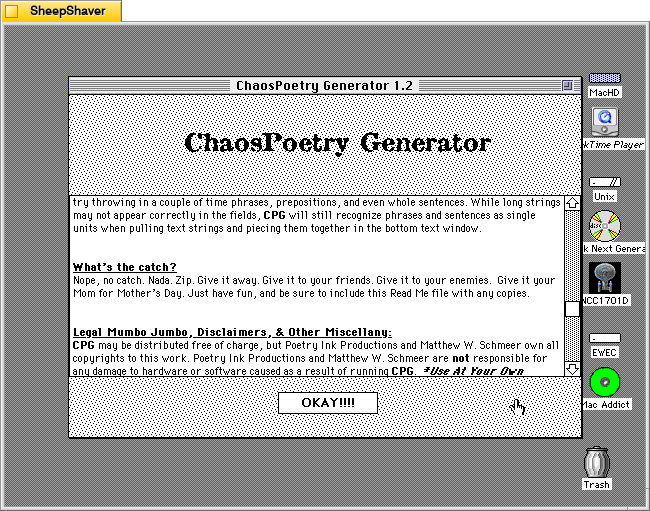
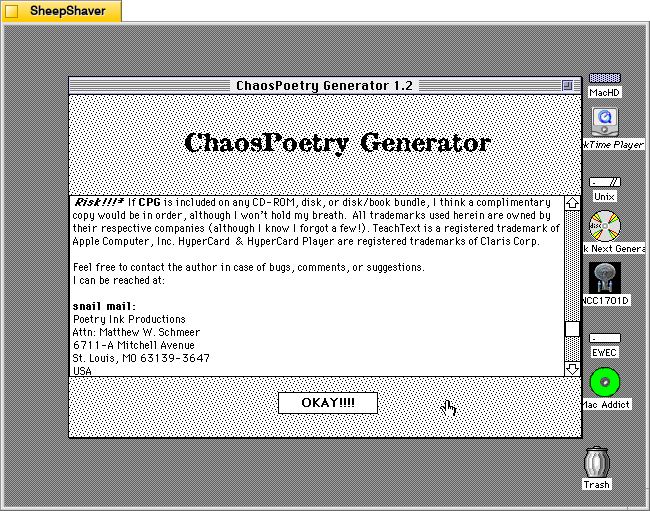
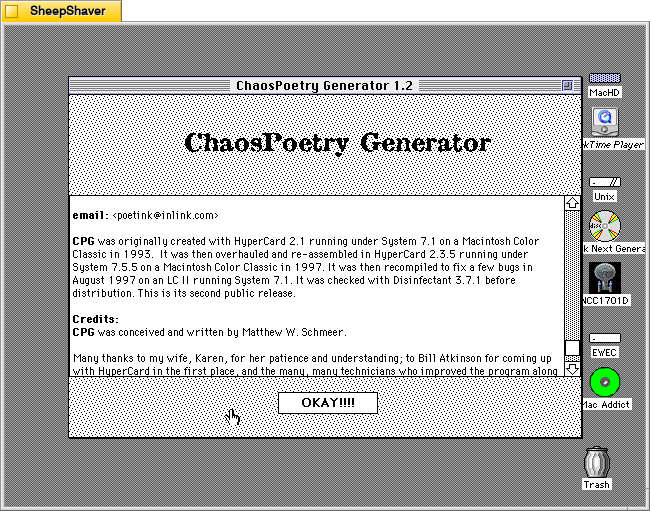
Inside the Hypercard stack’s about page (screenshots further below), Schmeer writes, “In the most basic terms, CPG is a chaos poetry generator. It generates random lines of text based upon the words entered in its lists. It also allows you to save the generated text to a text file capable of being opened by TeachText or any other word processor for easy editing. In addition to saving as text, CPG will also allow you to print the generated text from within Hypercard.”
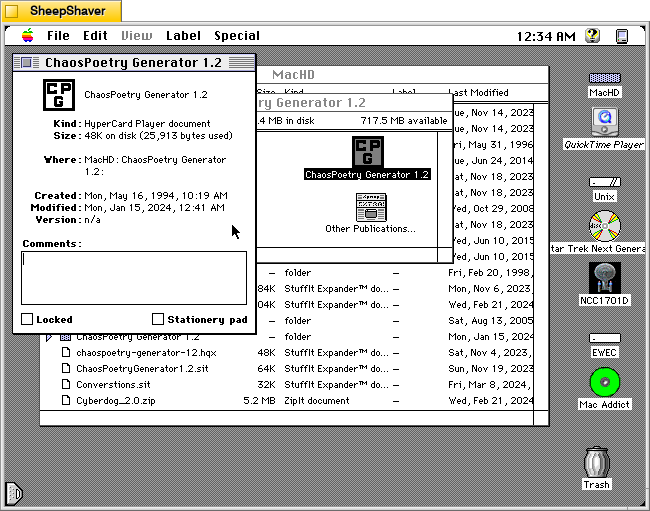
The Get Info window on the Hypercard stack reveals that it is very lean at 48K on disk (25,913 bytes).
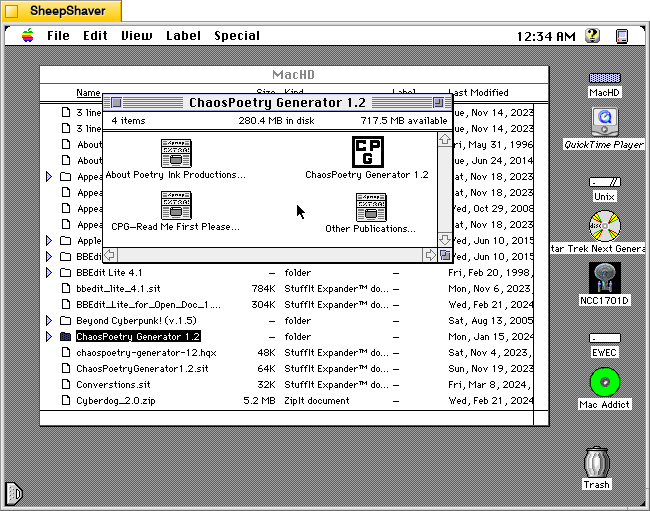
Double clicking on ChaosPoetry Generator 1.2 launches the Hypercard stack in Hypercard Player, which needs to be installed on the host system.
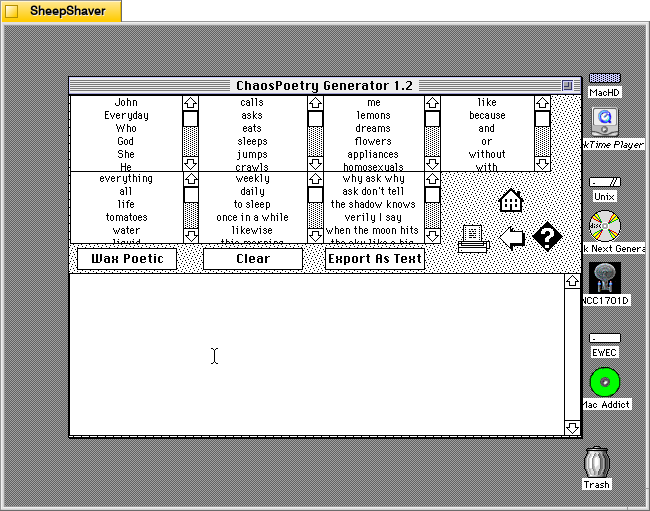
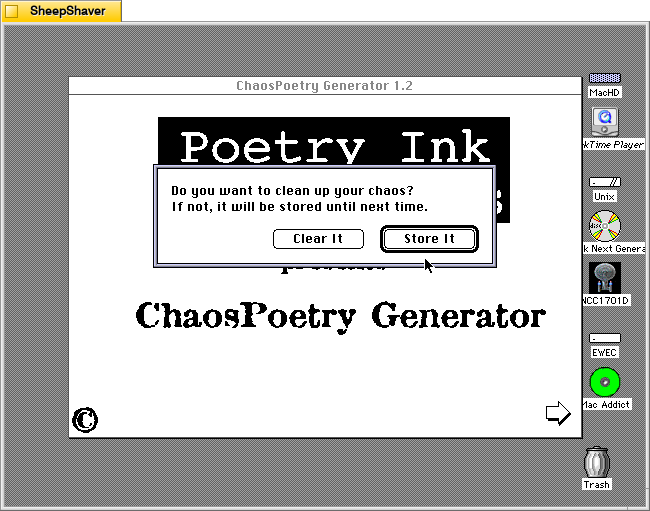
Clicking the arrow in the bottom right of the launch window brings the user to the text generator. Each of the seven lists can be edited by clicking into them, editing a line, or scrolling to the bottom and adding new text to the list there.
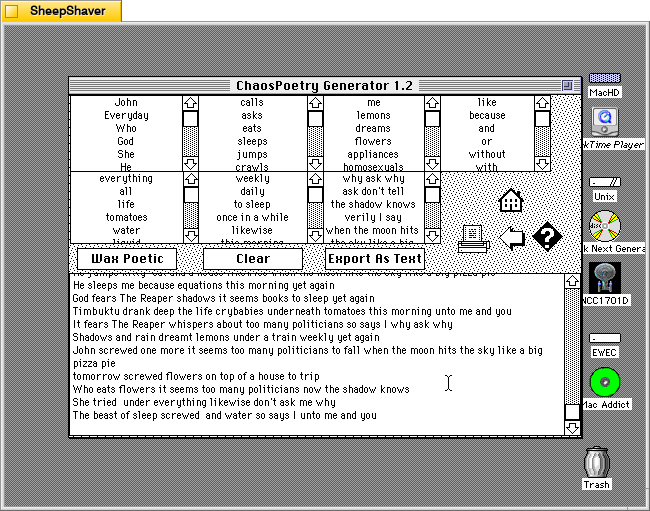
Clicking once on the “Wax Poetic” button causes ChaosPoetry Generator to begin generating copious and unending lines of text randomly drawn from the seven lists at the top of the window. The “Wax Poetic” button changes to “Click to Stop,” which when pressed, ceases the text generation. The user can scroll back up the output box at the bottom of the window to read through the generated lines of text. Clicking on the “Clear” button erases the generated text box, and clicking on “Export as Text” gives the user an option to save the generated text as a TeachText document. The printer icon on the right of the window gives an option to print the output in the generated text box.
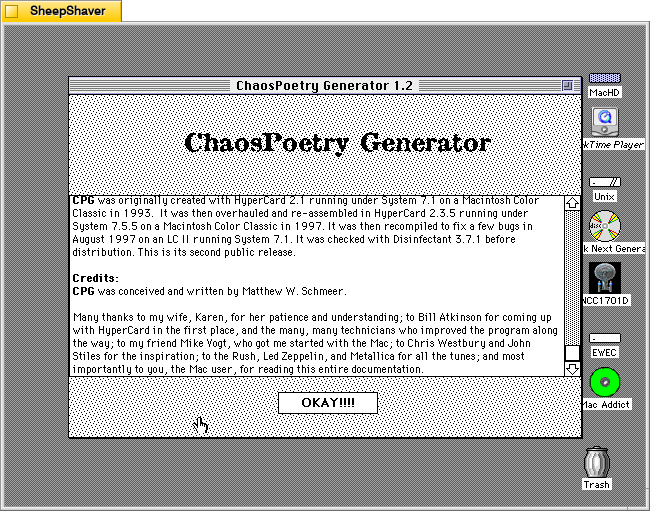
Clicking on the question mark icon on the right side brings up ChaosPoetry Generator’s info page that includes information about what it is, what’s needed to run the stack, what’s new to this version, why it was written and its inspirations, how it works, and advice on using it. Screenshots of these pages are included above, but the key takeaway from the advice section is that the user should use each column for a different parts of speech: a list of nouns, a list of verbs, a list of adjectives, a list of phrases, etc. Schmeer also notes that punctuation marks should be avoided as “they don’t work too well and look like hell.”
Clicking the Home icon on the text generator window first prompts the user if they would like to clear the generated text or store it.
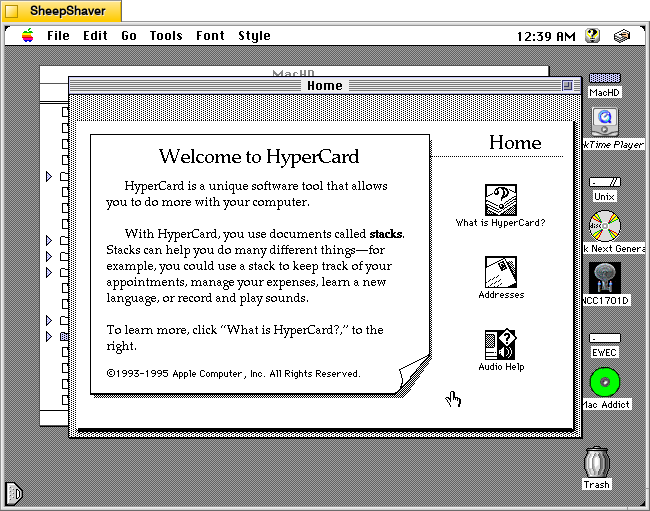
After making a selection on clearing or storing the generated text, the user is taken back to the Hypercard home screen and have essentially quit ChaosPoetry Generator.
The more that I explore these early examples of text generators, the more I come to realize that the meaning making isn’t so much in the way that they work (with exceptions) but instead in the meaning that we give to their outputs. ChaosPoetry Generator, like some of the other text generating applications and Hypercard stacks for Macintosh of that era, are like a warehouse of monkeys, each typing away frantically on their own typewriter. Given enough time and enough monkeys, eventually they will produce the works of Shakespeare (I first heard about the warehouse of monkeys from Douglas Adams, but the theory is much older). But before we get to that point, there’s going to be a lot of not-Shakespeare output. It’s that stuff that we humans read and think about and give meaning to. The computer, of course, has assembled the words in a certain order, but how those words are understood depends on us interpreting the words and choosing to use them or not, if you’re a writer using ChaosPoetry Generator as a tool, for example.
Jef Raskin, who wrote the user manual for the Apple II and founded the team that would go on to launch the Macintosh computer among other accomplishments, was an important figure in the first phase of the personal computer industry. Toward the end of his interview in Lammers’ book, she asks him about AI:
INTERVIEWER: What do you feel artificial-intelligence programs can contribute to society?
RASKIN: Artificial intelligence teaches us a lot about ourselves and about knowledge. Any reasonable artificial-intelligence program will not fit on a very inexpensive machine, at least not these days.
Real artificial intelligence is something like religion. People used to say that just above the sky were heaven and angels. Then you get a rocket ship out there, and now you know that’s not true. So they change their tune. As soon as you accomplish something, it is no longer artificial intelligence.
At one point, it was thought that chess-playing programs encompassed artificial intelligence. When I was a graduate student, you could get a Ph.D. in artificial intelligence by learning to program chess. Now you can buy a chess player for $29.95 and nobody calls it artificial intelligence. It’s just a little algorithm that plays chess.
First, there’s a problem of definition. Then it gets more complicated. People say that programs should understand natural language, but our utterances are too inexact for a computer, or anybody, to figure out what is meant to be done; that’s why we have programming languages. If anyone’s ever worked from a spec prepared in English, they know that you can’t write a program from it because it’s not exact. So if human beings can’t do it, there is almost no way we can expect to make a machine do that kind of thing. When you’re dealing with so-called artificial-intelligence programs, the computers have got to learn a vocabulary. Let’s say you have five commands and you want the machine to understand any possible English equivalent to them. But it won’t understand any English equivalent: One person might say, “Get employee number,” while an Englishman might say, “Would you be so kind as to locate the numerical designation for our employee.’ That’s exactly the complaint AI people are trying to solve.
A lot of the promise of artificial intelligence is misunderstood. What artificial intelligence has already taught us about the nature of languages is wonderful. So, do I think artificial intelligence is worthwhile? Absolutely. Do I think it’s going to turn out great products? A few. Do I think it’s going to fulfill the promise that you read about in the popular press? Not at all. Will I be putting a lot of money into artificial intelligence? Nope (qtd. in Lammers 243-244).
Lammers, Susan. “Jef Raskin.” Programmers at Work: Interviews with 19 Programmers Who Shaped the Computer Industry. Microsoft Press, 1989, pp. 227-245.
What he said has some resonance today. There seems to be the same kind of effect in computers that we see in other fields. For lack of a better phrase, it’s the “so, what have you done lately?” question. Once one hurdle is accomplished, its importance or significance gets erased by the passage of time and people’s attention. Deep Blue beat Kasparov at chess? Great, what’s next? AlphaGo beat Lee Sedol at Go? Okay, what’s next? ChatGPT can do your homework? Super, what’s next? With each milestone, the preceding success seems diminished and becomes the $29.95 chess player that Raskin refers to above.
However, as AI’s capabilities increase, it seems to be edging further toward ubiquity. It’s already ever present in many aspects of our lives, such as business, finance, advertising, and photography, that we are not necessarily cognizant of or paying attention to. Now, it’s creeping into computer and smartphone operating systems (similar to Don Crabb’s observations that I wrote about yesterday) and some of the software that we use for daily productivity (email, word processing, and integrated development environments for programming). Perhaps its the eventual ubiquity of AI that will make it feel mundane instead of a radical technological development as imagined in the heady cyberpunk era represented most clearly by William Gibson’s Neuromancer (1984).
But, there’s something else that Raskin talks about in his interview that has some relevance to AI. After he left Apple when Steve Jobs took over the Macintosh project, he founded Information Appliance, Inc. to build and market an add-on card for the Apple IIe called the SwyftCard. This card contained a ROM for an all-in-one piece of software that contained word processing, communication, calculation, printing, and programming capabilities. He explains:
Watch this. There is no disk in the drive, and I want to type a message, “Remember to bring home some milk.” How do you like that? I turn it on and start typing. No need for commands, no insert, no getting to the editor, I can just start typing.
Now I want to print the message and put it in my pocket, so I can use it later. I press a single key, and it prints. Isn’t that convenient . . . .
We can do calculations easily. Before, whenever I was using the word processor and wanted to do a calculation, I’d get out my pocket calculator and have to use a separate calculating program, or get up SideKick; on the Mac, you call up the calculator and paste it into your document. We also have telecommunications capability.
INTERVIEWER: All in the same program?
RASKIN: Sure. There is no difference between all the applications. What’s a word processor? You use it to generate text, move it around, change it if you make a mistake, and find things. What’s a telecommunications package? You use it to generate text, or receive text generated by someone else. Instead of it coming in from a keyboard or out from a printer, it comes in or out over a telephone line. And what’s a calculator? You use it to generate numbers, which are just text, and the answer should come back into your text. So, one day it dawned on me, if these applications do the same thing, why not have one little program that does them all?
INTERVIEWER: Well, what is this product you’ve developed to cover all of these features?
{Raskin holds up a simple card.]
RASKIN: It’s called a SwyftCard (qtd. in Lammers 233).
Lammers, Susan. “Jef Raskin.” Programmers at Work: Interviews with 19 Programmers Who Shaped the Computer Industry. Microsoft Press, 1989, pp. 227-245.
It seems to me that we’re heading toward a great collapsing of software into generative AI. As large language models learn more with increasing amounts of training data, they reveal new capabilities that emerge from the resulting trained models. Will we type and eventually talk to our computers to tell it what we want to accomplish without having to worry about having x, y, or z programs installed because the AI can do those things in an all-in-one fashion as the Nth degree of Raskin’s SwyftCard? Time, of course, will tell.
While searching around for early uses of algorithmic text, image, and music generating software from yesteryear (which I have been documenting on this page), I stumbled upon Don Crabb’s Guide to Macintosh System 7.5.5 (1996), which is a guide to using Apple’s System Software 7.5 on Macintosh and Power Macintosh computers in the mid-1990s.
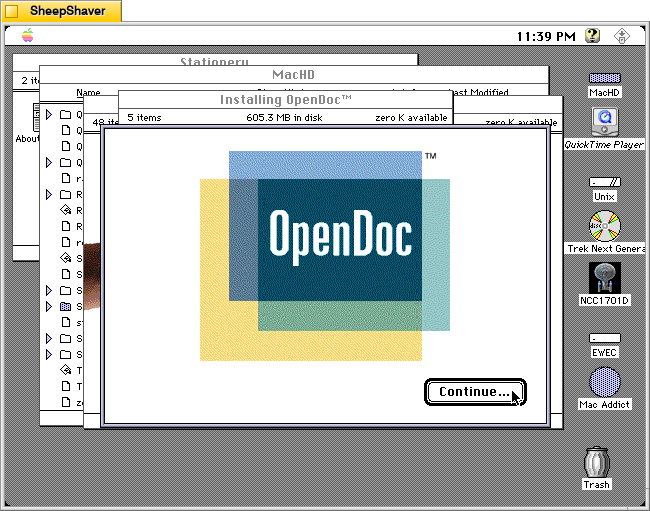
In Chapter 5, “The Multimedia is the Message,” he writes the following prophetic passages that point to right about where we are now with giving generative AI access to our files so that we can chat with an AI about the contents of those files–for ideation, brainstorming, summation, search, discovering patterns, etc. Crabb had an idea that combined Apple’s then innovative OpenDoc technology, which flips the computing metaphor from application-centric to document-centric and that facilitates different Editors (aka programs) to work on/within different Documents or create new Documents via Stationary files, with the power of artificial intelligence to observe, learn, and collaborate with computer users. The foundation of his idea is what he calls the Open Desktop Architecture (ODA) and the Omniscient Sage. He writes:
The Multimedia/OpenDoc Desktop
The future of the Macintosh Desktop will reside in something I call Open desktop Architecture (ODA)— as Apple ought to articulate it and we ought to use it in the form of a new Multimedia/OpenDoc desktop.
Back in May of 1994 at the Worldwide Developer’s Conference, Don Norman— Apple Fellow and Interface Guru Extraordinaire— told us about one possible future Mac interface (AKA Finder) based on Apple Guide, that would become truly active in its assistance features and orientation. My Open Desktop Architecture relies on this same active assistance to make it fly, but it adds the OpenDoc document-centric idea of computing (see chapter 6 for more details) and the liberal use of multimedia data.
The Omniscient Sage
To start with, though, we need a basic interface metaphor in mind for our new desktop. I call my metaphor The Omniscient Sage. Corny sounding? You bet. But highly descriptive. The Omniscient Sage watches what you do on your Mac without being judgmental.
The role of the Omniscient Sage is to watch, assimilate, correlate, and then assist. Active assistance based on observation, analysis, and planning at a level as far above Apple Guide 1.0 as the it was above Balloon Help. Active assistance based on the artificial intelligence work that’s been modeled and executed over the last five years. Active assistance based on a world of OpenDoc files and apps.
Crabb, Don. Guide to Macintosh System 7.5.5. Hayden Books, 1996, p. 253.
Crabb’s Omniscient Sage seems science fictional thinking back to that period of time. This was the era when Apple was on the ropes and nearly down for the count. Then, Steve Jobs returned with NeXTSTEP, which delivered all of the things that Apple had led us to believe was forthcoming in OS 8 codenamed Copland. However, Jobs also killed OpenDoc at Apple.
Could the Omniscient Sage have been built on top of Mac OS X? While working towards OS X, Apple developed Apple Guide/Macintosh Guide as a robust help system that worked with AppleScript to guide the user along steps, and it could change based on the observed state of the software that the user needed help with. Yet, it was running on rails and therefore couldn’t adapt and adjust outside of those prescribed steps. Given advancements and R&D maybe this could have advanced towards something like Crabb imagined. But, when Mac OS X launched, the help system was much simpler as a web rendering engine and HTML.
Unfortunately, Crabb didn’t get to see how close we are now to his vision of the Omniscient Sage. He died in 2000 at the age of 44.
Kai’s SuperGOO 1.0 is a program geared toward children to easily manipulate images and generate images of human faces that can be further modified using its built-in image editing tools that are accessible through an interesting but not always intuitive user interface.
The “Getting Started with Kai’s SuperGOO” text file includes this explanatory information:
ABOUT SUPERGOO

SuperGOO is organized into two basic rooms: Goo and Fusion. The Goo Room provides you with a series of distortion tools, both brushes and global effects, to create 'funhouse mirror' distortions to your images.

The Fusion Room provides you with both cloning tools- to combine faces (and other images) from your own sources- and a library of facial components to create your own face for the Goo Room.

Both rooms have an In and Out dialogue for importing and exporting saved images, or importing images from a TWAIN device such as a scanner or digital camera.

Play around with SuperGOO once you've got it installed... click a button and watch what happens. That's the quickest way to get acquainted with SuperGOO. For more detail, consult the 'Quick Reference Guide' included with your software. This brief, but thorough, card will provide you with all of the basics you need to know about SuperGOO, from input to output and everything in between. For more detail, consult the SuperGOO User's Guide included on your CD-ROM.
Kai’s SuperGOO ReadMe file includes the following system requirements:
MINIMUM SYSTEM REQUIREMENTS

PC

Pentium Processor
Windows 95 (or higher)
Windows NT 4.0 (or higher)
16 MB Free RAM
25 MB HD Space for Install
40 MB Free HD Space (after Install)
CD-ROM Drive
16-bit video
14" Monitor

MACINTOSH

Power Macintosh
MacOS 7.6.1 (or higher)
16 MB RAM allocated to application
25 MB HD Space for Install
40 MB Free HD Space (after Install)
CD-ROM Drive
16-bit video
14" Monitor
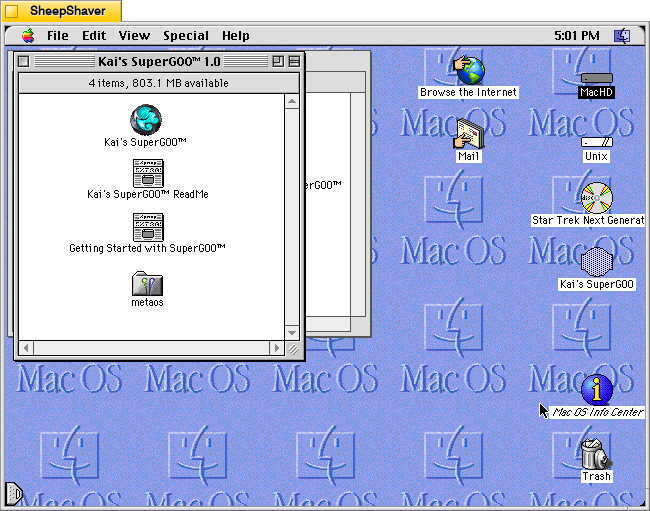
I installed Kai’s SuperGOO on MacOS 8.1 emulated by SheepShaver on Debian Bookworm.
After installation from CD-ROM, the Kai’s SuperGOO 1.0 application file is 976K and has a minimum memory size of 17,290K and a preferred size of 25,482K.
Installation
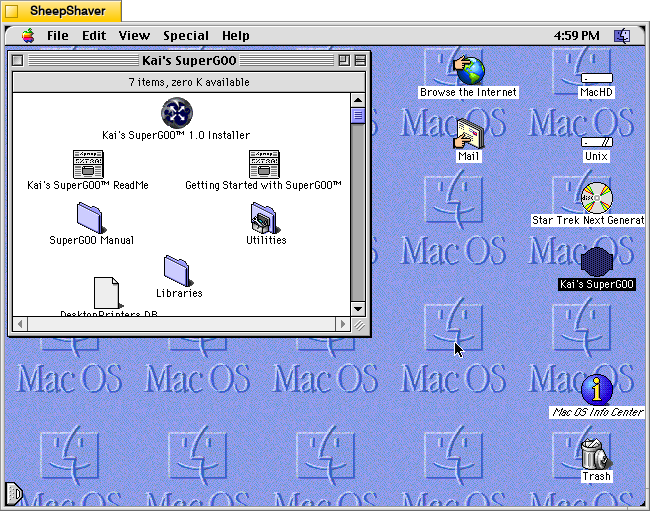
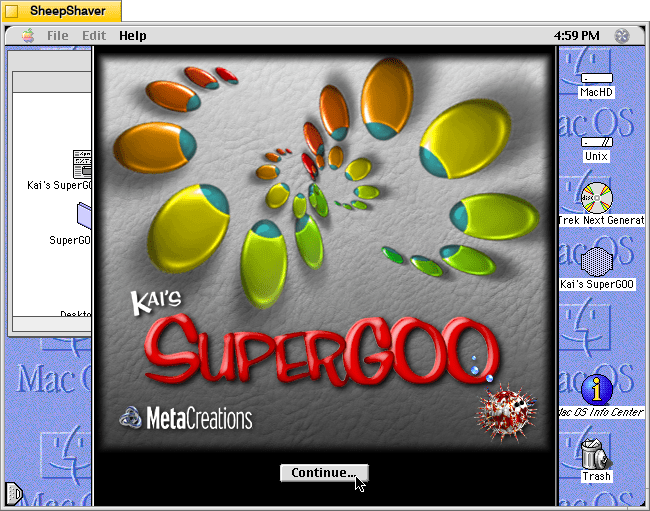
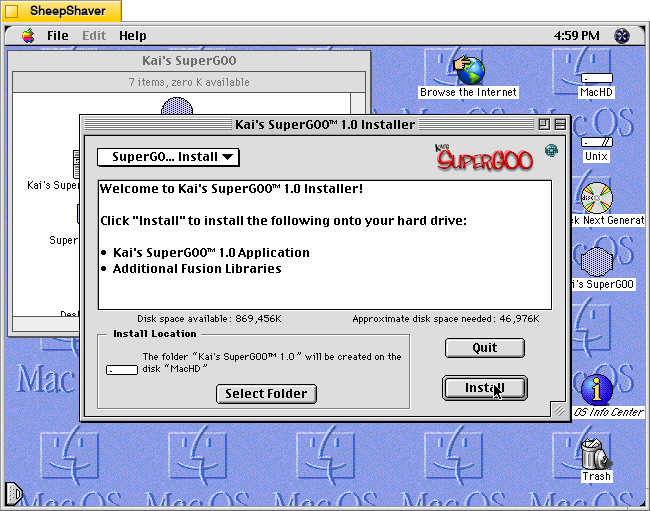
Installing Kai’s SuperGOO is as straightforward as other Mac software of the era that used a basic installer. However, the initial screens shown below gesture toward its inventive user interface. To launch the installer, the user double clicks on “Kai’s SuperGOO 1.0 Installer” located in the root of the CD-ROM disc.
The first screen after launching the installer is shown above.
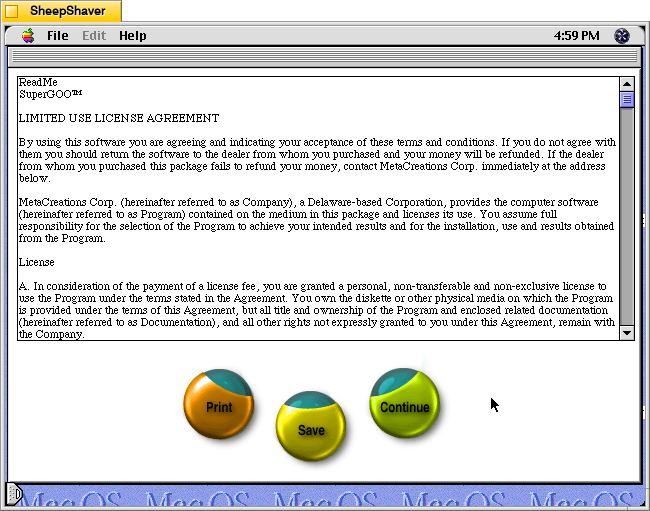
The license agreement screen notably has stylized round buttons for Print, Save, and Continue.
Clicking Continue on the previous screen takes the user to a traditional installer window. Clicking Install begins the installation of files to the selected folder on the user’s hard drive.
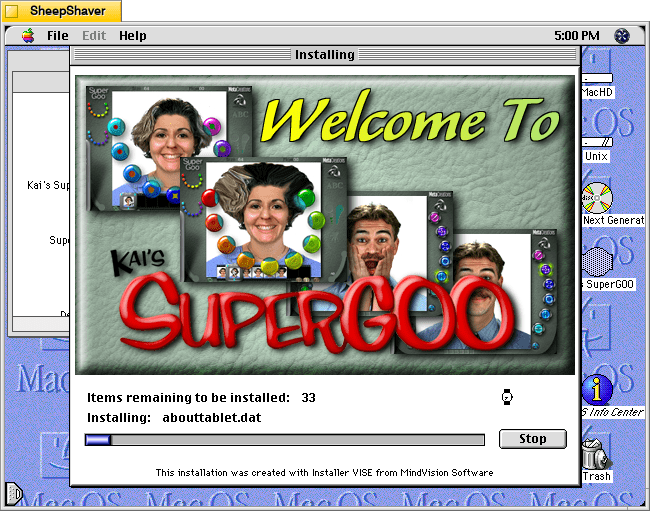
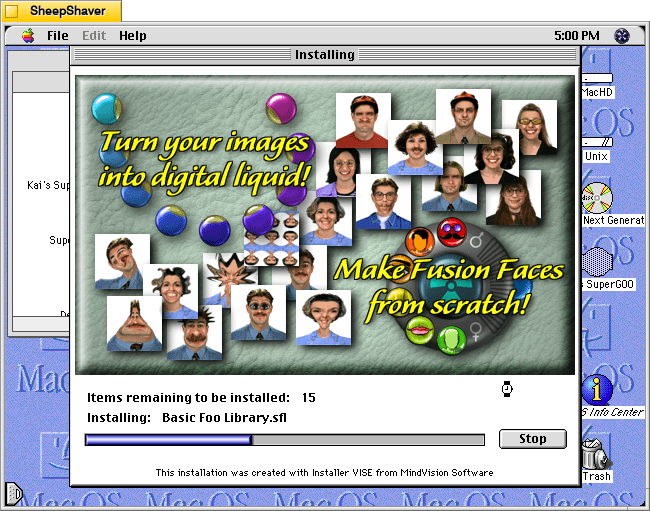
Several demonstration/prompting screens accompany the copying of files.
These screens preview key elements of SuperGOO, such as the brushes on the left and the Fusion Faces feature on the right.
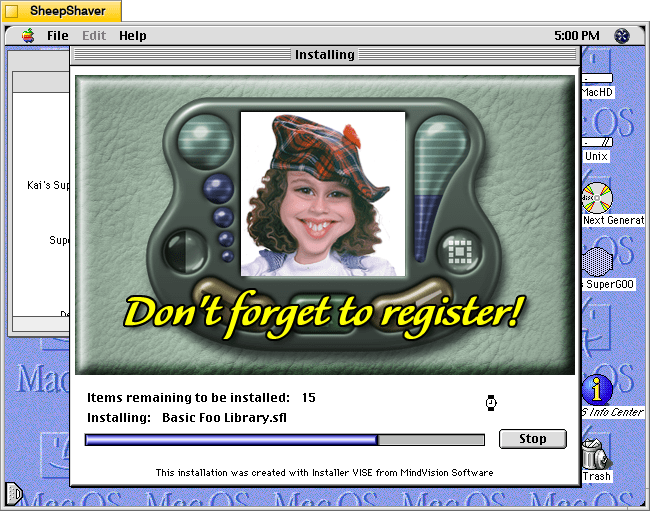
This final screen reminds the user to register, but it also shows a stylized, miniature version of the user interface.
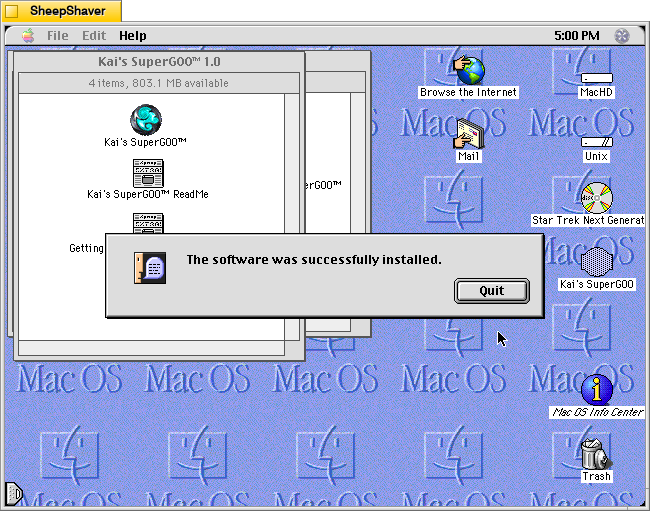
The software is installed and ready for use. In order to use the software, the CD-ROM has to be in the CD-ROM drive and mounted.
Use
When the user first launches the software, it prompts for a name to personalize it.
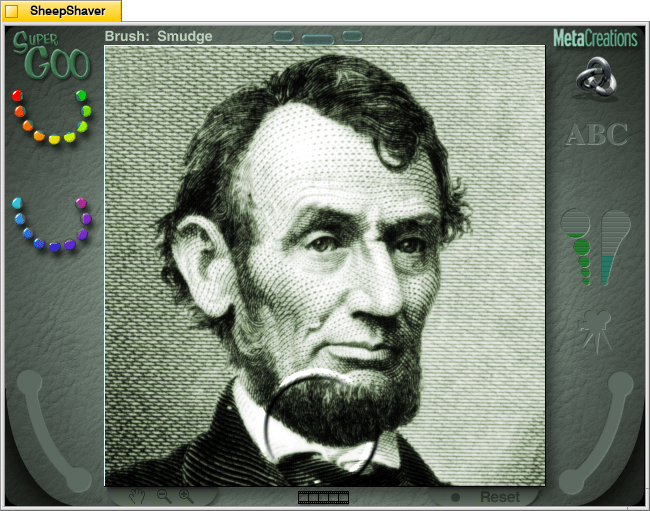
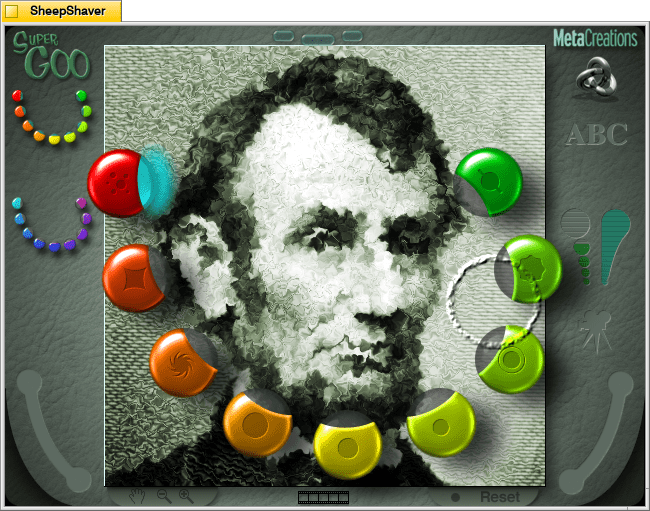
The main screen or what is called the “GOO Room” in the Read Me file. As suggested in that file, the UI invites the user to click on things to see what they do. Should the user find themselves backed inot a corner, there is an option to Reset in the lower right, or simply quitting the software with Cmd+Q and restarting the program. It opens with an image of Abraham Lincoln that can be manipulated using the tools on the left. The top set of tools are called Brushes.
I was left wondering why Abraham Lincoln’s face was selected for manipulation. Perhaps his image is well known and perhaps liked by children, but his important accomplishments as president and his tragic assassination seem to position his face as not deserving the more radical manipulation options available.
Using the Noise brush, I obscured Lincoln’s face as if it were seen through a primitive piece of glass.
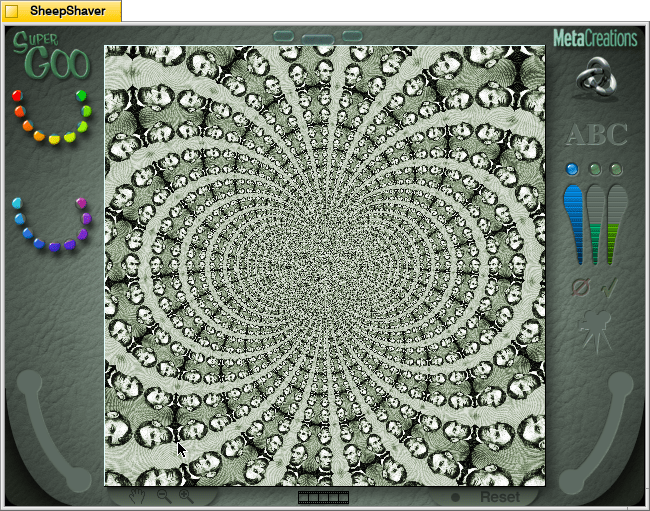
Below the Brushes on the left are the GOO Effects. These create videos using starting image. Above is one frame of Vortex Tiling GOO Effect.
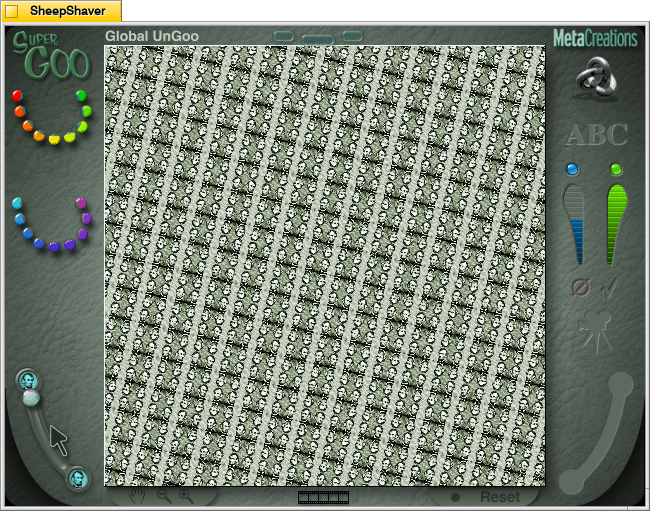
Above is one frame of the Zoom and Rotate effect.
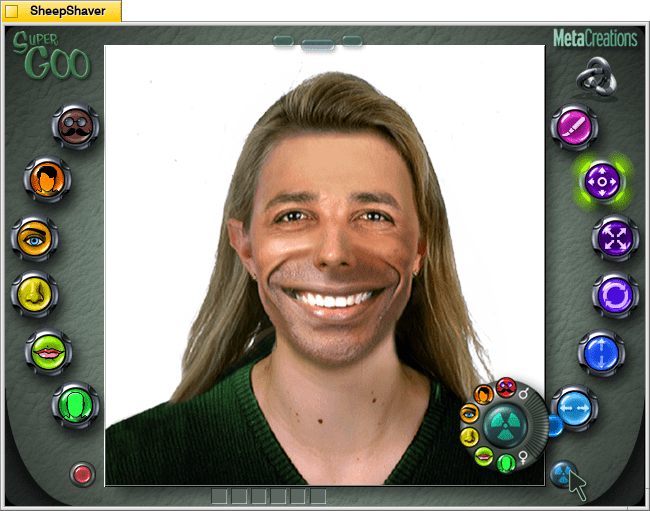
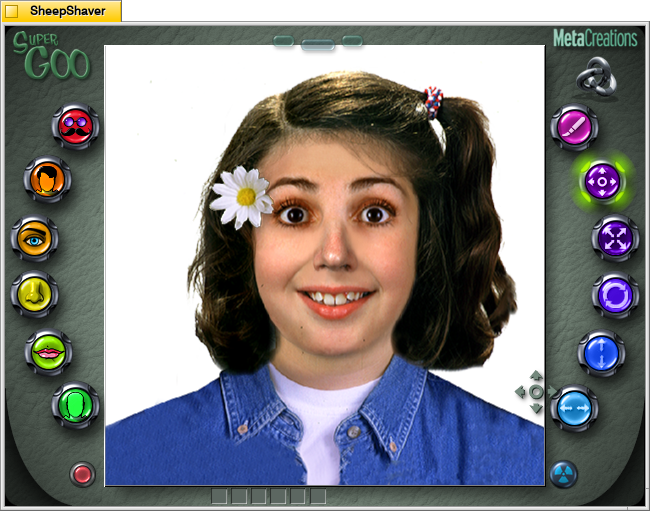
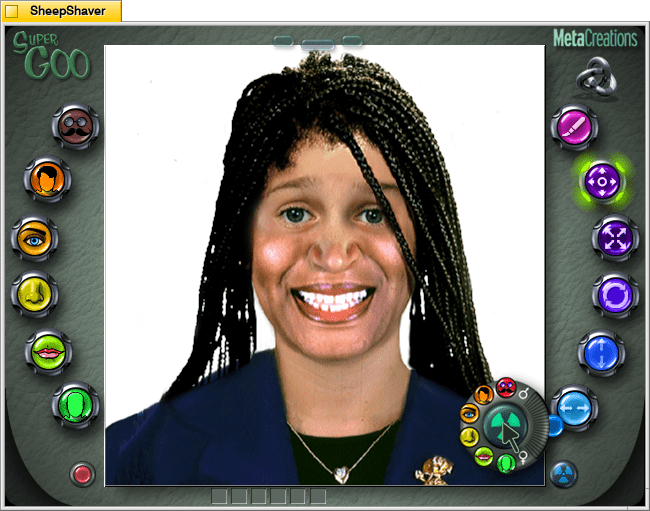
By clicking on the bubble in the top middle of the UI takes the user to the Fusion Room (from the GOO Room) or to the GOO Room (from the Fusion Room). By clicking on the nuclear symbol button in the lower right corner of the Fusion Room gives the user the option to generate a new human face that mixes and matches elements akin to a police facial composite or E-FIT.
The results are mildly uncanny.
Most random generations result in white faces, but after many, many iterations, I arrived at this face with epicanthic folds. When using the eye selector on the left, there are three female options with epicanthic folds and two male options.
This generated face appears to have darker skin, but there’s no option for changing skin color or adjusting tone. As the various facial features are assembled, there seems to be a kind of blending that makes them work together. However, there isn’t a clear cut way to create faces outside of a narrow skin tone range using the Fusion generator. The natural variety of faces with different skin tones has to be imported.
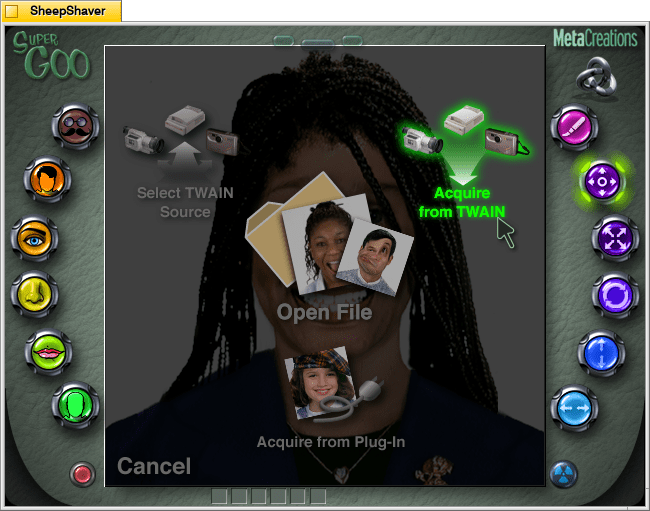
To import an image, the user clicks the bubble in the middle to the left, which opens the “In Panel.” It can interface with image capture and scanning devices that have a TWAIN driver, open an existing file, or acquire from another device plug-in.
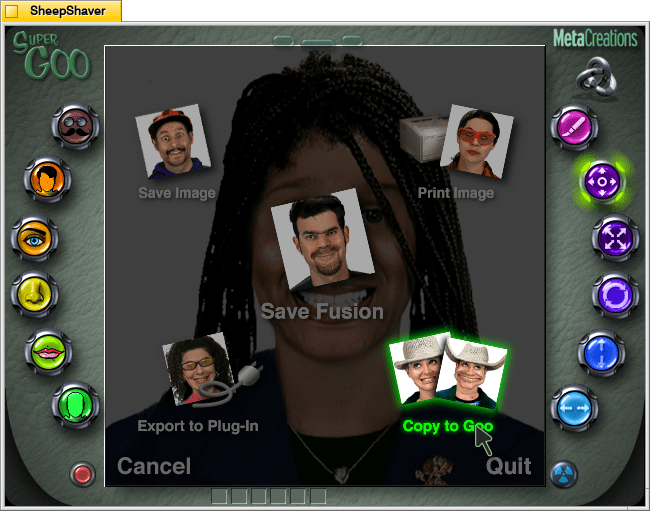
By clicking on the middle bubble to the right, the user comes to the “Out Panel,” which gives options to save the image, print the image, save the currently displayed Fusion generated face, copy the Fusion generated face to the GOO Room, or export the currently displayed image to a plug-in (if installed and selected by the user).
Kai’s SuperGOO is an interesting approach to generating images of people using algorithms. In this case, randomizing carefully edited pieces that seamlessly, more or less, fit together. Unfortunately, the available options for mixing and matching faces are homogeneous and tend toward lighter skin tones and limited facial features. While importing any face or image into the software is an option, the Fusion feature is crippled in terms of representation options available to the user.