Tag: Computers

  • Lexikon-Sonate 3.0, an Algorithmic Music Generator for Macintosh

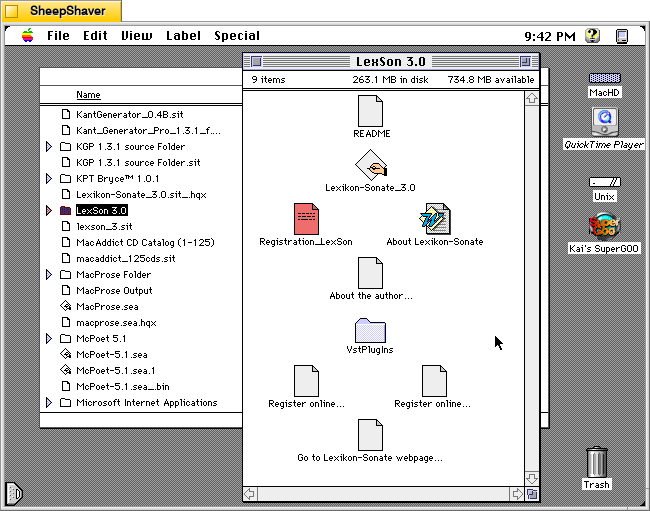
    Lexikon-Sonate 3.0 application folder on Macintosh System 7.5.5 system emulated in SheepShaver.

    Lexikon-Sonate 3.0 is a program that generates music algorithmically. Karlheinz Essl, the Austrian composer and performer, began developing this software in 1992 and released it as Shareware. Essl continued developing the software until 2020 and released the latest versions for Windows and MacOS as freeware with a Creative Commons Attribution-NonCommercial-NoDerivs 3.0 License.

    In the included Word doc named “About Lexikon-Sonate,” Essel writes that the software is “An Interactive Realtime Composition for Computer-Controlled Piano.” He expands on this in the abstract for the software, “Lexikon-Sonate is a work in progress which was started in 1992. Instead of being a composition in which the structure is fixed by notation, it manifests itself as a computer program that composes the piece – or, more precisely: an excerpt of a virtually endless piano piece – in real time. Lexikon-Sonate lacks two characteristics of a traditional piano piece: 1) there is no pre-composed text to be interpreted, and 2) there is no need for an interpreter. Instead, the instructions for playing the piano – the indication “which key should be pressed how quickly and held down for how long” – are directly generated by a computer program and transmitted immediately to a player piano which executes them. In this paper I will describe from where I started and how I arrived at the concept of an infinite interactive realtime composition.” The rest of the Word doc file is a detailed guide that explains its origins, how it works, and how to use it.

    For this post, I tried out Lexikon-Sonate 3.0 on Macintosh System 7.5.5 with Quicktime 4.1.2 installed so that it had access to Quicktime Instruments instead of MIDI output playback.
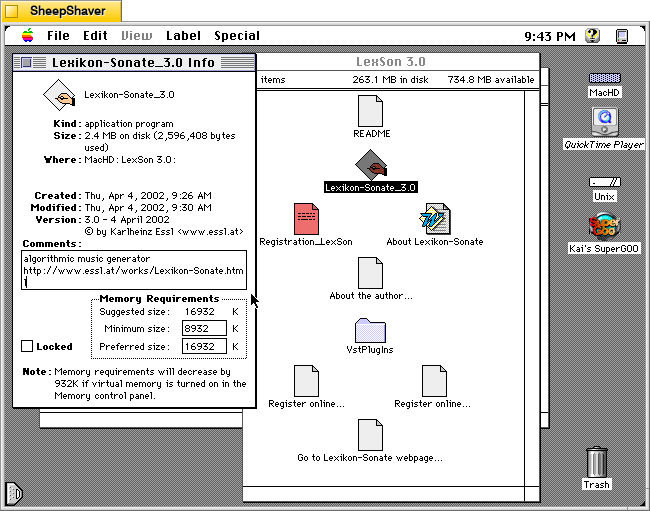
    Lexikon-Sonate 3.0 application info window on Macintosh System 7.5.5 system emulated in SheepShaver.

    The Lexikon-Sonate_3.0 application Get Info window reports that it is version 3.0 dated 4 April 2002. It is 2.4MB in size, and its minimum memory requirement is 8,932K and its preferred size is 16,932K. The Comments box includes a brief description of “algorithmic music generator” and a link to Essl’s website for Lexikon-Sonate.
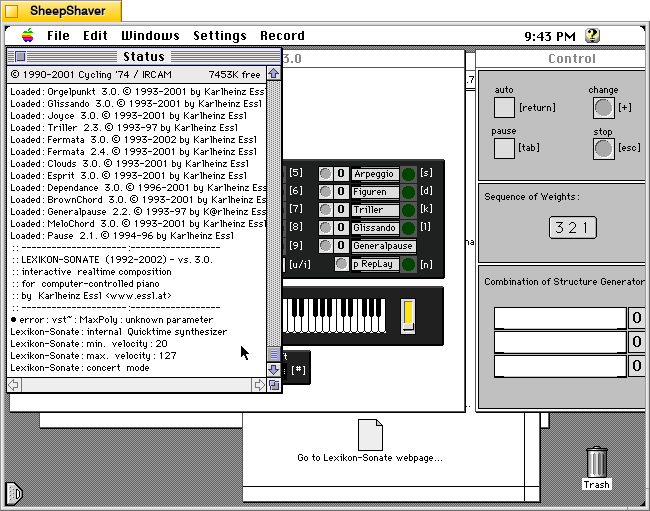
    Lexikon-Sonate 3.0 application Status window on Macintosh System 7.5.5 system emulated in SheepShaver.

    When you first open Lexikon-Sonate, the Status window on the right serves as a console reporting information like settings, loading modules, and the amount of free memory. It falls into the background when the primary interactive windows load below.
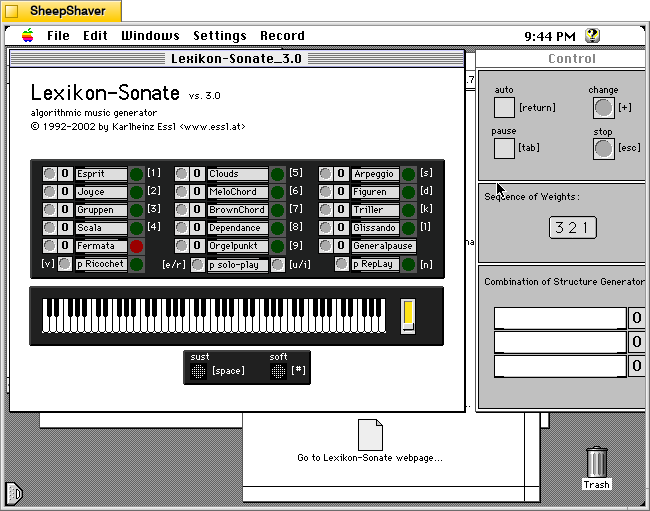
    Lexikon-Sonate 3.0 application main window and Control window on Macintosh System 7.5.5 system emulated in SheepShaver.

    The main Lexikon-Sonate_3.0 window is on the left and the Control window is on the right. The main window shows the available algorithm music generating modules at the top, which can be selected in a sequence of up to 3 by clicking the grey circle to the left of each module. The selected modules will appear in the “Combination of Structure Generator” box at the bottom of the Control window on the right.
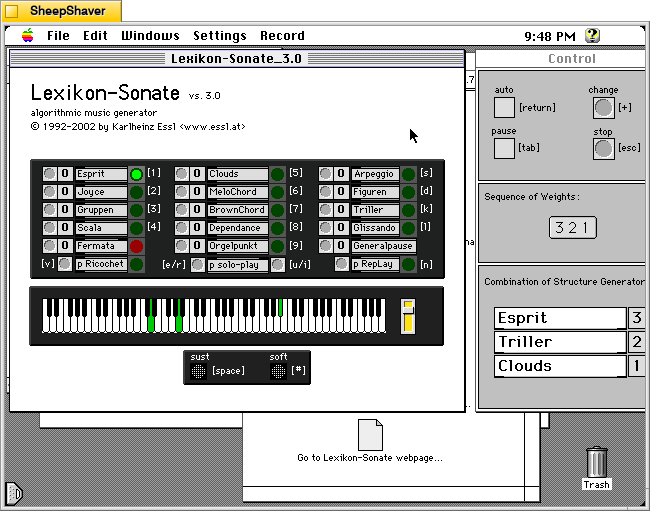
    Lexikon-Sonate 3.0 three modules selected are playing notes on the keyboard on Macintosh System 7.5.5 system emulated in SheepShaver.

    As the program begins to play music created by these algorithms, the keys illuminate to show what keys and chords are being played along with the dynamic slider. The sustain and soft pedals can be activated by the user by pressing the Space Bar or # respectively. Pressing the Escape key halts the current music generation.
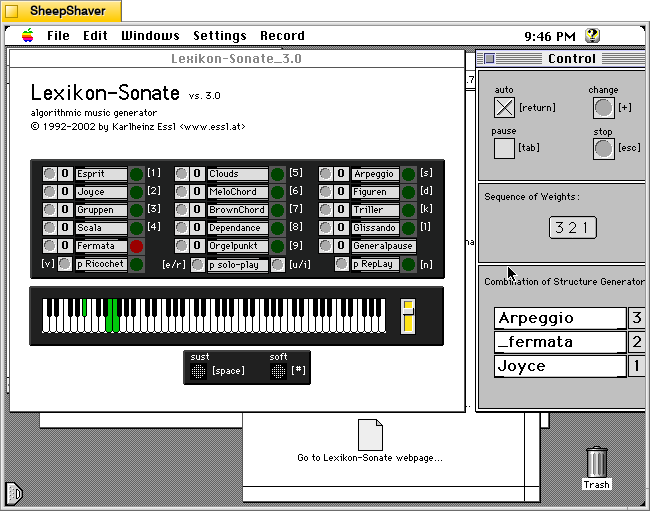
    Lexikon-Sonate 3.0 is in auto mode selecting modules and playing notes on the keyboard Macintosh System 7.5.5 system emulated in SheepShaver.

    If the user clicks on “auto” in the Control window or presses the Return key, the software will cycle through modules on its own giving the software total control of the music generation process.
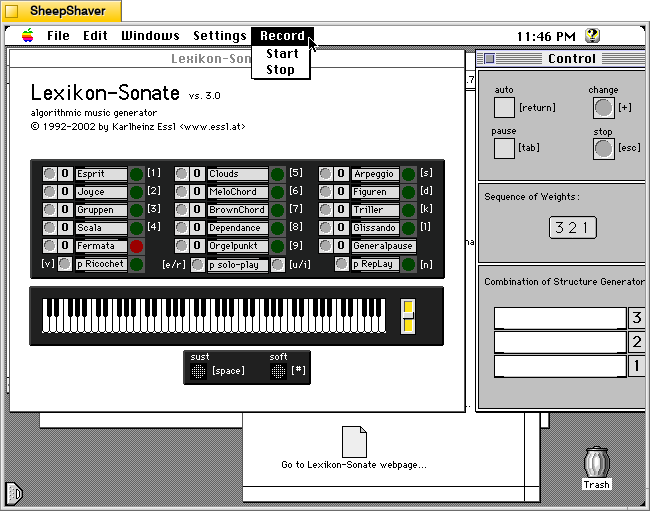
    Lexikon-Sonate 3.0 > Record Menu > Start or Stop on Macintosh System 7.5.5 system emulated in SheepShaver.

    If this version of the software were registered, you have access to the Record > Start or Stop feature.
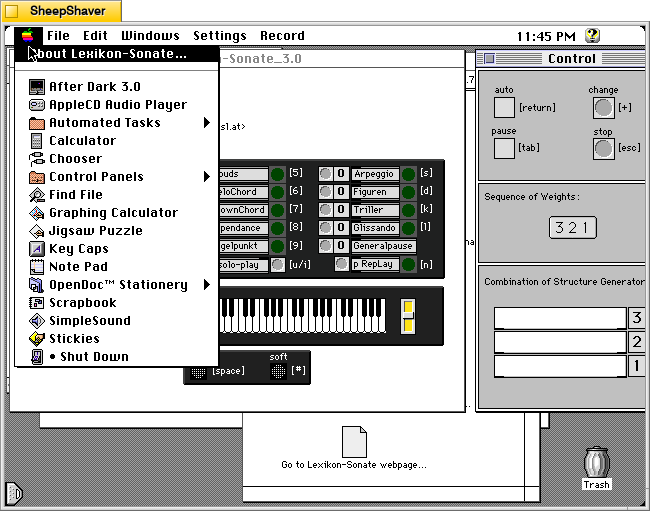
    Lexikon-Sonate 3.0 > Apple Menu > About Lexikon-Sonate on Macintosh System 7.5.5 system emulated in SheepShaver.

    The Apple menu > About Lexikon-Sonate has a detailed window summarizing how the software works.
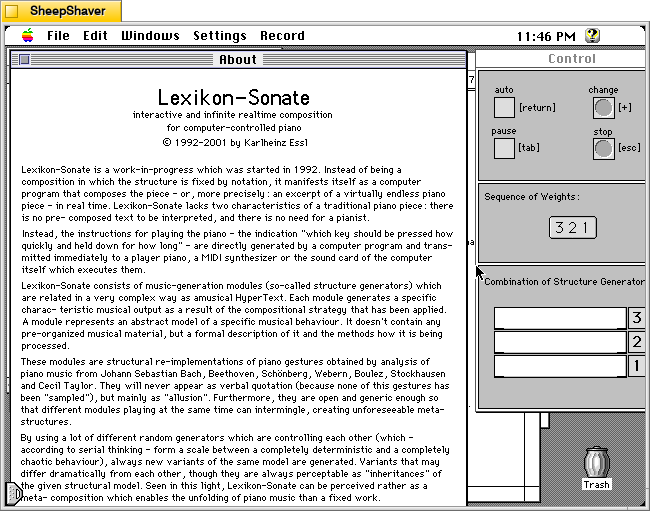
    Lexikon-Sonate 3.0's About window on Macintosh System 7.5.5 system emulated in SheepShaver.

    The descriptive About window in Lexikon-Sonate 3.0.
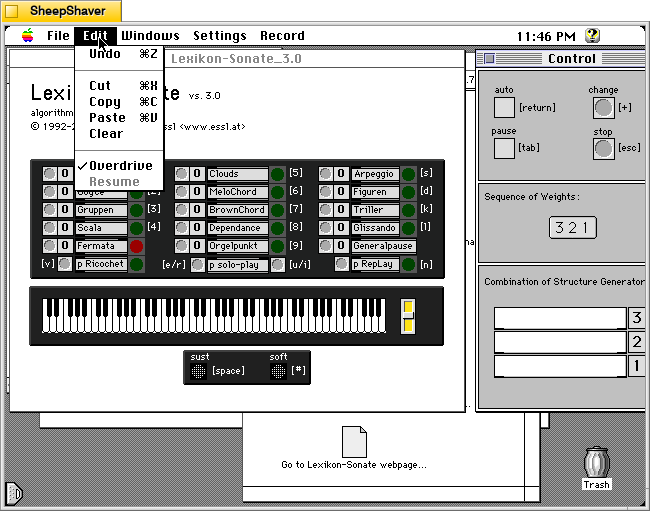
    Lexikon-Sonate 3.0 > Edit menu on Macintosh System 7.5.5 system emulated in SheepShaver.

    The Edit menu with an option for “Overdrive” pre-selected.
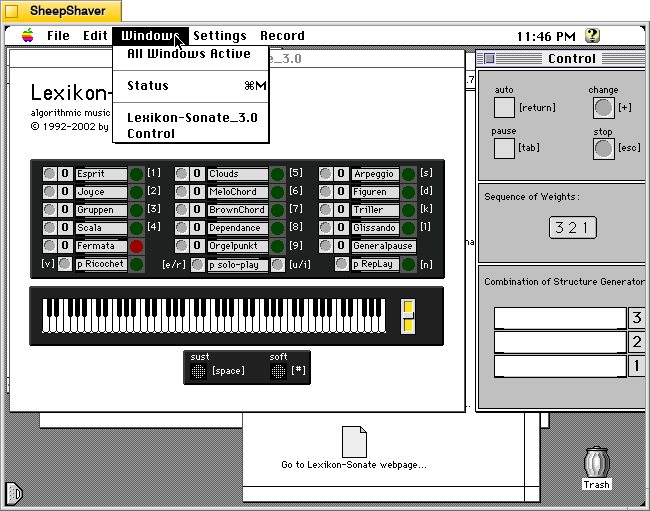
    Lexikon-Sonate 3.0 > Windows menu on Macintosh System 7.5.5 system emulated in SheepShaver.

    The Windows menu listing its three windows: Status (the console in the background), Lexikon-Sonate_3.0 (main window on the left), and Control (the main control window for starting and stopping play on the right).
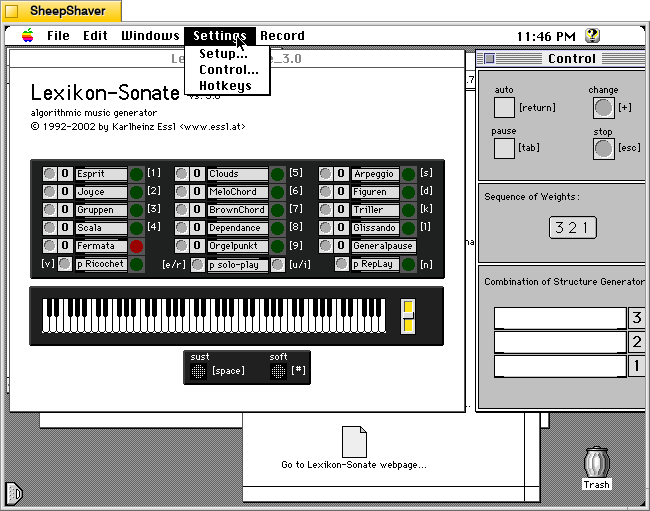
    Lexikon-Sonate 3.0 > Settings menu on Macintosh System 7.5.5 system emulated in SheepShaver.

    From the Settings menu, Setup opens a new window with settings for playback and MIDI (see below). The Control option opens the Control window. Hotkeys does not seem to do anything on my installation.
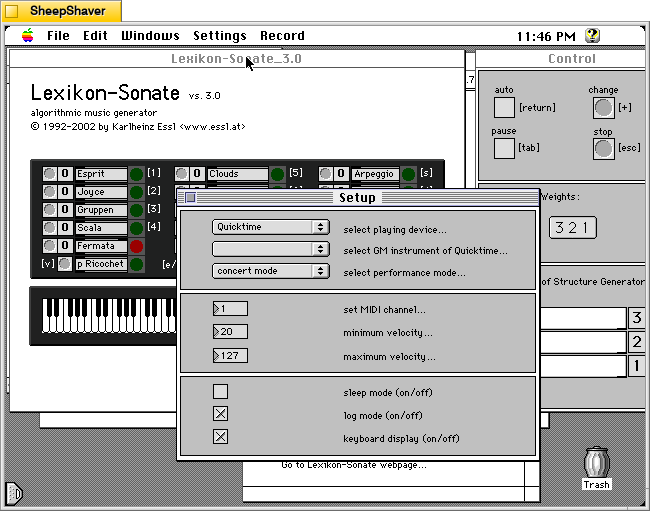
    Lexikon-Sonate 3.0 > Setup window on Macintosh System 7.5.5 system emulated in SheepShaver.

    Since I don’t have a MIDI device (and they can be difficult to configure with Sheepshaver anyways), I opted to play through Quicktime (automatically selected by default). There are other settings for MIDI and logging on this window, too.

    Lexikon-Sonate seems like a remarkable piece of software that I wish that I had known about many years ago. It would have been something I would have enjoyed experimenting with.

    Also, Essl has created remarkable recordings and made interesting performances using his software, some of which are shared in videos on his website here.
  • Haiku Master 2.2, a Haiku Generating Hypercard Stack for Macintosh

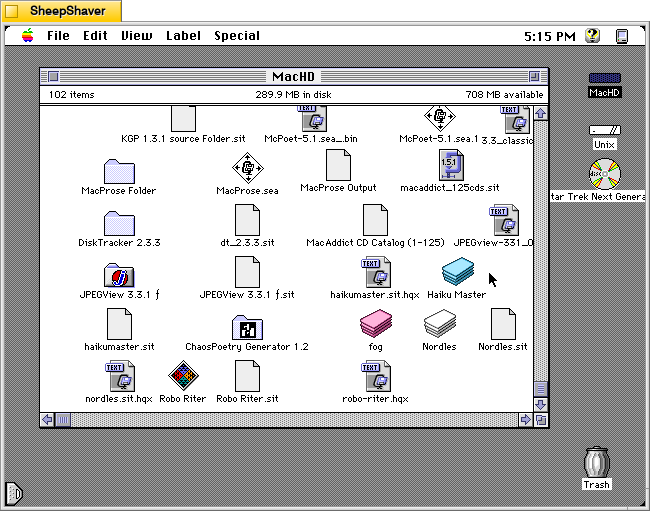
    Haiku Master application icon on Macintosh System 7.5.5 system emulated in SheepShaver.

    Continuing my work exploring pre-AI generative technologies, I found a copy of Andrew Stone’s Haiku Master, a HyperCard stack for Macintosh that generates haikus, on the archived version of TextWorx Toolshed page, which links to other text generating and manipulating programs for Macintosh and MS-DOS. Haiku Master requires the user to have a copy of Apple’s HyperCard Player installed on the system. I have HyperCard Player 2.4.1 installed on the emulated System 7.5.5 installation on SheepShaver used for these screenshots.

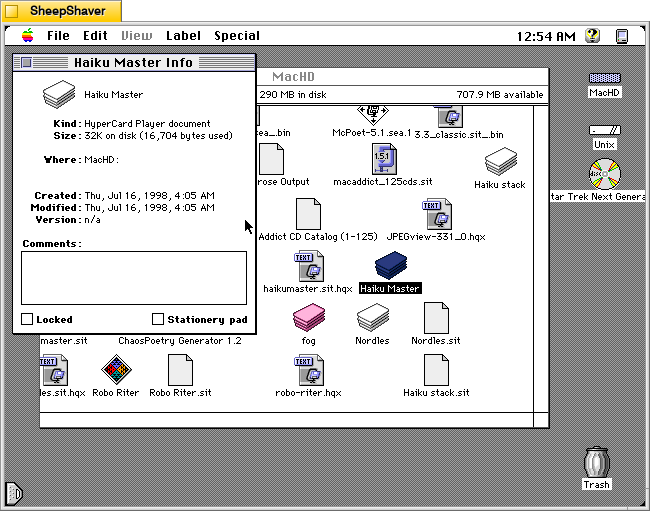
    Haiku Master Hypercard stack Get Info window Macintosh System 7.5.5 system emulated in SheepShaver.

    Haiku Master is a lean HyperCard stack at only 32K on disk and 16,704 bytes actually used. It was created on 16 July 1998.

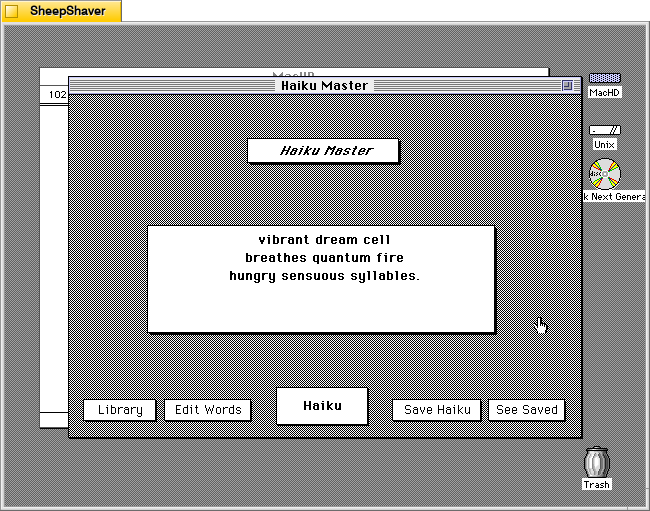
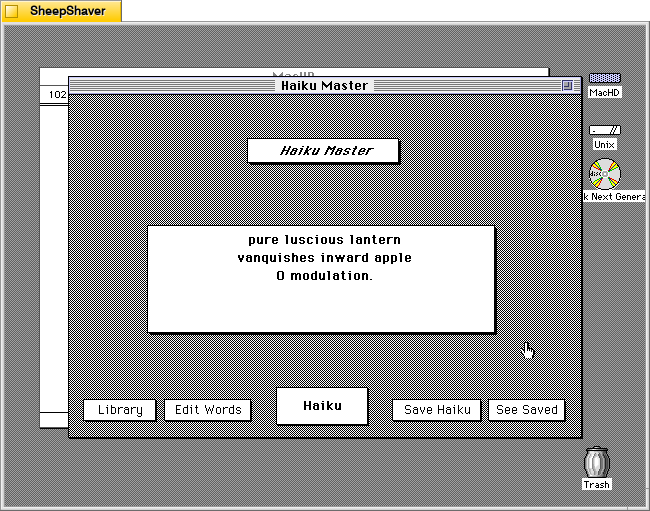
    Haiku Master main window on Macintosh System 7.5.5 system emulated in SheepShaver.

    After double clicking on Haiku Master, the stack automatically launches HyperCard Player and the user is presented with this main window. In the center, a haiku is already generated.

    vibrant dream cell
    breathes quantum fire
    hungry sensuous syllables.

    Instead of a 5-7-5 syllable line arrangement, it seems to generate haiku that are a total of 17 syllables.

    Unlike some of the other text generators that I’ve looked at here, Haiku Master has a singular focus to just create haikus of a certain variety. Other text generators from this era seem to do several different types of text generation, perhaps because once one kind of assembly algorithm is made, it might not be too challenging to alter it for a different kind of text generation, or it might be over time those other programs acquired new features with subsequent new versions.

    By clicking on the Haiku button in the bottom center, another haiku is generated.

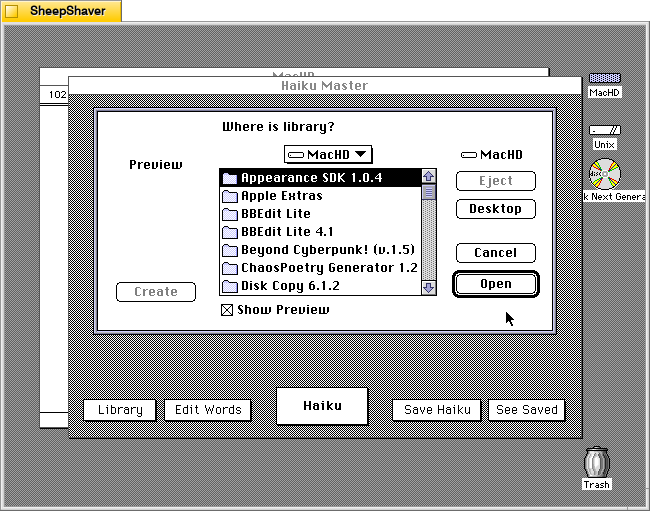
    Haiku Master prompting to open library on Macintosh System 7.5.5 system emulated in SheepShaver.

    Clicking on Library prompts the user to open a file, perhaps a corpus of words? The documentation built into the stack doesn’t explain what a library is or how it is used, and there is no additional documentation or files included in the downloaded archive.

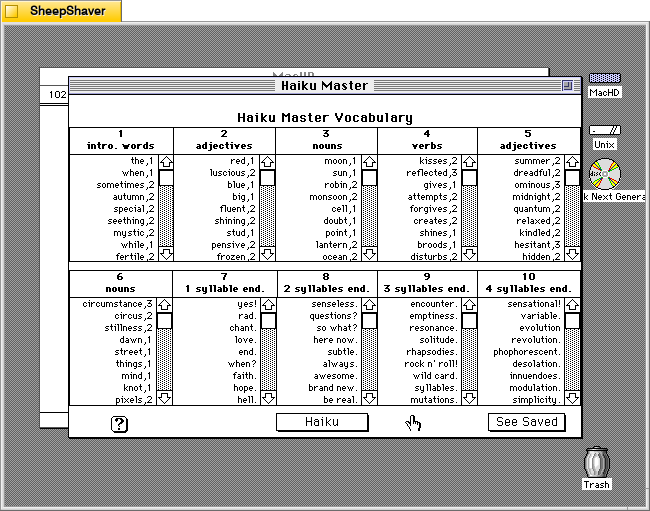
    Haiku Master Edit Words screen on Macintosh System 7.5.5 system emulated in SheepShaver.

    Clicking on Edit Words opens this screen titled Haiku Master Vocabulary with lists of word lists broken down into 10 sections: 1) intro. words, 2) adjectives, 3) nouns, 4) verbs, 5) adjectives, 6) nouns, 7) 1 syllable end, 8) 2 syllables end, 9) 3 syllables end, and 10) 4 syllables end.

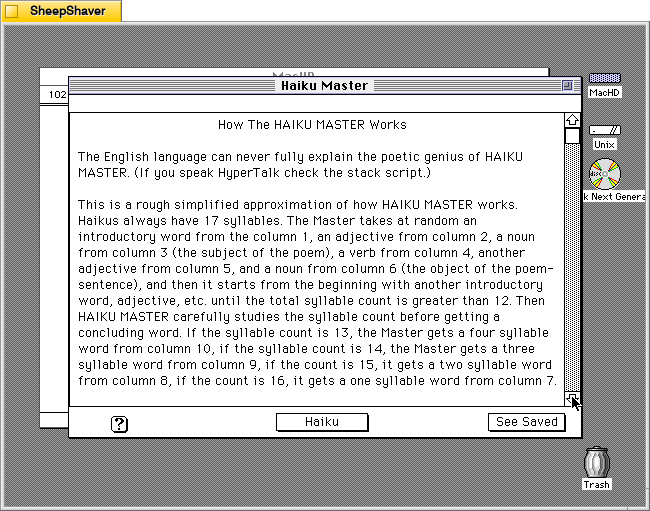
    Haiku Master's "How the HAIKU MASTER Works" screen on Macintosh System 7.5.5 system emulated in SheepShaver.

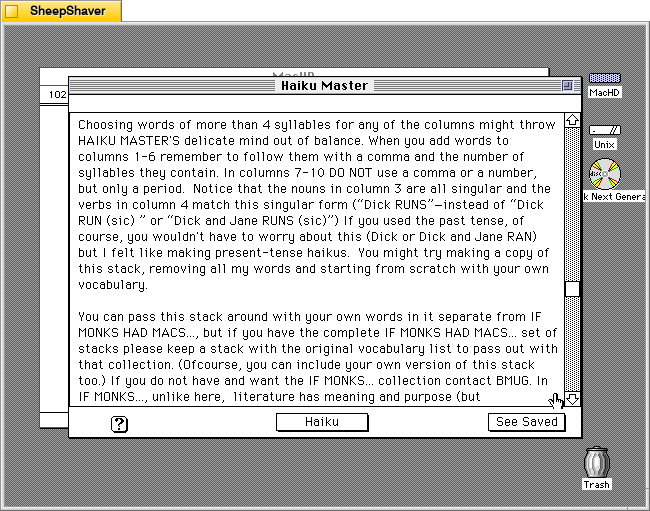
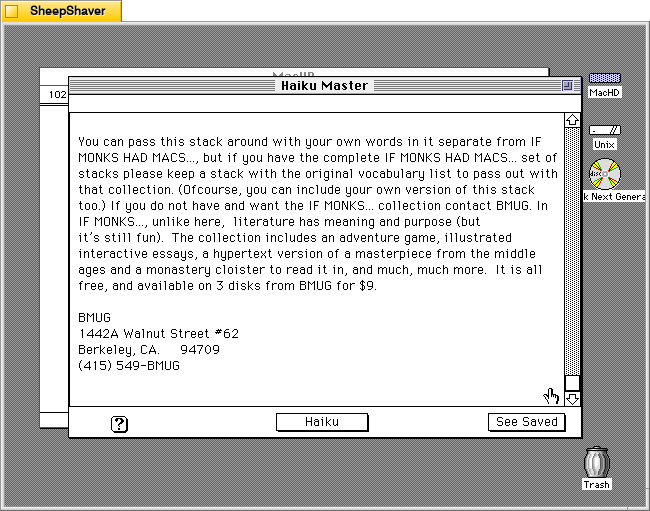
    Clicking on the Help/? question mark icon in the lower left opens this screen of text titled “How the HAIKU MASTER Works.” It explains how it pieces together a haiku of 17 syllables using the words from the 10 categories of word lists as needed. The following two images continue the explanation.

    Haiku Master's "How the HAIKU MASTER Works" screen on Macintosh System 7.5.5 system emulated in SheepShaver.
    Haiku Master's "How the HAIKU MASTER Works" screen on Macintosh System 7.5.5 system emulated in SheepShaver.

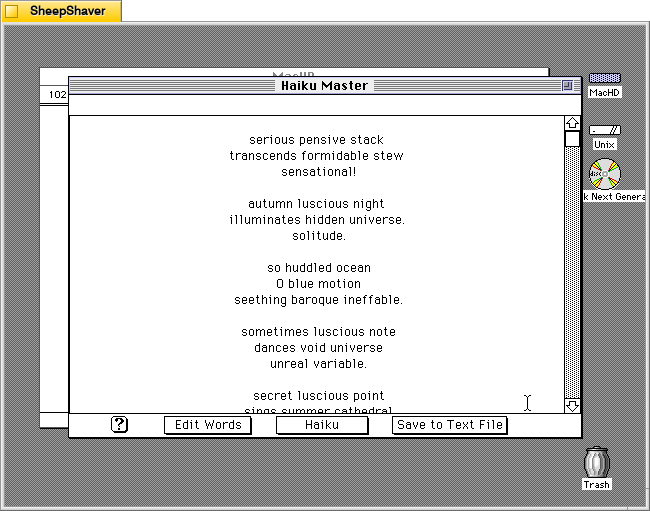
    Clicking on “See Saved” on the screen above or from the main haiku composition window leads you to a running list of previously generated and saved haikus shown below.

    Haiku Master saved haikus screen on Macintosh System 7.5.5 system emulated in SheepShaver.

    From this screen, you can click on “Save to Text File” to save the haikus in an editable text file, or you can click on “Haiku” on the bottom of this screen to take you back to the main composition window shown below.

    Haiku Master main screen on Macintosh System 7.5.5 system emulated in SheepShaver.

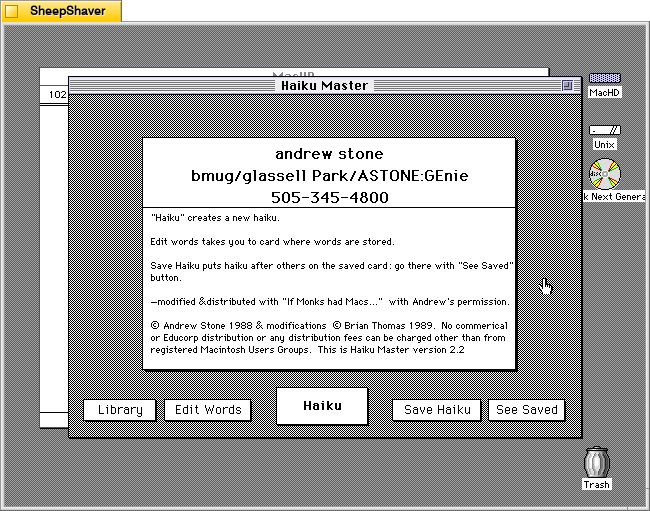
    Clicking on “Haiku Master” above the haiku composition area leads you to the about screen shown below.

    Haiku Master about screen on Macintosh System 7.5.5 system emulated in SheepShaver.

    The about screen provides Andrew Stone’s contact information, including his GEnie username. It noes that this copy was “modified & distributed with ‘If Monks had Macs…’ with Andrew’s permission.” The modifications were made by Brian Thomas in 1989. It notes this is Haiku Master version 2.2.

    Brian Thomas is the developer who put together If Monks Had Macs . . .. It was distributed by The Voyager Company, a company that innovated early ebooks for Macintosh called Expanded Books and multimedia CD-ROM titles, which I’ve written about previously here, here, here, here, and here.

    This reminds me that during my first year in Brooklyn, Bob Stein, co-founder of Voyager Company, co-founder of The Criterion Collection, and co-director of The Institute for the Future of the Book, reached out to me (I think on Twitter–I hadn’t left the platform yet at that time–as I had shared some things about William Gibson’s Sprawl Trilogy Expanded Book published by Voyager) and graciously spoke with me at his home in Williamsburg one snowy afternoon about Voyager Company, Expanded Books, and personal computer pioneers he was friends with.

  • Robo Riter 3.1, an Automatic Haiku, French Lai, Ballade, and Limerick Text Generator for Macintosh

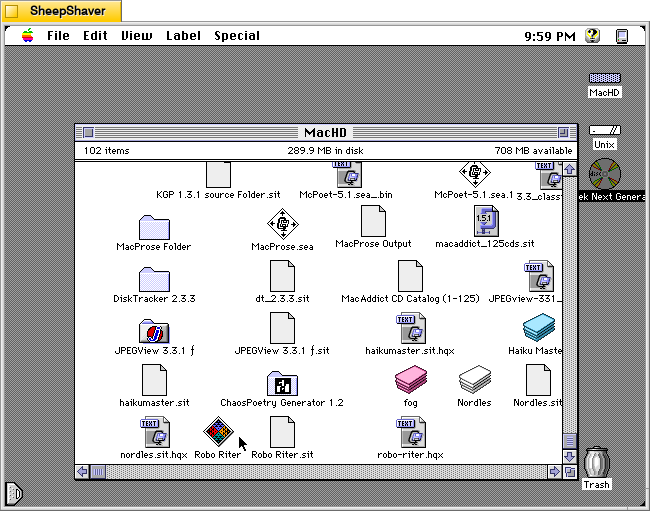
    Robo Riter application icon on Macintosh System 7.5.5 system emulated in SheepShaver.

    Continuing my exploration of pre-AI text and image generating software, I would like to share some screenshots and information about Robo Riter 3.1, a text-generating program for Macintosh that specializes in haiku, French lai, ballade, and limericks, created by Douglas L. Lieberman, a writer and producer in television, film, and computer multimedia projects.

    Robo Riter has the tag line, “Composes poetry at the click of a button!” And, on his archived website’s contact page, he offers it for download if “you can’t afford to hire a writer.”

    Lieberman wrote the follow abstract when he submitted his program to the pre-1999 info-mac archive (there was a massive purge of software on info-mac that removed Robo Riter and other software from later versions of the info-mac archive after 1999):

    #### BINHEX     robo-riter.hqx   ****

    From: rocketriter@earthlink.net
    Subject: Robo Riter


    From: (Douglas L. Lieberman) rocketriter@earthlink.net
    Subject: Robo Riter


    Robo Riter -- the automatic poetry machine! Composes poems at the click
    of a button, no two ever alike. Robo Riter can create profound and
    deeply moving Haiku, French Lai, Ballades and even Limericks. Amaze your
    friends! Mystify your neighbors! Be the first on your block to own Robo
    Riter, for Poetry On Demand!

    Created with SuperCard 3.0

    System requirements:
    * System 7.6 and above
    * Power Macintosh or 680X0 with at least 16 MB of RAM
    * 2 MB of hard drive space

    --
    Douglas L. Lieberman
    Rocket Riter, Inc.
    Screenwriting for Interactive Media, Stage & Screen
    Visit my website at:
    http://home.earthlink.net/~rocketriter/

    I am indebted to adespoton on MacintoshGarden.org for finding a copy of Robo Riter stored in a 1998 archive of info-mac that was once hosted by Apple Computer. You can browse the directory of programs that includes Robo Riter here.

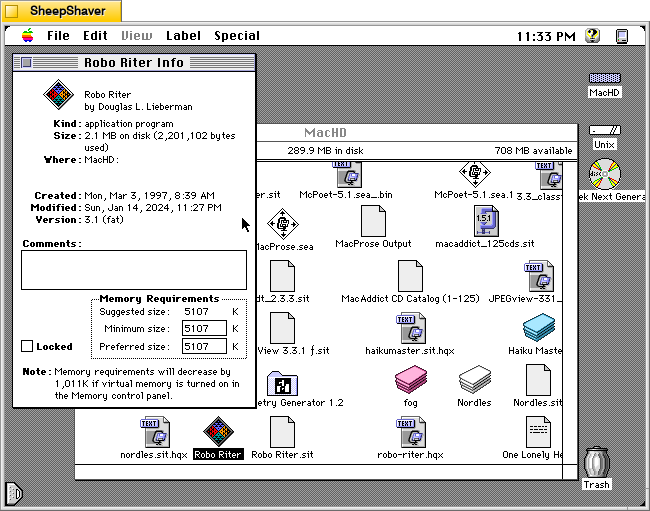
    Robo Riter application Get Info window Macintosh System 7.5.5 system emulated in SheepShaver.

    Before launching Robo Riter, the Get Info window shows that it was created on 3 Mar. 1997. It is a “fat” application, meaning that it can be run on 68k and PPC Macs. It’s suggested memory size is 5,107 K, and its minimum and preferred memory sizes are populated with that value. As I’m running this in SheepShaver, I can’t turn on virtual memory to realize that 1,011 K memory savings mentioned in the Note at the bottom of the window.

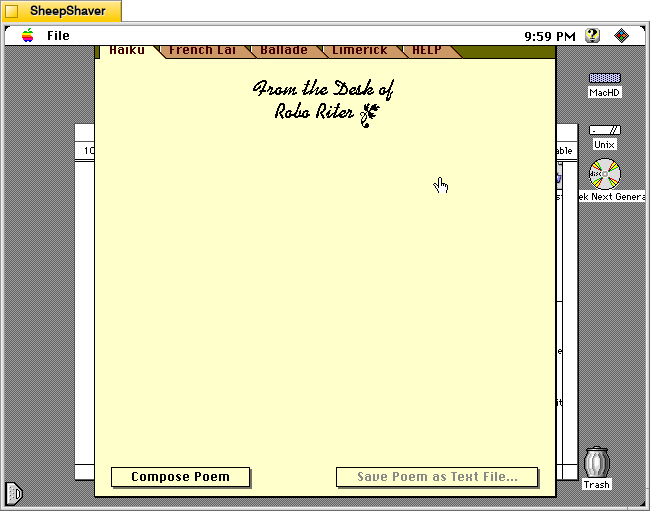
    Robo Riter main application window on the Haiku tab on Macintosh System 7.5.5 system emulated in SheepShaver.

    When Robo Riter is first launched, the window above serves as the main interface for the program. It has tabs across the top of the window for Haiku, French Lai, Ballade, Limerick, and HELP. Below the tabs is the monogram, “From the Desk of Robo Riter” followed by a blank space. At the bottom of the window are two buttons: Compose Poem and Save Poem as Text File. Unlike some of the other text generating programs, there are no options and there are no editable corpus or word lists external to the program itself.

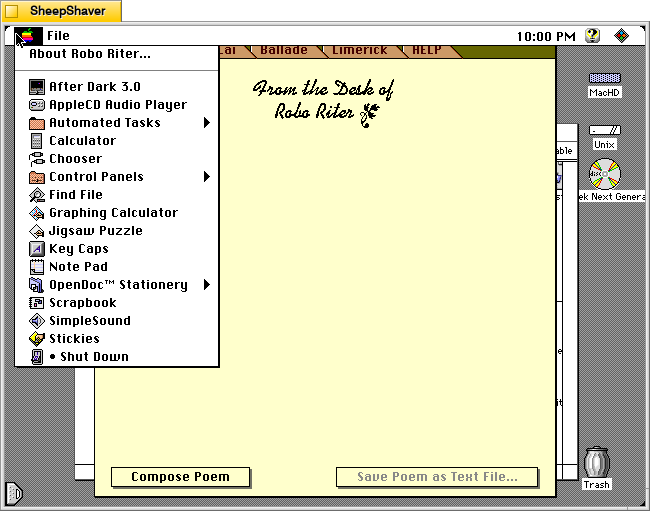
    Robo Riter Apple menu > About Robo Riter on Macintosh System 7.5.5 system emulated in SheepShaver.

    Before looking at Robo Riter’s compositions, let’s check out the two menus. The Apple menu yields “About Robo Riter.”

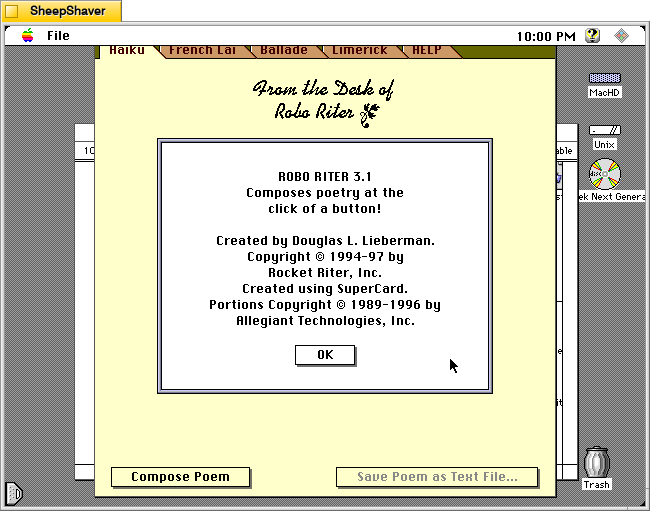
    Robo Riter's About Robo Riter window on Macintosh System 7.5.5 system emulated in SheepShaver.

    The About Robo Riter window indicates that it was built using SuperCard, an application development environment that is like HyperCard on steroids. At the time, Allegiant Technologies had acquired SuperCard.

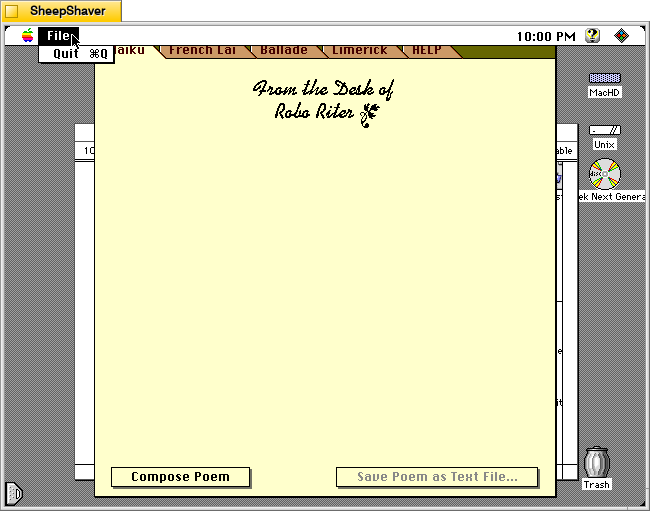
    Robo Riter's File menu on Macintosh System 7.5.5 system emulated in SheepShaver.

    Robo Riter’s File menu only has the option to Quit the program.

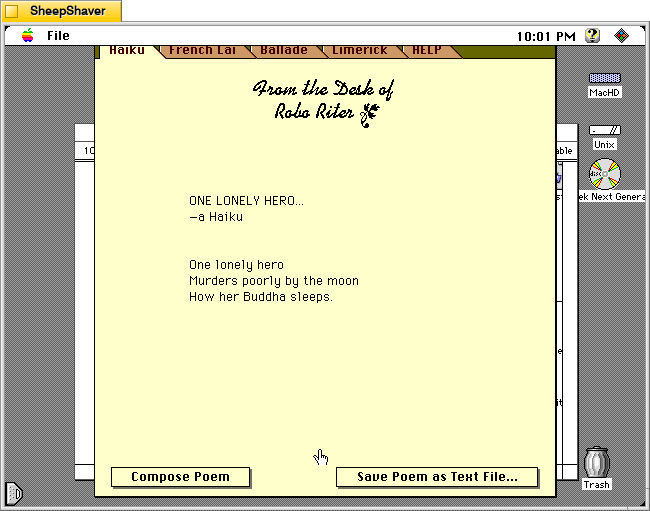
    Robo Riter generated haiku on Macintosh System 7.5.5 system emulated in SheepShaver.

    Returning to the main window and the Haiku tab, clicking on the Compose Poem button results in a haiku written by the program after the program shows a series of three messages or thoughts with corresponding musical notes. For example, it displayed “Letting my mind go whoosh!,” “Counting syllables on my chins,” and “Meditating with profound fervor” before showing the resulting “ONE LONELY HERO” haiku, which appears a word-at-a-time like watching an LLM reply in a chat.

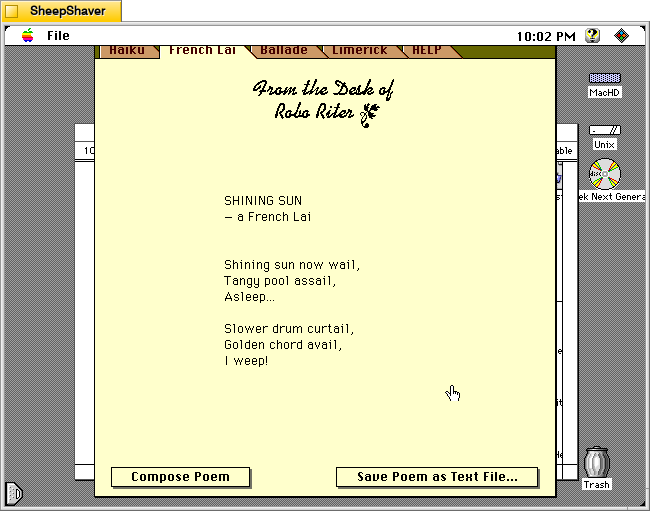
    Robo Riter generated French Lai on Macintosh System 7.5.5 system emulated in SheepShaver.

    After clicking on the French Lai tab, I clicked on Compose Poem. It’s pre-generation text was: “Researching a rather violent subject,” “Illuminating its dynamic aspects,” and “Developing theosophical influences.” Then, the “SHINING SUN” French Lai played across the screen.

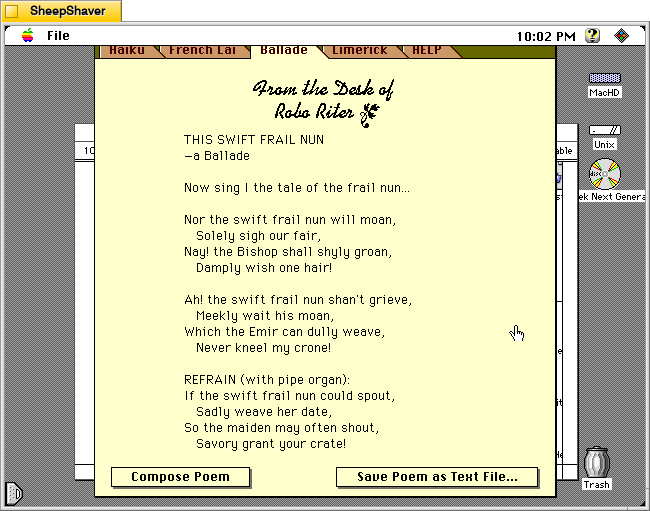
    Robo Riter generated ballade on Macintosh System 7.5.5 system emulated in SheepShaver.

    Next, I clicked on the Ballade tab and selected Compose Poem. It’s pre-generation text was: “Developing a down to earth topic,” “Overlaying sea-faring themes,” and “Selecting perfectly matched rhymes, and rhythms.” Then, “THIS SWIFT FRAIL NUN” appeared in the composition area in the window.

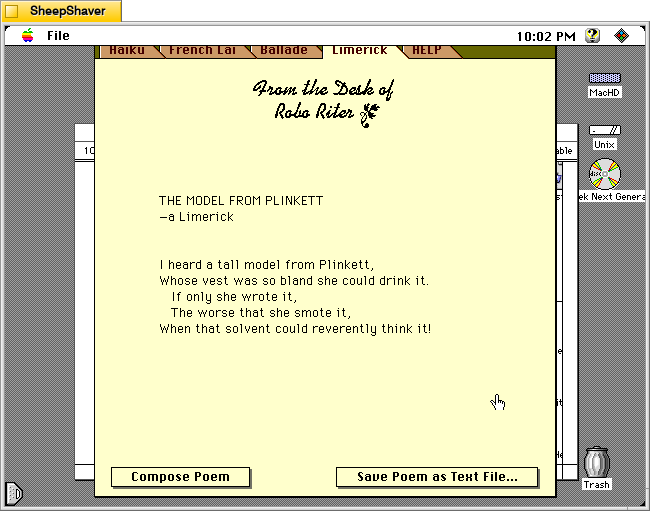
    Robo Riter generated limerick on Macintosh System 7.5.5 system emulated in SheepShaver.

    The Limerick tab proved a little irreverent compared to the other composition tabs, which is fitting, I suppose, given the genre. After pressing Compose Poem,” “Selecting a theme and a punch line” appeared with a corresponding musical tone. Then, “Assembling ill-considered rhymes” appeared with a fart sound, and finally, “Convulsing at my own jokes” with a recorded “whoops” sound before showing “THE MODEL FROM PLINKETT” limerick.

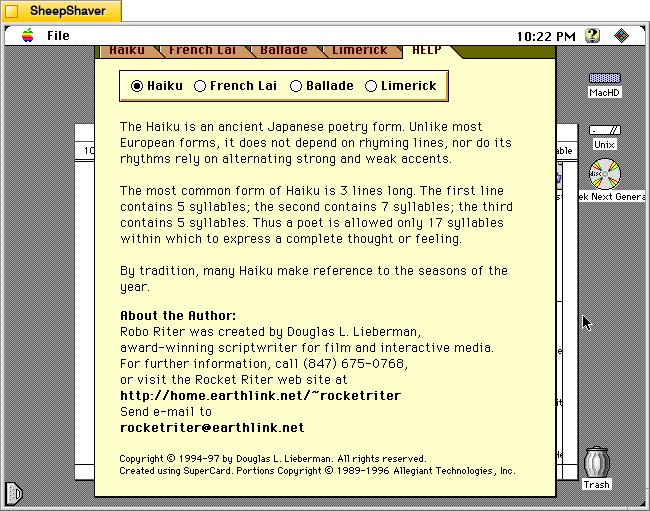
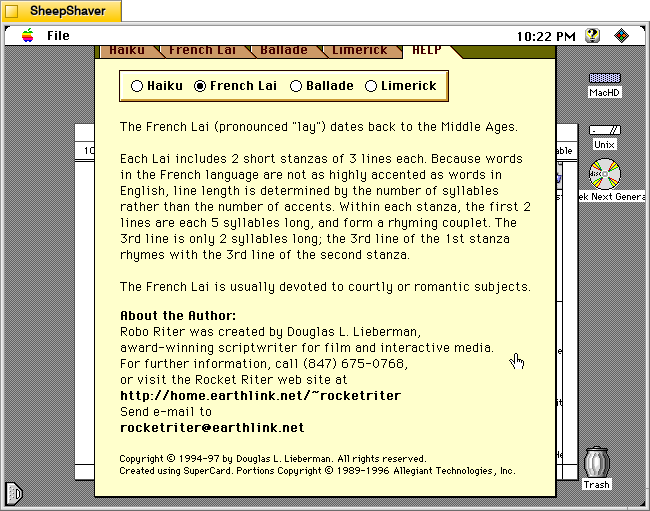
    Robo Riter's Help tab > Haiku on Macintosh System 7.5.5 system emulated in SheepShaver.

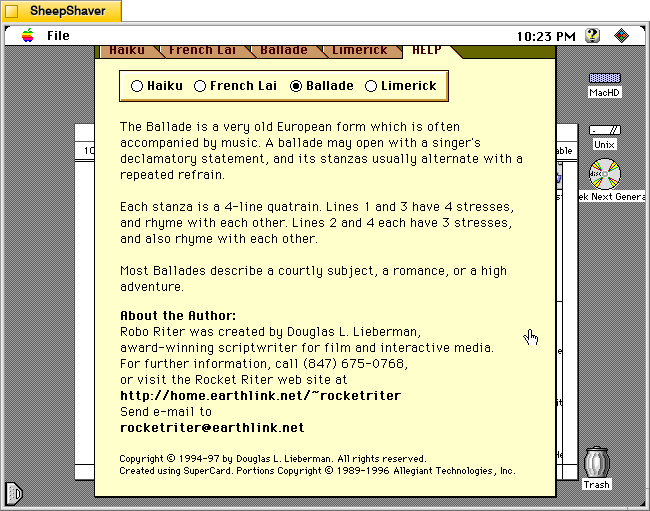
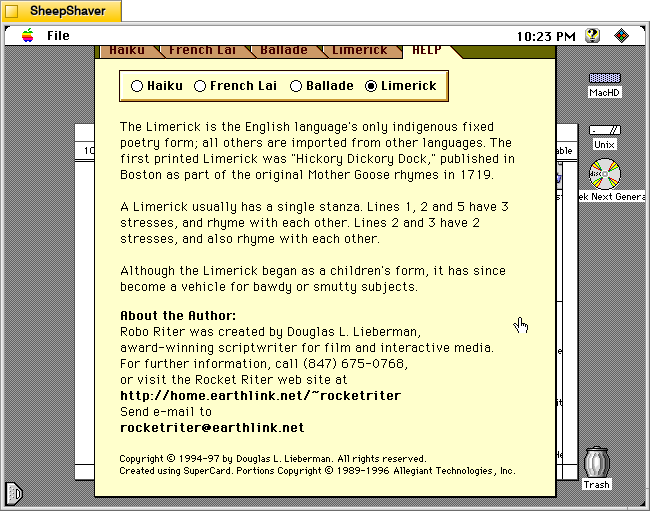
    The HELP tab has sub sections accessible via selecting the radio button next to Haiku, French Lai, Ballade, or Limerick.

    Robo Riter's Help tab > French Lai on Macintosh System 7.5.5 system emulated in SheepShaver.
    Robo Riter's Help tab > Ballade on Macintosh System 7.5.5 system emulated in SheepShaver.
    Robo Riter's Help tab > Limerick on Macintosh System 7.5.5 system emulated in SheepShaver.

    Each of these help sections provide an explanation of that genre of poem’s construction, context, and purpose.

    Robo Riter is more a black box than some of the other text generating applications that I’ve written about before. But, it’s compositions through several iterations seem quite good and interesting. Lieberman seems to have done good work behind the scenes to make his program produce what I read on the few trials that I did.

  • Cyberpunk Brain in a Box Image Created with Stable Diffusion

    These images are called Brain in a Box 1, 2, and 3. The idea behind them was a electronic-organic computer assemblage that fit into a 19″ server cabinet. The brains are modeled on my fMRI scans, and the background cabling and box perspective come from another controlnet layer using a snapshot of a networking setup with bundles of ethernet cables. The lighting details and computing element details varied based on my prompt.

    I liked how #2 seems like a universe of constellations of lights and wires beneath a transparent brain-shaped cover.

    Number 3 is the brightest of the series. Its brain combines the previous two aspects–transparency and brain folds.

  • Anthropomorphic Cat Wearing a Hoodie and Working on Computers Made with Stable Diffusion

    Anthropomorphic Cat Wearing a Hoodie and Working on Computers Made with Stable Diffusion.

    In this Stable Diffusion made image of an anthropomorphic cat wearing a hoodie and jeans, we find the subject in a workshop surrounded by computer parts and multiple monitors. The main parts that needed repair with inpainting were his hoodie pull strings and what was displayed on the computer monitors (originally, the center one had a ghastly distorted face, but I was able to replace it with computer code). Also, almost all of the anthropomorphic cats need inpainting on the paws to make them look like real paws instead of fur-covered human hands and fingers.