Tag: DIY

  • New Wood Shelf to Show Off the Millennium Falcon Above My Home Workstation IKEA Table

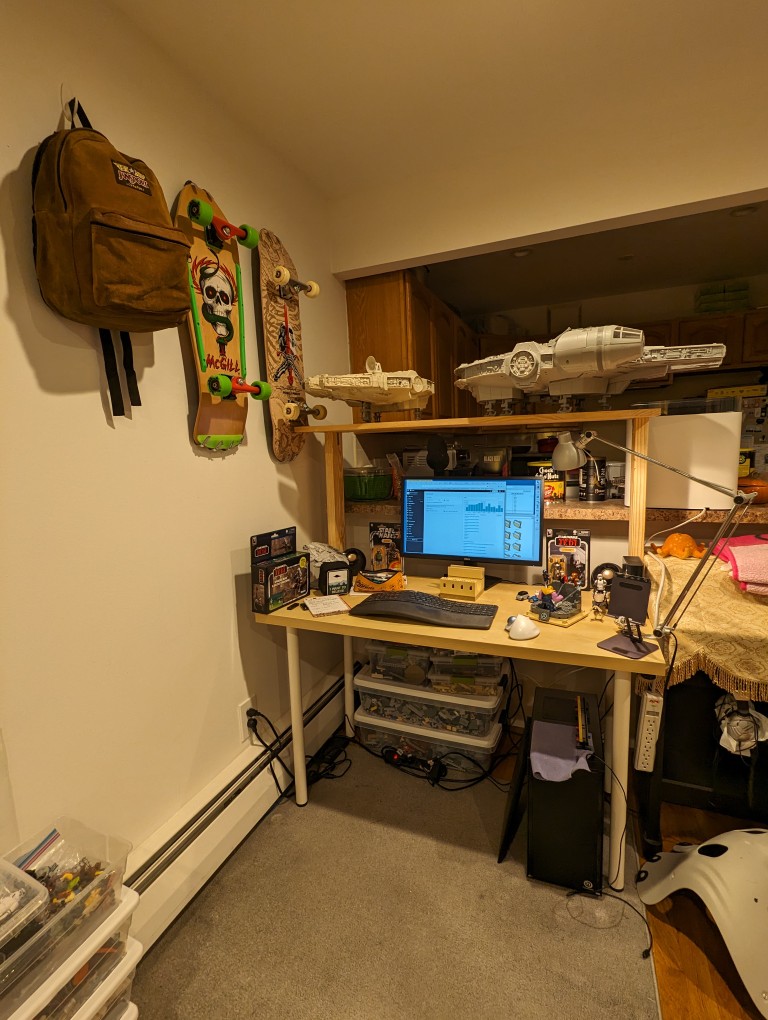
    IKEA 47" desk with metal legs and DIY 12" shelf supported by two 2" x 4" x 24" studs. There are two Millennium Falcon toys on the shelf.

    I have two big problems. One is a Kenner 1979 Millennium Falcon, which is 22″ long and a little over three pounds. The other is the much larger Hasbro 2008 Legacy Collection Millennium, which is 32″ long and weighs 15 pounds. Living with these hunks of junk in a small Brooklyn apartment presents a problem–where to put them?

    For awhile, I’ve had two 4′ desks in an L-shape configuration. One is my ancient IKEA 47″ x 24″ artificial wood with metal legs desk, which had been holding the Falcons. The other is a Costco 48″ folding plastic desk, which I had setup to use my computer and laptop on. I wanted to put the Costco desk away to free up some living room floor space, so I thought about adding a shelf to the Ikea desk would be the solution.

    I used to have a series of lightweight shelves on my Ikea desk to display LEGO sets, which I wrote about here. I discarded those when we moved from Carroll Gardens to Park Slope, which is fine as they were not wide enough or strong enough to support the two Falcons.

    I already had screws, brackets, and support plates. I also had a 4″ x 12″ x 1″ board that I had used to extend the IKEA desk’s table top for lightweight objects. I took this board off the IKEA desk and intended to use it as my new shelf.

    What remained needing were two supports for the shelf. Yesterday, I walked to the Brooklyn Lowes to buy two 2″ x 4″ x 2′ studs (total $4) for the shelf supports.

    The corners of the IKEA desk are more substantial to support the installation of its four legs. Therefore, I wanted to mount the shelf’s two supports through that particle board instead of the weaker honeycomb core of the desk top. I drilled pilot holes 3/4″ from either side of the desk top at 1″ and 2 1/2″ from the back of the desk top to correspond with the pilot holes I centered on the 2″ x 4″ supports at the same measurements. I drove 3″ deck screws from the bottom of the desk top into the bottom of the 2″ x 4″ shelf supports.
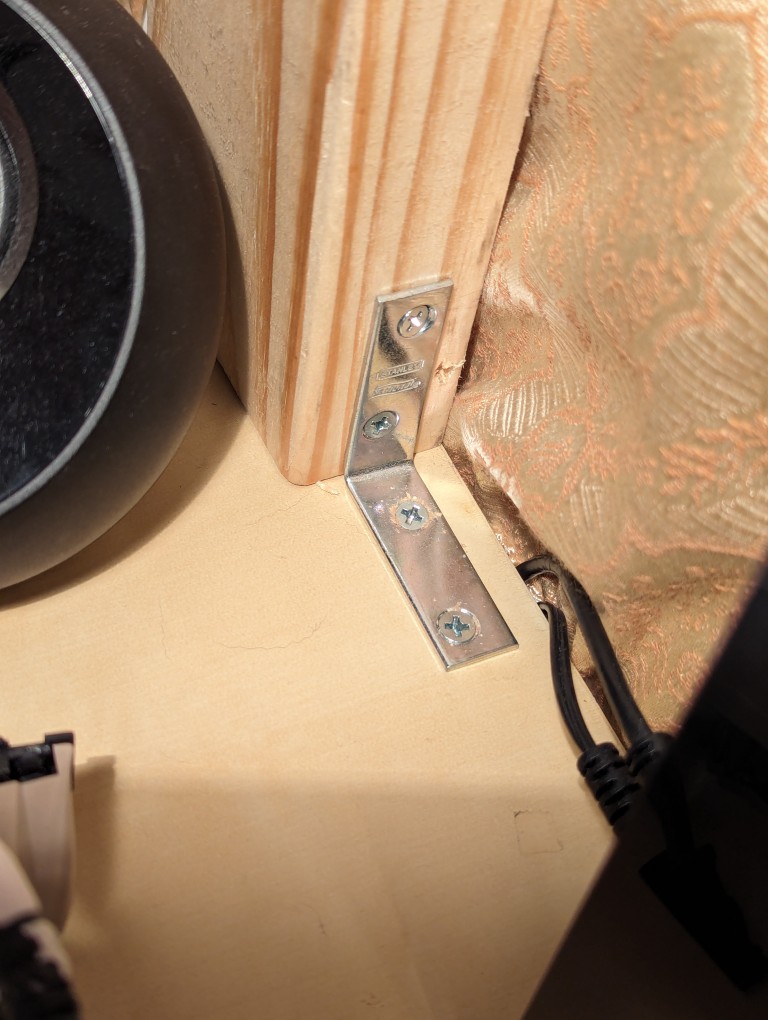
    L-shaped metal bracket connecting an IKEA desk top with a 2" x 4" stud

    I provided extra support with a flat metal plate on the back and an L-shaped bracket on the front.
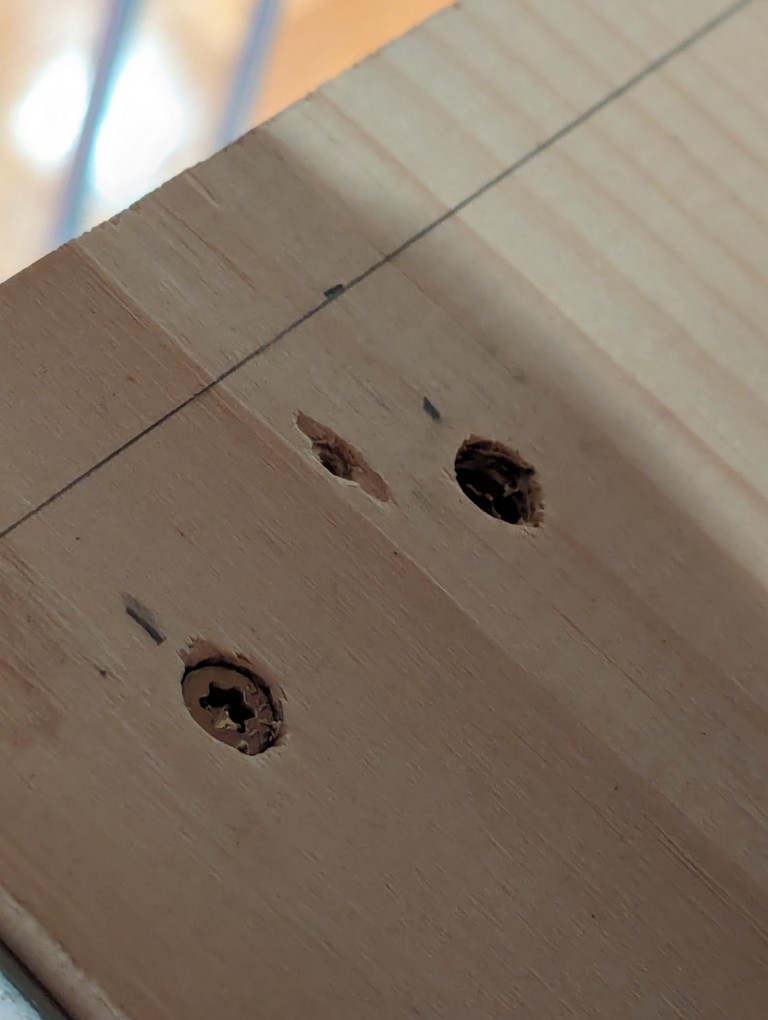
    1 7/8" deck screws driven through a 1" x 12" x 48" board

    Taking the shelf, I measured and drilled pilot holes on its back end at 1 1/4″ from either side at 1″ and 2 1/2″. The shelf is 48″ long but the desk is only 47″ long, so the shelf hangs over its supports by 1/2″ on either side. To secure the shelf to the supports, I drove 1 7/8″ deck screws through the shelf into the support from the top.
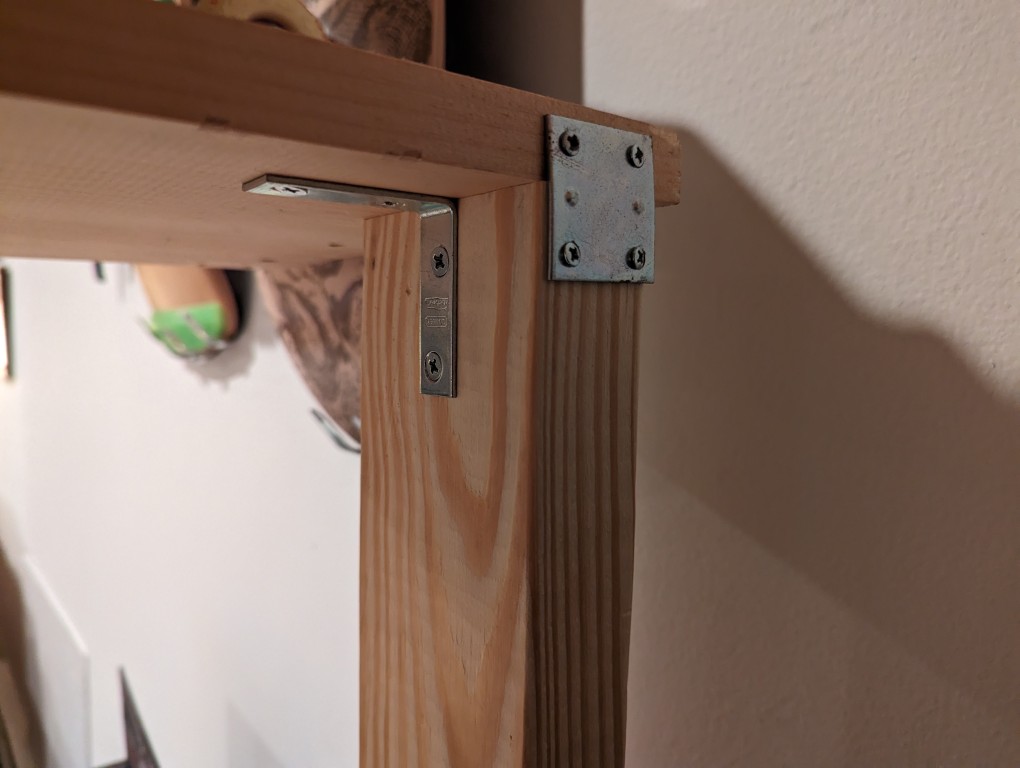
    Metal plate and L-shaped bracket supporting the meeting of a 2" x 4" support and 1" x 12" x 48" board

    I reinforced the shelf with a metal bracket on the back of each support and an L-shaped support on the inside under the shelf.
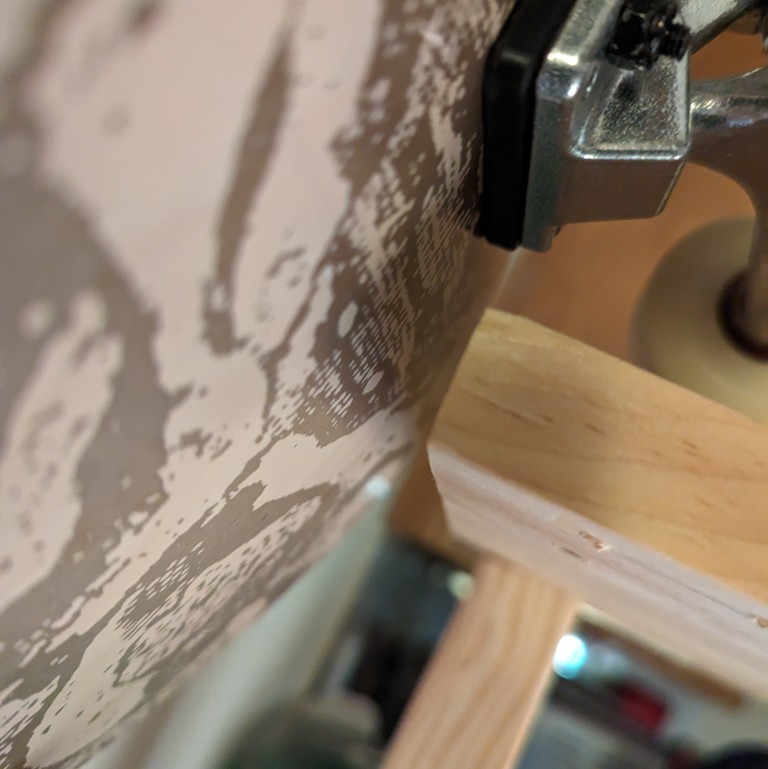
    1/2" clearance between edge of shelf and skateboard hanging on the adjacent wall

    I had to slide Y’s electric piano over an inch to give my shelf about 1/2″ clearance from my Ray “Bones” Rodriguez Powell-Peralta skateboard hanging on the wall.
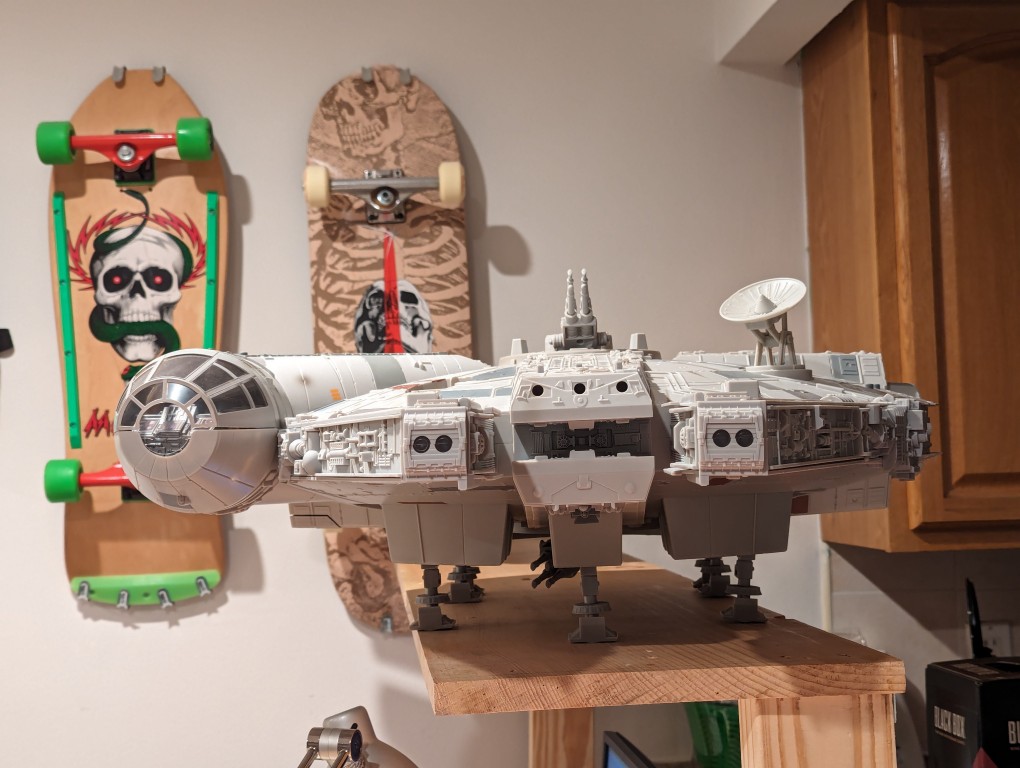
    2008 Hasbro Millennium Falcon sitting on the shelf

    Looking at the “BIG” 2008 Millennium Falcon on the shelf, you can see that the landing gear comfortably fit on the 12″ (11 1/4″ actual) shelf when positioned longways. As you can see in the first photo on this post, the smaller 1979 Falcon can fit in any orientation and currently facing toward the front of the desk.

    I’ll keep an eye on the shelf to see if it needs any additional support on the front with heavy duty shelf brackets. It was already warped as shown above. I positioned the warp side up, so it might not need any further work.

    If you decide to build a similar back-mounted shelf on a lightweight desk like my IKEA one, be aware that the desk’s weight might not be enough to counterbalance the weight of objects that you put on the shelf, leading it to fall over backwards (if it isn’t positioned against a wall to halt it’s movement).

    In NYC, I suppose desks and shelves are like buildings–if you want more space, you gotta go up!

  • LEGO Folding Cooling Stand for Lenovo ThinkPad P1 Gen 4 Laptop

    LEGO Folding Cooling Stand for Lenovo ThinkPad P1 Gen 4 Laptop

    As I wrote about yesterday, my Lenovo ThinkPad P1 Gen 4 maintains lower temperatures when it has improved air flow under its body where the twin cooling fan intakes are. Without raising the laptop, the laptop’s support feet only give it about 3 mm of space underneath it, which chokes the intake fans. Since getting the laptop late last year, I’ve used a variety of at-hand objects–books and small boxes most often–to prop up the back of the laptop when I was stressing the laptop with a heavy workload.

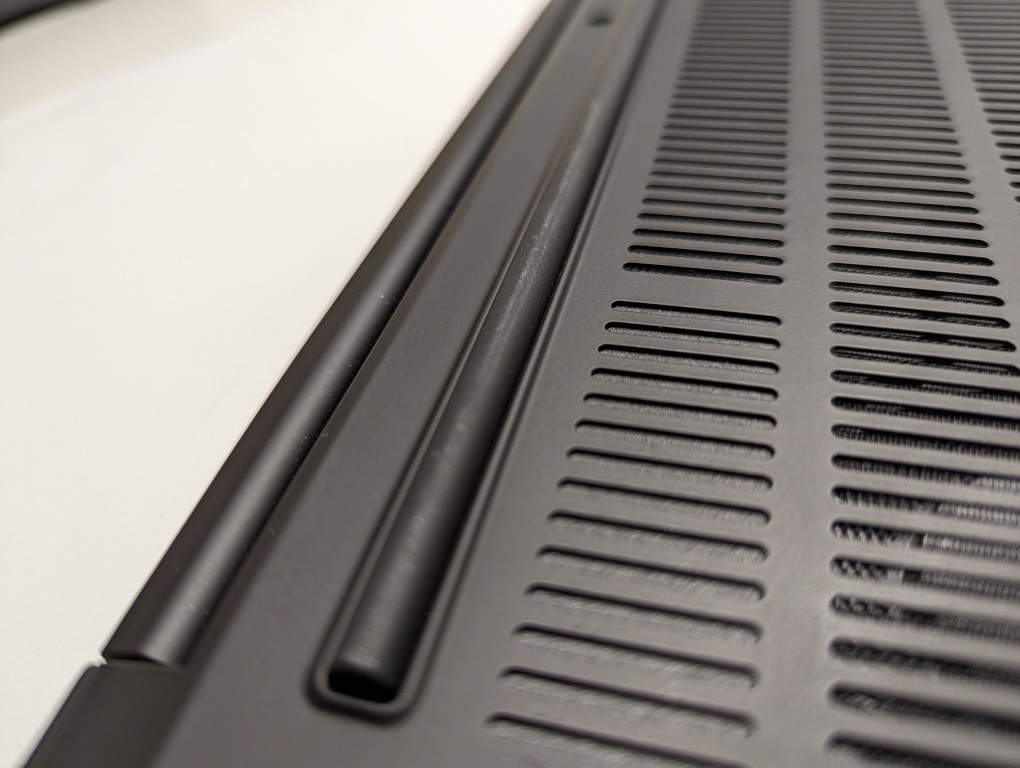
    ThinkPad P1 Gen 4 rear support foot that runs about 80% of the width of the laptop.

    I wanted a permanent solution, but the portable options available in retail are either bulky adjustable metal or plastic platforms or folding 4-point stands. The former takes up a lot of room and those with fans don’t always translate to lower temps, and the latter might not provide the support needed on the ThinkPad P1’s lengthy support foot at the rear of the laptop. So, I turned to LEGO to create a customized stand that gives the ThinkPad the support it needs while also being compact and easily carried in my backpack.

    LEGO Folding Cooling Stand for Lenovo ThinkPad P1 Gen 4 Laptop

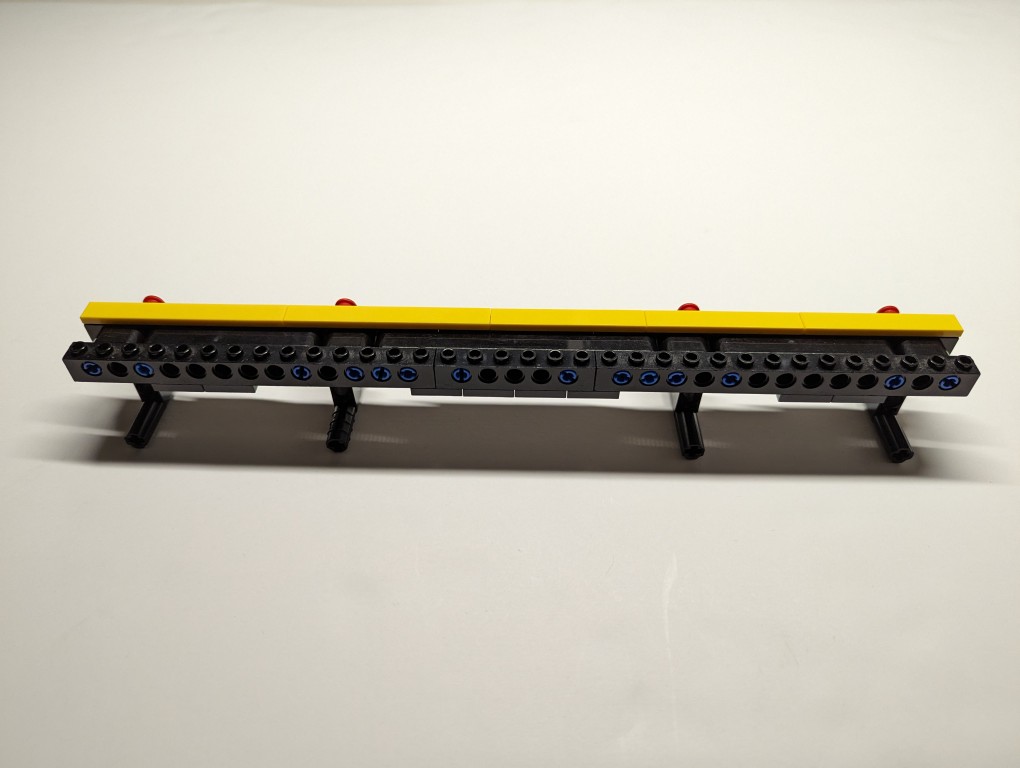
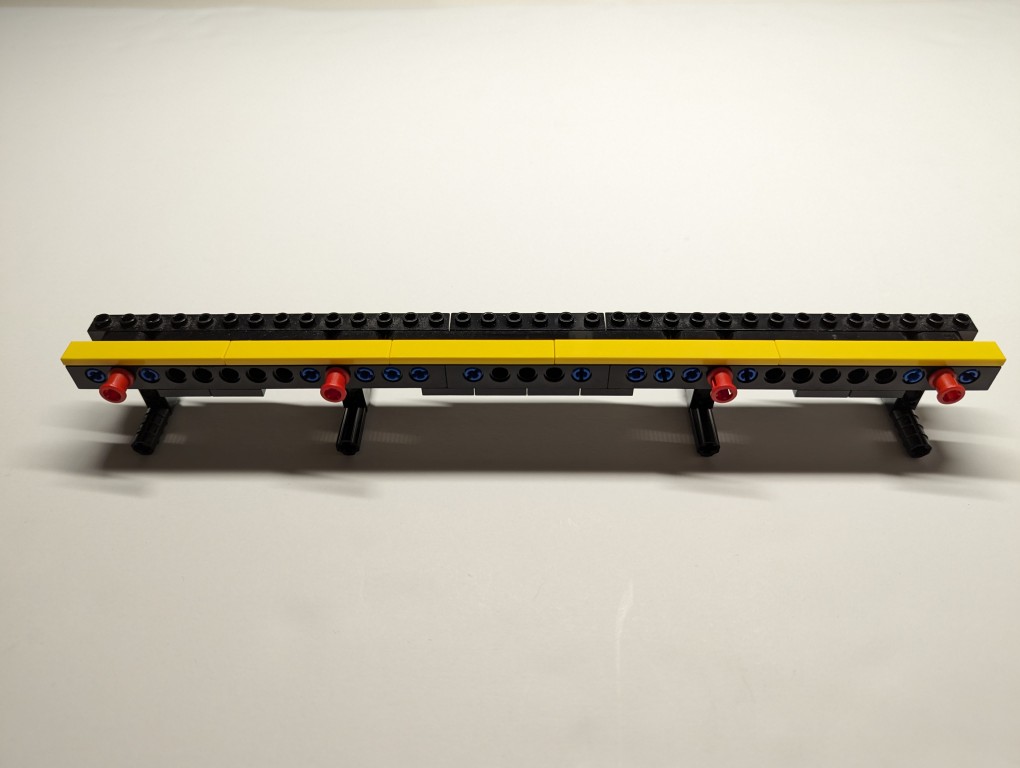
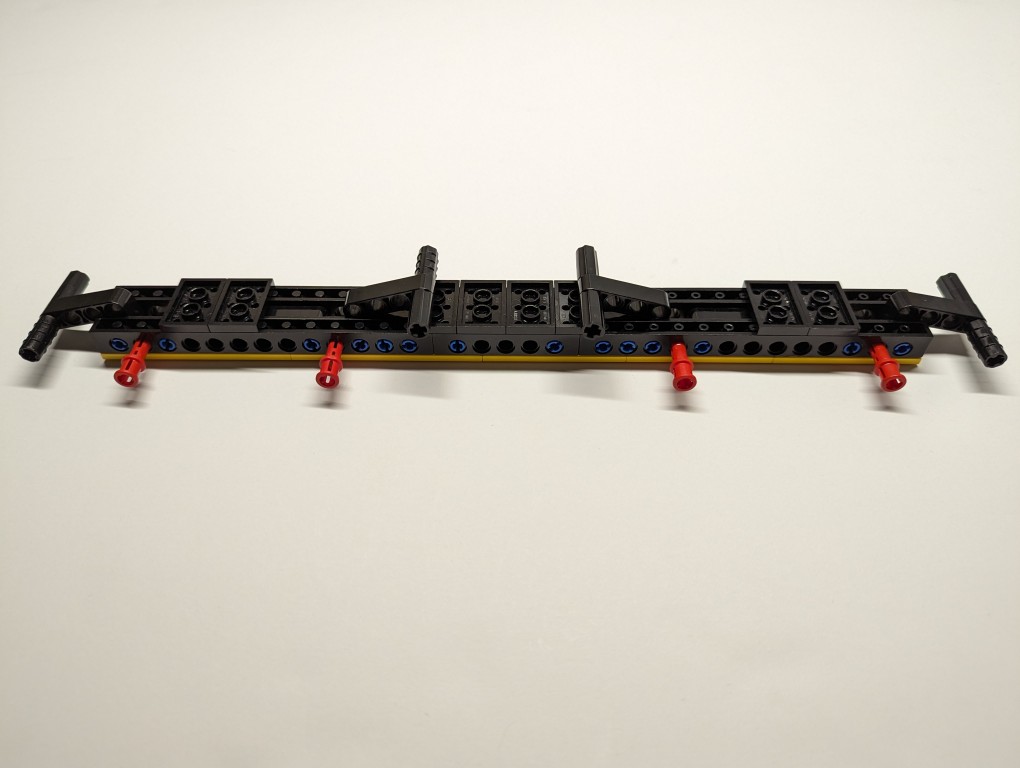
    What I made to solve this problem mostly used LEGO Technic elements with some brick elements (plates to provide support underneath its joints and the bright yellow smooth plates on top to orient the stand and provide a stop against the ThinkPad’s support foot).

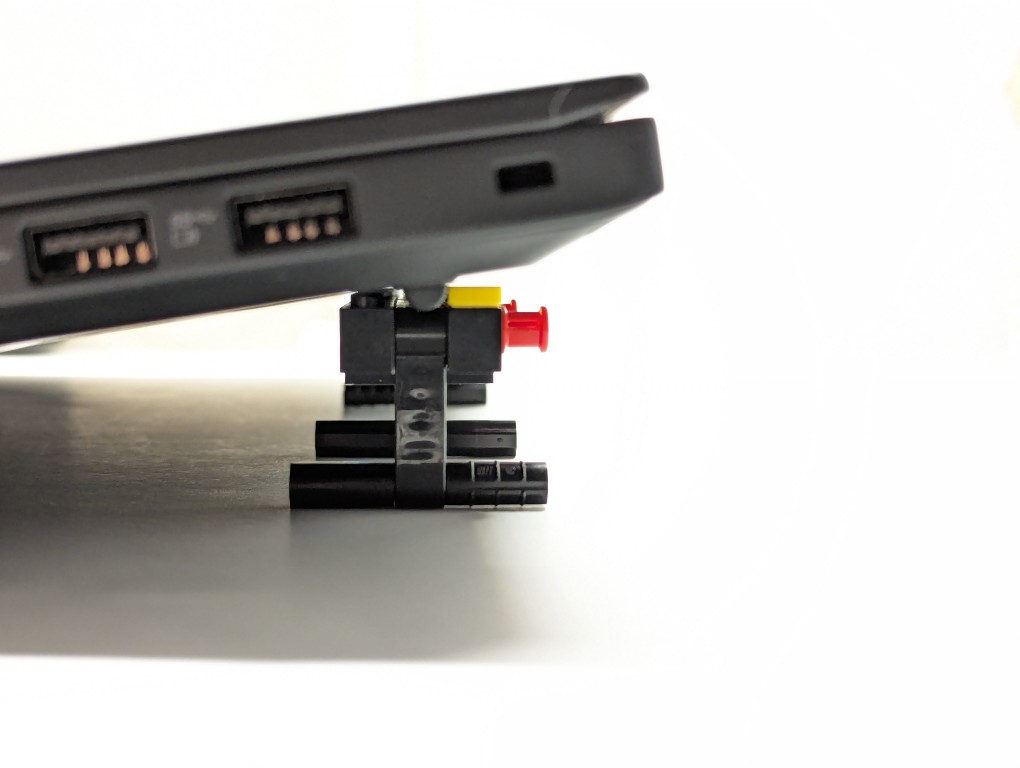
    LEGO Folding Cooling Stand for Lenovo ThinkPad P1 Gen 4 Laptop holding up the laptop, side view.

    The ThinkPad’s support foot fits perfectly in the center of the stand without the studs toward the front or the flat plate in the back touching the laptop’s body.

    LEGO Folding Cooling Stand for Lenovo ThinkPad P1 Gen 4 Laptop

    Essentially, the stand is built like a sandwich: the bread is the Technic bricks with holes on either side, and the filling is the Technic liftarms (straight and L-shaped). I used 3-stud wide pins to hold the sandwich together. The red pins are only used to provide stability to the support legs when they are deployed for use.

    LEGO Folding Cooling Stand for Lenovo ThinkPad P1 Gen 4 Laptop
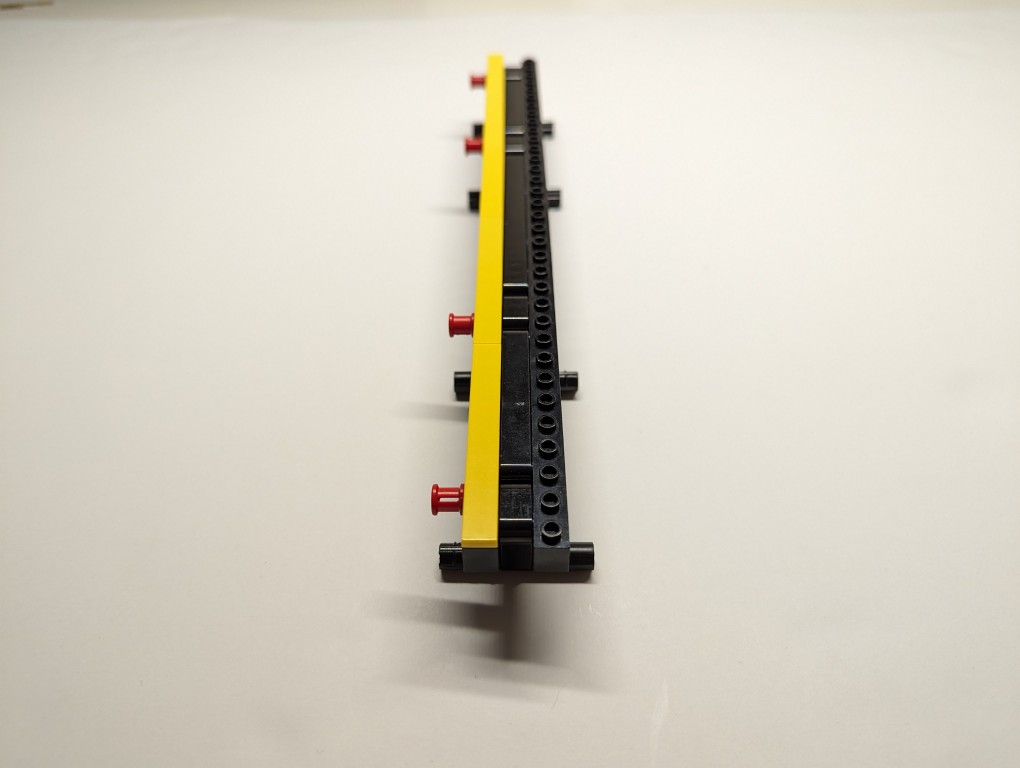
    LEGO Folding Cooling Stand for Lenovo ThinkPad P1 Gen 4 Laptop with legs folded

    On the back of the stand, the red pegs can be partially pulled out and the feet folded.

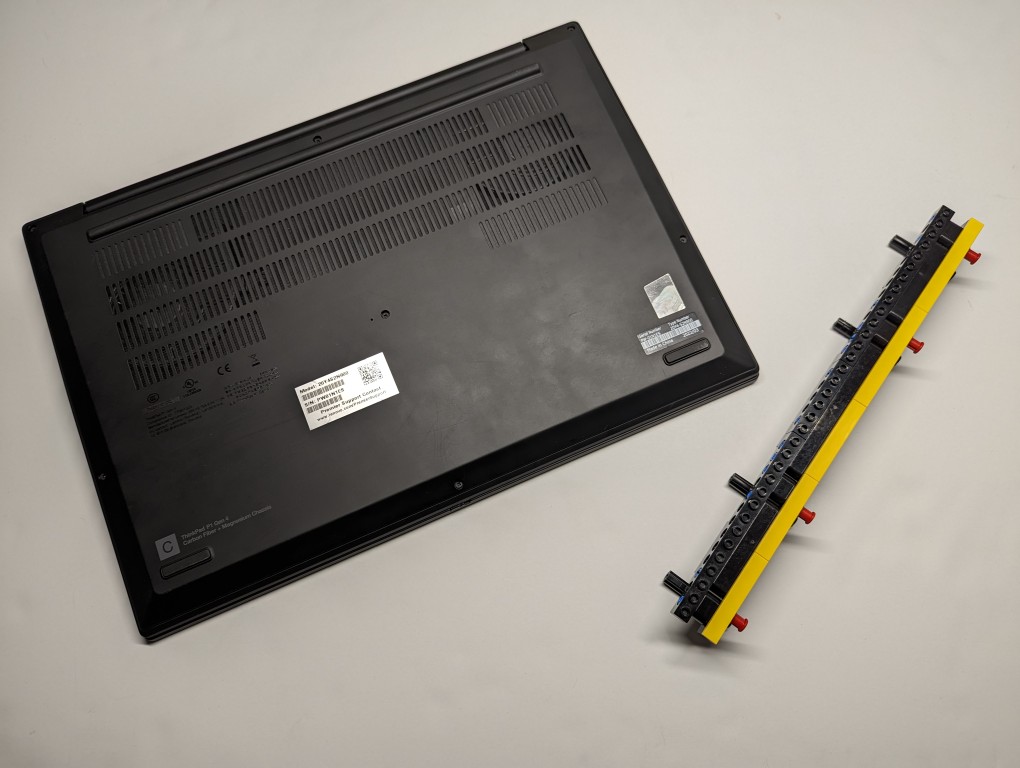
    LEGO Folding Cooling Stand for Lenovo ThinkPad P1 Gen 4 Laptop shown side by side.

    The LEGO stand completely covers the support foot at the rear of the laptop (seen at the top of the photo above). When folded, it easily slips into the backpack that I use to carry this ThinkPad.

    LEGO is a versatile, rapid prototyping medium for building art, expressing ideas, and in this case, creating something practical to solve a specific problem.

    If you have some LEGO bricks laying around idle, you might stop and think about what problem they might be able to solve for you!

  • DIY LEGO Display Stand for Holding Heavy Objects On My Desk

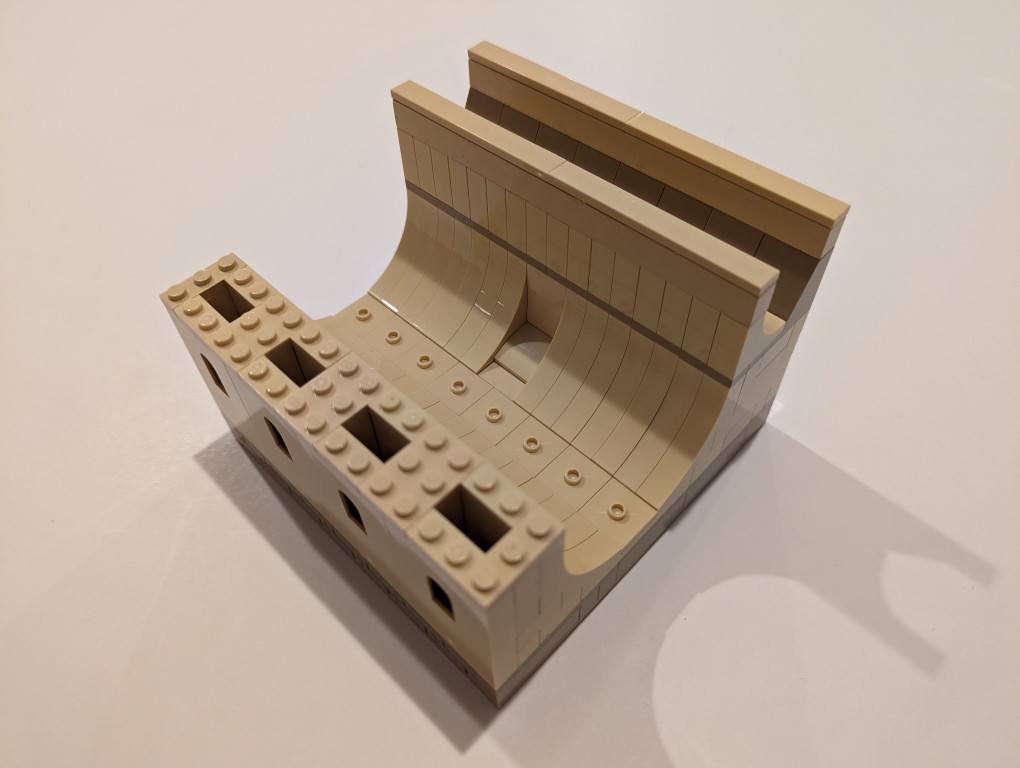
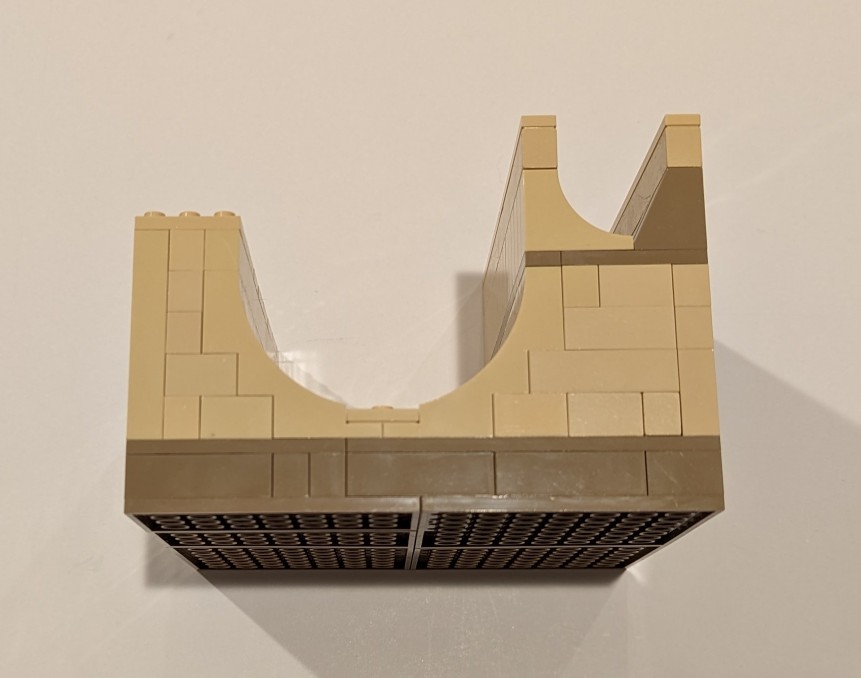
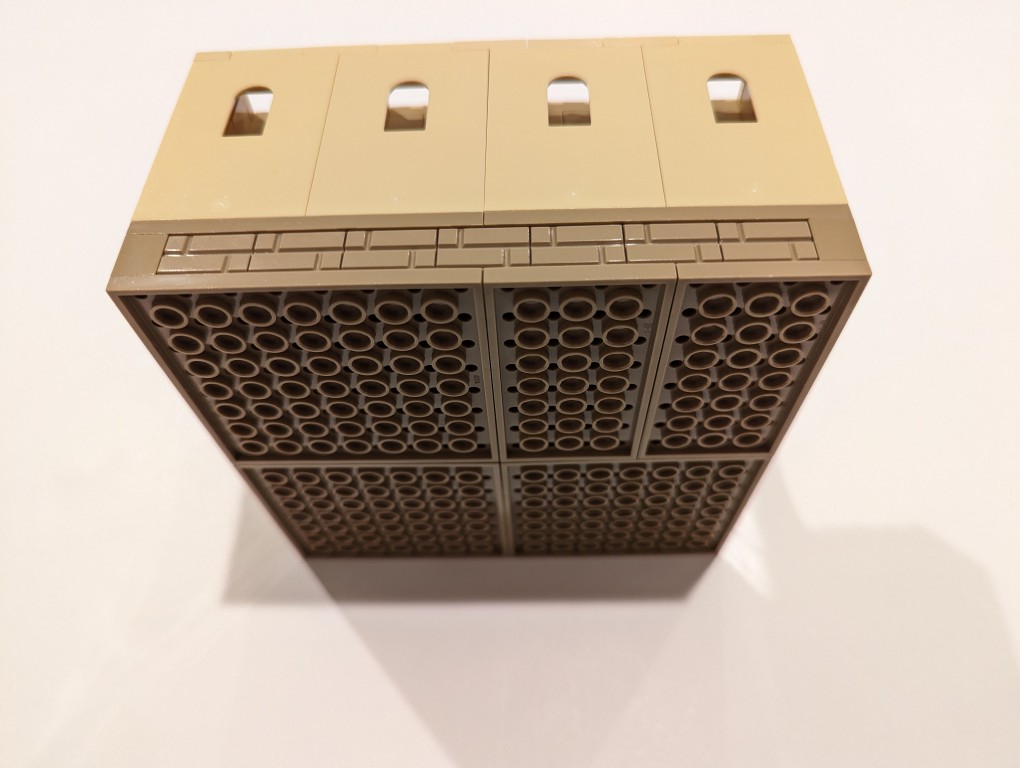
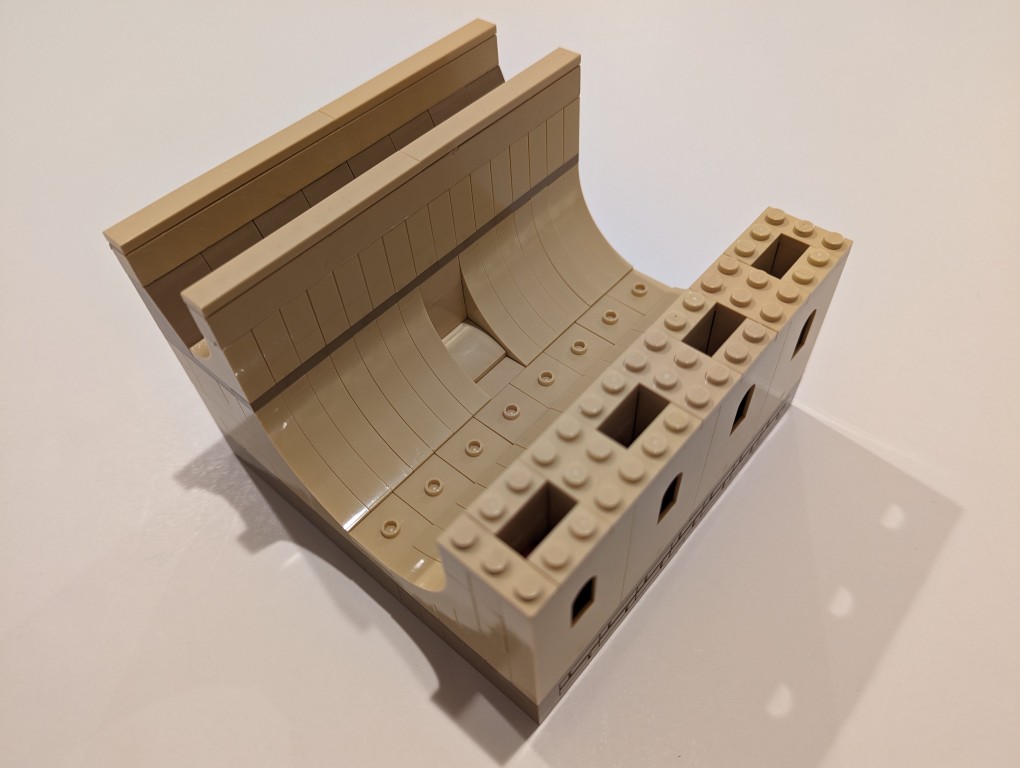
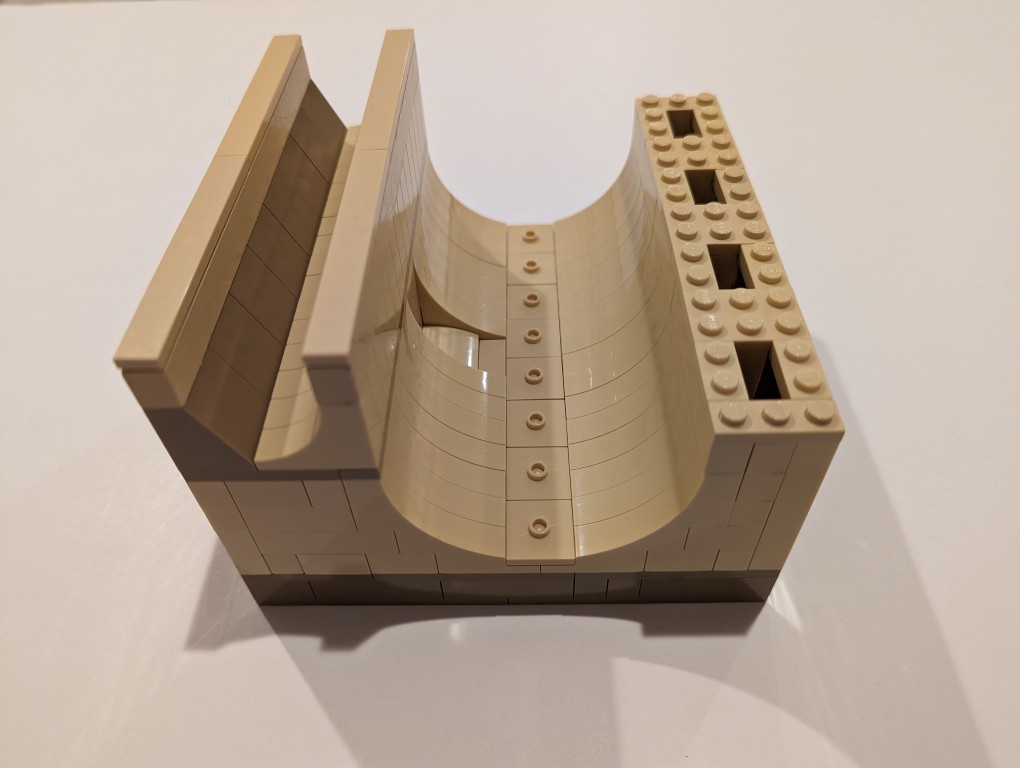
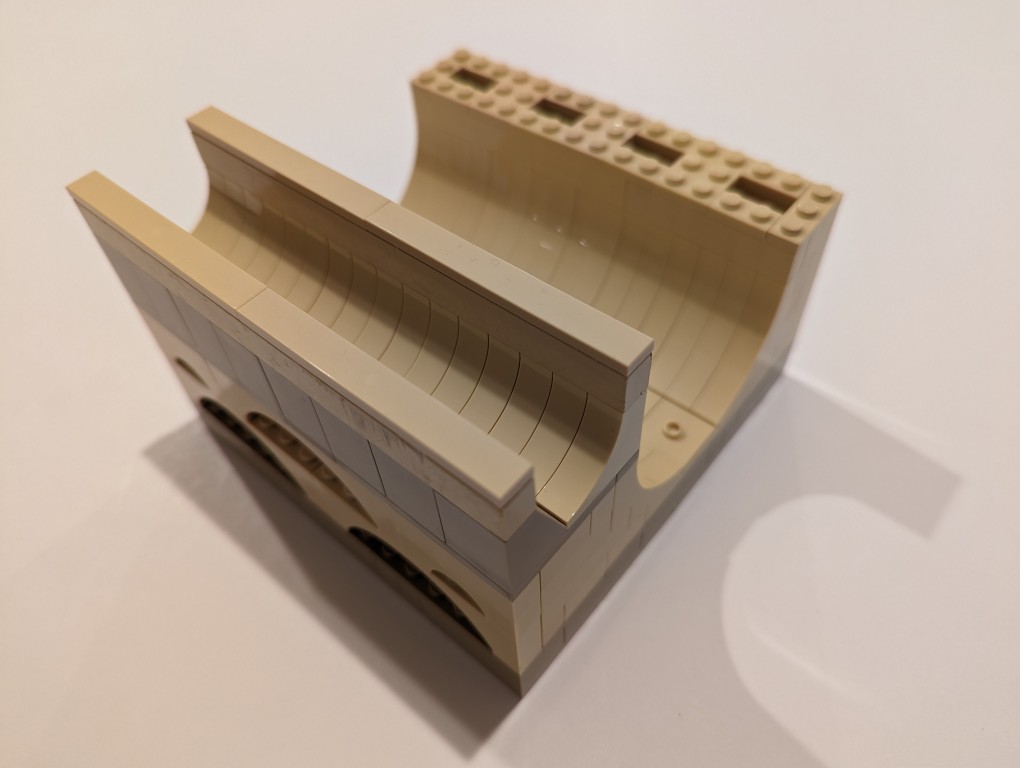
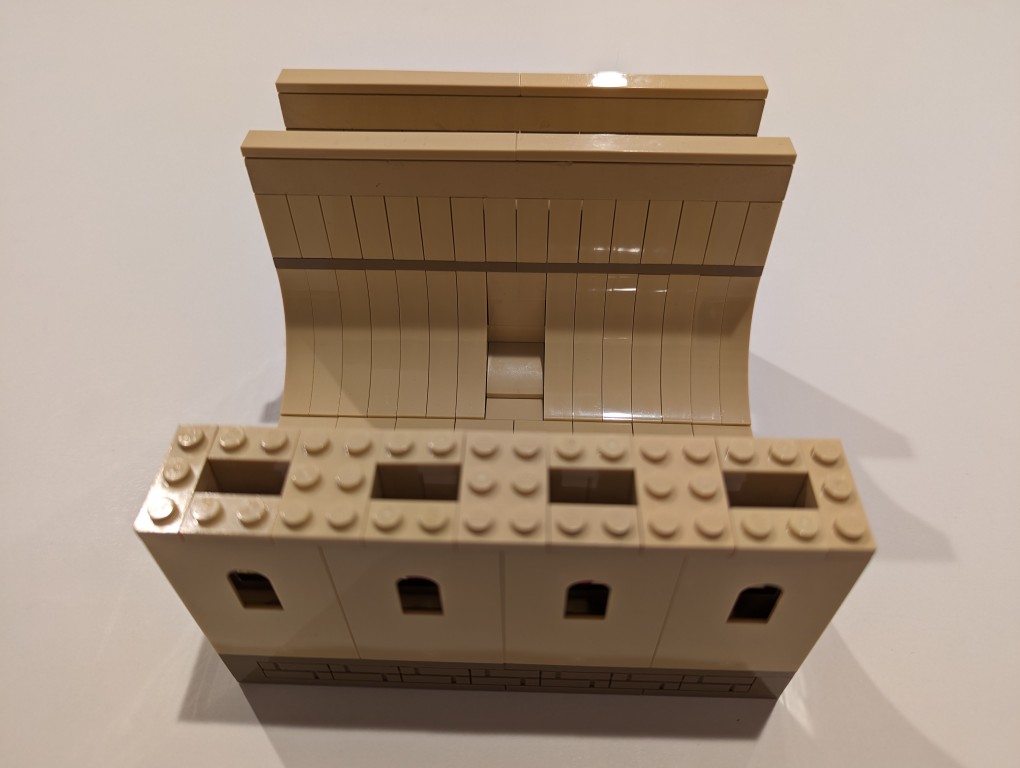
    DIY LEGO Display Stand for holding two heavy objects on a desk, 3/4 view

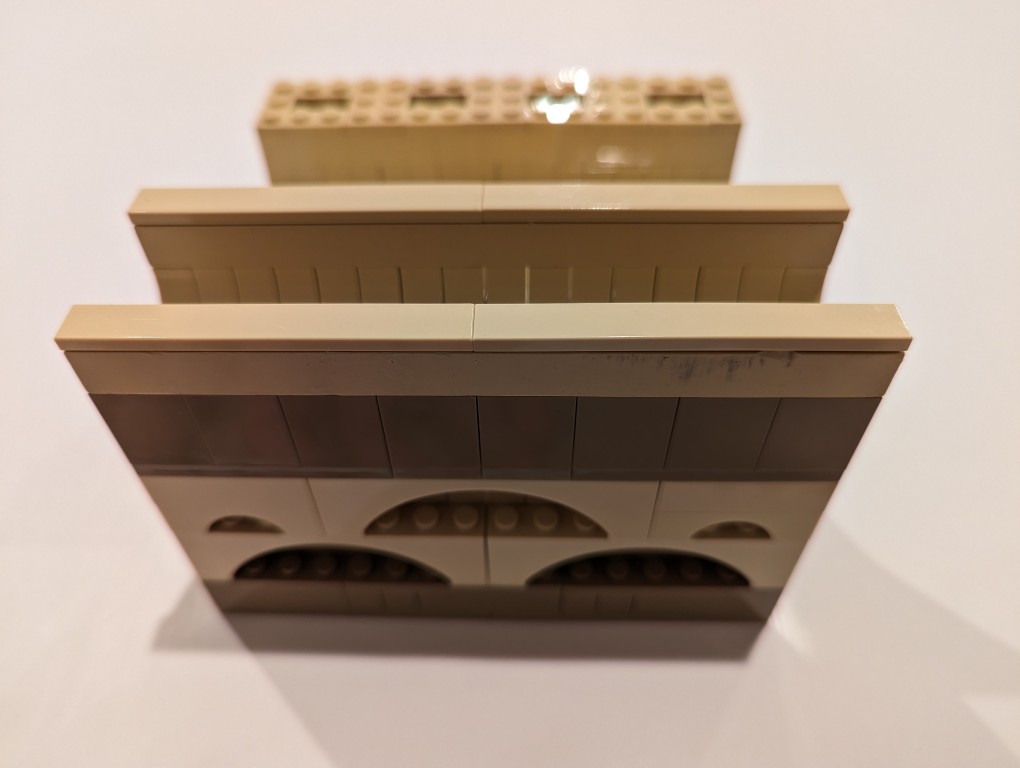
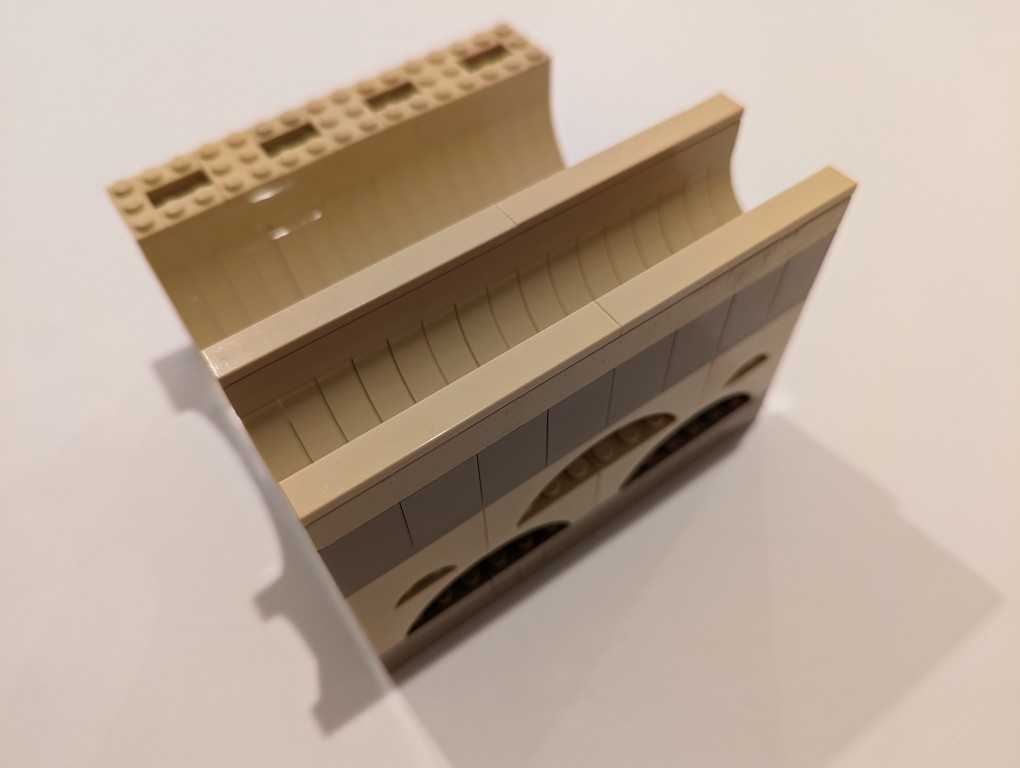
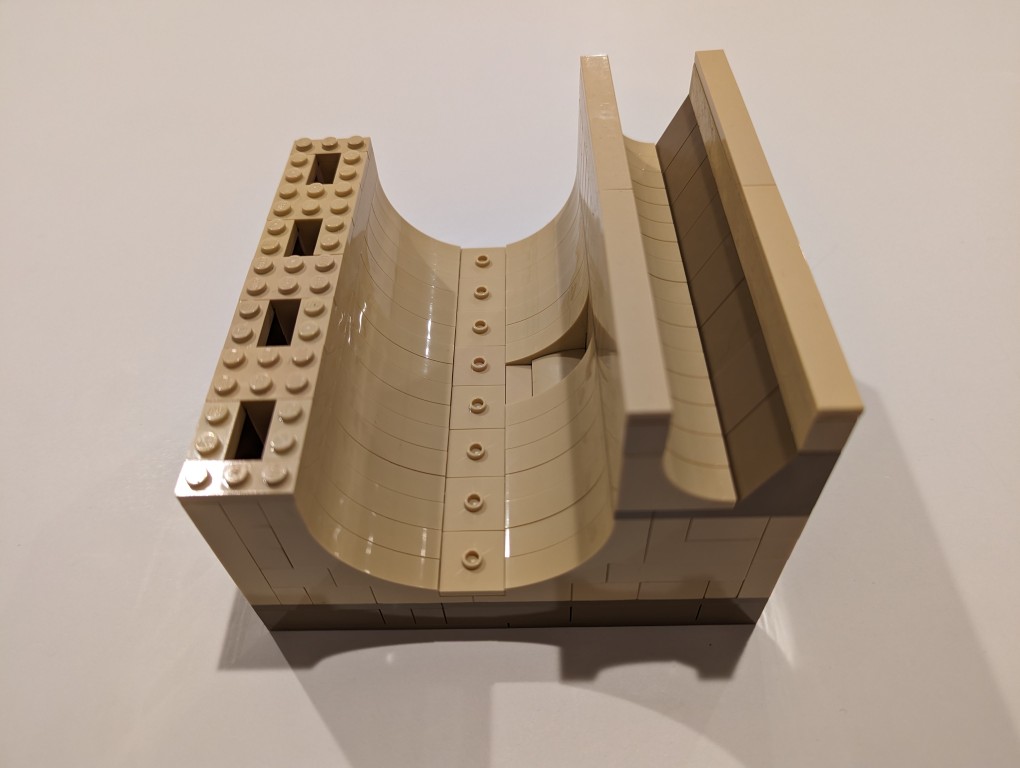
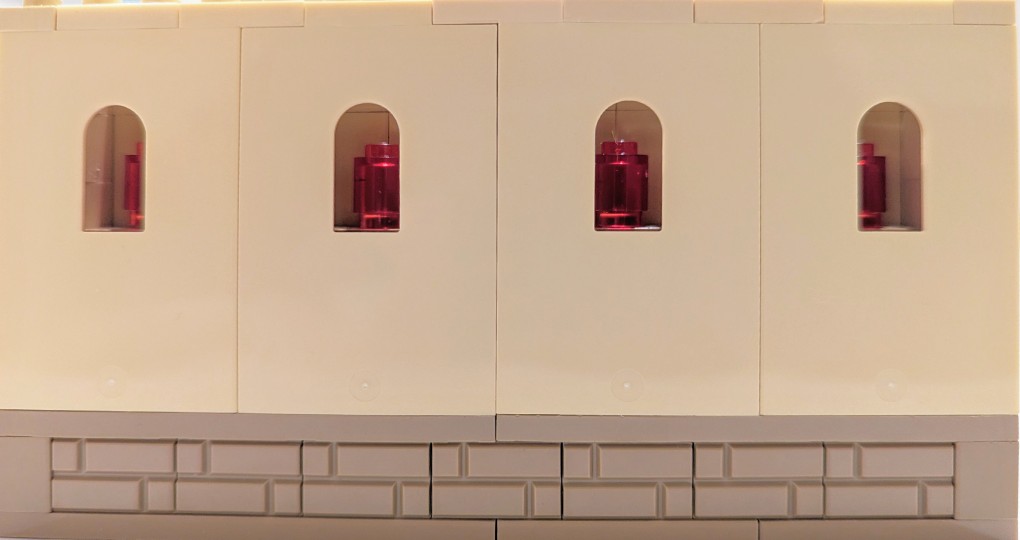
    This past weekend, I dug through my LEGO to build a display stand that could hold two heavy objects on my desk between my monitor and keyboard. It has a wide, lower space and a narrow, higher space for the two objects. To add some visual details, I used window panels along the front with transparent red cylinders in each window center, illuminated by ambient light entered through the top of the front.

    I’m including more photos below of all sides to inspire others. Since it was a trial-and-error build, I didn’t create instructions for the build.

  • Easy DIY Dust Filter for the Thermaltake Versa H17 MicroATX Tower Case

    Black Thermaltake Versa H17 MicroATX Tower Case

    Thermaltake’s Versa H17 MicroATX PC mini tower case is an excellent minimalist case with a relatively small footprint. I chose this case, because it doesn’t have a side window or excessive RGB lighting. I wish that I could disable the power light, which is a bright, room illuminating blue, but I simply cover it with a microfiber cloth.

    It’s designed to have air instake from the edges of the front face, which are covered with a fine grill, a 120mm opening at the rear bottom of the case with a magnetic dust filter for the PSU, and a larger approximately 3/4″ x 4″ opening at the bottom of the front plastic face assembly. The latter is a problem, because it’s basically a rectangular hole through which dust enters the entire case but especially in the shrouded PSU/disk zone in the bottom of the case.

    While working recently on my desktop computer–swapping out video cards and installing a new SSD–I figured that I should do something about that air inlet. I used what I had on hand to create a DIY solution.

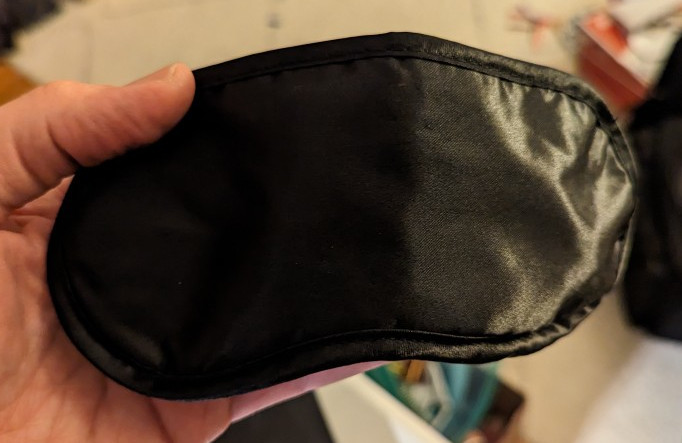
    black airline sleep mask

    First, I took this airline supplied sleep mask. I could feel that it had foam underneath its outer fabric layer, which would work great for capturing dust before it enters the case. I used scissors to cut into the face of the mask within the sewn border.

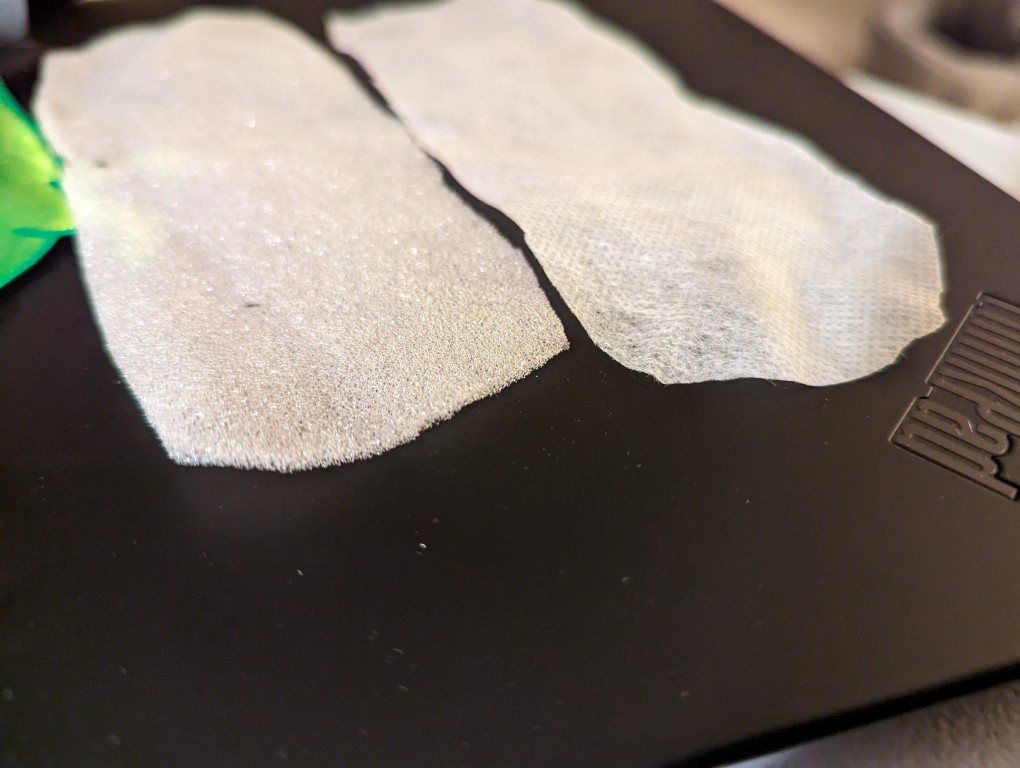
    foam and filter paper inside the sleep mask

    After cutting into the mask, I found two different kinds of material. On the left is a soft 1/16″ thick white foam and on the right is a thin cotton-like material that might also be used for face masks and personal protection equipment (PPE). For my project, I opted to use the thicker foam on the left. While it might not filter as much dust as the fabric on the right, I think it will give a better balance between airflow and filtration.

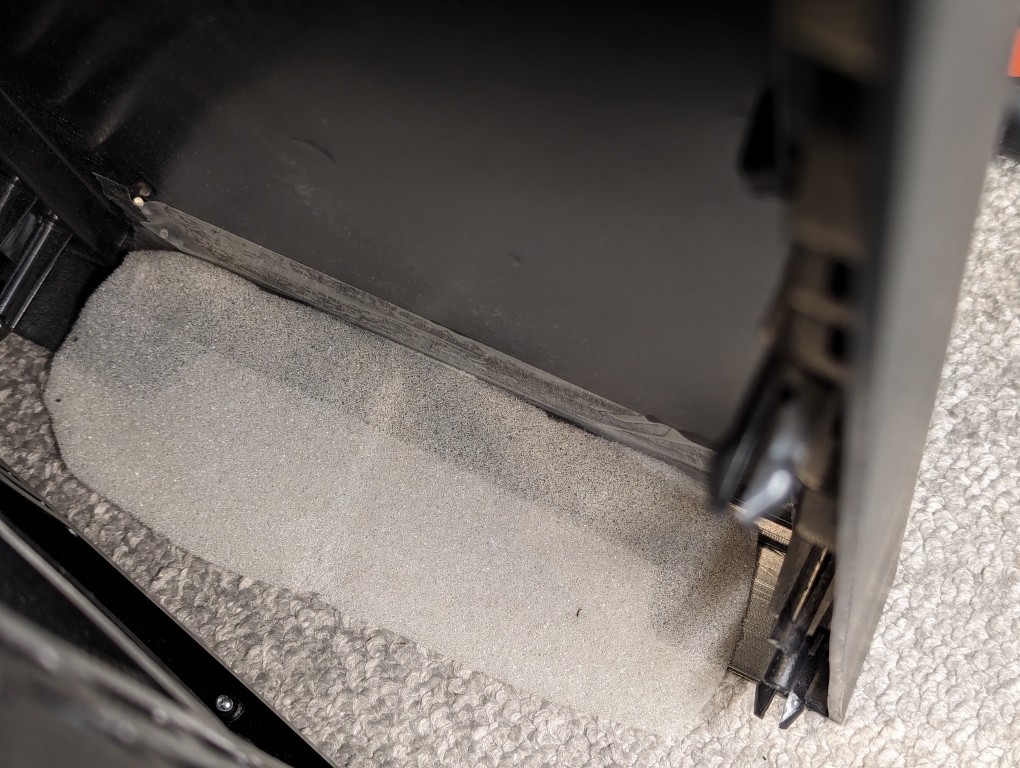
    foam taped over air inlet under the front face of the Thermaltake Versa H17 PC case

    I pulled off the face of the Thermaltake Versa H17 case and taped the foam over the air inlet with a piece of packing tape.

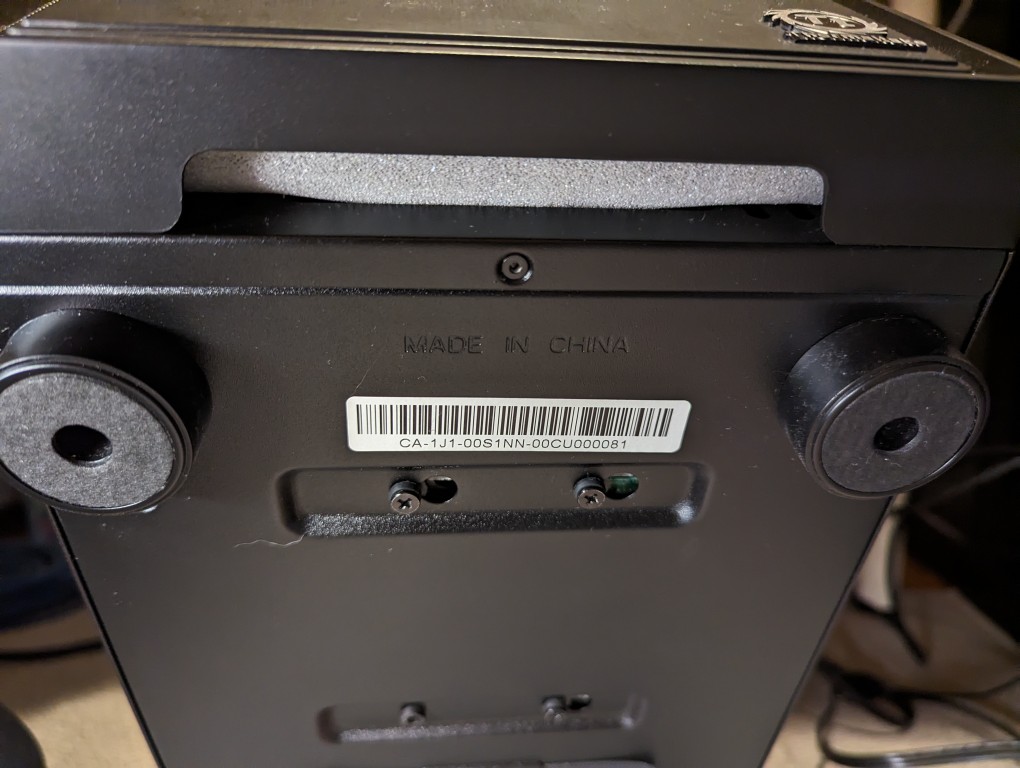
    bottom of Thermaltake Versa H17 case with the foam covering the air inlet.

    After reattaching the face, the foam covers the air inlet. It might take a few tries to make sure the foam covers it completely. The use of additional tape on either end of the foam might help.